

Table of Contents
Share On


Amazon Seller Central Marketplace Integration
This native integration with Amazon Seller Central enables order and inventory synchronization seamless.
Version: v1.0 Date: February 11, 2026 Owner: Sales Channel Product Team Disclaimer: Screenshots of the Amazon Seller Central are used for demonstration purposes only. Amazon and the Amazon logo are trademarks of their respective owners.
1. Overview
What this integration does
The Amazon Seller Central integration connects your Amazon Marketplace store with Omniful so that:
- Orders created through Amazon automatically sync to Omniful for processing.
- Inventory availability maintained in Omniful can be synced to Amazon.
2. Prerequisites
2.1 Sales Channel prerequisites
You will be required to obtain the login credentials for the Amazon Seller Central Store.
3. Integration Methods and Setup
Integrate Amazon Store with Omniful
Once you have the required details:
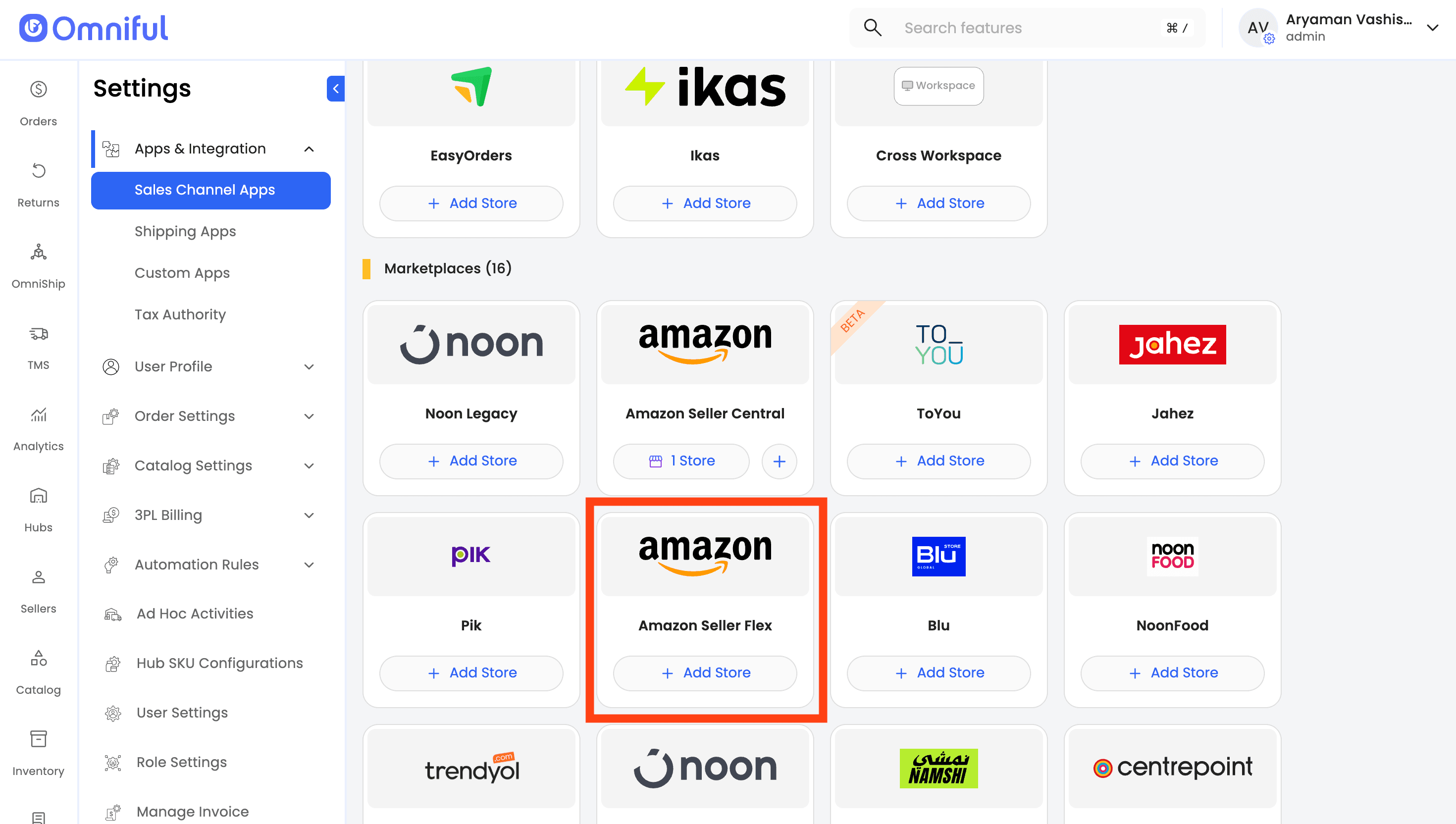
- In Omniful, go to: Settings → Apps & Integration → Sales Channel Apps
- Select Seller and choose Amazon Seller Central from the marketplace section
- Click Add Store
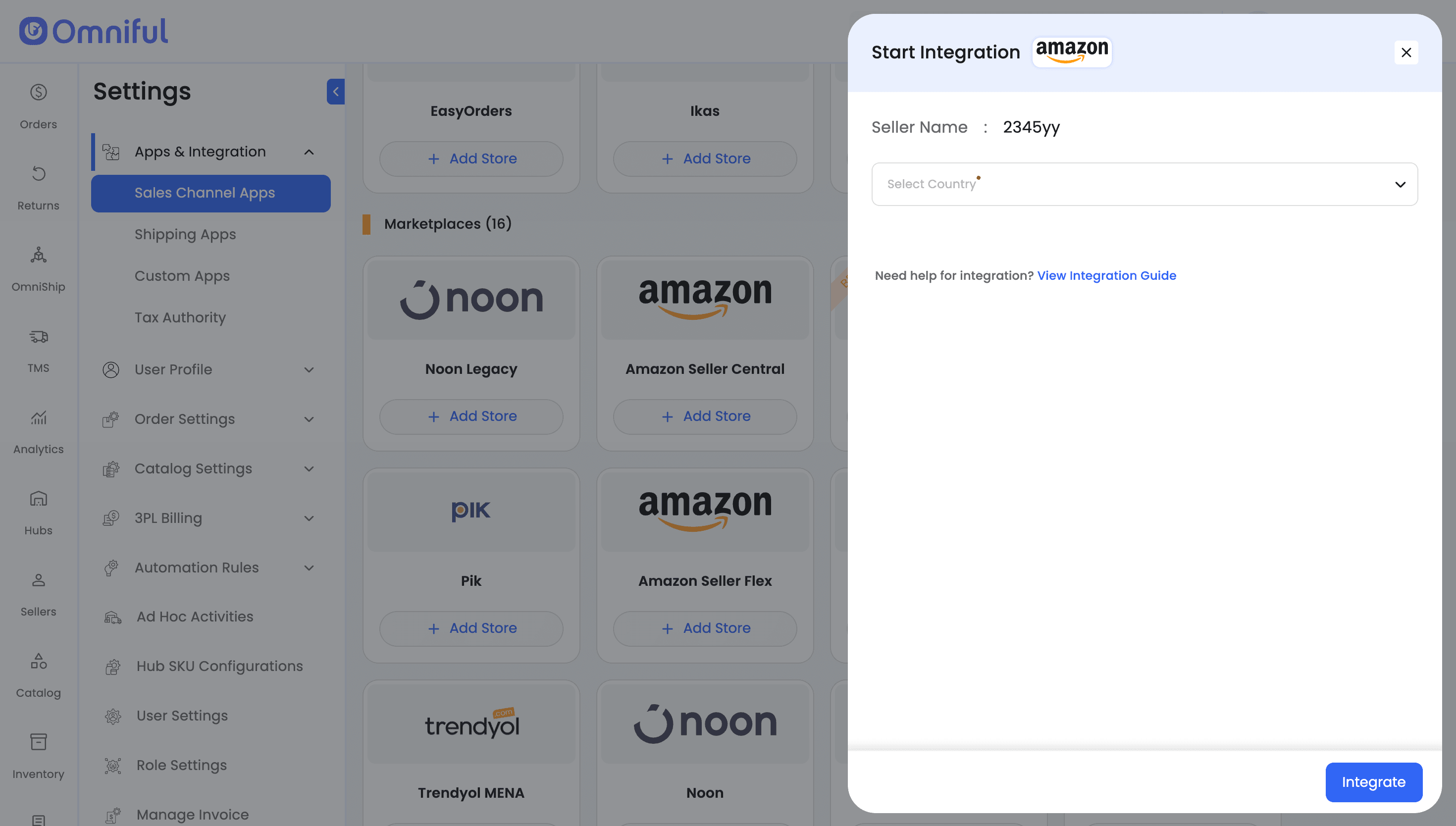
- Select the country for Amazon store integration.
- Click Integrate
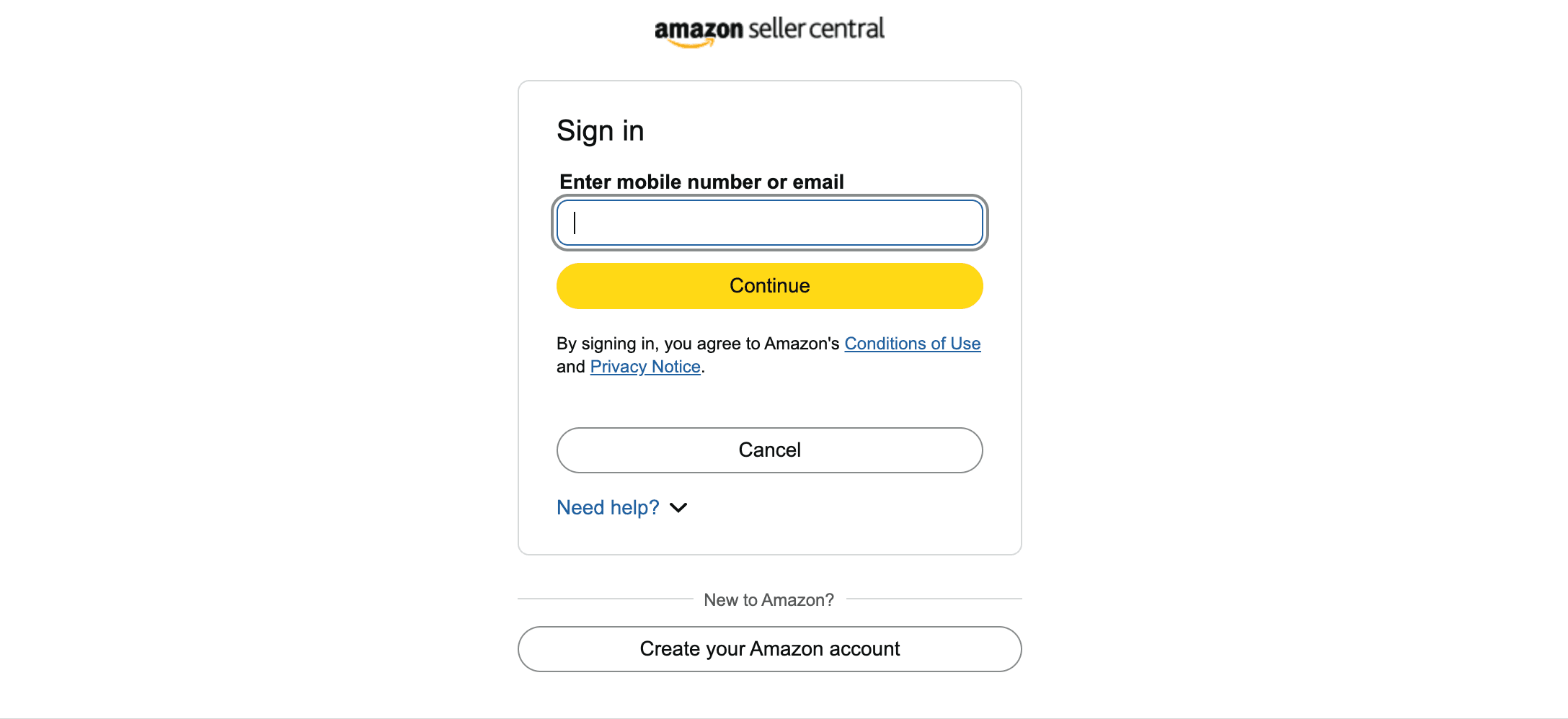
- Sign in to your Amazon Seller Central account.
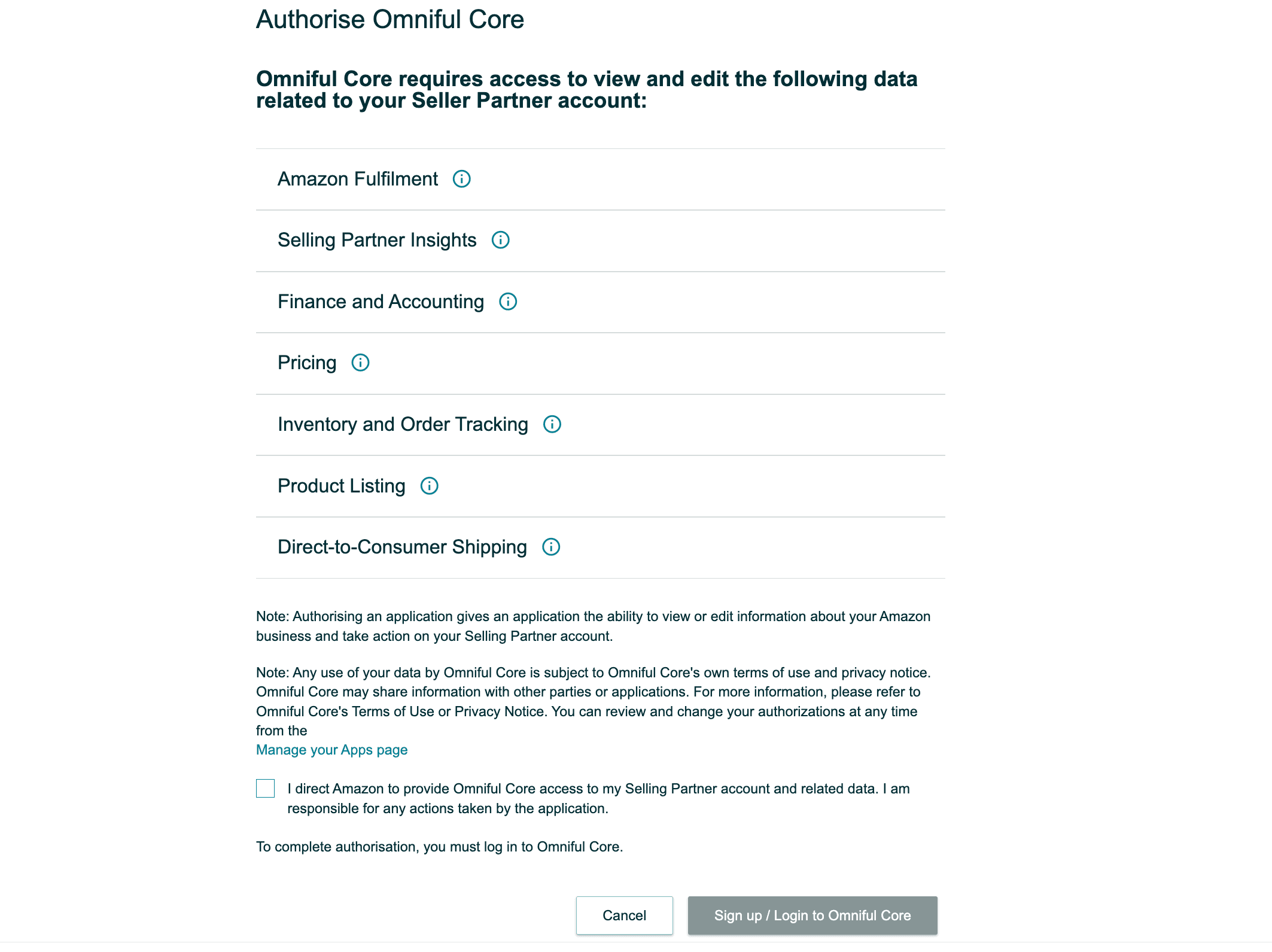
- Authorize Omniful App
- The Amazon store is now connected successfully.
4. Omniful Configuration
Once the store is connected, configure how data flows between Amazon and Omniful.
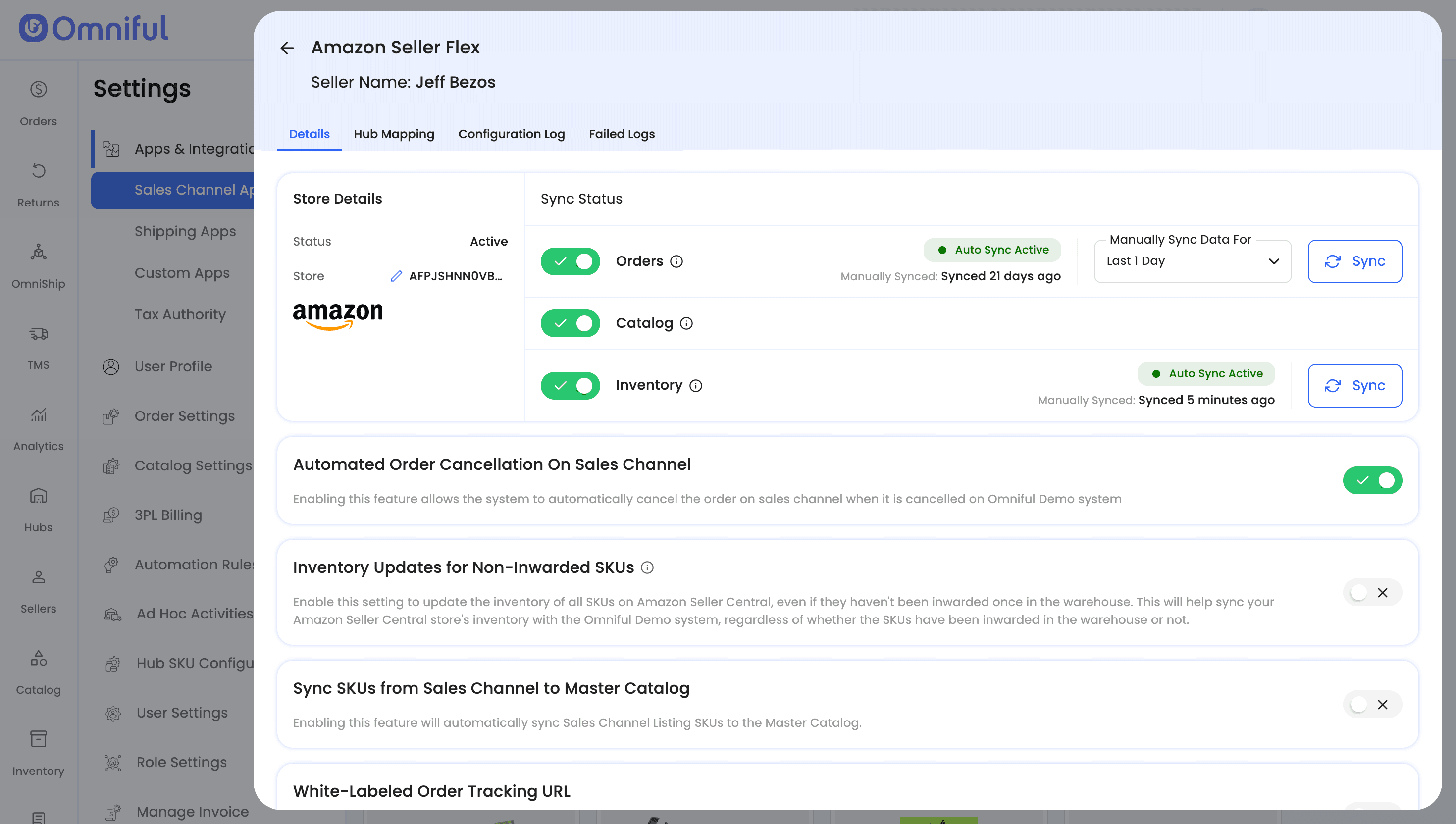
4.1 Store-level settings
Depending on your requirements, you can enable:
- Order Sync – Automatically fetch orders from Amazon to Omniful.
- Inventory Sync – Push available inventory from Omniful hubs to Amazon.
4.2 Hub Mapping
-
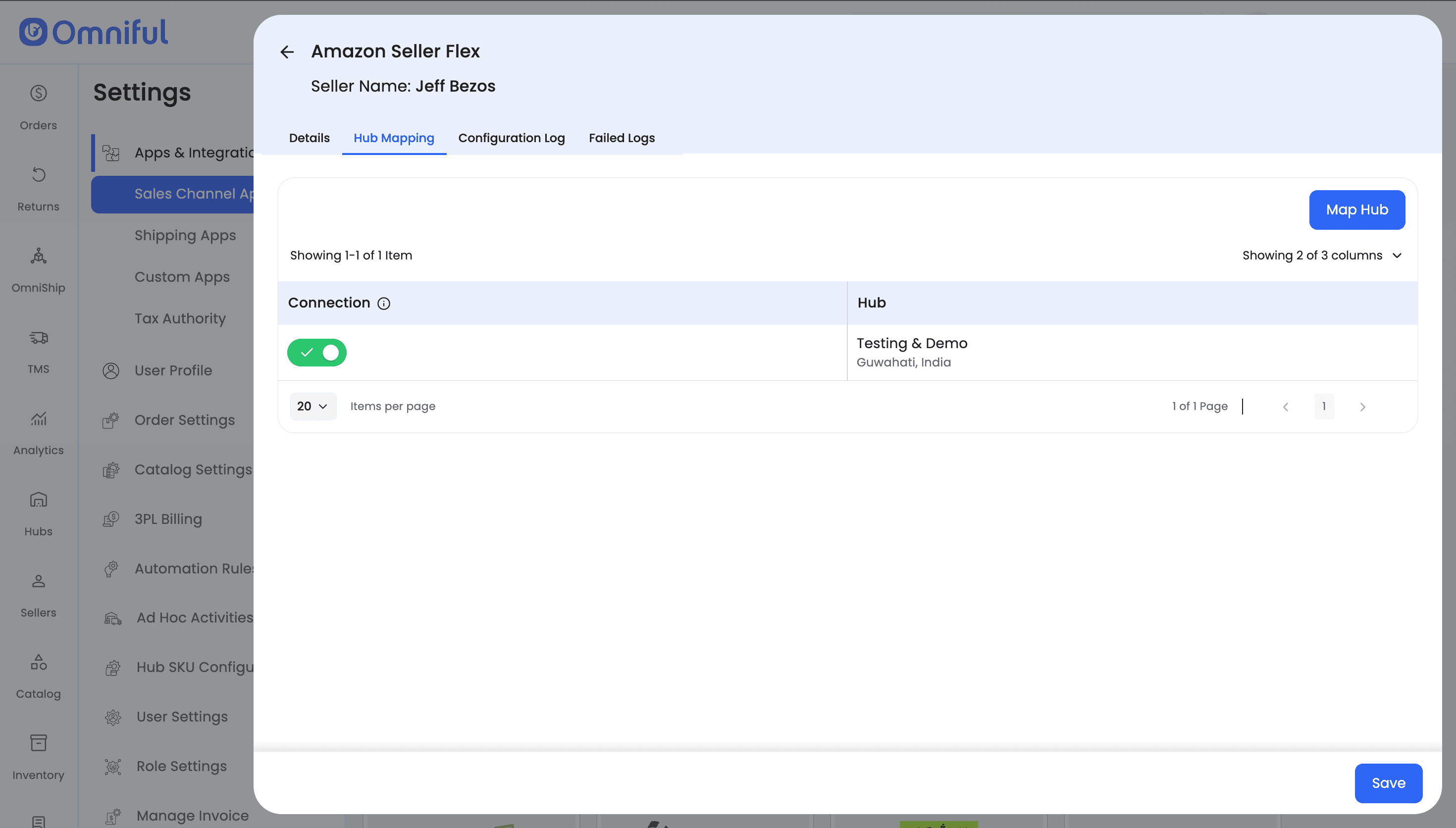
Configure how Amazon orders are routed to Omniful hubs:
-
Enable Omniful Hubs that would fulfill/ship Amazon Orders
5. Data and Sync Behaviour
5.1 Orders
Which orders sync
-
All Amazon orders with the status unshipped will be visible in Omniful for processing through the enabled Hubs.
-
Orders are synced in Omniful as soon as the order status on Amazon turns unshipped from pending.
-
Please manually upload invoice on Amazon order, to mark the order as completed.
5.2 Catalog
-
Catalog fetching directly from Amazon is not supported. Instead, you will need to upload your Amazon catalog manually in CSV format using the Upload Catalog feature in Omniful. It requires manual updates whenever there are catalog changes on Amazon.
-
In the catalog CSV file, enter the unique Omniful Master Catalog SKU code in the SKU Code column. This SKU code is used for operations in Omniful.
-
If the Omniful SKU code is different from the Amazon SKU, enter the Amazon SKU in the Sales Channel SKU Code field. If both SKU codes are the same, you can leave the Sales Channel SKU Code field empty.
-
Selling Prices for the SKUs can be updated on Amazon by uploading Selling Prices in CSV format using the Update SKU’s Selling Price feature.
Note: The ASIN code is mandatory for each product when uploading the catalog. Without the ASIN code, inventory cannot be synced with Amazon.
5.3 Inventory
- Inventory updates for the uploaded Amazon catalog are sent automatically every 30 mins from all the active mapped hubs.
- Inventory will not be updated on Amazon in the following cases:
- FBA (Fulfilled by Amazon) SKUs with fulfillment channel AMAZON_* (e.g. AMAZON_EU, AMAZON_NA)
- Listings that are Inactive / Closed / Blocked
Note: Inventory updates will only work if each SKU has its corresponding ASIN code uploaded in Omniful. Without the ASIN, Omniful cannot sync inventory with Amazon, which may lead to stock mismatches or order hold situations.
5.4 Cancellations
-
Orders cancelled from Amazon reflect in Omniful
-
Automatically cancelling orders on Amazon using Omniful is currently not supported.
5.4 Shipments
-
EasyShip Orders:
- Shipment details are to be manually entered from Amazon portal in the order, to ensure that shipment tracking is always available.
- It will always be a manual dispatch, as Amazon handles the shipment. In these cases, the AWB label must be generated and printed from the Amazon portal.
-
SelfShip Orders:
-
Shipments are created in Omniful for SelfShip orders via Amazon approved shipping partners:
-
Supported Shipping Partner for Saudi Arabia are:
- Naqel
- DHL
- iMile
- J&T
- Aramex
-
Whenever sending shipment details to Amazon fails, an email notification is sent to the configured email id using the Email Notifications for Store Alerts feature.
6. FAQs
Q: My Amazon orders are not appearing in Omniful. What should I check?
A: If orders are not syncing, verify the following:
- Order Sync is enabled in Store-Level Settings.
- Amazon order has the status Unshipped and not pending, since Unshipped orders are synced to Omniful
Q: Who is the inventory master?
A: Omniful is the inventory master. Enabling Inventory Sync pushes available stock from Omniful to Amazon.
Q: Who creates shipments of orders from the Amazon store?
A: Orders can be of two shipment types:
- EasyShip: Shipment created by Amazon
- SelfShip: Shipment created by fulfillment partner from Amazon approved shipment partners