

Table of Contents
Share On


Amazon Seller Flex Marketplace Integration
This native integration with Amazon Seller Flex enables order and inventory synchronization seamless.
Version: v1.1
Date: March 30, 2026
Owner: Sales Channel Product Team
1. Overview
What this integration does
The Amazon Seller Flex integration connects your Amazon Marketplace store with Omniful so that:
- Orders created through Amazon automatically sync to Omniful for processing.
- Inventory availability maintained in Omniful can be synced to Amazon.
2. Prerequisites
2.1 Sales Channel prerequisites
You will be required to obtain the login credentials for the Amazon Seller Flex Store.
3. Integration Methods and Setup
Integrate Amazon Store with Omniful
Once you have the required details:
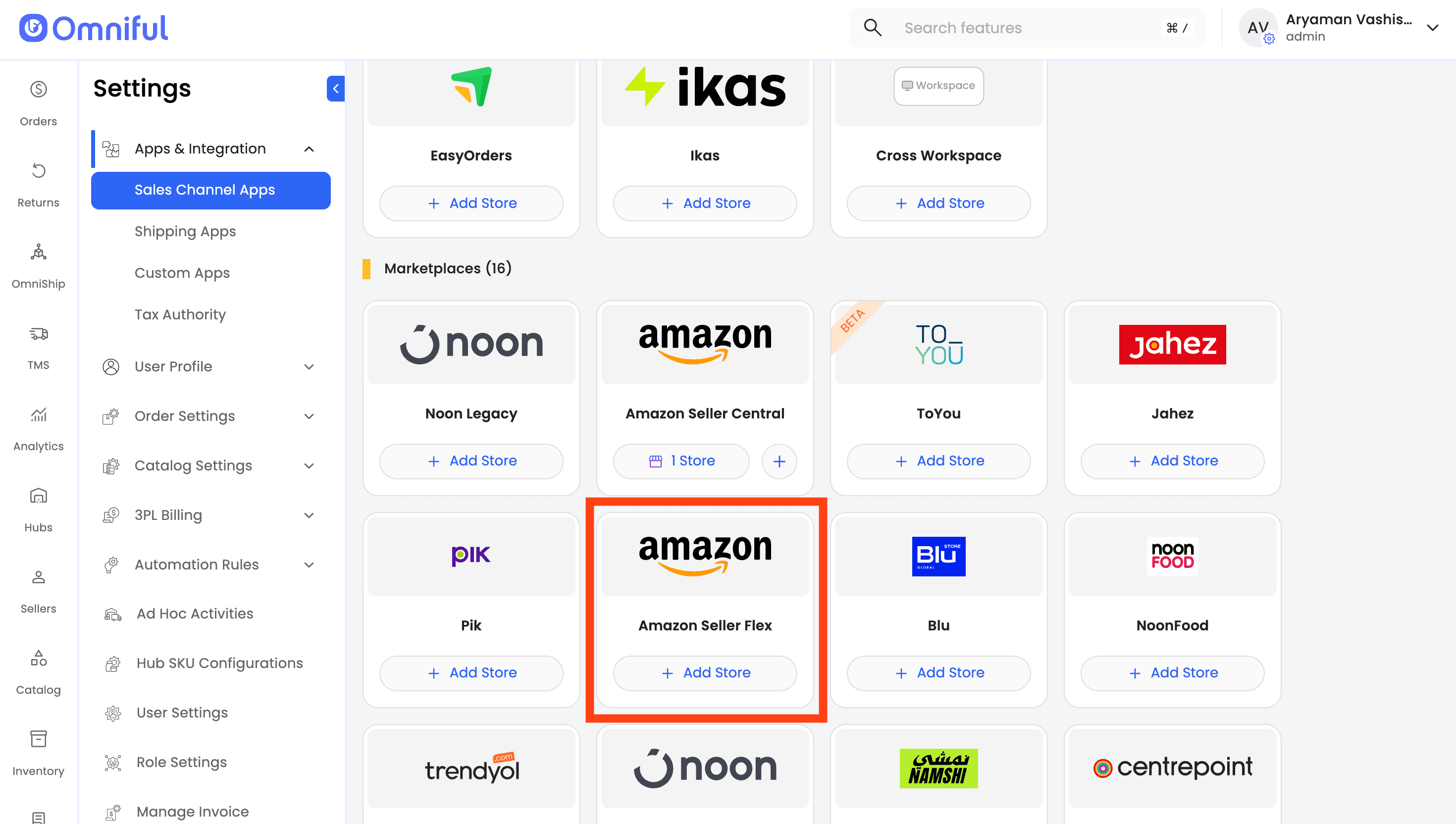
- In Omniful, go to: Settings → Apps & Integration → Sales Channel Apps
- Select Seller and choose Amazon Seller Flex from the marketplace section
- Click Add Store
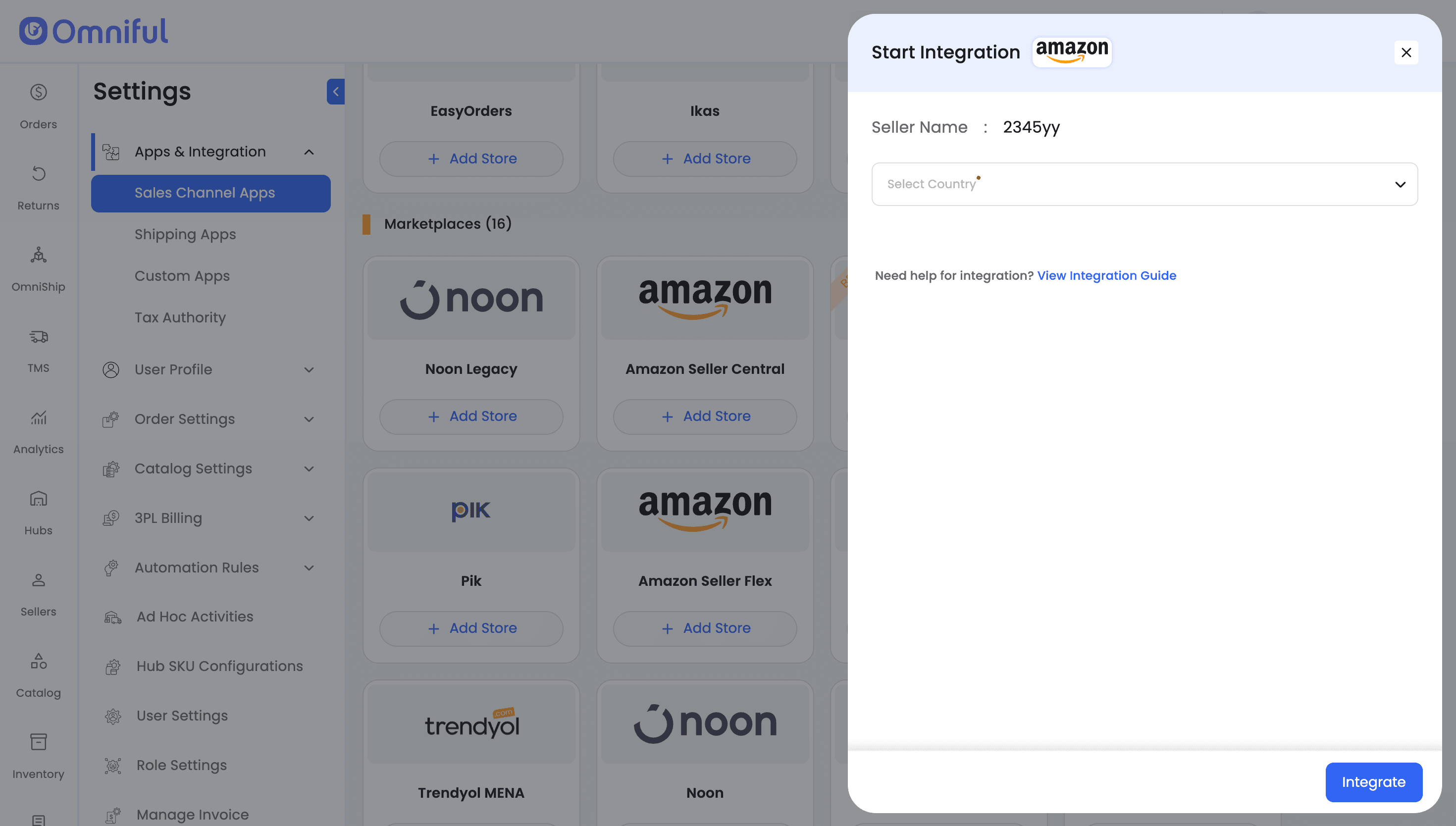
- Select the country for Amazon store integration.
- Click Integrate
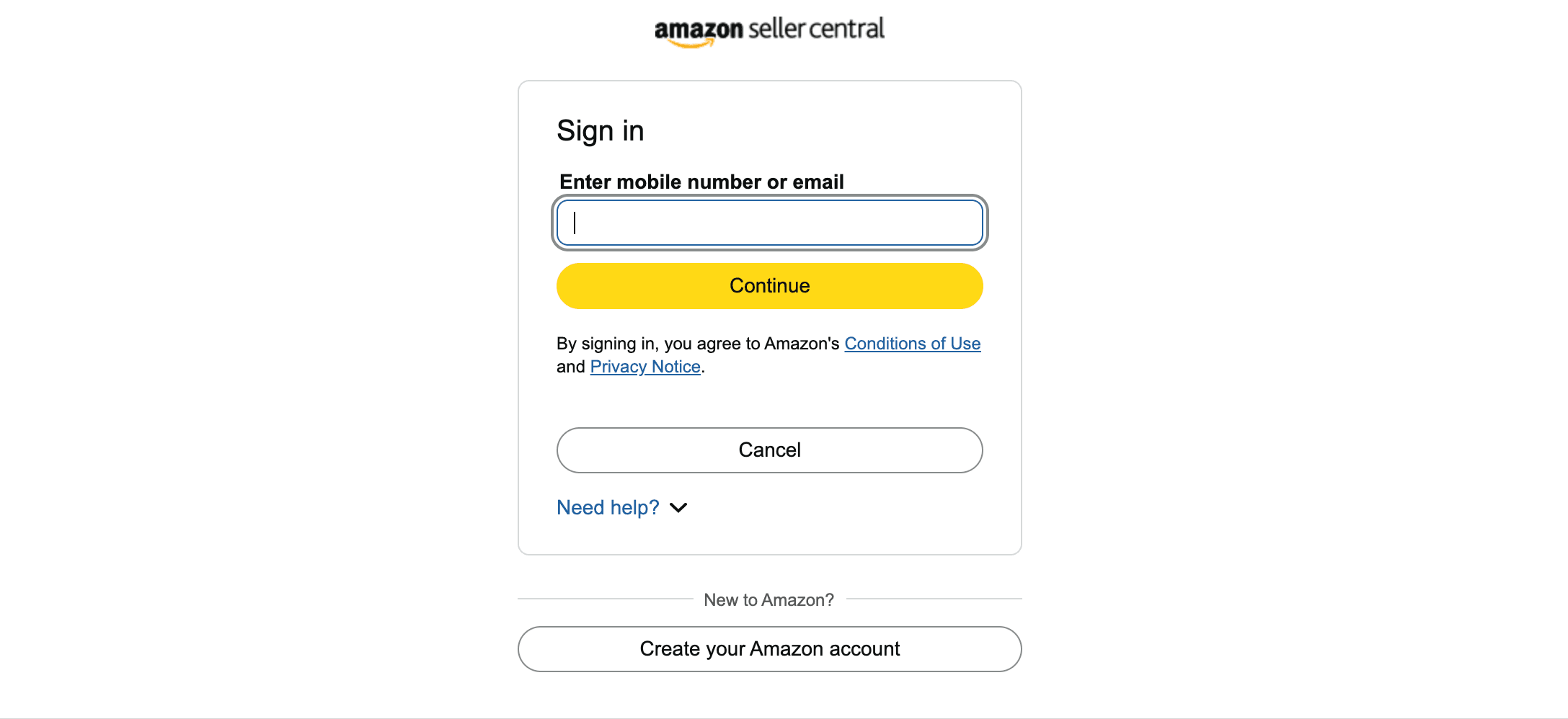
- Sign in to your Amazon Seller Central account.
- Authorize Omniful App
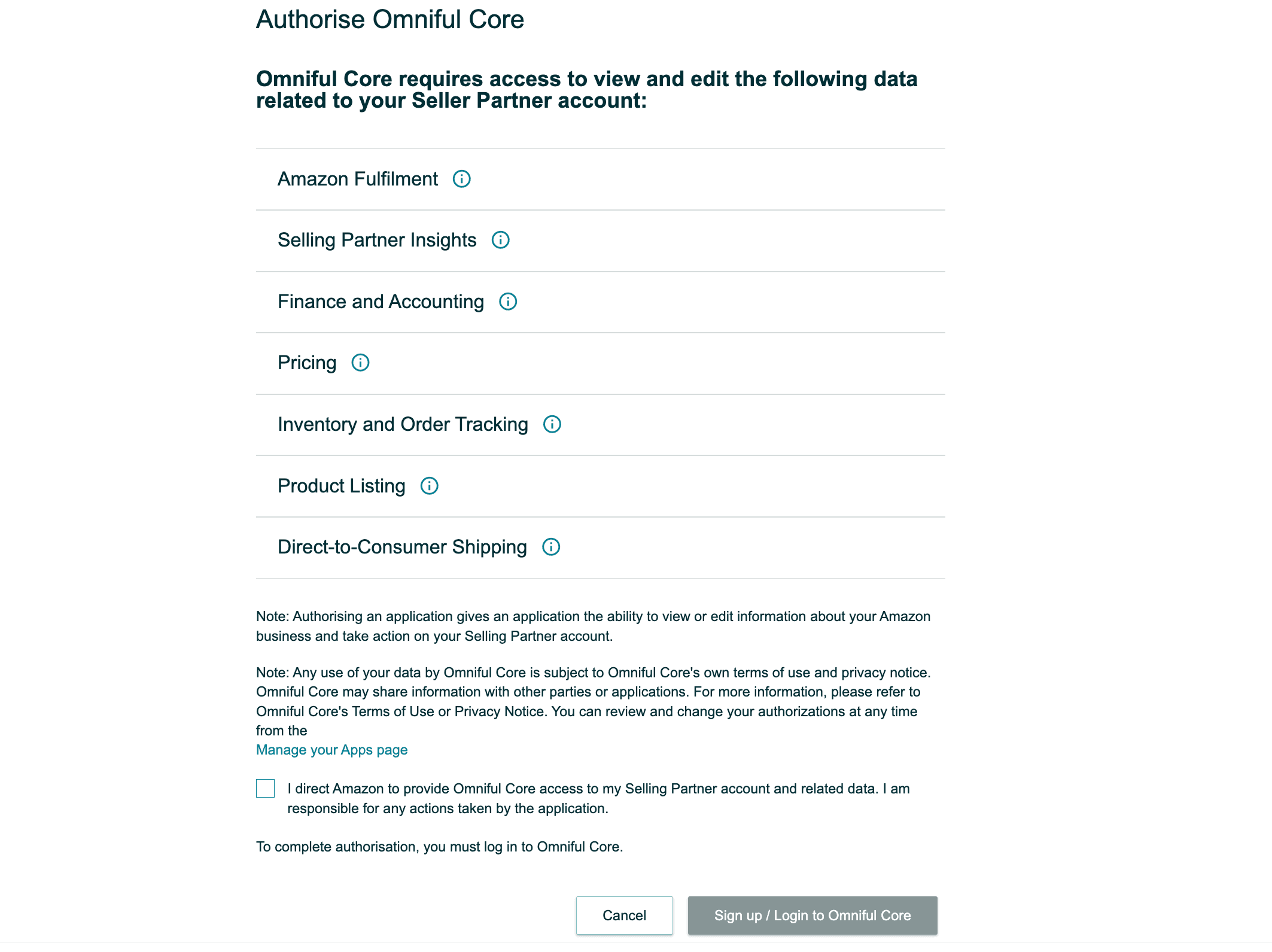
- The Amazon store is now connected successfully.
4. Omniful Configuration
Once the store is connected, configure how data flows between Amazon and Omniful.
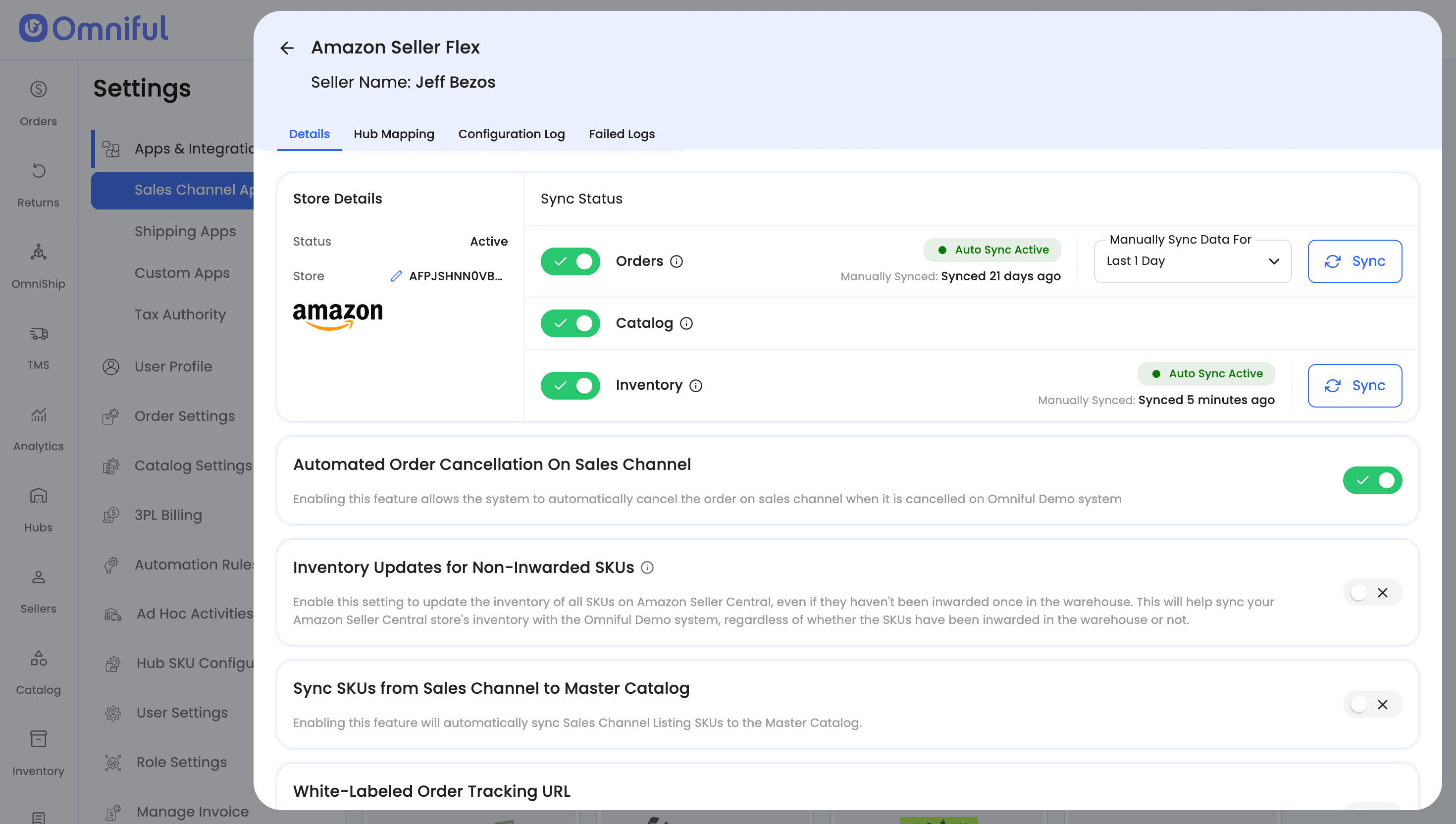
4.1 Store-level settings
Depending on your requirements, you can enable:
- Order Sync – Automatically fetch orders from Amazon to Omniful.
- Inventory Sync – Push available inventory from Omniful hubs to Amazon.
4.2 Hub Mapping
Configure how Amazon orders are routed to Omniful hubs:
- You need to manually enter the Seller Flex Hub ID from Amazon into the Hub Mapping Tab in Omniful. This manual entry ensures that the system knows which fulfillment center to route orders to, optimizing your order processing and inventory management.
5. Data and Sync Behaviour
5.1 Orders
- Amazon Seller Flex integration, new orders marked as ‘Confirmed’ are fetched every half hour. The order is updated to the ‘Accepted’ state on Amazon Seller Flex once it goes to ‘New Order’ state in Omniful.
5.2 Catalog
-
Catalog fetching directly from Amazon is not supported. Instead, you will need to upload your Amazon catalog manually in CSV format to Omniful.
-
In the catalog CSV file, enter the unique Omniful Master Catalog SKU code in the SKU Code column. This SKU code is used for operations in Omniful.
-
If the Omniful SKU code is different from the Amazon SKU, enter the Amazon SKU in the Sales Channel SKU Code field. If both SKU codes are the same, you can leave the Sales Channel SKU Code field empty.
-
This method ensures that your product catalog in Omniful stays in sync with your Amazon listings, though it requires manual updates whenever there are catalog changes on Amazon.
-
Selling Prices for the SKUs can be updated on Amazon by uploading Selling Prices in CSV format.
Note: The ASIN code is mandatory for each product when uploading the catalog. Without the ASIN code, inventory cannot be synced with Amazon.
5.3 Inventory
- Inventory updates for the uploaded Amazon catalog are sent automatically every hour from all the active mapped hubs.
Note: Inventory updates will only work if each SKU has its corresponding ASIN code uploaded in Omniful. Without the ASIN, Omniful cannot sync inventory with Amazon, which may lead to stock mismatches or order hold situations.
5.4 Cancellations
-
Orders cancelled from Amazon reflect in Omniful
-
Automated Order Cancellation On Sales Channel is enabled, canceling an order in Omniful triggers an automatic cancellation on Amazon, keeping both systems aligned.
5.4 Shipments
- Shipment details are automatically fetched from Amazon when an order is marked as picked, ensuring that shipment tracking is always available. This automatic sync reduces manual effort and keeps your shipment data up-to-date.
6. FAQs
Q: My Shipment Details for Amazon orders are not appearing in Omniful. What should I check?
A: Please ensure that your products on Amazon have valid SKU dimensions, as Amazon requires it to generate shipment.
Q: My Amazon orders are not appearing in Omniful. What should I check?
A: If orders are not syncing, verify the following:
- Order Sync is enabled in Store-Level Settings.
- Amazon order has the status Unshipped and not pending, since Unshipped orders are synced to Omniful
Q: Who is the inventory master?
A: Omniful is the inventory master. Enabling Inventory Sync pushes available stock from Omniful to Amazon.
Q: Why are cancellations from Omniful not reflecting on Amazon?
A: For Omniful → Amazon cancellations to sync back:
- “Automated Order Cancellation on Sales Channel” must be enabled.
Q: Why my orders are not being marked completed on Amazon?
A: You need to manually upload an invoice on Amazon order, to mark the order as completed.