

Table of Contents
Share On


Ecwid Integration
This native integration with Ecwid enables order, catalog and inventory synchronization seamless.
Version: v1.0
Date: March 11, 2026
Owner: Sales Channel Product Team
1. Overview
What this integration does
The Ecwid integration connects your Ecwid store with Omniful so that:
- Orders created on Ecwid will be automatically synced to Omniful for processing.
- Inventory availability maintained in Omniful can be synced to Ecwid.
- Shipments created in Omniful can update shipment status & tracking to Ecwid.
2. Prerequisites
2.1 Sales Channel prerequisites
For Ecwid Integration You will need:
- Store ID
- Secret Token
To obtain the above:
-
For Store ID, Login to your Ecwid store dashboard and find store ID in your URL.
For Example: my.example.shop/store/{Store ID}/xyz -
For Secret Token, Go to Apps > My Apps and view your custom app for Omniful Integration. Click on Show Secret Token.
3. Integration Methods and Setup
3.1 Integrate Ecwid store with Omniful
Once you have the Store ID and Secret Token:
-
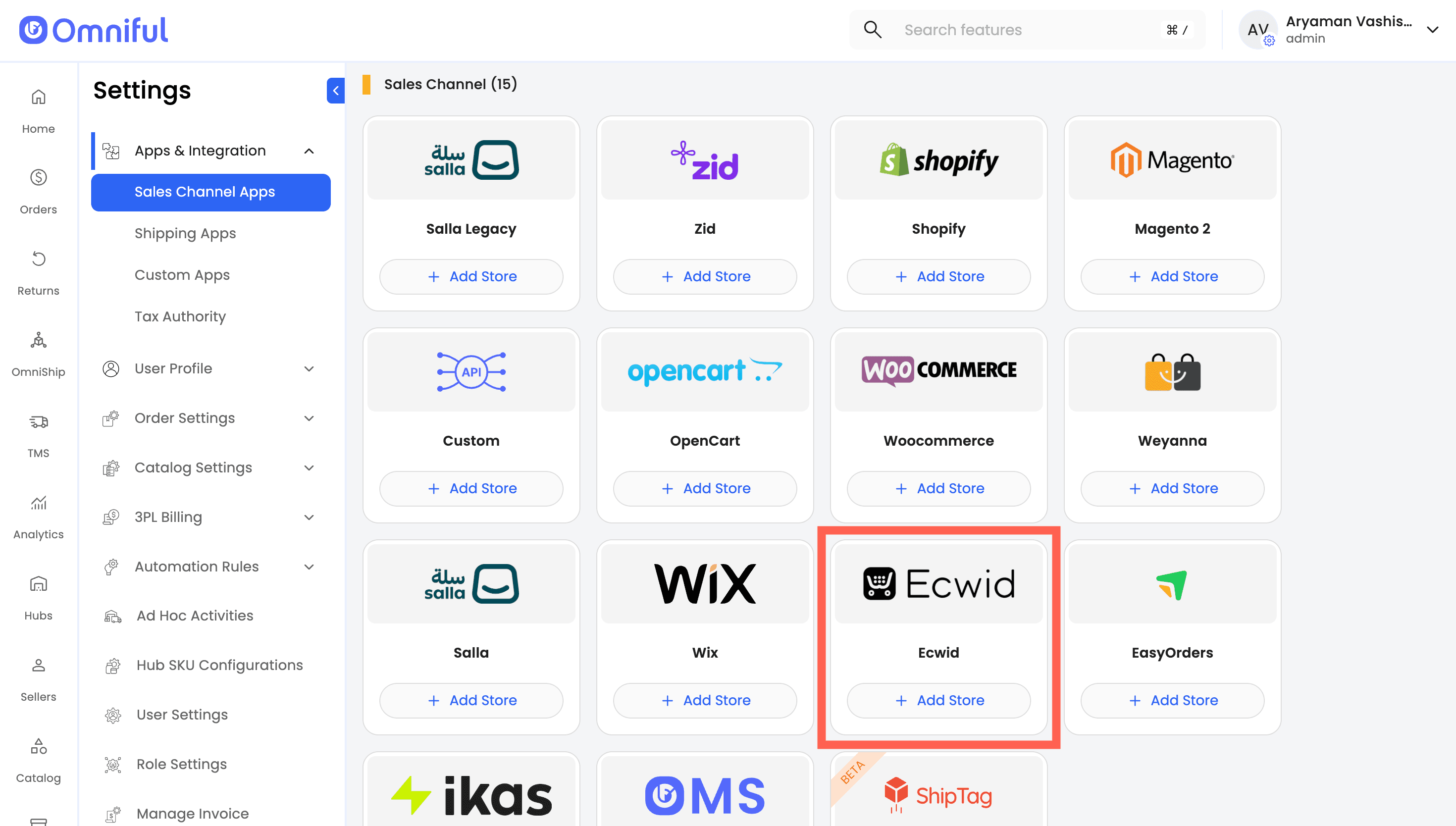
In the Omniful workspace, go to: Settings → App & Integration → Sales Channel Apps.
-
Select Seller for which the Ecwid store is being integrated.
-
Locate Ecwid from the available Sales Channels and Click Add Store
-
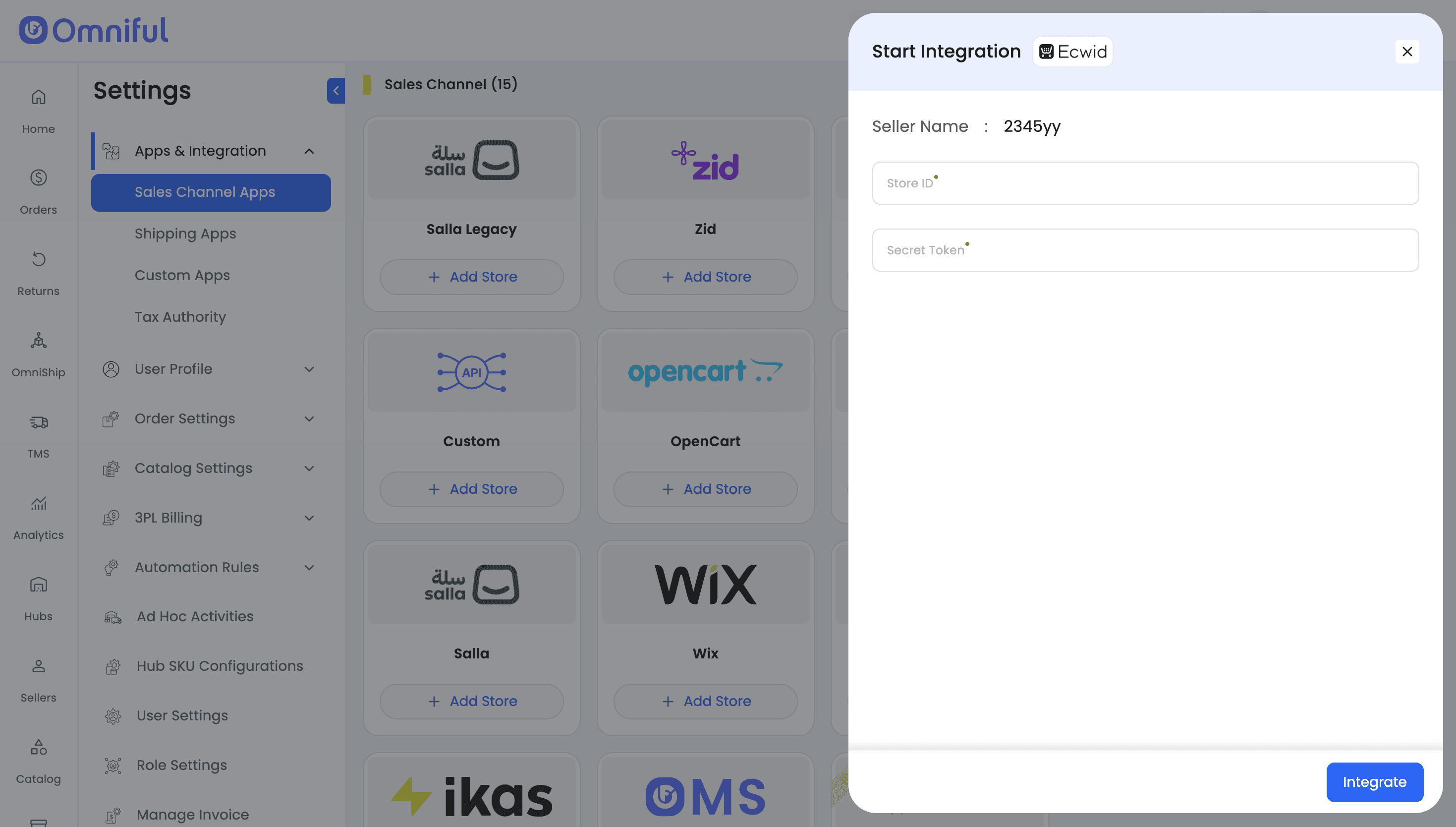
Enter the Store ID and Secret Token
-
Click Integrate to complete the integration
4. Omniful Configuration
Once the store is connected, configure how data flows between Ecwid and Omniful.
4.1 Store-level settings
Depending on your requirements, you can enable:
- Order Sync – Automatically fetch orders from Ecwid to Omniful.
- Catalog Sync – Fetch catalog (active SKUs) from Ecwid into Omniful.
- Inventory Sync – Push available inventory from Omniful hubs to Ecwid.
4.2 Hub Mapping
Configure how Ecwid orders are routed to Omniful hubs: Hub mapping ensures that orders from Ecwid are fulfilled by the correct physical location and that inventory in that hub is used for allocation.
4.3 Order status mapping
Order Status Mapping defines how Ecwid statuses and Omniful statuses stay in sync:
-
Sales Channel Mapping – Map incoming Ecwid order statuses (e.g., AWAITING_PROCESSING) to internal Omniful order lifecycle stages (e.g., New, Ready for Picking).
-
Omniful Workspace Order Status Mapping – Define which outgoing Omniful fulfillment/shipment statuses should be updated on Ecwid. (for example, when the order is shipped).
Note: ensure Ecwid order statuses (such as AWAITNG_PROCESSING) are configured correctly—otherwise new orders may not sync to Omniful. Likewise, if the cancelled status is not mapped, cancelled orders will not sync back to Ecwid.
Use Fetch Order Status in the configuration screen to load all available Ecwid statuses and then map them to Omniful statuses per your operational requirements.
5. Data and Sync Behaviour
5.1 Orders
Status-based sync
- Only orders with the mapped order statuses will be visible in Omniful
5.2 Catalog
-
Seller’s Ecwid Catalog (SKUs) with valid SKU codes is fetched automatically to Omniful when Catalog Sync is enabled.
-
Omniful receives updates from Ecwid for SKUs so you can see and use them for order & fulfillment processes in Omniful.
5.3 Inventory
- Omniful automatically pushes and maintains inventory level on the Ecwid store when Inventory Sync is enabled and hub mapping is done.
5.4 Cancellations
- Cancellations – When ‘Automated Order Cancellation On Sales Channel’ is enabled, canceling an order in Omniful triggers an automatic cancellation on Ecwid, keeping both systems aligned.
6. FAQs
Q: Why are some Ecwid orders not appearing in Omniful? A: Only orders created on Ecwid with the correct order status mapping and the correct hub mapping will sync to Omniful. Orders that do not meet these mappings will not be created. Please also ensure that Order Sync is enabled.
Q: Can I control when an order is synced to Omniful (e.g., only after it’s paid)? A: Yes. You can configure Order Status Mapping so that Omniful only creates orders when they reach specific Ecwid statuses such as ‘Open’.
Q: Who is the inventory master?
A: Omniful is the inventory master. When Inventory Sync is enabled, Omniful sends updated available stock quantities to Ecwid.
Q: Who creates shipments of orders from the Ecwid store?
A: Shipment and delivery is managed by Omniful. Shipment status is updated by Omniful.
Q: When does tracking information appear in Ecwid?
A: When a shipment is created in Omniful, the assigned tracking number, carrier, and shipping status, shipping label are pushed back to Ecwid via the Omniful Ecwid app.
Q: What happens if I uninstall or disable the Omniful app in Ecwid?
A: New orders will stop syncing to Omniful, and shipment updates from Omniful will not update back to Ecwid. Existing orders already imported into Omniful will still be processable internally but will not reflect back in Ecwid until the app is reinstalled.