

Table of Contents
Share On


Keeta Marketplace Integration
Version: v1.0
Date: January 20, 2026
Owner: Sales Channel Product Team
1. Overview
The Keeta integration connects your Keeta Marketplace store with Omniful so that:
- Orders created through Keeta automatically sync to Omniful for processing.
- Inventory availability maintained in Omniful can be synced to Keeta.
- You can configure hub mapping and order status mapping directly from Omniful.
2. Prerequisites
2.1 Sales Channel Prerequisites
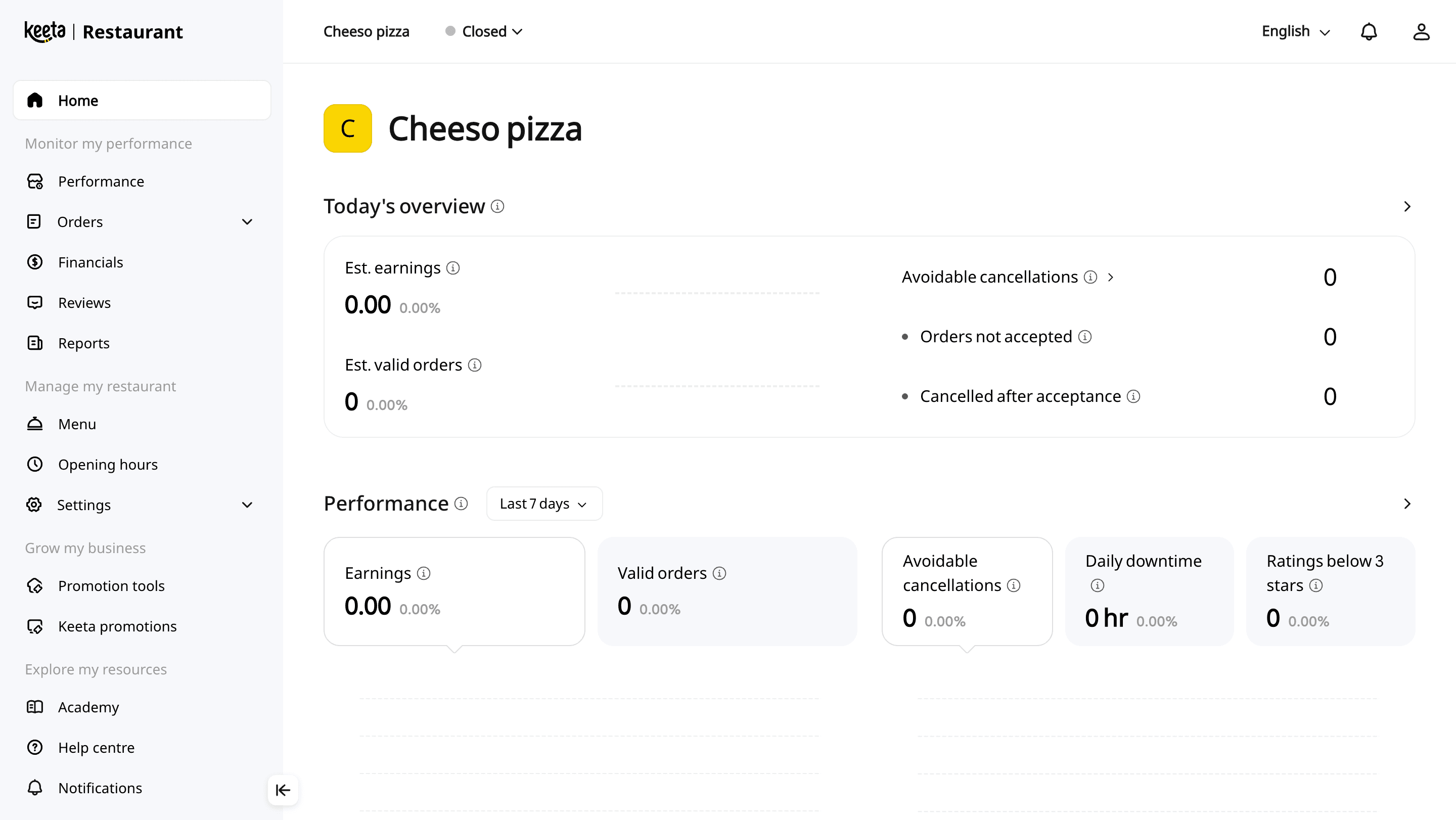
You will be required to log in to your Keeta merchant account at https://merchant.mykeeta.com/.
After login, keep the tab open in your browser.
3. Integration Methods and Setup
3.1 Connect Keeta Store in Omniful
-
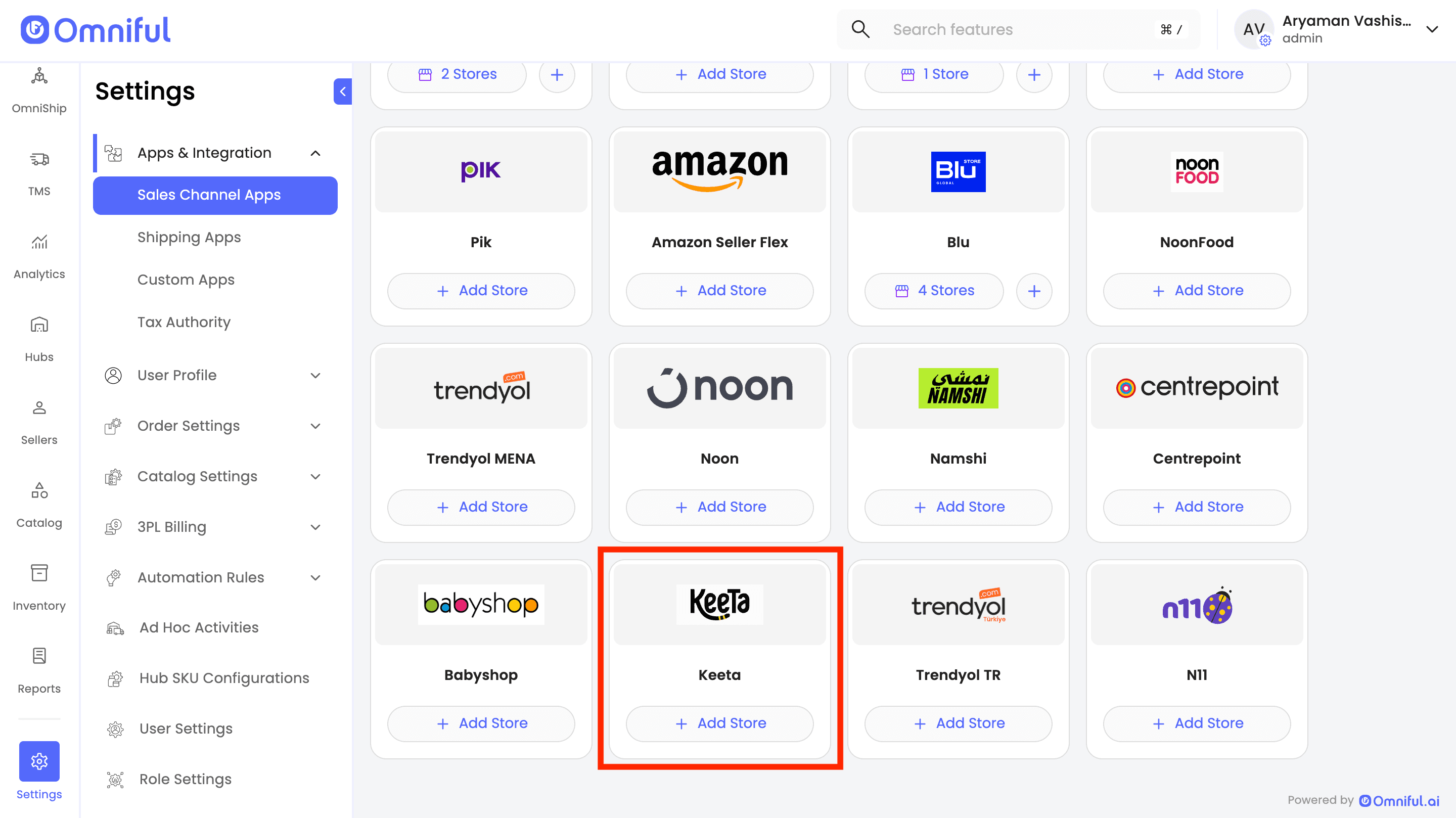
In Omniful, go to:
Settings → Apps & Integration → Sales Channel Apps -
Select Seller and choose Keeta from the marketplace section.
-
Click Add Store.
-
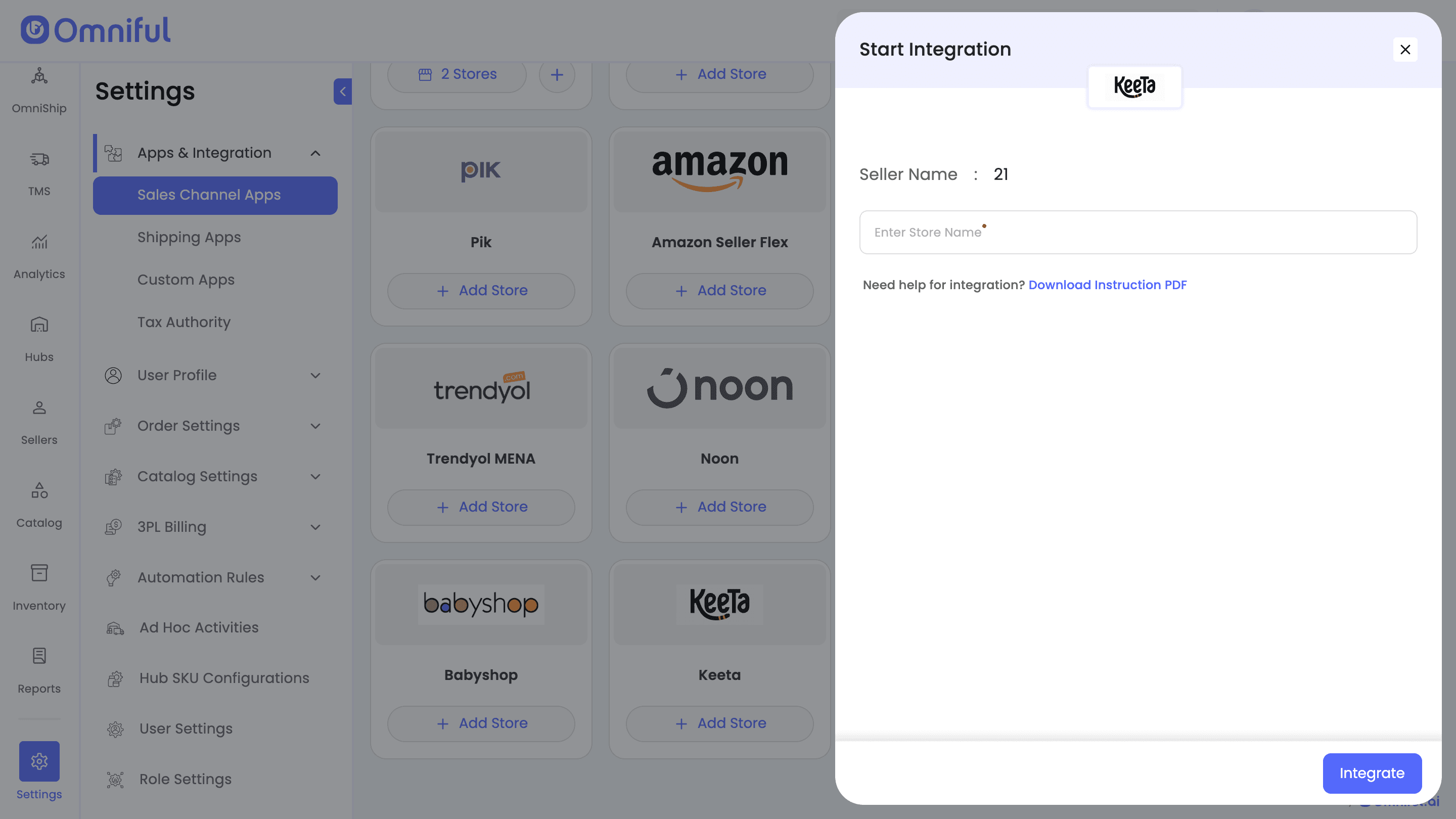
Enter the store name and click Integrate.
-
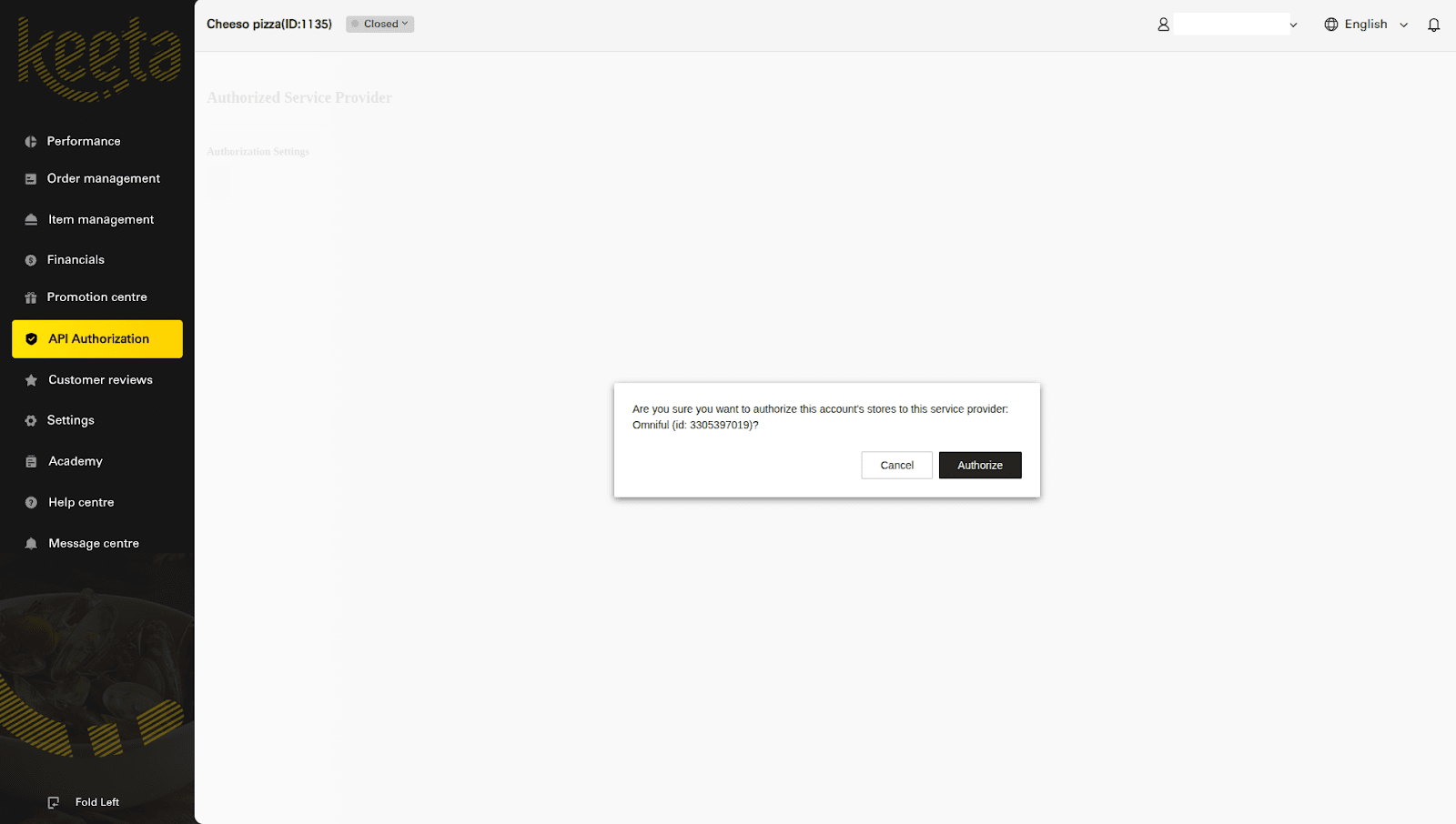
You will be redirected to the Keeta merchant page, where you must authorize the integration by clicking Authorize.
-
Your store is now successfully connected.
4. Omniful Configuration
Once the store is connected, configure how data flows between Keeta and Omniful.
4.1 Store-Level Settings
Depending on your requirements, you can enable:
- Order Sync – Automatically fetch orders from Keeta to Omniful.
- Catalog Sync – Fetch catalog (all SKUs) from Keeta into Omniful.
- Inventory Sync – Push available inventory from Omniful hubs to Keeta.
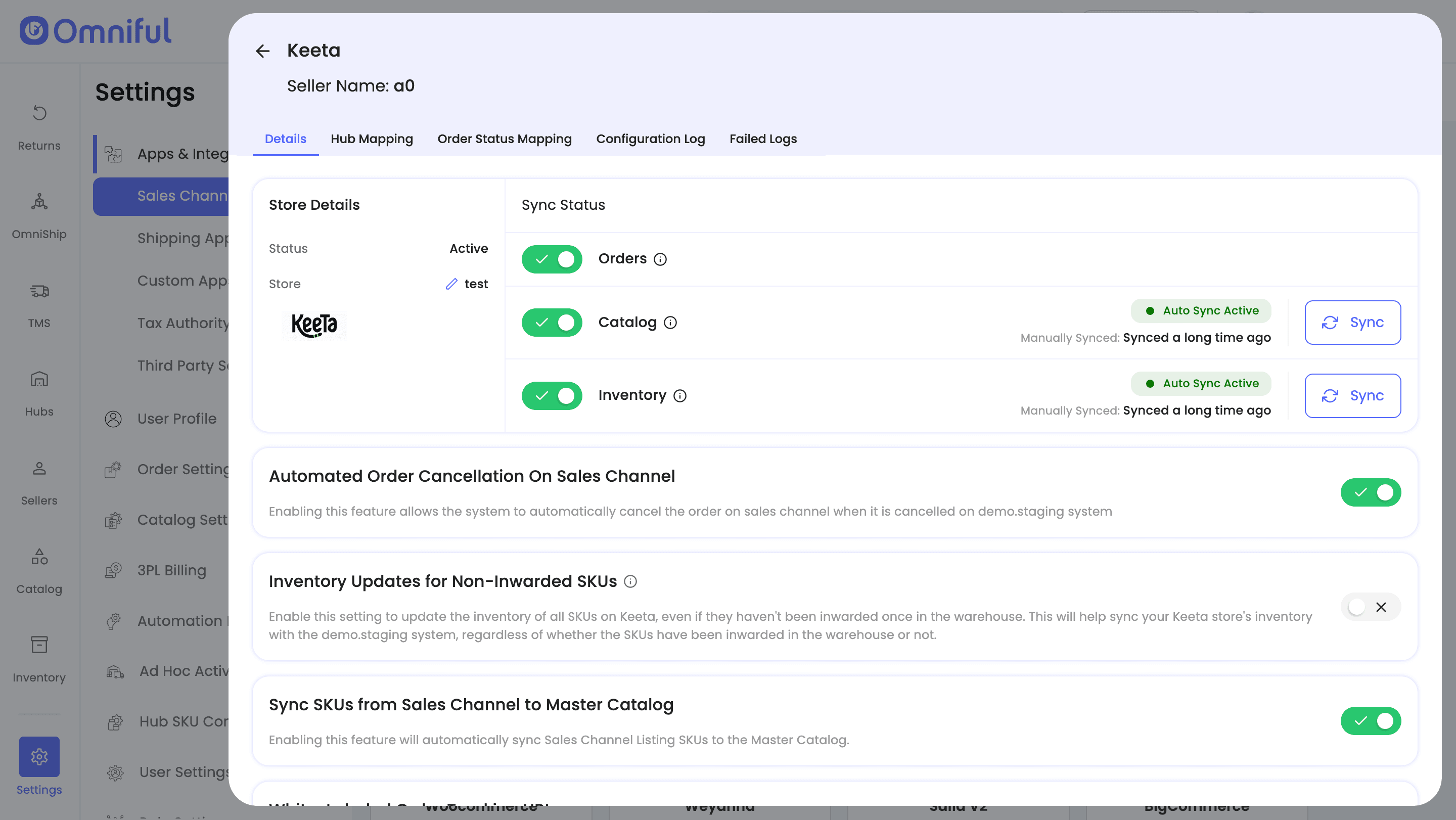
4.2 Hub Mapping
Configure how Keeta orders are routed to Omniful hubs:
Map Omniful hubs that can fulfill or ship Keeta orders.
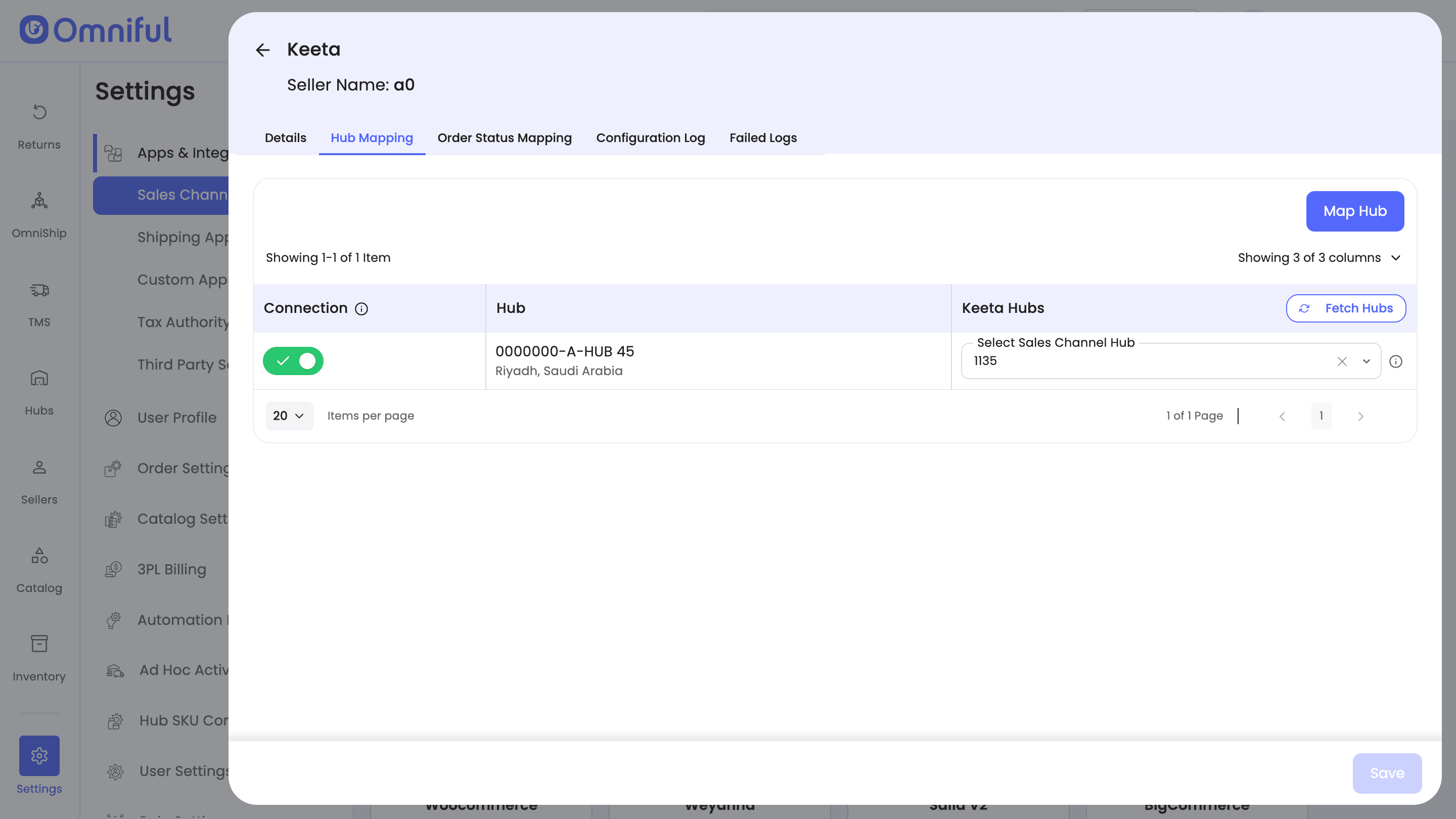
4.3 Order Status Mapping
Order Status Mapping defines how Keeta and Omniful statuses stay in sync.
Sales Channel Mapping – Map incoming Keeta order statuses (e.g., new, ready) to Omniful lifecycle stages (e.g., New Order, Cancelled).
Note: Ensure Keeta order statuses are configured correctly; otherwise, new or cancelled orders may not sync properly.
Workspace Order Mapping – Define which outgoing Omniful statuses should be pushed back to Keeta (e.g., Rejected or Cancelled).
5. Data and Sync Behaviour
5.1 Orders
All orders with mapped statuses will be visible in Omniful.
5.2 Catalog
The seller’s Keeta store catalog (all SKUs with valid Keeta ID) is fetched automatically to Omniful when Catalog Sync is enabled.
Sellers can create their catalog on Keeta from Omniful using the Upload Catalog feature.

Note: Catalog upload follows a replace model. Uploading a catalog fully replaces the existing Keeta catalog. Any SKUs not included in the upload will be deleted.
Additional Note: Uploading Choice Groups is not supported in Keeta catalog uploads.
5.3 Inventory
Omniful automatically pushes available and unavailable statuses for products based on inventory in Keeta when Inventory Sync is enabled and hubs are mapped.
5.4 Cancellations
When Automated Order Cancellation on Sales Channel is enabled, cancelling an order in Omniful triggers an automatic cancellation on Keeta, keeping both systems aligned.
6. FAQs
Q: My Keeta orders are not appearing in Omniful. What should I check?
A: Ensure Order Sync is enabled in Store-Level Settings. Verify the Keeta order status mapping is configured for the Keeta Store.
Q: Why are cancellations from Omniful not reflecting on Keeta?
A: Enable Automated Order Cancellation on Sales Channel. Map Omniful’s Cancelled status to Keeta’s Cancelled status.
Q: How does catalog upload work for Keeta, and what are its limitations?
A: The upload process follows a replace model (not a merge). Existing SKUs, categories, or prices not present in the uploaded file will be deleted. Choice Groups are not supported — only SKUs, categories, and prices.
Q: Are Choice Groups supported in Keeta catalog uploads?
A: No, only SKUs, categories, and prices can be uploaded via the catalog file.