

Table of Contents
Share On


Namshi Marketplace Integration
This native integration with Namshi enables order, catalog and inventory synchronization seamless.
Version: v1.0
Date: January 11, 2025
Owner: Sales Channel Product Team
1. Overview
What this integration does
The Namshi integration connects your Namshi Marketplace store with Omniful so that:
- Orders created through Namshi automatically sync to Omniful for processing.
- Inventory availability maintained in Omniful can be synced to Namshi.
- You can configure hub mapping, order status mapping, directly from Omniful.
2. Prerequisites
You will be required to obtain the following details from Namshi Store:
- Integration Name
- Project ID (Which can be obtained by clicking on Organization Name > Project)
3. Integration Methods and Setup
3.1 Connect Namshi store in Omniful
Once you have the required details:
In Omniful, go to:
Settings → Apps & Integration → Sales Channel Apps
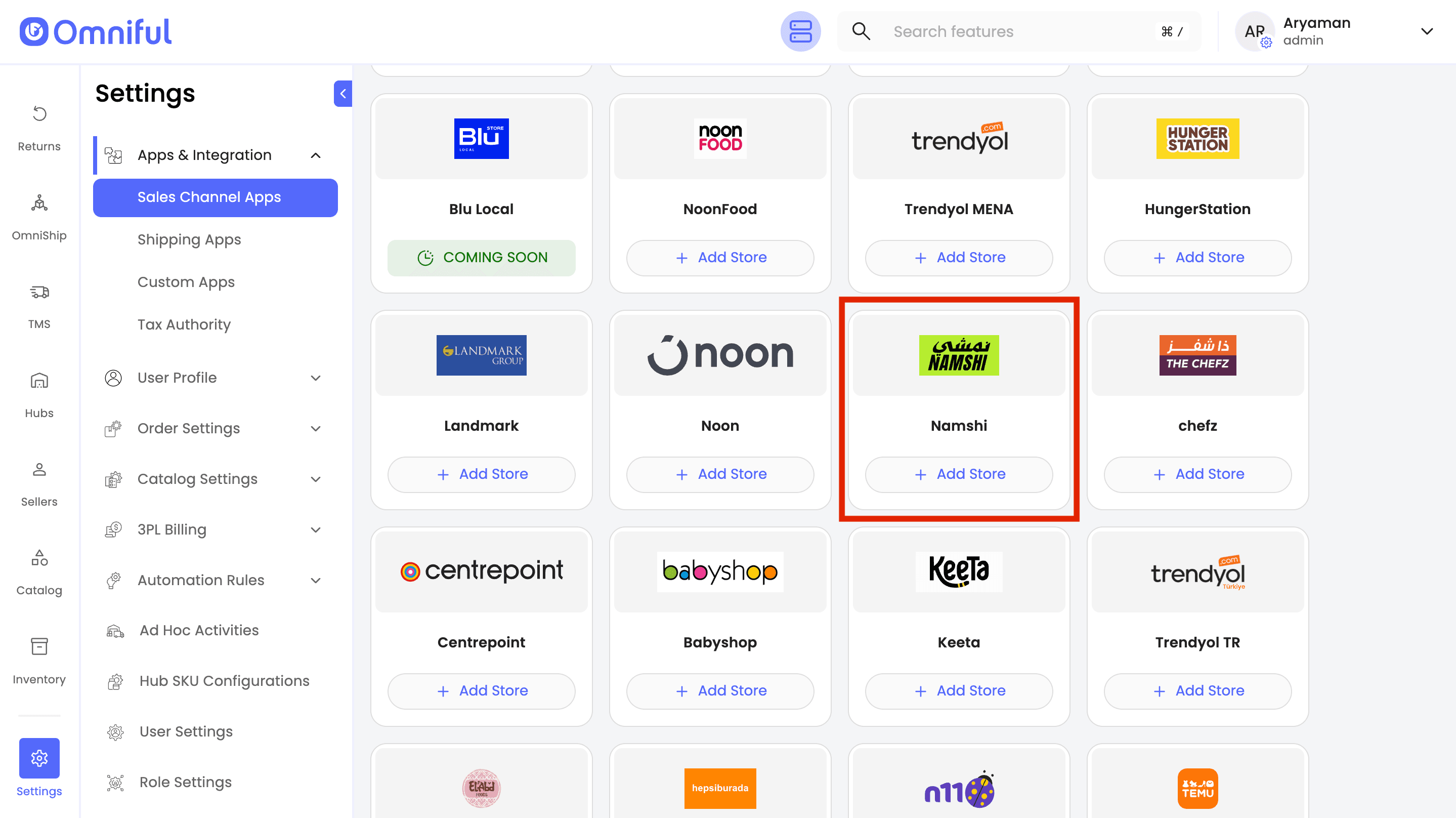
Select Seller and choose Namshi from the marketplace section.
Click Add Store.
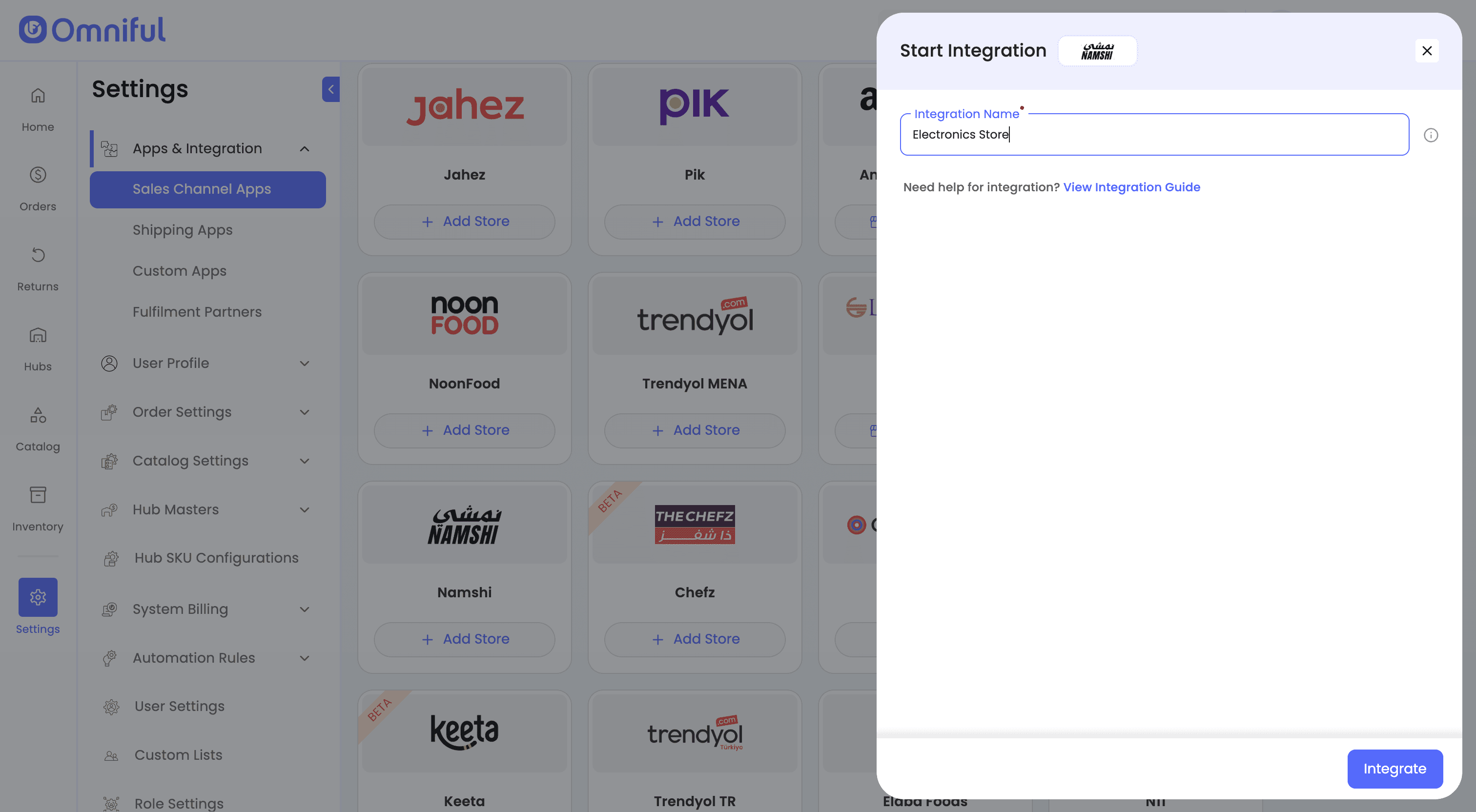
- Enter the Integration Name, click Integrate.
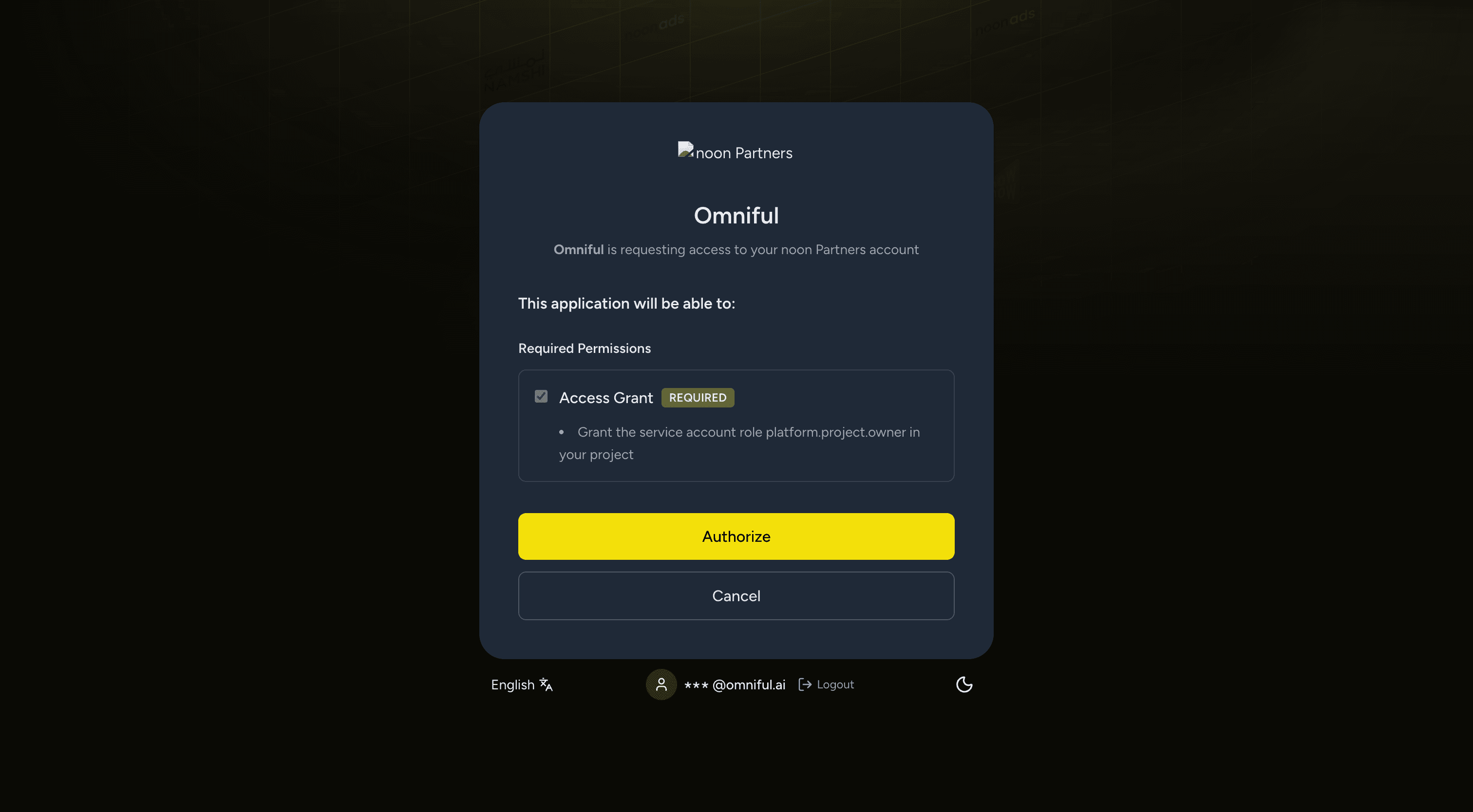
- You will be redirected to the Namshi Partner Portal to authorize Omniful and grant the required access.
- On the authorization screen, review the required permissions and click Authorize.
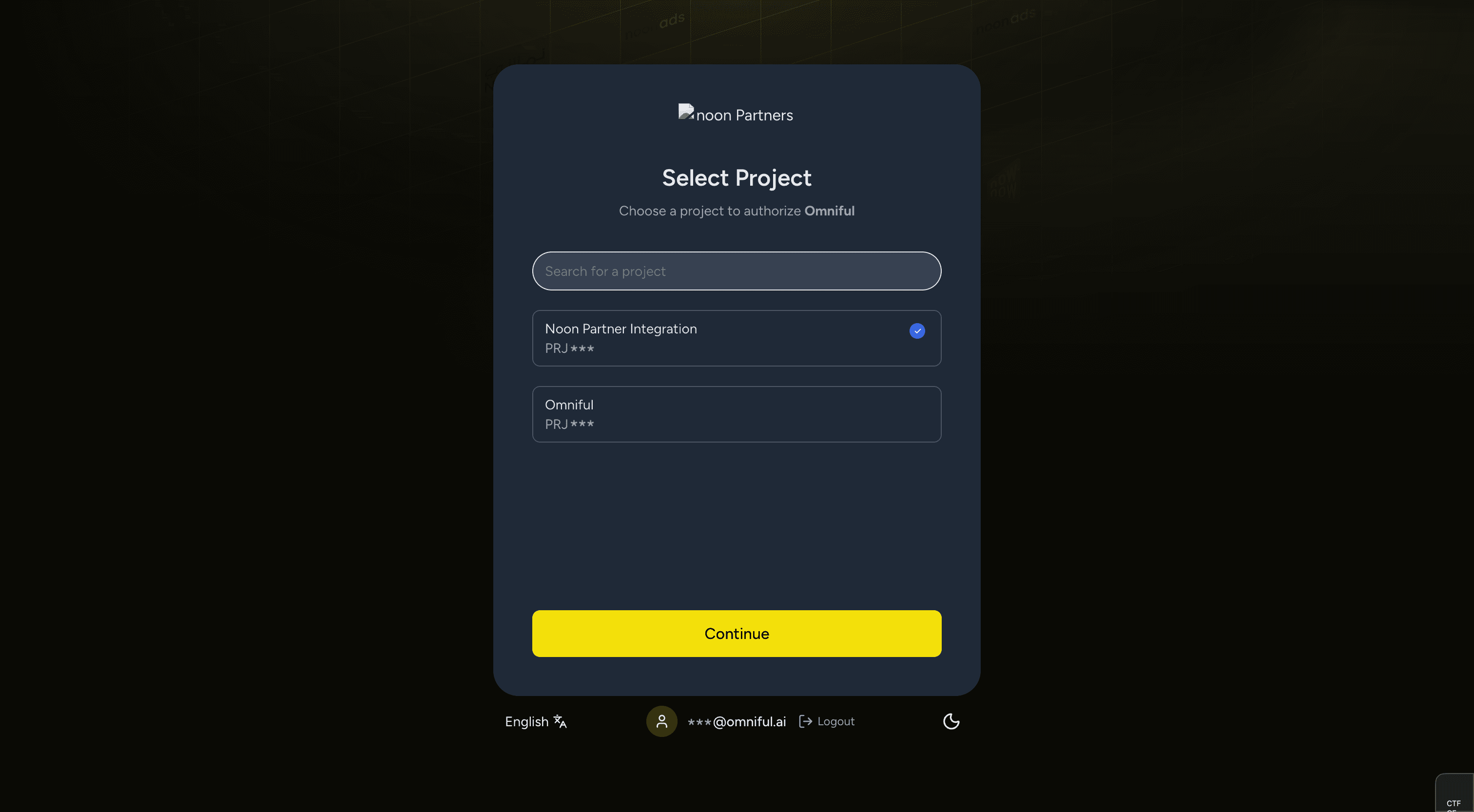
- Select Project: Select the project associated with your Namshi store and click Continue.
- Review the selected project details and click Confirm & Authorize to complete the integration.
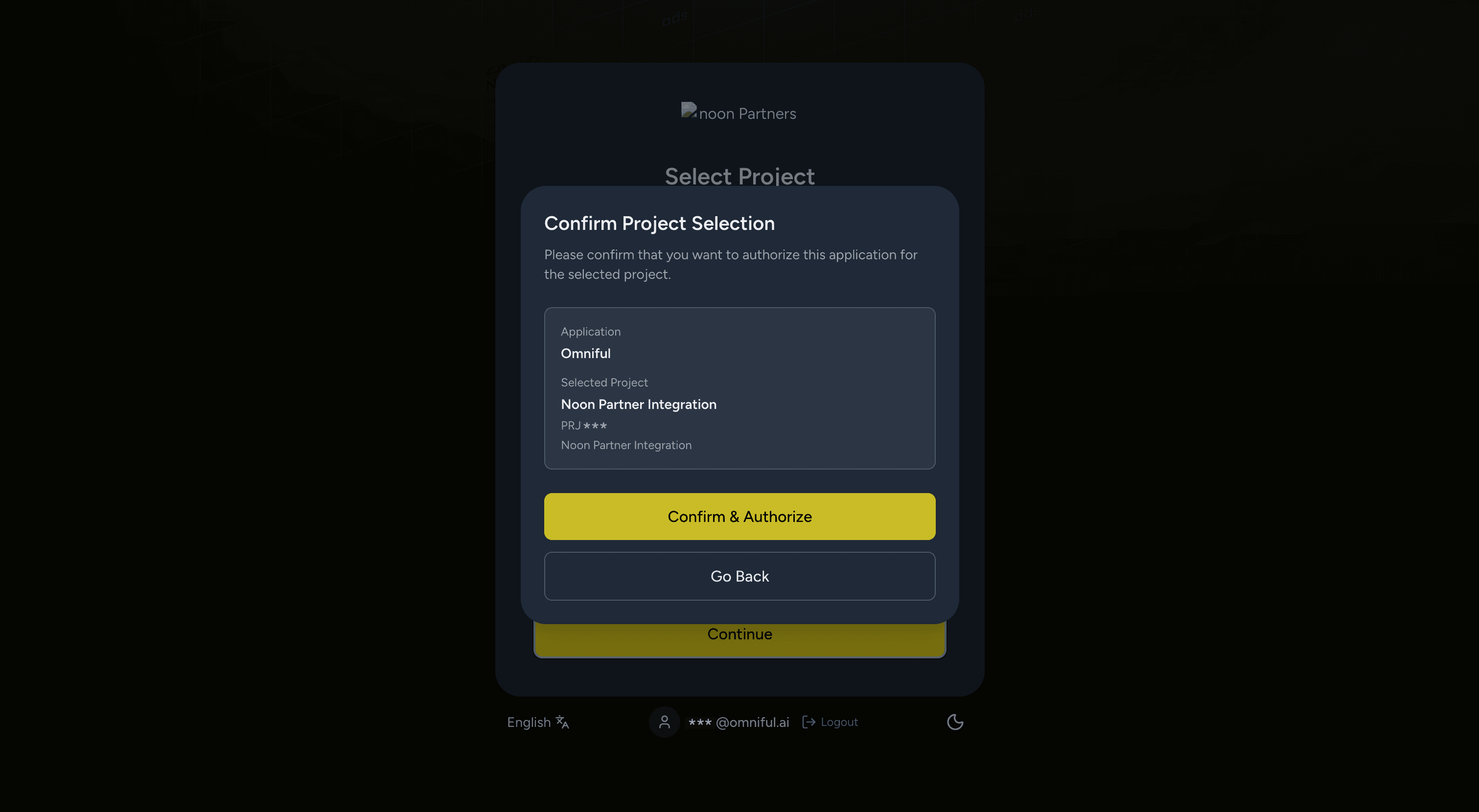
- Once the authorization is completed successfully, the Namshi store integration will be connected to Omniful.
Access Warehouse Automation Tool
Navigate to the following URL, replacing PRJ(your_project_nr) with your actual project number:
https://fbpi.noon.partners/en-ae?project=PRJ(your_project_nr)
- Create a New Warehouse by Clicking “Add New Warehouse”.
- Enter your Warehouse Name.
- Select the Country where your warehouse is located.
- Click Create Warehouse.
Configure the Warehouse
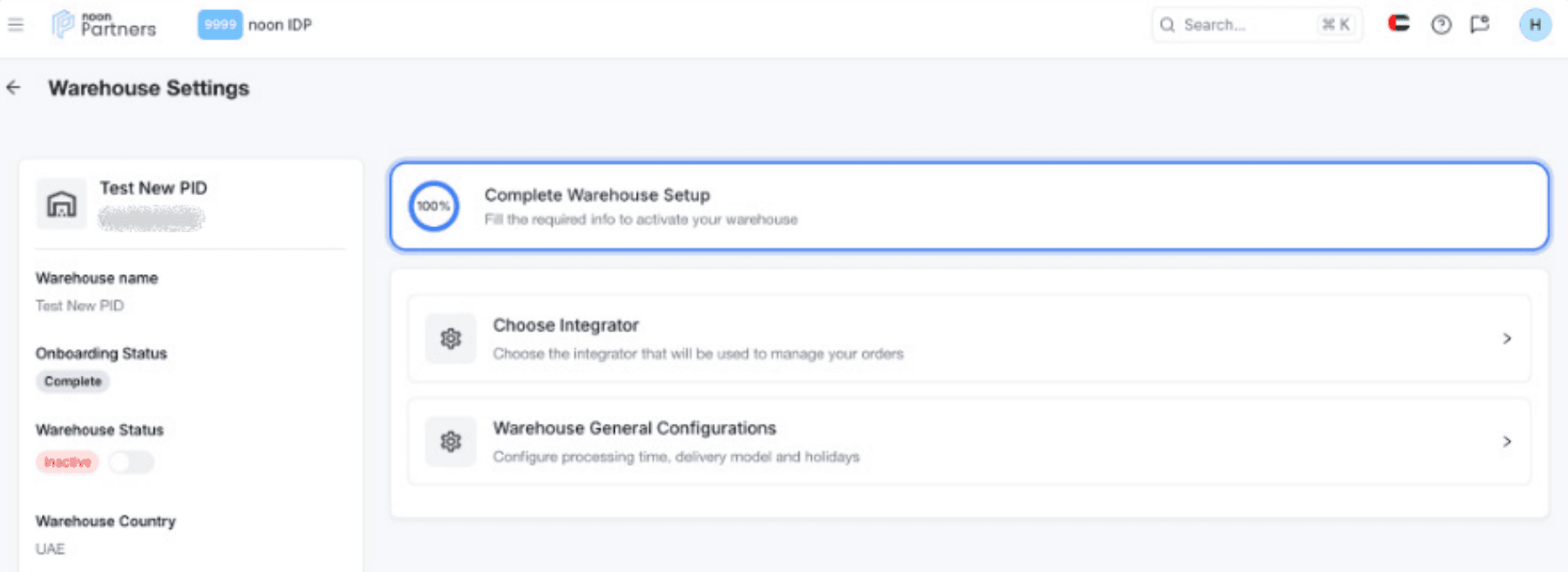
Click on “Configure Warehouse” next to your newly created warehouse. Configuration involves two parts:
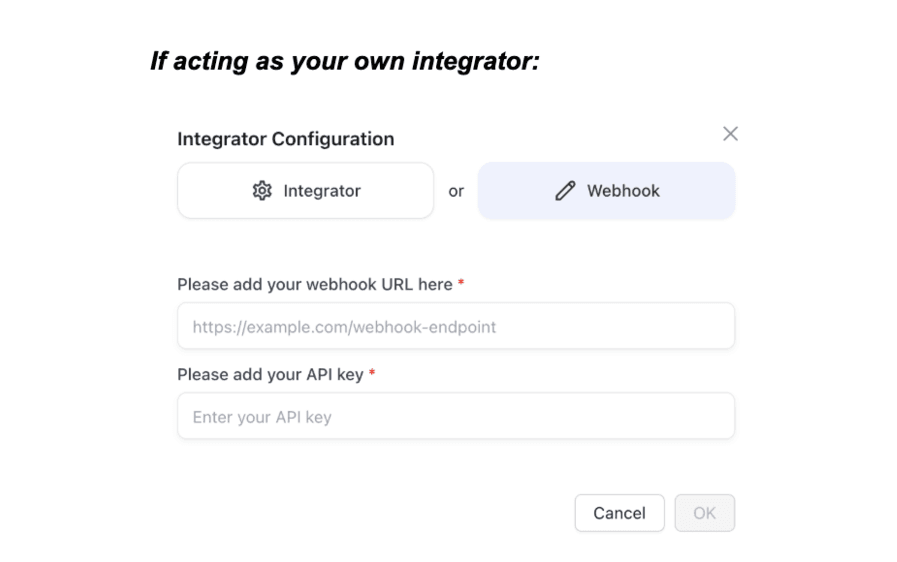
- Choose Integrator: Select “Act as your own integrator”.
- Enter your Webhook URL.
- Enter your Webhook secret in API Key field.
- Click OK.
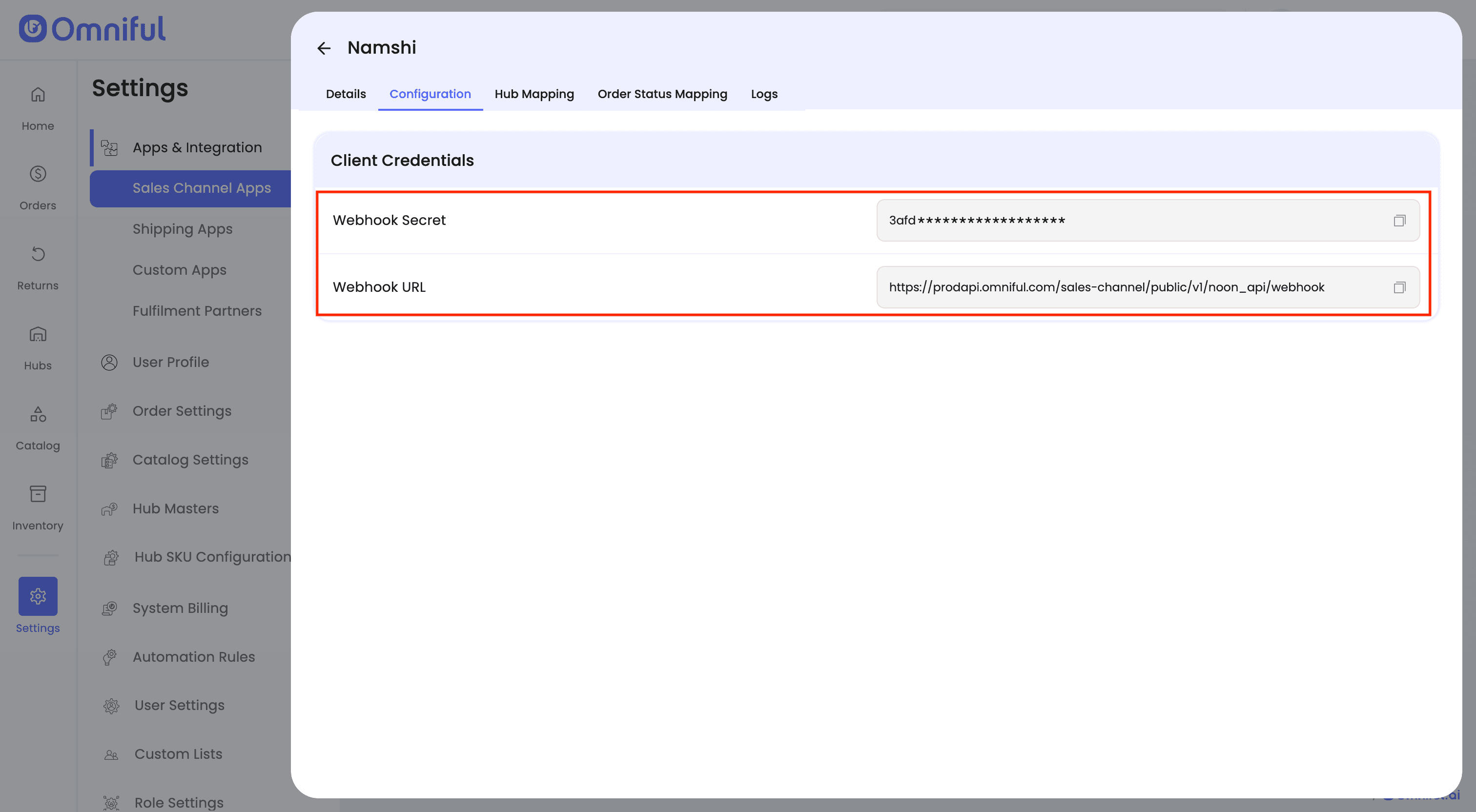
To get Webhook URL and Webhook API Key for Namshi Integration:
- Go to Namshi Integration → Store Settings → Configuration Tab.
- Copy the Webhook URL and Webhook API Key.
Provide the Processing Time (mandatory), Delivery Model (mandatory), and Operational Holidays (optional) under Warehouse General Configurations to complete warehouse setup.
Activate the Warehouse:
Use the toggle below the warehouse status to set it to Active. The warehouse is now fully configured.
4. Omniful Configuration
Once the store is connected, configure how data flows between Namshi and Omniful.
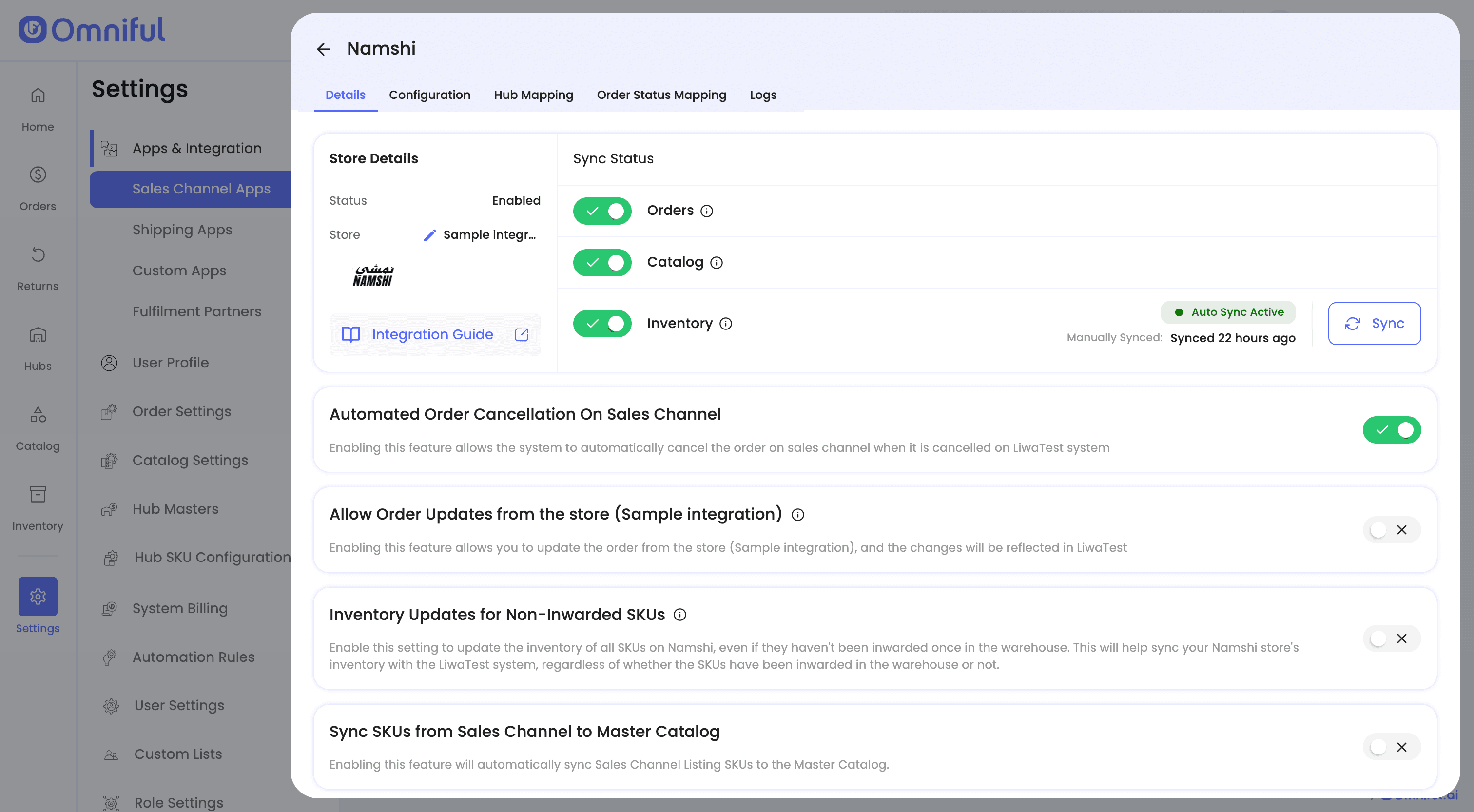
4.1 Store-level settings
Depending on your requirements, you can enable:
- Order Sync – Automatically fetch orders from Namshi to Omniful.
- Inventory Sync – Push available inventory from Omniful hubs to Namshi.
4.2 Hub Mapping
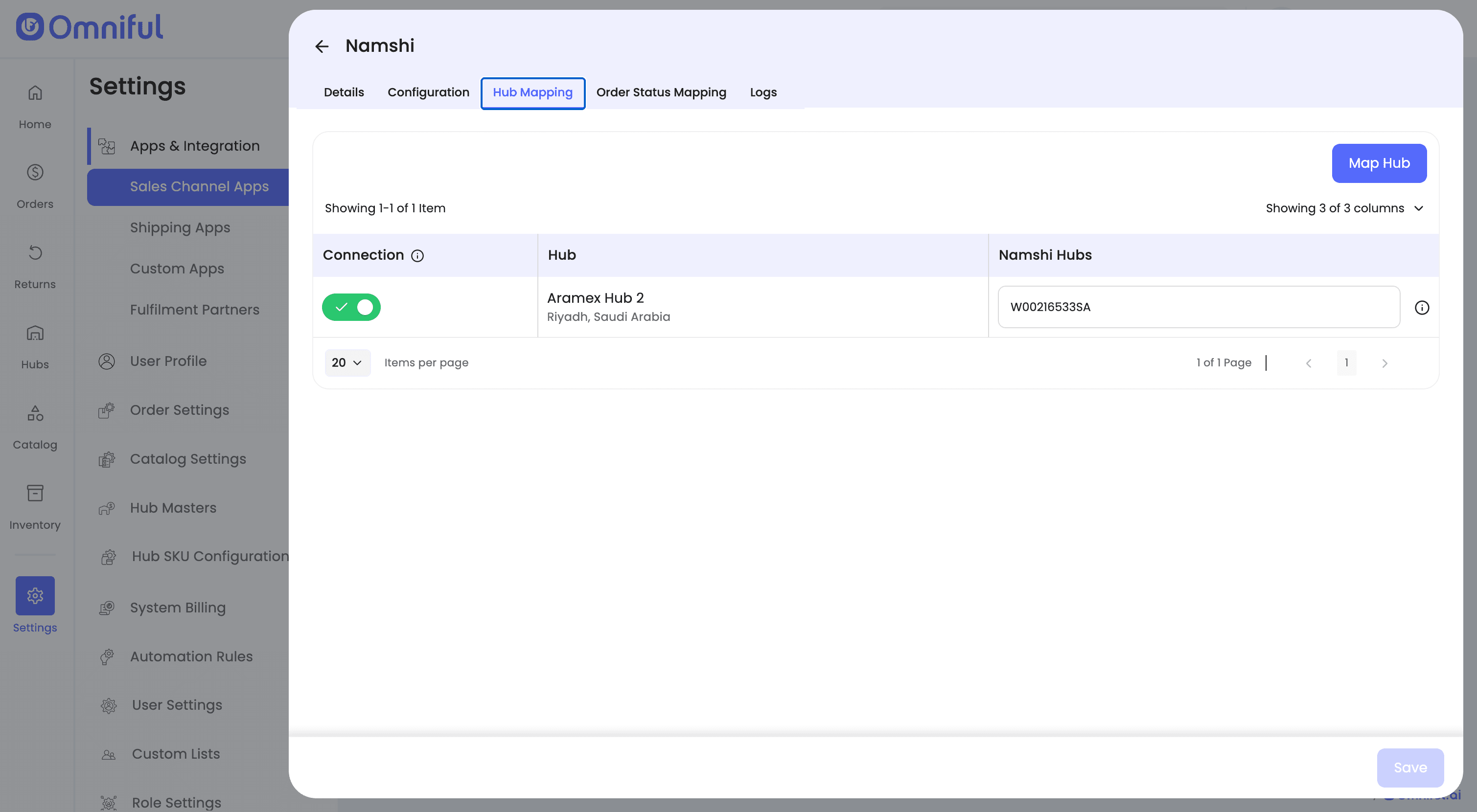
Configure how Namshi orders are routed to Omniful hubs:
- Map Omniful Hubs to the hubs configured in Namshi.
4.3 Order status mapping
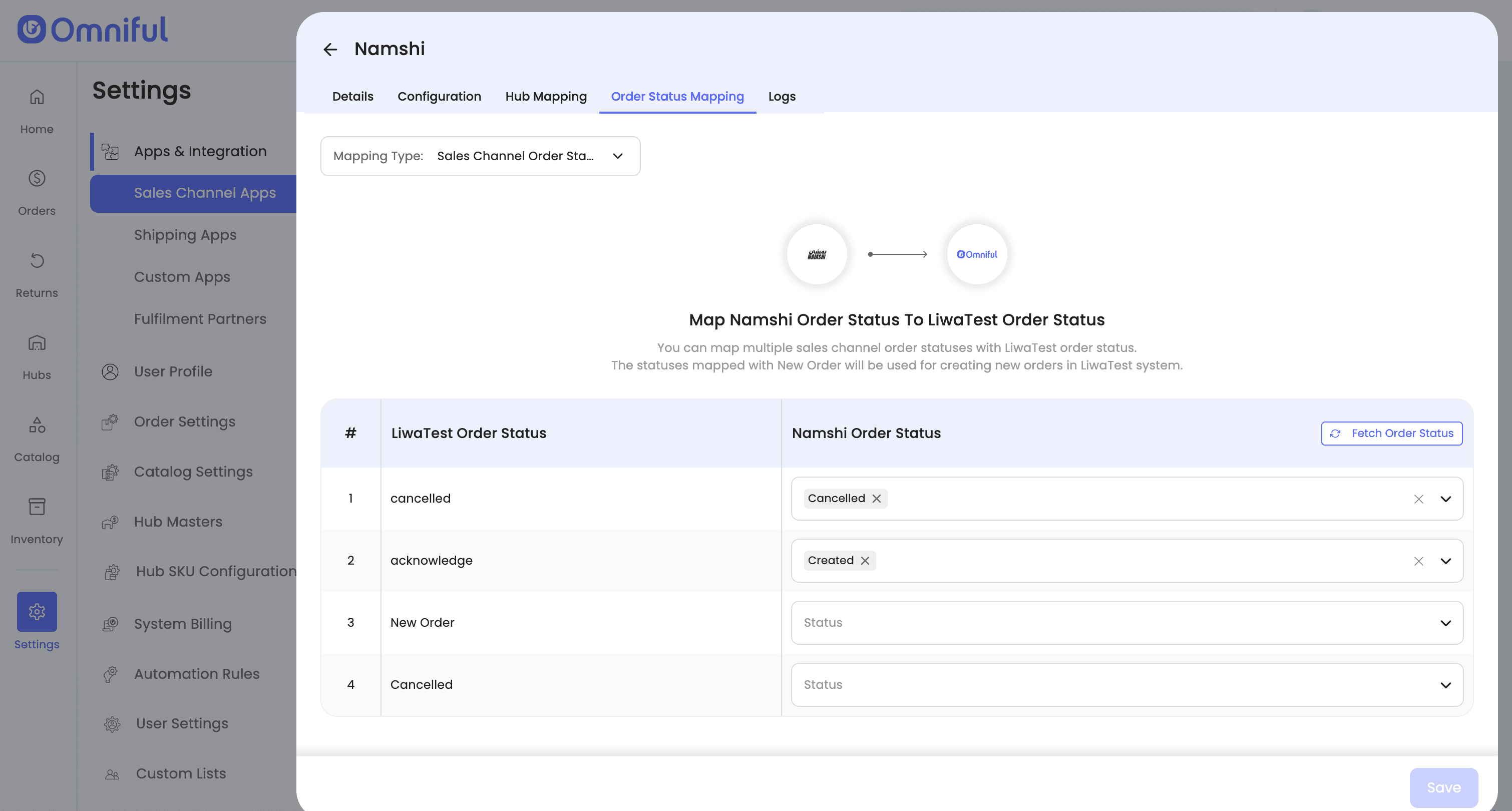
Order Status Mapping defines how Namshi statuses and Omniful statuses stay in sync:
Sales Channel Mapping –
Map incoming Namshi order statuses (e.g., New, Accepted) to internal Omniful order lifecycle stages (e.g., New, Ready for Picking).
Note: Ensure Namshi order statuses (such as New and Accepted) are configured correctly—otherwise new orders may not sync to Omniful. Likewise, if the cancelled status is not mapped, cancelled orders will not sync back to Namshi.
Workspace Order Mapping –
Define which outgoing Omniful shipment/order statuses should be pushed back to Namshi (for example, when the order is Rejected or Cancelled).
4.4 Logs
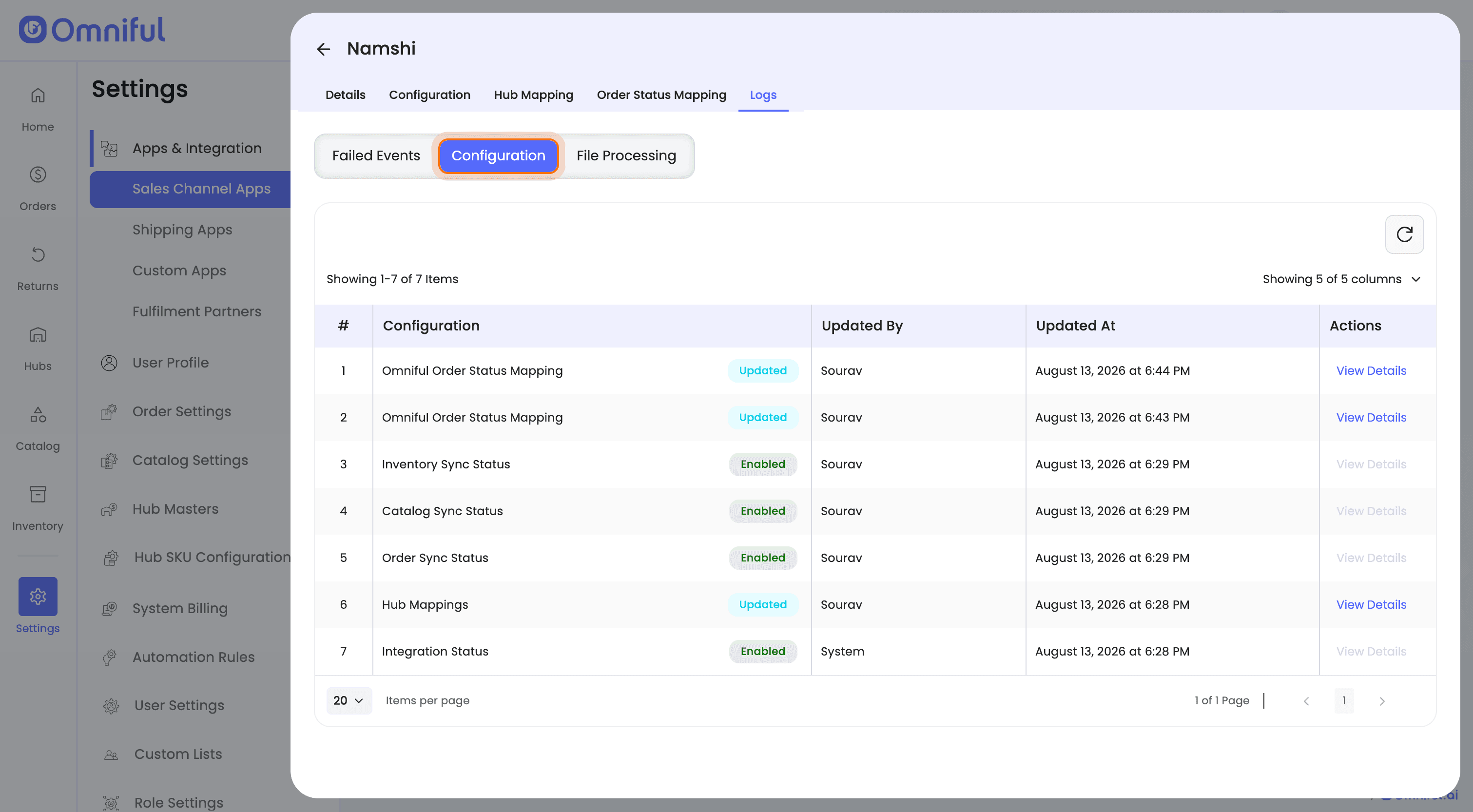
There are three types of logs in the Logs section:
- Failed Events – Use the Failed Events section to see the failed API calls to Chefz.
- Configurations – Use the Configuration Log to track changes to configurations.
- File Processing Logs – Use this section to track failures in catalog sheet processing.
5. Data and Sync Behaviour
5.1 Orders
Which orders sync
- All orders for the mapped hubs will sync to Omniful.
- Only orders with the mapped order statuses will be visible in Omniful.
5.2 Catalog
Seller’s Namshi store Catalog (SKUs) with valid SKU code should be uploaded to Omniful using the “Upload Catalog” feature available in Namshi store configuration. Please ensure that the Namshi Partner SKU Code is entered in the SKU code column of the catalog sheet.
SKUs sold on Namshi must exist in the Omniful Master Catalog to support fulfilment. Use Catalog Comparison to create Namshi marketplace SKUs in the Master Catalog, or enable ‘Sync SKUs from Sales Channel to Master Catalog’ to automatically create Master Catalog SKUs from all the Namshi Sales Channel Listing SKUs.
Note: If ‘Sync SKUs from Sales Channel to Master Catalog’ is enabled while the same SKUs already exist in the Master Catalog, the Namshi Sales Channel Listing data will overwrite the existing Master Catalog SKU data.
5.3 Inventory
Omniful automatically pushes and maintains inventory level on Namshi store when Inventory Sync is enabled and hub is mapped.
5.4 Cancellations
When ‘Automated Order Cancellation On Sales Channel’ is enabled, canceling an order in Omniful triggers an automatic cancellation on Namshi, keeping both systems aligned.
6. FAQs
Q: My inventory is not syncing to Noon. What should I check?
A: Start by checking Noon Store Settings → Failed Logs for any inventory sync failures. If you find failed entries, click Manual Sync for inventory. Next, verify that the correct hubs are mapped. Then confirm the Noon API service account permissions under Users & Access → User Access—the API user must have the Project Owner role (roles like Project Viewer or any other limited role).
Q: My Namshi orders are not appearing in Omniful. What should I check?
A: If orders are not syncing, verify the following:
- Order Sync is enabled in Store-Level Settings.
- The order’s Namshi status is mapped under Sales Channel Mapping (e.g., Namshi → New → Omniful New).
- The order belongs to a Namshi hub that is mapped to an Omniful hub.
Q: Why are cancellations from Omniful not reflecting on Namshi?
A: For Omniful → Namshi cancellations to sync back:
- “Automated Order Cancellation on Sales Channel” must be enabled.
- Cancelled order status must be mapped from the order status mapping tab.
Q: Who is the inventory master?
A: Omniful is the inventory master. Enabling Inventory Sync pushes available stock from Omniful to Namshi.
Q: Who creates shipment of orders from Namshi store?
A: As per Noon guidelines, for warehouses outside the countries SA, EG, or UAE, the shipment must be created by the fulfilment partner.
Q: How to create manifest after generating shipments in the Noon Partner Platform?
A: Sellers must manually create a manifest in Seller Lab for all shipments prepared for Noon collection, as pickup scheduling requires manifestation.
Log in to the Noon Partner Platform, go to Menu → noon → Fulfilled by Partner → Manifestation, select the intended warehouse, enter the number of shipments to hand over, and click Save Changes to create the manifestation.