

Table of Contents
Share On


Pik Marketplace Integration
This native integration with Pik enables seamless order, catalog, and inventory synchronization.
Version: v1.0
Date: January 23, 2026
Owner: Sales Channel Product Team
1. Overview
What this integration does:
The Pik integration connects your Pik Marketplace store with Omniful so that:
-
Orders created through Pik automatically sync to Omniful for processing.
-
Inventory availability maintained in Omniful can be synced to Pik.
-
You can configure hub mapping, order status mapping directly from Omniful.
2. Prerequisites
2.1 Sales Channel prerequisites
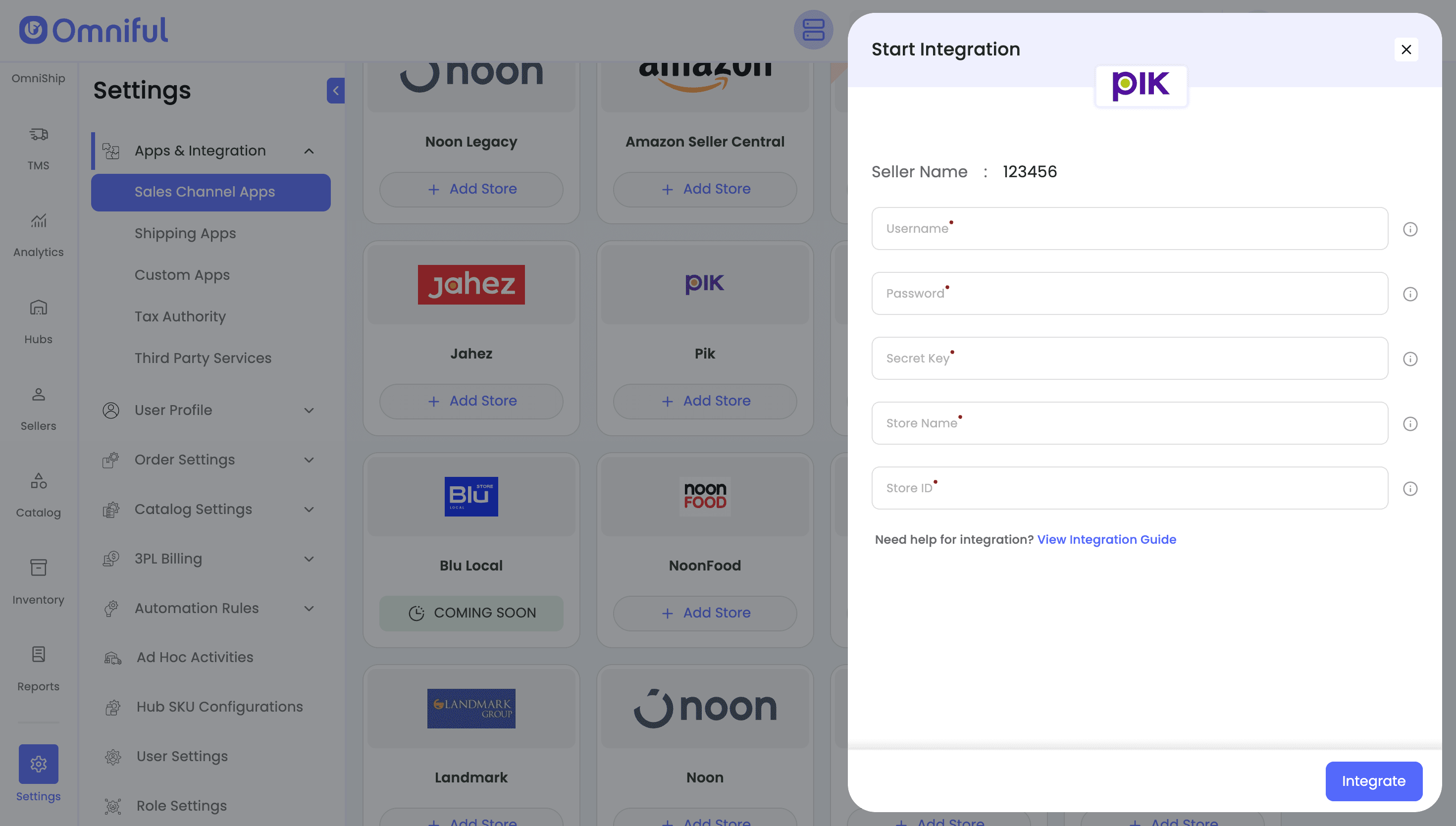
You will be required to obtain the following details from Pik Store:
-
Pik Account Credentials
-
Username
-
Password
-
-
Pik API Details
-
Secret Key
-
Store Name
-
Store ID
-
Note: You may need to request the API Details from Pik Support.
3. Integration Methods and Setup
3.1 Connect Pik store in Omniful
Once you have the required details:
-
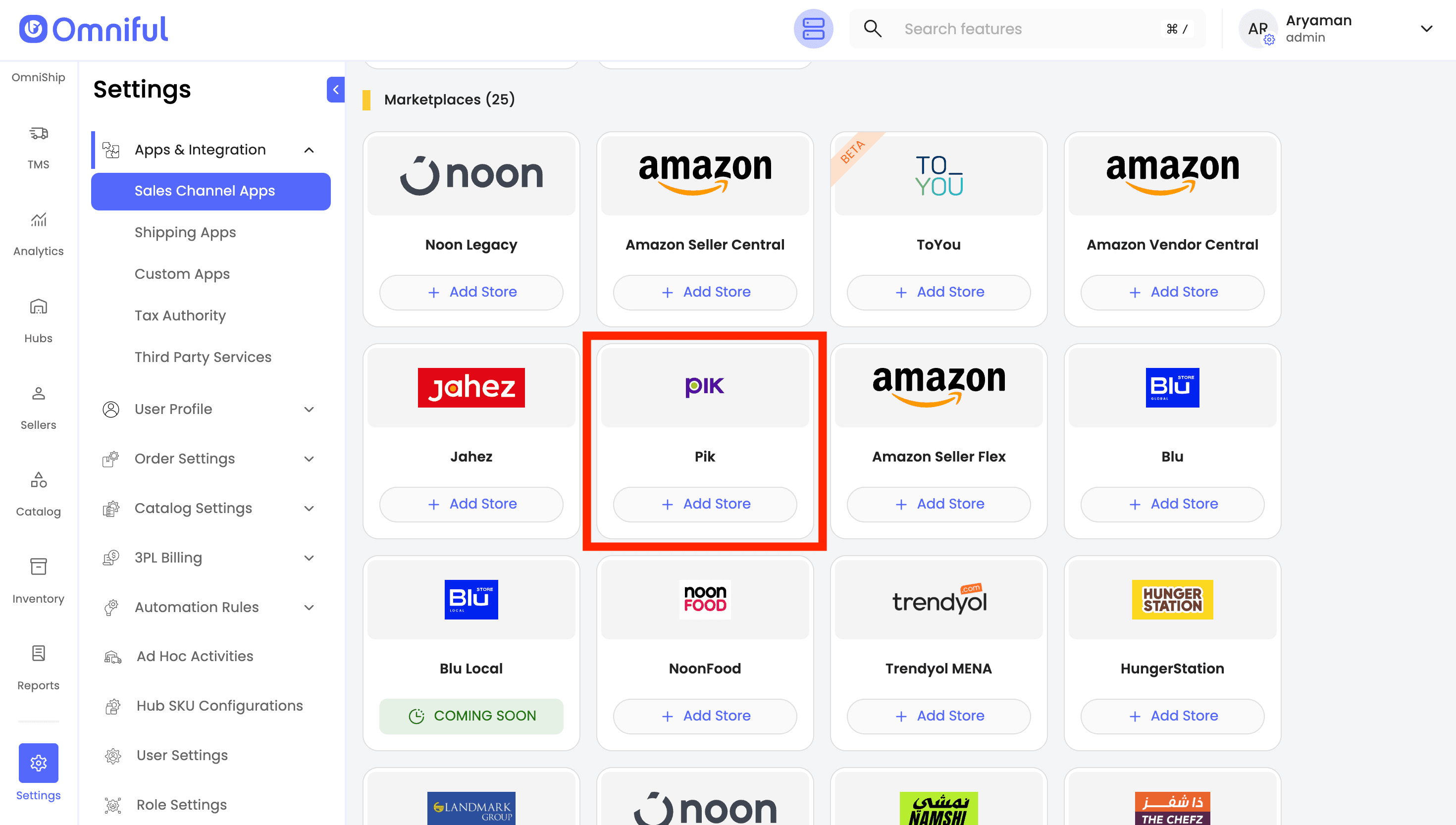
In Omniful, go to: Settings → Apps & Integration → Sales Channel Apps.
-
Select Seller and choose Pik from the marketplace section
-
Click Add Store
-
Enter all required store and API information in the respective input fields. Click Integrate to complete the integration process.
4. Omniful Configuration
- Once the store is connected, configure how data flows between Pik and Omniful.
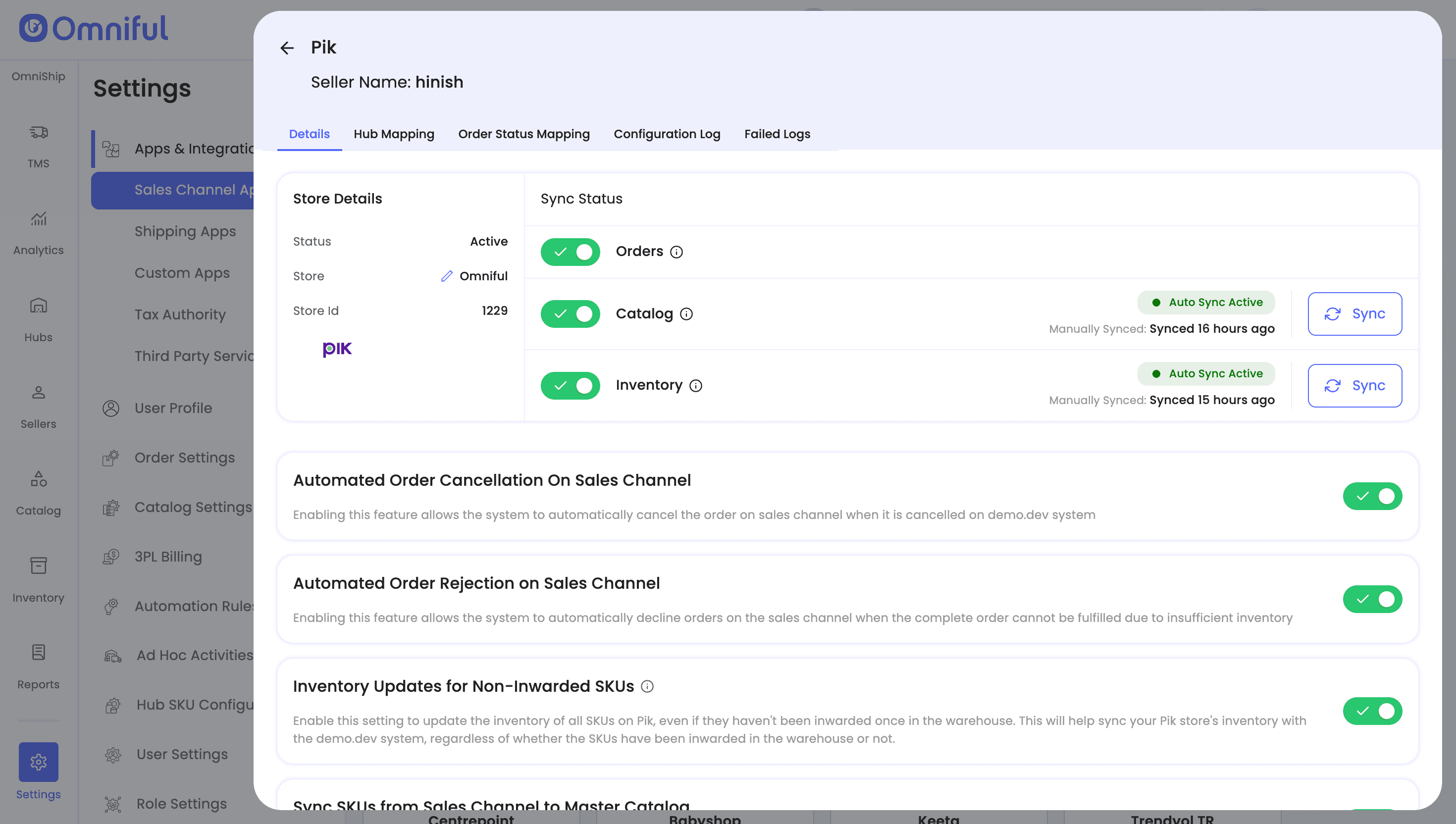
4.1 Store-level settings
Depending on your requirements, you can enable:
-
Order Sync – Automatically fetch orders from Pik to Omniful.
-
Inventory Sync – Marks the SKU as Available or Unavailable based on inventory—Unavailable when stock is 0.
4.2 Hub Mapping
Configure how Pik orders are routed to Omniful hubs:
- Map Omniful Hubs to the hubs configured in Pik.
4.3 Order status mapping
Order Status Mapping defines how Pik statuses and Omniful statuses stay in sync:
-
Sales Channel Mapping – Map incoming Pik order statuses (e.g., New, Accepted) to internal Omniful order lifecycle stages (e.g., New, Ready for Picking).
-
Workspace Order Mapping – Define which outgoing Omniful shipment/order statuses should be pushed back to Pik. (for example, when the order is Rejected or Cancelled).
Note: ensure Pik order statuses (such as New and Accepted) are configured correctly—otherwise new orders may not sync to Omniful. Likewise, if the cancelled status is not mapped, cancelled orders will not sync back to Pik.
5. Data and Sync Behaviour
5.1 Orders
Which orders sync
-
All orders for the mapped hubs will sync to Omniful.
-
Only orders with the mapped order statuses will be visible in Omniful
5.2 Catalog
-
Sellers can upload their Pik Catalog through Omniful’s Upload Catalog to create their catalog in Pik as well as Omniful.
-
If a Pik product has no variants: inventory sync uses the Pik Product ID as the Omniful SKU Code.
-
If a Pik product has variants: inventory sync uses the Pik Variant ID as the Omniful SKU Code.
SKU creation in Omniful: SKUs are created only for physical sellable items—either the standalone product (when there are no variants) or each individual variant (when variants exist).
Note: Make sure the industry name in the catalog sheet exactly matches one of the supported industry names shown in the Upload Sidesheet.
5.3 Inventory
- Omniful maintains inventory levels for the Pik store. When Inventory Sync is enabled, setting Pik SKUs to Available when inventory is greater than 0 and Unavailable when inventory is 0.
5.4 Cancellations
-
Cancellations – When Automated Order Cancellation On Sales Channel is enabled, canceling an order in Omniful triggers an automatic cancellation on Pik, keeping both systems aligned.
-
Rejections - When Automated Order Rejection is enabled, Omniful triggers an automatic cancellation on Pik when inventory is insufficient or the SKU is not present in the Master Catalog (Invalid SKU).
6. FAQs
Q: My Pik orders are not appearing in Omniful. What should I check?
A: If orders are not syncing, verify the following:
-
Order Sync is enabled in Store-Level Settings.
-
The order’s status on Pik is mapped with appropriate order status in Omniful. You can check this in the Order Status Mapping Tab.
-
The order belongs to a Pik hub that is mapped to an Omniful hub.
Q: How does inventory sync work between Pik and Omniful?
A: When Inventory Sync is enabled, Omniful continually pushes available inventory from its mapped hubs to Pik, ensuring stock levels remain aligned.
Q: My cancelled orders in Omniful are not updating in Pik. What could be the reason?
A: This usually happens when the Cancelled status is not mapped in the Workspace Order Mapping section. Ensure that the Cancelled status is correctly mapped and Automated Order Cancellation on Sales Channel config is enabled.
Q: Who is the inventory master?
A: Omniful is the inventory master. When Inventory Sync is enabled, setting Pik SKUs to Available when inventory is greater than 0 and Unavailable when inventory is 0.
Q: Who creates shipments of orders from the Pik store?
A: Shipment and delivery is managed by Pik only. Shipment status is not updated by Omniful.