

Table of Contents
Share On


Zid Integration Guide
This document explains how to integrate your Zid store with Omniful including setup, configuration, and synchronization of orders, catalogs, and inventory.
Version: v1.0
Date: November 21, 2025
Owner: Sales Channel Product Team
1. Overview
What this integration does
The Zid integration connects your Zid store with Omniful so that:
- Orders created through the Zid app provided by your fulfilment or shipping partner that is connected to Omniful automatically sync to Omniful for processing.
- Inventory availability maintained in Omniful can be synced to Zid.
- Shipments created in Omniful can update shipment status & tracking to Zid.
- You can configure hub mapping, order status mapping, shipping service codes directly from Omniful.
Note: If you have more than one fulfillment or shipping app installed on your Zid store, Omniful only works with the app you connect during integration. Orders that belong to other apps stay managed only in Zid and cannot be updated by Omniful.
Zid — Uses your Fulfilment or Shipping Partner's Zid App
Public App – Published on the Zid Store and available for installation by any seller.
- A store may install multiple apps; however, Omniful will send order updates only for orders synced from the specific app that is actually used to create the integration with Omniful.
- For other apps installed on the same store, we can still create orders through manual sync, but order updates will not be sent, - and real-time order updates will not be received.
- Stores that are connected to Omniful through the primary app (the one used for integration) benefit from real-time order synchronization with Zid via webhooks. Any additional apps installed on the same store will rely solely on manual order sync.
Private App – An app not published on the Zid Store, accessible only to stores explicitly authorized by the respective Fulfilment or Shipment Partner.
Enterprise App – The app is installed directly on the merchant’s Zid store by the Zid team, based on a request from the merchant.
In this guide, both Public and Private apps follow the same activation and connection flow. The difference is only in who can install them.
Supported integration types:
- Fulfillment + Shipping – Omniful handles both fulfillment and shipping.
- Shipping Only – Omniful handles only shipping, while order creation, catalog remain managed in Zid.
When Omniful sends updates (such as shipment status or tracking) back to Zid:
- Omniful always uses the same app that was used to create and connect the store.
- If an order belongs to a different app that is not connected in Omniful, Omniful cannot push updates for that order.
2. Prerequisites
2.1 Sales Channel prerequisites
You will need:
- An active Zid store with permission to install & manage apps.
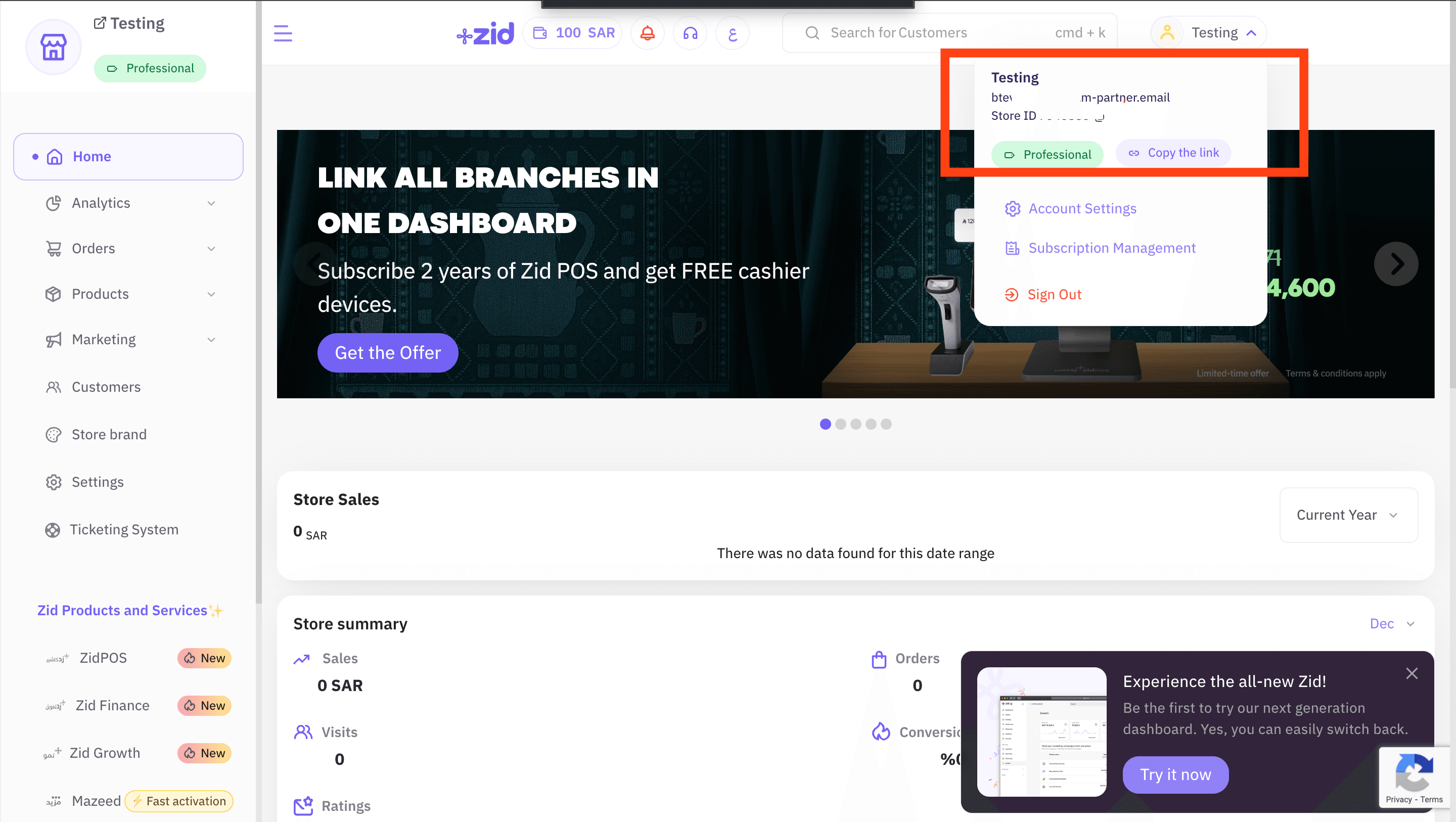
- Access to the email inbox associated with the Zid store (to receive the activation code). This email can be found at Zid Dashboard Profile.
- At least one shipping app configured in Zid (these are later linked via shipping service codes in Omniful).
(If your Zid plan or region restricts app access, contact Zid support to confirm eligibility.)
3. Integration Methods and Setup
3.1 Fulfilment/Shipment Partner’s App on Zid
- Log in to your Zid store dashboard.
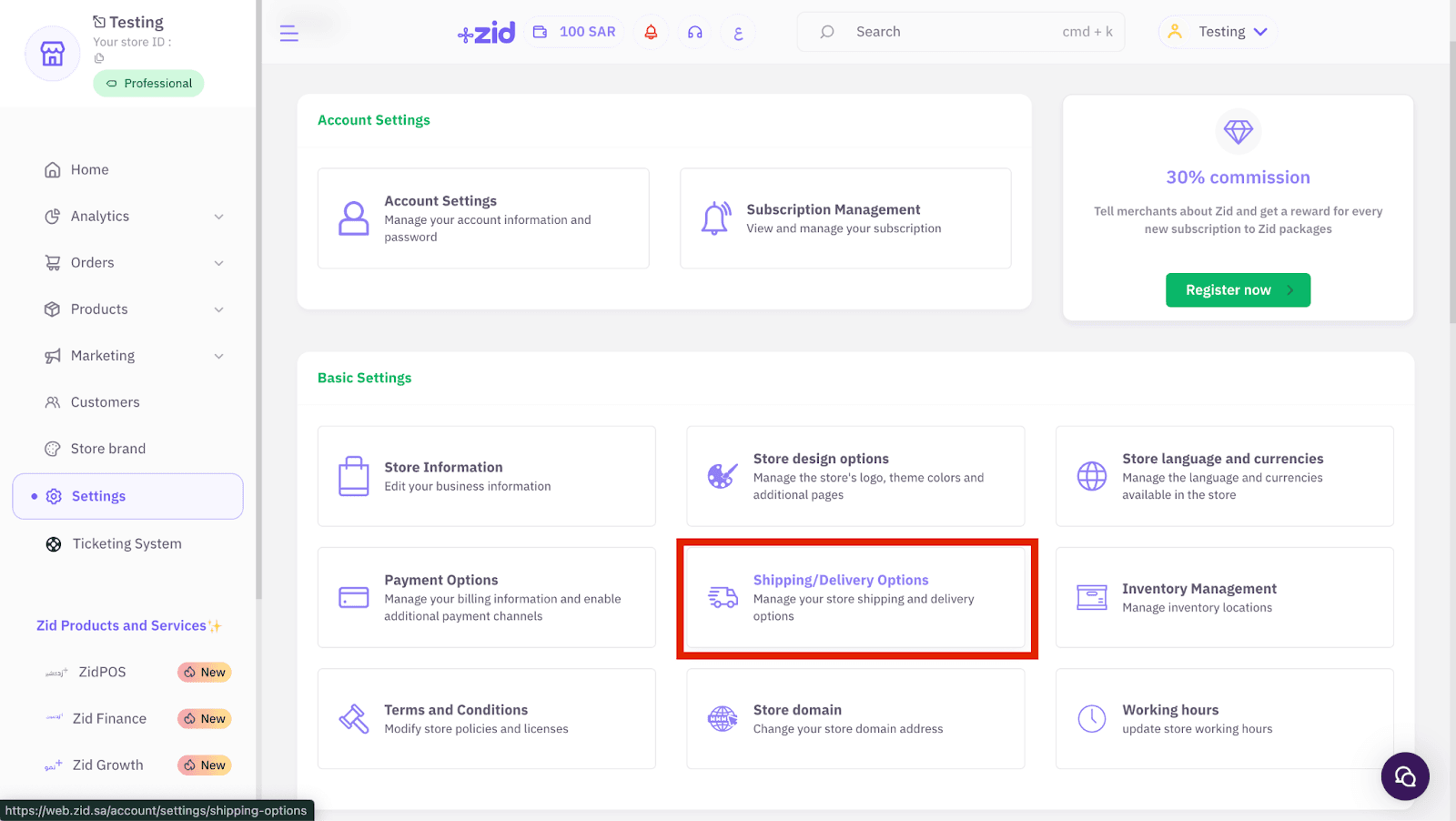
- Navigate to Settings > Shipping/Delivery Options.
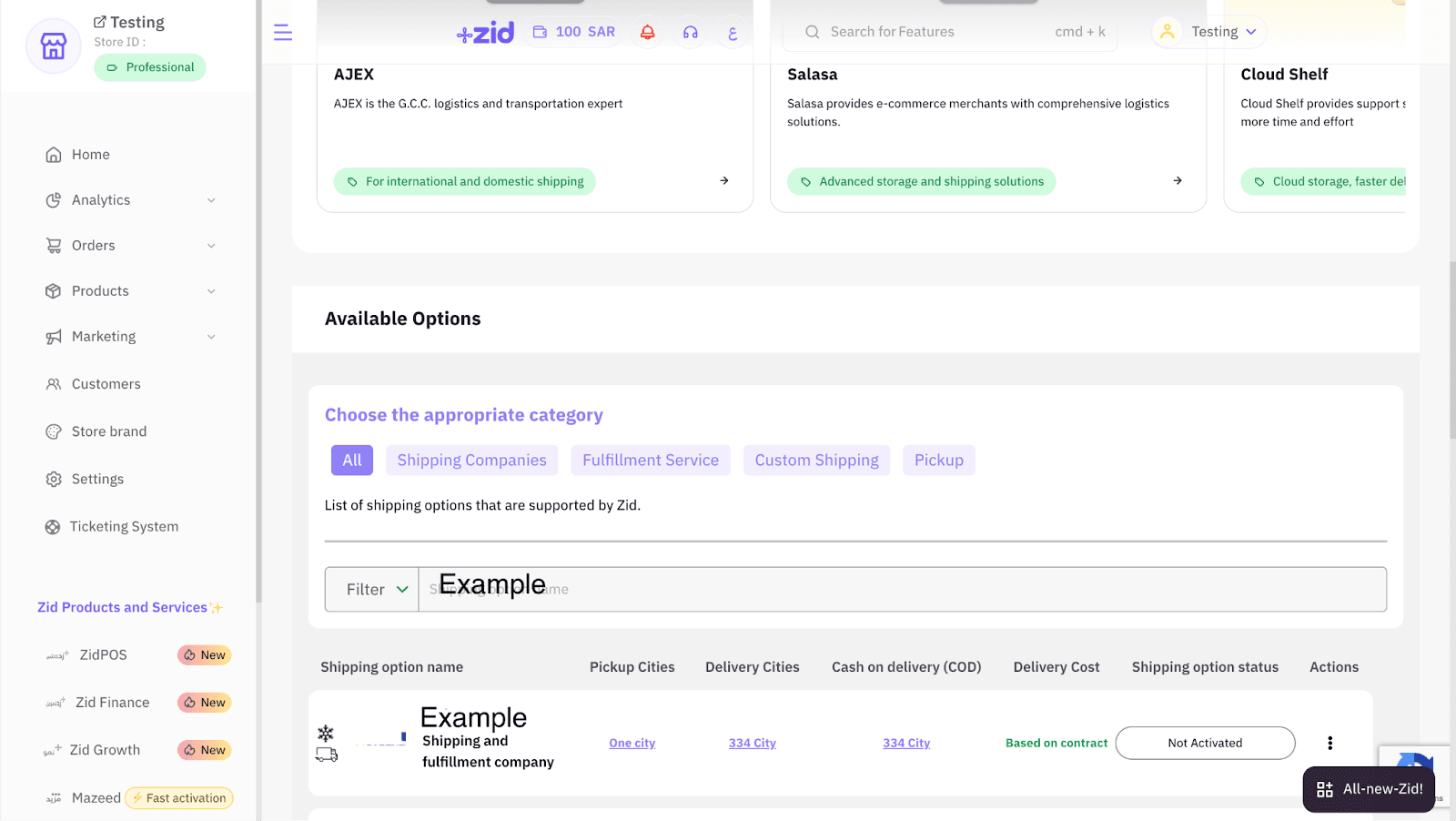
 3. Scroll down and search for your Fulfilment/Shipping Partner’s Zid App (Public) and click “Activate” from actions.
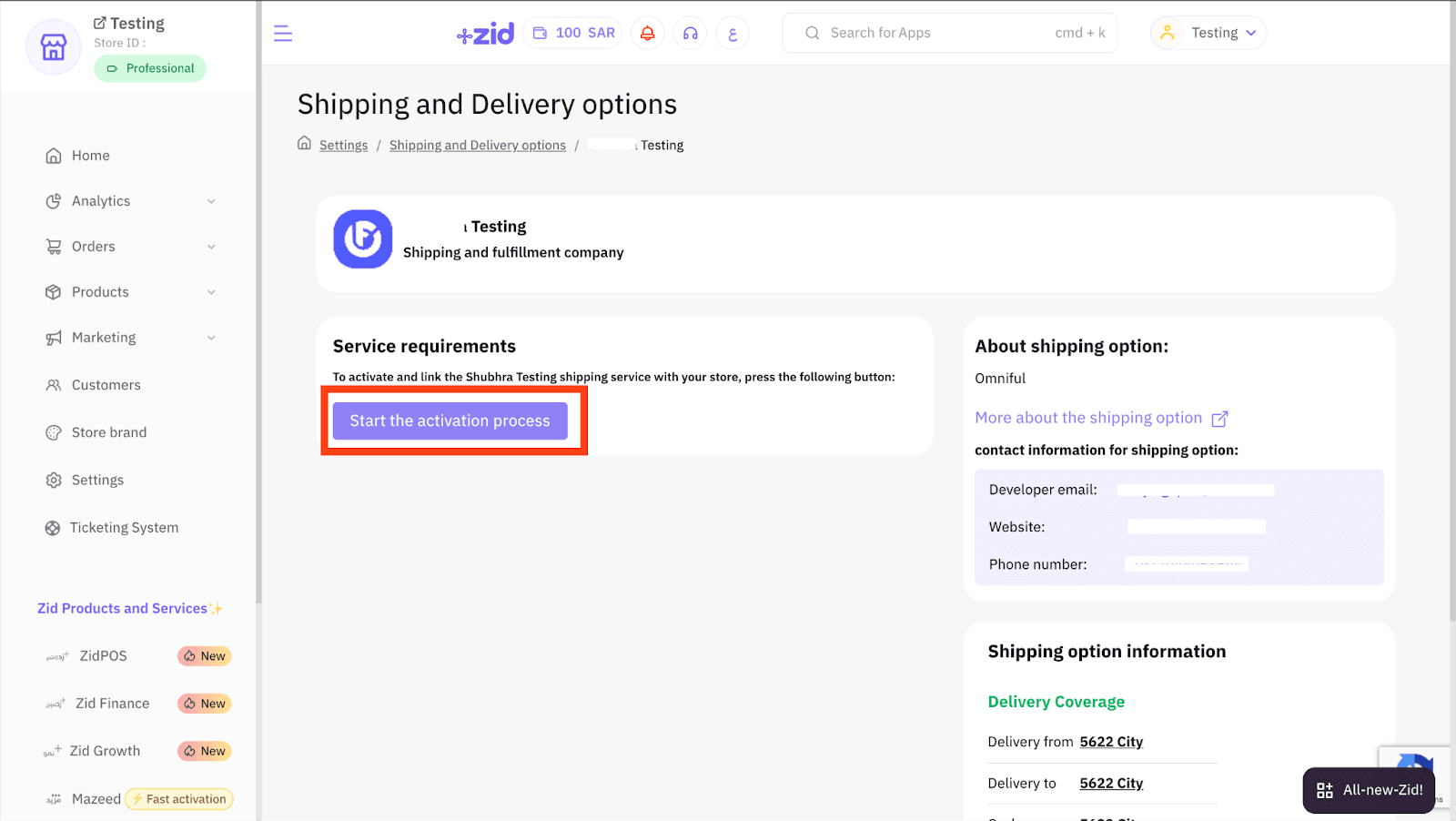
 4. Start Activation Process:
- Click ‘Start the activation process’.
- Enabling Inventory Synchronization and Automatic Order Dispatching is mandatory for Omniful Fulfillment and Shipping. Inventory sync works only when Inventory Synchronization is enabled, and order webhooks flow only when Automatic Order Dispatching is enabled.

- Click on ‘Next’, then ‘Activate’.
- Check your email for the activation code that will be required for the next part of the integration.
3.2 Connect Zid store in Omniful
Once you have the Activation Code:
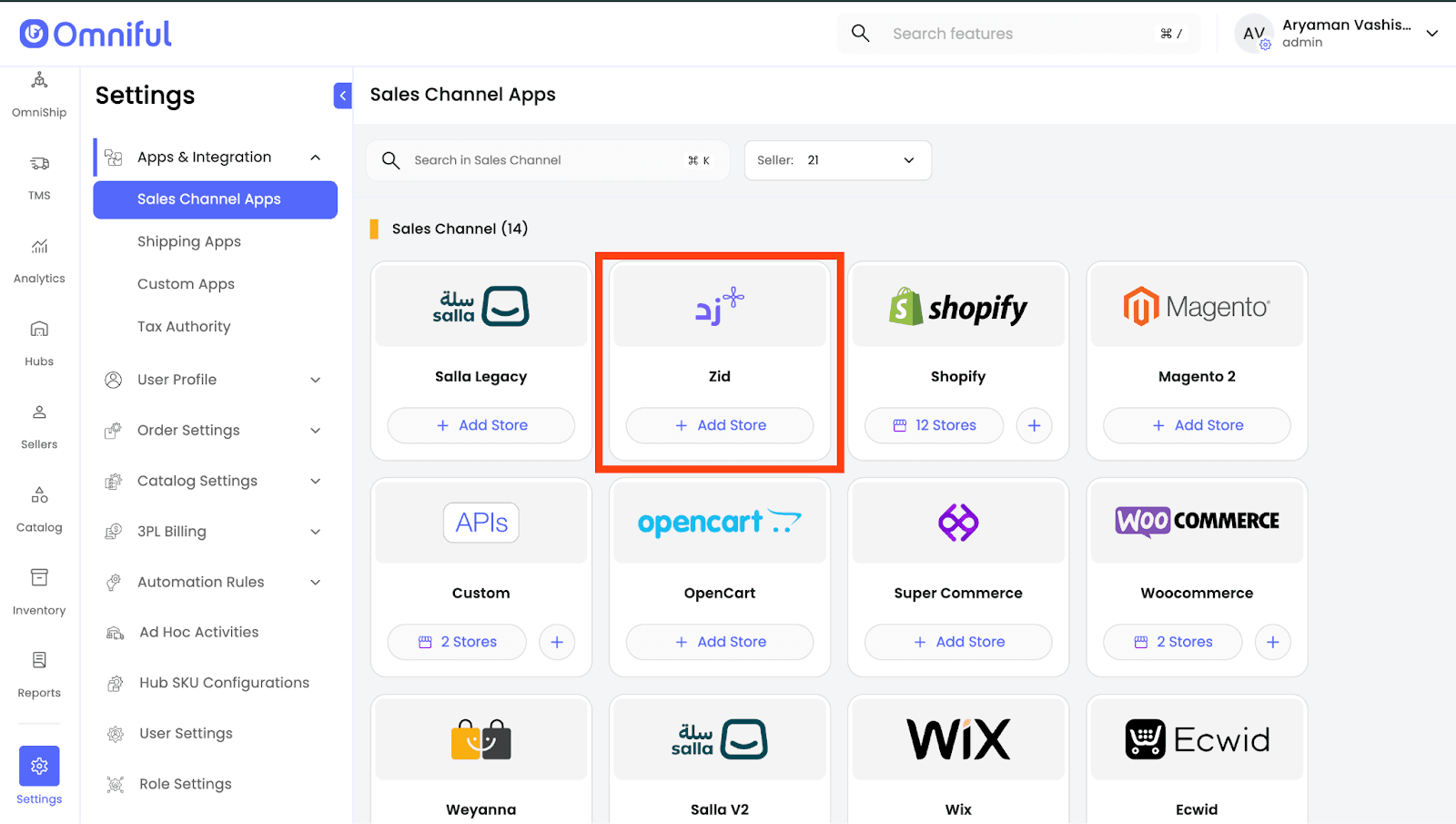
- In Omniful, go to Settings → Sales Channels → Sales Channel Apps / Stores.
- Select Seller and choose Zid as the sales channel type.
- Click Add Store.
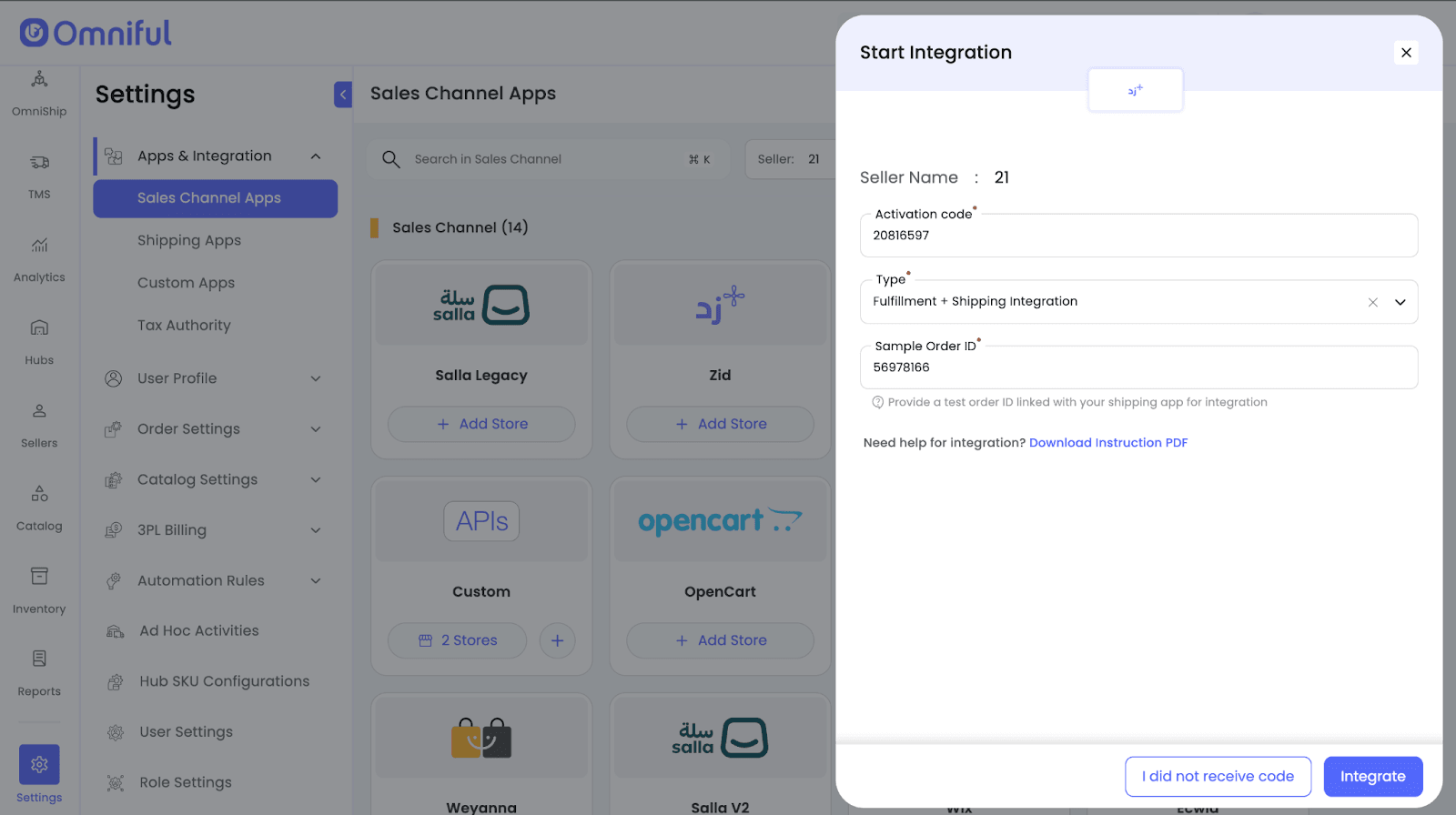
- Enter:
- Activation Code received via email.
- Type of Integration: Fulfilment+Shipping or Shipping Only.
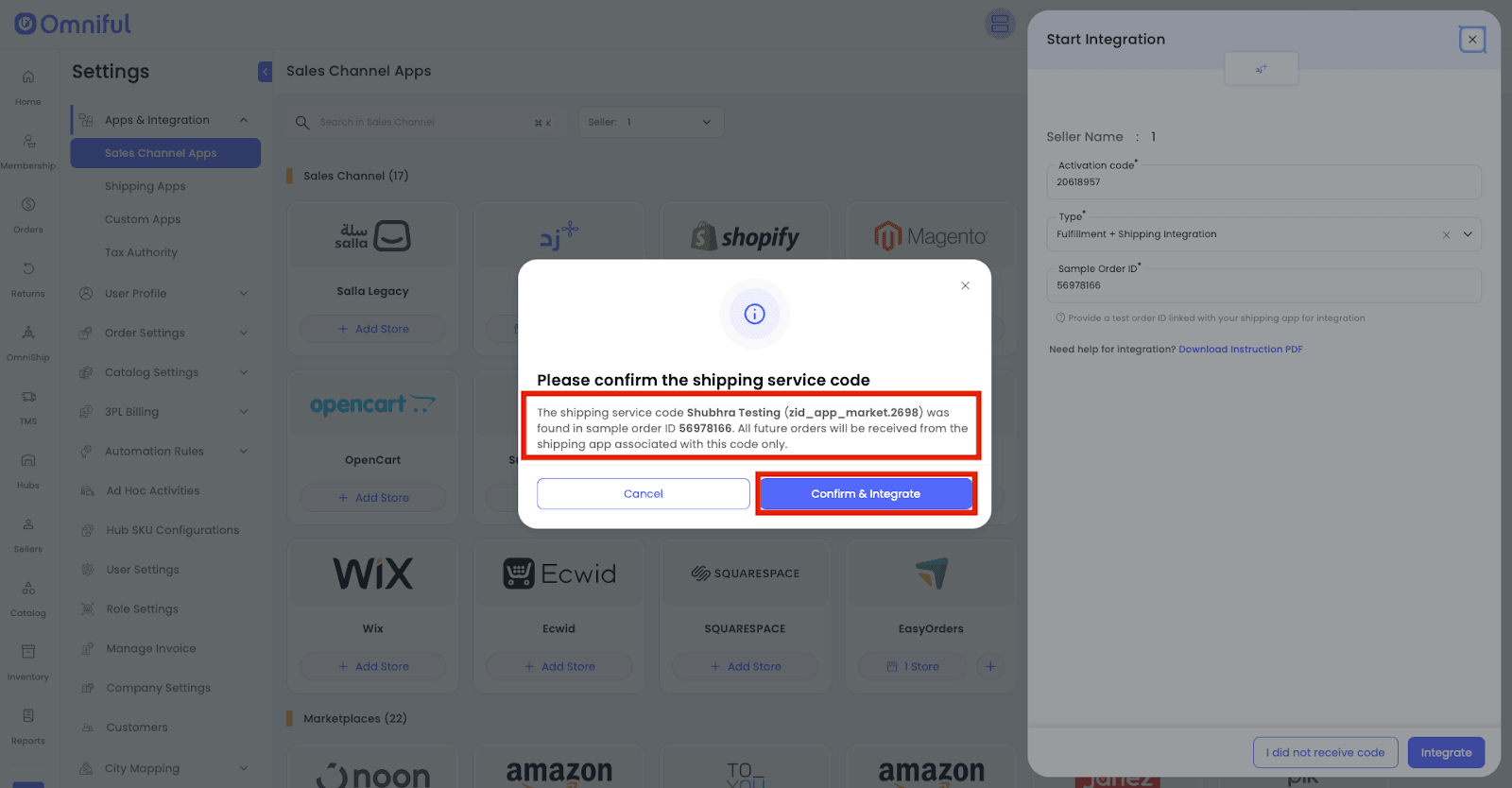
 5. Confirm the shipping app by checking the shipping service name and code.
6. Click “Confirm & Integrate” to complete integration.
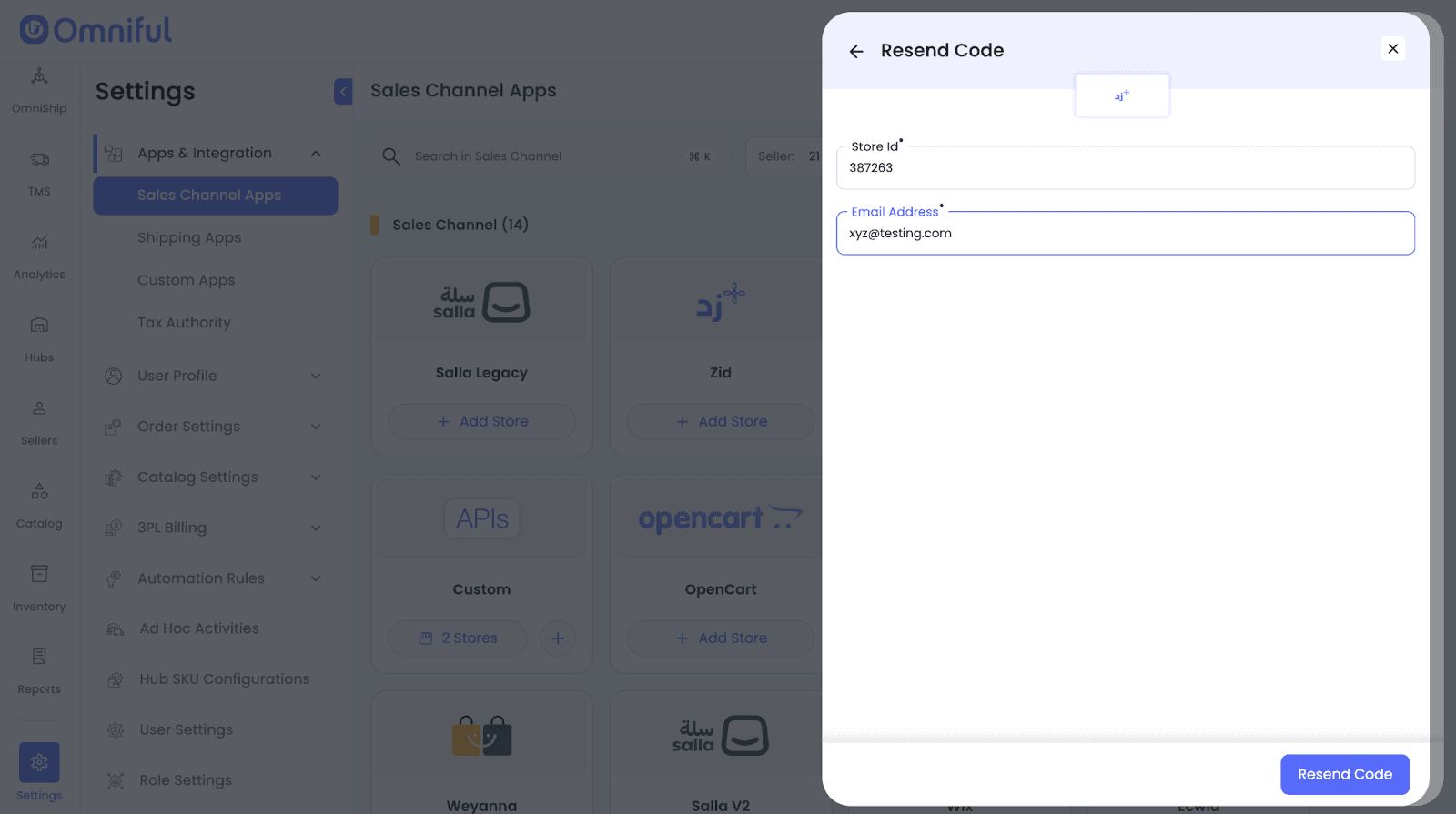
- Note: If you didn’t receive the code, click on “I did not recieve code”,
- Enter Zid Store Id
- Enter Zid store’s email address
- Click Resend Code, and continue.
4. Omniful Configuration
Once the store is connected, configure how data flows between Zid and Omniful.
4.1 Store-level settings
Depending on your requirements, you can enable:
- Order Sync – Automatically fetch orders from Zid to Omniful.
- Catalog Sync – Fetch catalog (SKUs) from Zid into Omniful.
- Inventory Sync – Push available inventory from Omniful hubs to Zid.
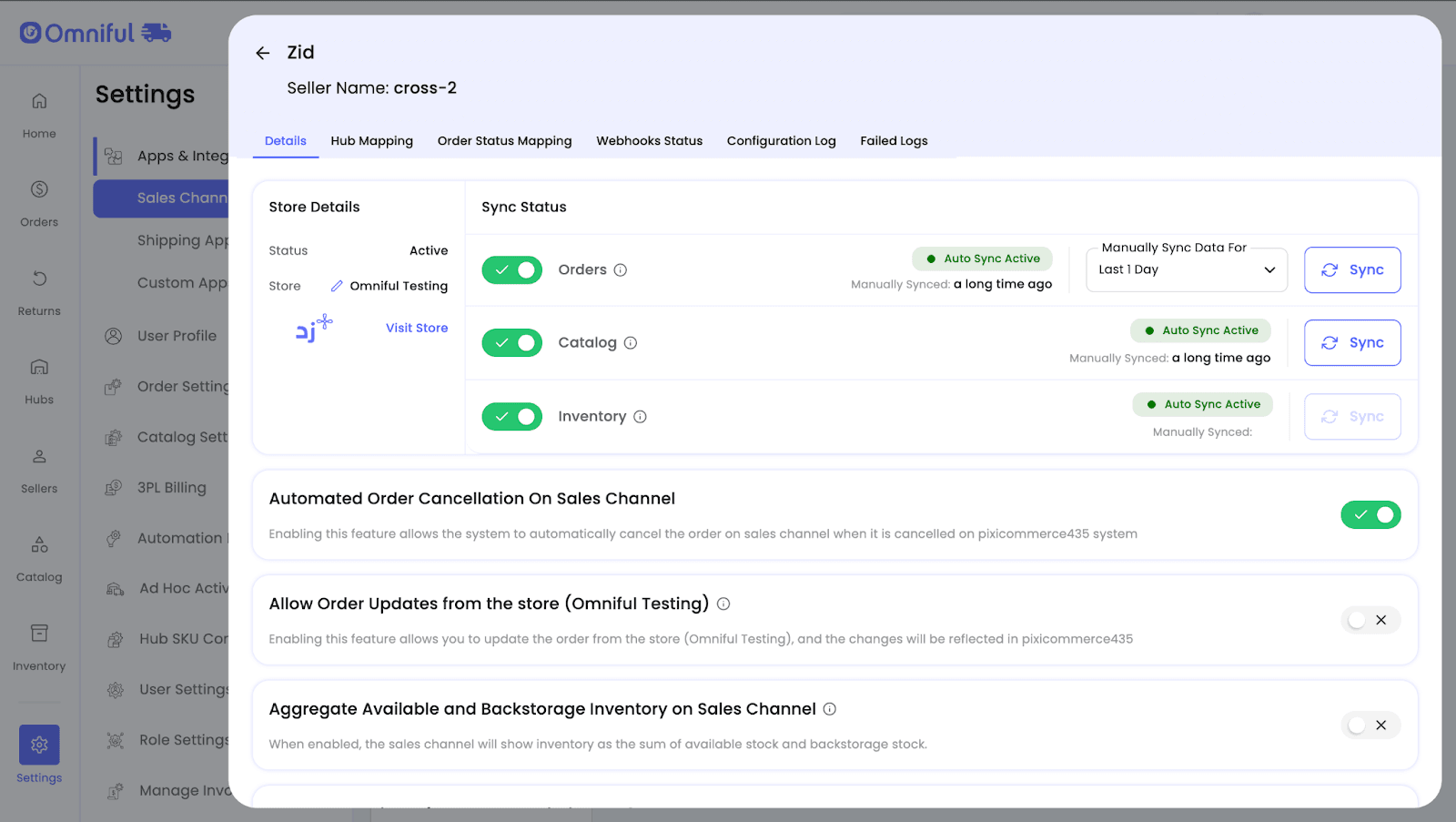
Shipping service code configuration
-
Omniful automatically fetches available Shipping Service Codes (Identifiers of your shipment apps) from Zid via the connected Zid App.
-
You can select one or more shipping service codes to associate with this store so that only orders using these services are treated as part of the Omniful setup.

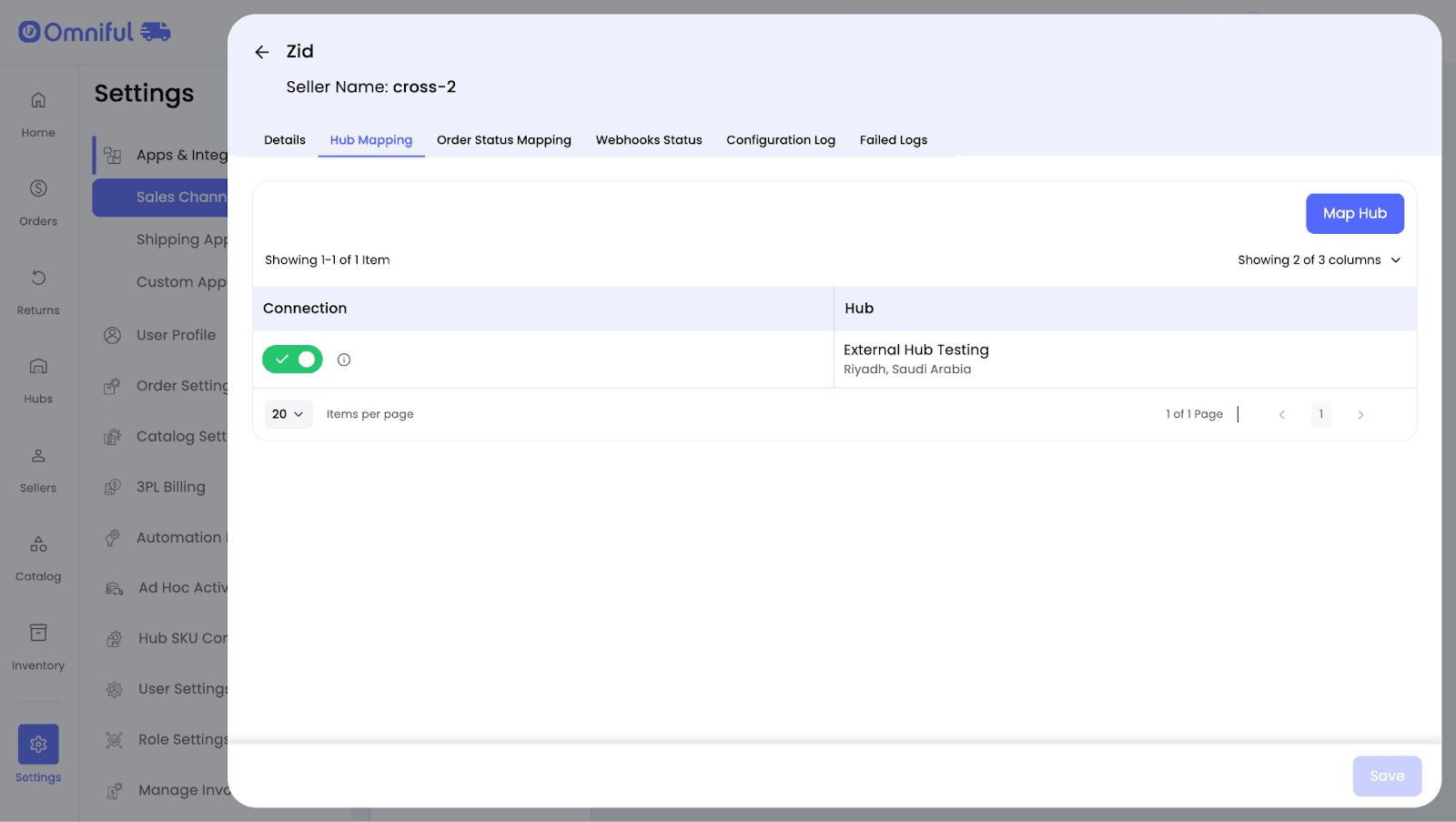
4.2 Hub Mapping
Configure how Zid orders are routed to Omniful hubs:
Hub mapping ensures that orders from Zid are fulfilled by the correct physical location and that inventory in that hub is used for allocation.
4.3 Order status mapping
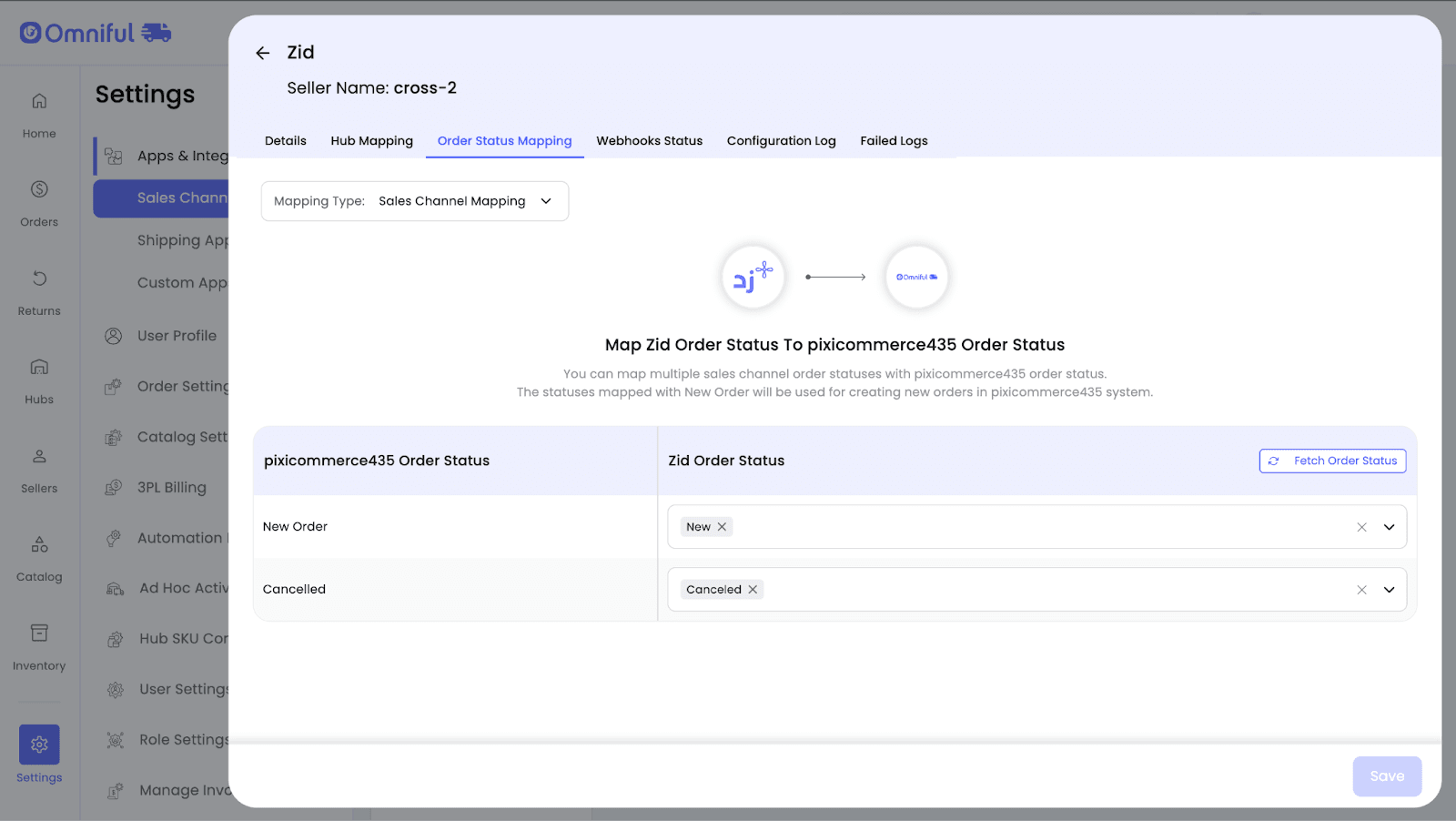
Order Status Mapping defines how Zid statuses and Omniful statuses stay in sync:
-
Sales Channel Mapping –
Map incoming Zid order statuses (e.g., Paid, Confirmed) to internal Omniful order lifecycle stages (e.g., New, Ready for Picking). -
Workspace Order Mapping –
Define which outgoing Omniful shipment/order statuses should be pushed back to Zid (for example, when the order is shipped or canceled).Note: Ensure Zid order statuses (such as new and paid) are configured correctly—otherwise new orders may not sync to Omniful. Likewise, if the cancelled status is not mapped, cancelled orders will not sync back to Zid.
Use Fetch Order Status within the configuration screen to load all available Zid statuses and then map them to Omniful statuses per your operational requirements.
5. Data and Sync Behaviour
5.1 Orders
Online Store Orders
- Only orders created via your Fulfilment/Shipping Partner Zid App are synced.
- Orders created via other public apps are not synced to Omniful.
- Only orders with the mapped desired order statuses will be visible in Omniful.
Return Orders Full and partial return orders are supported for standard Zid orders. Standard order returns continue to follow the existing return and Quality Check (QC) process in Omniful. Note: Zid does not provide APIs to update return order statuses. Therefore, once a return order is created in Omniful, no return status updates are pushed back to Zid.
POS Orders
Combines in-store and online sales by managing all orders and customer data in one place. Track sales, inventory, and orders for both online and offline channels from a single control panel.
Note: If you desire to use Zid POS with Omniful, kindly reach out to Zid support for integration steps.
Prerequisites to enable sync for POS orders
- After integration in Omniful using the fulfilment partner/ Omniful Merchant App
- Set the Shipping Service Codes to all in the Omniful integrated store.
- Turn on Hub-level Inventory configuration for the store, Which helps maintain inventory across individual physical location for POS orders. Note: This configuration can be enabled by raising a ticket to Omniful Support.
- Use only Location Inventory OFF hubs (Location Inventory configuration must be OFF for the mapped hubs / retail outlets).
- Configure one-to-one hub mapping (map the Zid POS store to exactly one hub, and do not map that hub to any other store).
How sync works
- Once Zid POS Orders Sync is enabled, any Zid POS order marked as Fulfilled in Shopify is created in Omniful as Delivered.
- Full and partial returns are supported for Zid POS orders.
- POS returns auto-restock inventory and does not require Quality Check (QC).
Return Orders Full and partial returns are supported for Zid POS orders. POS returns automatically update inventory and do not require a Quality Check (QC). Note: Zid does not provide APIs to update return order statuses. Therefore, once a return order is created in Omniful, no return status updates are pushed back to Zid.
5.2 Catalog
Seller’s Zid Catalog (SKUs) is fetched automatically to Omniful when Catalog Sync is enabled.
Omniful periodically fetches ‘Active and Live’ SKUs so you can see and use them for order & fulfillment processes in Omniful.
5.3 Inventory
Omniful automatically pushes and maintains inventory level on Zid store when Inventory Sync is enabled.
5.4 Cancellations
When Automated Order Cancellation On Sales Channel is enabled, canceling an order in Omniful triggers an automatic cancellation on Zid, keeping both systems aligned.
6. FAQs
Q: Do I need Zid partner access or just store admin?
A: Store owner / admin access with permission to install apps is sufficient for Zid integration.
Q: Can I use the same app for multiple stores?
A: Yes. You can install the same fulfilment / shipping partner app on multiple stores. Each store will need to be connected separately in Omniful. Omniful only manages orders for stores that have been connected using that app.
Q: Why are some Zid orders not appearing in Omniful?
A: Only orders created using your Fulfilment/Shipping Partner Zid App are synced. Orders created via other public apps are not synced. Also, check that Order Sync is enabled and that Order Status Mapping includes the relevant Zid statuses.
Q: Can I control when an order is synced (e.g., only after it’s paid)?
A: Yes. You can configure Sales Channel Mapping so only orders in certain Zid statuses (e.g., Paid) are treated as new order in Omniful.
Q: Who is the inventory master?
A: Omniful is the inventory master. Enabling Inventory Sync pushes available stock from Omniful to Zid.
Q: When does tracking information appear in Zid?
A: When a shipment is created in Omniful, configured shipment details are sent back to Zid using the same fulfilment / shipping partner app that was used to connect the store.
Q: Can I use multiple shipping services?
A: Yes. Multiple Shipping Service Codes can be configured in Omniful so you can support multiple shipping services in Zid.
Q: What happens if I disable the Fulfilment/Shipping Partner’s App in Zid?
A: Updates stop, and new orders from that app will not sync to Omniful. Existing linked orders may still be processed in Omniful but will not update back to Zid until the app is re-enabled.
Q: What if I change shipping methods or add new ones in Zid?
A: You may need to revisit Shipping Service Code Configuration in Omniful to ensure the new codes are selected and mapped correctly.