

Table of Contents
Share On


Bin Types for Asset Standardisation
Version: 1.0
Owner: Omniful Product Team
Summary
This enhancement introduces Bin Types in Omniful WMS as a standardized bin definition to ensure consistency in how bins are defined and used across hubs.
A Bin Type is a predefined template that defines attributes such as dimensions for a specific type of bin. Along with Box Types and Pallet Types, Bin Types act as global configurations, ensuring uniform identification and usage of assets across hubs.
Once Bin Types are defined, individual bins created at the hub level can be mapped to them.
How It Works
Step 1: Enable Bin Type Permissions
To create and work with Bin Types, users must have the required permissions.
- Create Bin Type permission enables users to define new Bin Types in Hub Masters.
- View Bin Type permission enables users to view and use created Bin Types.
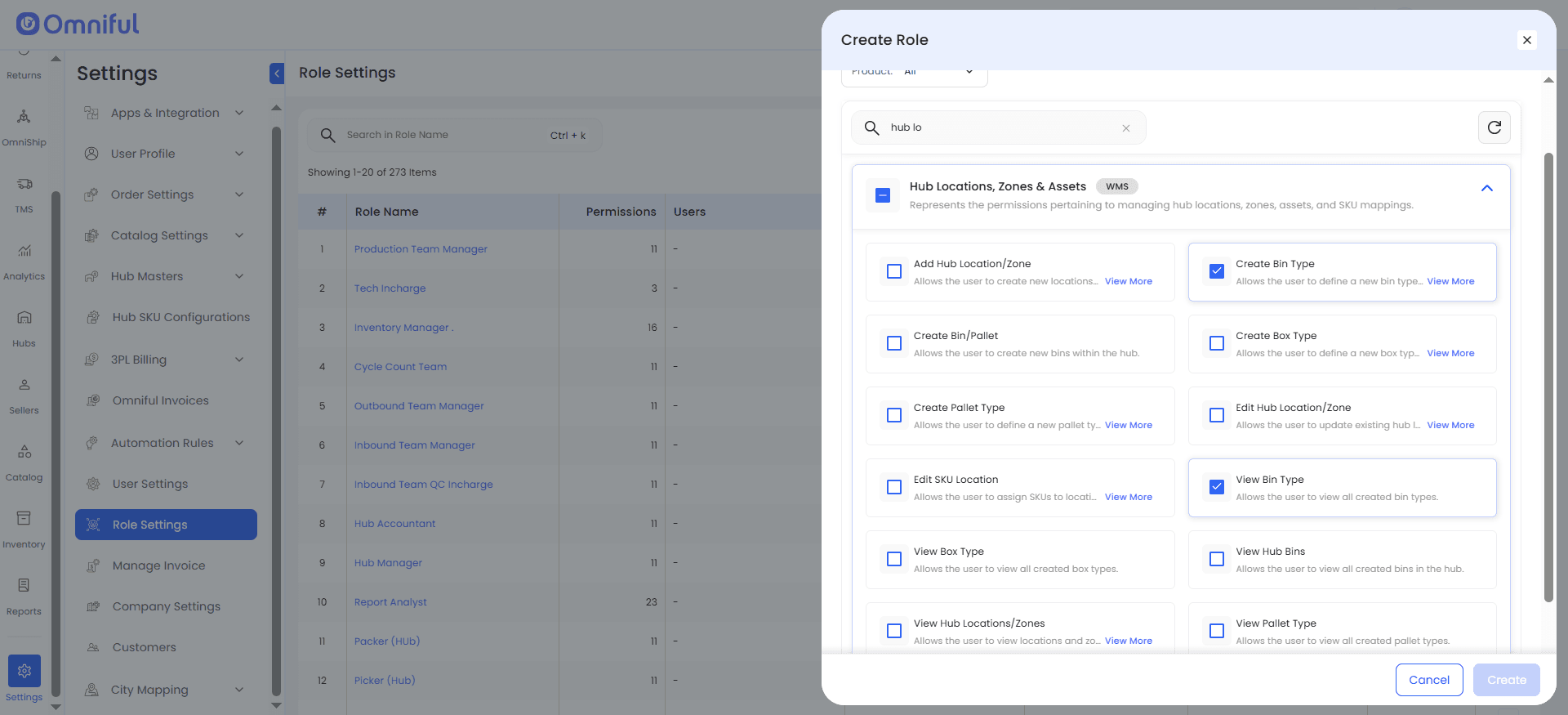
These permissions are available under Hub Locations, Zones and Assets permissions.
Note: The View permission is required for operational users to create bins. Without this permission, the list of Bin Types will not be visible during bin creation in operations such as GRN.
Step 2: Create a Bin Type in Hub Masters
-
Navigate to Settings > Hub Masters > Bin Types.
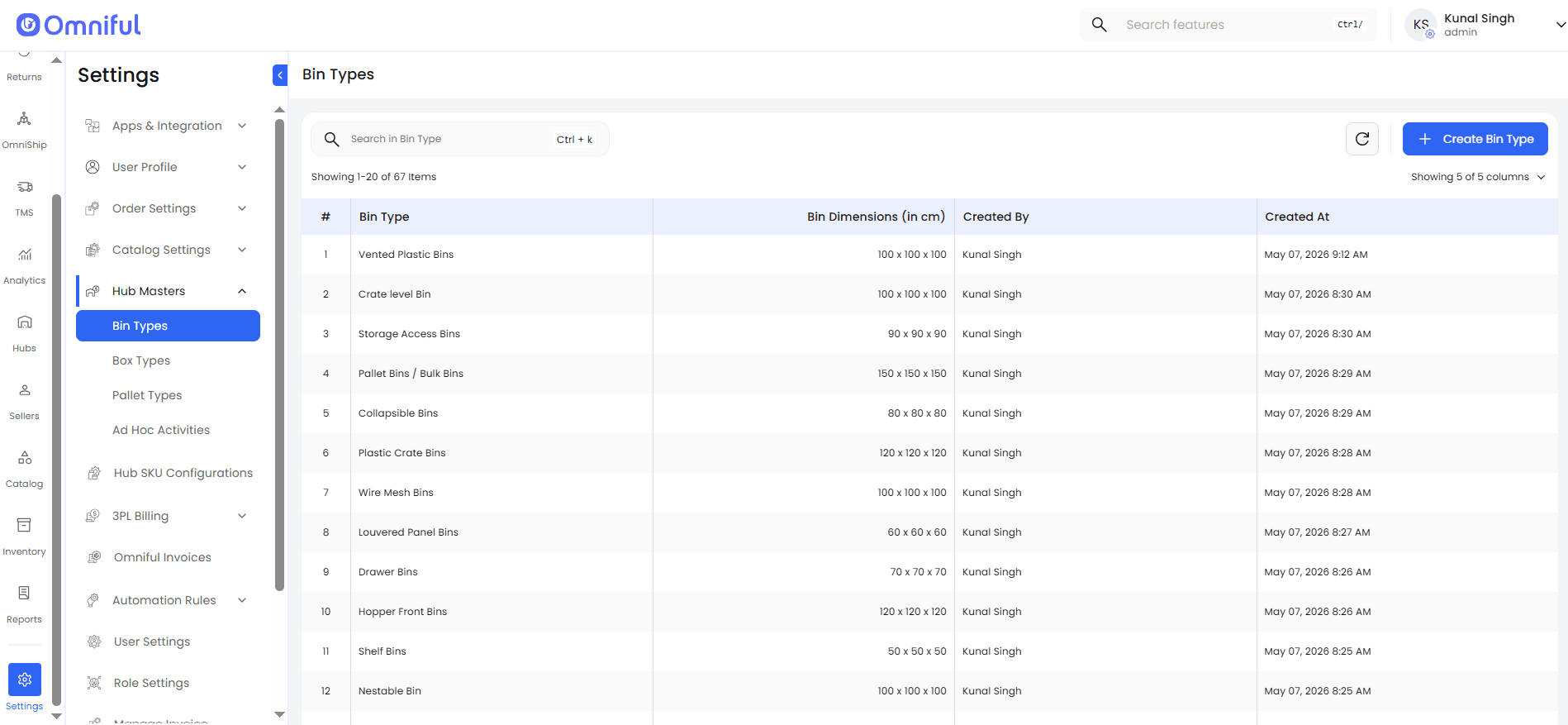
-
Click Create Bin Type.
-
Enter the Bin Type name and dimensions.
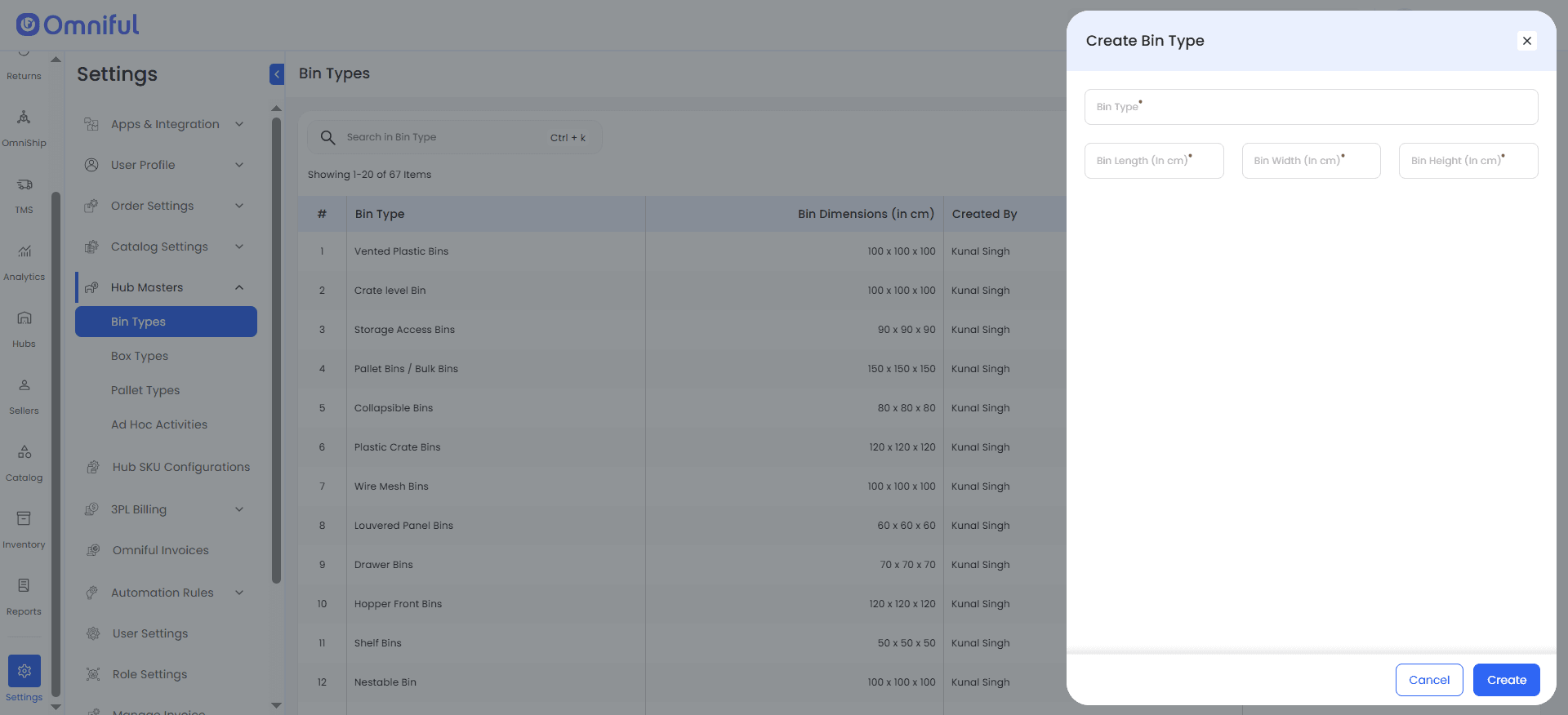
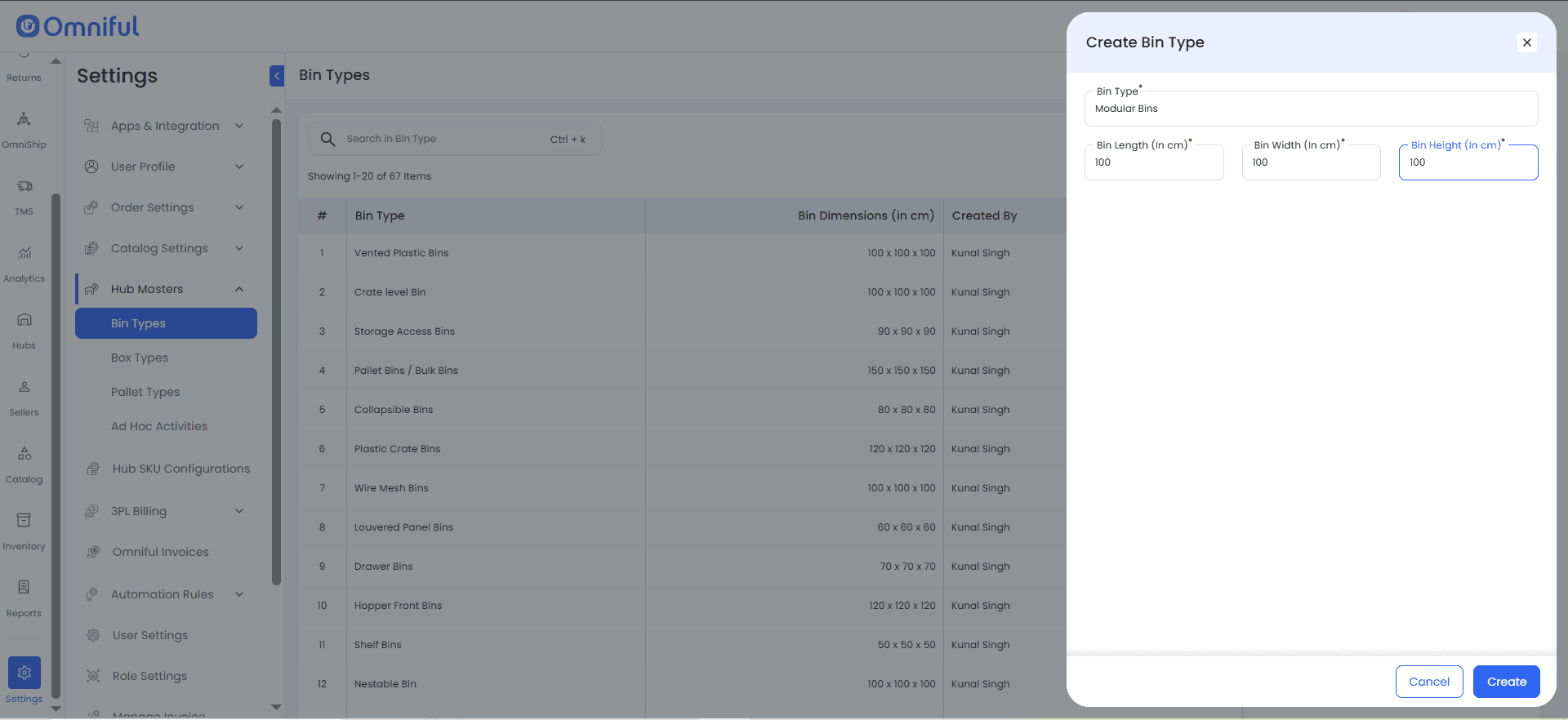
-
Click Create to save the Bin Type.
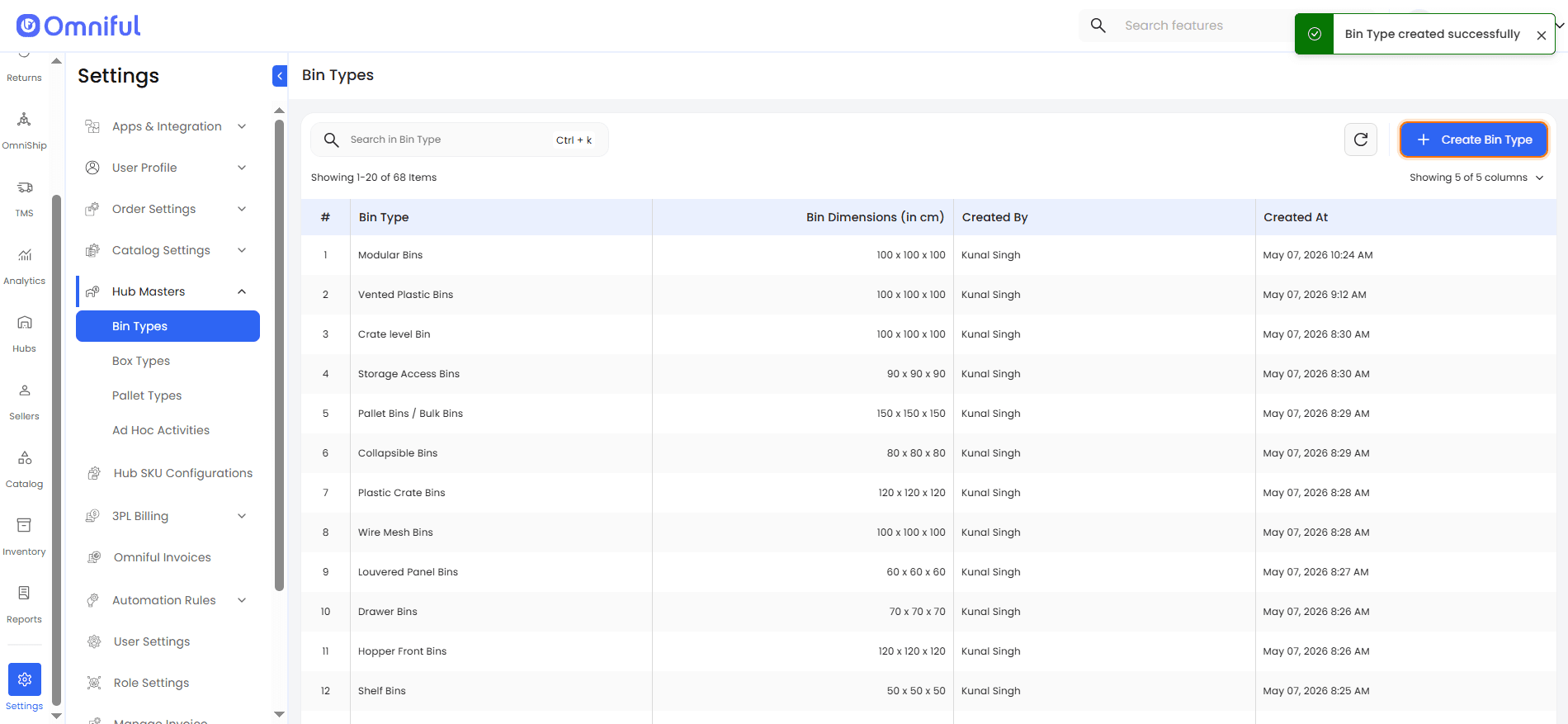
Once created, the Bin Type becomes available as a standardized definition that can be used while creating or mapping bins at the hub level.
Step 3: Create a New Bin Using a Bin Type
-
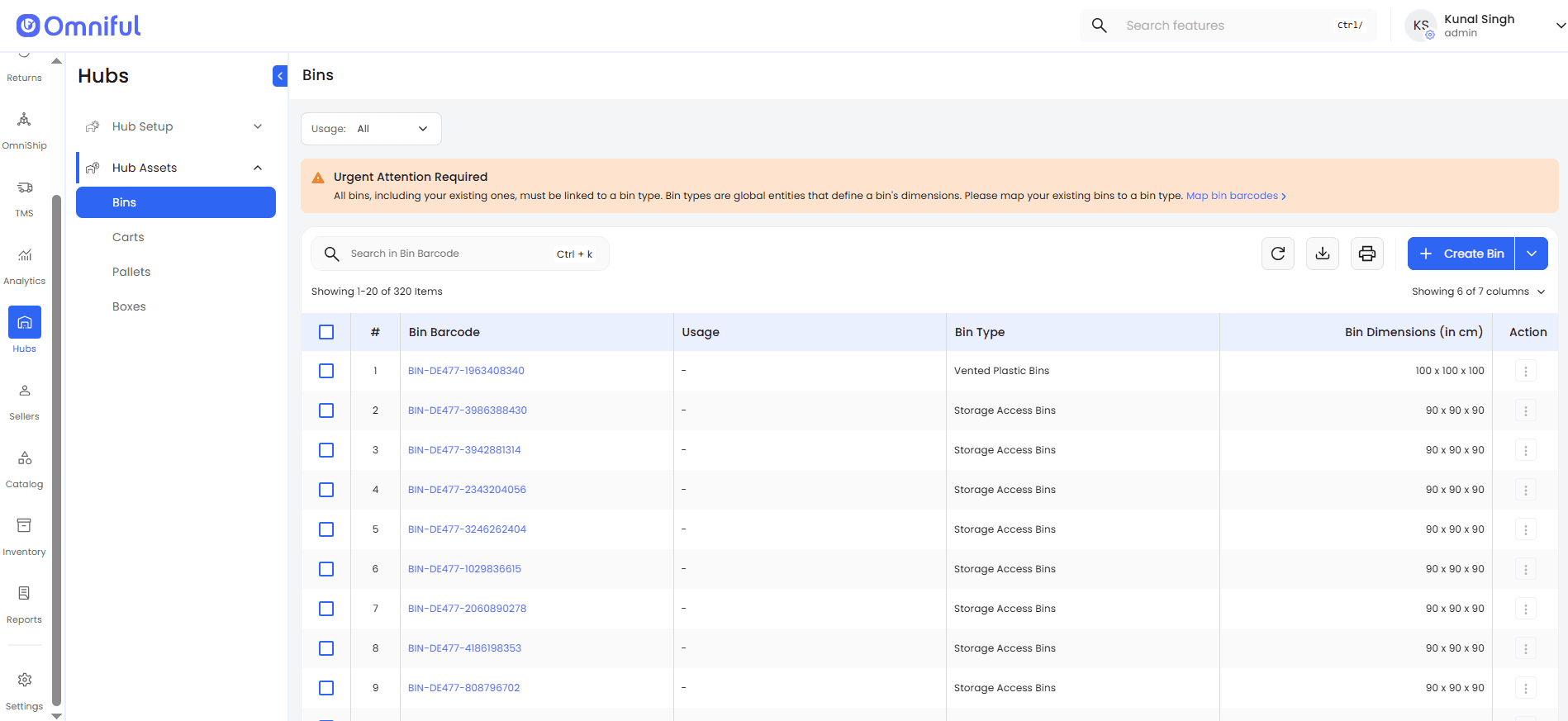
Navigate to Hubs and open the required hub.
-
Go to Hub Assets > Bins and create a new bin.
-
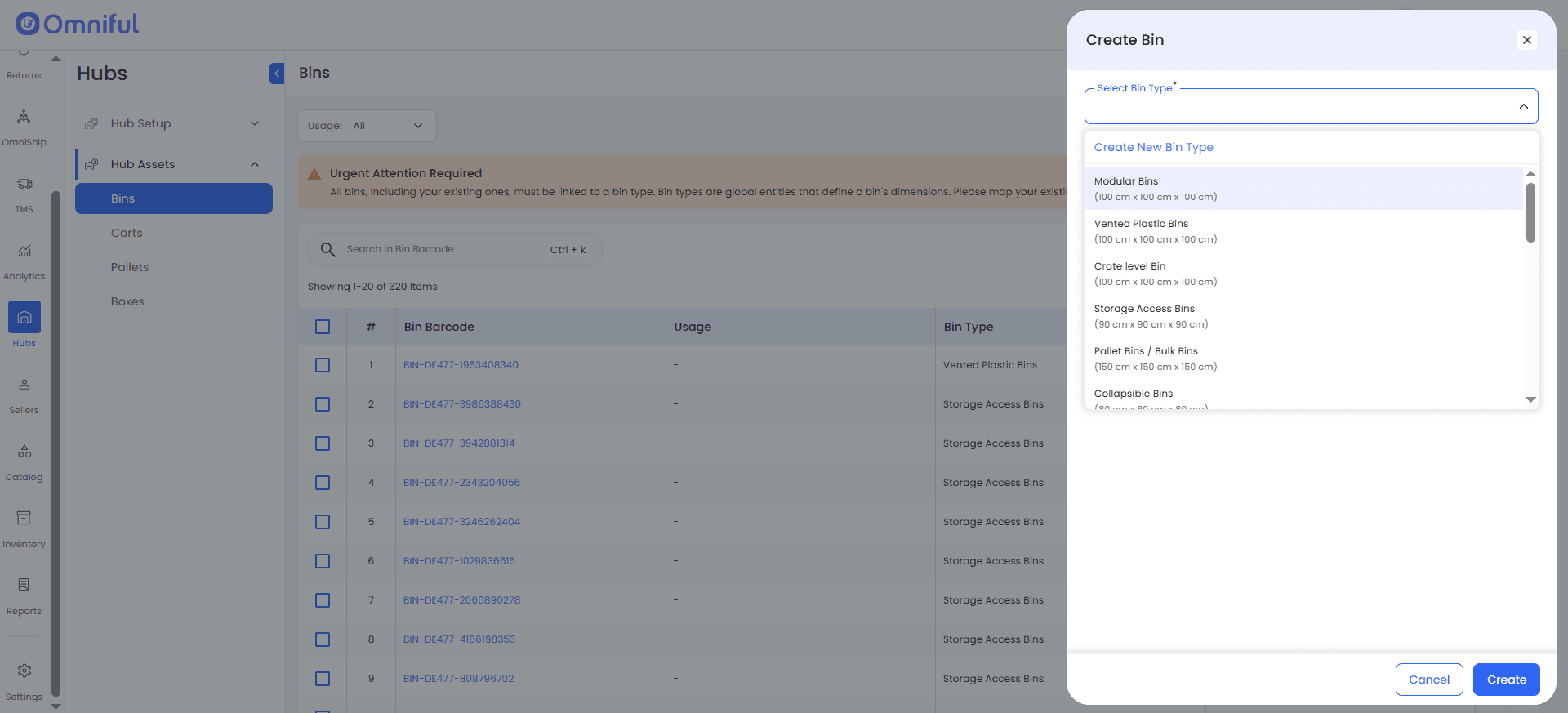
Select the relevant Bin Type while creating the bin.
-
Click Create.
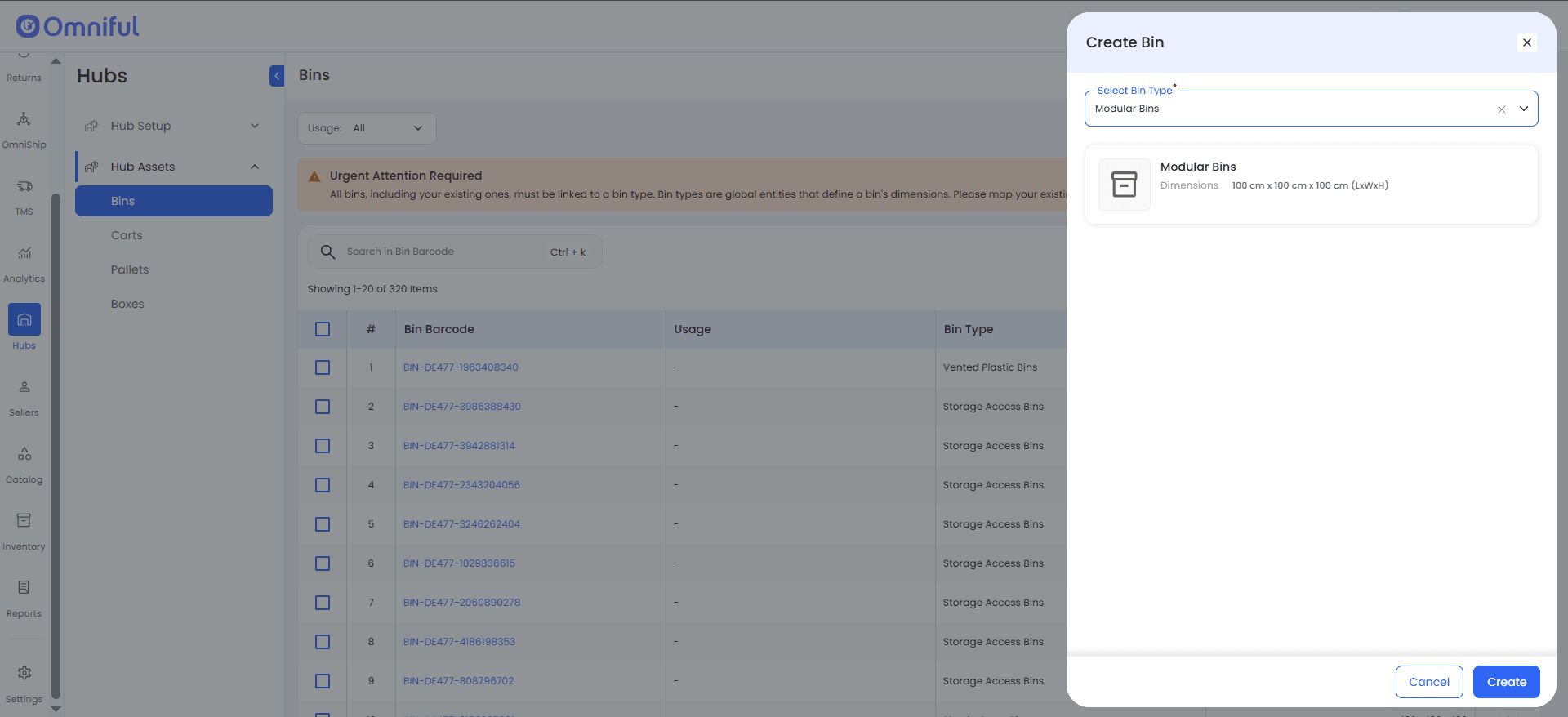
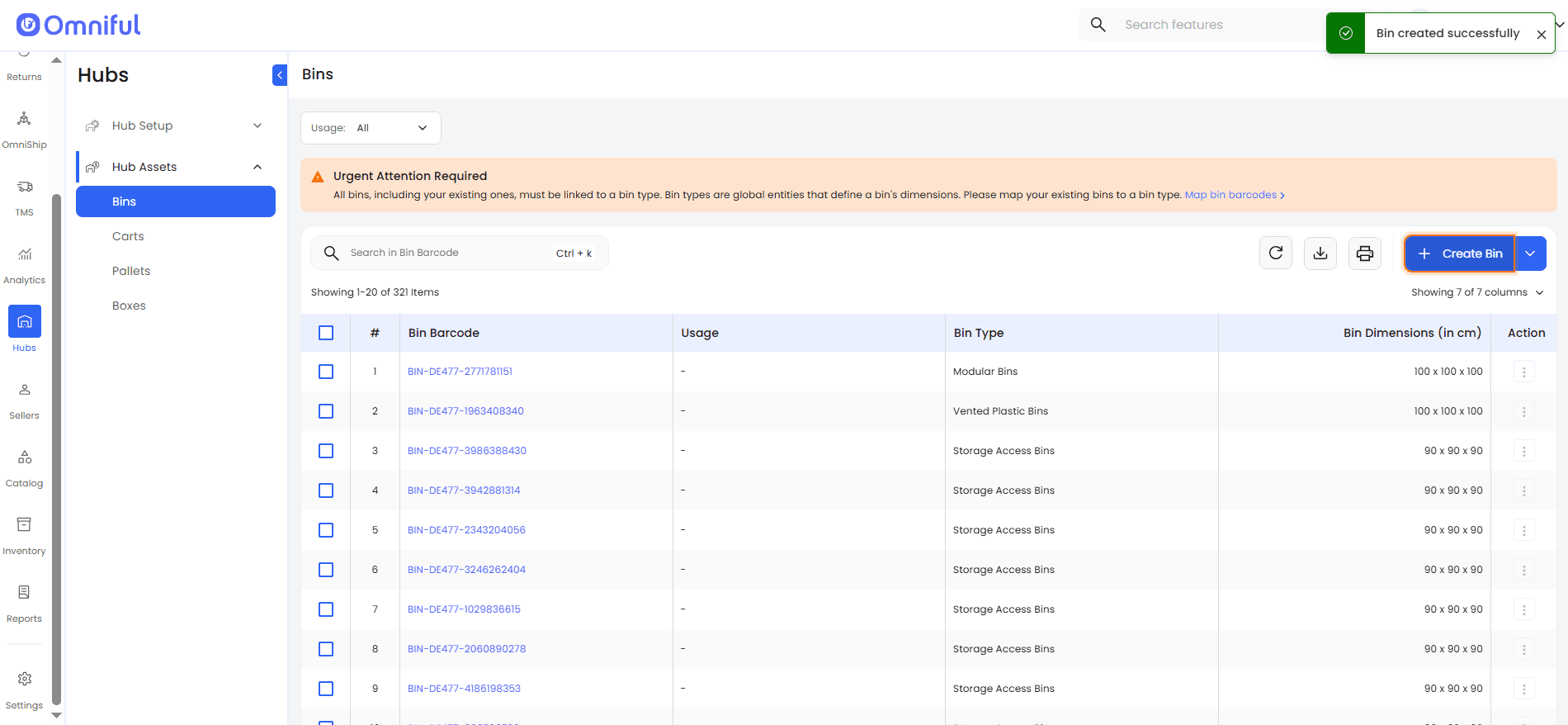
A new bin is created with the selected Bin Type, helping maintain a consistent bin structure across hub assets.
Step 4: Map Existing Bins to Bin Types Individually
-
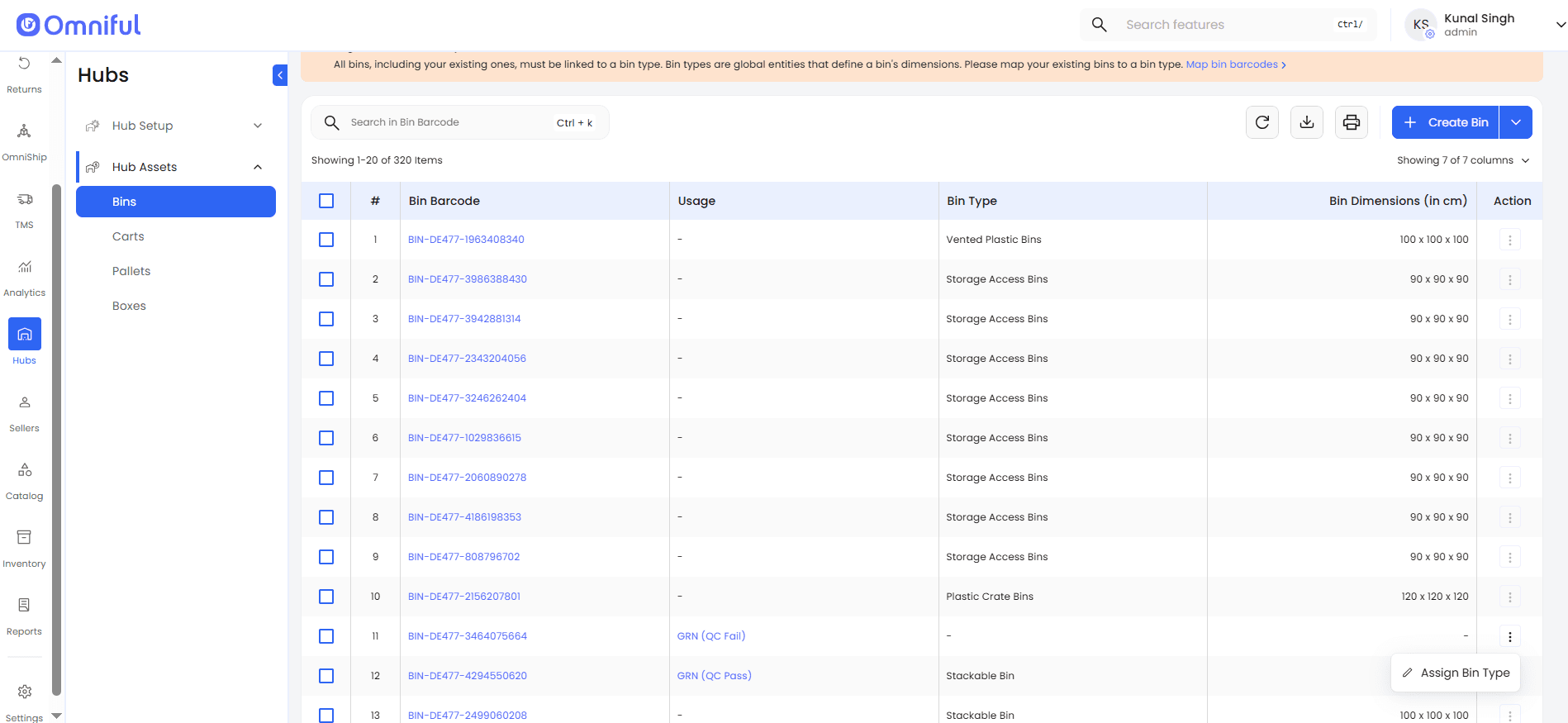
Open the required hub and go to Hub Assets > Bins.
-
Click the action button for the existing bin.
-
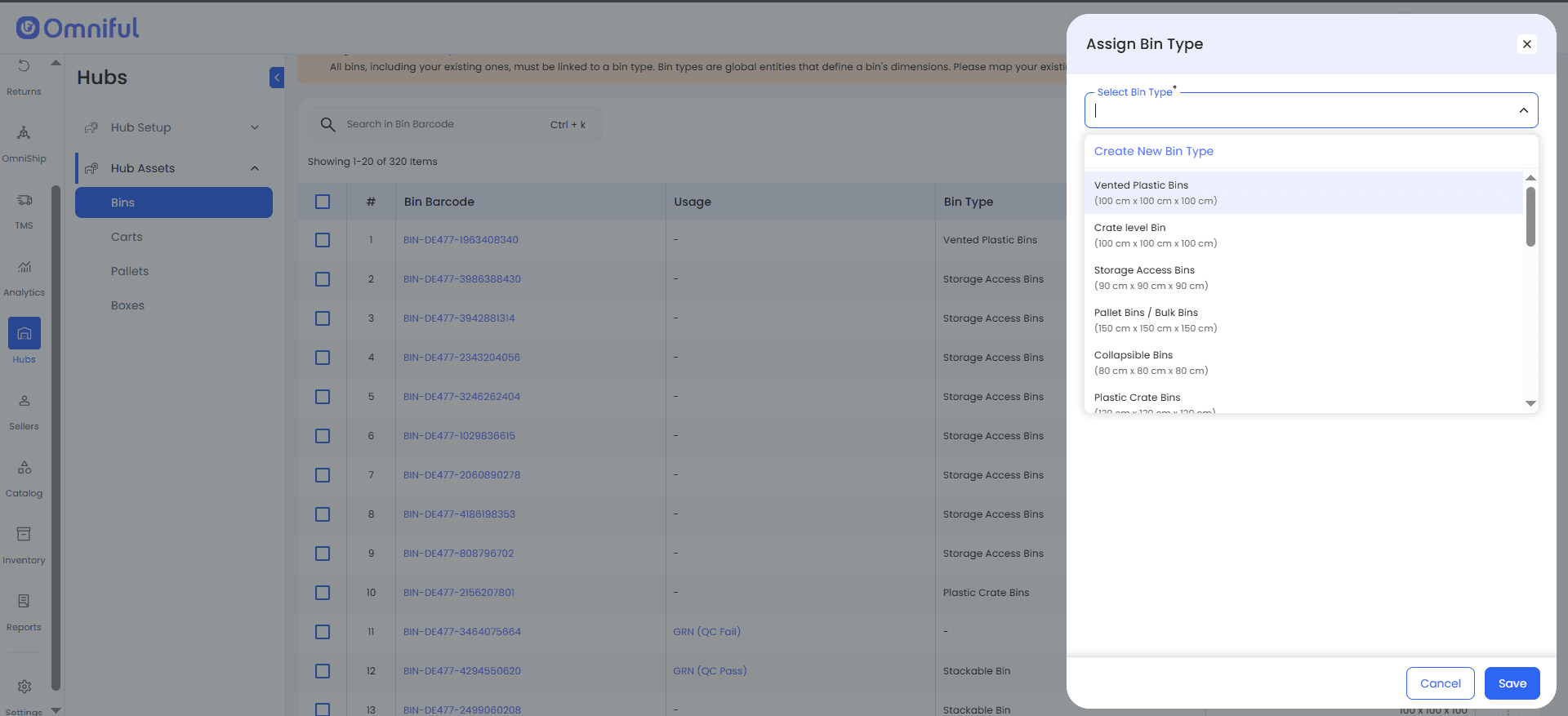
Click Assign Bin Type.
-
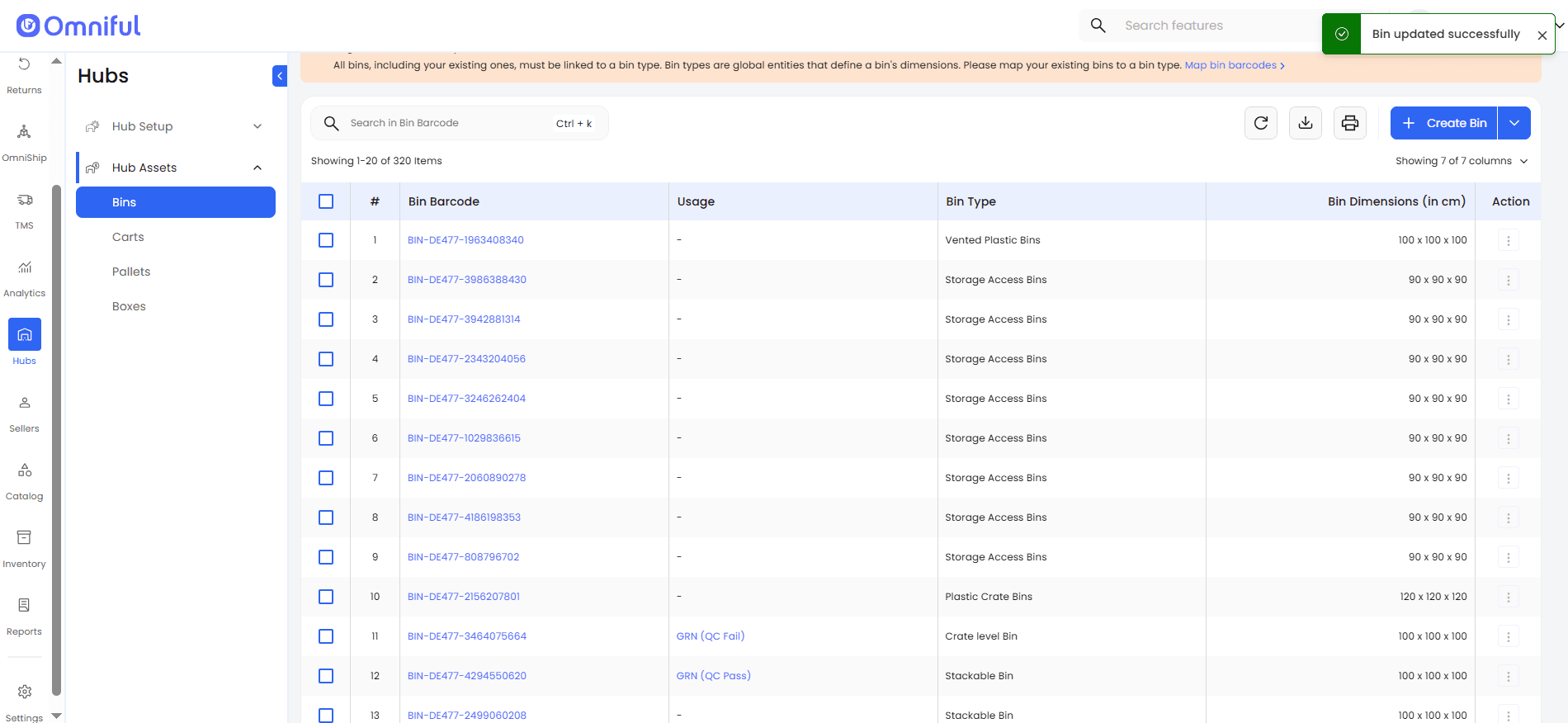
Choose the appropriate Bin Type and click Save.
Step 5: Map Existing Bin Barcodes in Bulk
-
Click Map Bin Barcodes from the Bins module.
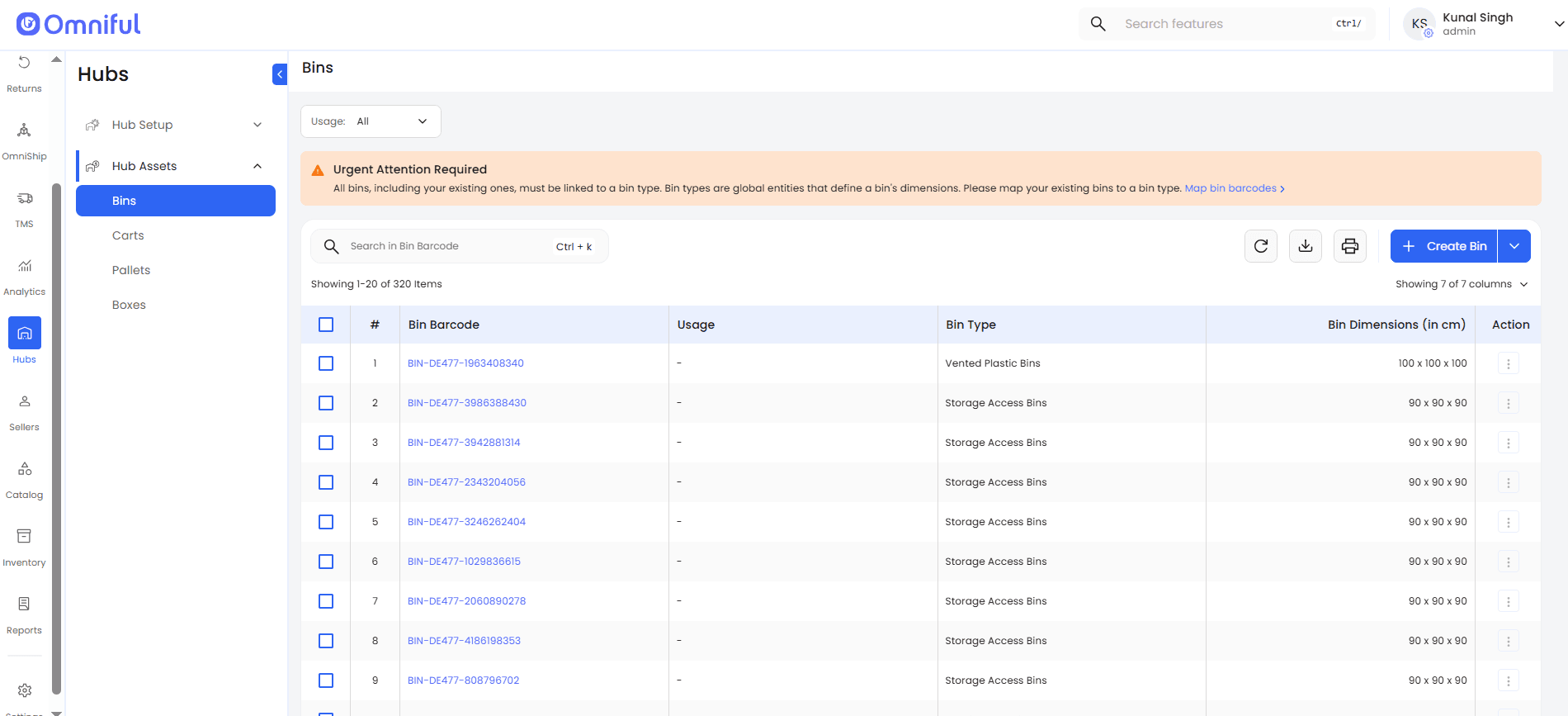
-
Download the sample file.
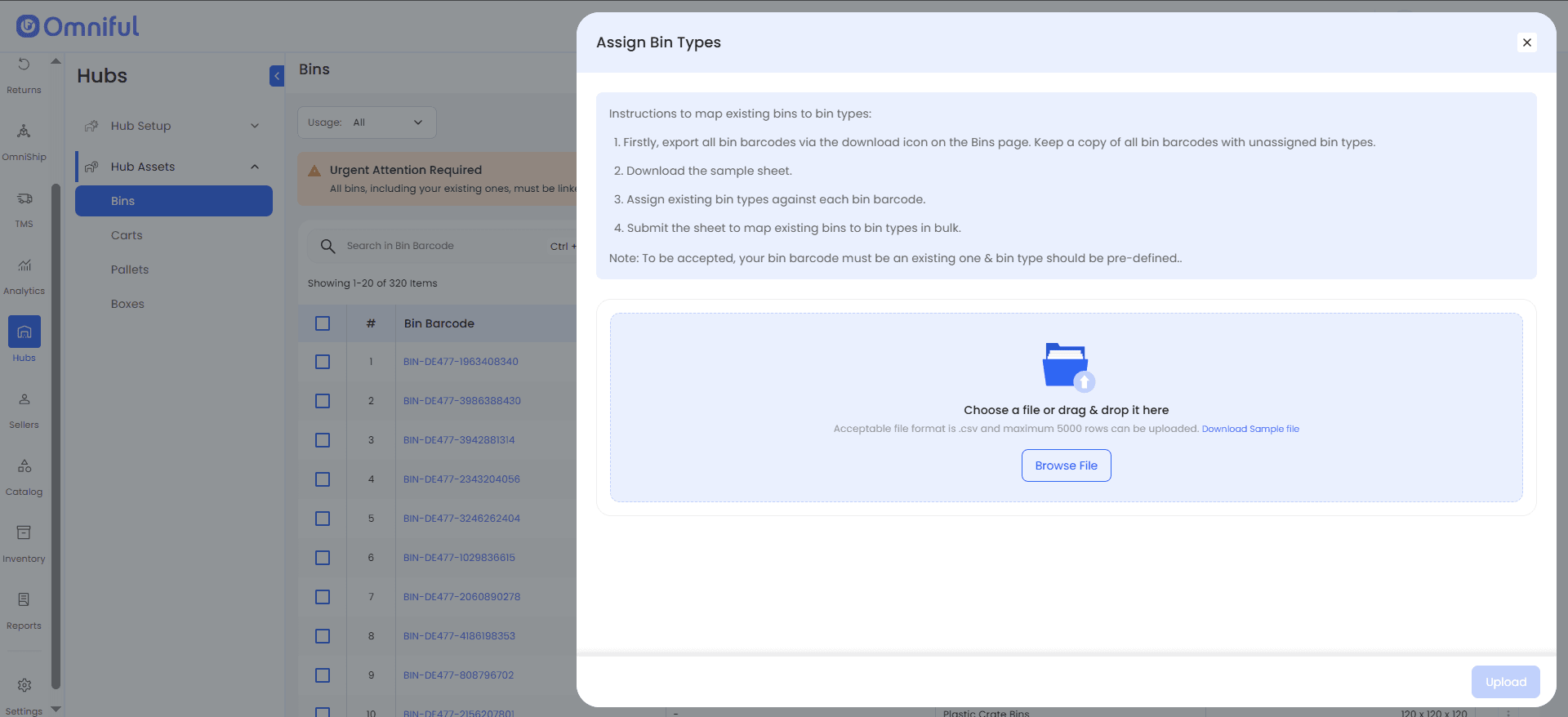
-
Enter the required bin barcodes and corresponding Bin Type details in the CSV file.
-
Upload the completed CSV.
-
The system maps the entered bin barcodes to the specified Bin Types.
This allows users to map multiple existing bins to Bin Types in one bulk action instead of updating each bin individually.
Step 6: Use Bin Types During Operations
Bins are used during inbound GRN operations to receive inventory. Users must now create bins using Bin Types while receiving inventory.
During GRN, when a bin is added as the receiving container, the Bin Type must be selected before continuing.
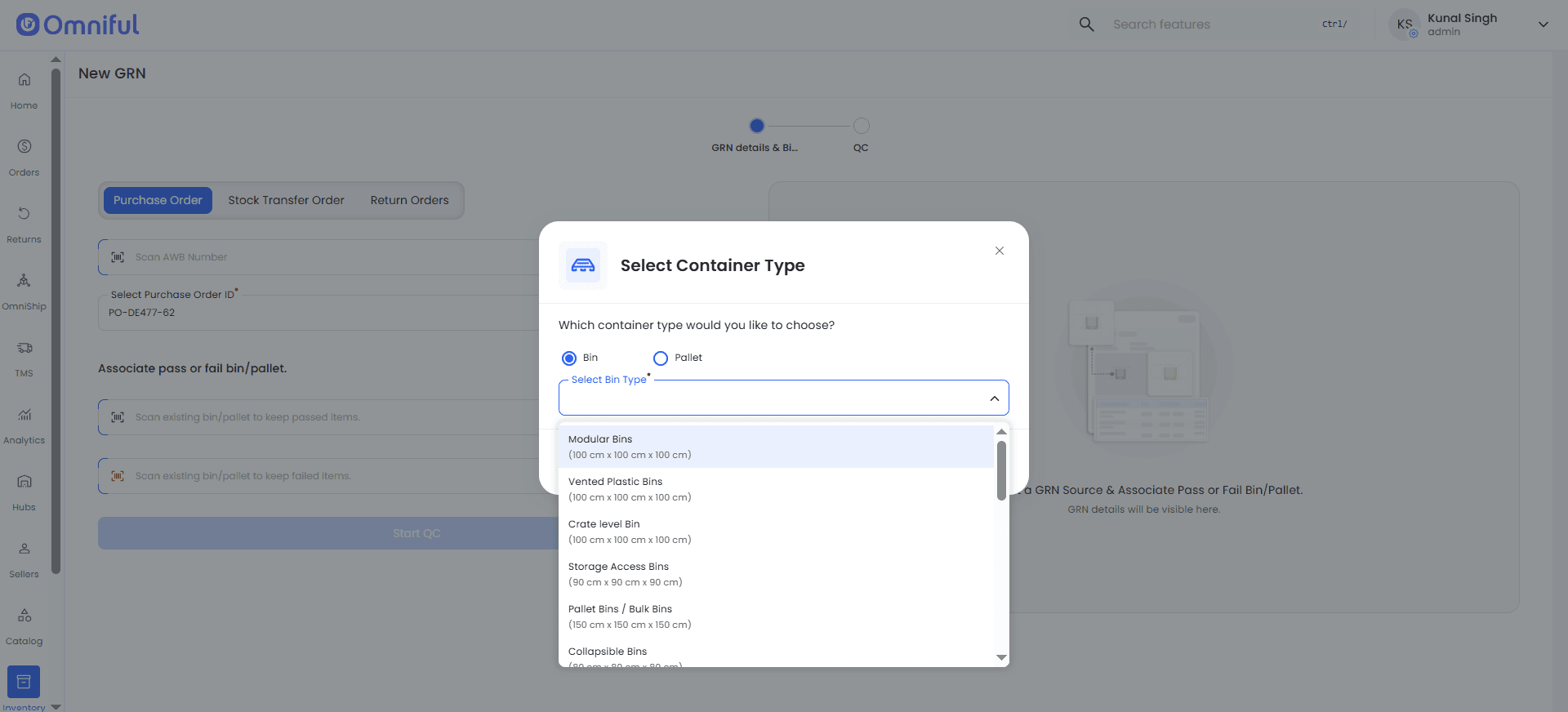
This ensures that bins created during operations are linked to the appropriate Bin Type, improving traceability from the point of receiving.
Technical Details
This enhancement, along with Box Types and Pallet Types, standardizes asset definitions and ensures consistent usage of hub assets across warehouse operations.