

Table of Contents
Share On


Box Types and Pallet Types for Asset Standardisation
Introducing Box Types and Pallet Types to standardise box and pallet definitions across the tenant.
Version: 1.0
Owner: Omniful Product Team
Summary
This enhancement introduces Box Types and Pallet Types in Omniful WMS as standardised hub asset definitions to ensure consistency in how hub assets are defined and used.
A Box Type or Pallet Type represents a predefined template that defines attributes such as dimensions and weight for a specific type of box or pallet. These act as global configurations, ensuring uniform identification and usage of assets across hubs.
Once these types are defined, individual boxes and pallets created at the hub level can be mapped to them.
How It Works
Configure Permissions
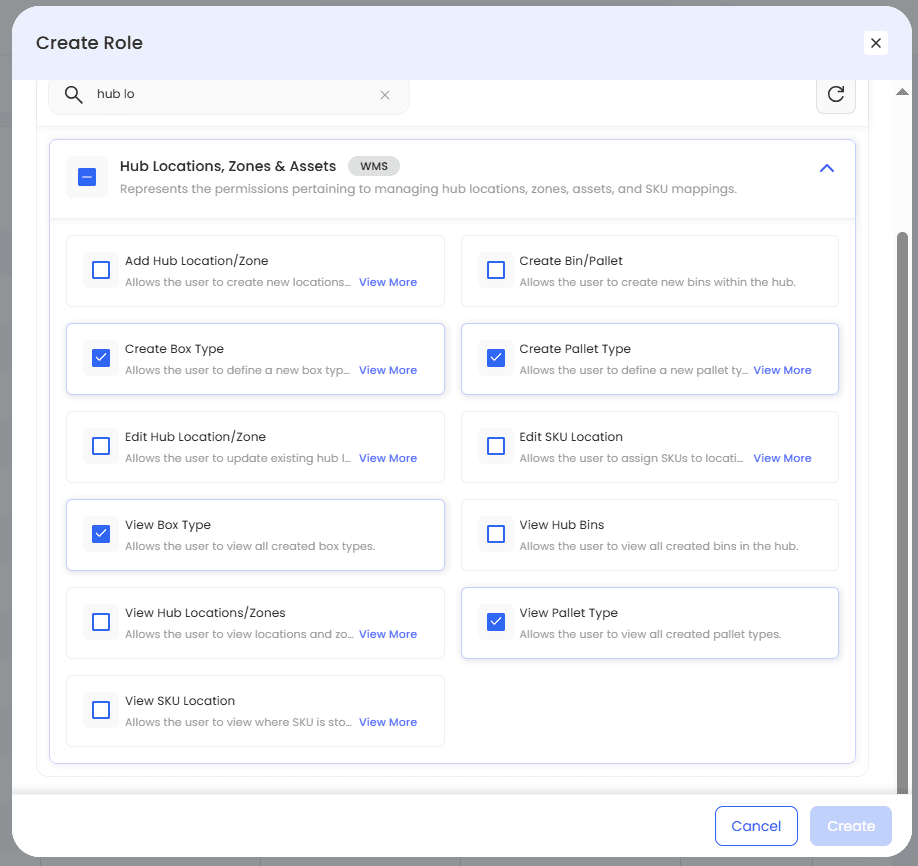
To create box and pallet types, users must have the Create Box Type and Create Pallet Type permissions under the Hub Locations, Zones & Assets permission group. To see and use these types, users must have the View Box Type and View Pallet Type permissions.
Note: The view permissions are required for operational users to create boxes and pallets. Without them, the list of box or pallet types will not be visible during creation in operations such as GRN and packing.
Create Box Type and Pallet Type
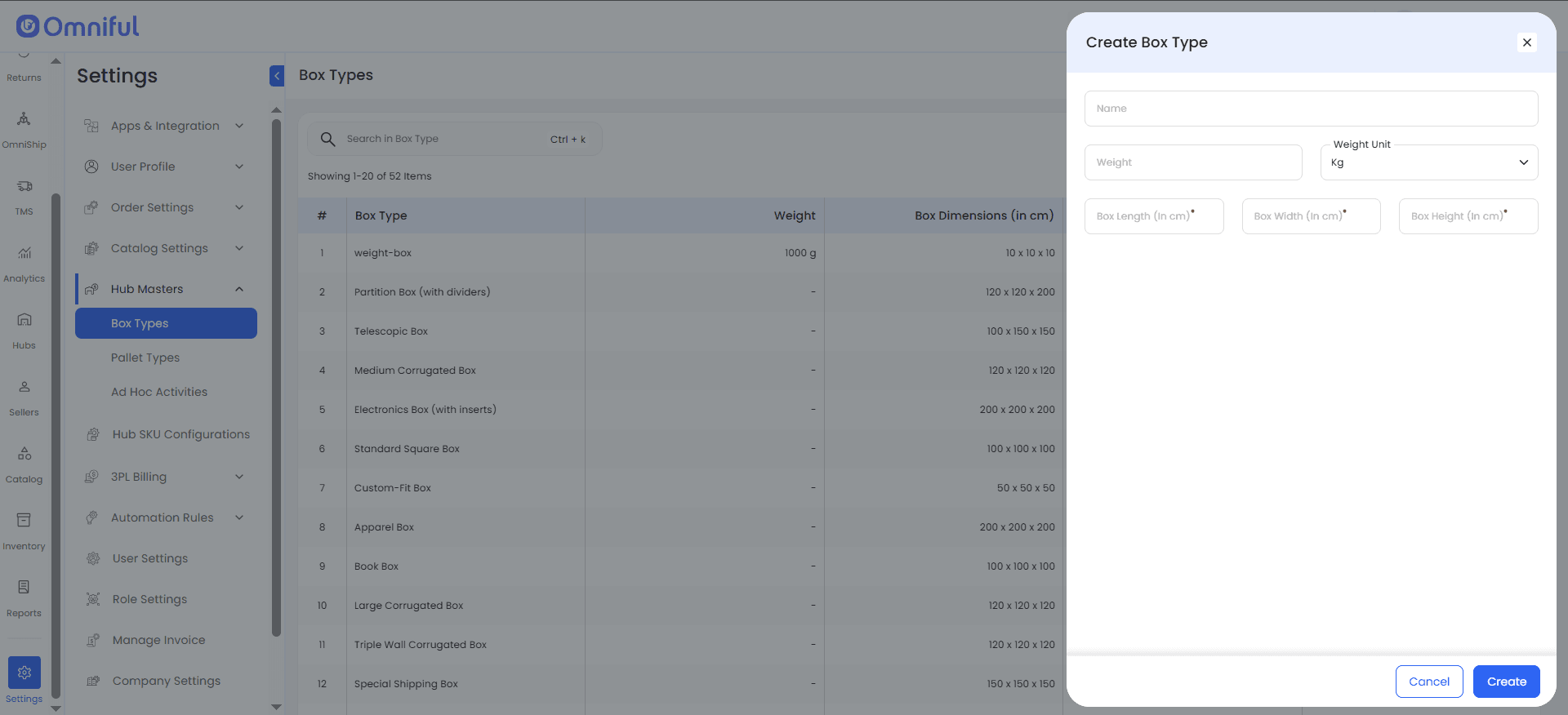
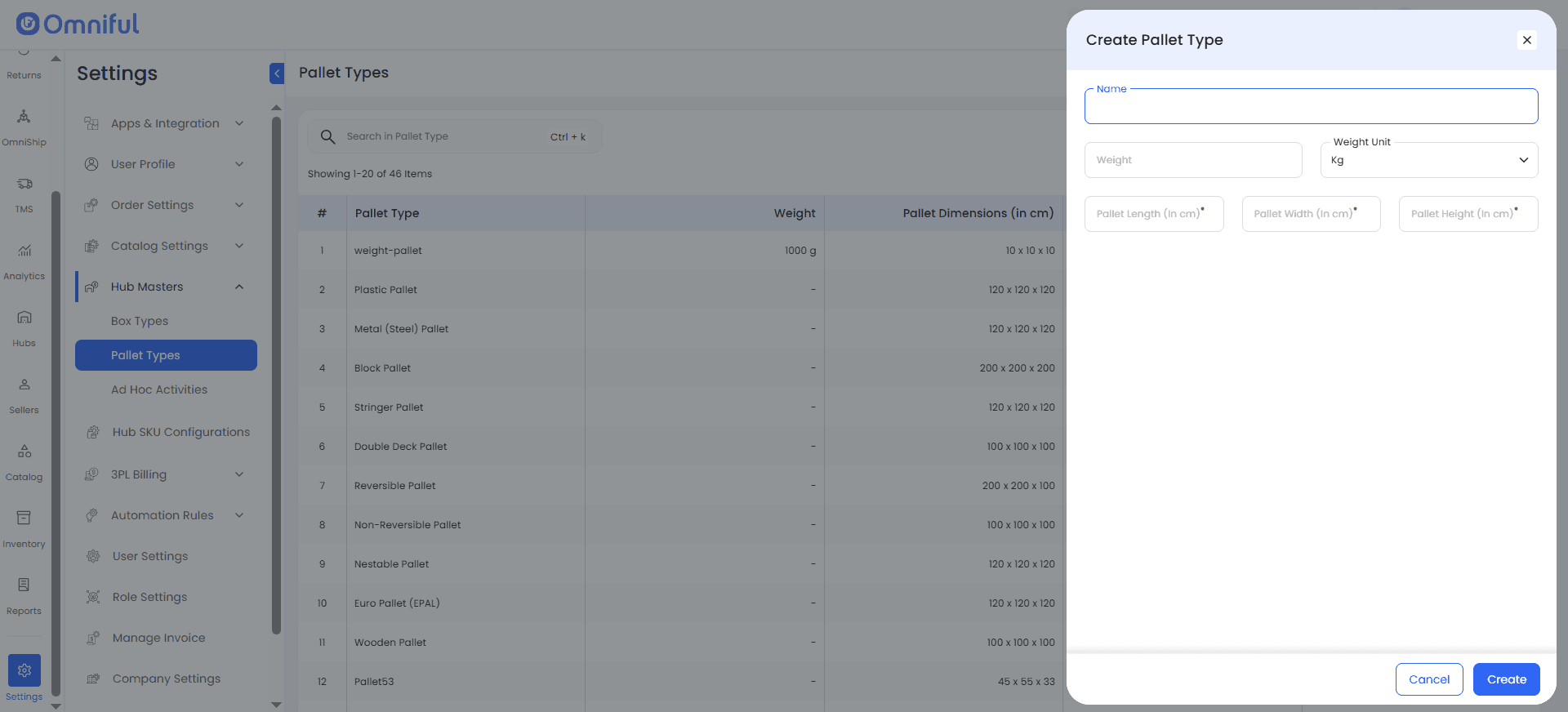
Navigate to Settings → Hub Masters to create box types and pallet types. These are global tenant-level definitions and are not tied to any specific hub.
Create Hub Boxes and Pallets
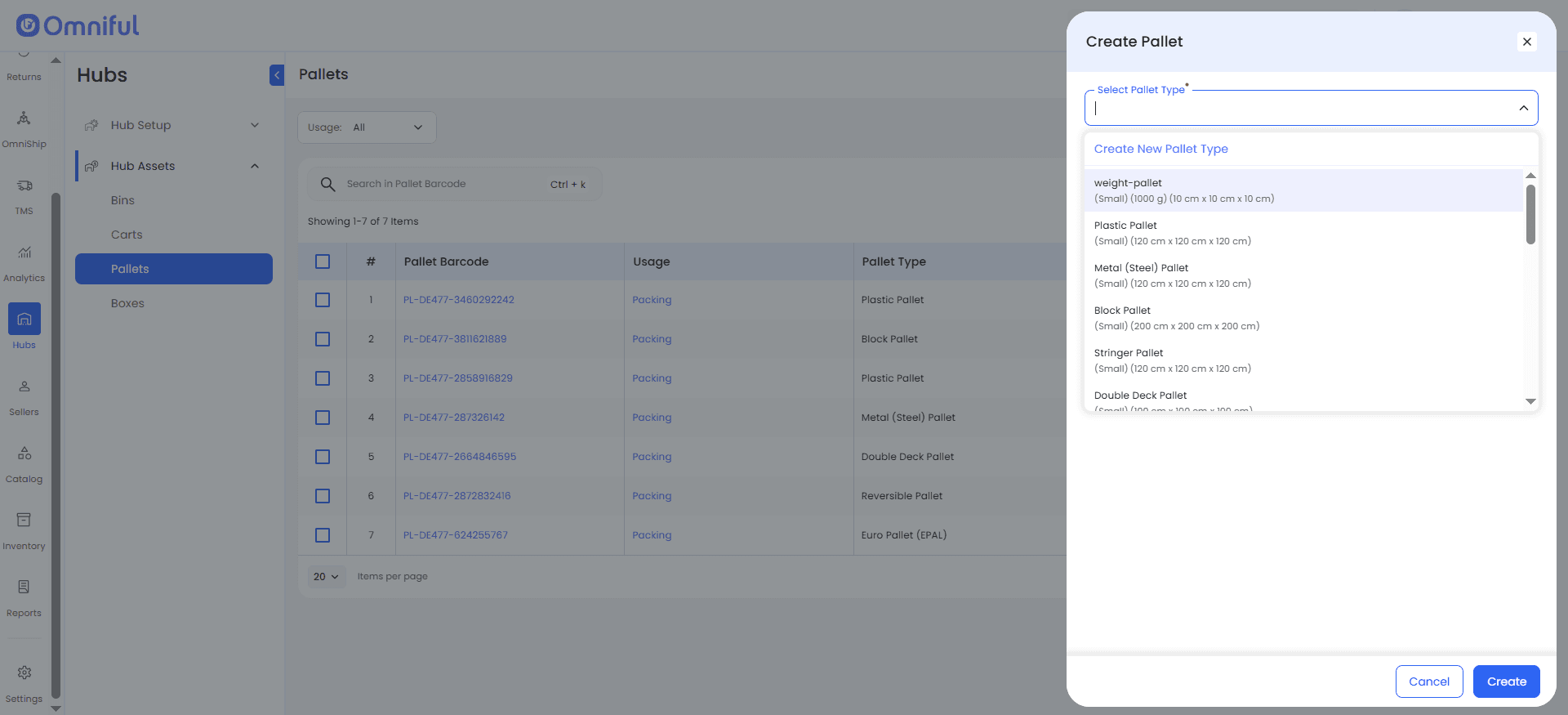
Navigate to the required hub and create boxes or pallets under Hub Assets. Each hub asset is created against a predefined box type or pallet type. If the user has the necessary create permissions, new types can also be created directly from this flow.
Map Existing Assets to Type
Existing hub boxes and pallets must be mapped to their respective types.
Boxes
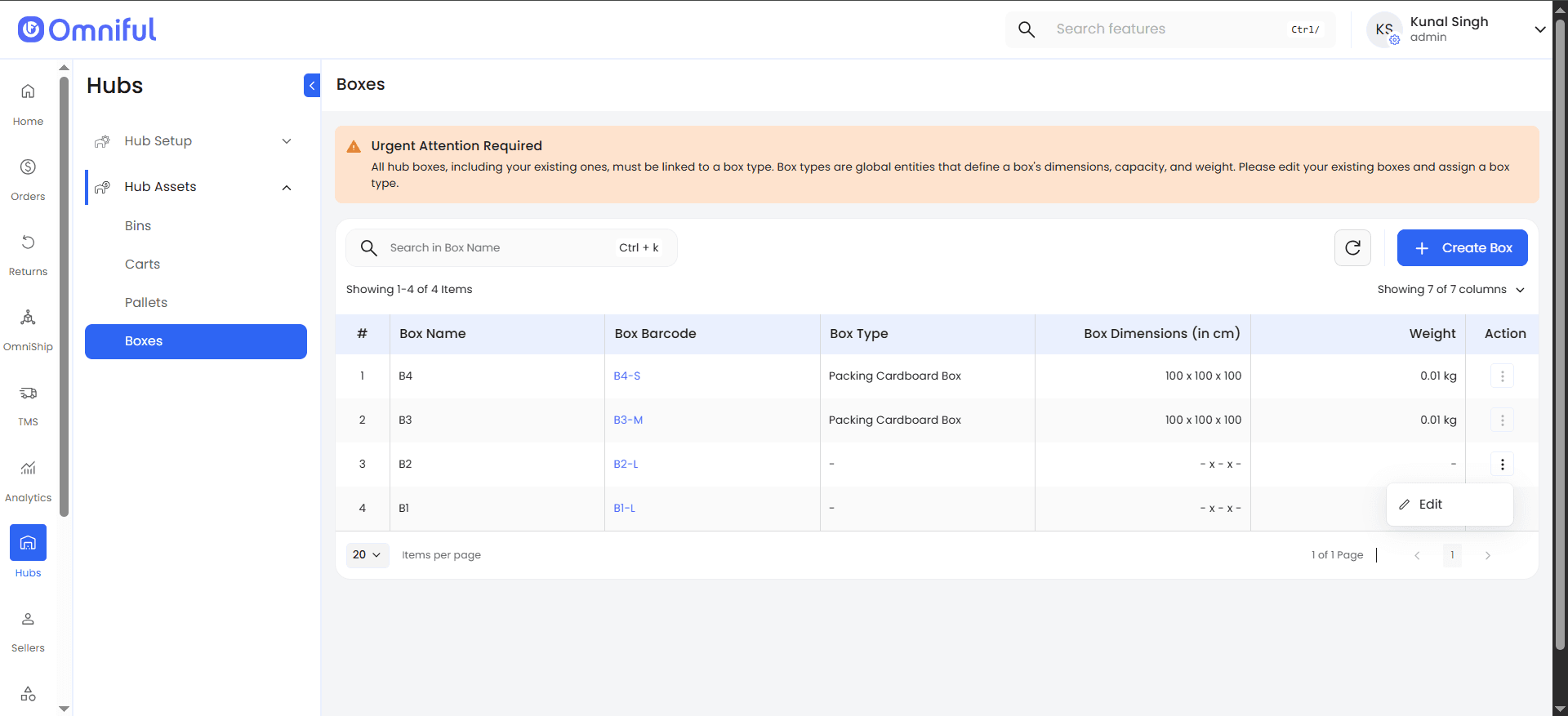
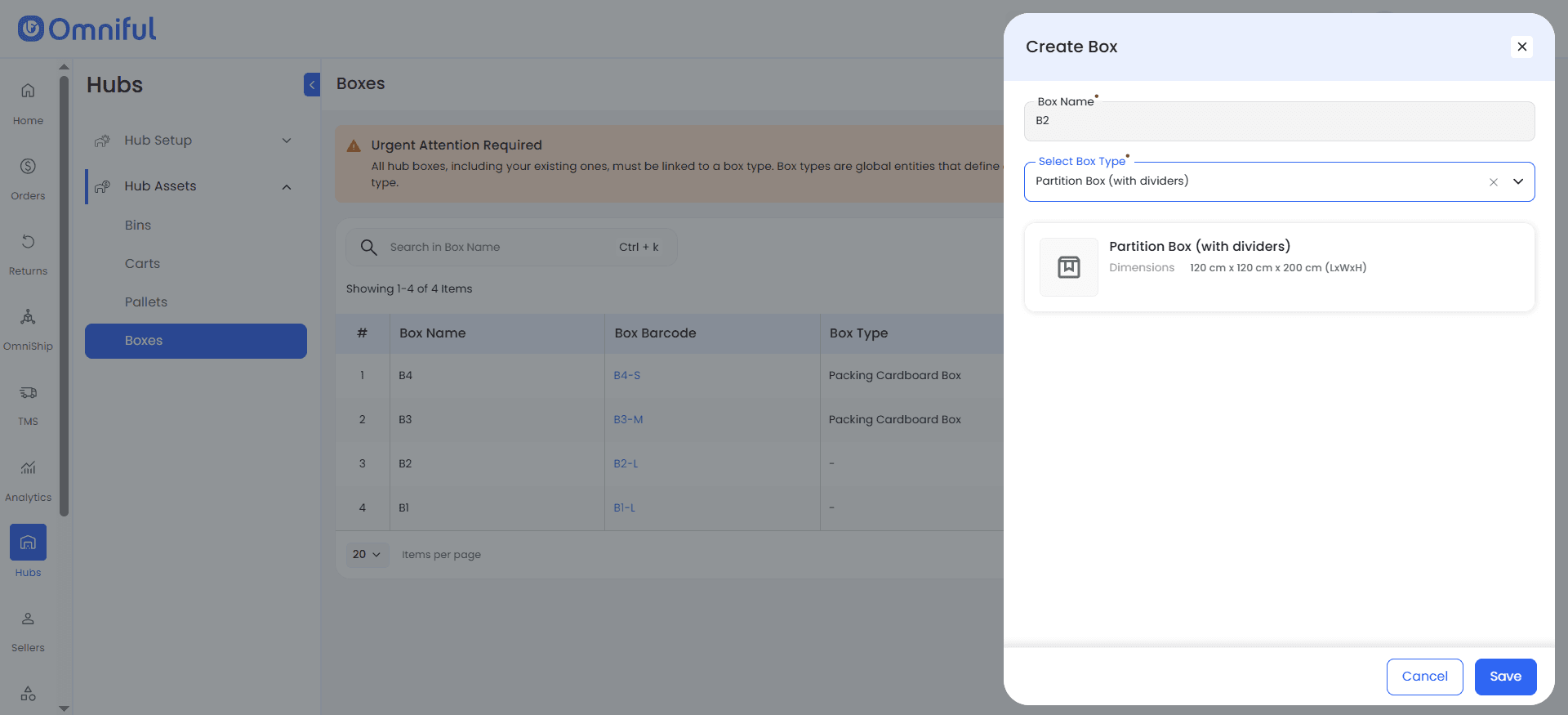
Boxes can be assigned individually via Action Button → Edit → Select Box Type.
Pallets
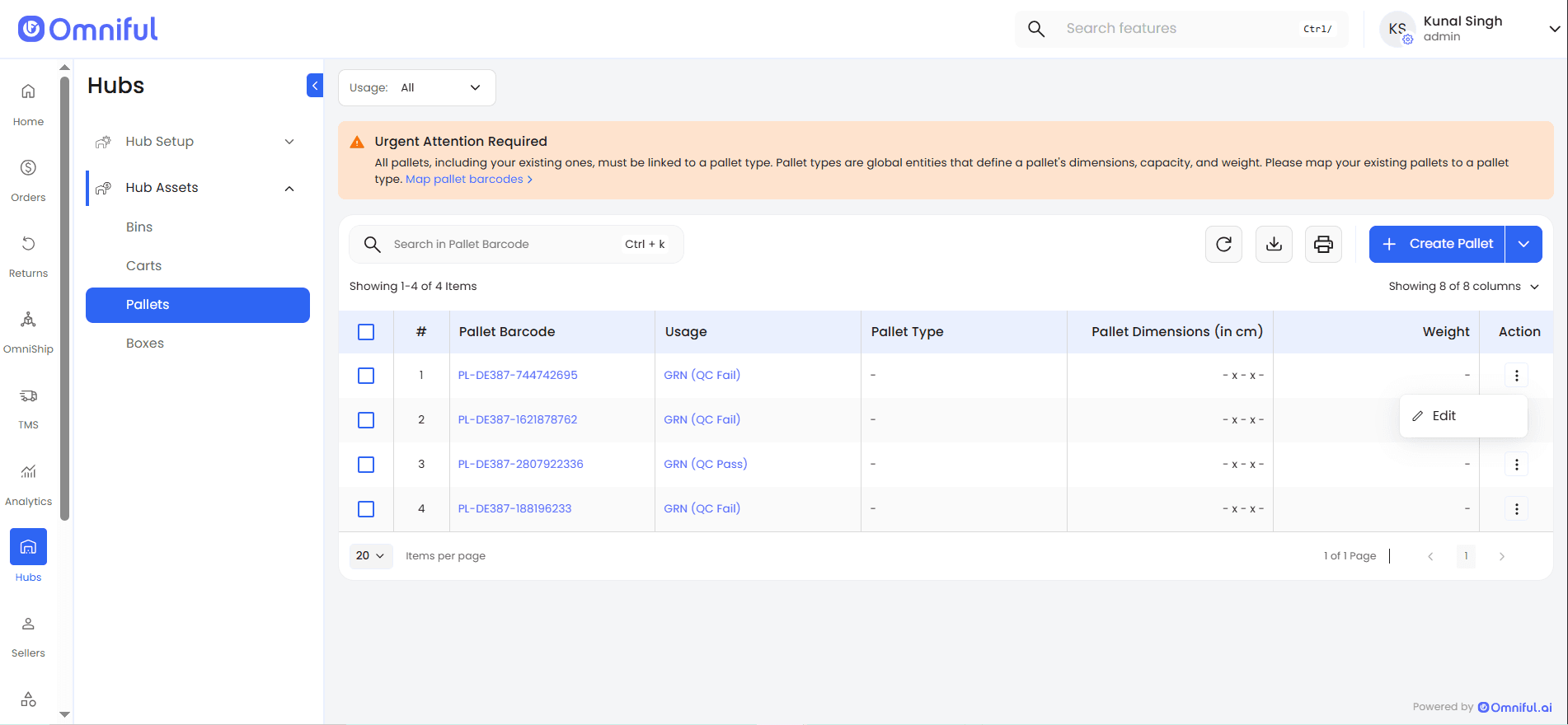
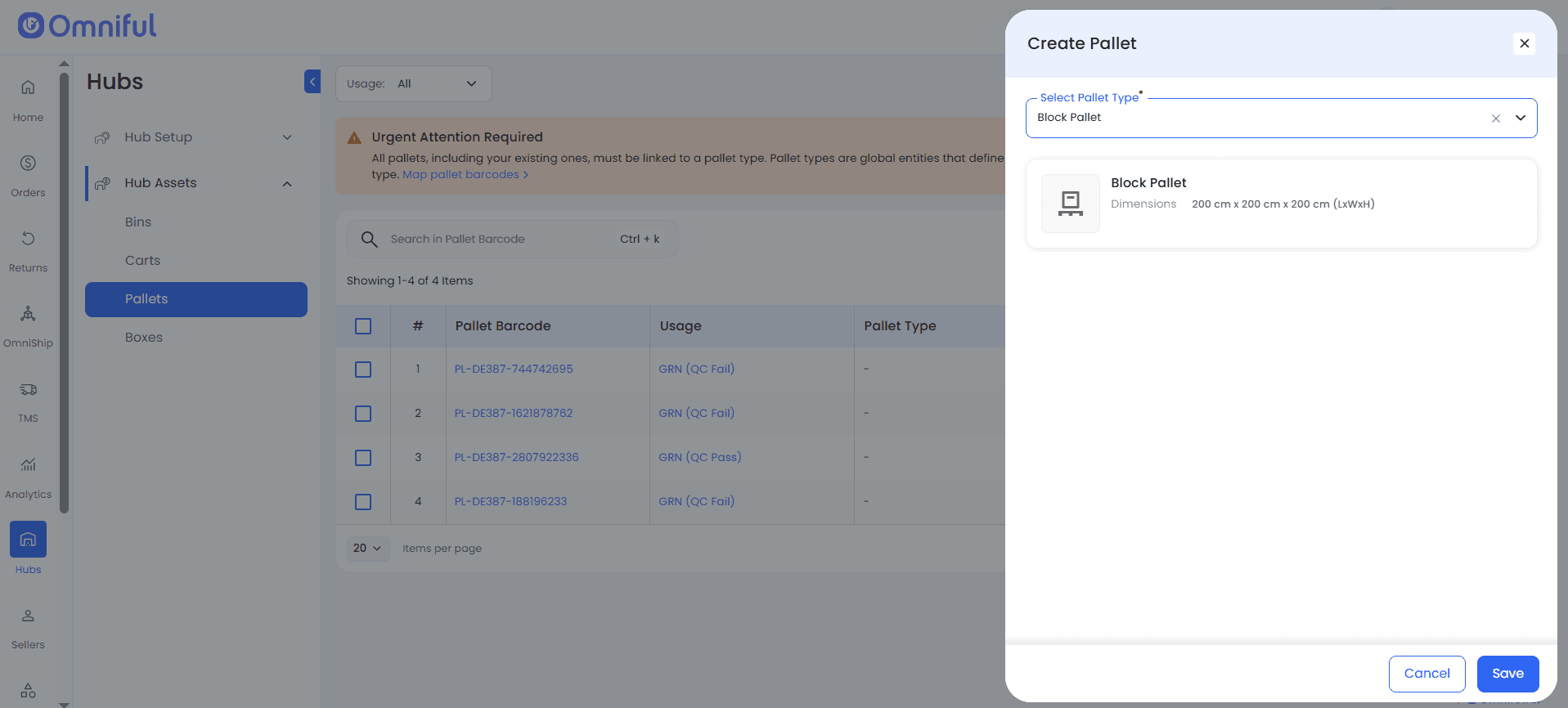
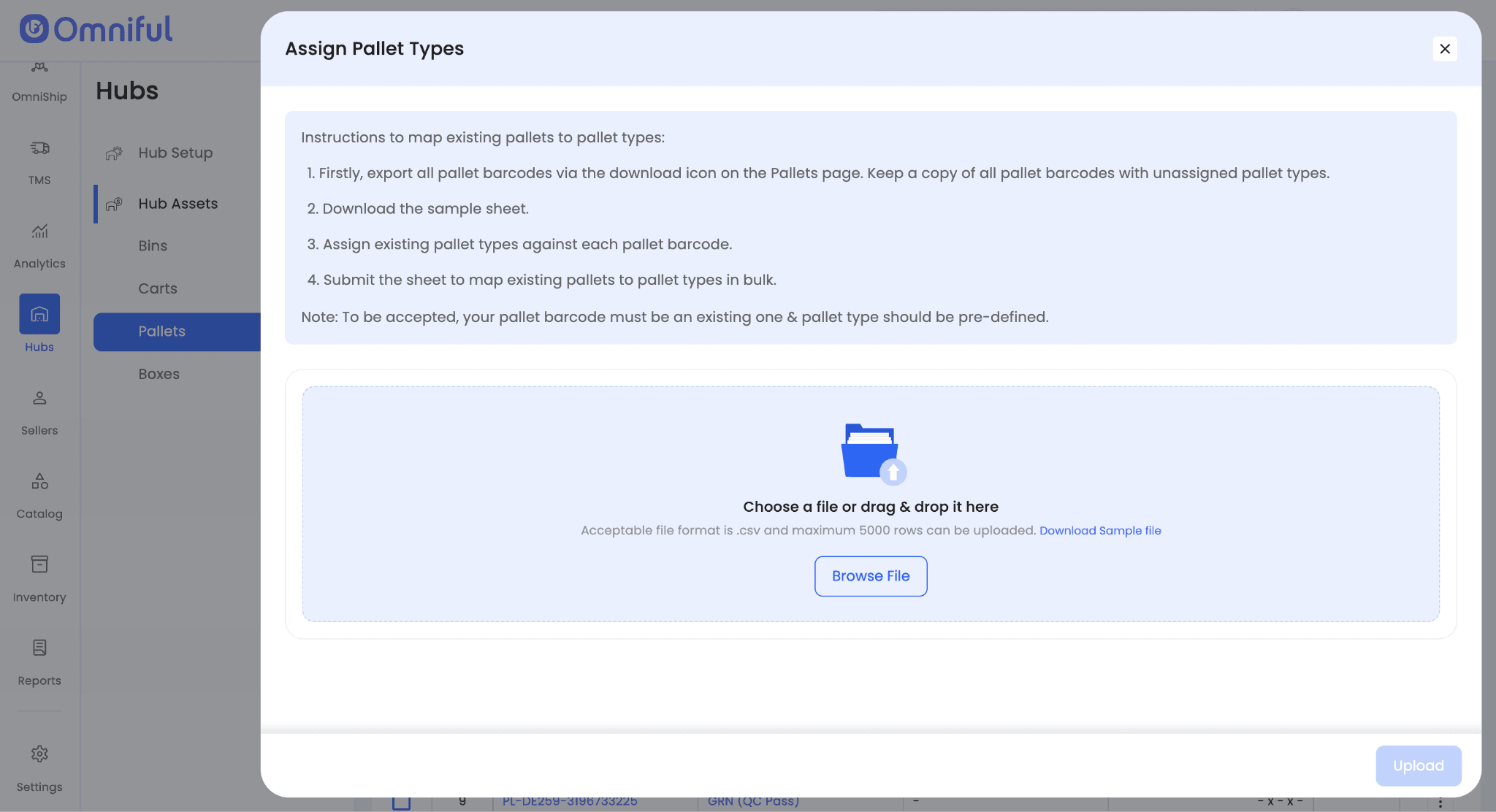
Pallets can be assigned individually via Action Button → Edit → Select Pallet Type, or in bulk by uploading a CSV with unmapped pallet barcodes and corresponding pallet types.
Use Pallet Types in Operations
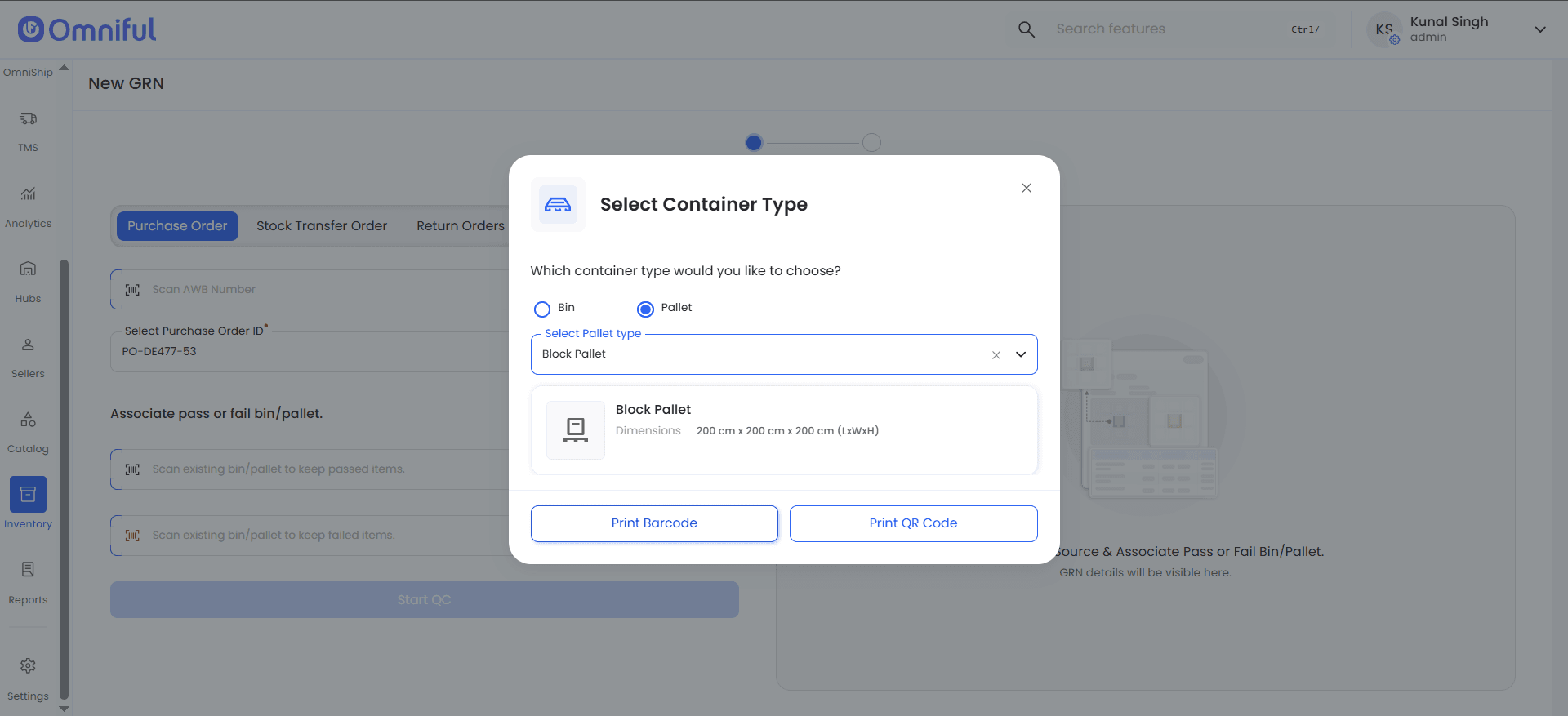
Pallet types are used while creating pallets during both GRN and packing operations.
-
During GRN, when a pallet is added as the receiving container, the pallet type must be selected before continuing.
-
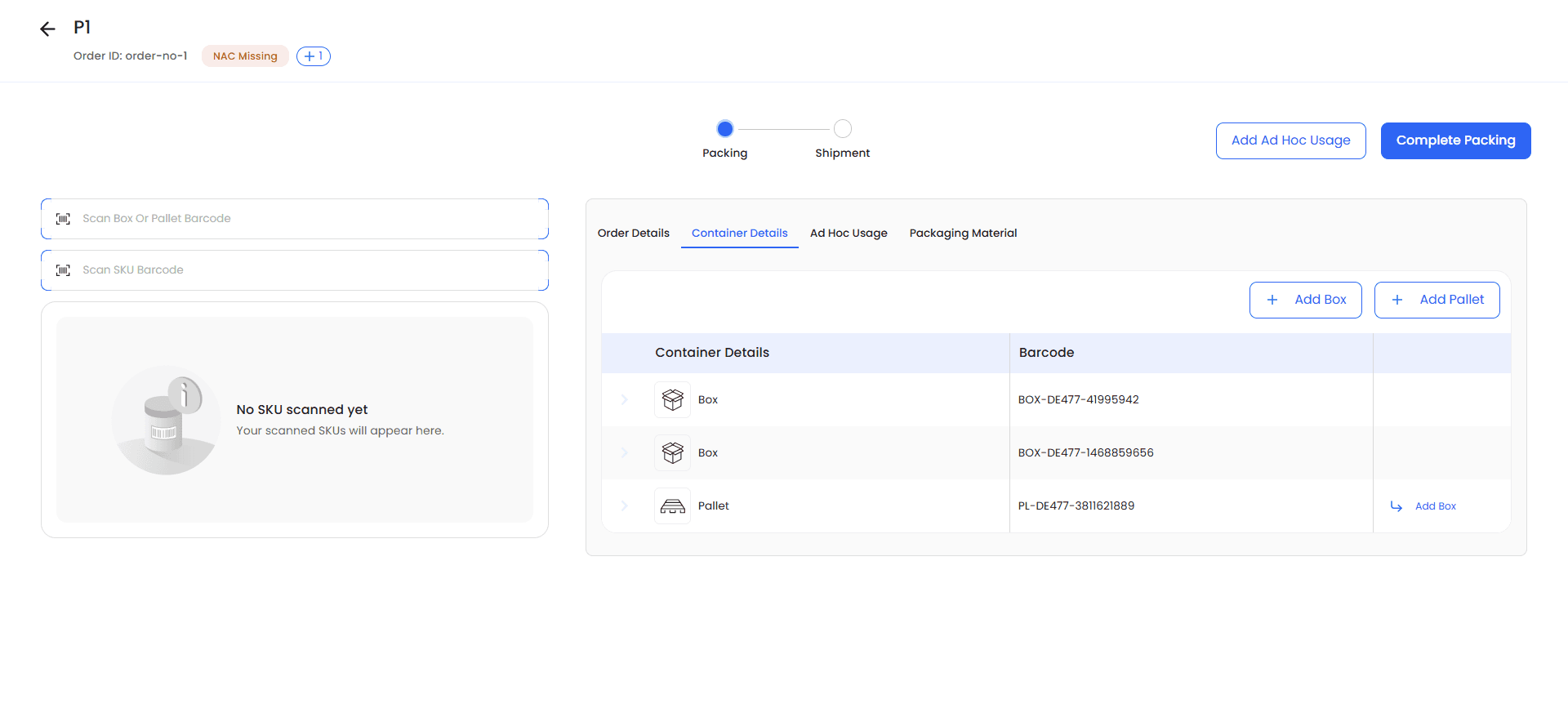
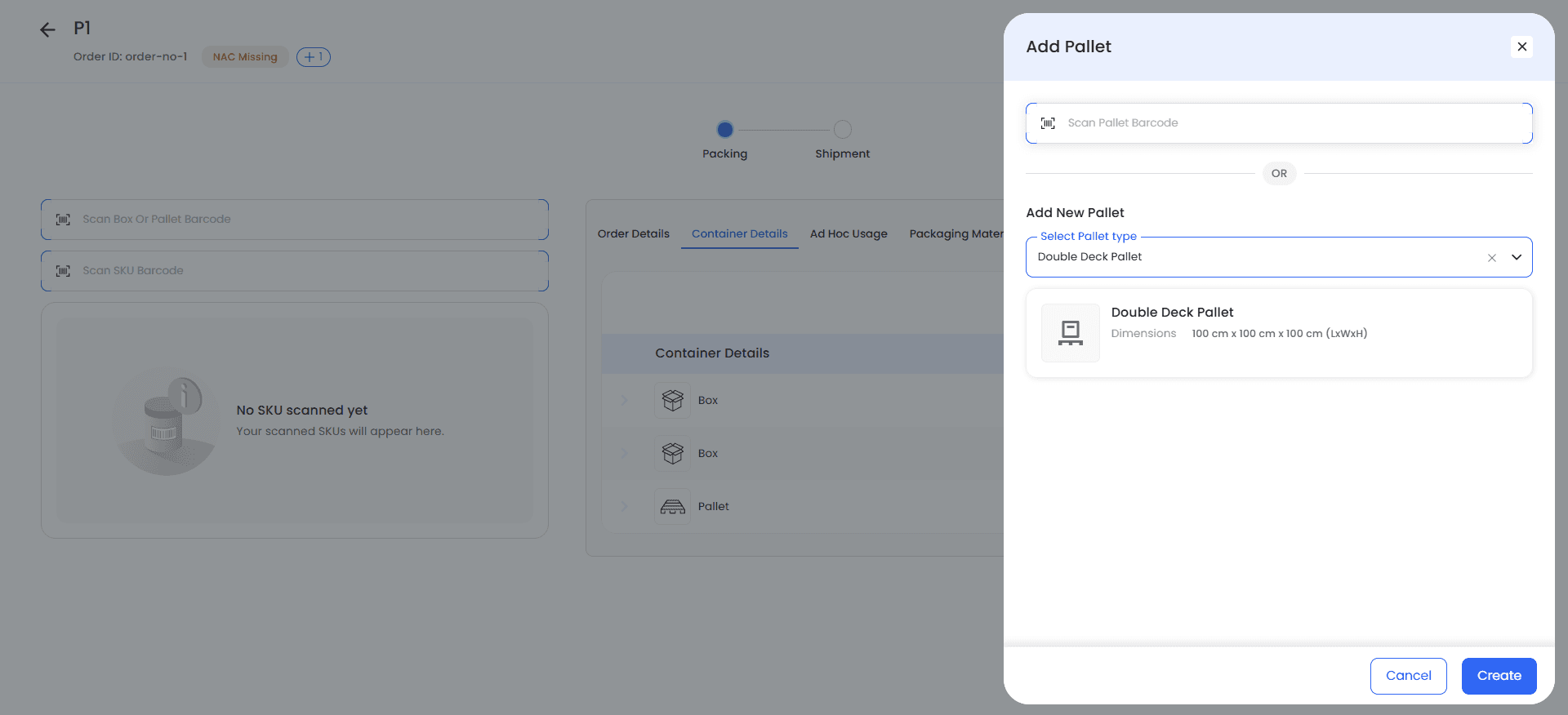
During packing, pallets can be added either by scanning the pallet barcode or by selecting the pallet type from Container Details → Add.
Technical Details
This enhancement standardises asset definitions and ensures consistent usage of boxes and pallets across hub operations.