

Table of Contents
Share On


Bulk Mark as Shipped & Mark as Delivered
Ability to mark orders as Shipped and Delivered in bulk.
Summary
Omniful OMS now supports two new bulk actions under Orders → Bulk Actions:
- Mark as Shipped — Updates eligible orders to Shipped by uploading a CSV containing the Order IDs of orders to be marked as shipped, when their current state is Ready to Ship.
- Mark as Delivered — Updates eligible orders to Delivered by uploading a CSV containing the Order IDs of orders to be marked as delivered, when their current state is Ready to Ship or Shipped.
| Bulk action | Eligible source state(s) | Result | Failure handling |
|---|---|---|---|
| Mark as Shipped | Ready to Ship | Order status is updated to Shipped | Ineligible rows are returned in the processed error sheet |
| Mark as Delivered | Ready to Ship, Shipped | Order status is updated to Delivered | Ineligible rows are returned in the processed error sheet |
How It Works
1. Navigate to Bulk Actions
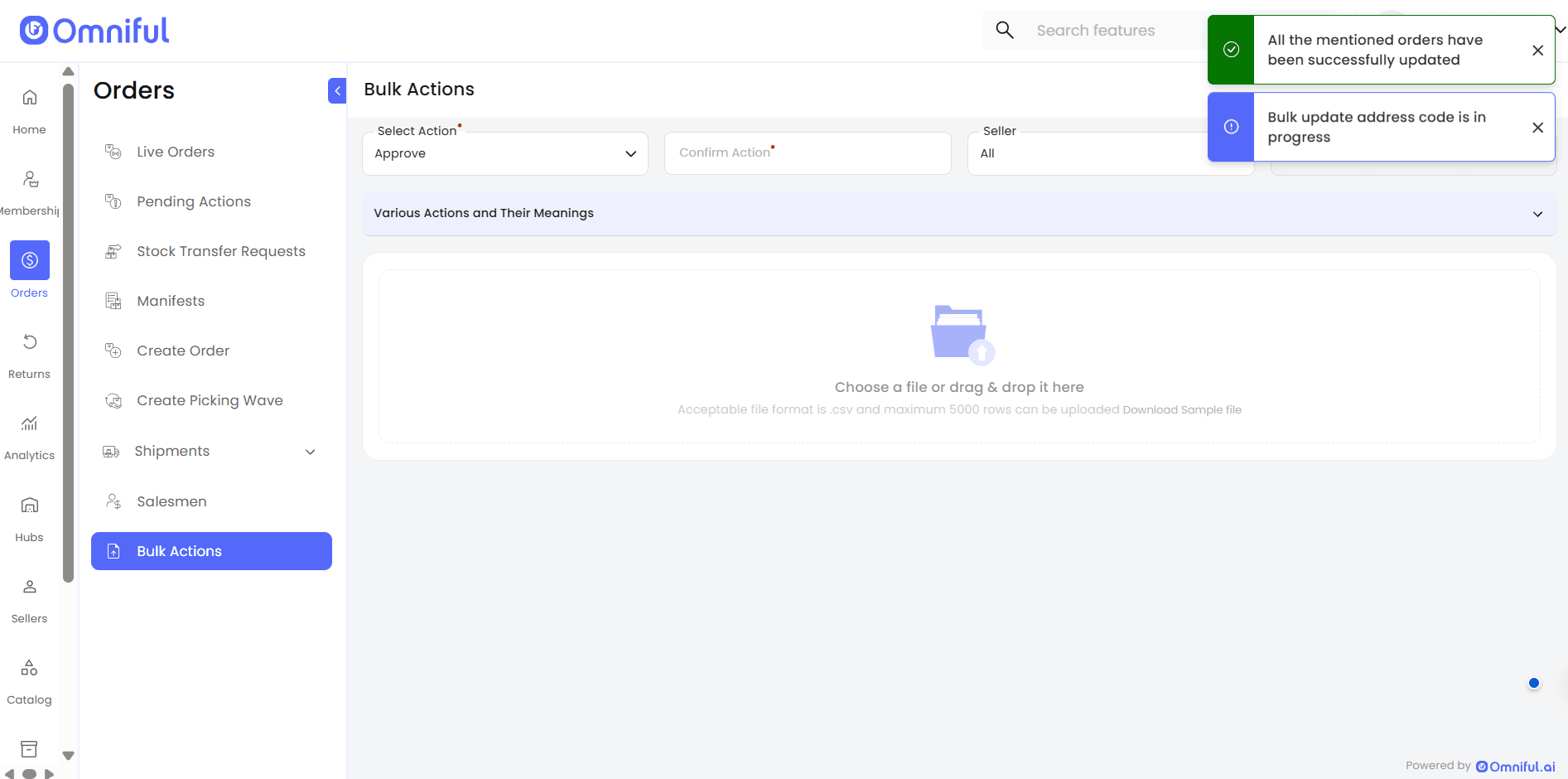
Go to Orders → Bulk Actions. Select the action you want to perform and enter the action name in the Confirm Action field.
Optionally, use the Seller and Store Name filters to scope the action so only orders matching the selected seller or store are processed.
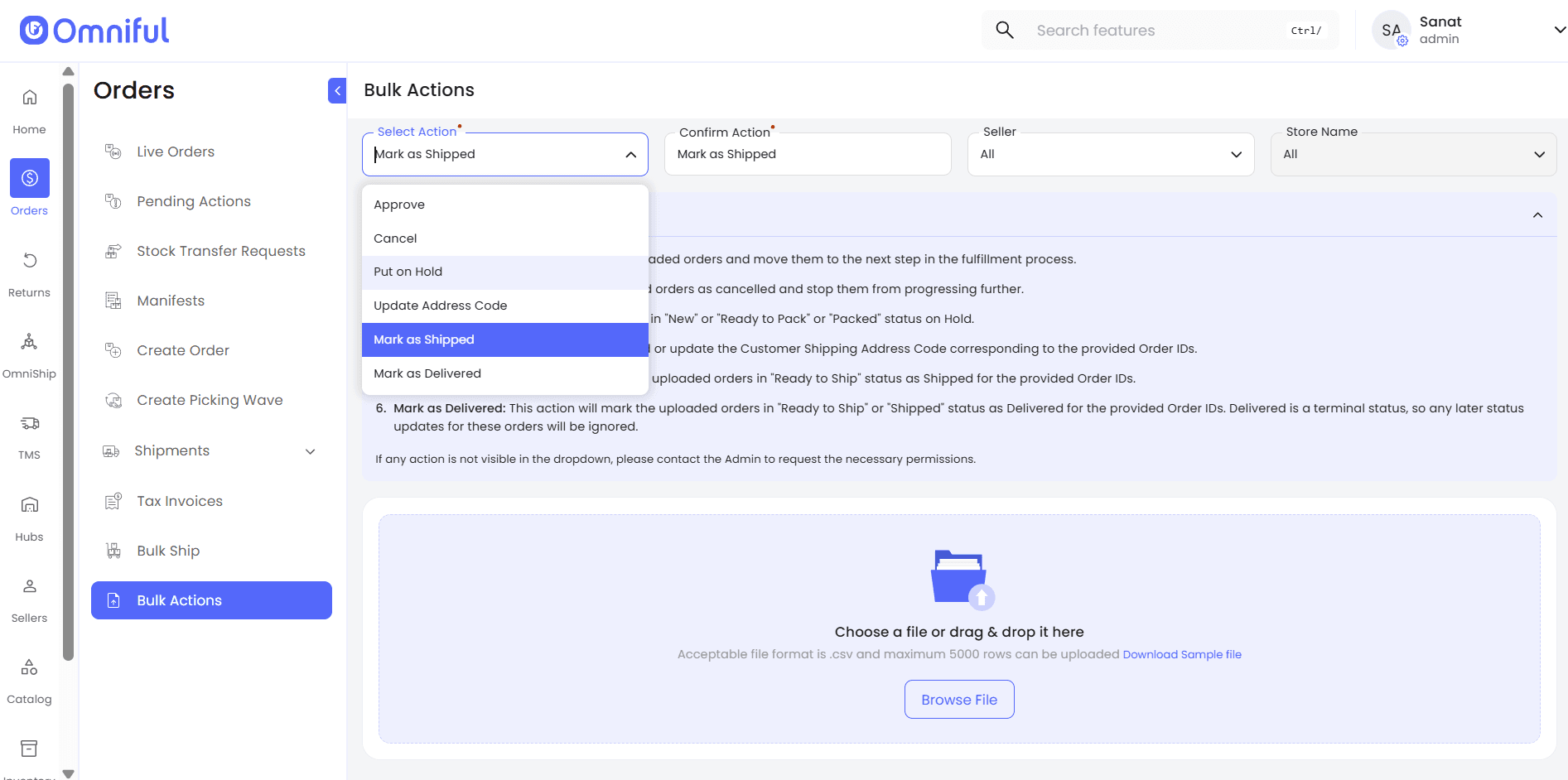
2.1. Bulk Mark as Shipped
- Download the sample sheet and enter the Order IDs of the orders you want to mark as Shipped.
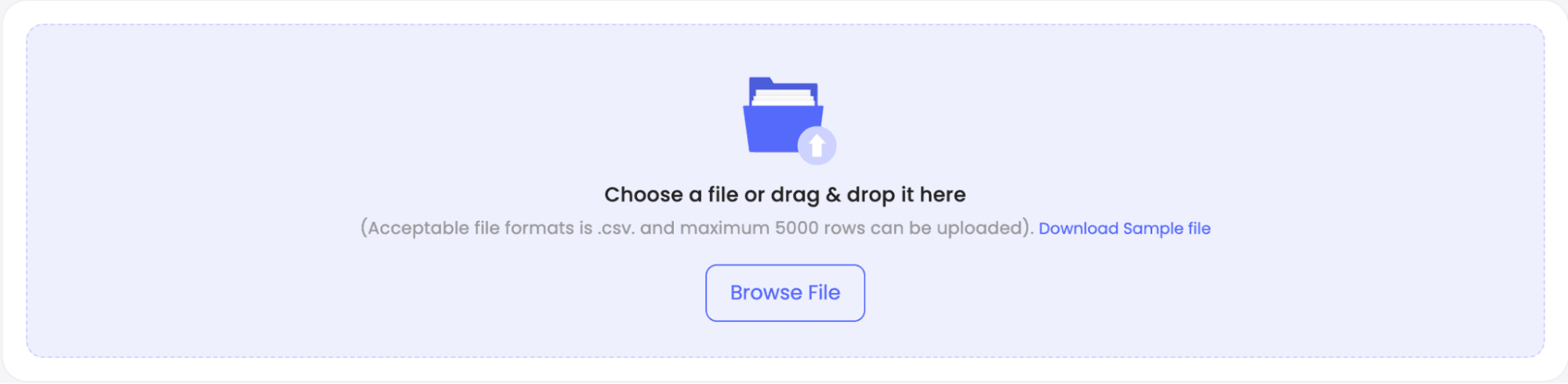
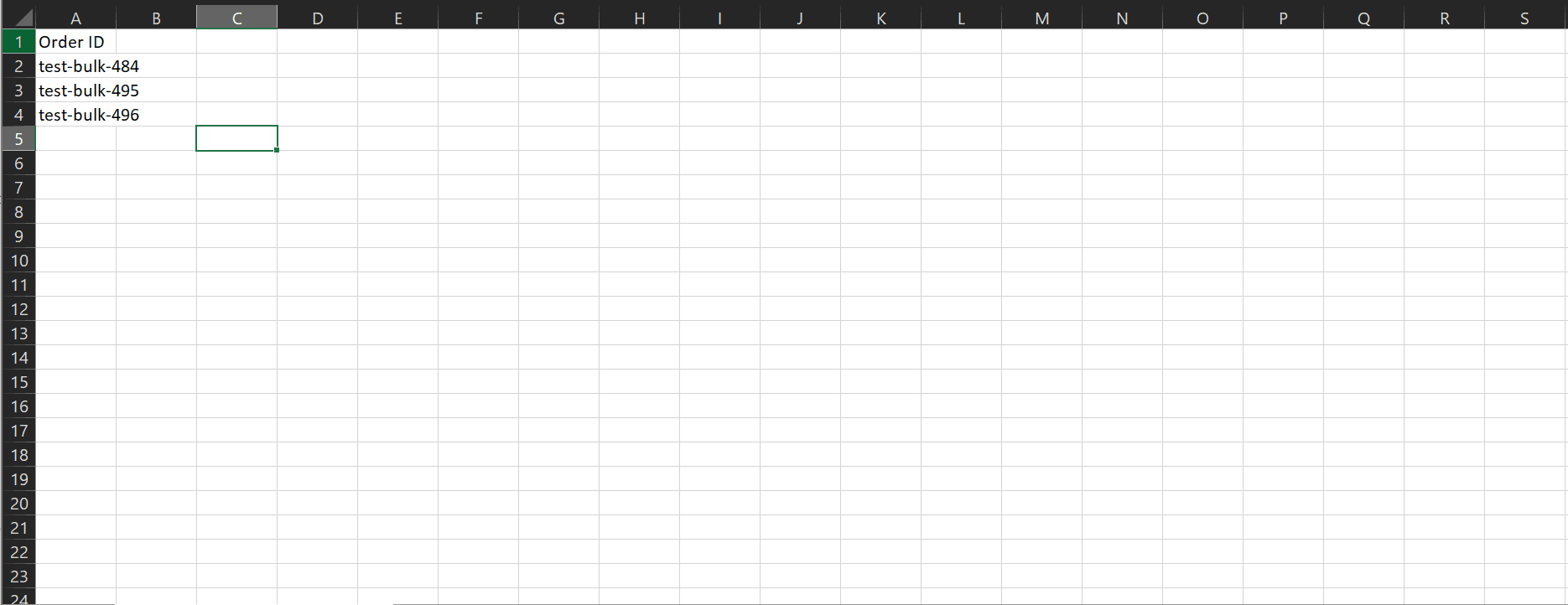
- Upload the completed CSV file and click Proceed.
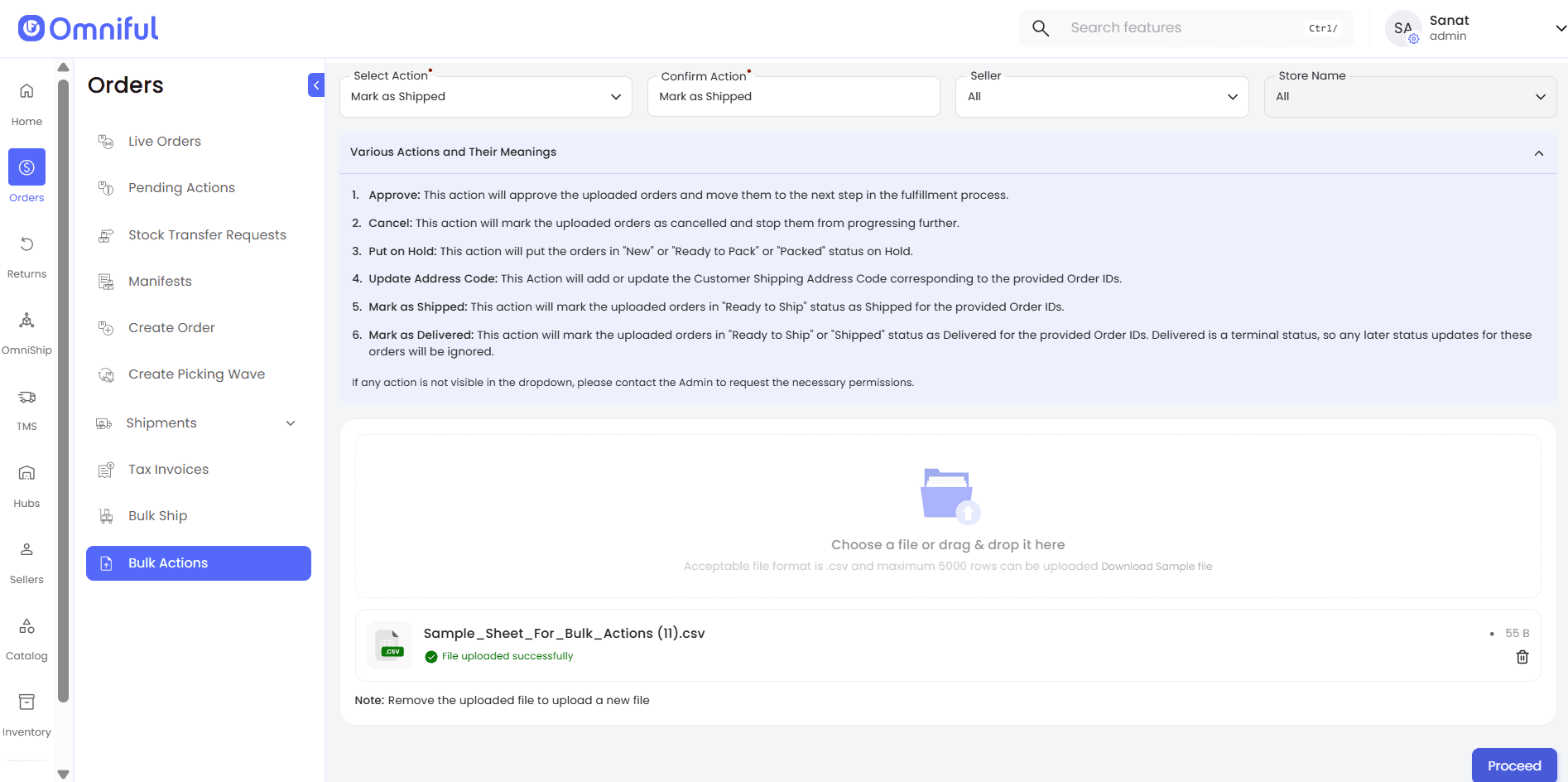
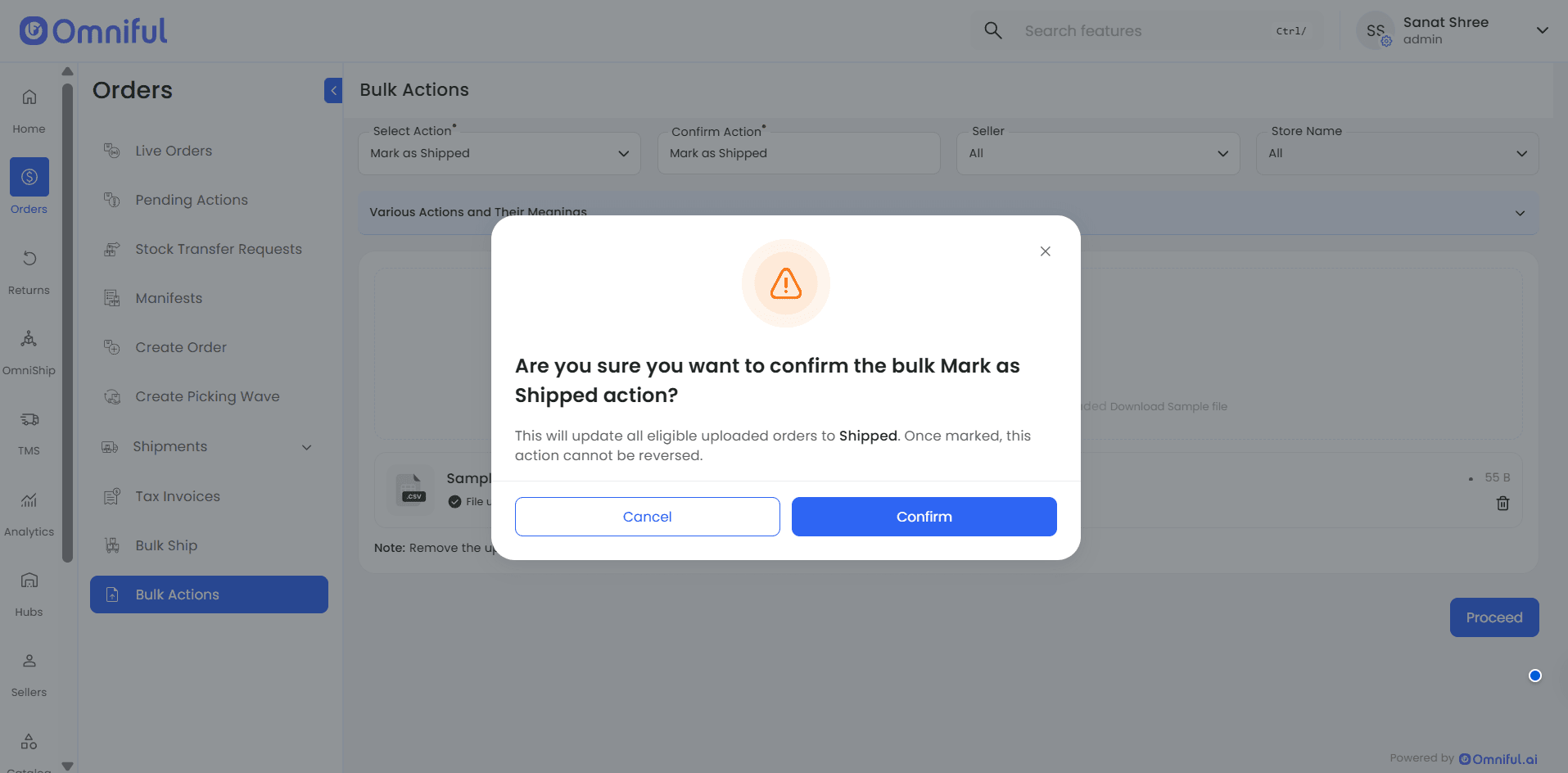
- In the confirmation modal, click Confirm.
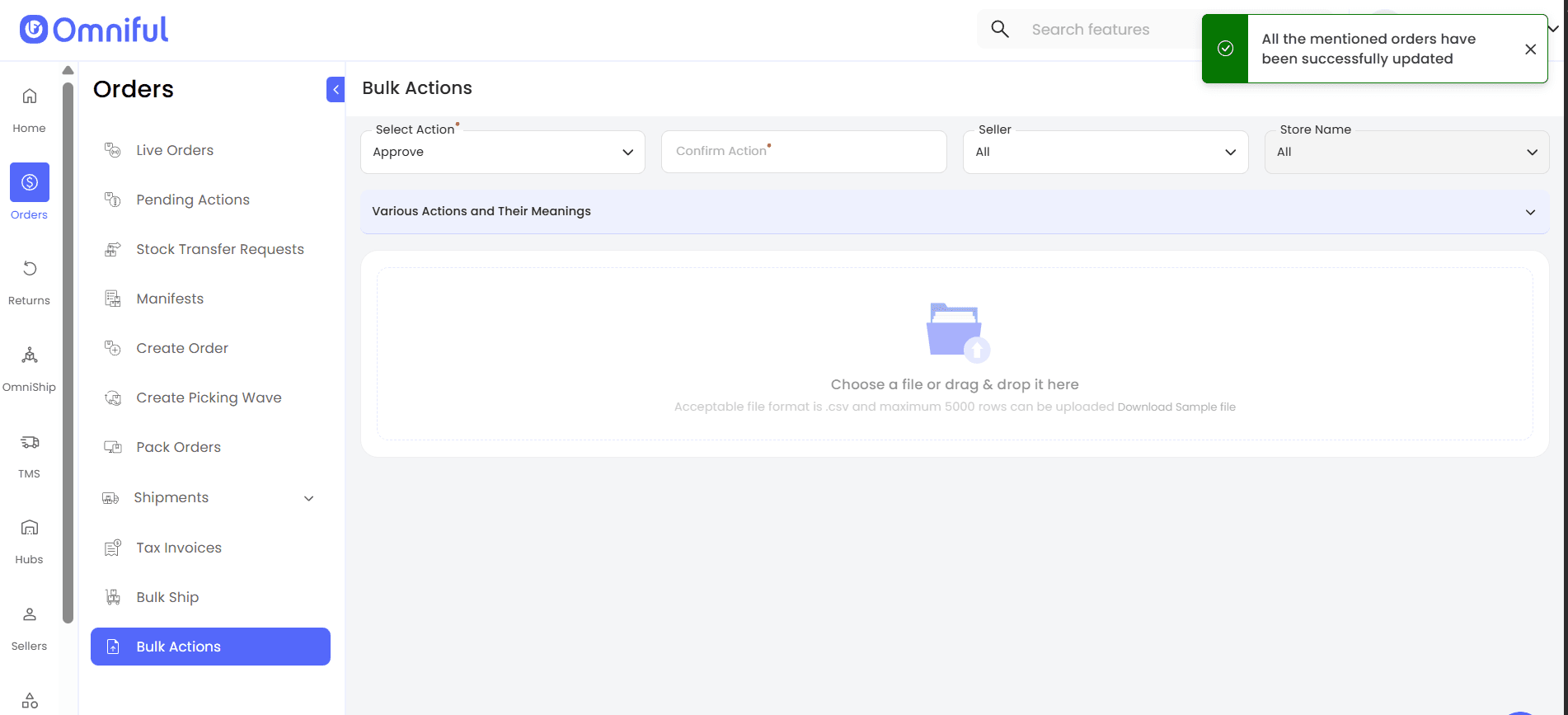
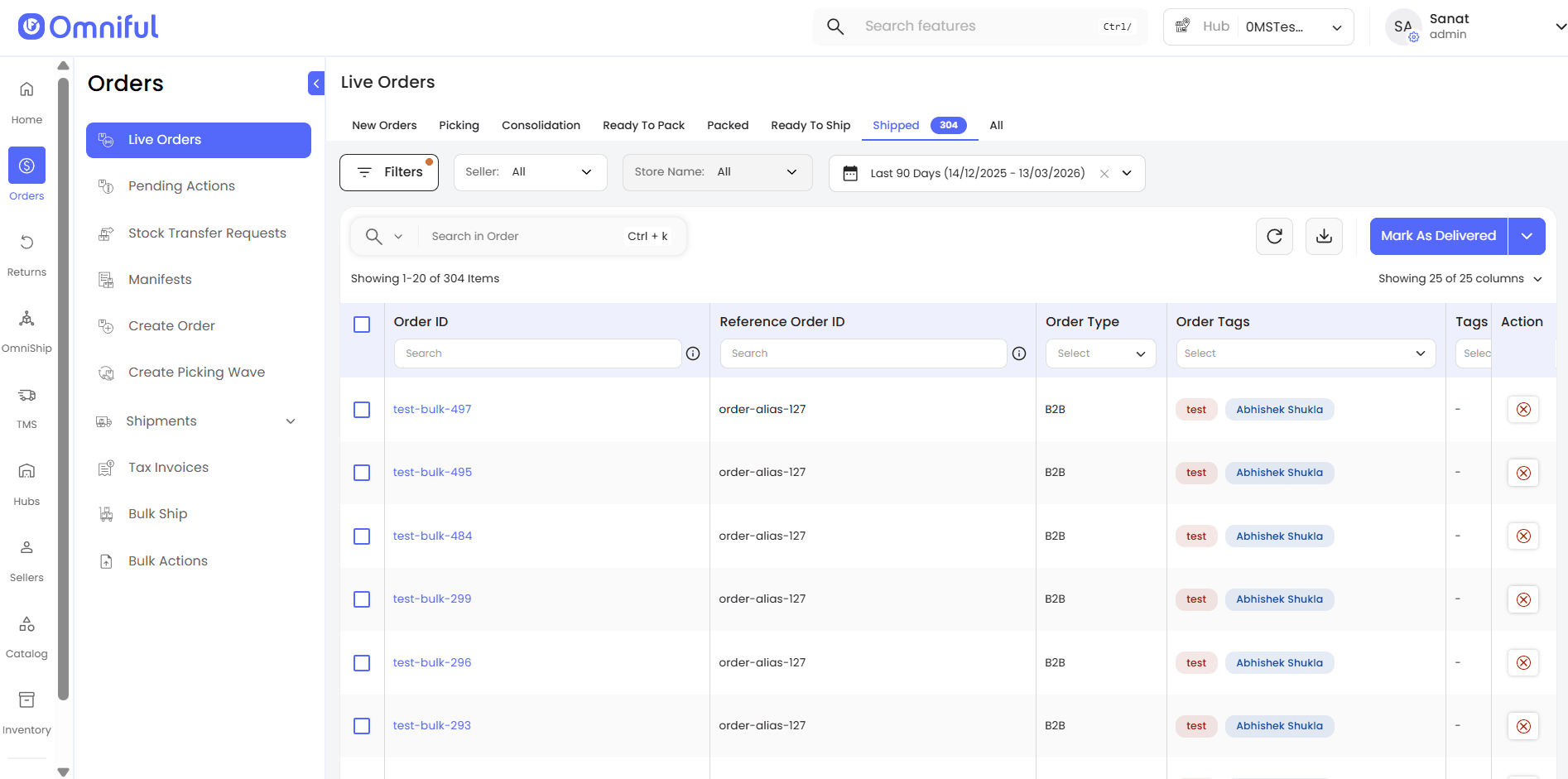
- Updated orders will now appear in the Shipped section of the Live Orders tab.
Verification
-
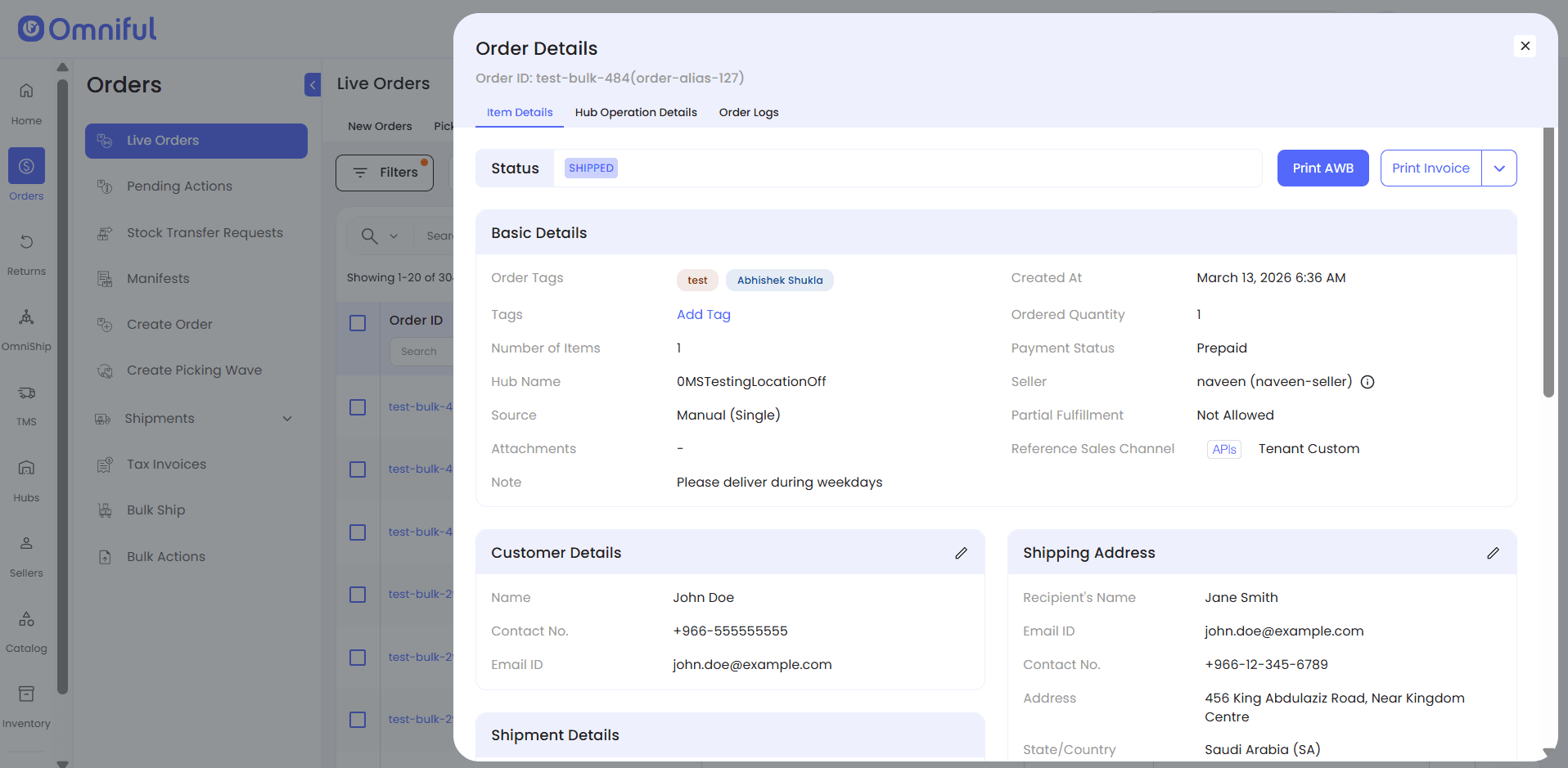
Order Details — Navigate to Live Orders → Shipped → Order ID → Item Details. The order status updates to Shipped.
-
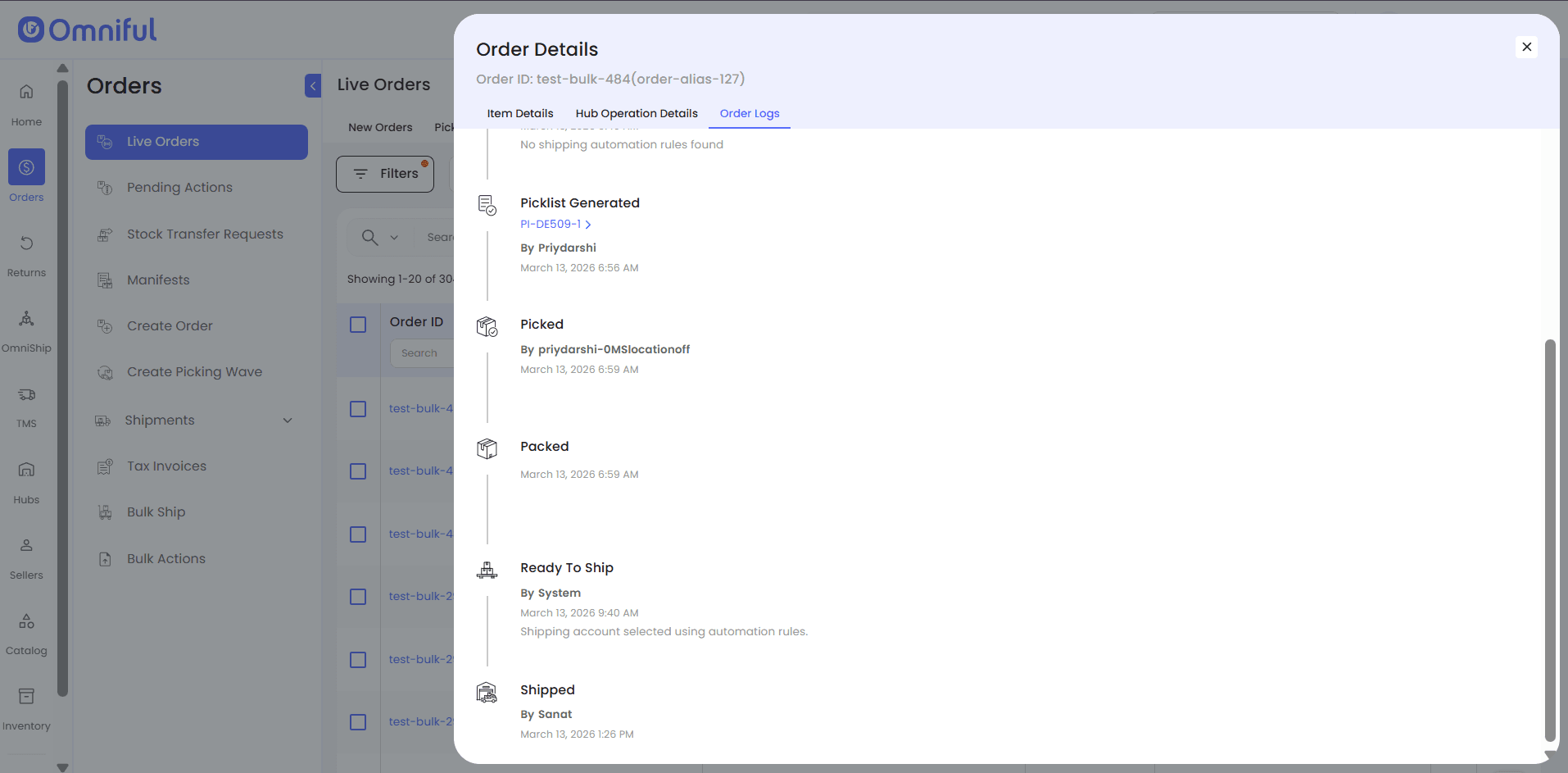
Order Logs — Navigate to Live Orders → Shipped → Order ID → Order Logs. The log captures the user performing the action.
2.2. Bulk Mark as Delivered
-
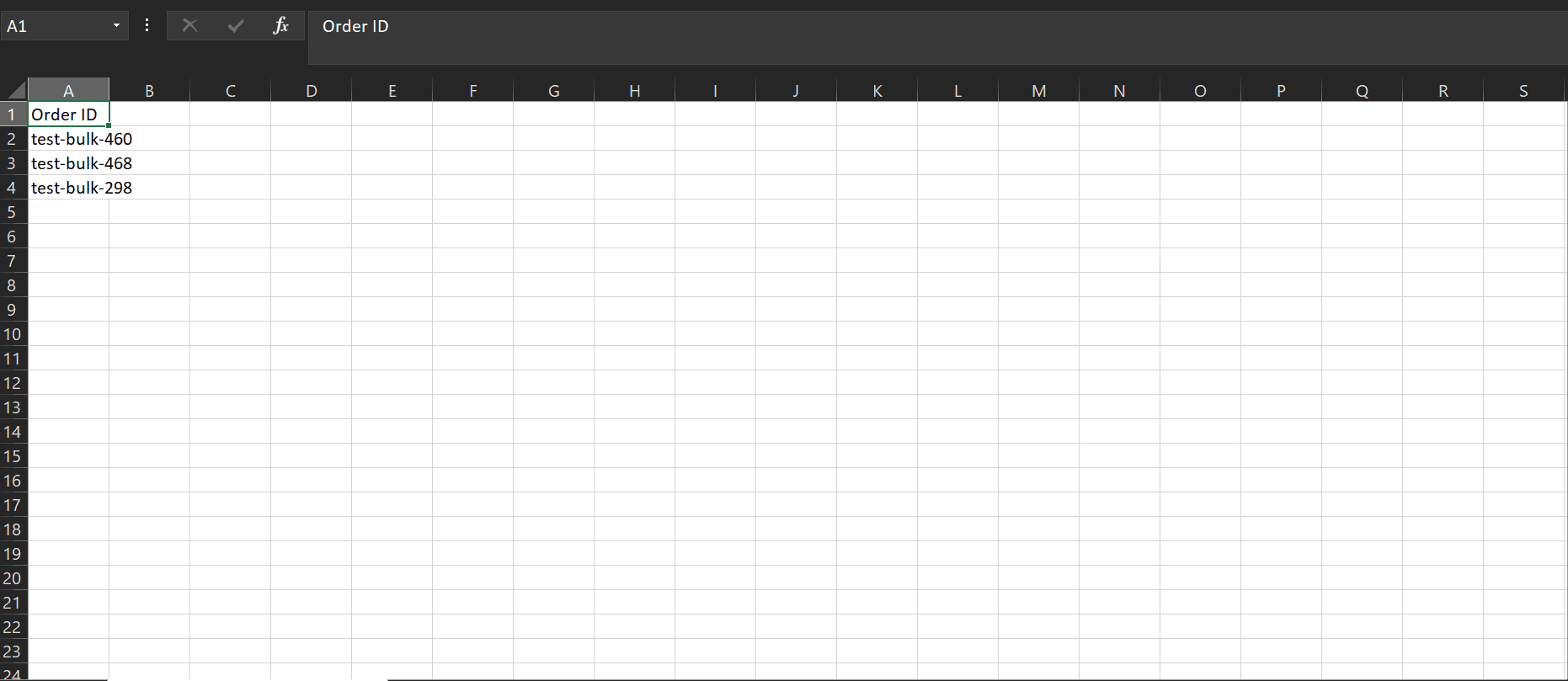
Download the sample sheet and enter the Order IDs of the orders you want to mark as Delivered.
-
Upload the completed
.csvfile with Order IDs and click Proceed.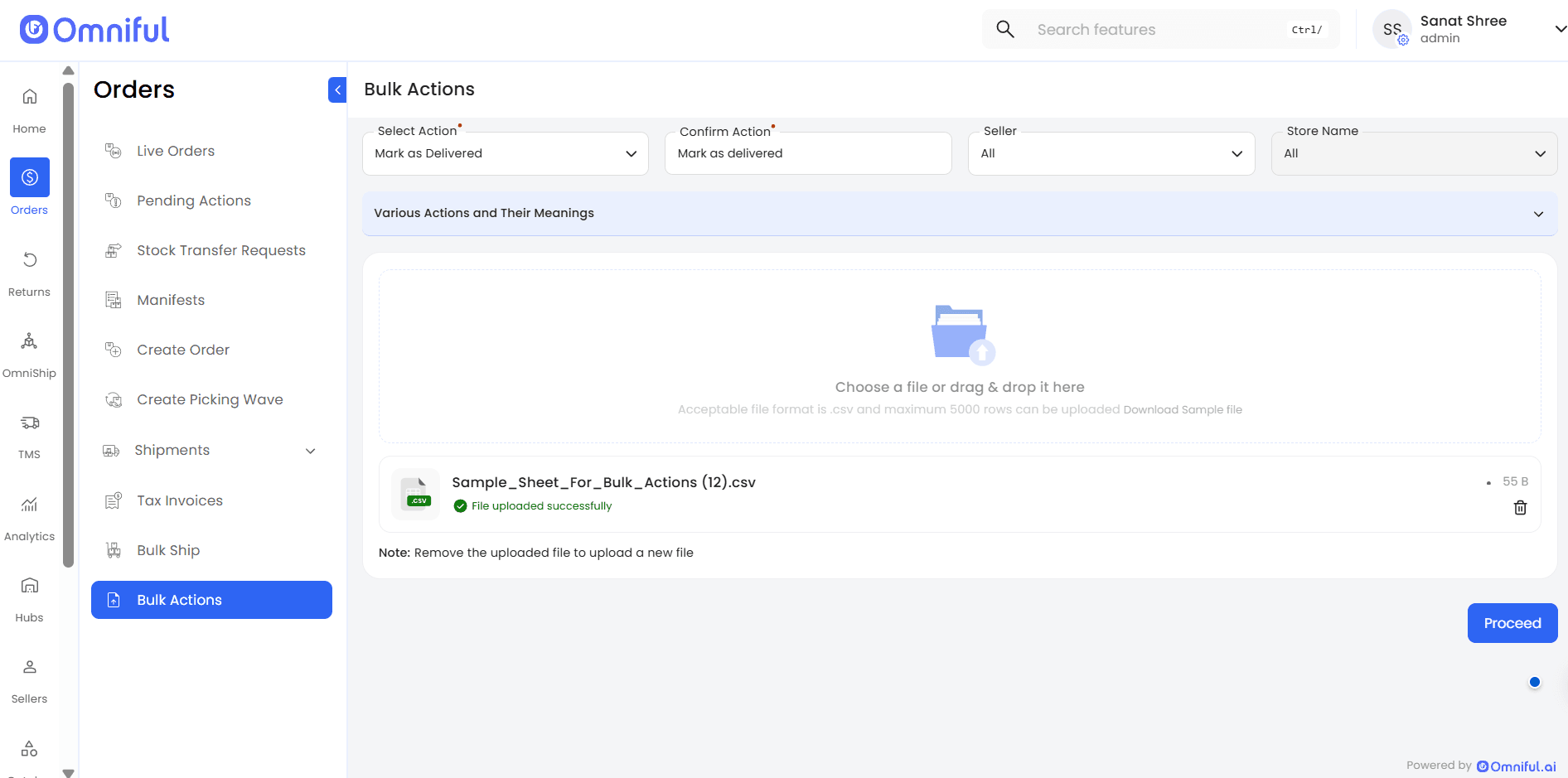
-
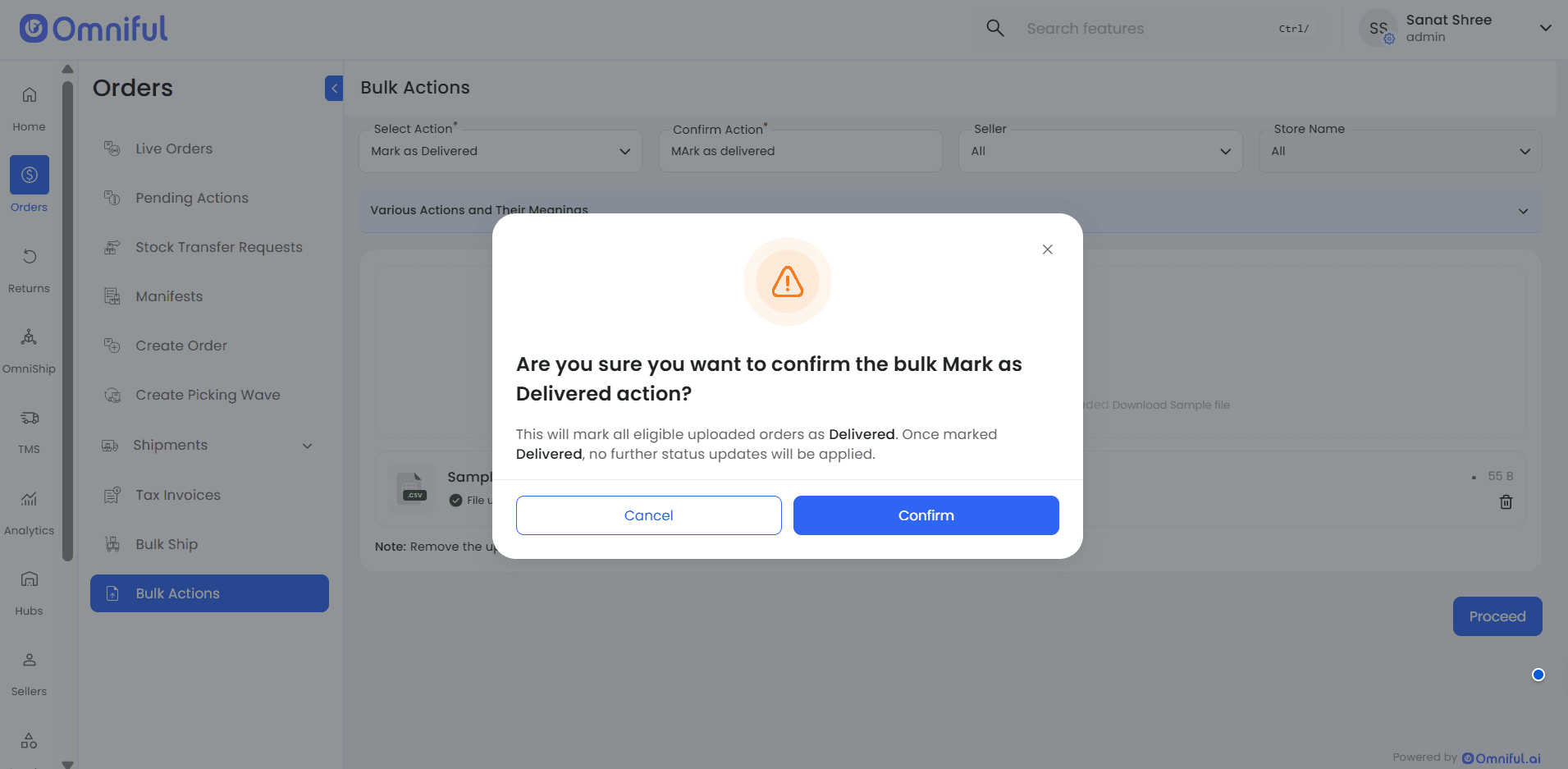
In the confirmation modal, click Confirm.
-
The system processes the update and marks eligible orders as Delivered.
Verification
-
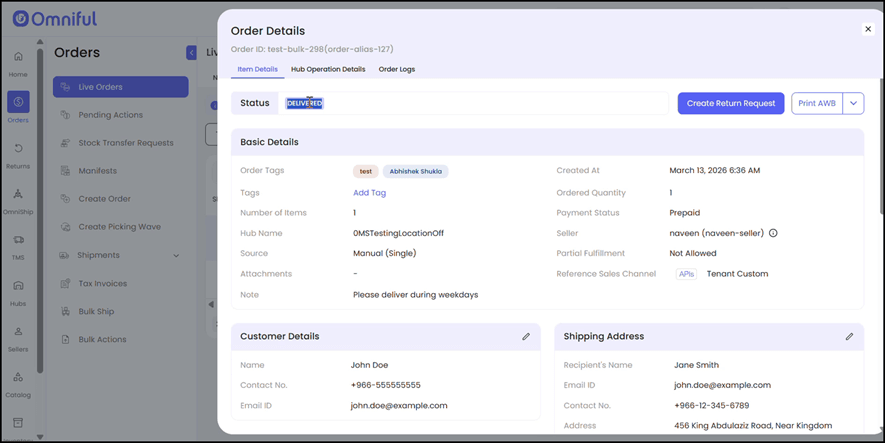
Order Details (Item Details) — Navigate to Live Orders → Shipped → Order ID → Item Details. The order status updates to Delivered.
-
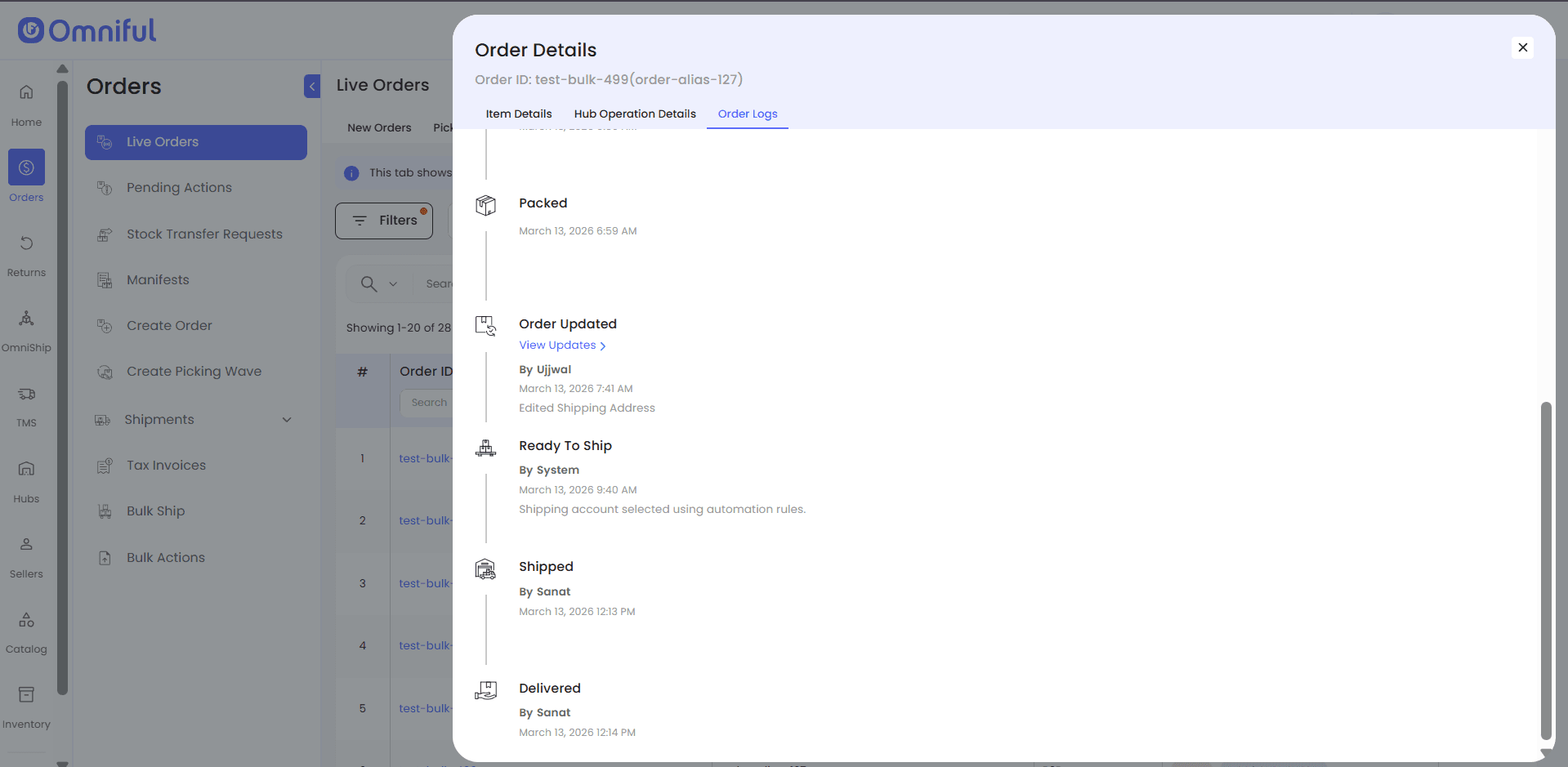
Order Logs — Navigate to Live Orders → Shipped → Order ID → Order Logs. The log confirms the order was delivered and captures the user performing the action.
Technical Details
Eligibility and Validation
- Mark as Shipped is restricted to orders in Ready to Ship state.
- Mark as Delivered is restricted to orders in Ready to Ship or Shipped state.
- Rows that do not satisfy the required source state are rejected without blocking valid rows in the same upload.
- Uploads accept
.csvfiles and support up to 5000 rows per upload.
Execution Behaviour
- Bulk processing is row-wise, which allows partial success for mixed-validity files.
- The processed file provides immediate feedback for failed rows so users can correct and re-upload only unresolved orders.
- Delivered acts as the terminal state in this flow; after an order is marked Delivered, no further order update is considered for that order.
Operational Visibility
- Order Details shows the final state on the order record.
- Order Logs provides audit visibility for the status progression.
- For orders updated using Bulk Mark as Shipped or Bulk Mark as Delivered, the corresponding bulk upload sheet is not available for viewing in the system. This differs from other bulk actions in Orders and is due to current technical limitations.