

Table of Contents
Share On


Bulk Picking - Single SKU
Introducing a new picking method to streamline fulfillment of orders consisting of only a single SKU.
Version: 1.0
Owner: Omniful Product Team
Summary
This feature introduces a new picking method called Single SKU Bulk Picking. This method groups all orders containing a single SKU into one picklist, enabling more efficient picking and packing. With this release, hubs using multi-order picking can bulk pick such orders in groups, reducing time spent on bin scans, segregation, and consolidation.
Setup
Enable Single SKU Bulk Picking under Picking Method → Multi Order Picking in the hub configurations.
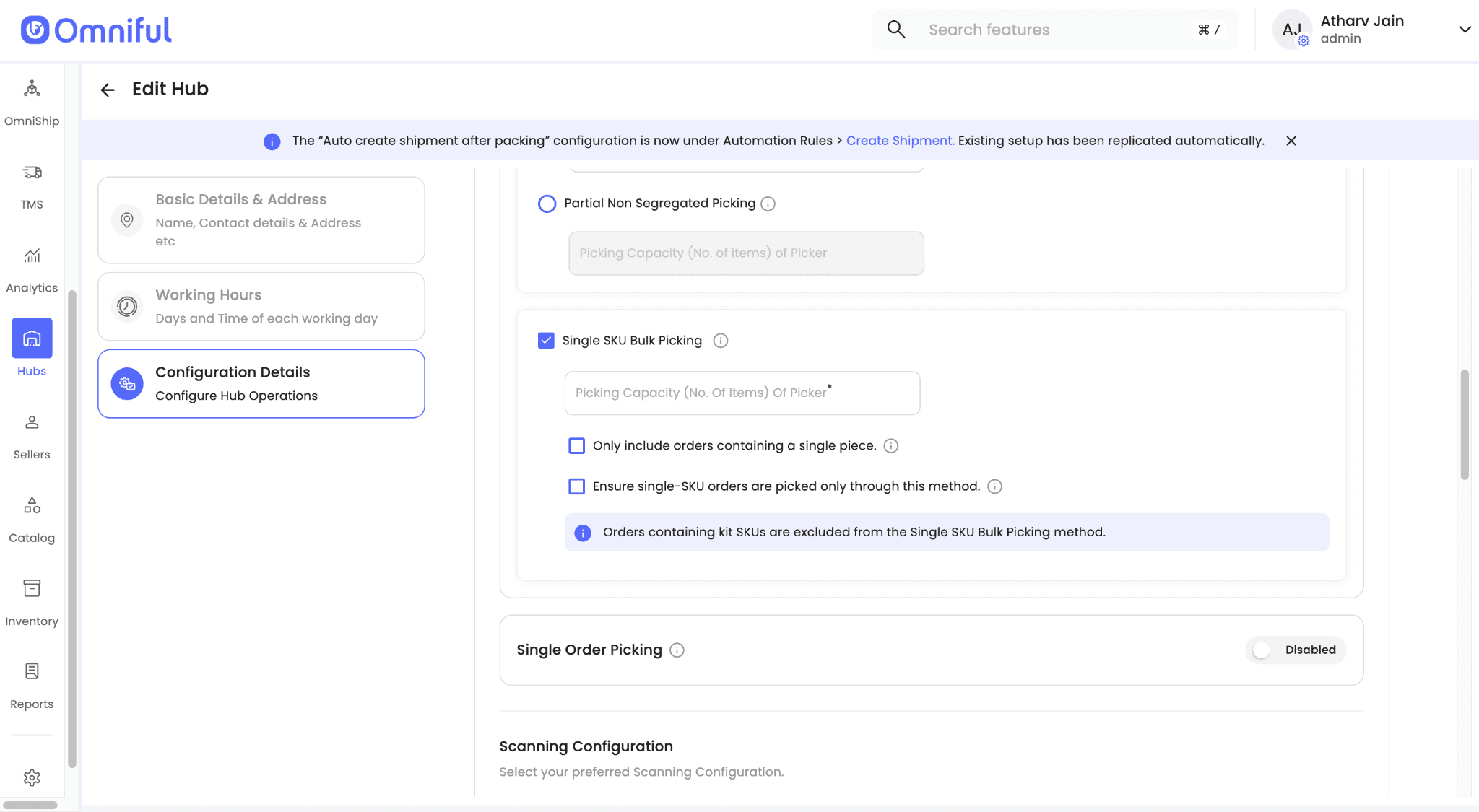
- Picking Capacity (No. of Items) of Picker: Defines the maximum total quantity that can be assigned to a picker in a single picklist.
Note: The system limit is 200 units per picklist. - Only include orders containing a single piece: When turned on, this configuration restricts the wave to orders that have exactly one piece of a single SKU, making it ideal for pure single-piece flows.
- Ensure single-SKU orders are picked only through this method: When enabled, this configuration ensures that single-SKU orders are not included in picking waves for any multi-order picking methods enabled for the hub. They are reserved exclusively for Single SKU Bulk Picking.
Note: Orders containing kit SKUs are excluded from this picking method.
Recommended Setup
Only include orders containing a single piece
Enable this when Single SKU Bulk Picking should process only one-piece orders. This is ideal for high-volume, fast-moving dispatches such as marketplace orders, flash sales, COD parcels, or hubs that regularly receive large volumes of single-piece orders, because the packer can continuously pack one order after another with a single item scan.
It is also useful for businesses selling high-ticket items that are typically ordered one at a time. When enabled, multi-quantity single-SKU orders are excluded and continue through the default multi-order picking flow.
Ensure single-SKU orders are picked only through this method
Enable this to route all single-SKU orders exclusively through Single SKU Bulk Picking. These orders will not appear under other multi-order methods like Complete Segregated or Partial Non Segregated. This keeps the flow clean, prevents mixing of orders, and is especially helpful when single-SKU volume is high.
How It Works
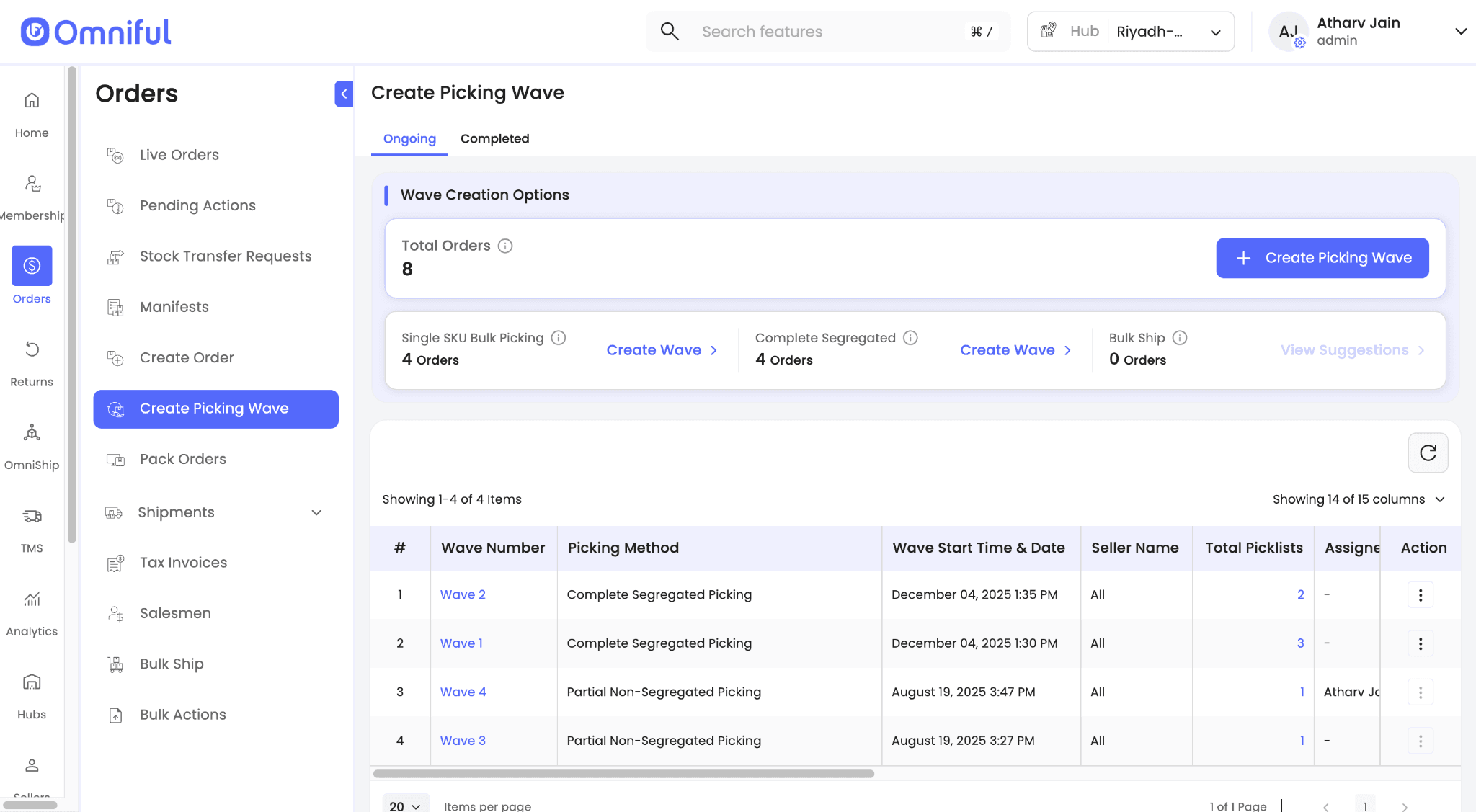
To create a picking wave for orders eligible for single-SKU bulk picking, go to Orders → Create Picking Wave in the web dashboard.
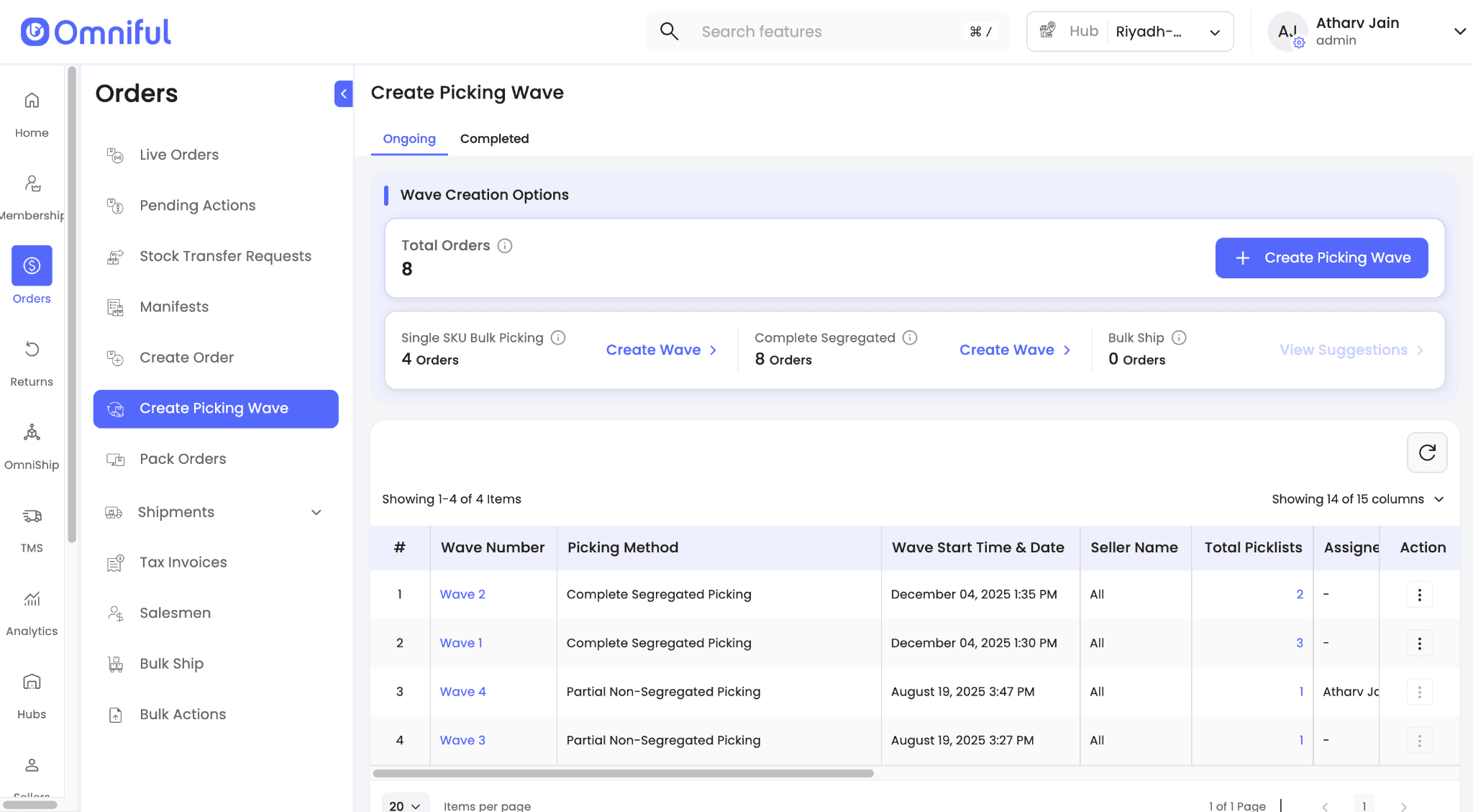 On this screen, the system displays:
- Total Orders: The total number of orders that are eligible for wave creation, excluding orders that will be picked through single-order picking.
- Single SKU Bulk Picking: Number of orders that qualify for this picking method.
- Complete Segregated (or the hub’s default multi-order picking): Orders eligible for the hub’s default multi-order picking method, such as Complete Segregated or Partial Non-Segregated.
- Bulk Ship: Orders eligible for the existing bulk ship picking method.
Note: Clicking View Suggestions under Bulk Ship takes the user to the Bulk Ship Suggestions page, and the Bulk Ship flow itself remains unchanged.
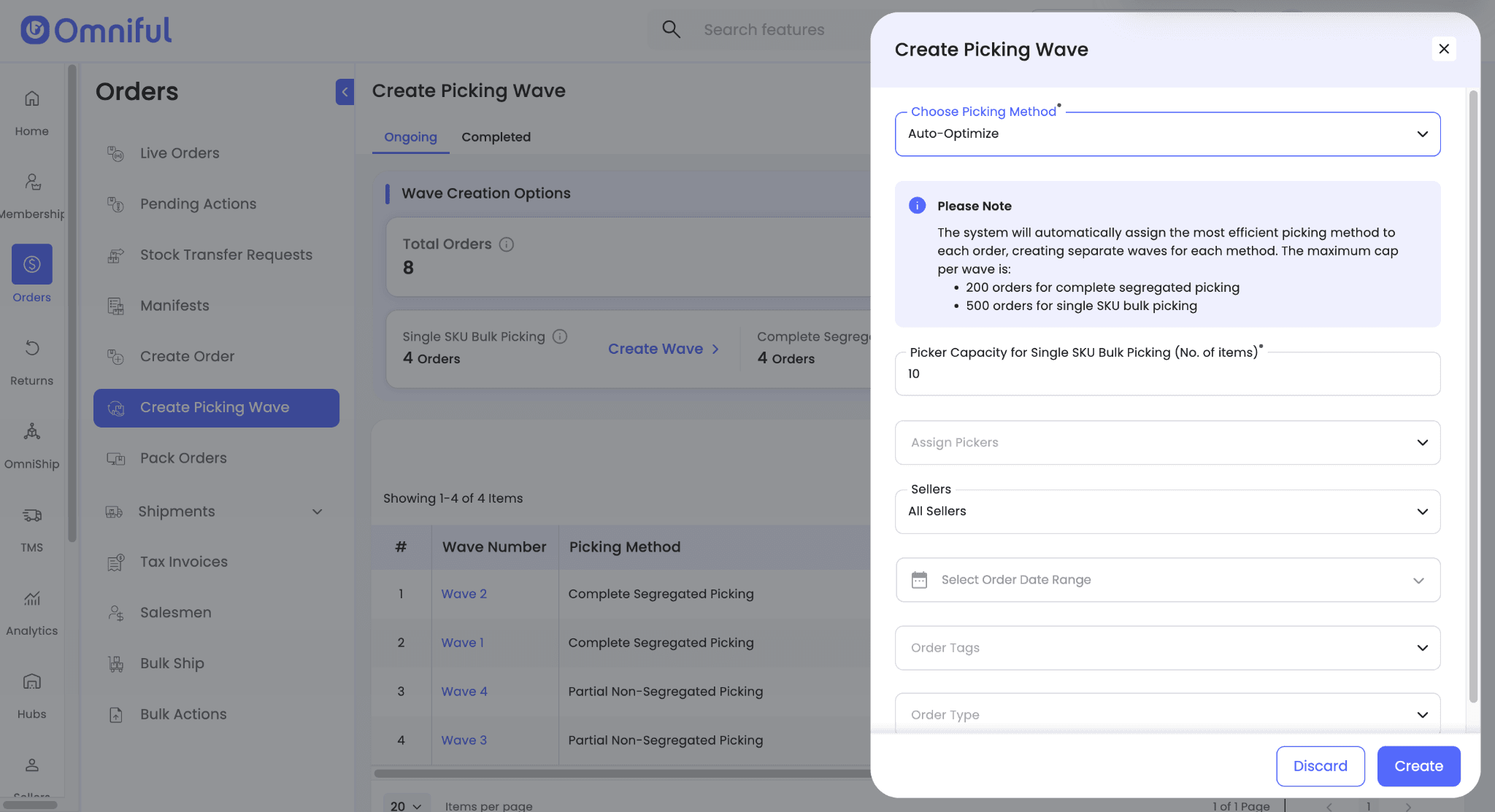
When the user clicks Create Picking Wave or Create Wave, a side sheet opens. Here, they choose which picking method they want to use for that wave and apply the necessary filters. Users can also edit picker capacity for Single SKU Bulk Picking and Partial Non Segregated while generating a wave.
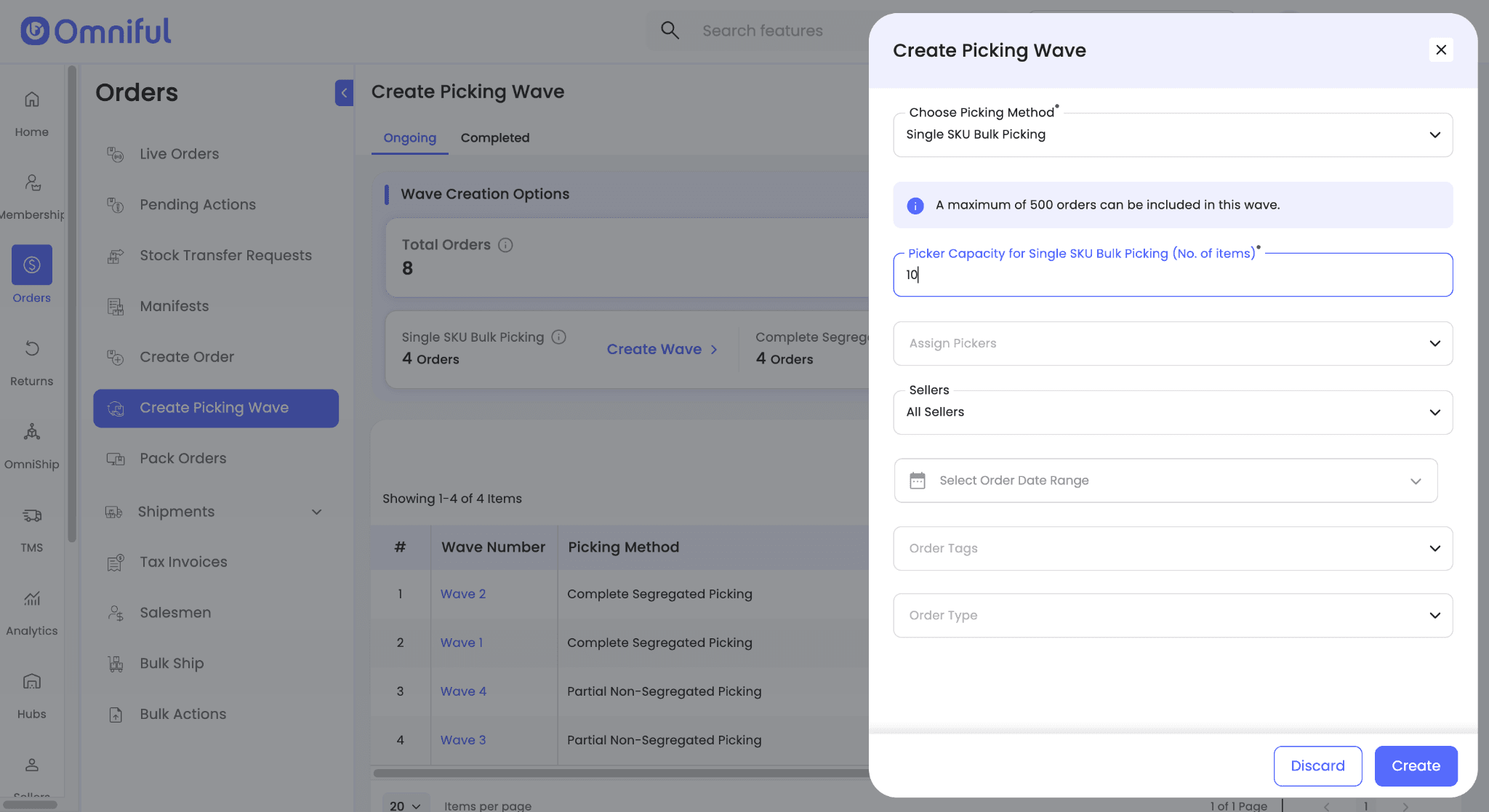 Notes:
- A maximum of 500 orders can be included in a single wave for Single SKU Bulk Picking.
- A maximum of 200 orders can be included in a single wave for Multi-Order Picking.
- For each picking method, a separate wave is created.
Wave generation behavior
The behavior of wave generation depends on the configuration Ensure single SKU orders are picked only through this method.
-
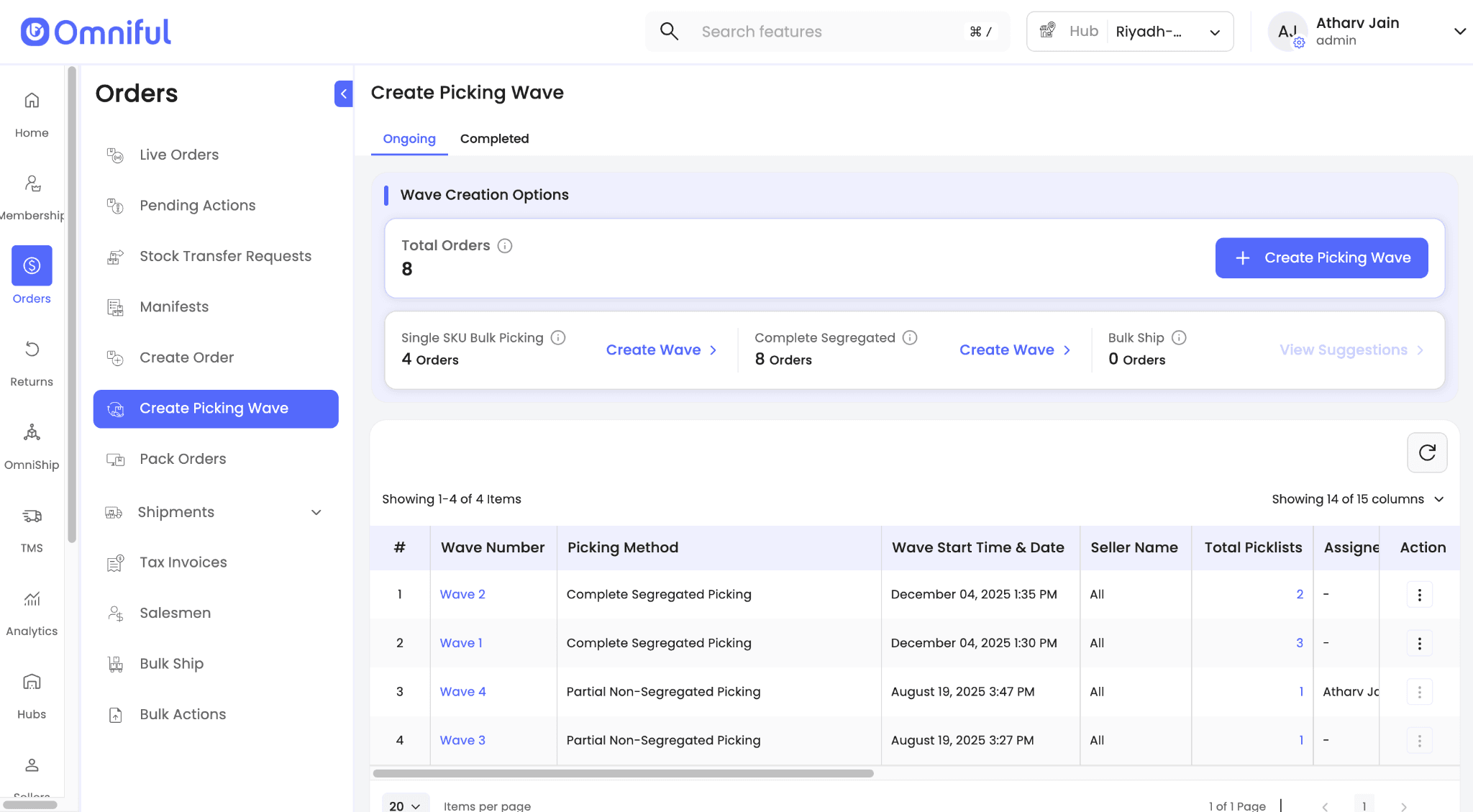
When the configuration is OFF, orders eligible for Single SKU Bulk Picking can still be picked through the hub’s default multi-order picking wave. This is also reflected in the order counts shown under each picking method. For example, if there are 8 eligible orders for wave generation and 4 of them are single-SKU, the screen will show 4 orders under Single SKU Bulk Picking and 8 under Complete Segregated because those 4 single-SKU orders are counted in both buckets.
-
When the configuration is ON, single-SKU orders are restricted to Single SKU Bulk Picking and do not appear under other multi-order methods. Using the same example, the screen would show 4 orders under Single SKU Bulk Picking and 4 under Complete Segregated, without overlap.
-
When the configuration is ON and the user selects Create Picking Wave, an additional option appears under Choose Picking Method called Auto Optimize. With Auto Optimize, the system automatically generates 2 separate waves: one for orders eligible for Single SKU Bulk Picking and another for orders that should be picked using the hub’s default multi-order picking flow.
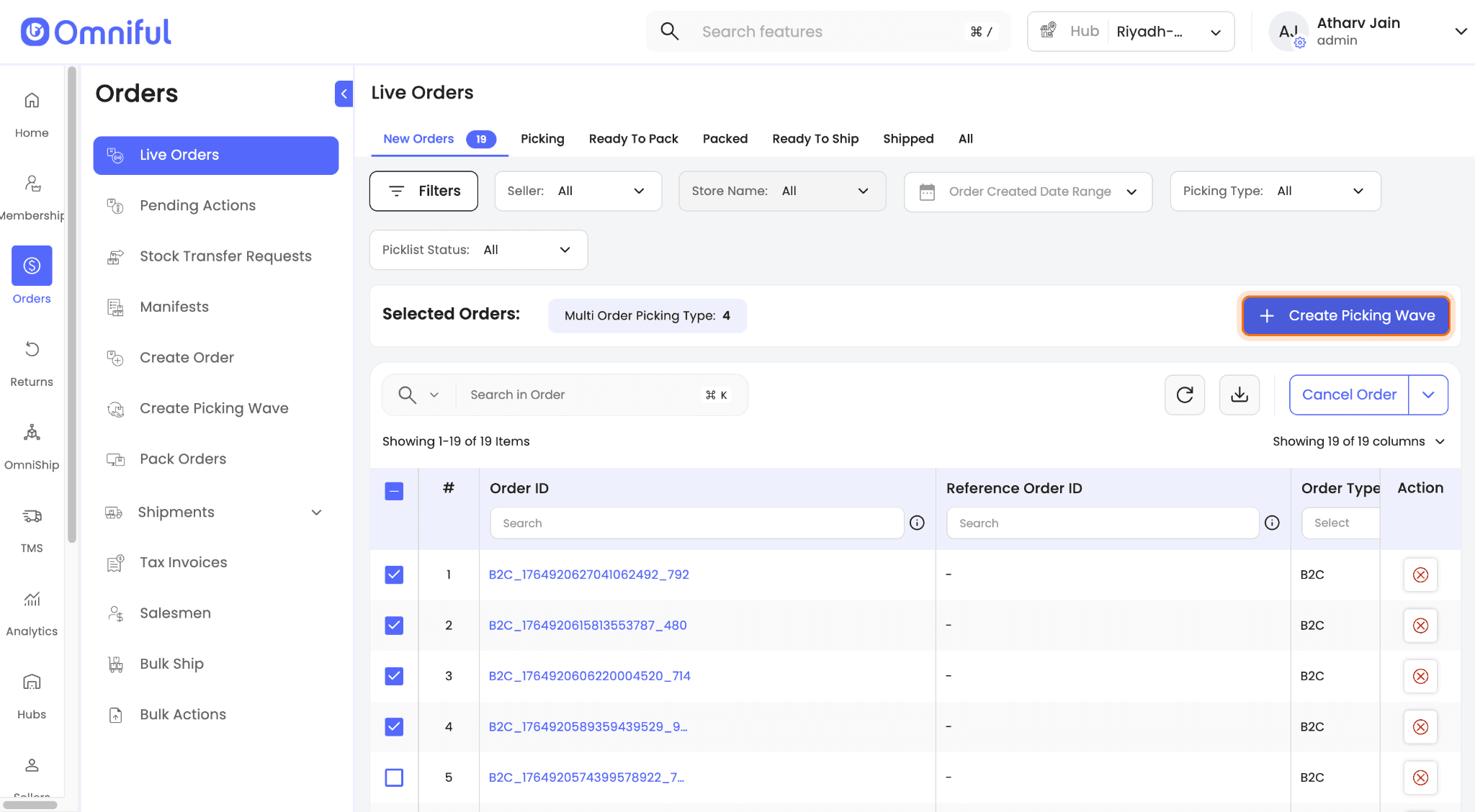
Note: Picking waves can also be created from Orders > Live Orders by manually selecting orders and clicking Create Picking Wave. In this flow, the system always generates a picklist using the hub’s default multi-order picking method (Complete Segregated or Partial Non Segregated), even if all selected orders are single-SKU. Single SKU Bulk Picking is not applied in this path, so waves for this method cannot be created from Live Orders.
Picking flow
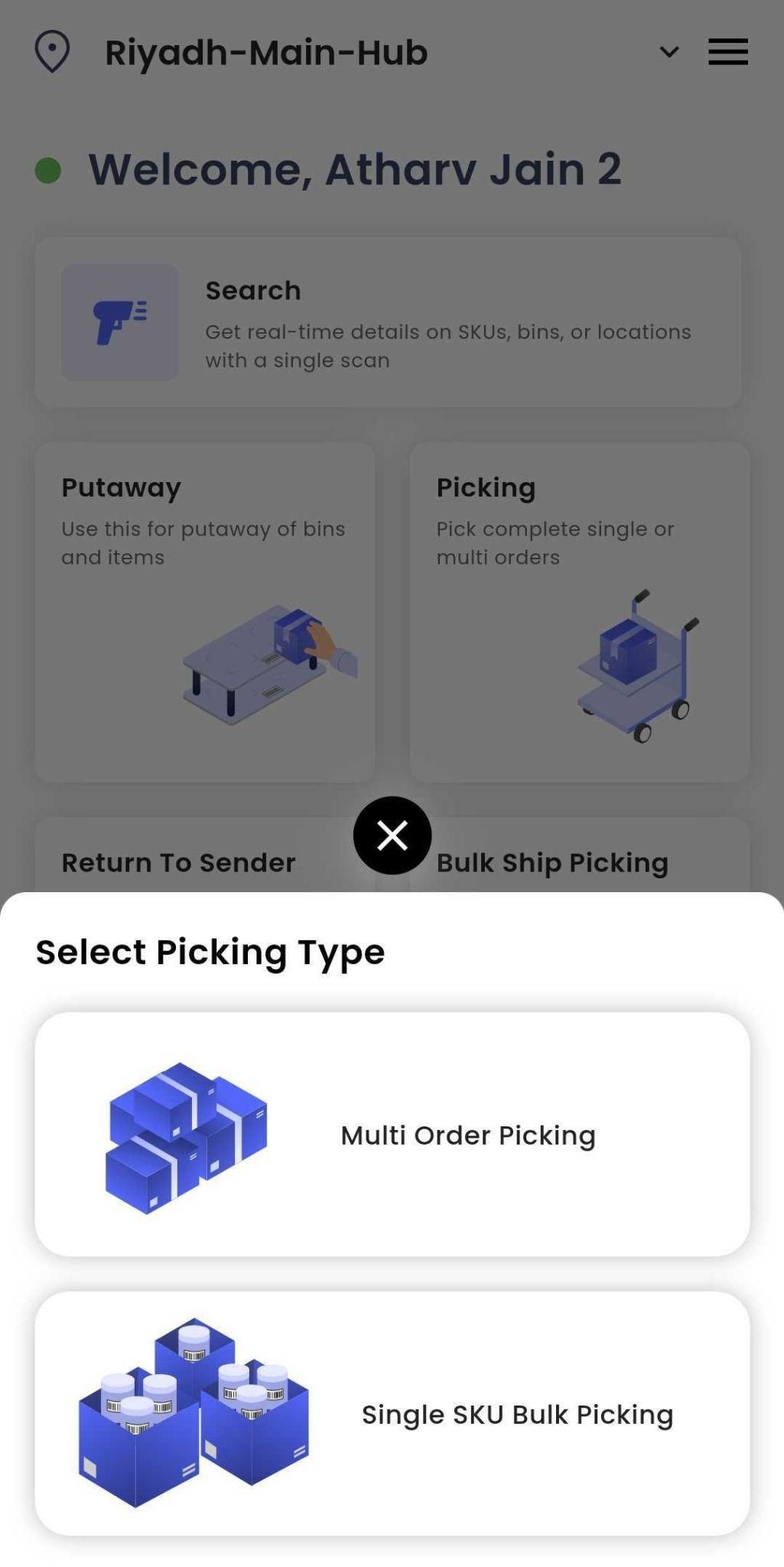
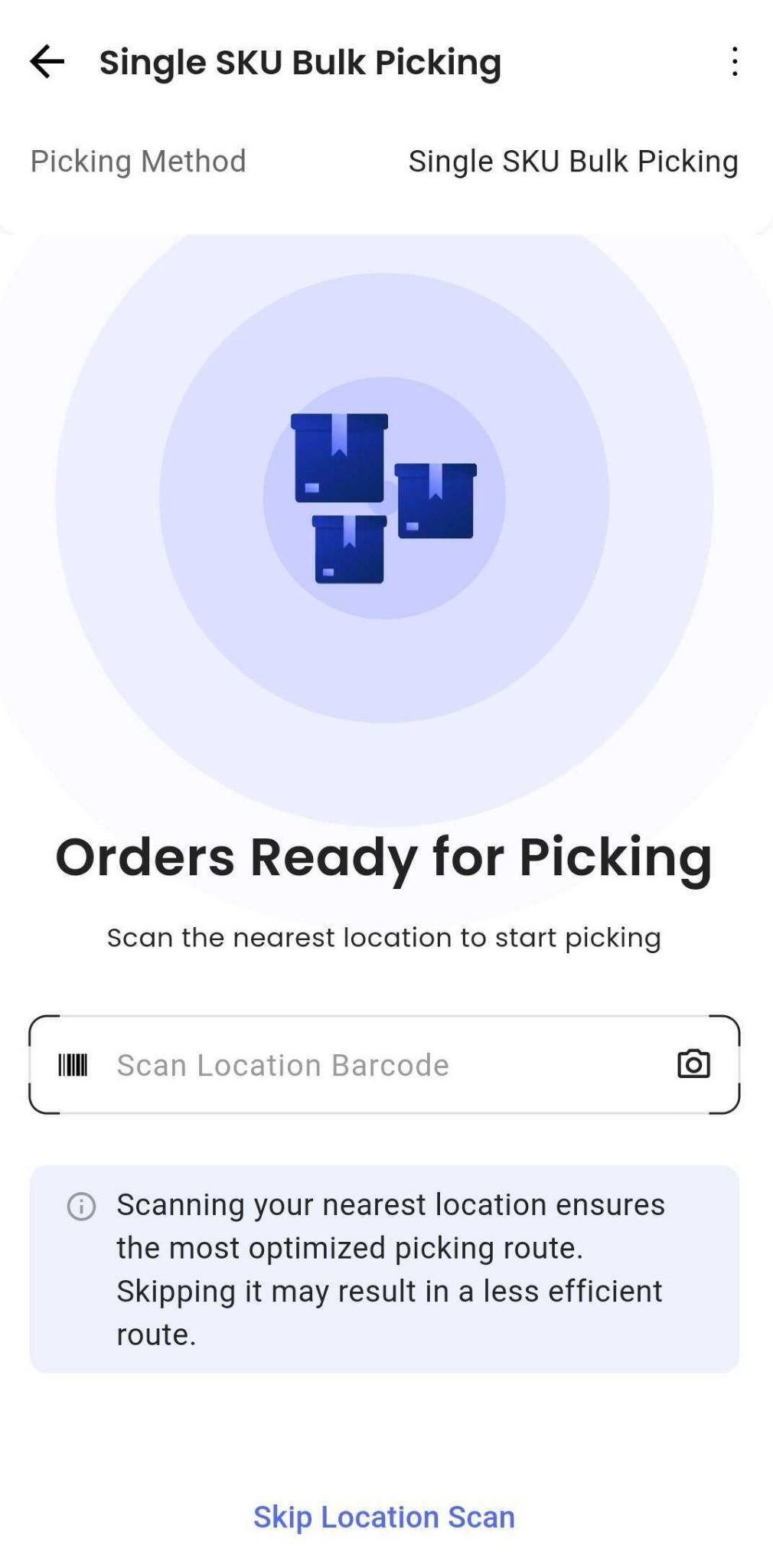
Once the wave is generated, pickers use the HubOps app to execute picking. A new picking type appears under the Picking section: Single SKU Bulk Picking.
Note: All items for the orders are collected together in a common bin, when bins are enabled, or in a cart.
The picking flow is:
- Scan the nearest location barcode for route optimization. This step can be skipped.
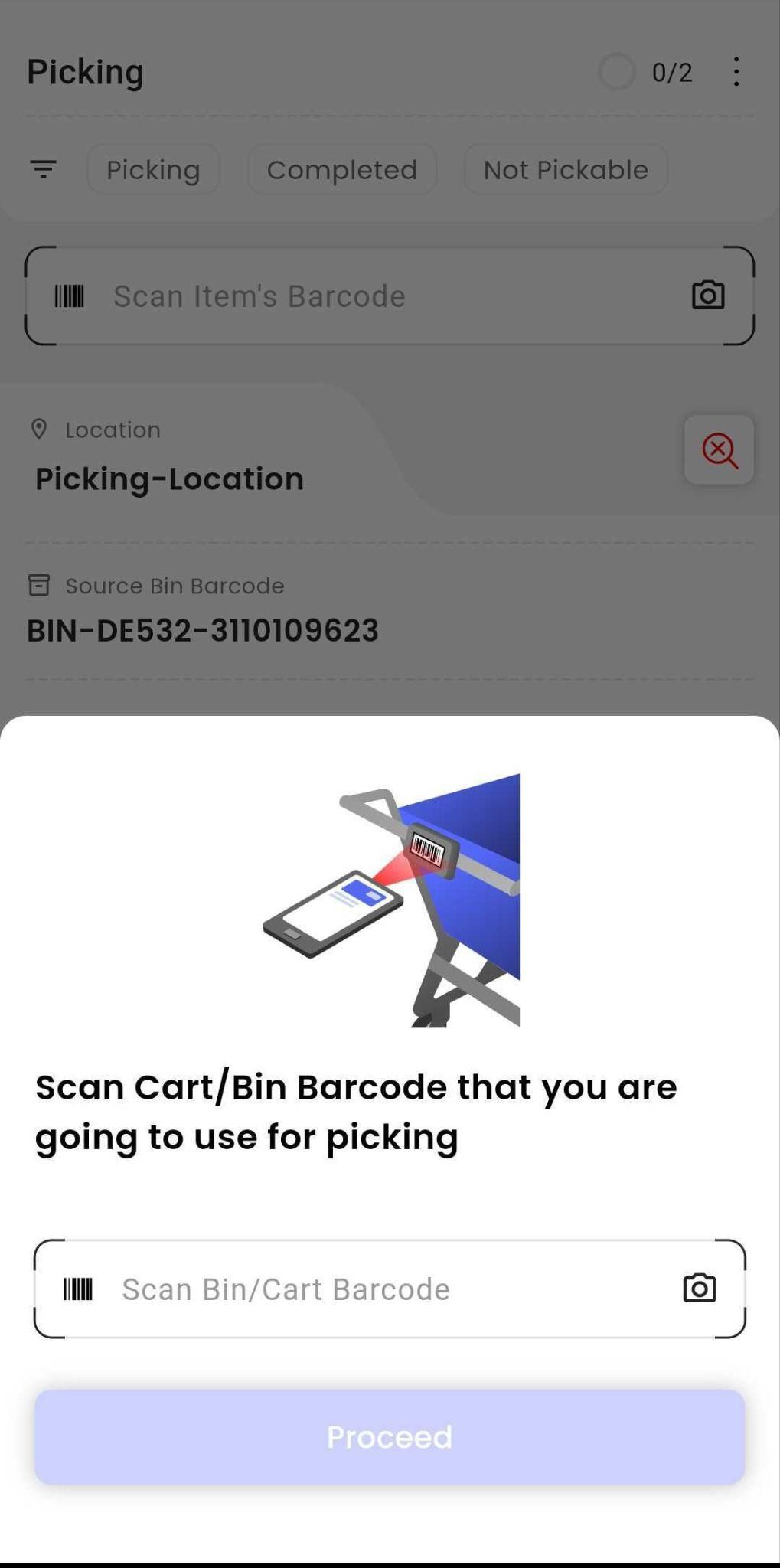
- Scan the cart or bin barcode.
Note: For Single SKU Non-Segregated Picking, scanning a cart or bin is mandatory.
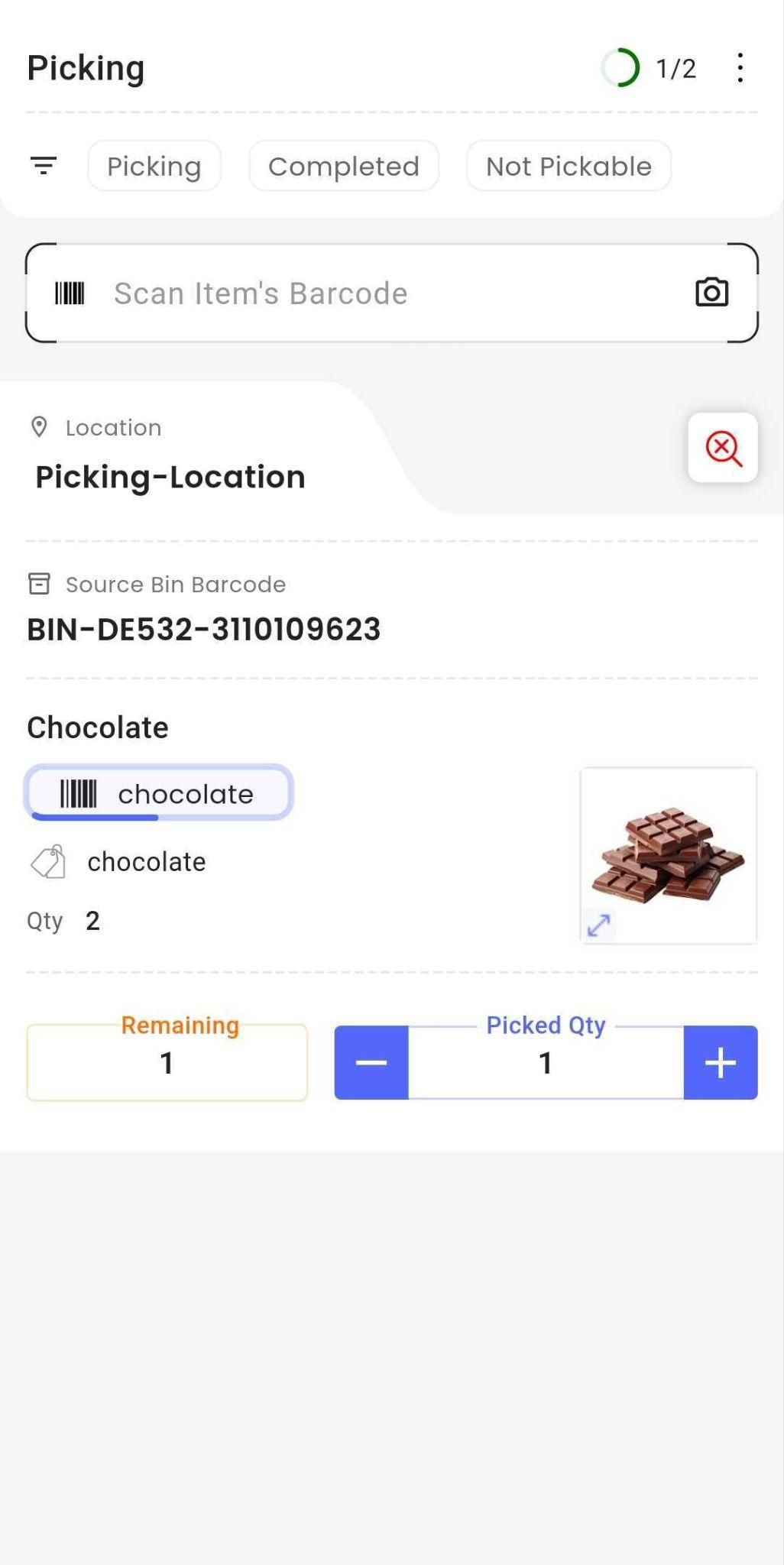
- Scan the location and bin barcode, if this validation is enabled for the hub.
- Scan the item (SKU) barcode and enter the appropriate quantity.
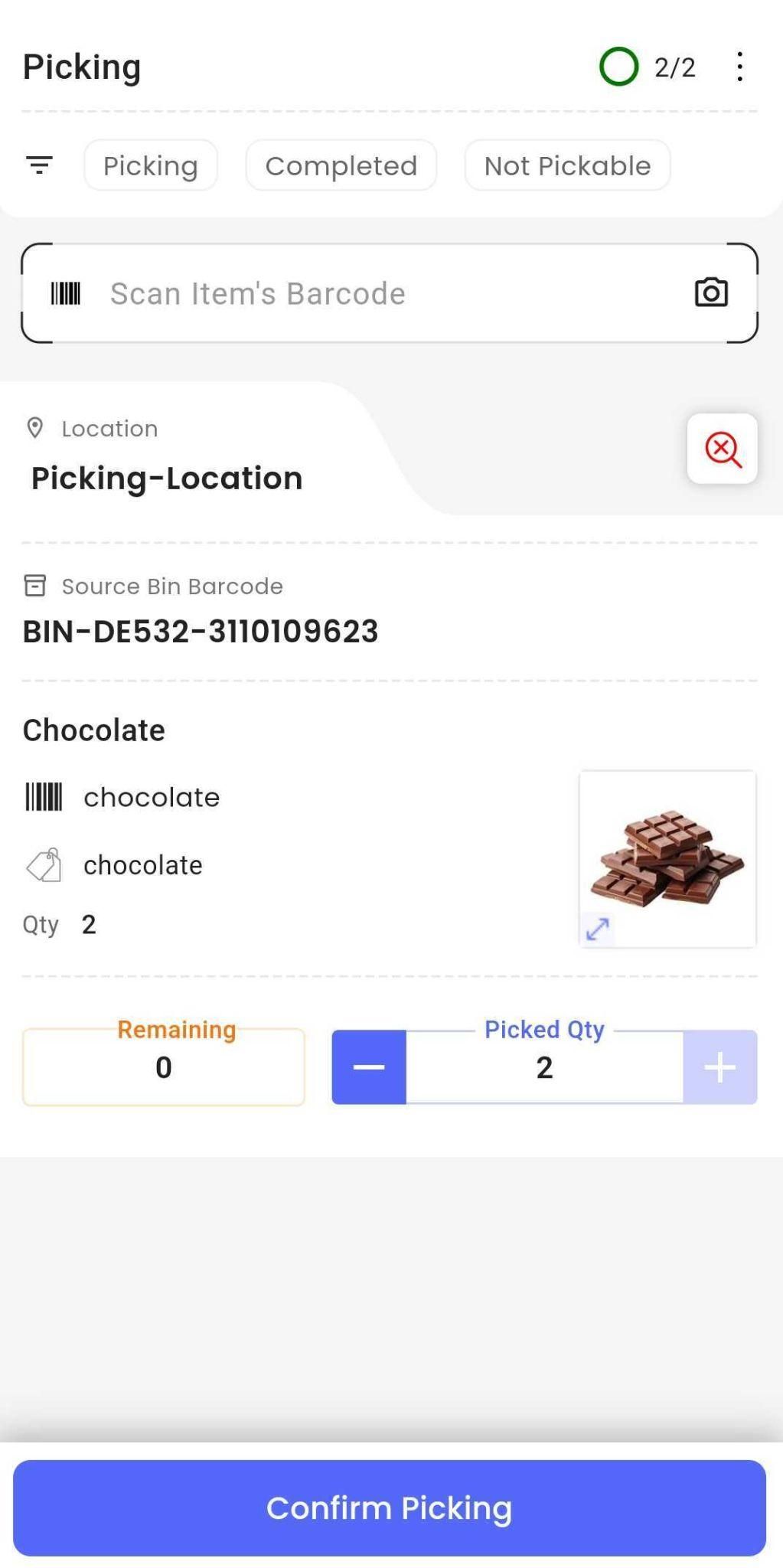
- Once picking for that wave is complete, tap Confirm Picking.
Packing flow
After picking, users can begin packing from:
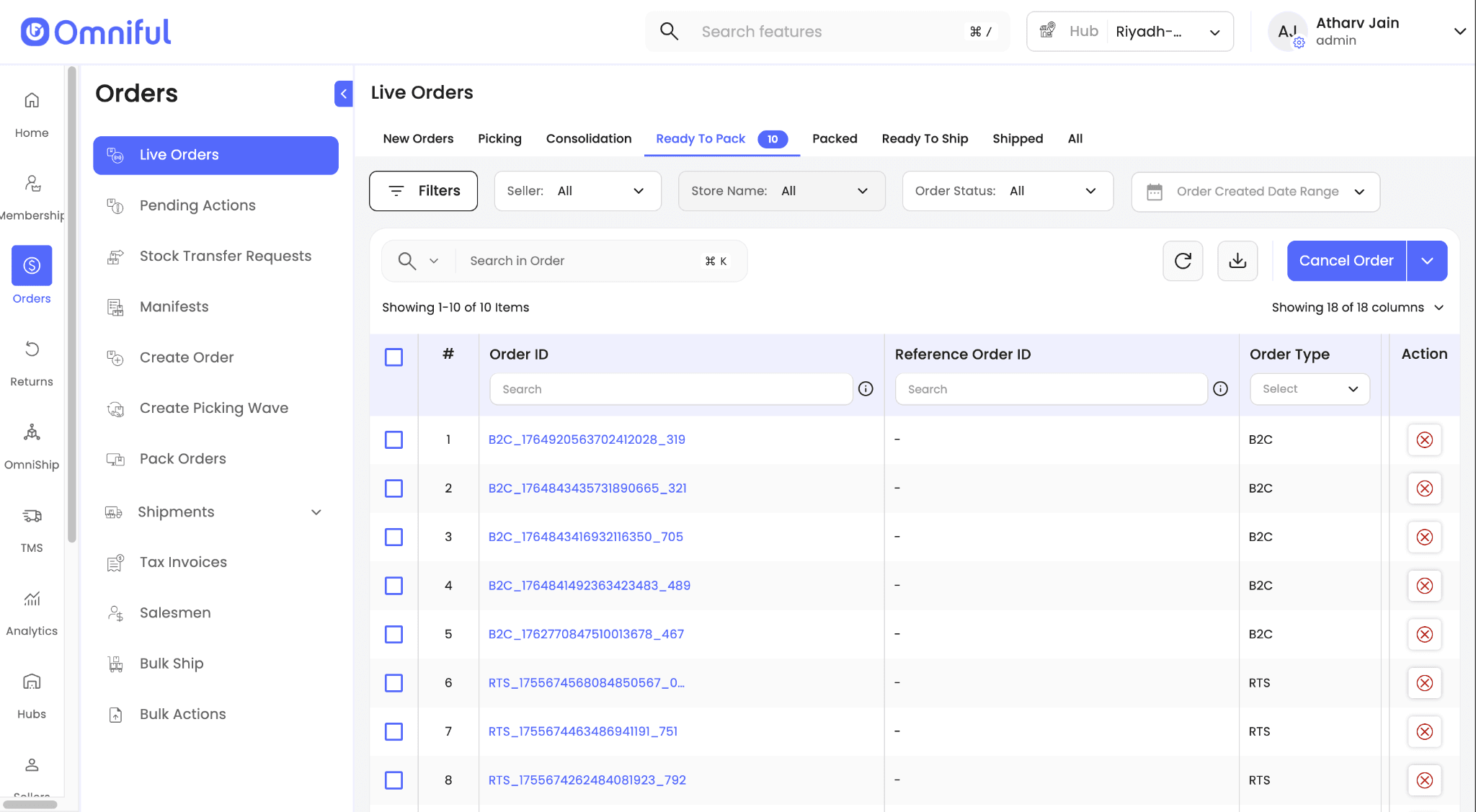
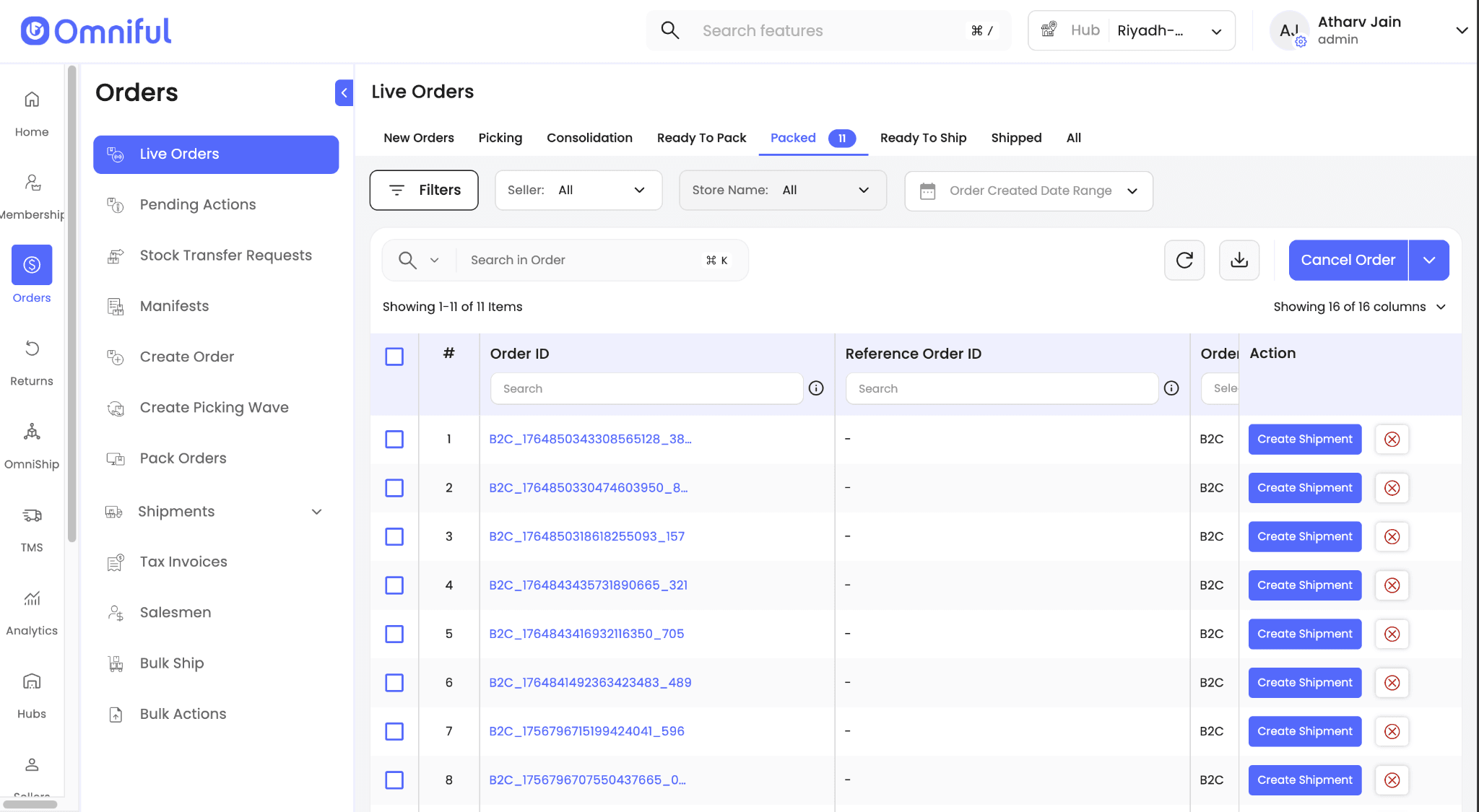
- Orders → Live Orders → Ready to Pack, or
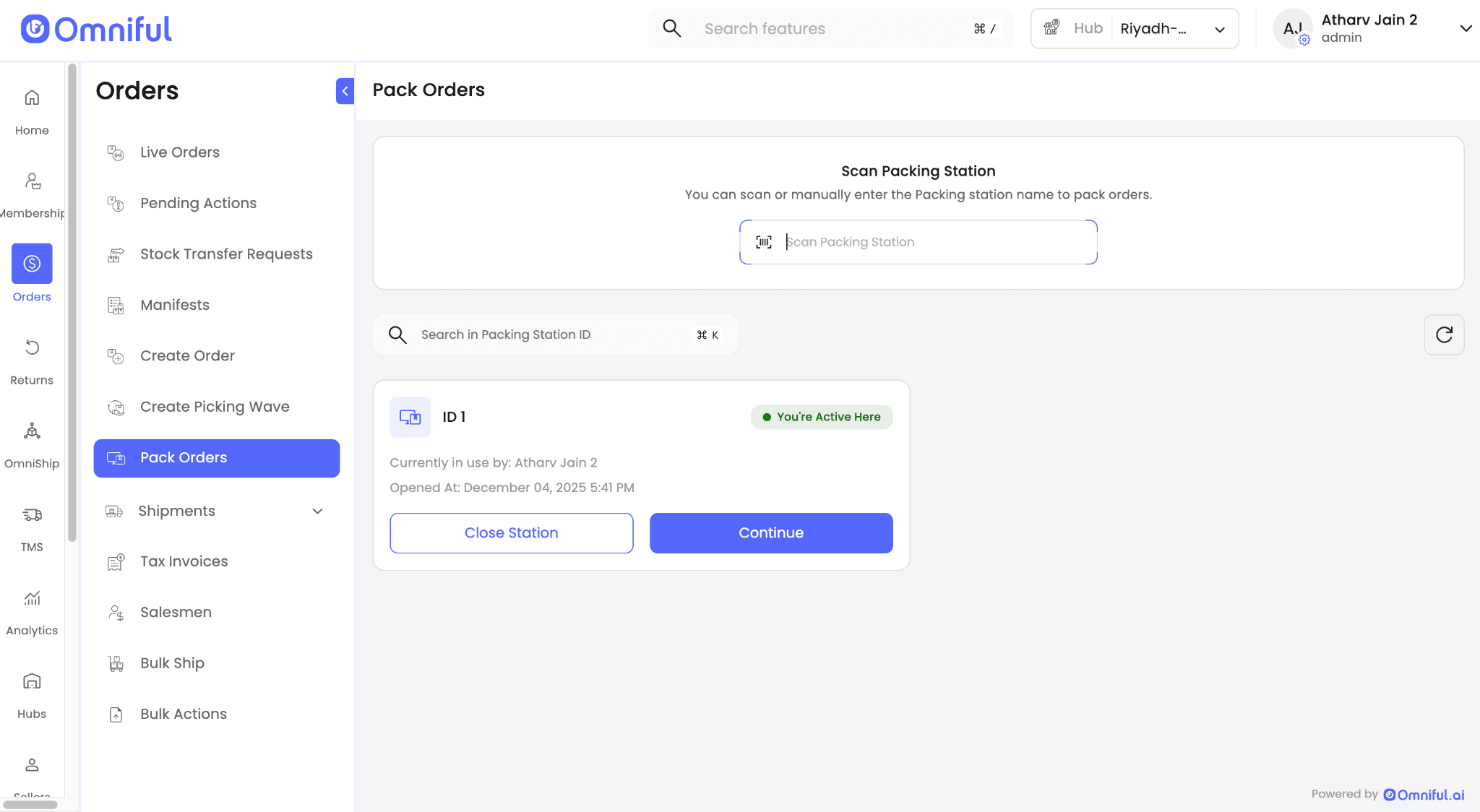
- Orders → Pack Orders, if a packing station is enabled for the hub.
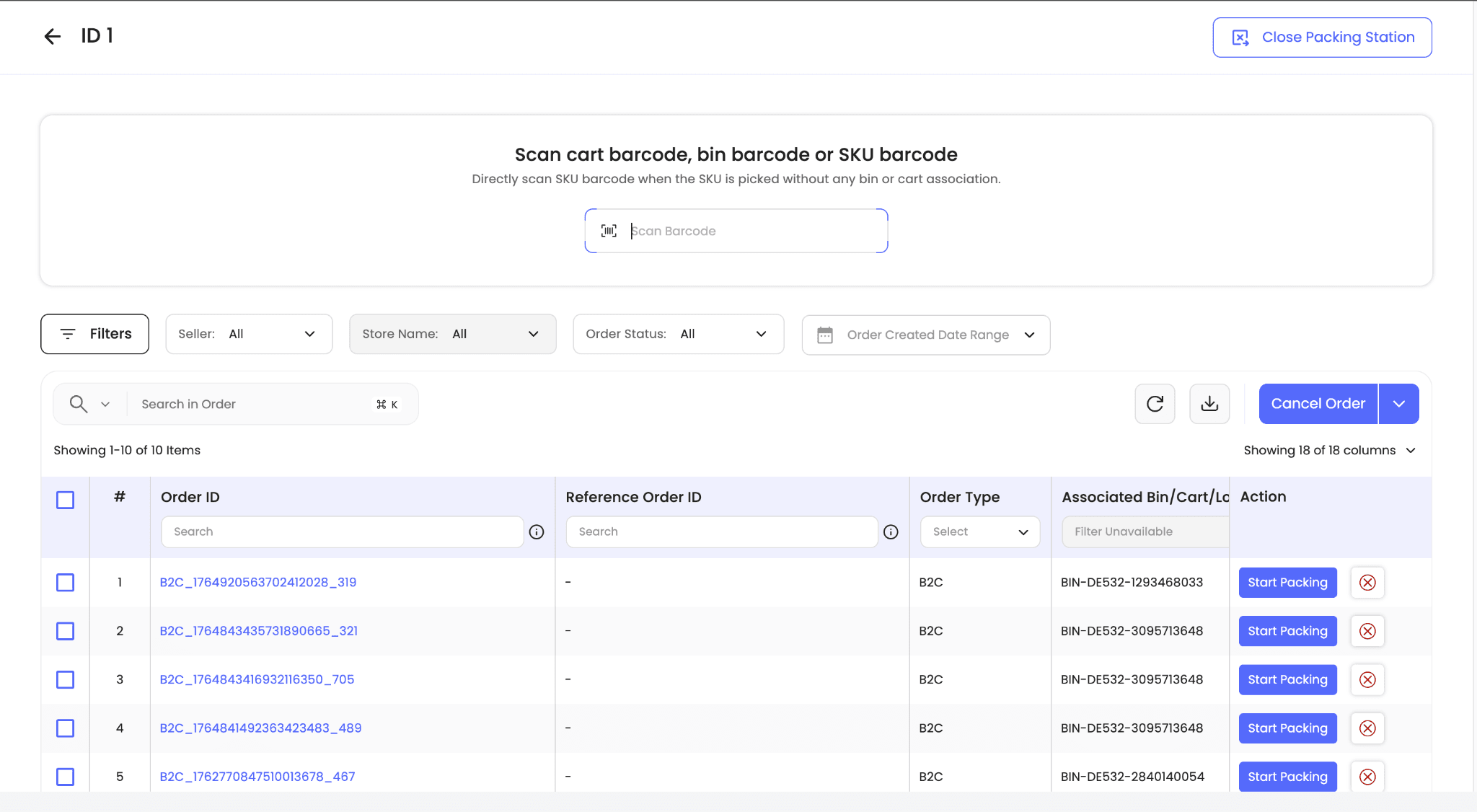 If a specific order is selected, only that order’s packing flow begins.
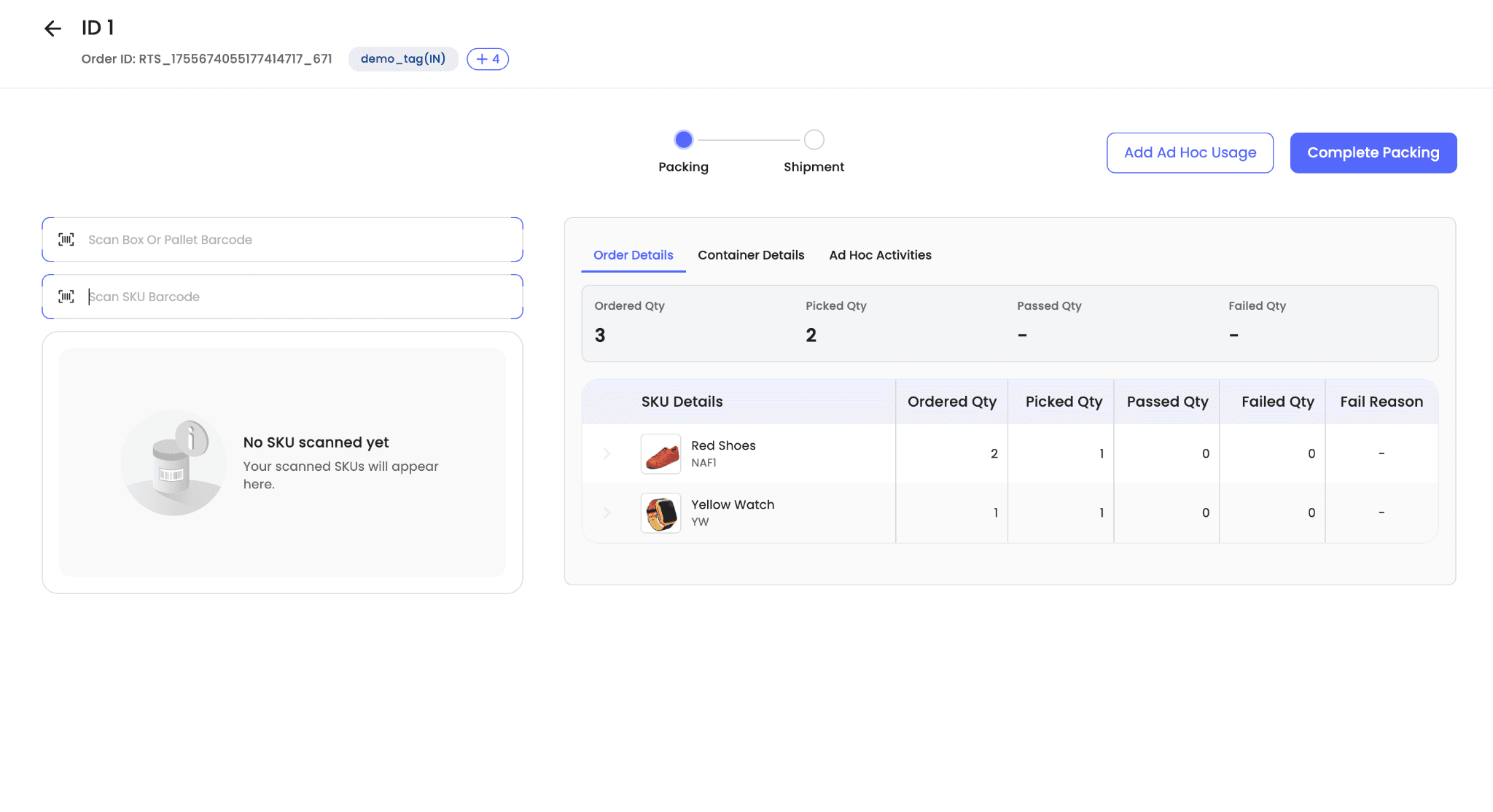 If the user scans the bin or cart barcode containing the picked orders, the packing and shipping flow begins, showing the number of single-SKU orders present in that bin or cart.
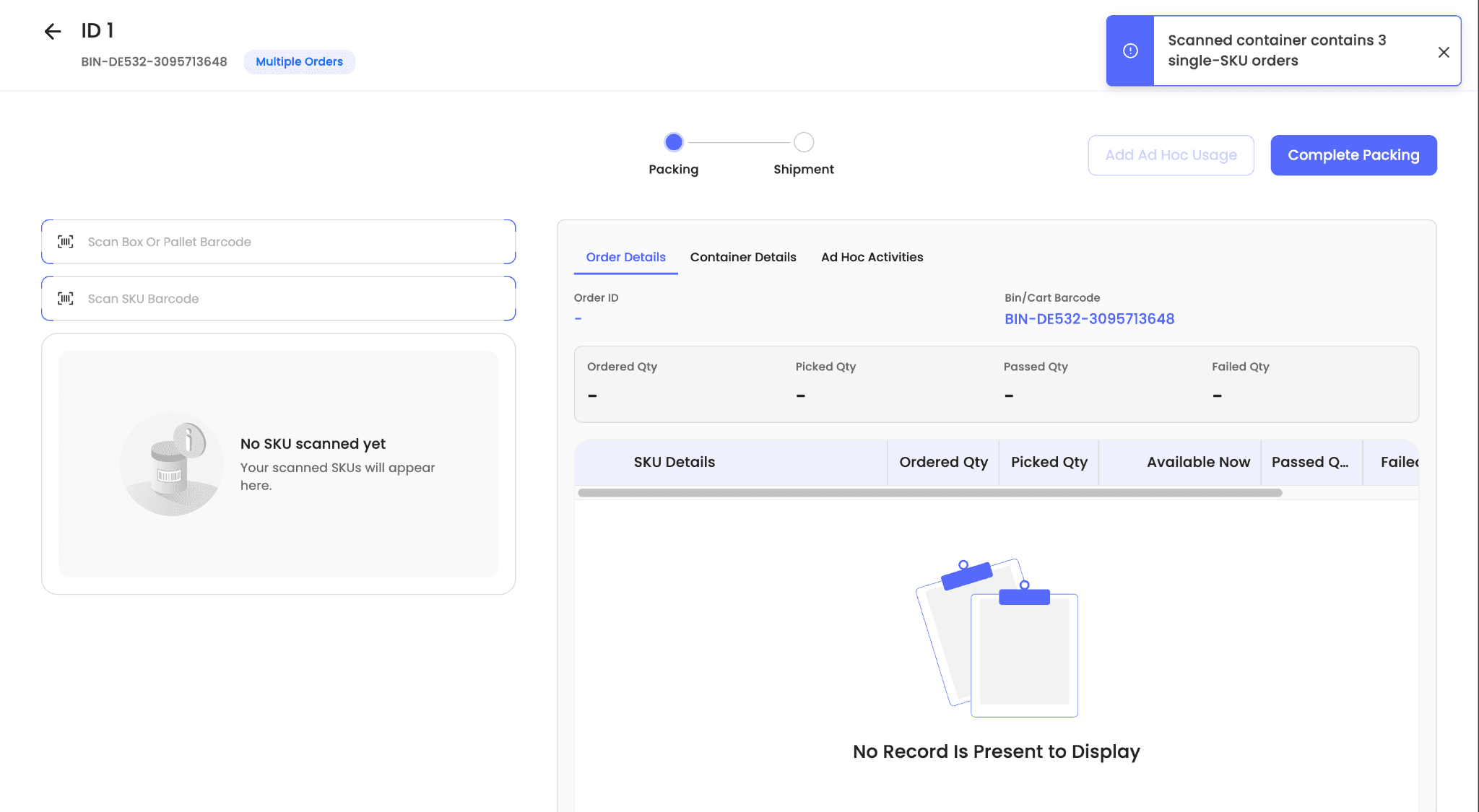
The packing flow is:
-
Scan the SKU barcode present in the bin.
-
The system shows the Order ID and required quantity for that SKU.
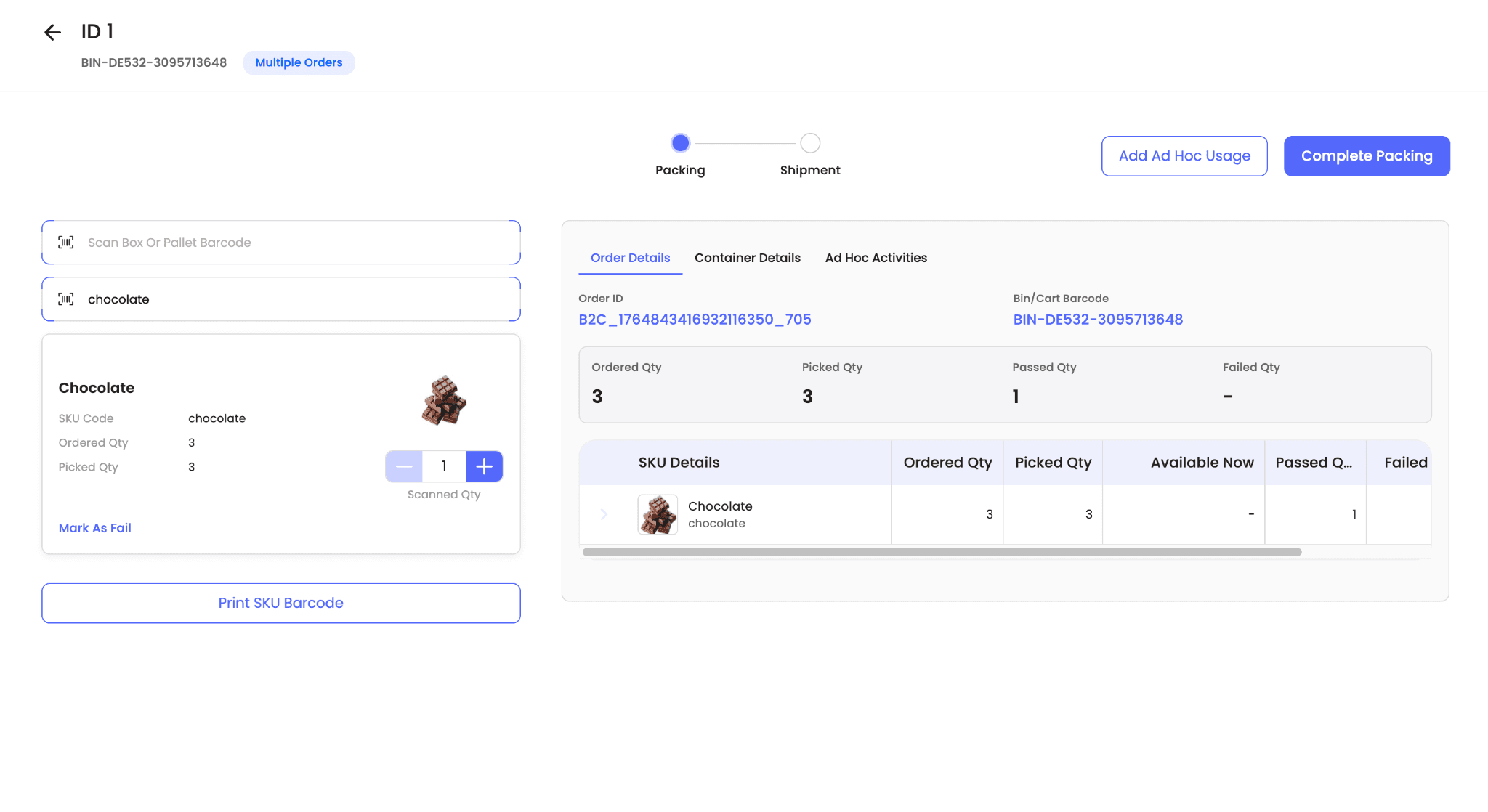
-
Once packing is completed for that order, the user can either continue packing the remaining orders in the same bin or cart by scanning the SKU barcode again, or create a shipment for the packed order immediately from the same screen.
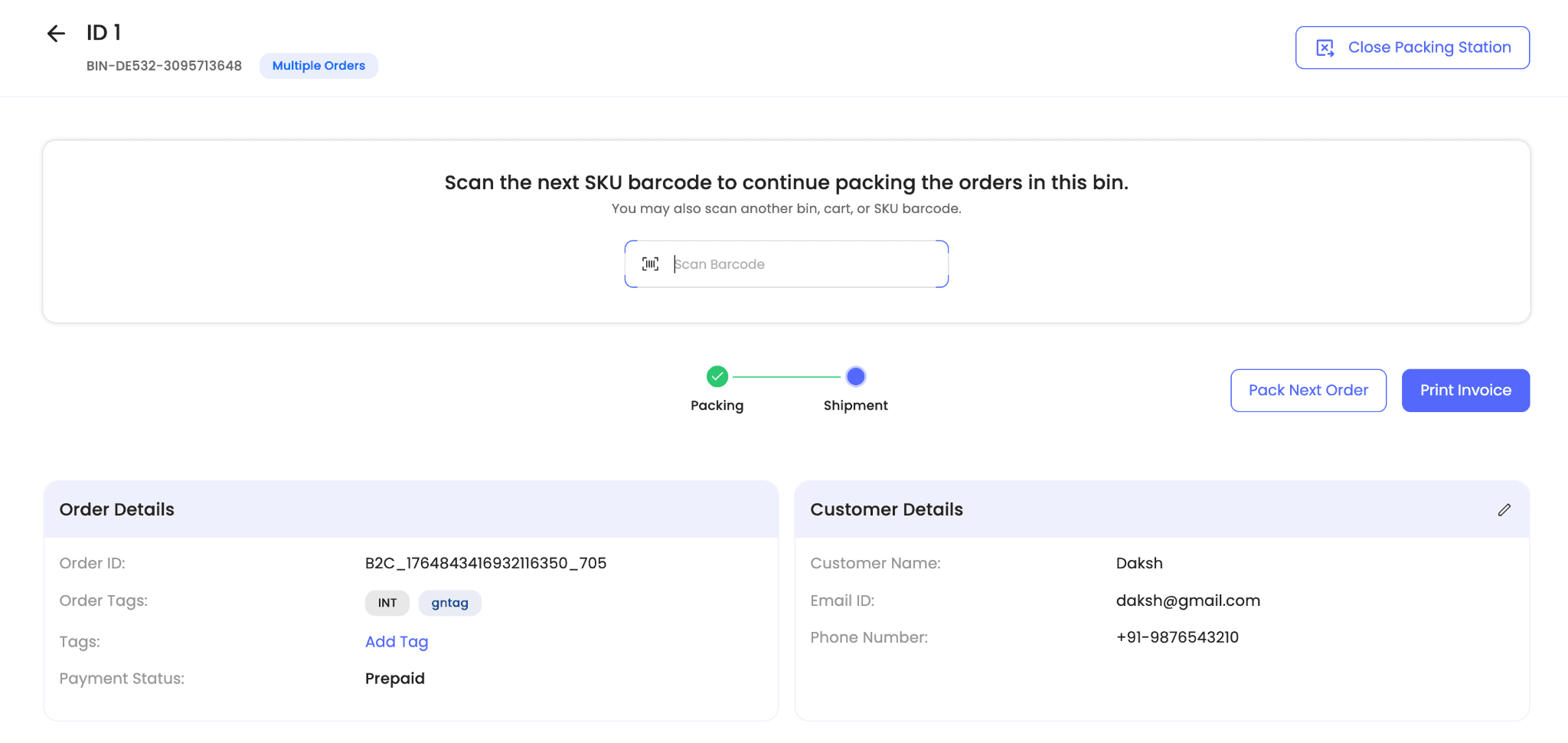
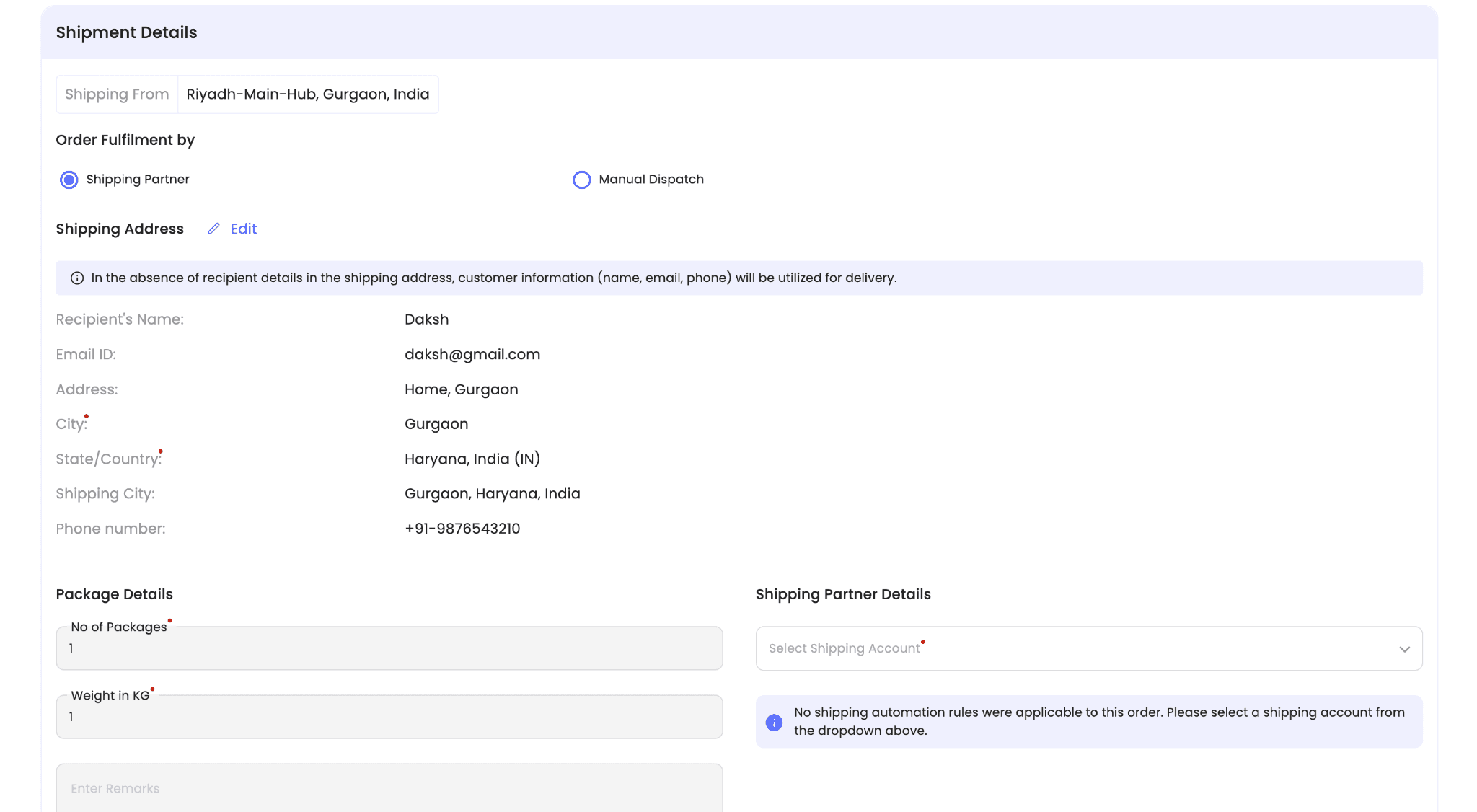
-
After all orders in the bin are packed, scan a new bin or cart barcode to begin the next cycle.
The flow repeats: scan the SKU, complete packing, create shipment for the order, or scan another SKU to continue packing in the same bin or cart.
Note: Shipment creation is optional at packing time. If preferred, shipments can be created later from the Packed section in the Live Orders tab.
Technical Details
- Single SKU Bulk Picking is designed for high-throughput scenarios where many orders contain the same single SKU.
- When Ensure single SKU orders are picked only through this method is OFF, eligible orders can still be included in the hub’s default multi-order picking method.
- When this setting is ON, eligible orders are strictly separated and eligibility counts update accordingly.
- Auto Optimize, when available, creates separate waves for Single SKU Bulk Picking-eligible orders and the default multi-order picking method.
- Orders with kit SKUs are excluded from the Single SKU Bulk Picking method.
- The system maximum allotment per picklist for this method is 200 units.