

Table of Contents
Table of Contents
Share On


Date: 5 January 2026
Bulk Put On Hold and Address Code Update
Omniful OMS now supports two new bulk actions under Orders → Bulk Actions:
- Bulk Put On Hold — Place eligible orders on hold by uploading a CSV file containing the
OrderIDof orders to be placed on hold. - Bulk Update Address Code — Add or update the customer shipping address code for multiple orders by uploading a CSV containing the
OrderIDand its corresponding shipping address code.
1. How It Works
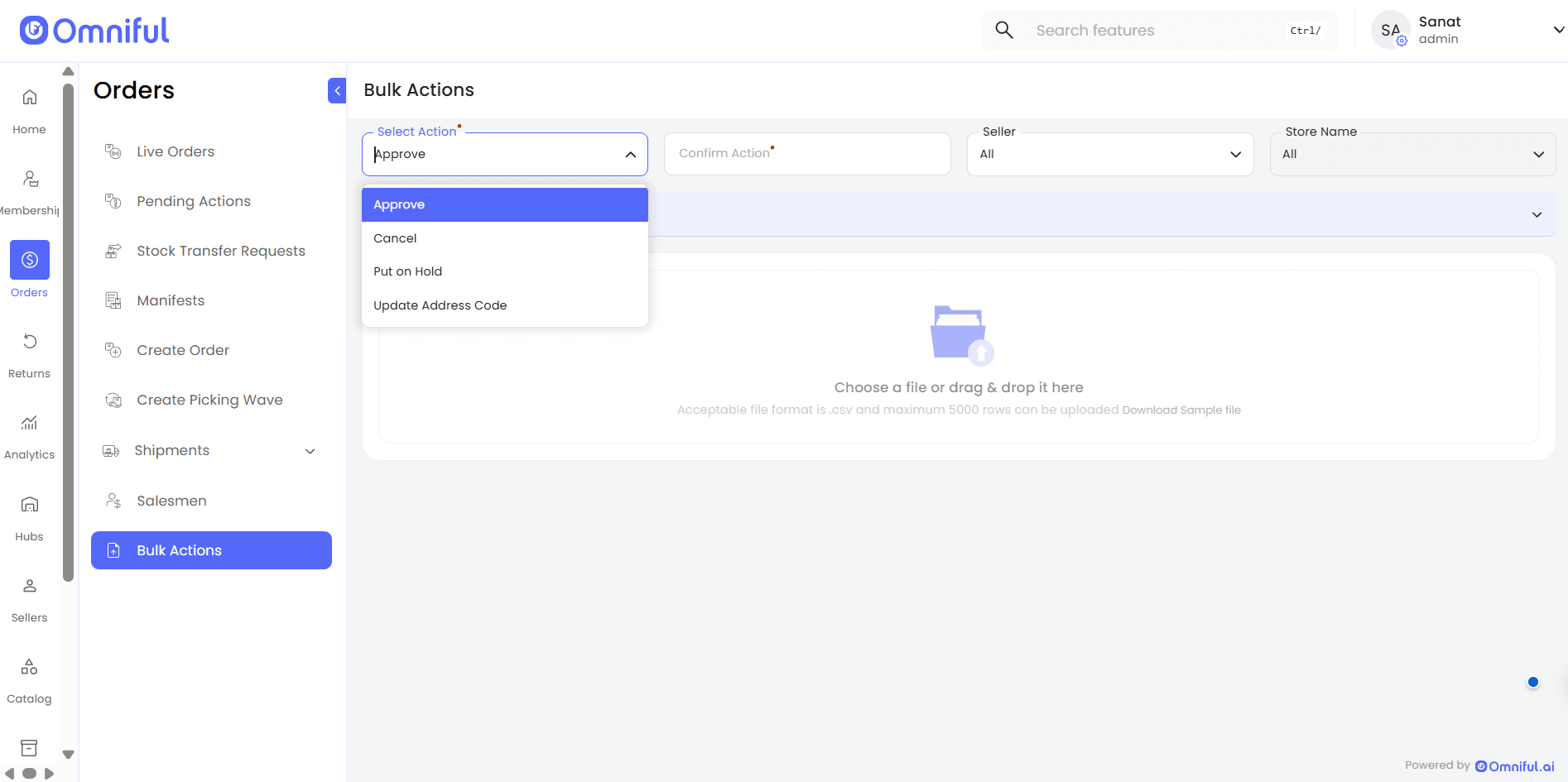
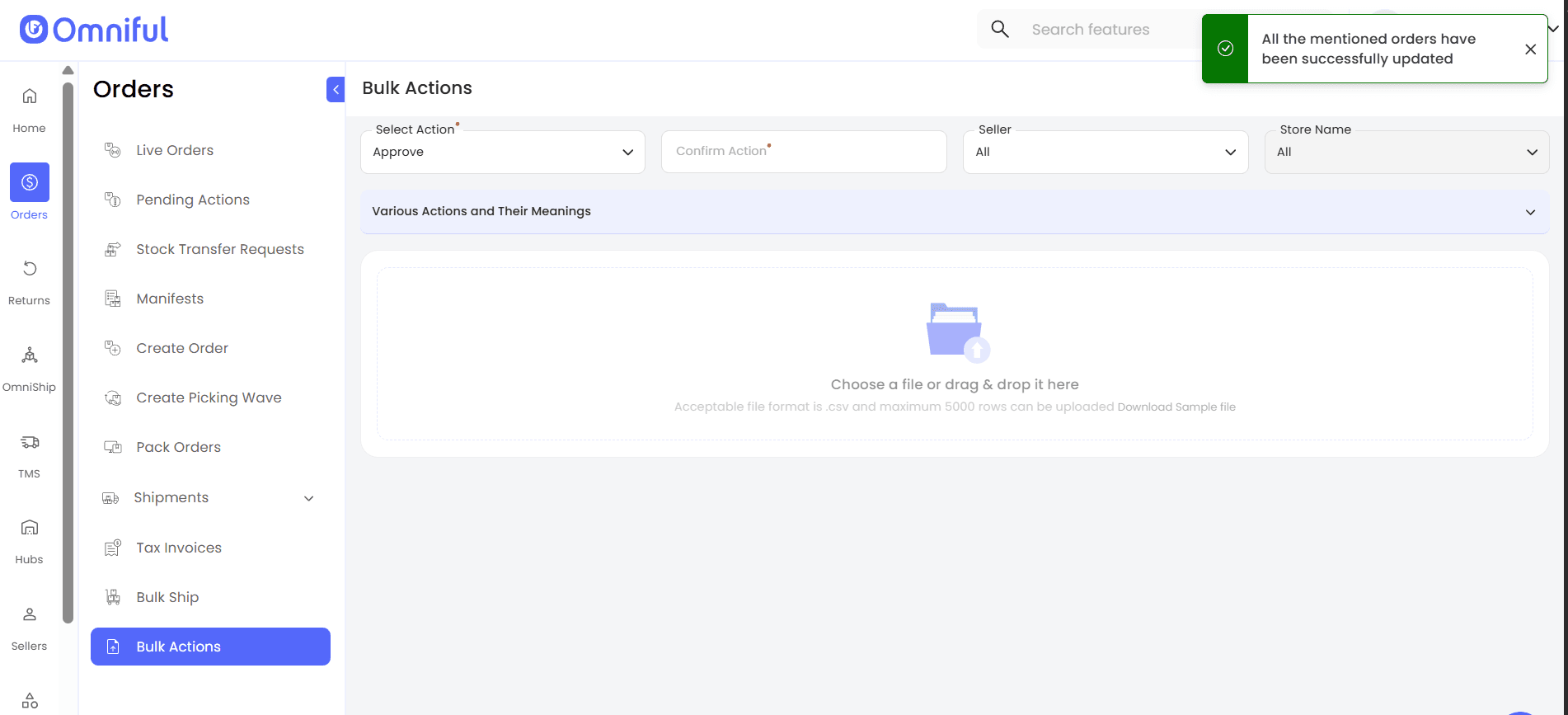
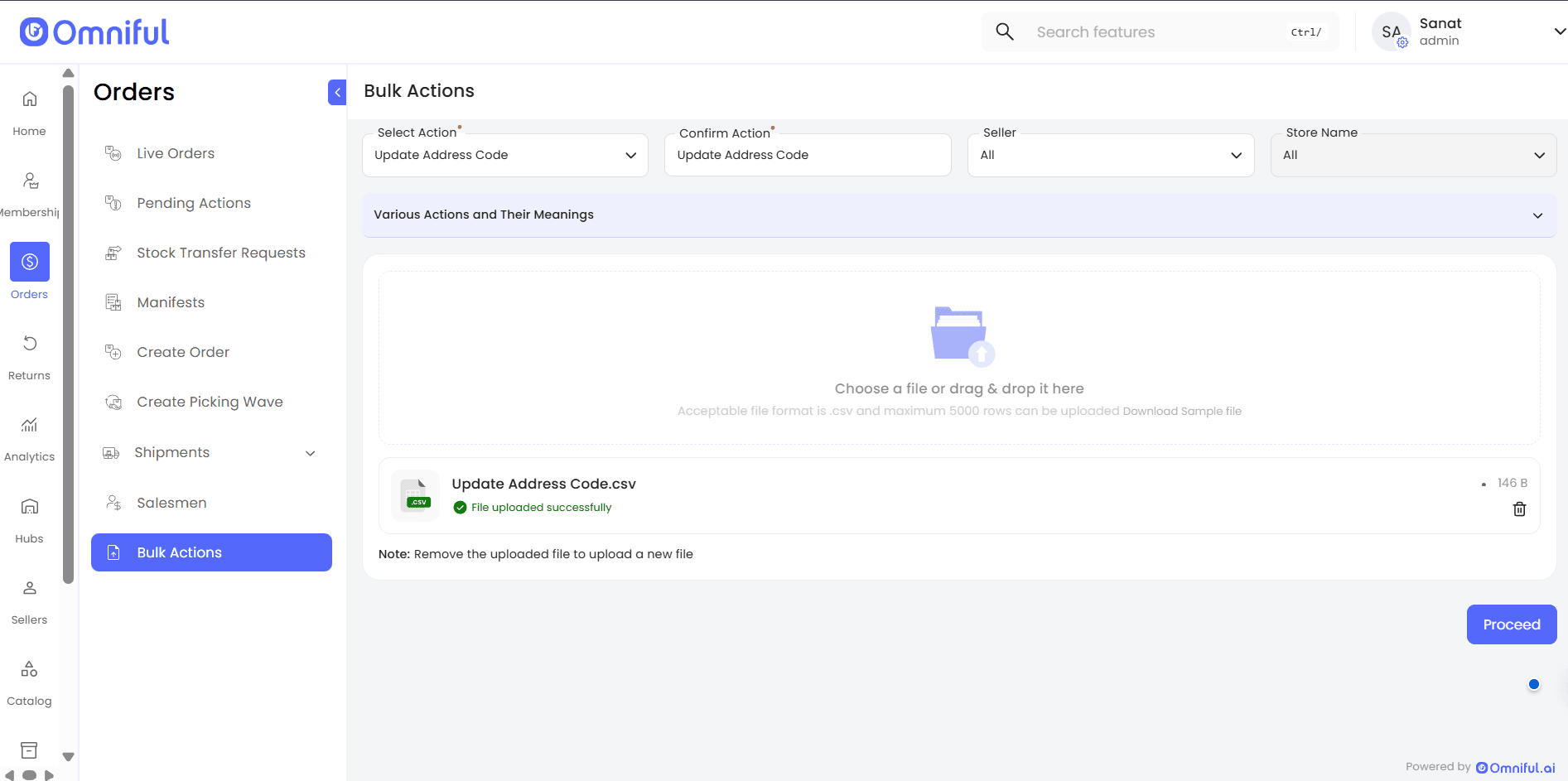
Navigate to Bulk Actions
- Go to Orders → Bulk Actions.
- Select the action you want to perform.
- Enter the action name in the Confirm Action field.
- (Optional) Use the Seller and Store Name filters to restrict the scope so that only orders from the selected seller/store are processed.
2. Bulk Actions
2.1 Bulk Put On Hold
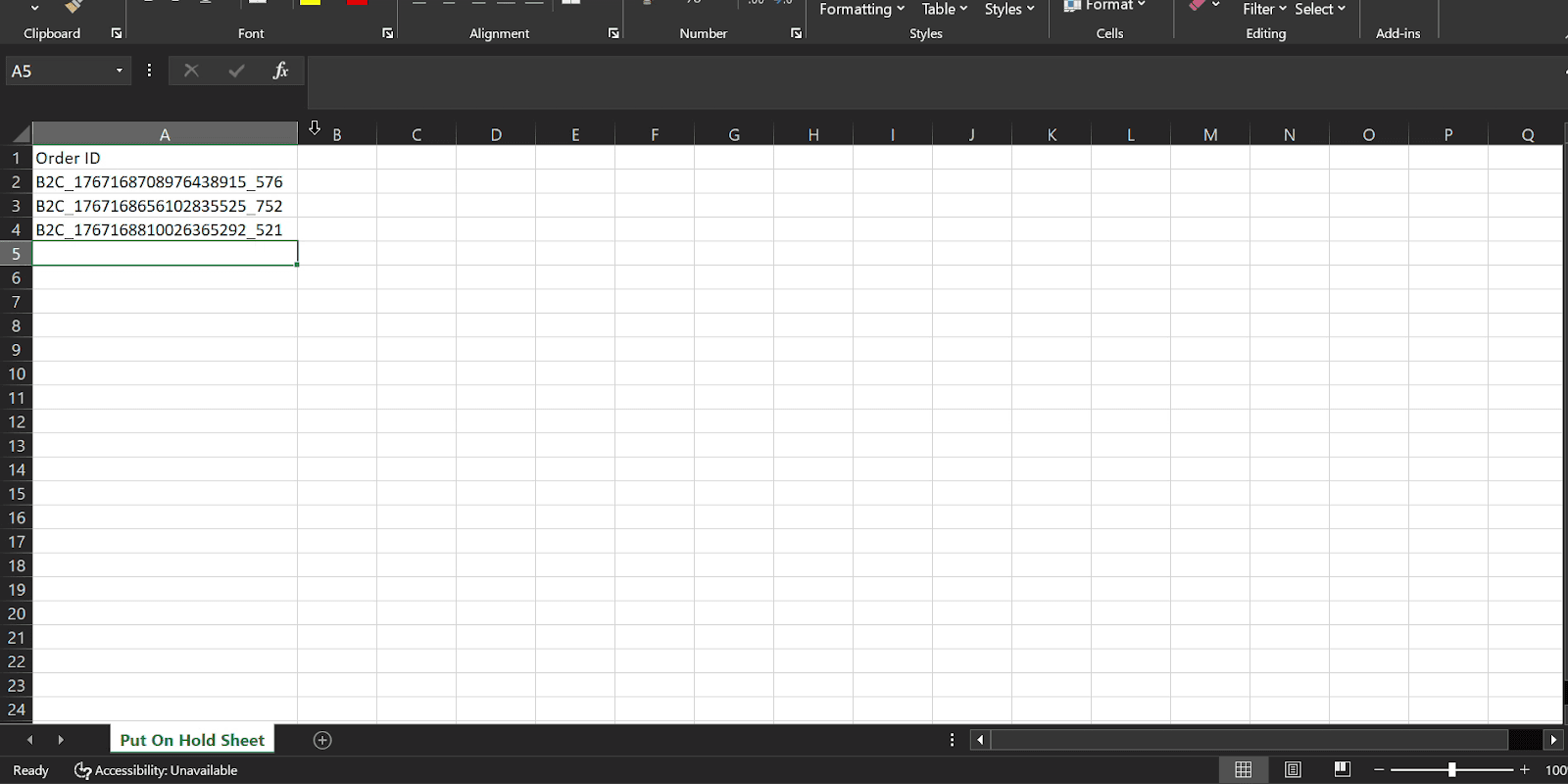
- Download the sample sheet and enter the
Order IDsof orders you want to place on hold.

-
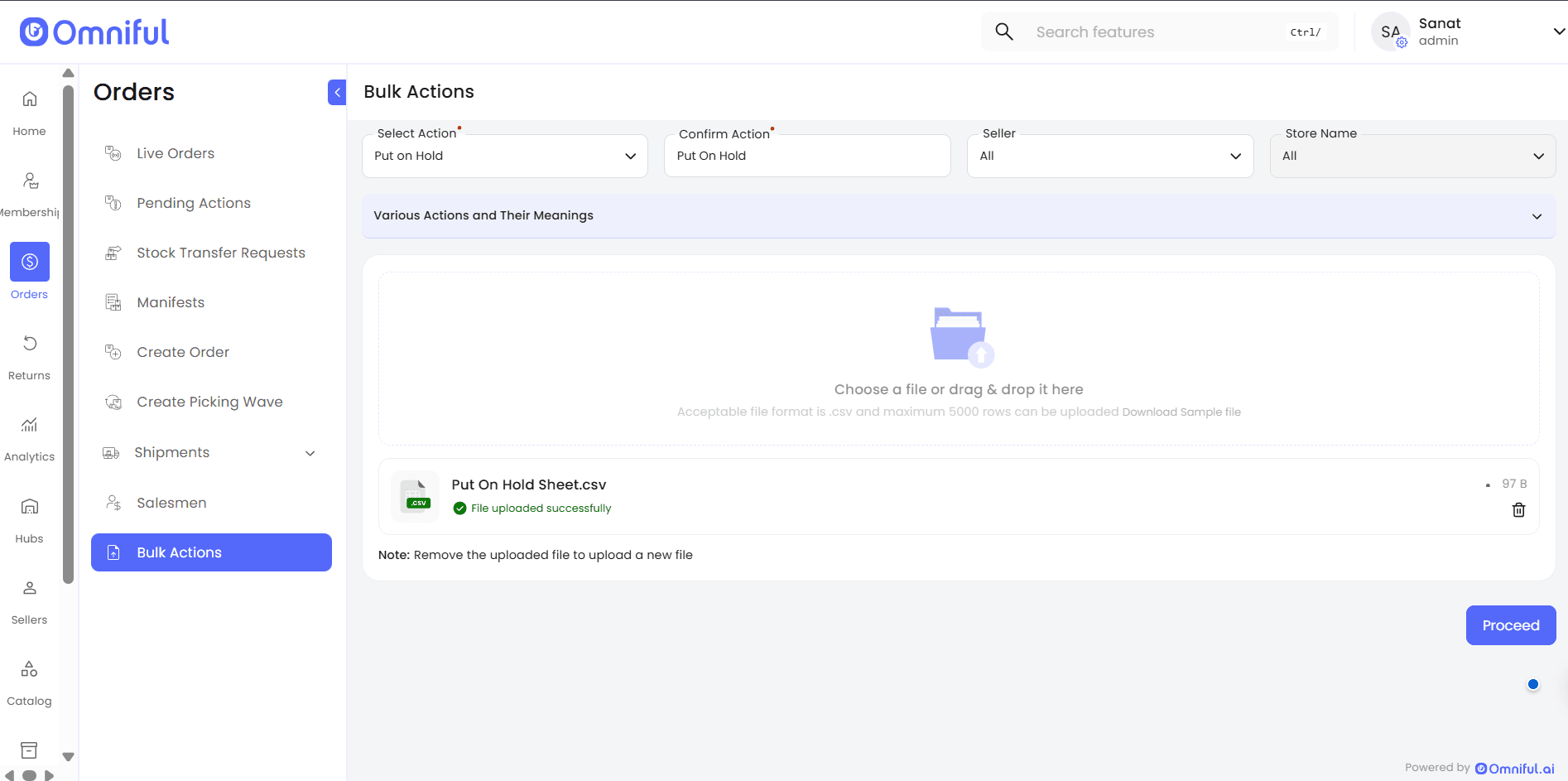
Upload the completed CSV file and click Proceed.
-
In the confirmation modal, select a Reason for Hold and click Confirm.
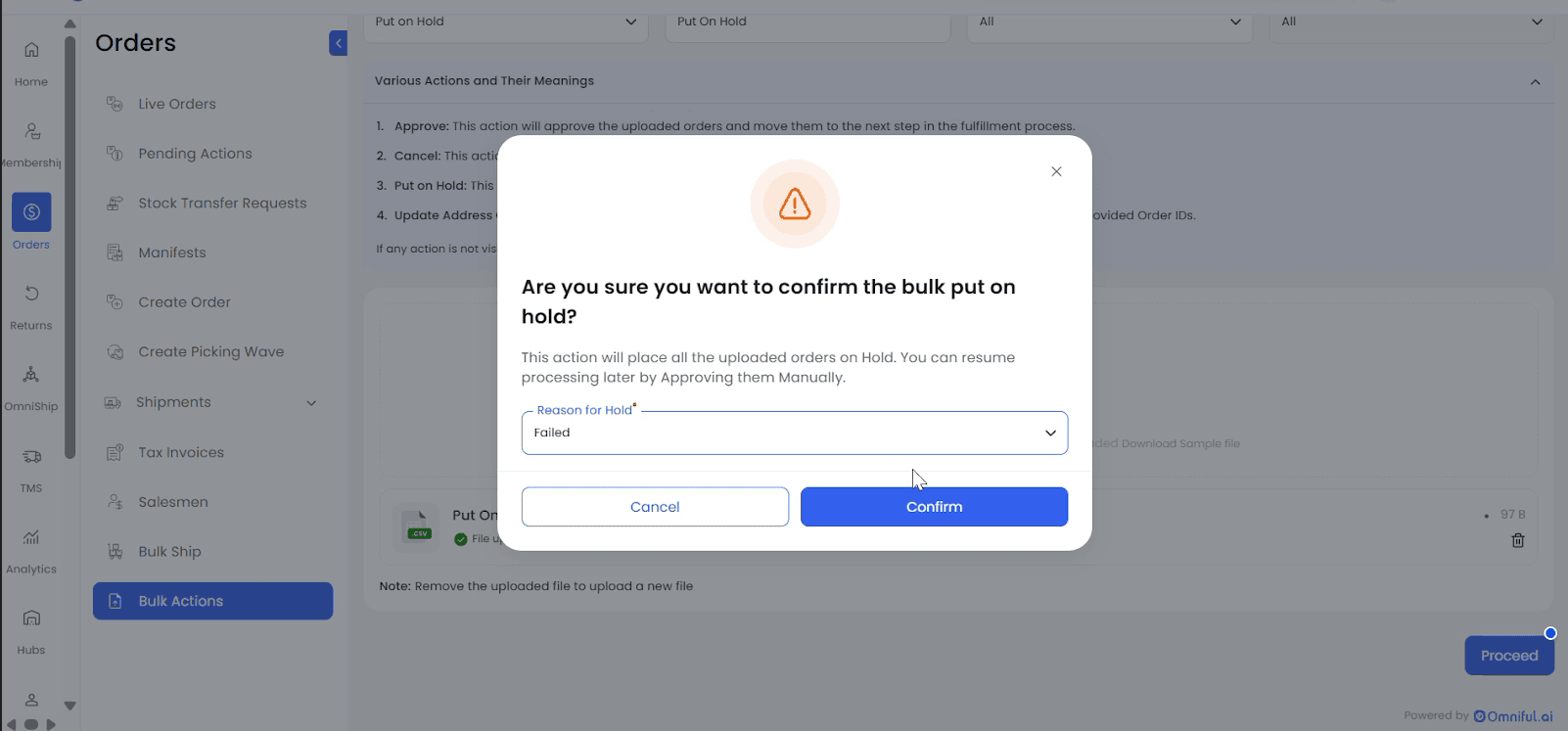
Orders placed on hold will appear in the Pending Action section with reason “Put On Hold”.
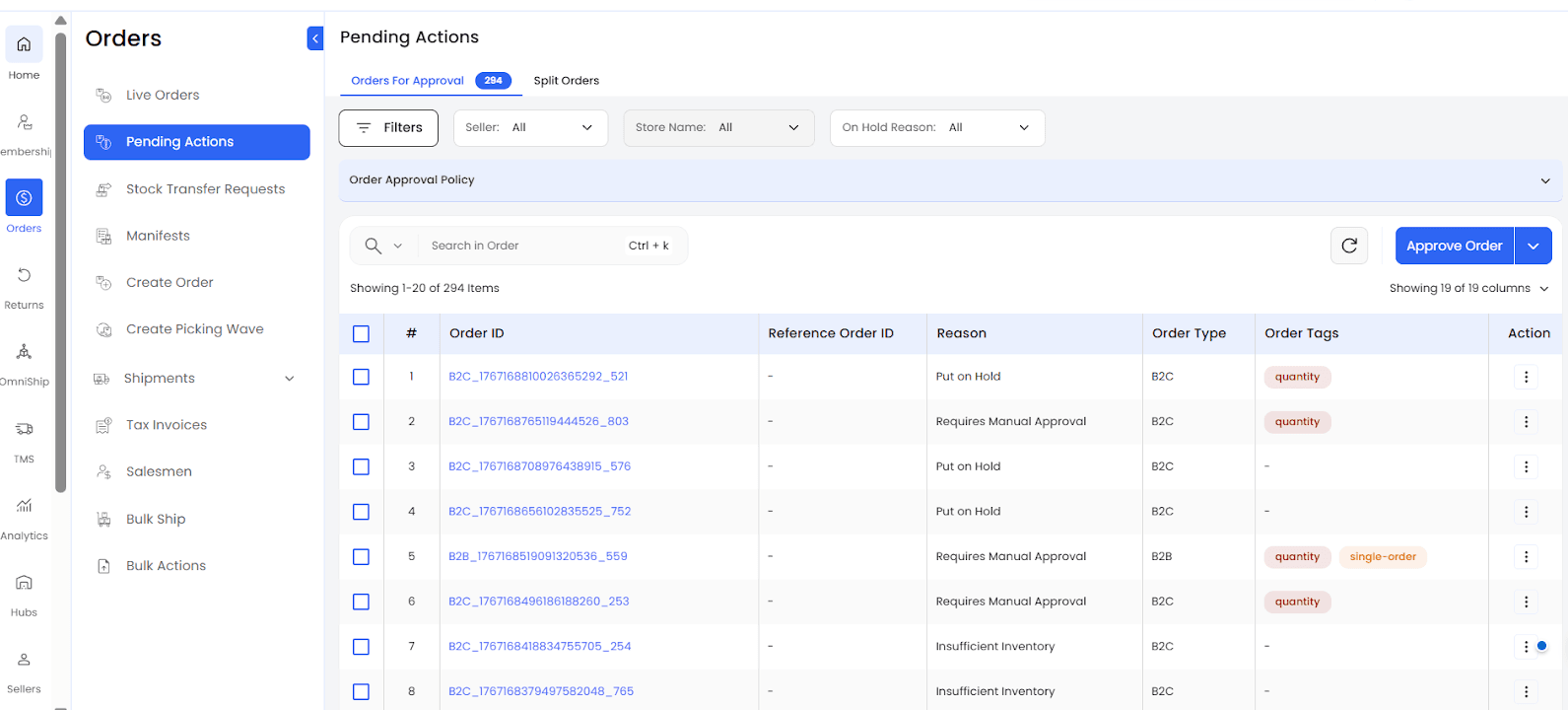
Verification
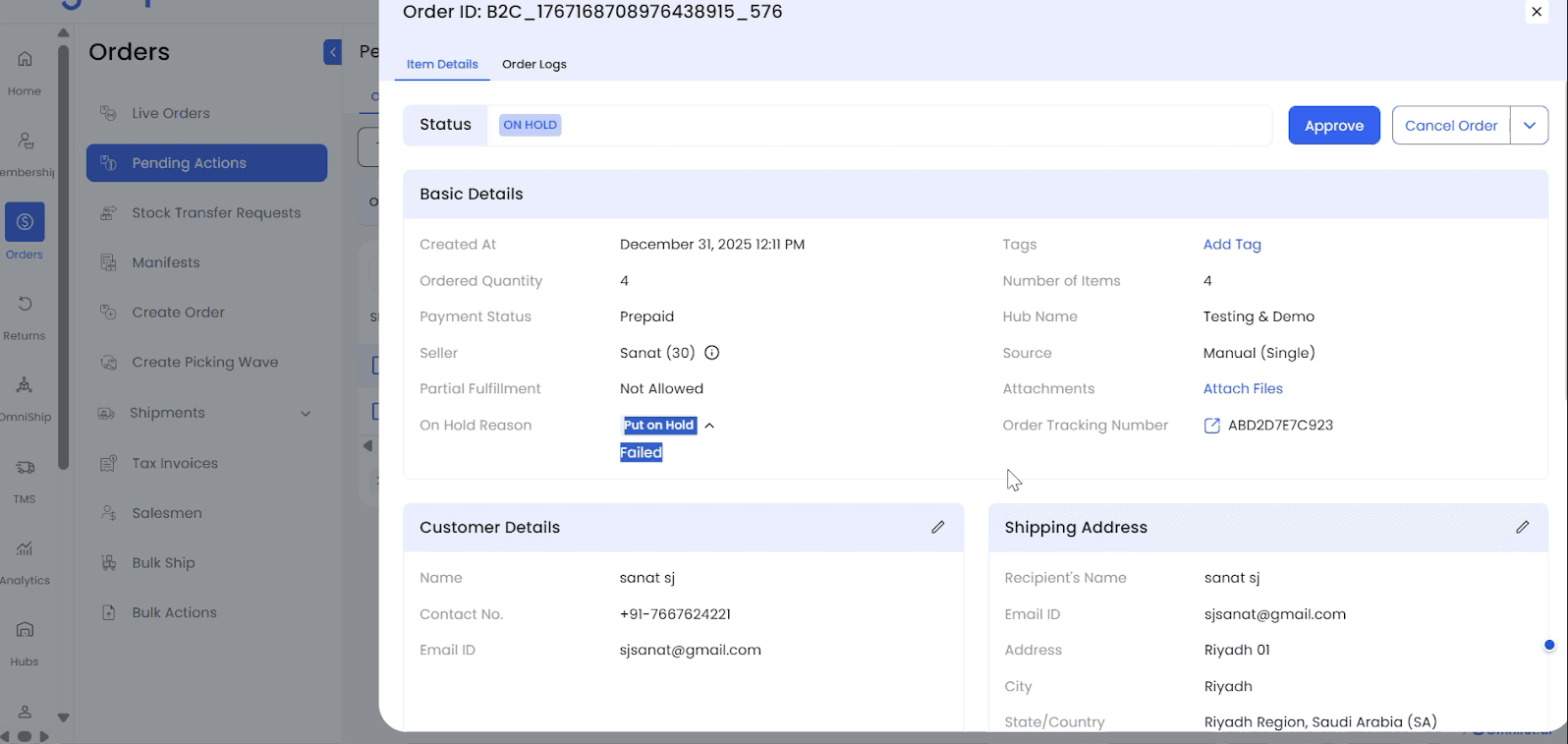
- Order Details:
Navigate to Pending Action → Order ID → Item Details.
The order status updates to On Hold, and under Basic Details, the On Hold Reason is displayed.
The selected reason for the hold appears in the dropdown.
- Order Logs:
Navigate to Pending Action → Order Details → Order Logs.
The logs capture the bulk action along with the user performing it and the reference sheet.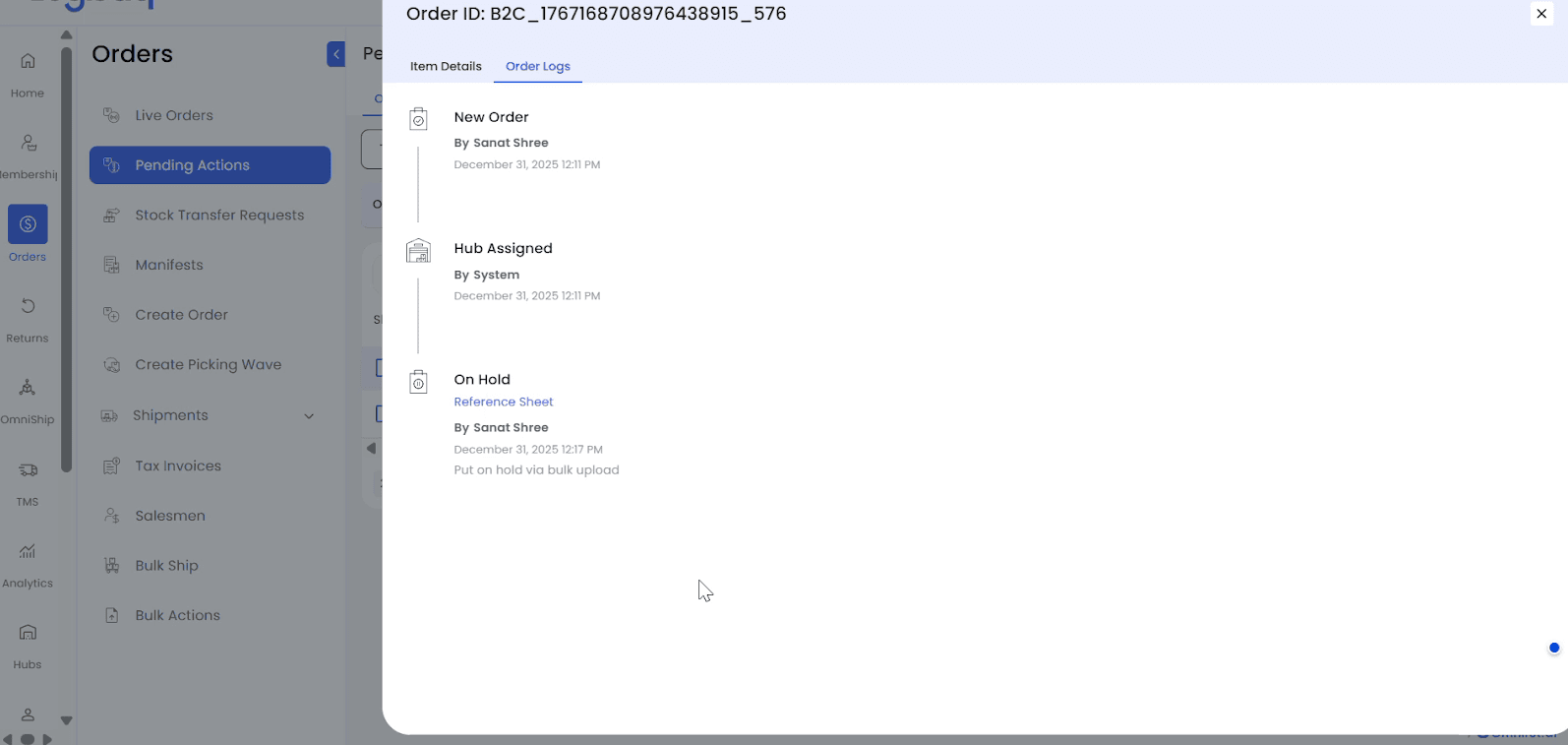
2.2 Bulk Update Address Code
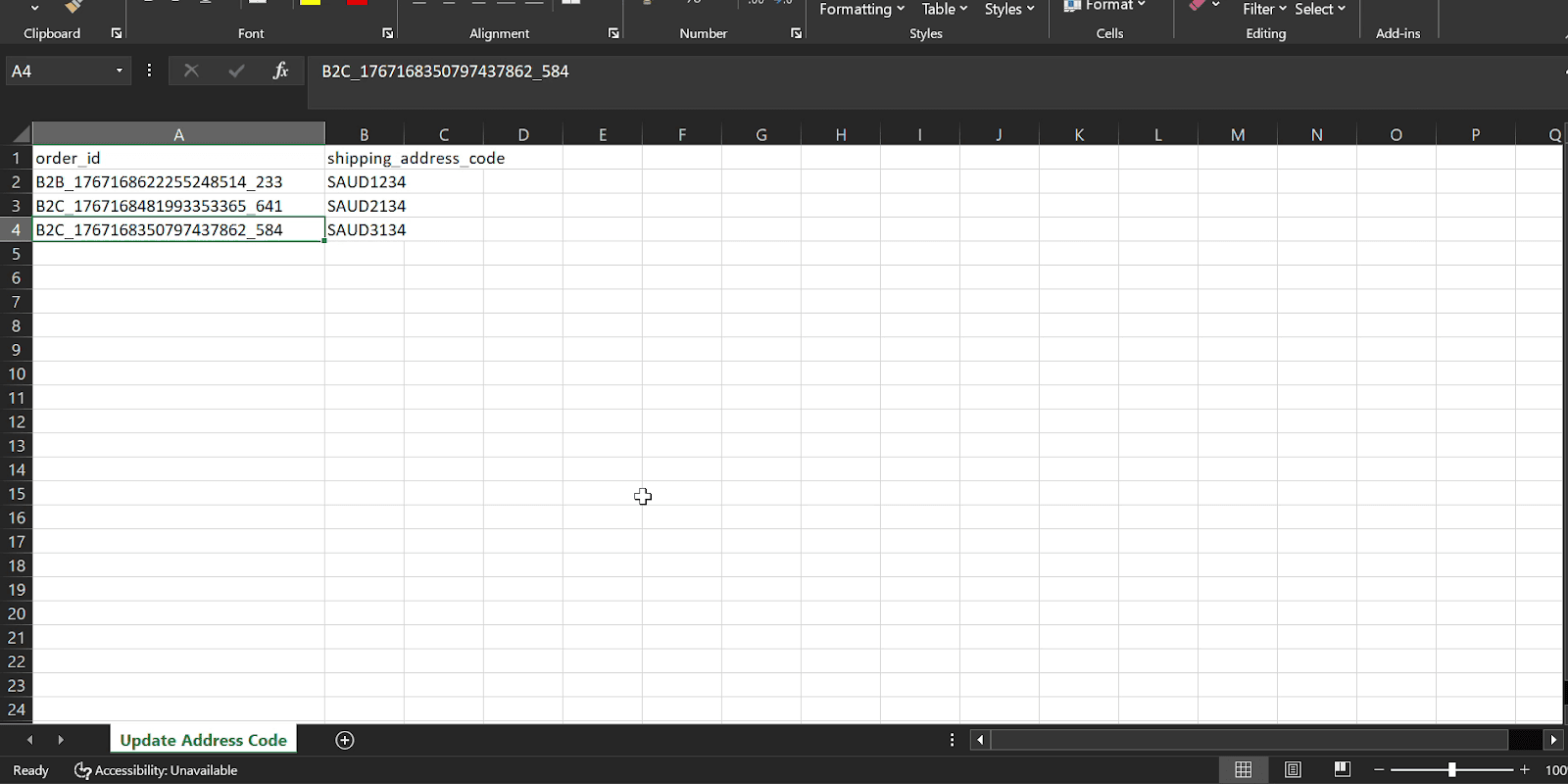
- Download the sample sheet and enter the
Order IDsandShipping Address Codesfor the orders you wish to update.

-
Upload the completed CSV file and click Proceed.
-
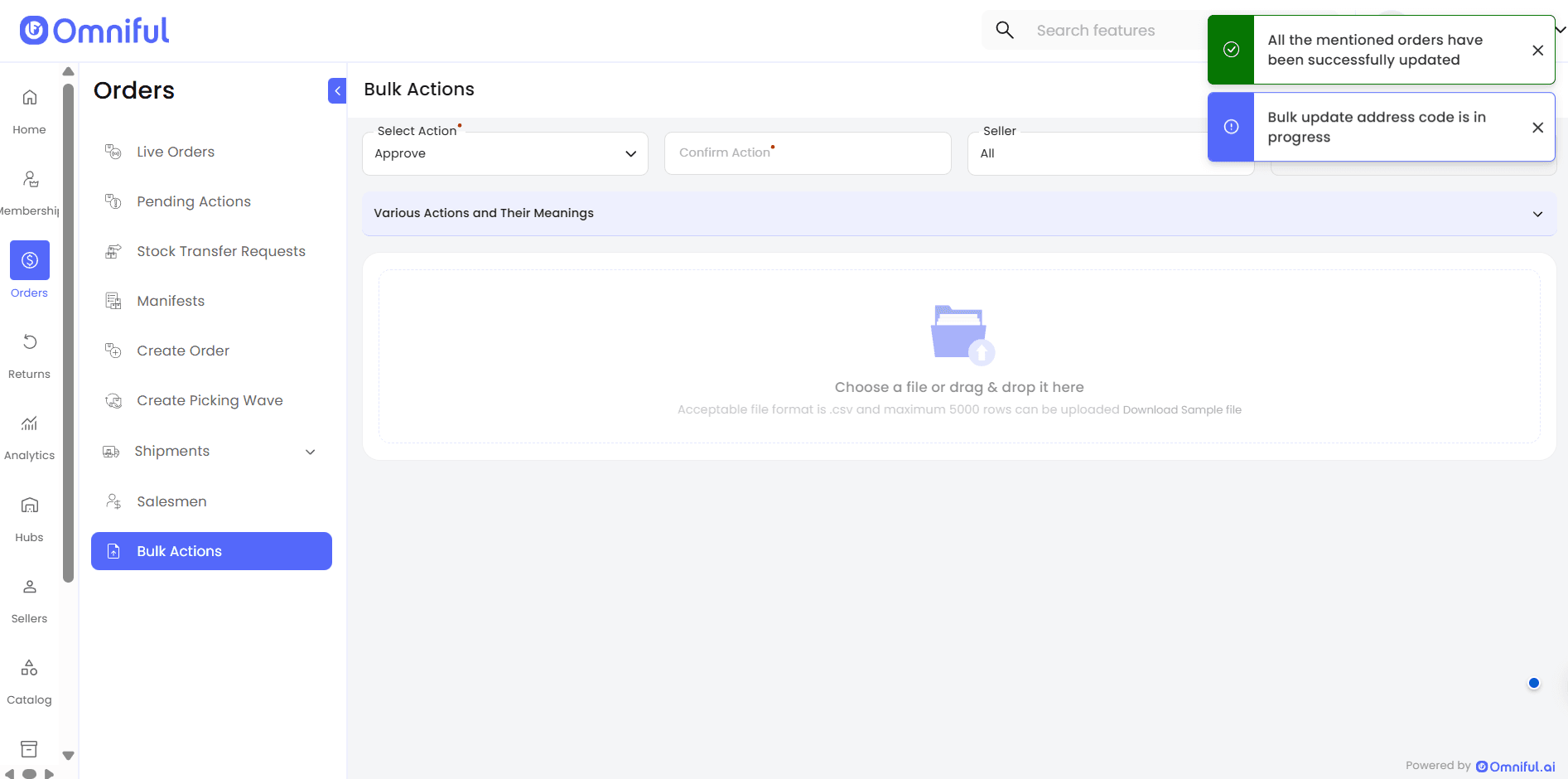
Once processed, a confirmation modal appears confirming successful updates.
Verification
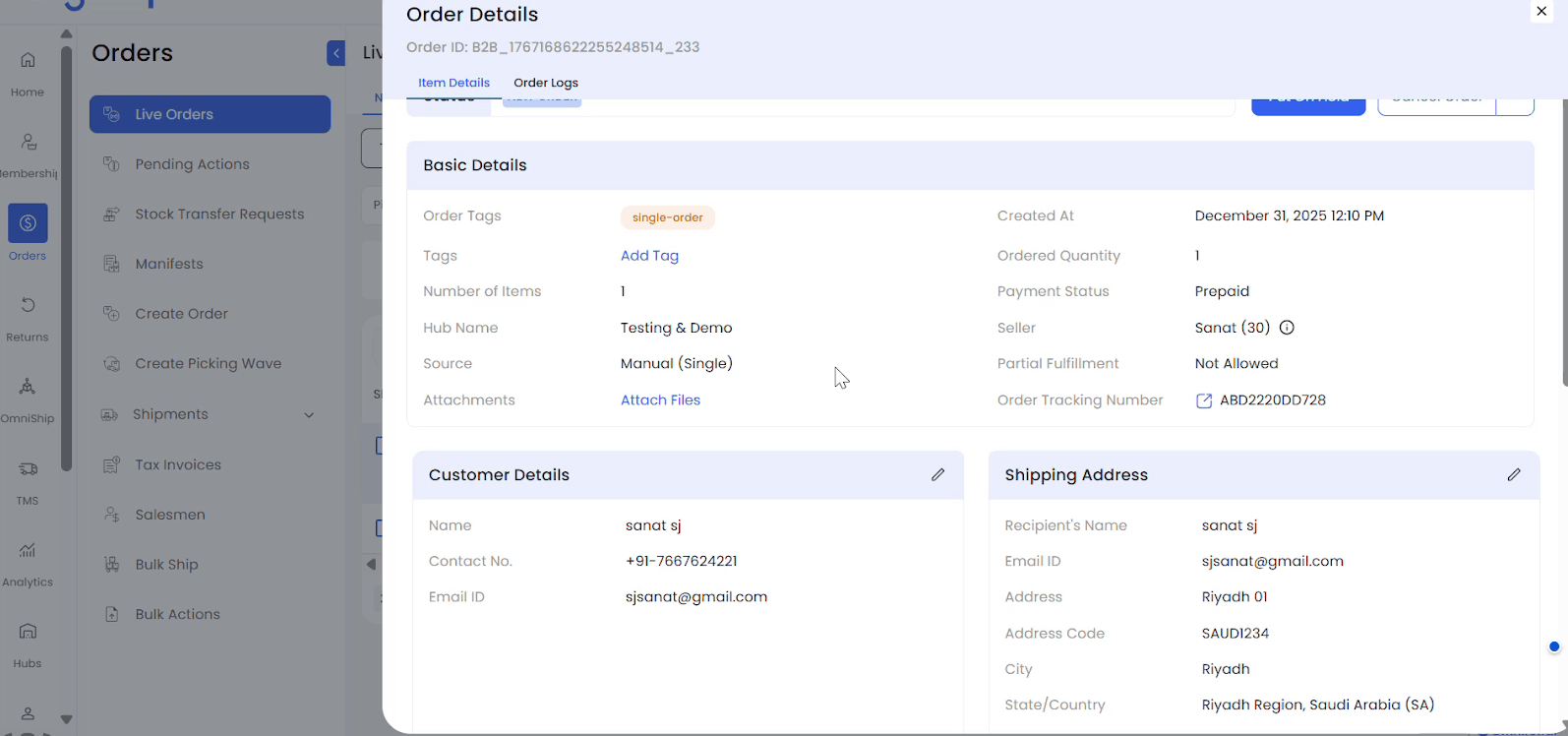
- Order Details (Shipping Address):
The updated address code appears under Order Details → Shipping Address → Address Code.
- Order Logs:
The logs capture the bulk update action, including the user performing it and the reference sheet for traceability.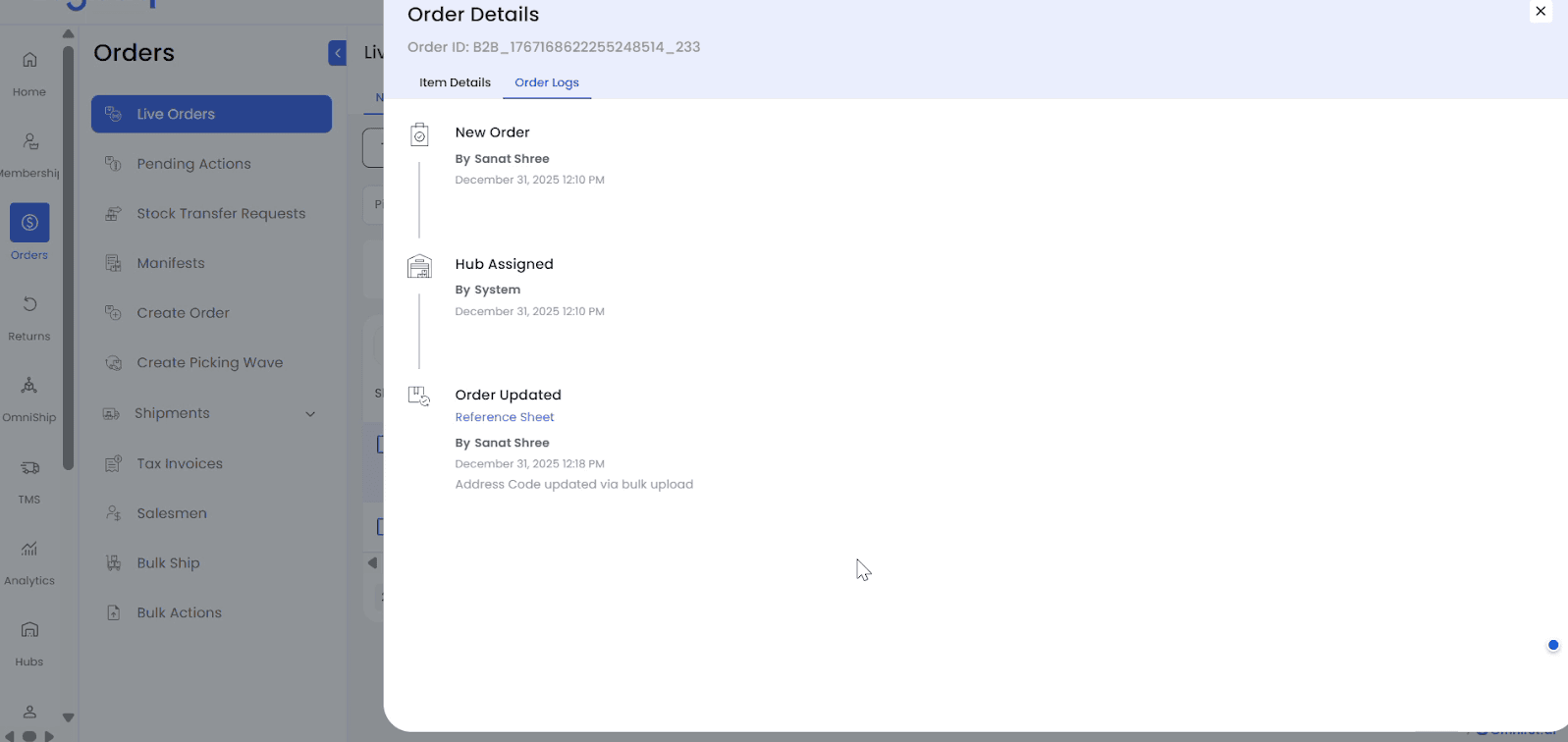
3. Technical Details
- Bulk Put On Hold applies to orders in New, Ready to Pack, or Packed status.
- Bulk Update Address Code adds a missing address code or updates an existing one.
- Both actions:
- Write an audit entry in Order Logs.
- Provide a reference sheet link for the uploaded file.
- Supported upload format:
.csvfiles with up to 5000 rows per upload. - If an action is not visible in the dropdown, request the required permission from your Admin.