

Table of Contents
Share On


Clone Hub Functionality
- Version: 1.0
- Owner: Omniful
Summary
A new Clone Hub functionality allows users to create a hub by copying the configuration of an existing hub, reducing setup time and effort.
Users can start cloning from the Hubs screen. During the clone flow, they must enter basic hub details such as Hub Name, Hub Code, Contact Details, Currency, and Address. The Time Zone, Working Hours, and Hub Configurations are pre-filled based on the source hub and can be reviewed or updated before creating the new hub.
Users who create a hub are granted access to the newly created hub by default, provided they do not have Picker or Packer roles, since those roles are restricted to a single hub.
Note: Cloning external hubs is not supported. Hub configurations cannot be set for transit hubs.
How It Works
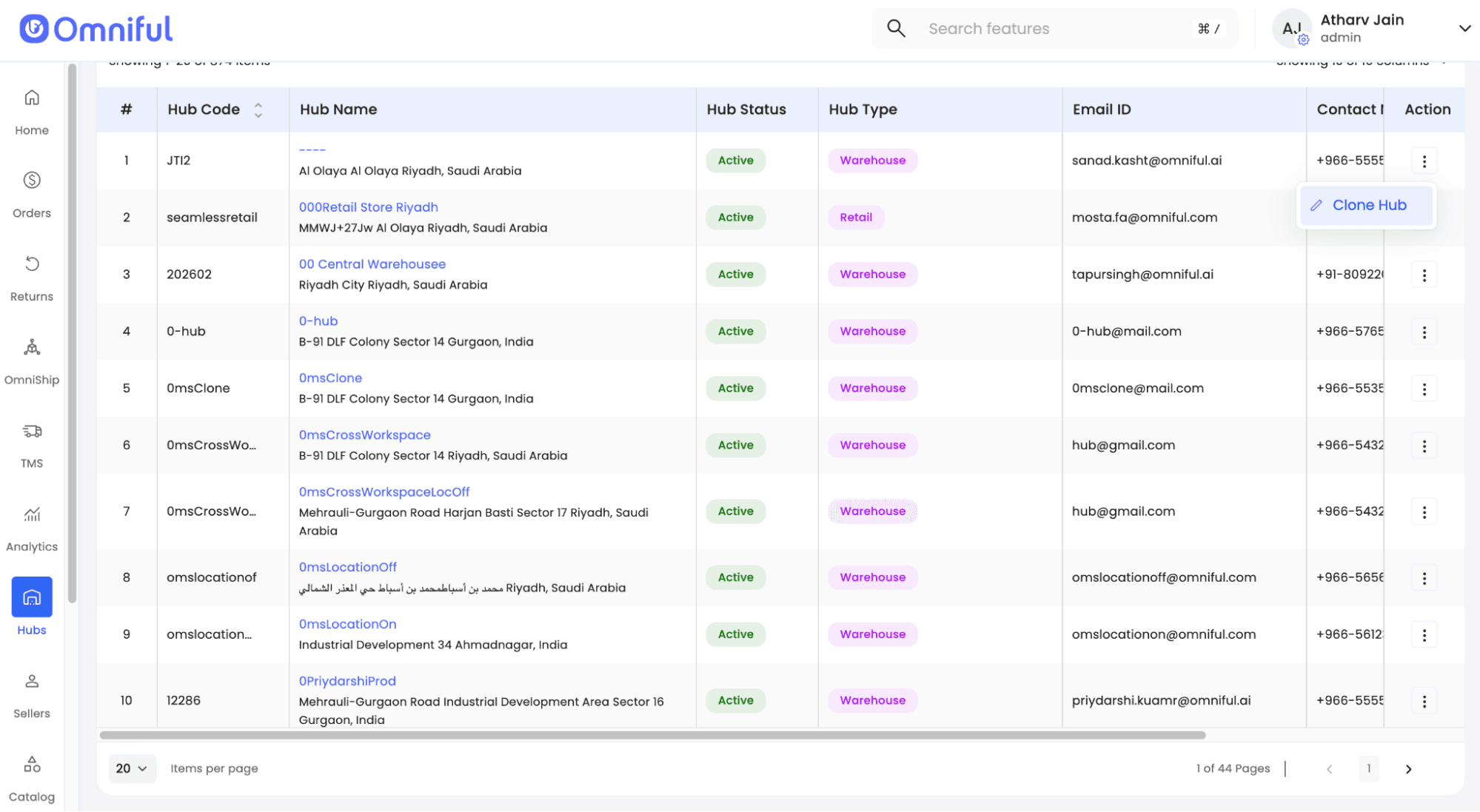
1. Open Clone Hub from the hub action menu
Navigate to the Hubs section in the dashboard, open the action menu for the required source hub, and select Clone Hub.
Note: Cloning external hubs is not supported.
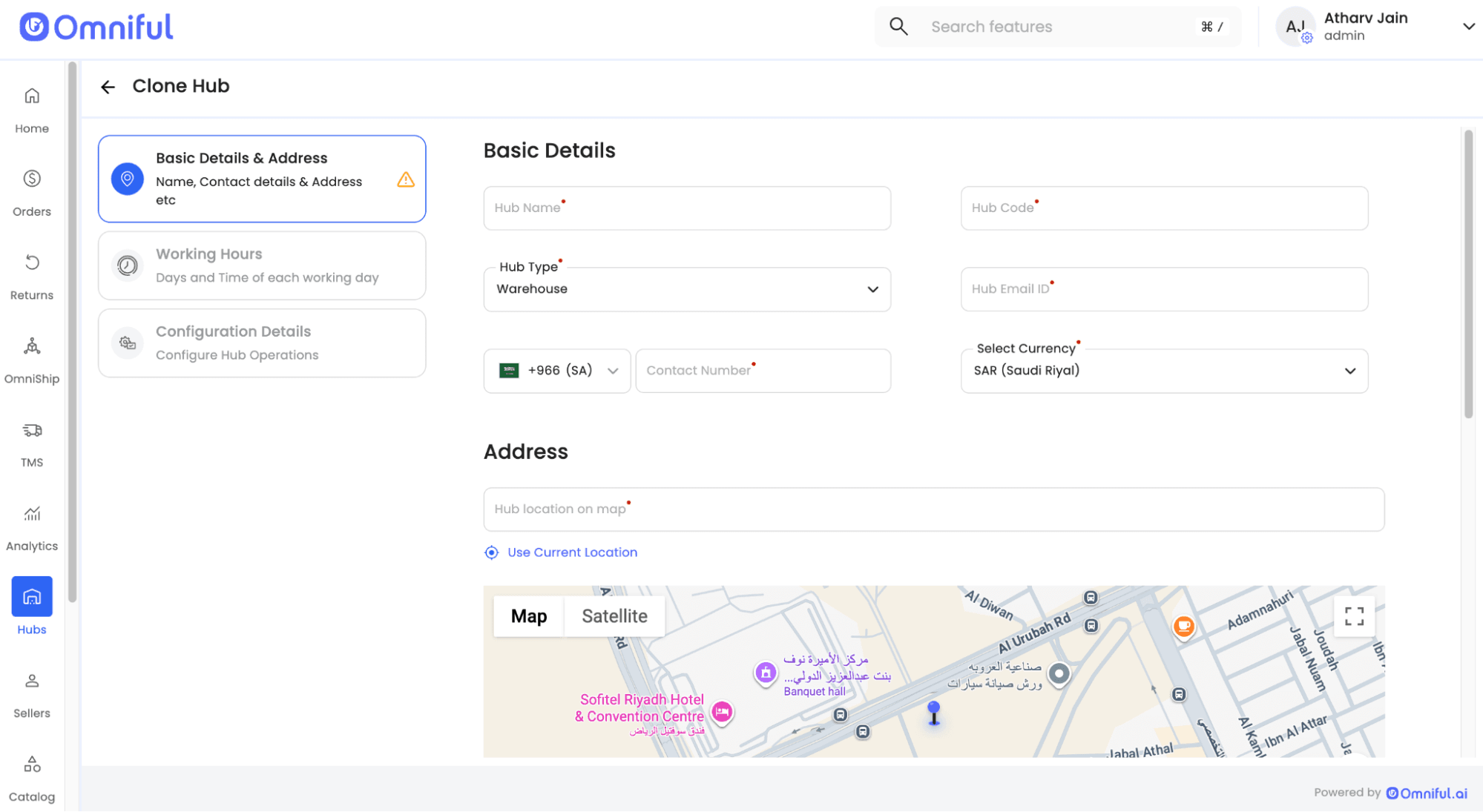
2. Enter the new hub basic details and address
Enter the required details for the new hub, including:
- Hub Name
- Hub Code
- Hub Type
- Hub Email ID
- Contact Number
- Currency
- Hub Address
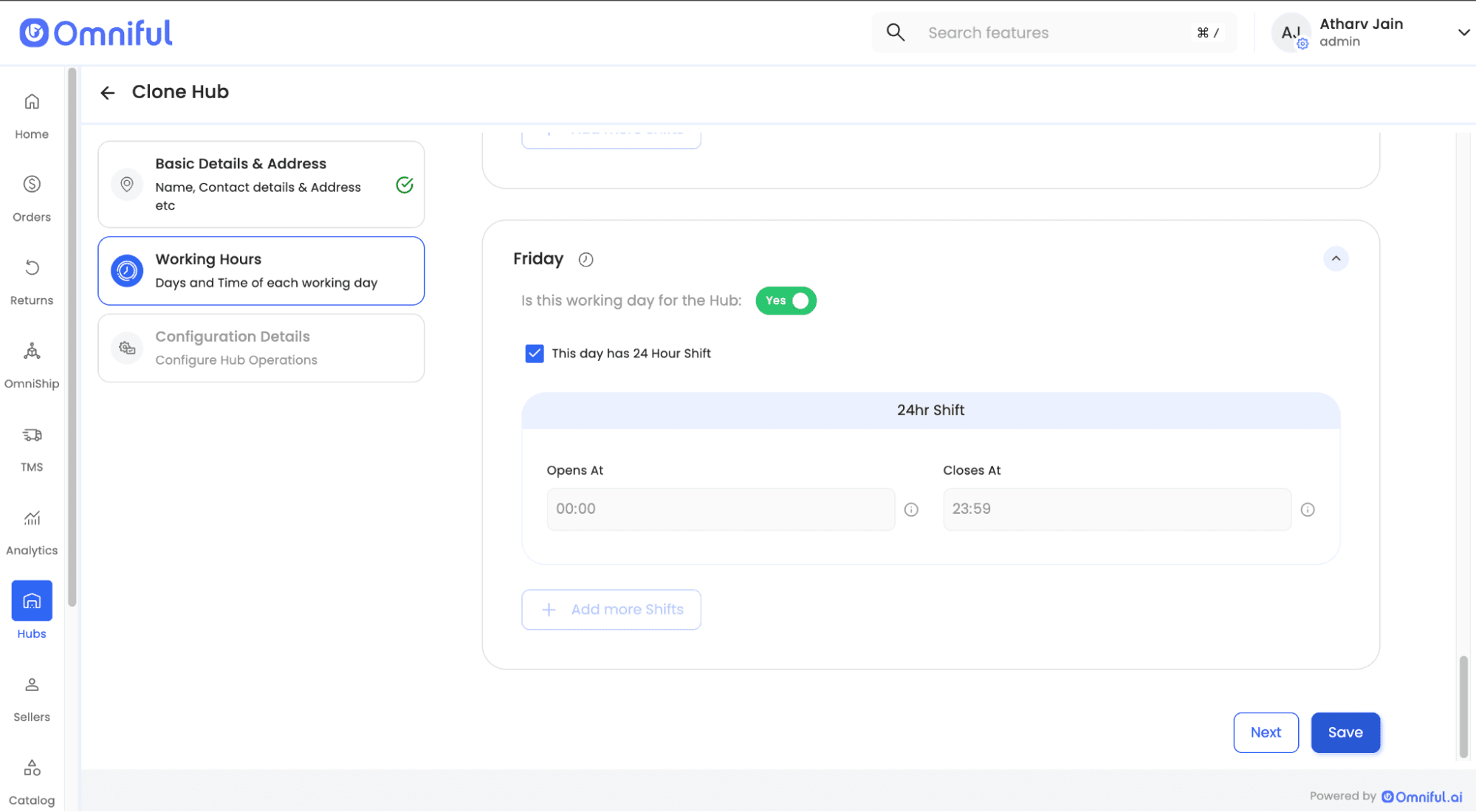
3. Review working hours copied from the source hub
The Time Zone and Shift Timings are pre-filled based on the selected source hub. Users can review or update these details, then click ‘Next’ to review or update the hub configurations copied from the source hub, or click ‘Save’ to create the new hub with the same configuration as the source hub.
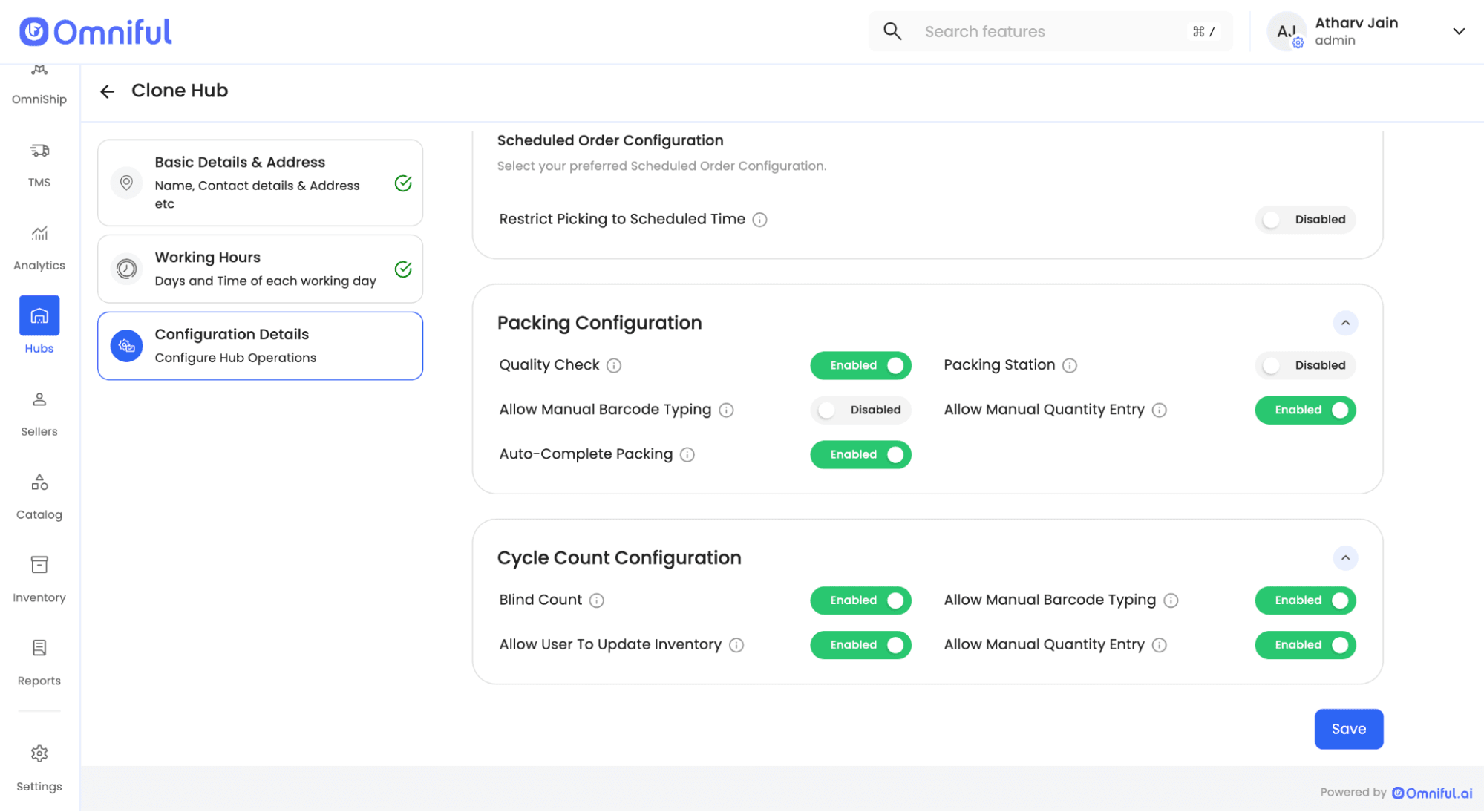
4. Review Hub Configurations copied from the source hub
The hub configurations are pre-filled based on the selected source hub. Users can review or update these details and click ‘Save’ to create the new hub. Hub configurations cannot be set for transit hubs.
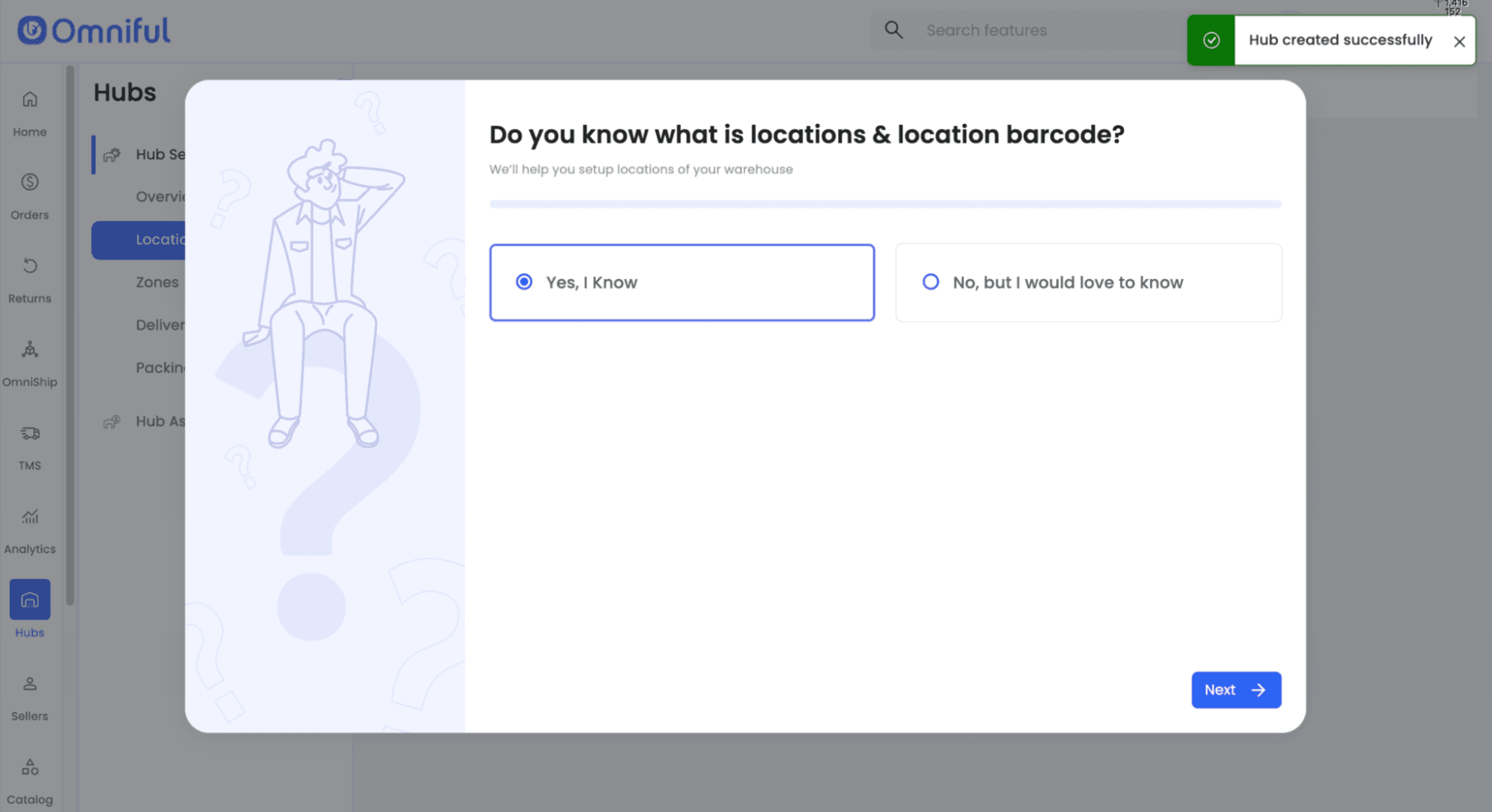
5. Proceed with location barcode setup after hub creation
Once the hub is created successfully, the user can continue with the next setup step for locations and location barcode configuration.
6. Access to the newly created hub
Any user who creates a new hub is automatically granted access to that hub. However, if the user has a Picker or Packer role, access will not be granted, as these roles are limited to a single assigned hub.
Technical Details
| Area | Details |
|---|---|
| Entry point | Hubs > Action menu > Clone Hub |
| Copied configuration | Existing hub configuration is reused to speed up creation of the new hub. |
| User editable during clone flow | Basic hub details such as Name, Code, Contact Details, and Address must be entered during the clone process. Time Zone, Shift Timings, and Hub Configurations are copied from the source hub but can be reviewed and edited if required. |
| Post-creation action | Users can proceed with location barcode format setup for the newly created hub. |
| Access enhancement | Users who create a hub are automatically granted access to the newly created hub, provided they do not have Picker or Packer role access in any hub. |