

Table of Contents
Share On


Create Trip - UI Revamp
This release introduces a streamlined Trip Creation experience in Omniful TMS, allowing flexible resource assignment and package handling in any order, with updated lifecycle handling for driver notifications.
Version: 1.0 Owner: Product Team
Summary
This release introduces a revamped Trip Creation Flow in Omniful TMS, designed to enhance flexibility during trip creation. Users can now assign vehicle and driver in any order, add packages before or after assignment, or create unassigned trips, all from a single streamlined screen.
The Pending and Live Trip lifecycle transitions have also been clarified to ensure that shipments are automatically moved to Unassigned if a driver rejects or fails to accept a trip within the configured timeout period.
How it works
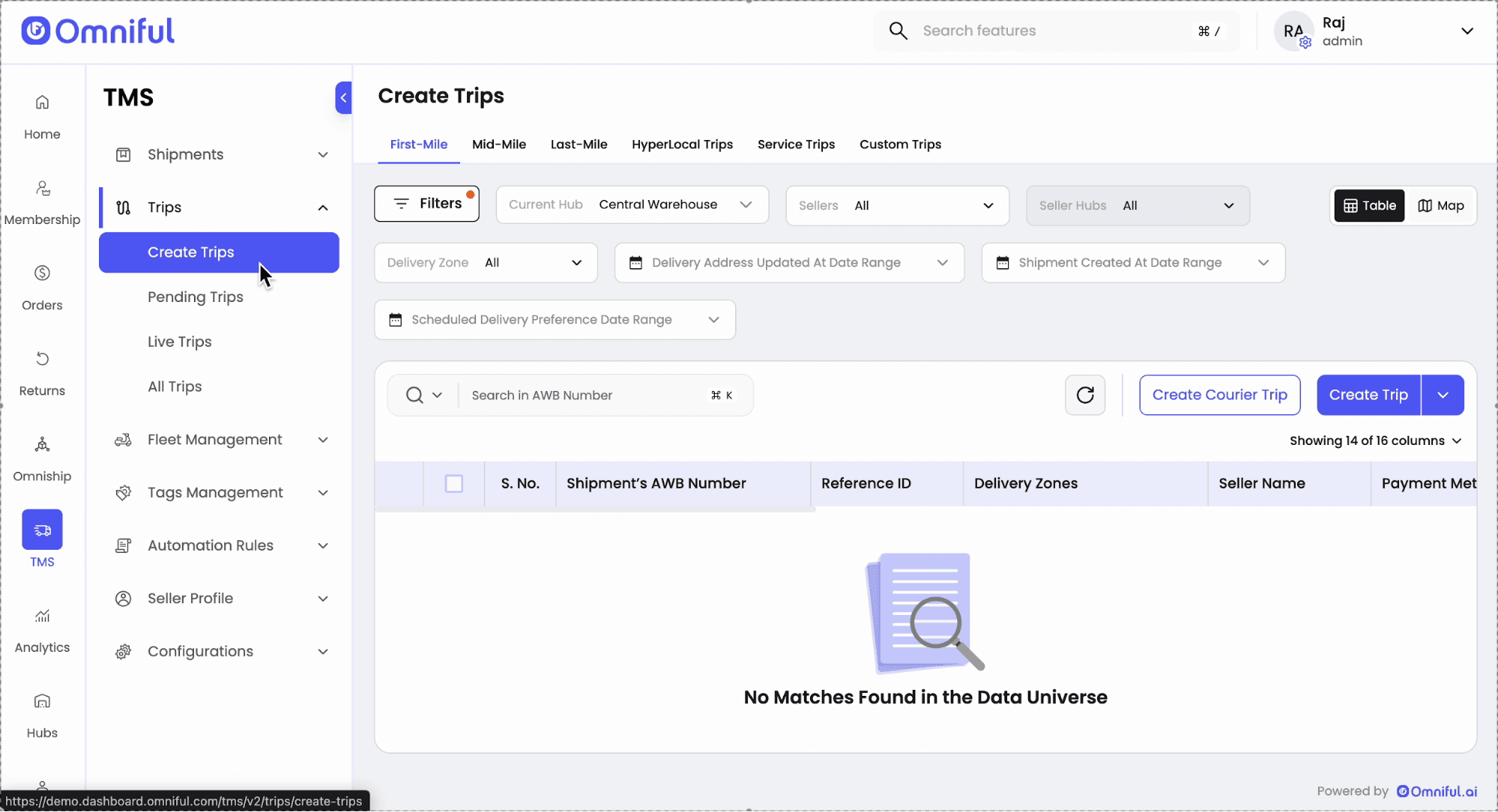
- Open Trips → Create Trip
- From the main dashboard navigate to Trips and click Create Trip to open the Trip Creation screen.
- Choose trip type (First mile, Mid mile, Last mile, Hyperlocal) and select the current hub for operations.
-
Select Shipments
Select one or multiple shipments belonging to the same hub. Up to this point the behaviour matches the previous flow.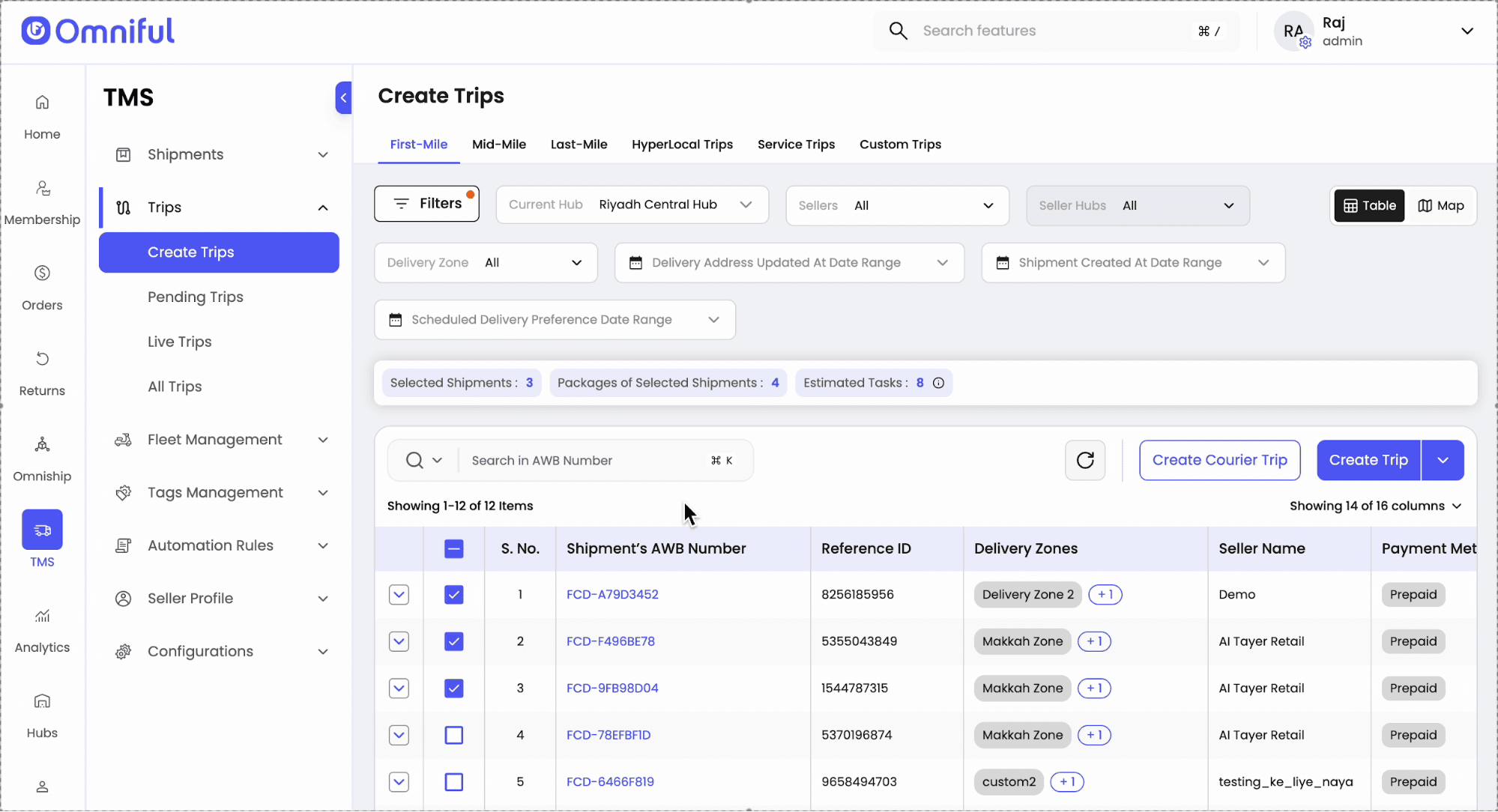
-
Create Trip & Add Packages (Optional)
- Click Create Trip. You may now assign vehicle and driver in any order, or skip assigning both to create an unassigned trip directly from the same screen.
- After assigning resources (or before), you may scan and add extra packages to the trip.

- Finalize & Driver Notification
Once Create Trip is clicked, the trip is created and a request is sent to the assigned driver (if any). The trip appears under Pending Trips (Assign or Unassigned tab depending on assignment).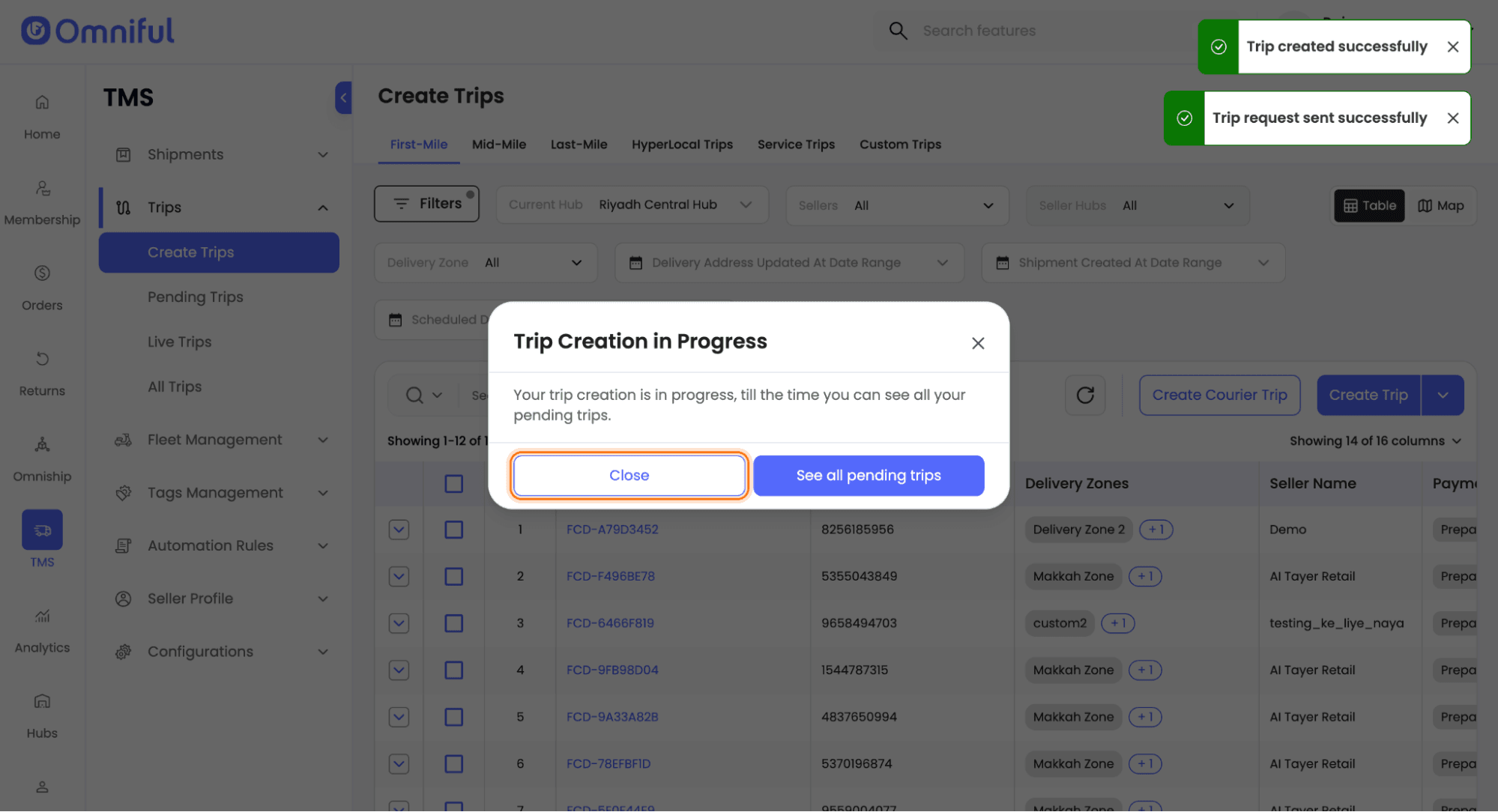
Lifecycle and Resource Handling
- Trips created with assigned driver & vehicle appear under Pending Trips → Assigned; once accepted by the driver they move to Live Trips.
- Trips created without resources appear under Pending Trips → Unassigned and await allocation.
- If a driver rejects or does not accept within the configured timeout, shipments are automatically moved to Unassigned to ensure prompt reassignment.
Technical Details
Driver Notification & Timeout
Driver requests are pushed via existing push notification channel.
Timeout behaviour uses the configured driver response timeout setting — on timeout, shipments are marked for reassignment.
UI Changes
- Create Trip screen updated to allow assignment controls in any order.
- A single Create action now handles both assigned and unassigned creation paths.
Status Transitions
- Pending → Assigned: When a trip is created with both driver and vehicle assigned.
- Assigned → Live: Once the driver accepts the trip.
- Pending → Unassigned: When a trip is created without driver or vehicle.
- Assigned → Unassigned: If the driver rejects or fails to respond within the configured time window.