

Table of Contents
Share On


Creation Of Expired Batches
Enables creating expired batches during GRN or Return GRN, improving inbound handling of expired and near-expiry stock with clearer validations and restricted edit options.
Version: 1.0
Owner: Omniful Product Team
Summary
The system previously did not allow creating batches that were already expired. Although existing expired batches could be inwarded, newly received expired stock could not be recorded, causing the inbound team to track such stock off-system.
This enhancement enables the creation of expired batches during GRN, Return GRN, and through batch sheet upload from the batch inventory page. The inward flow for expired and near-expiry stock is now smoother with clearer messaging and additional validations.
How It Works
1. GRN / Return GRN (UI) — Creating an Expired Batch
- Scan or enter the SKU barcode.
- If the SKU is batched, select Create Batch.
- You can now create expired batches as well.
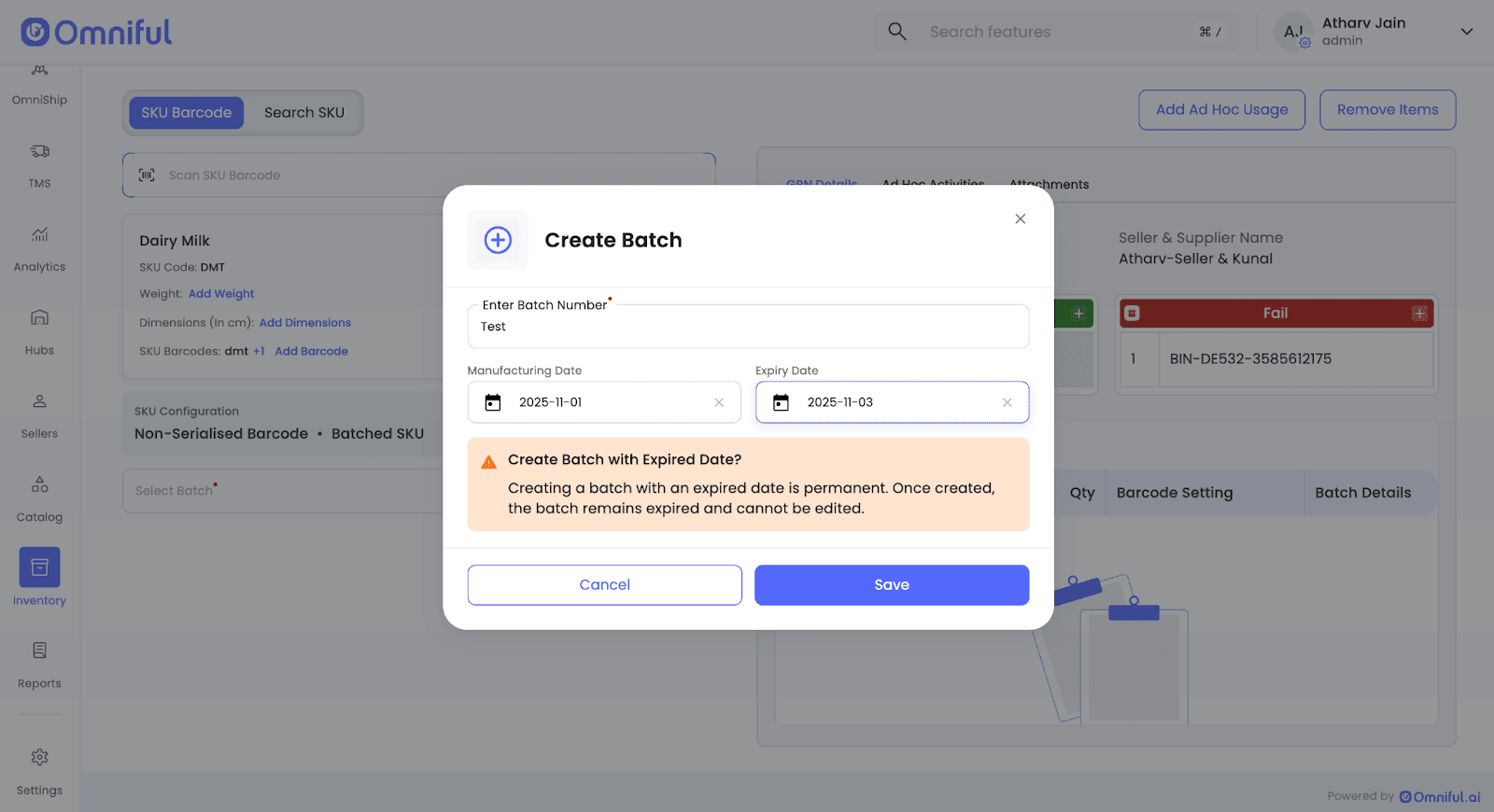
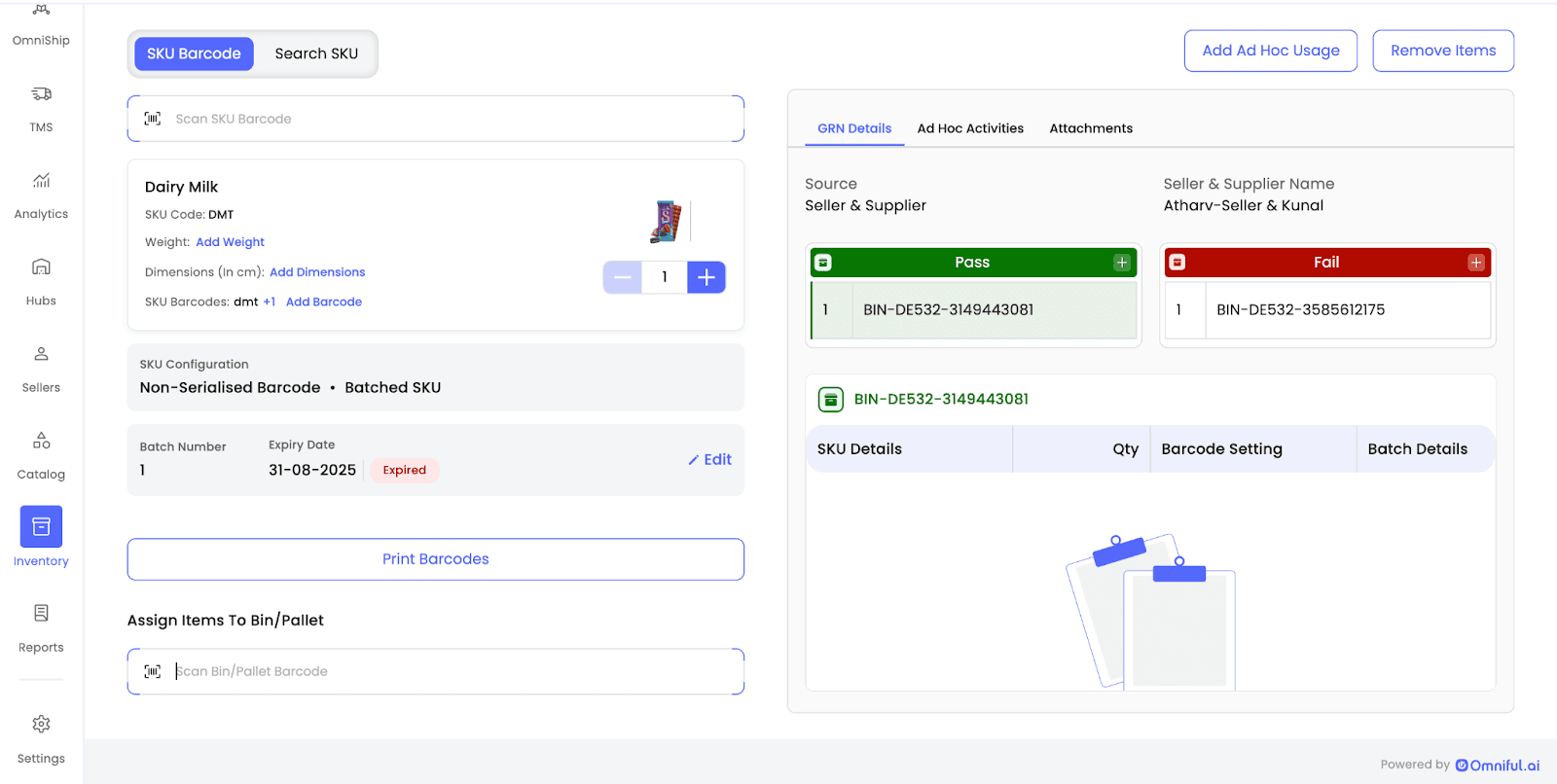

UI Indicators:
- Valid, Near-expiry and Expired batches are visually identified within the GRN interface.
- Appropriate UI messages are displayed during creation.
2. Batch Inventory Page (Sheet Upload) — Creating an Expired Batch
- The upload sheet now allows past expiry dates, enabling expired batch creation directly via bulk upload from the Batch Inventory page.

3. Editing & Audit
-
Expired batches cannot be edited after creation — manufacturing date, expiry date, and batch number are locked.

-
Near-expiry batches treated as expired due to the hub configuration
“Exclude near-expiry items from available inventory and treat them as expired”
are now non-editable from any hub.

-
Assigning expired batches to pass bins during GRN is restricted.

-
Near-expiry batches treated as expired by configuration also cannot be assigned to pass bins during GRN.
