

Table of Contents
Table of Contents
Share On


Date: 14 January 2026
External PO ID for Purchase Orders
Version: 1.0
Owner: Omniful Product Team
Summary
We’ve added a new External PO ID column to the purchase order creation flow, applicable to both single and multiple PO creation. This enhancement improves traceability between Omniful purchase orders and external systems, making reconciliation, reporting, and cross-system audits significantly easier.
The linked External PO ID is also now visible as a dedicated column across all three purchase order reports:
- Purchase Order Item Level
- Purchase Order Level
- Purchase Order Shipments
How It Works
Single PO Creation
- Go to Inventory → Purchases → Purchase Orders and click Create Purchase Order.
- Enter SKU details, quantity, and unit cost as required.
- In the External PO ID field, enter the PO reference from your external system.
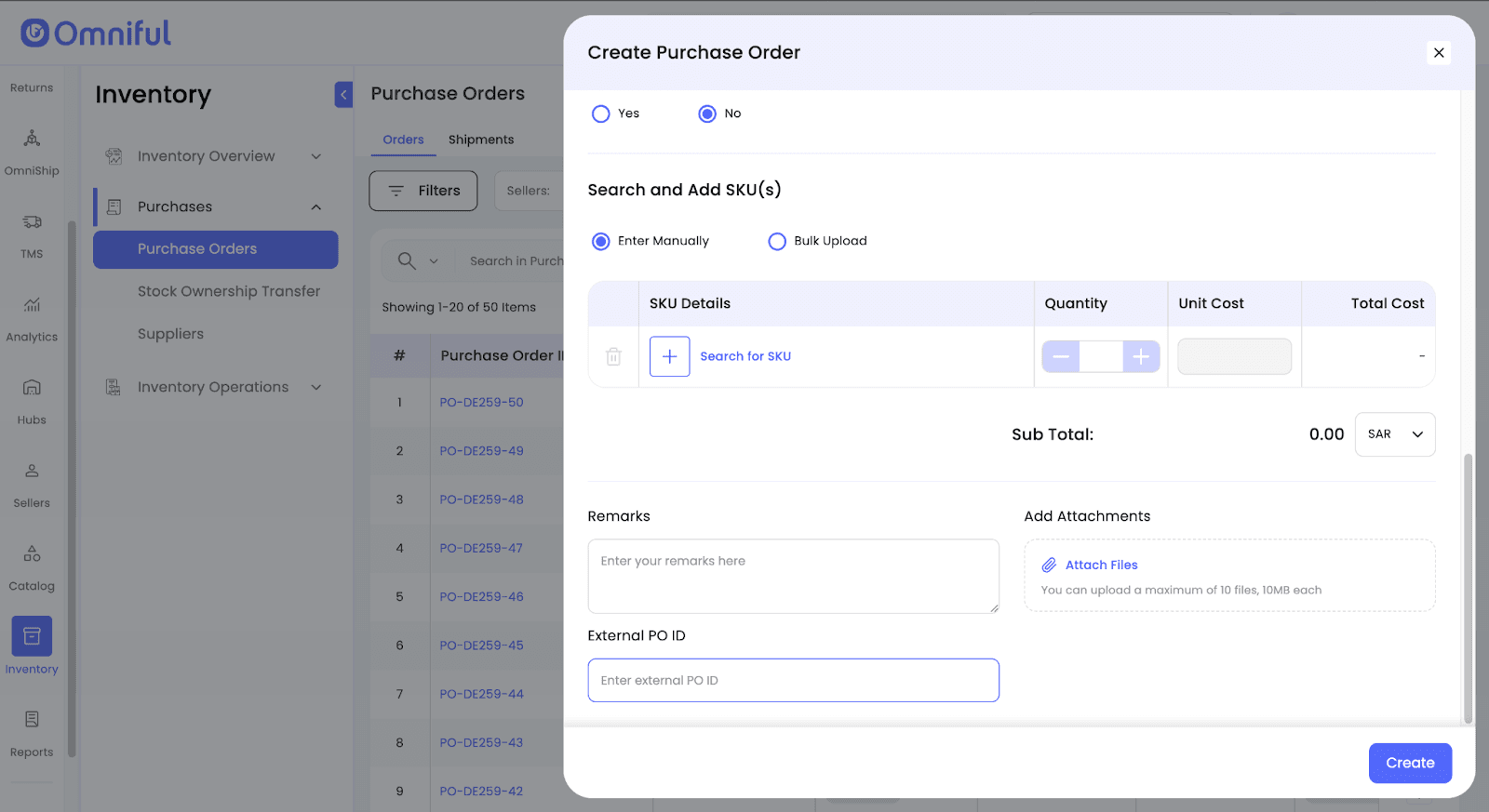
- Click Create to generate the Purchase Order with the linked External PO ID.
Multiple PO Creation (Bulk Upload)
- Select Multiple Purchase Orders while creating Purchase Orders.
- In the upload sheet, enter the External Purchase Order ID for each PO Group.
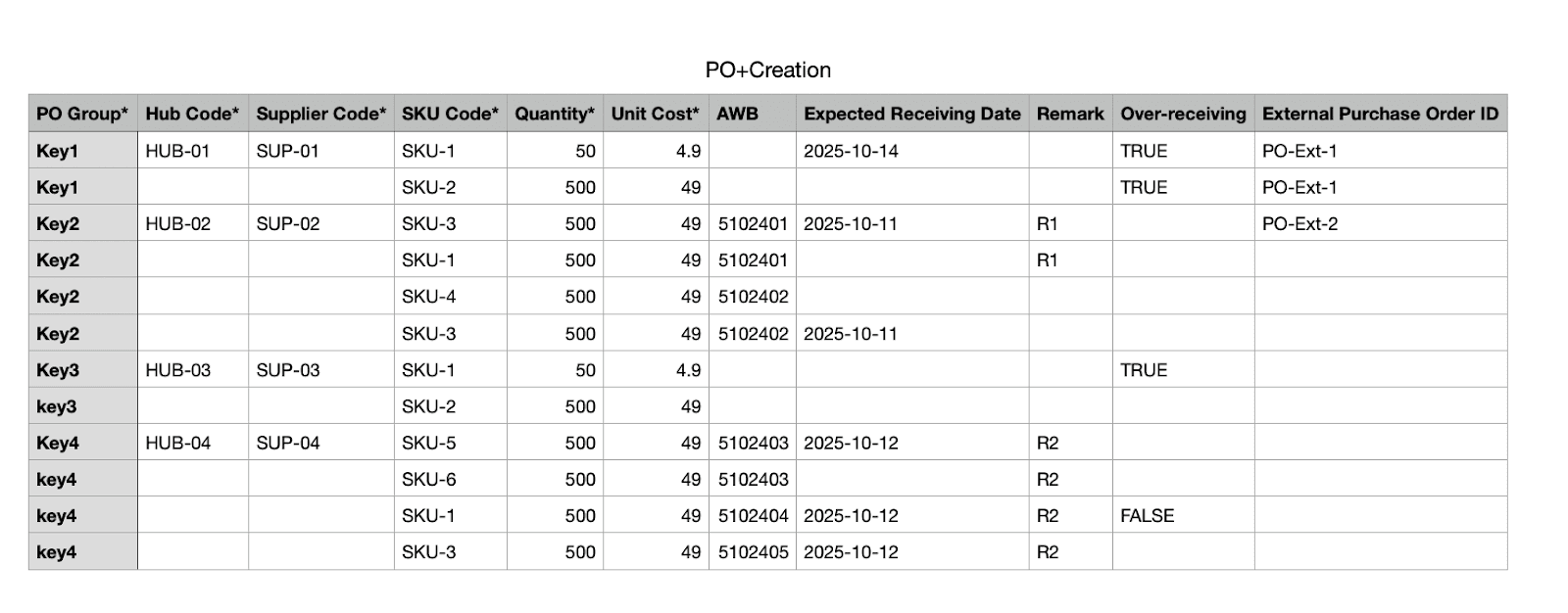
- The External Purchase Order ID can be up to 50 characters long and may be entered in any row within a PO Group, where it applies to the entire group.
- If the External PO ID is provided multiple times within the same group, all values must match; otherwise, the PO Group will not be created.
- Upload the sheet to create grouped Purchase Orders with the External PO ID mapped accordingly.
Technical Details
- External PO ID is captured during both single and multiple PO creation.
- External PO ID is surfaced as a dedicated column in the following reports:
- Purchase Order Item Level
- Purchase Order Level
- Purchase Order Shipments
- This field improves cross-system traceability for reconciliation, reporting, and audit workflows.