

Table of Contents
Share On


Hub Asset Fees in 3PL Billing
Introducing asset-based billing for boxes and pallets used during packing in 3PL billing profiles.
Version: 1.0
Owner: Omniful Product Team
Summary
This enhancement introduces Hub Asset Fees as a billing fee in the 3PL Billing Profile setup. It allows users to define asset-based charges for boxes and pallets used during packing by setting fees for each asset type.
Hub assets are mapped to standardized asset types, and sellers are charged based on the quantity of assets used during packing. This enables 3PLs to charge sellers based on the types of assets used in packing while using the existing standardized Box Type and Pallet Type setup in the system for consistent and accurate billing.
Note: Only boxes and pallets with an assigned Box Type or Pallet Type will be billed. If no asset type is mapped to the asset, its usage will not be charged.
How It Works
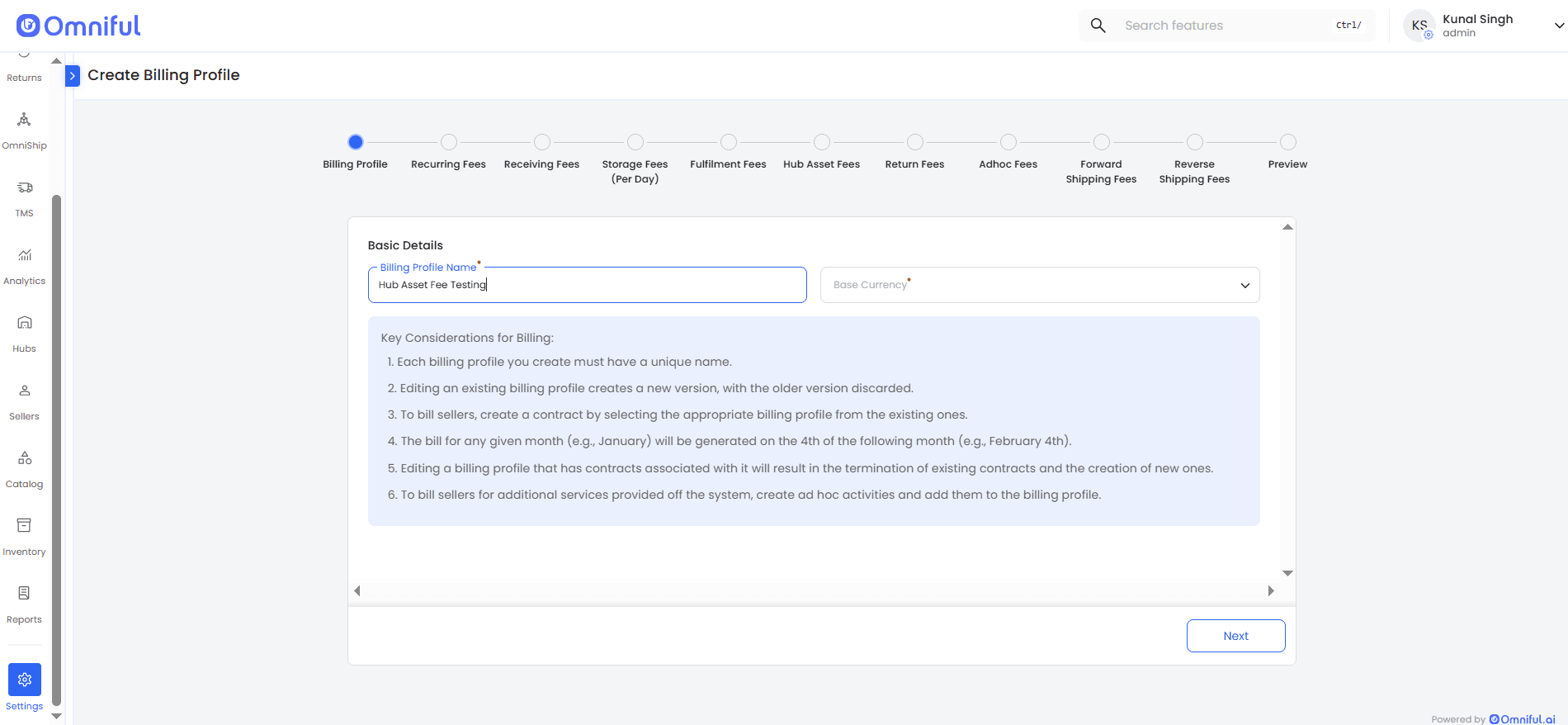
1. Create a Billing Profile
Start creating a billing profile by entering the Billing Profile Name and Base Currency. Once these details are added, click Next to move to the billing metric setup steps.
2. Add Billing Fees
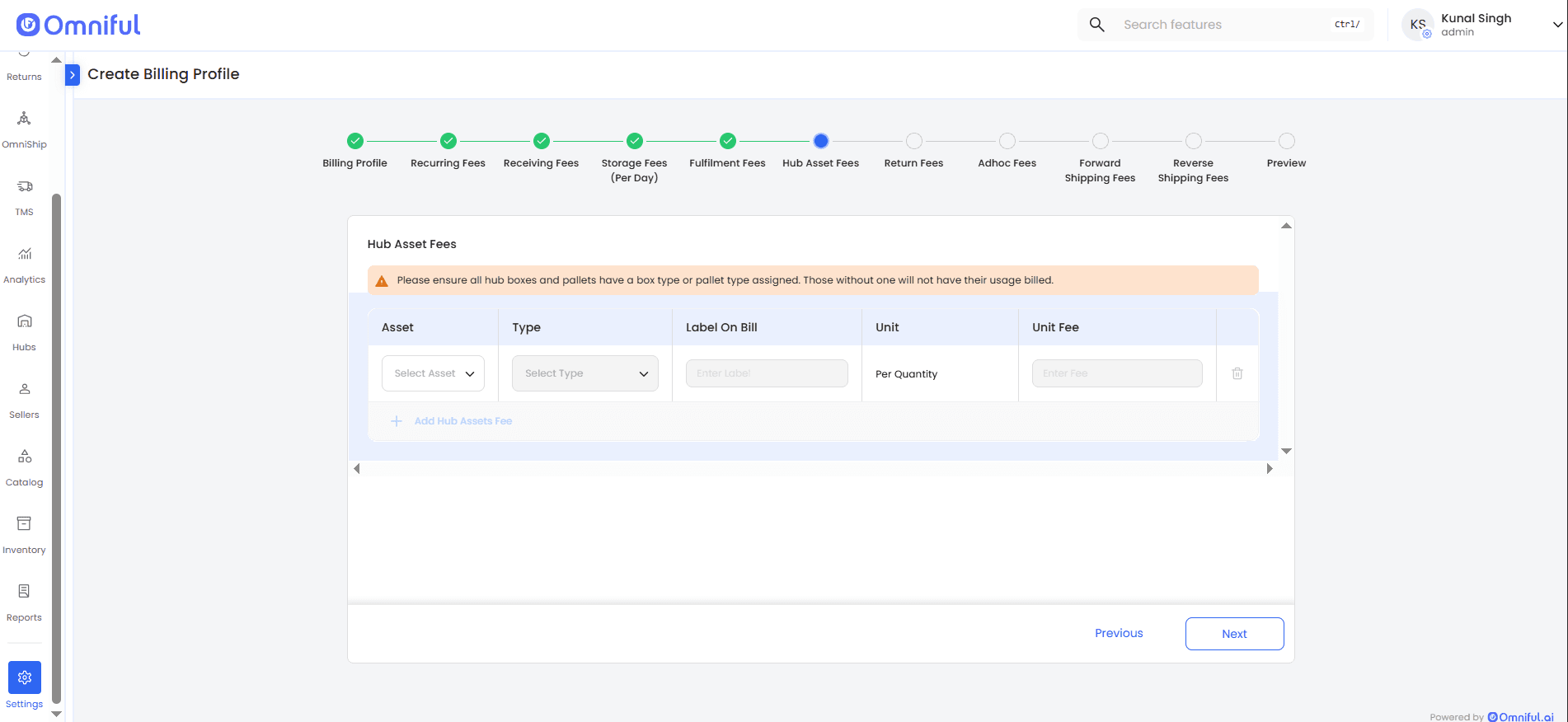
Add the relevant billing fees that you charge your sellers and navigate through the billing steps until you reach the Hub Asset Fees section.
3. Add a Hub Asset Fee
To add a Hub Asset Fee:
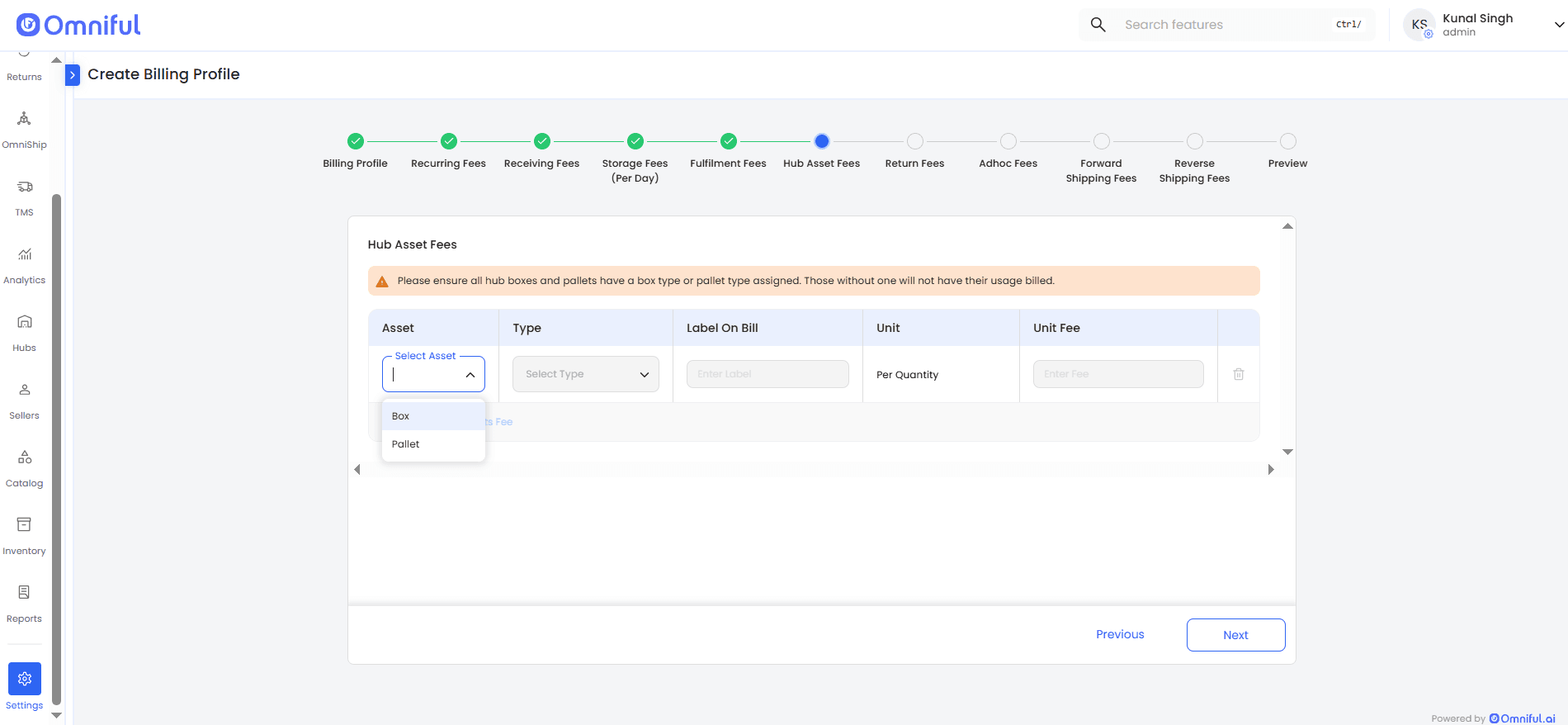
- Select the asset for which the fee is being configured: Box or Pallet.
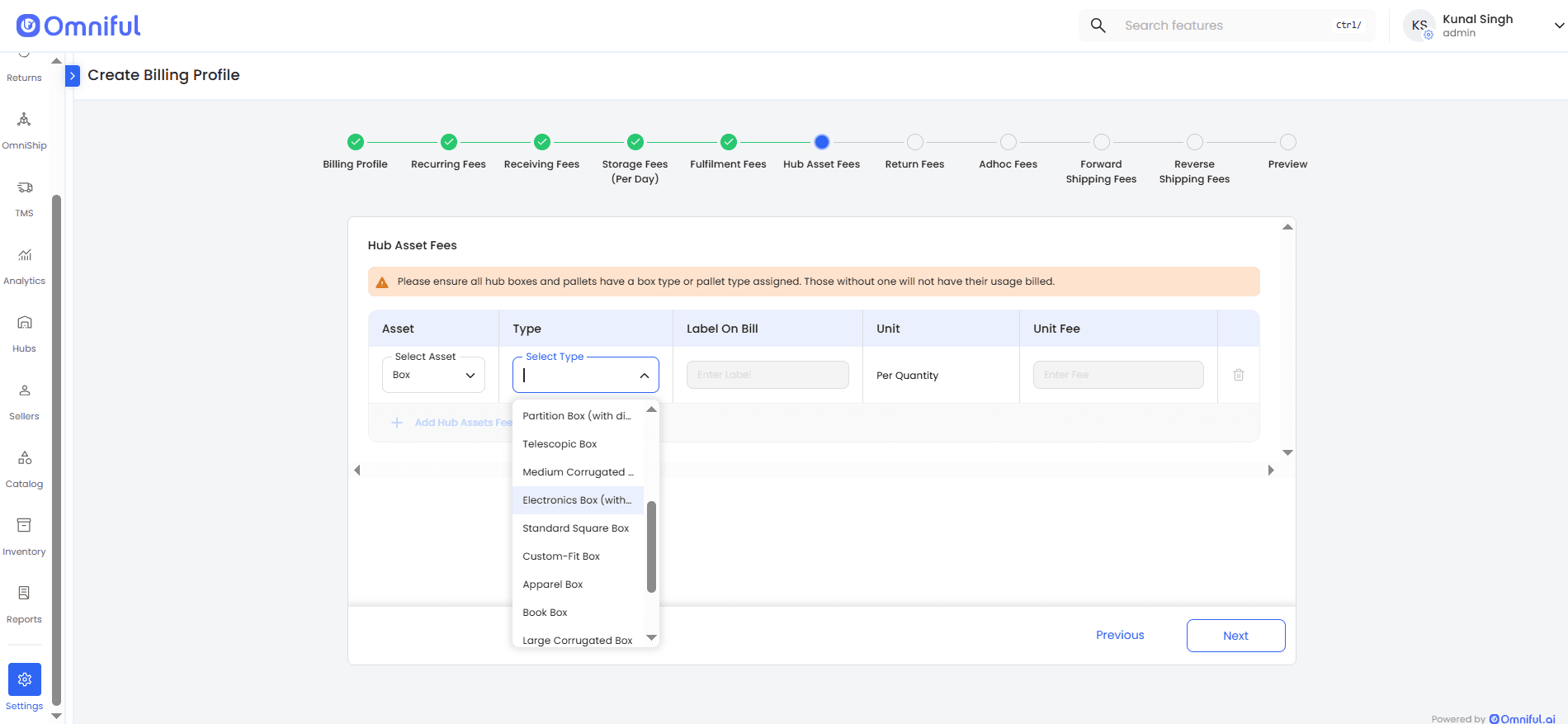
- Select the corresponding asset type: Box Type or Pallet Type.
- Enter the Label on Bill to define how this charge will appear in the seller bill.
- Enter the Unit Fee. The unit for this fee is Per Quantity.
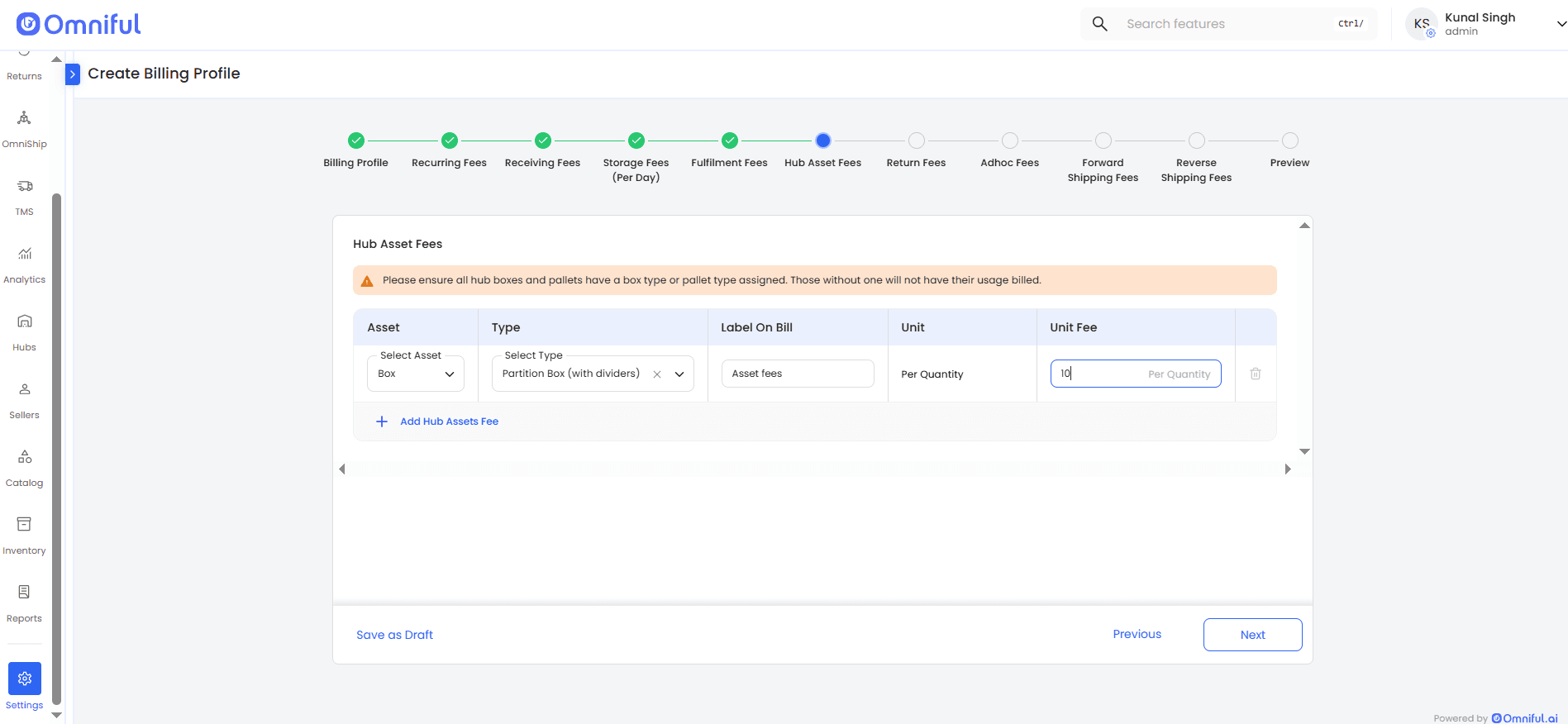
4. Add More Fee Conditions if Required
If different box types or pallet types require separate billing rates, add additional Hub Asset Fees and configure each with its respective label and unit fee.
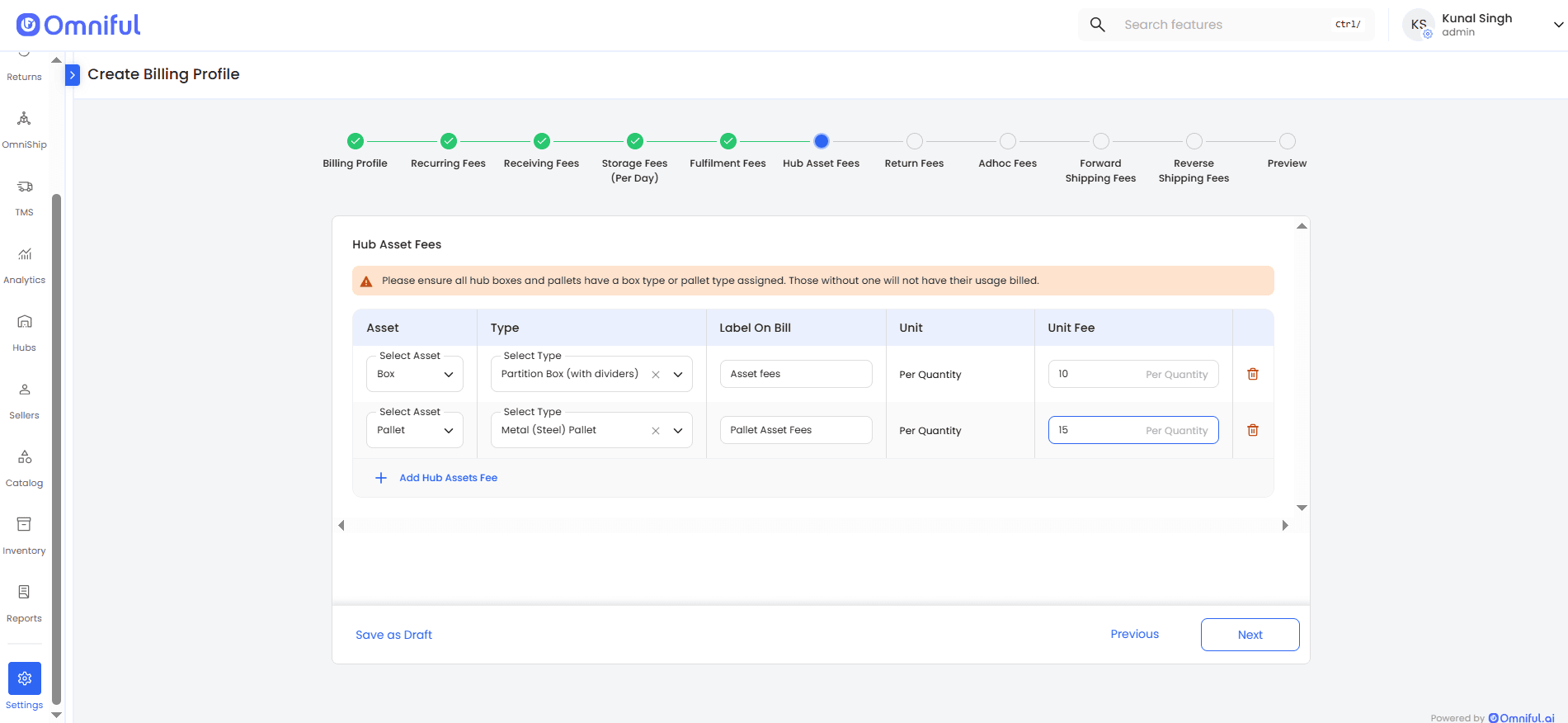
5. Complete the Billing Profile
Once all required billing metrics are configured, proceed through the remaining steps and review the added metrics before saving the billing profile. Click Create Profile to complete the setup.
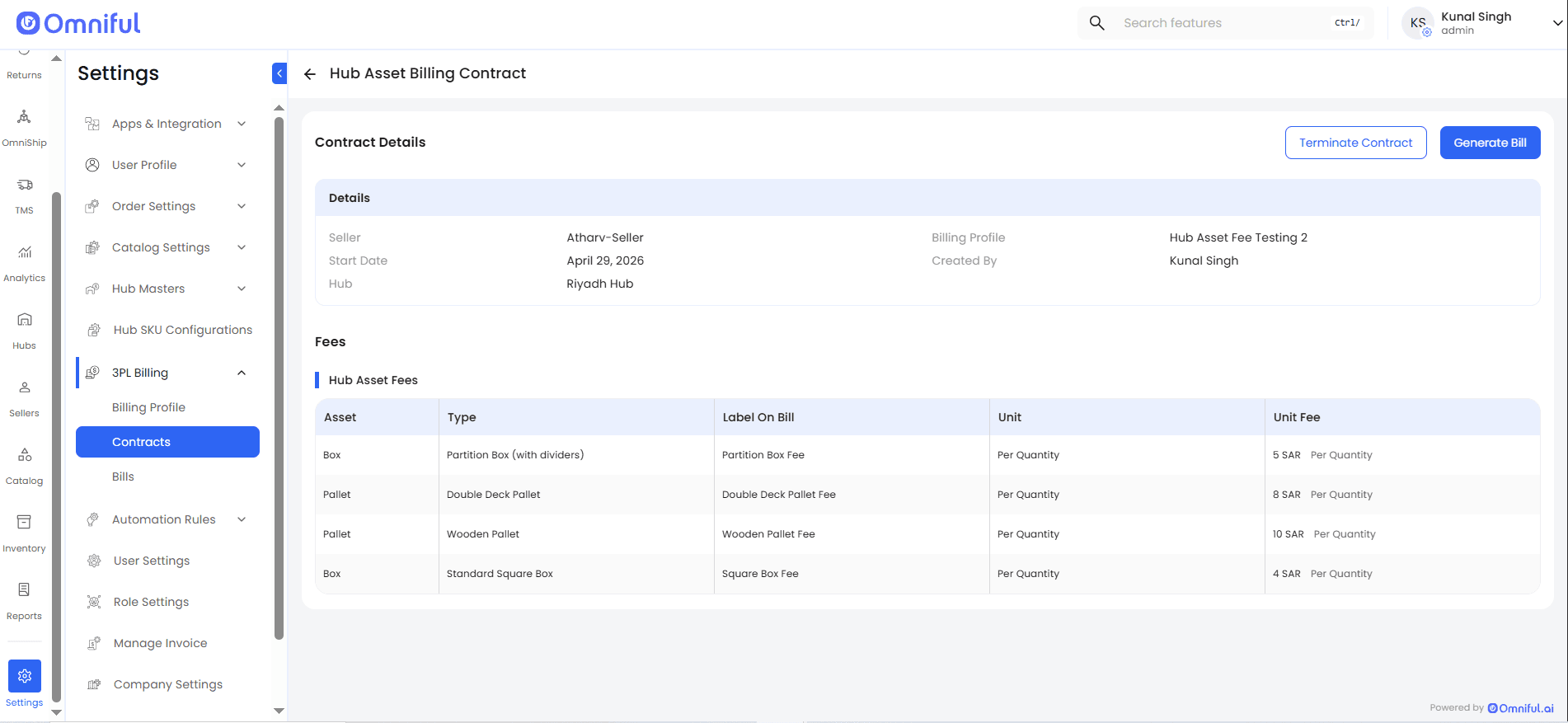
This billing profile can then be used for seller contract billing, and the configured Hub Asset Fees will be applied based on mapped asset usage.
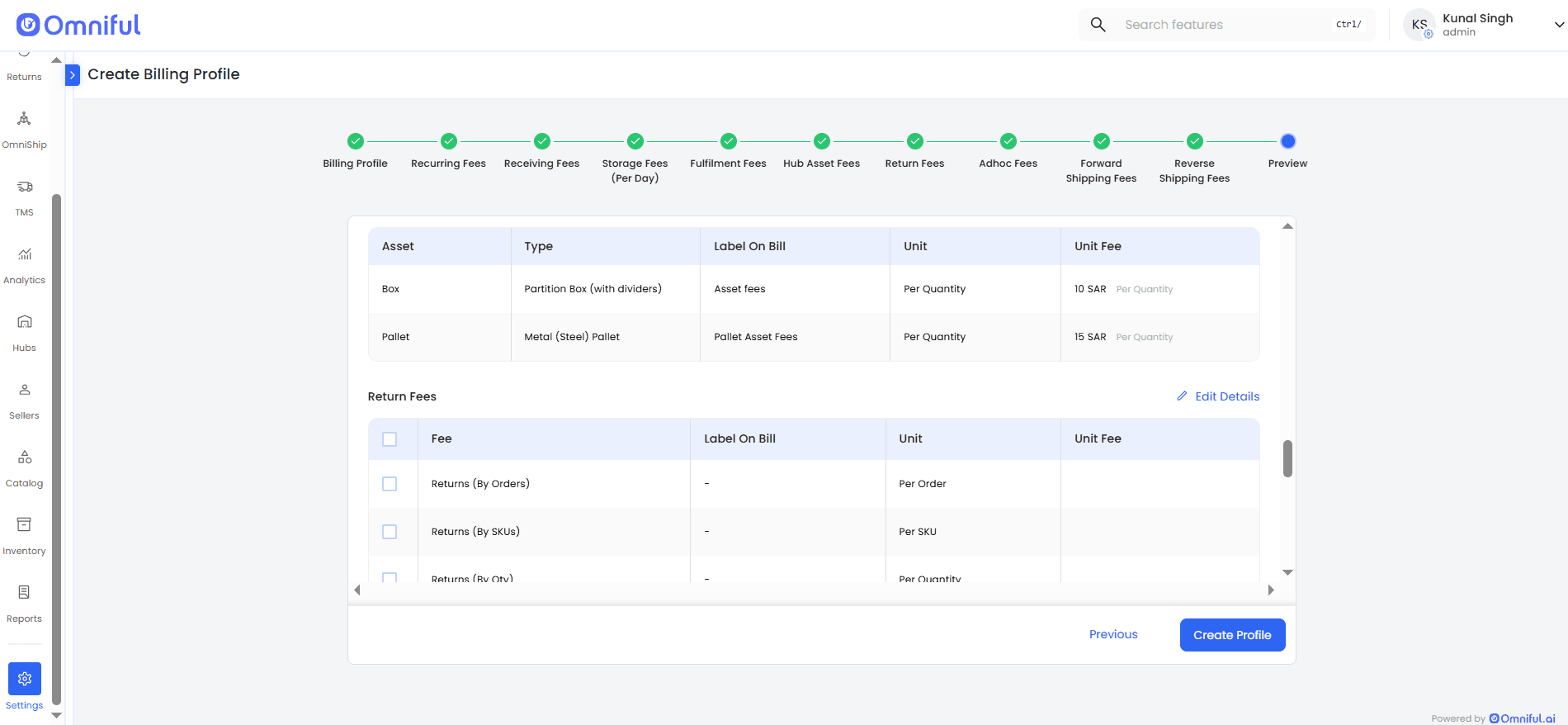
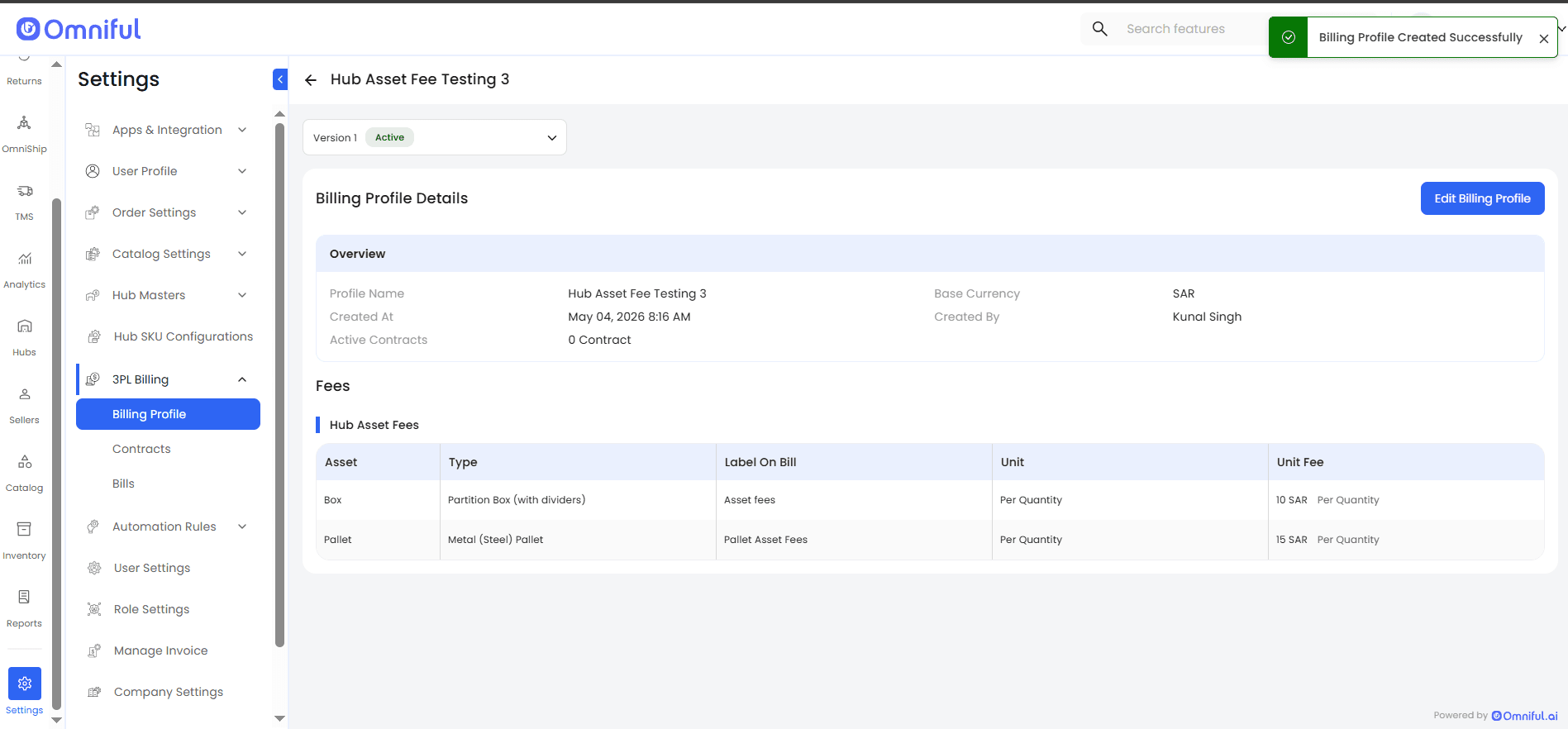
Once a billing profile is created, a contract can be created for the respective seller from the Contracts module.
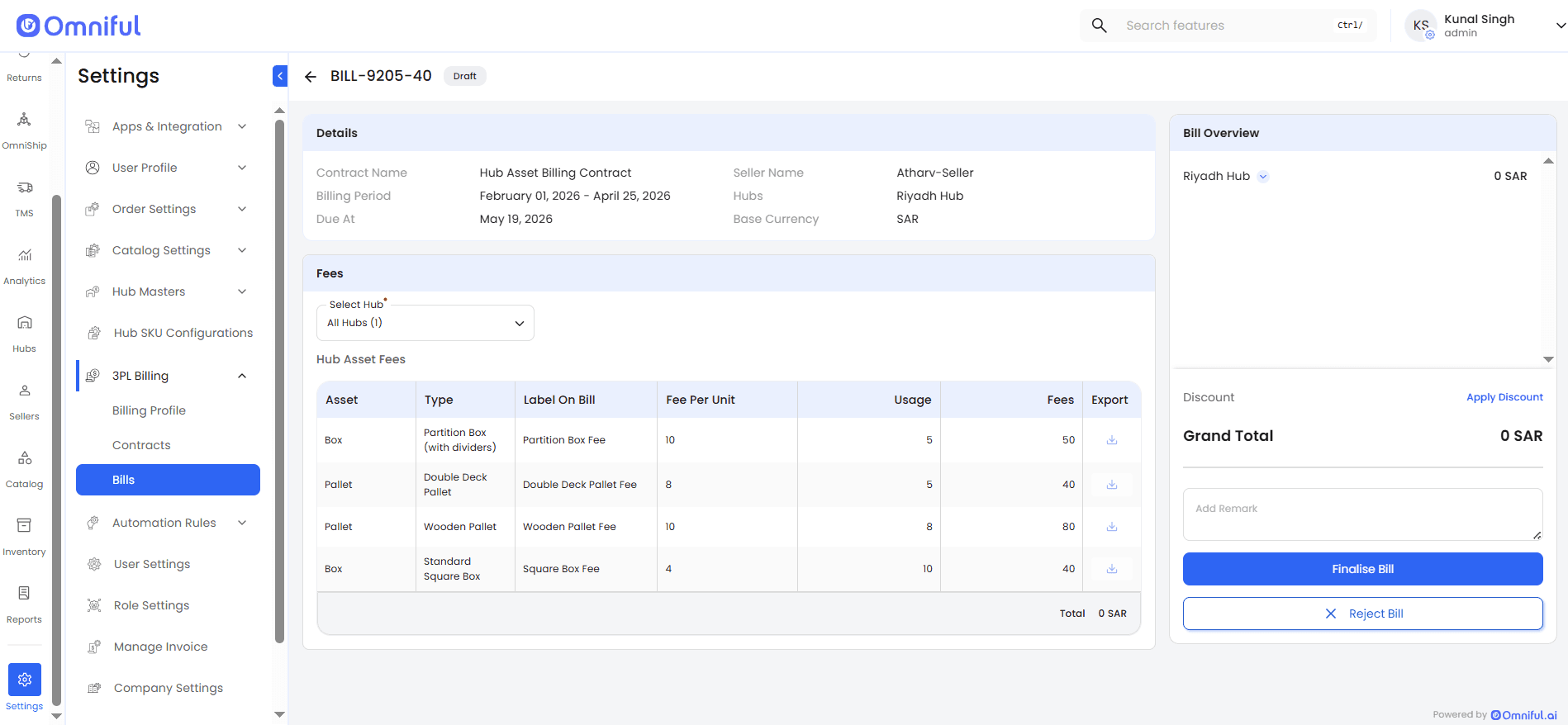
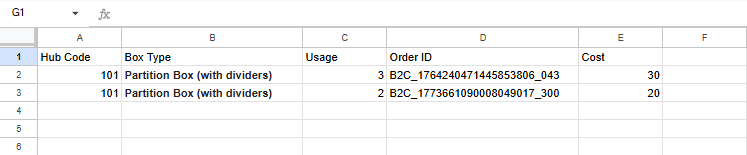
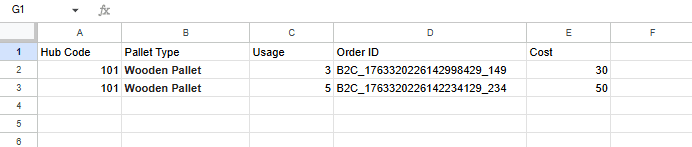
Generated bills provide a clear breakdown of all Hub Asset Fees configured in the billing profile. The export functionality includes logs for each Hub Asset Fee, showing the asset usage and corresponding charges applied to the seller.
Hub Asset Fee Fields
| Field | Purpose |
|---|---|
| Asset | Defines the hub asset to be billed: Box or Pallet. |
| Type | Defines the specific asset type, such as Box Types or Pallet Types configured in the system, for which the fee applies. |
| Label On Bill | Defines the billing label that will appear for this charge on the seller bill. |
| Unit | Defines the charging unit. For Hub Asset Fees, this is Per Quantity. |
| Unit Fee | Defines the amount charged per quantity of the selected box type or pallet type. |
Technical Details
- Hub Asset Fees are configured as part of the Billing Profile creation flow.
- The metric supports asset-based billing for boxes and pallets used in packing.
- The asset type list is derived from the Box Types and Pallet Types configured in the system.
- The unit for this metric is Per Quantity.
- Usage will not be billed for hub boxes or pallets that do not have a Box Type or Pallet Type assigned.
- To bill sellers for usage of assets during packing using this billing basis, create or update the seller contract using the billing profile that includes Hub Asset Fees.
Note: To understand how Box Types and Pallet Types are created and managed, refer to the relevant Box Types and Pallet Types documentation.