

Table of Contents
Share On


Location Attributes at Tenant Level
Location Attributes are now managed at the tenant level to standardize location definitions across all hubs.
Version: 1.0
Owner: Omniful Product Team
Summary
This enhancement introduces Location Attributes in Hub Masters in Omniful WMS as standardized, global configurations for locations, ensuring consistency in how location attributes are defined and utilized across all hubs.
A Location Attribute is a configurable property that can be assigned to a hub location to define its characteristics, such as storage type, handling requirements, or any operational classification. For example, a location can be tagged as ambient, bulk, frozen, hazardous, or refrigerated to guide how inventory is stored and handled at that particular location accordingly.
With this update, these attributes are centrally managed from Hub Masters, ensuring consistent usage across all hubs.
All existing location attributes created at the hub level are moved to the global level. If the same or similar attributes exist across multiple hubs, they are combined into a single standard attribute to keep the list clean and consistent.
How It Works
Step 1: Enable Location Attribute Permissions
To create and work with location attributes, users must have the required permissions to create or view Location Attributes.
- Create Location Attribute permission enables users to define a new location attribute that hubs can use when creating locations.
- View Location Attribute permission enables users to view all created location attributes.
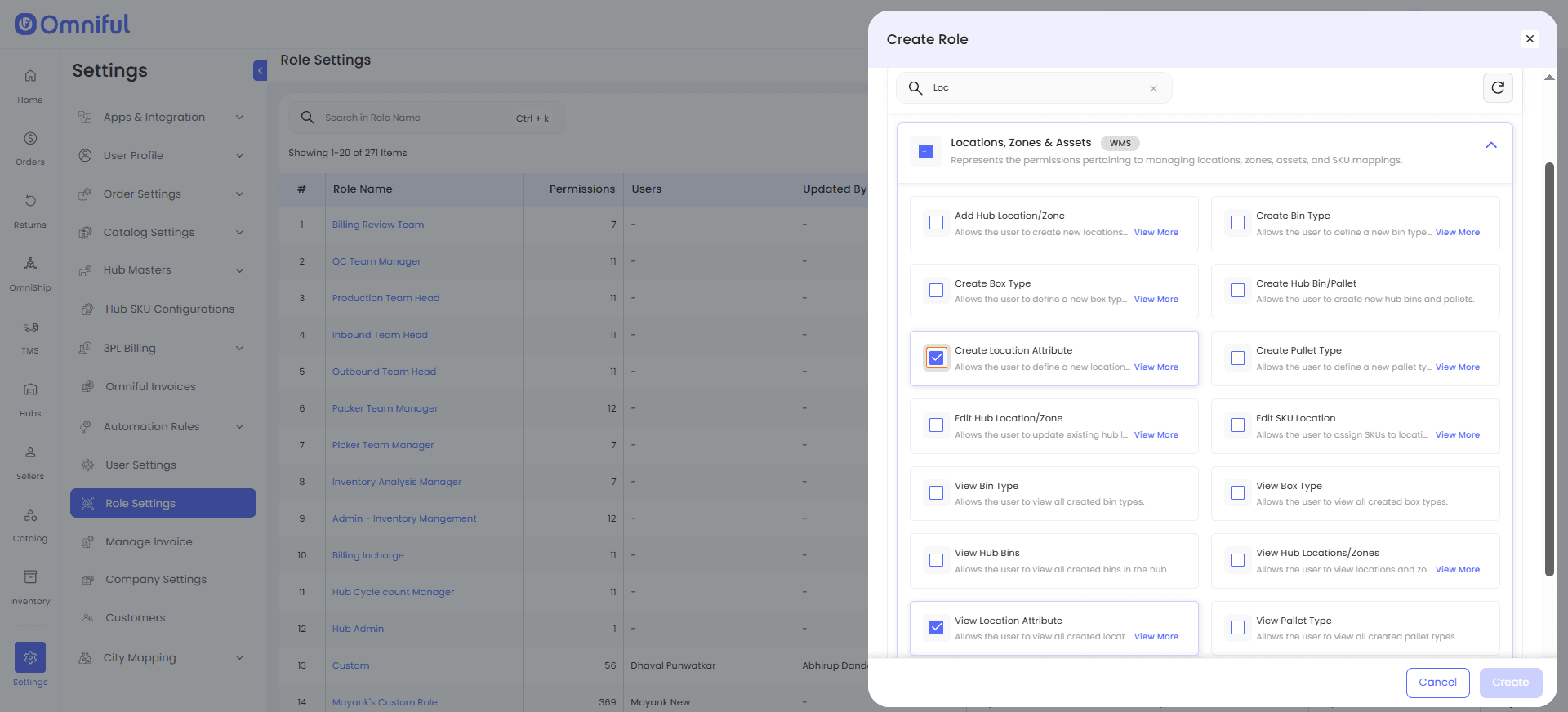
Note: The View Location Attribute permission is required for users to access and view created Location Attributes while creating and working with hub locations.
Step 2: Create a Location Attribute in Hub Masters
-
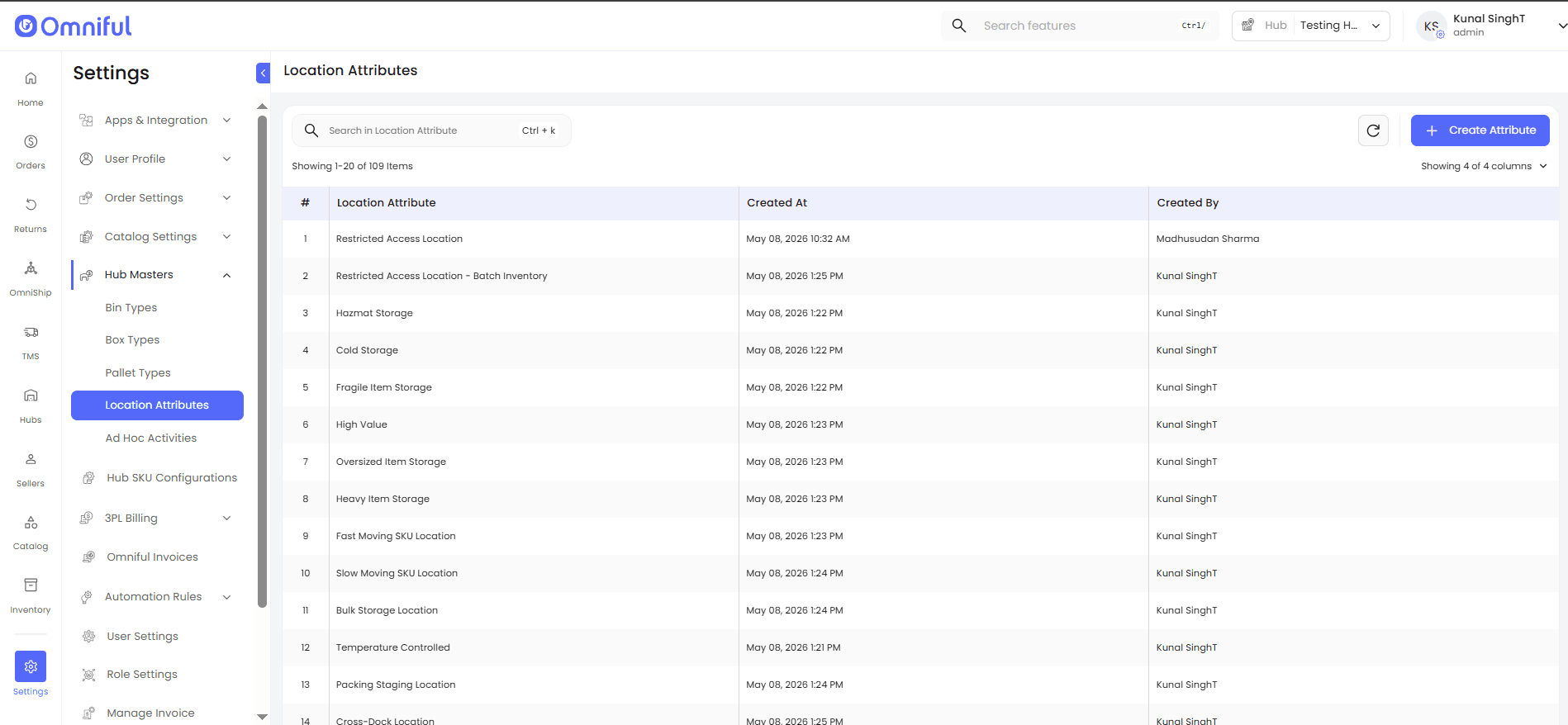
Navigate to Settings > Hub Masters > Location Attributes.
-
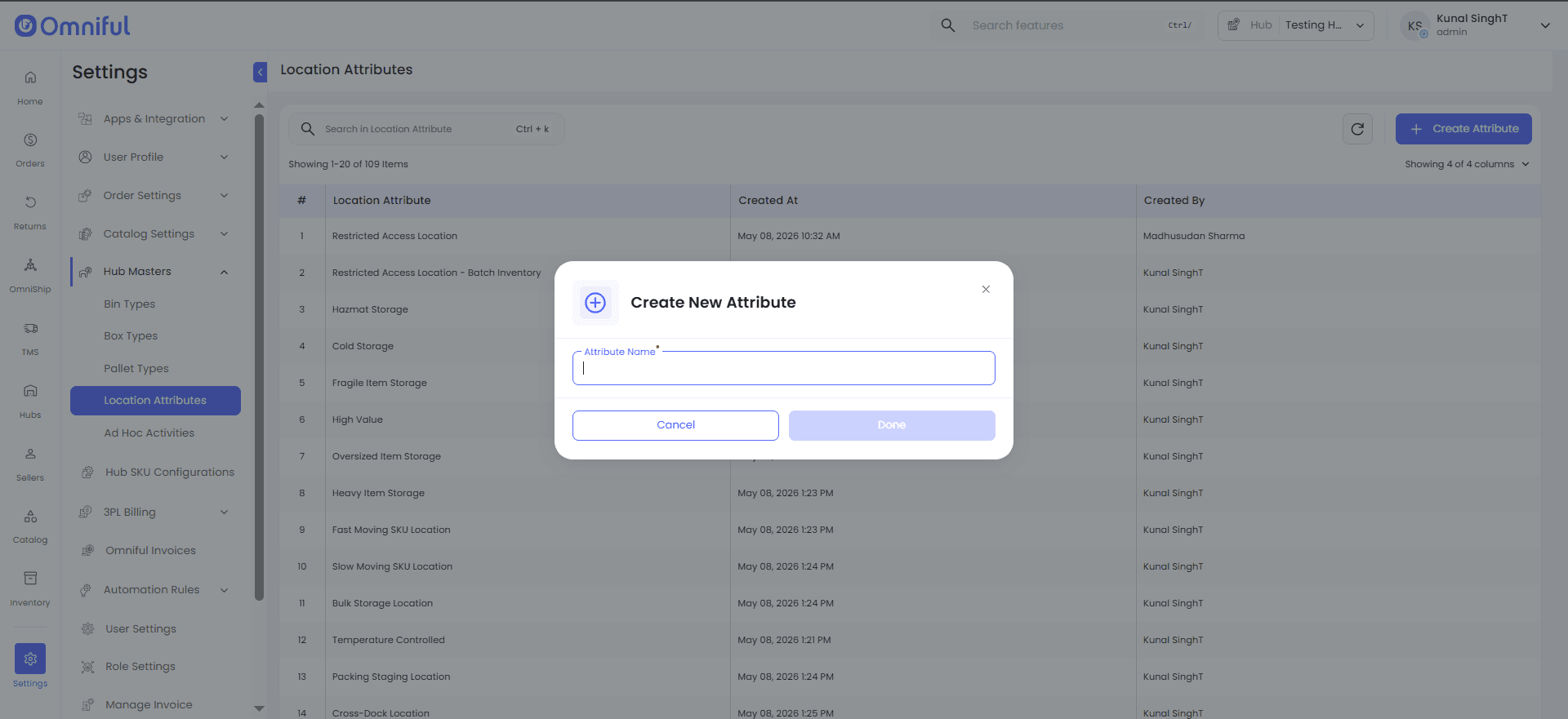
Click Create Attribute.
-
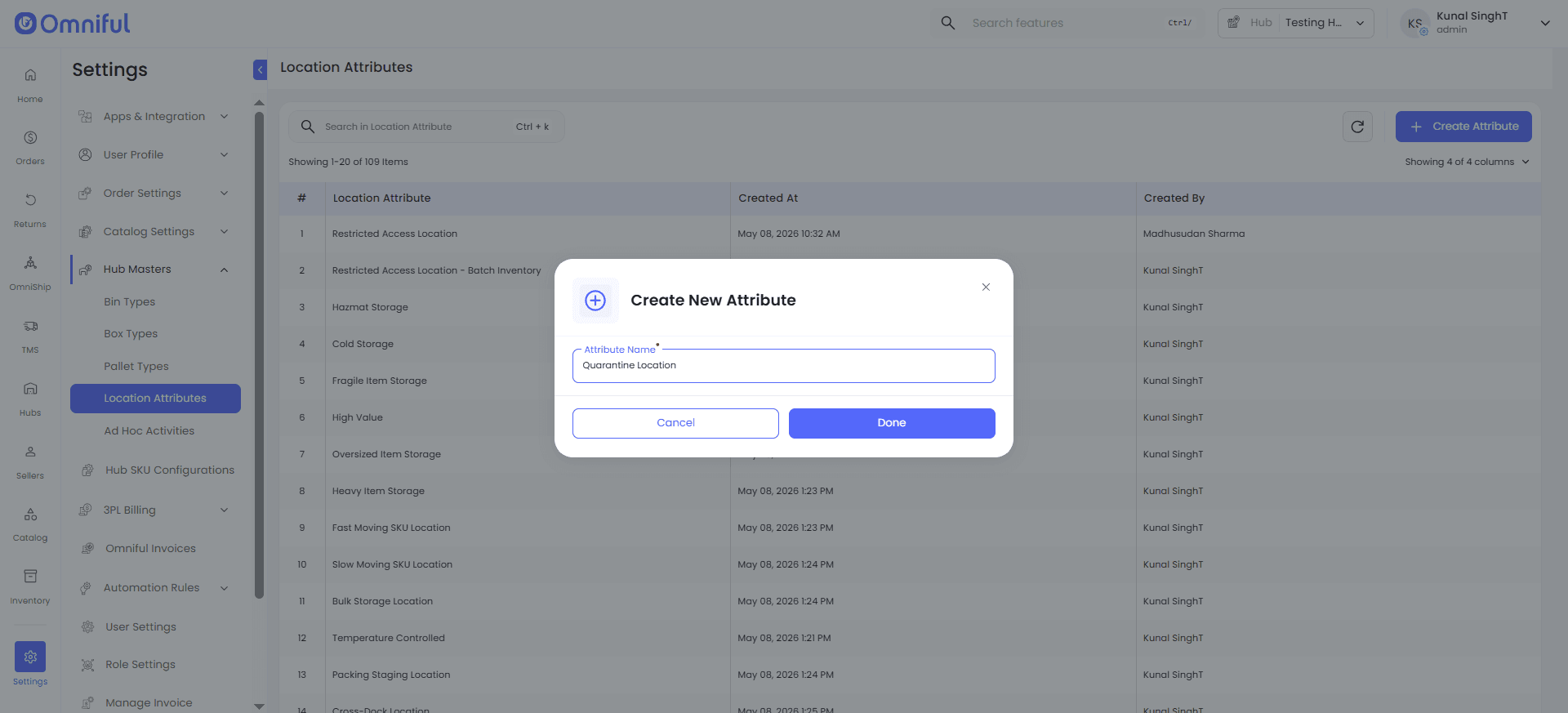
Enter the Location Attribute name.
-
Click Done to create the new Location Attribute.
Once created, the Location Attribute becomes available as a tenant-level attribute that can be used while creating or updating locations across hubs.
Note: Location attributes can also be created while creating a location in the Locations module, provided the user has the required permissions. Once created, the attribute will be available in the Location Attributes module under Hub Masters.
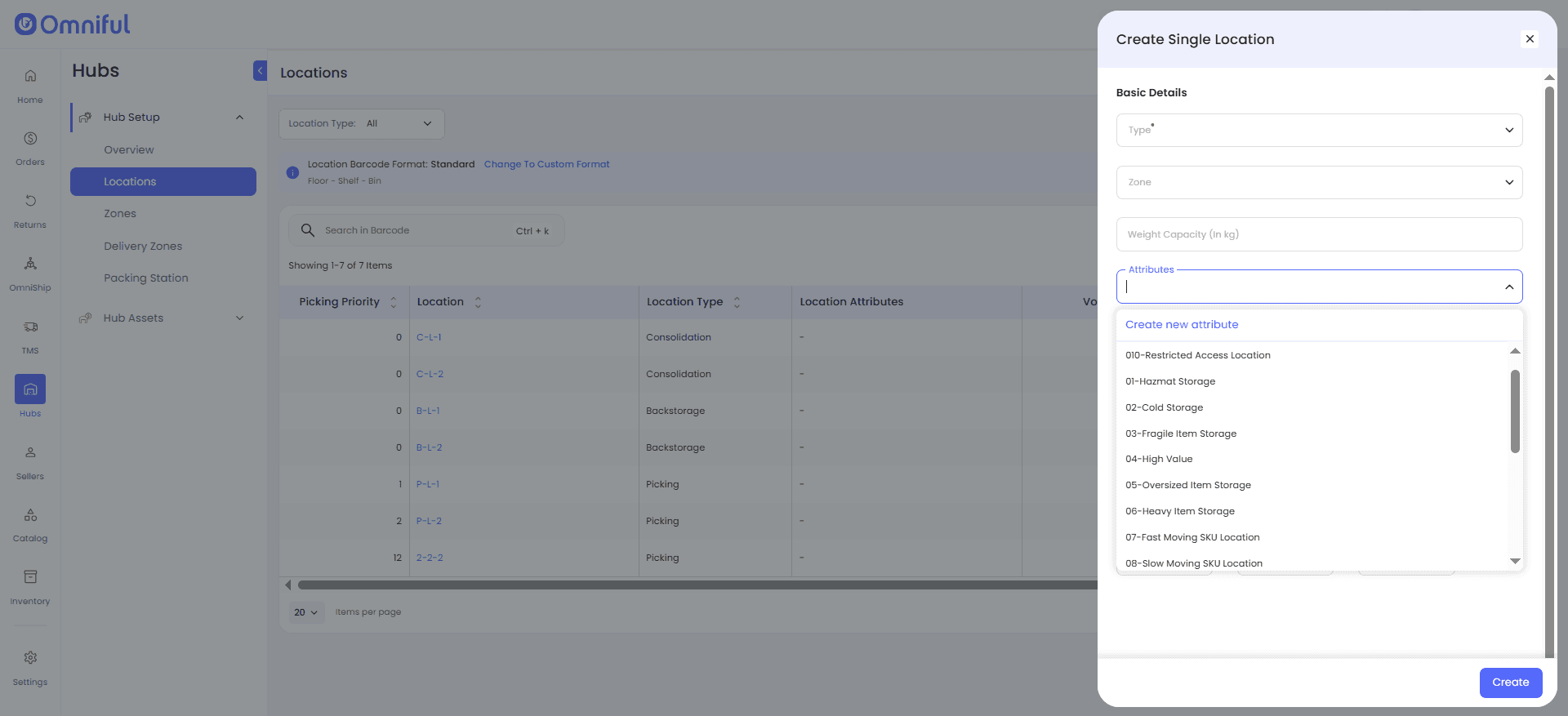
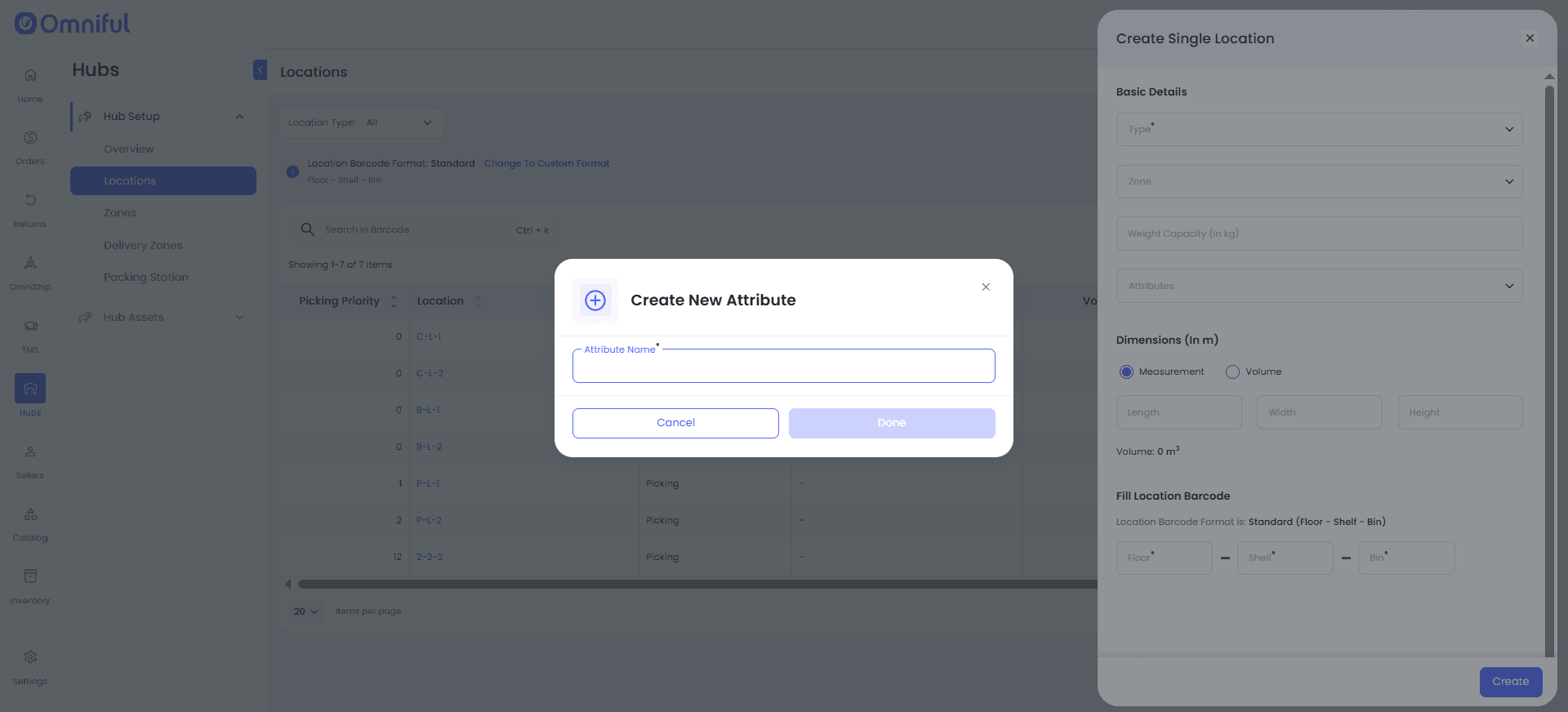
Step 3: Existing Location Attributes Are Published Globally
All existing location attributes that were previously available at hub level are now added globally at the tenant level.
- Coinciding Location Attributes are merged to avoid duplicate attribute definitions.
- The complete global list is available in Hub Masters > Location Attributes.
Step 4: Use Location Attributes While Creating or Updating Locations
- Navigate to Hubs and open the required hub.
- Go to the Locations page and create or update a location.
- Select the required Location Attribute from the tenant-level list.
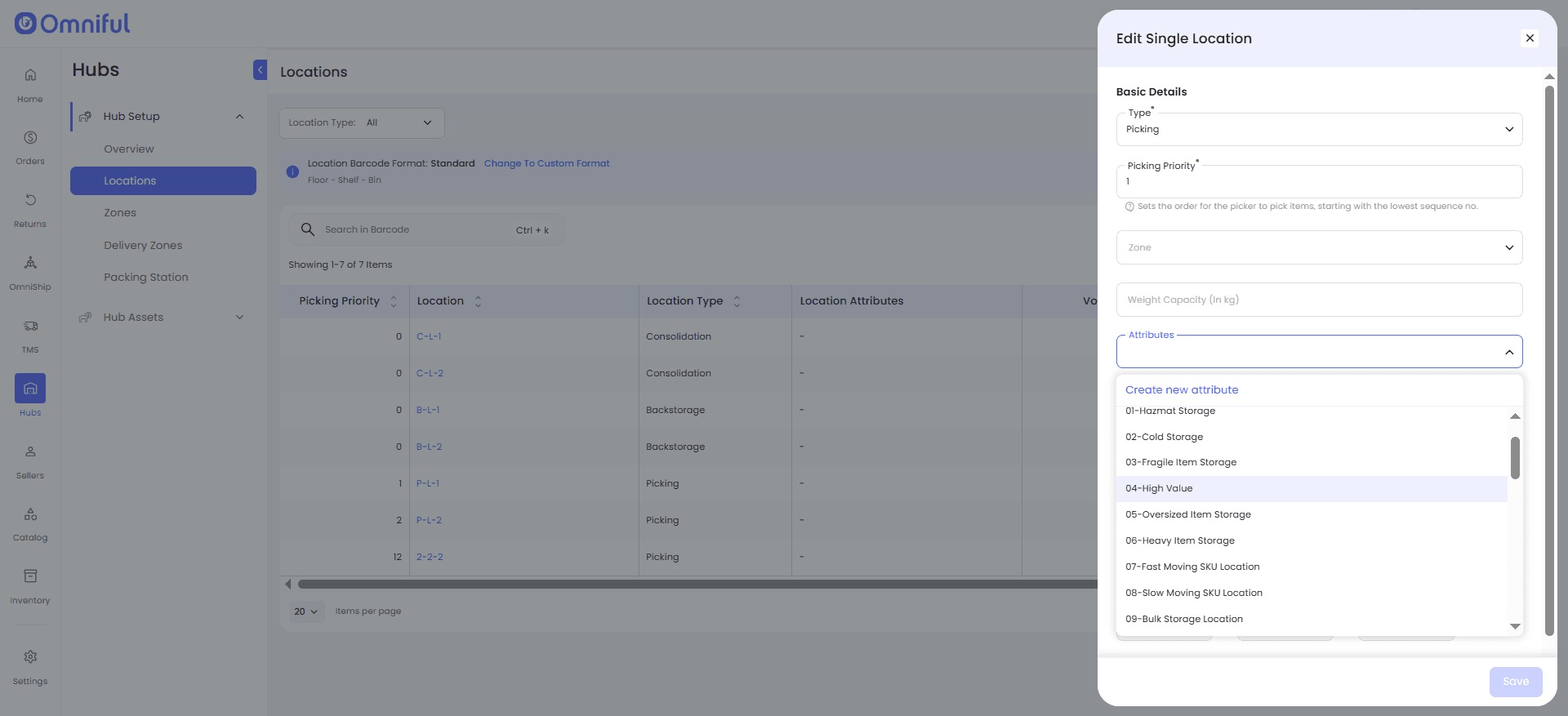
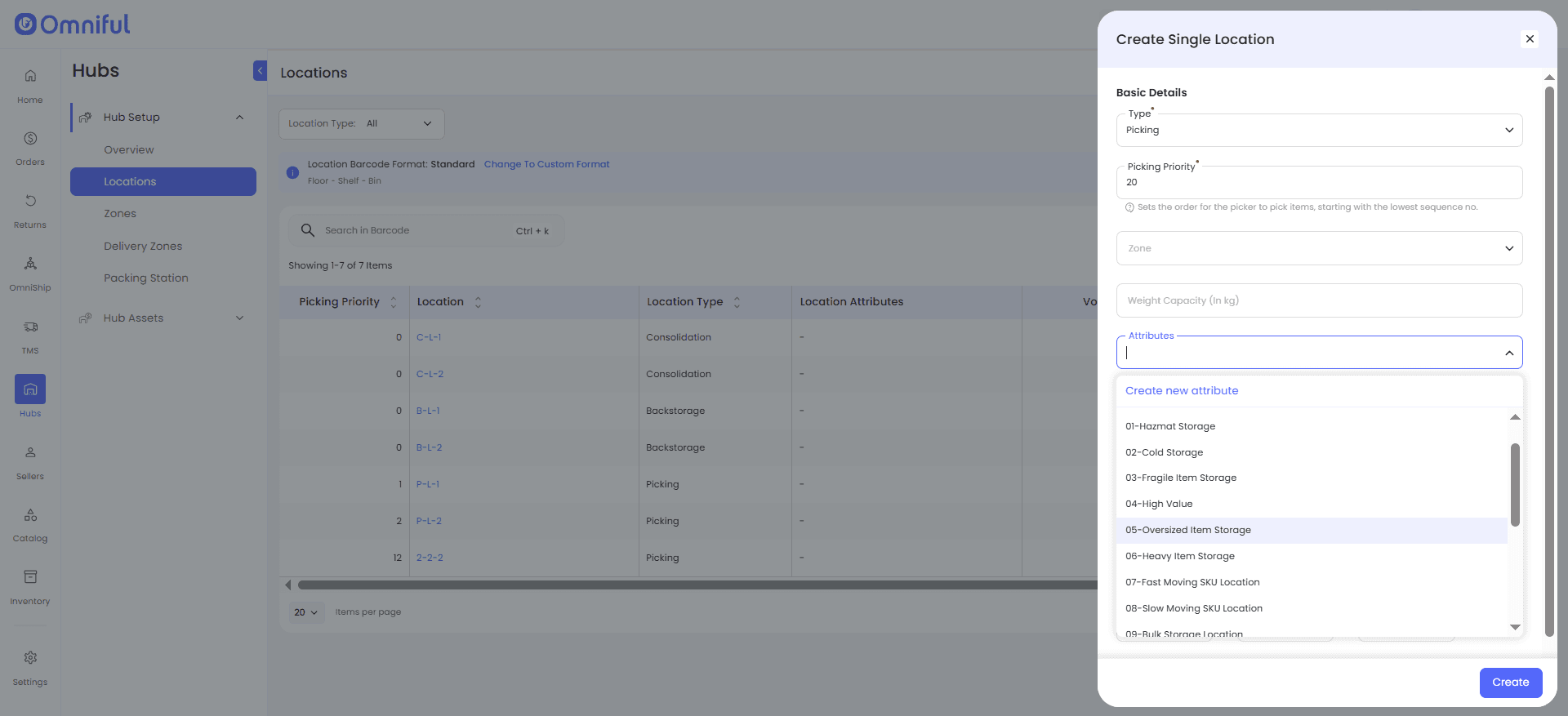
Click Create to add a new location with the selected Location Attributes, or click Save to update an existing location with the selected attributes.
The selected Location Attributes are assigned to the location and can be viewed in the Locations module under Hub Setup.
Technical Details
- This update moves Location Attributes to the global level, ensuring a uniform and consistent way of defining and using location attributes across all hubs.
- Existing hub-level attributes are consolidated and can be viewed in the Location Attributes module in Hub Masters.