

Table of Contents
Table of Contents
Share On


Date: 23 February 2026
Manual Hub Routing by Users
Summary
This enhancement introduces the ability to manually route orders when routing conditions are not met and no hub is automatically assigned. Users can open the desired orders from the list and use the Route Order action CTA to assign them to a hub individually from the available dropdown.
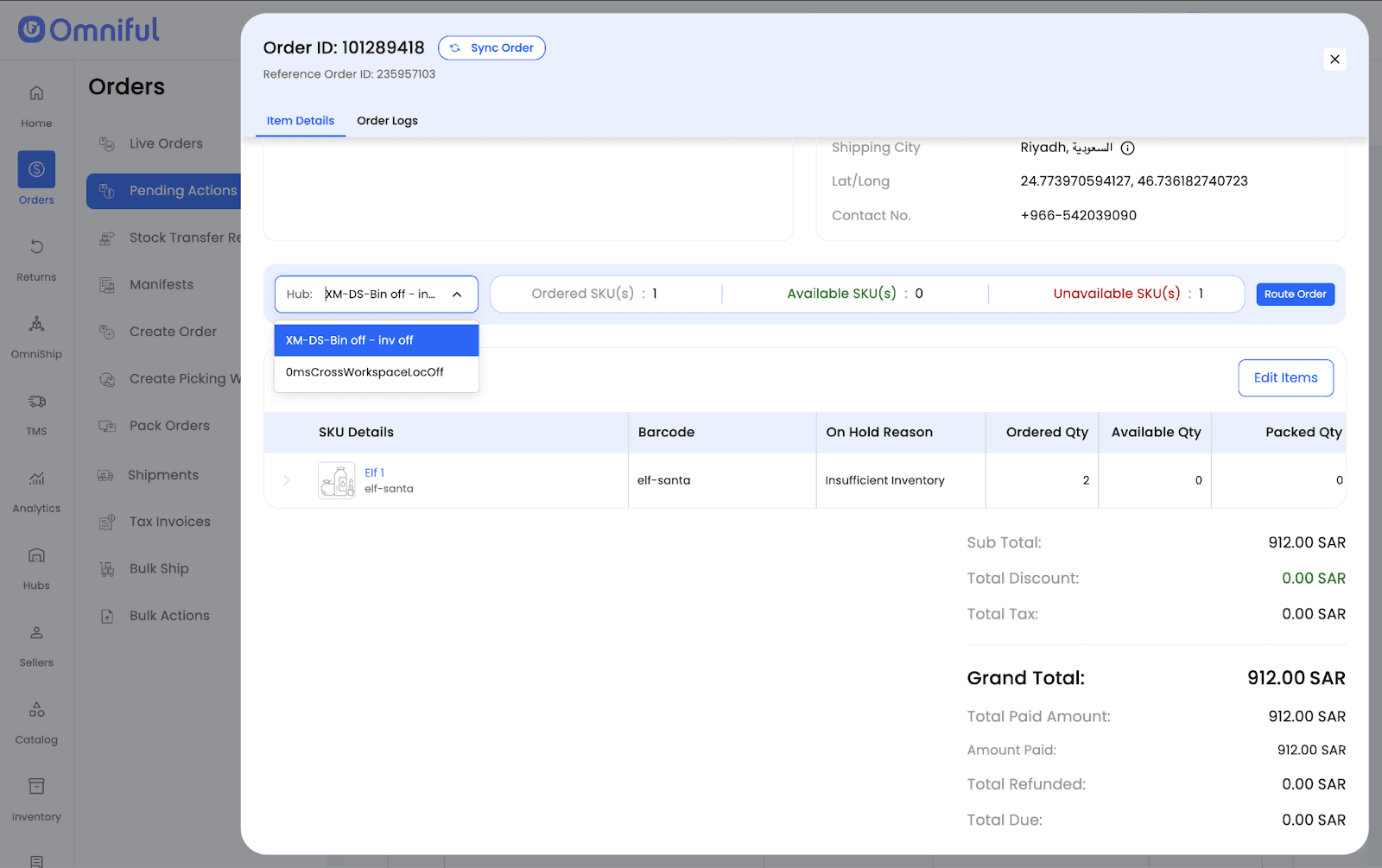
Note: Hub dropdown only shows hubs mapped to the respective sales channel store.
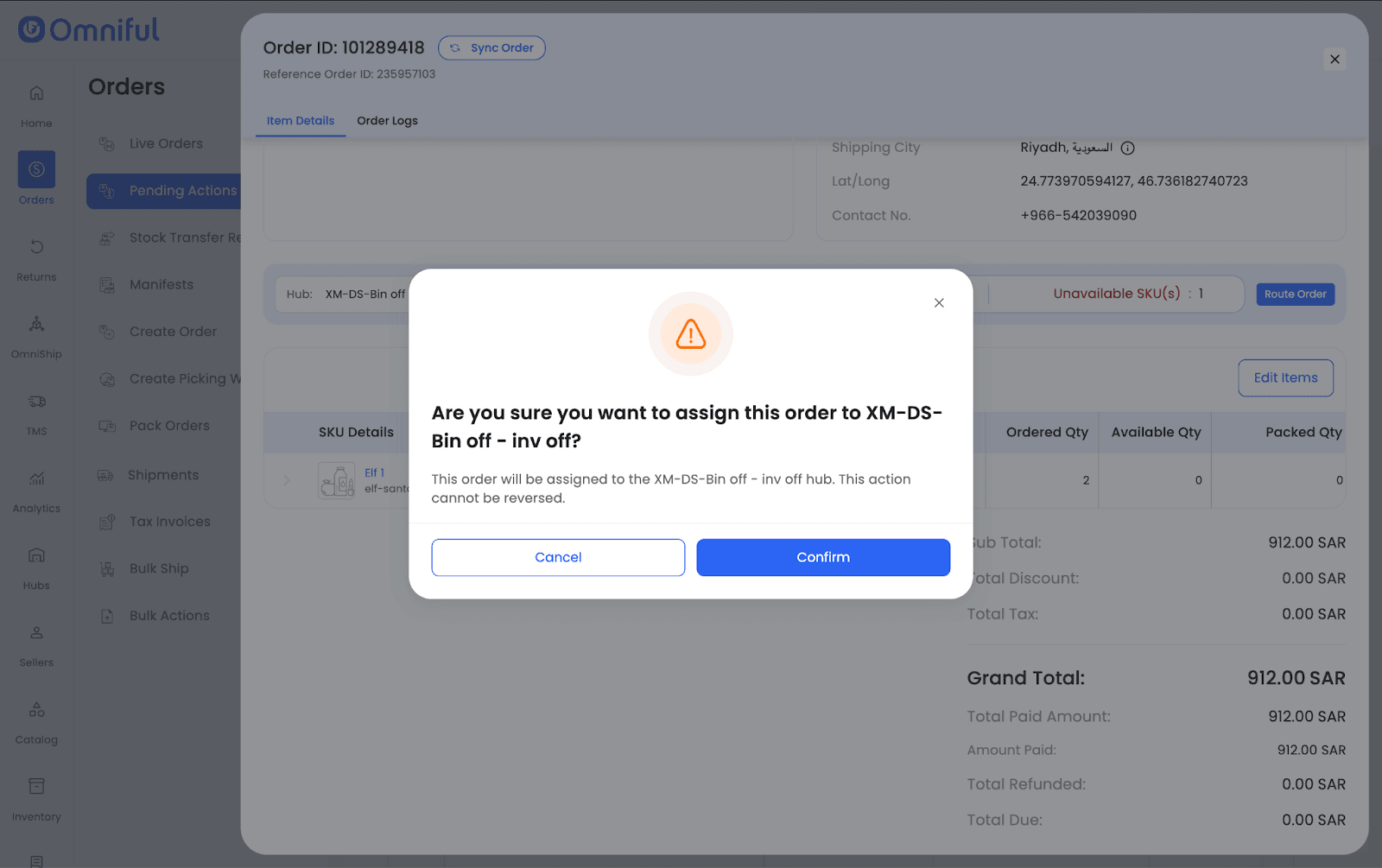
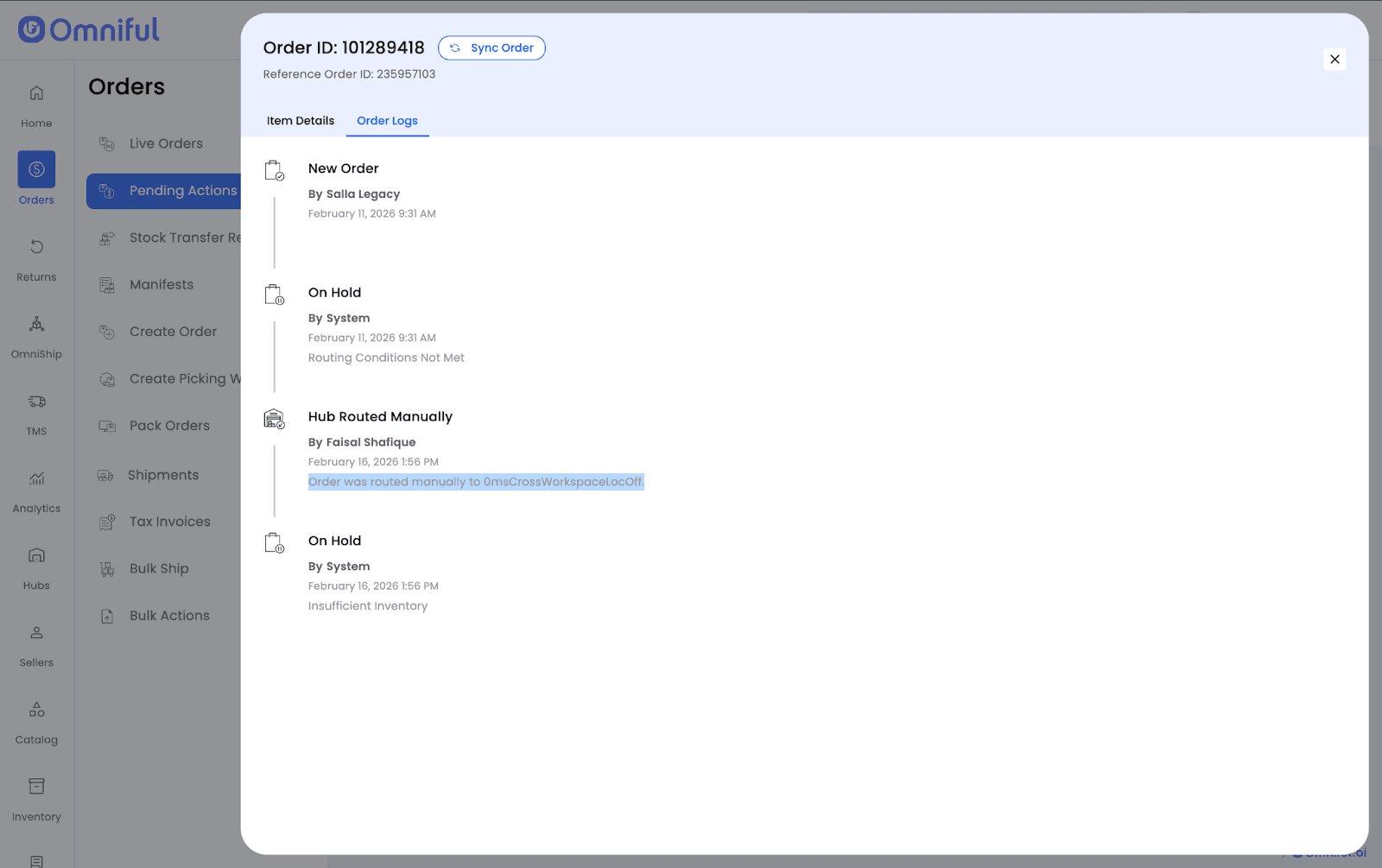
Once confirmed, the order is routed to the selected hub and the action is recorded in the Order Logs for audit visibility. Depending on operational constraints—such as inventory availability—the order may move to an On Hold state. This ensures operational continuity when automated routing fails.
How It Works
- Navigate to Orders → Pending Actions → Routing Conditions Not Met.
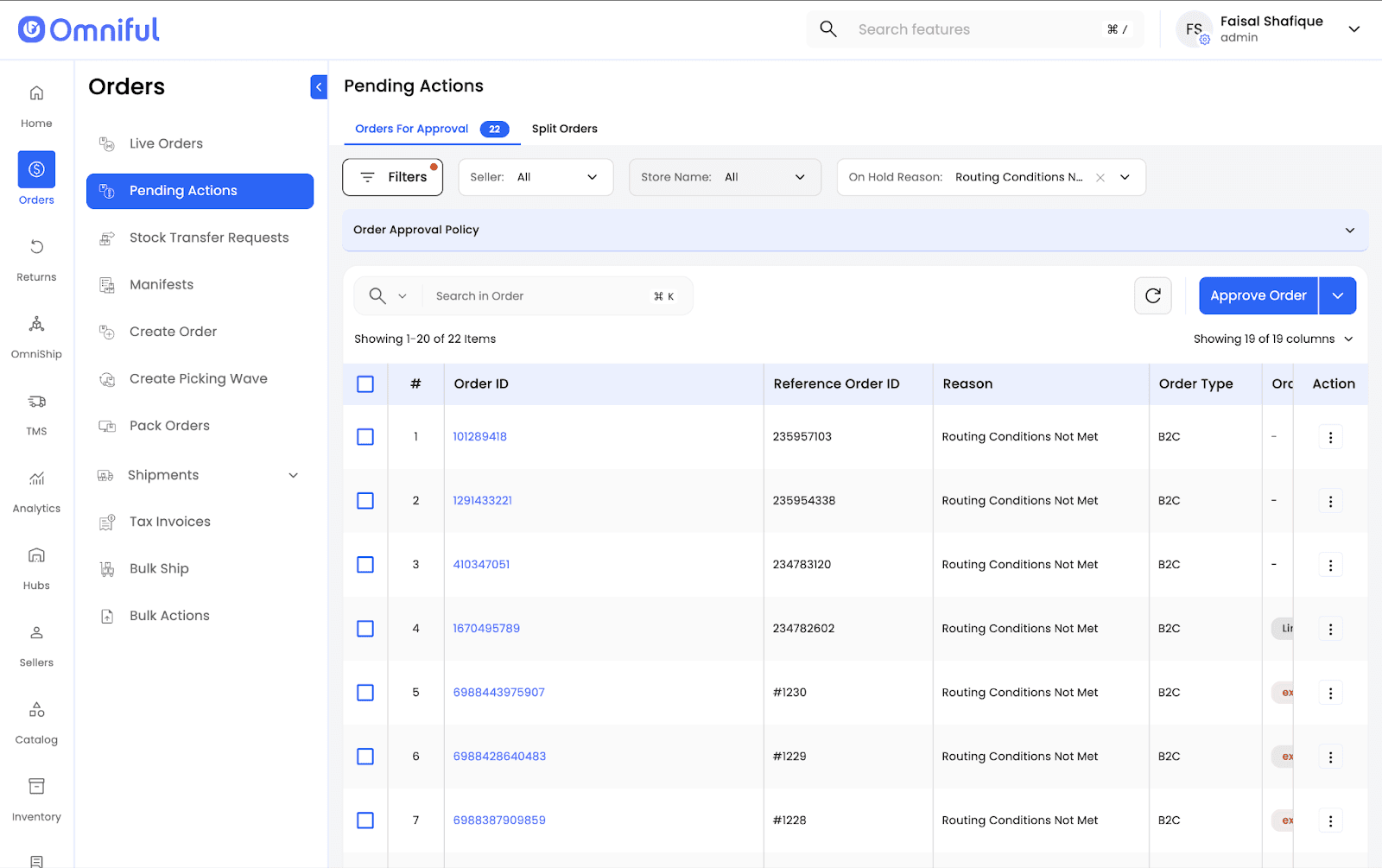
- Open the desired order for manual routing.
- Select the desired hub from the dropdown (only hubs mapped to the sales channel are shown).
- Confirm to route the order to the selected hub.
- Verify routing via Order Logs.
Technical Details
- Manual routing is enabled only for orders under Routing Conditions Not Met.
- Hub dropdown displays only hubs mapped to the respective sales channel store.
- Manual routing logs an audit entry under Order Logs.
- Orders may move to On Hold if post-routing constraints apply (e.g., inventory limitations).