

Table of Contents
Share On


OmniShip Create Shipment Automation
Learn how to configure automation rules for OmniShip to automatically create shipment orders based on seller, payment status, delivery type, and other attributes.
Version: 1.0
Owner: Omniful Product Team
Summary
OmniShip Create Shipment Automation lets you define rule-based conditions that help automate shipment creation for OmniShip Shipment Orders based on the following attributes:
- Seller
- Sales Channel
- Payment Status
- Order Source
- Order Total
- Destination City
- Destination Country
- Delivery Type
- Total Ordered Quantity
- Shipping Method
- Labels (Sales Channel)
- SKU Tags
- Shipment Type
- Currency
Automation rules are configured from Settings and can be managed separately under the OMS and OmniShip contexts.
How It Works
1. Open Create Shipment Automation
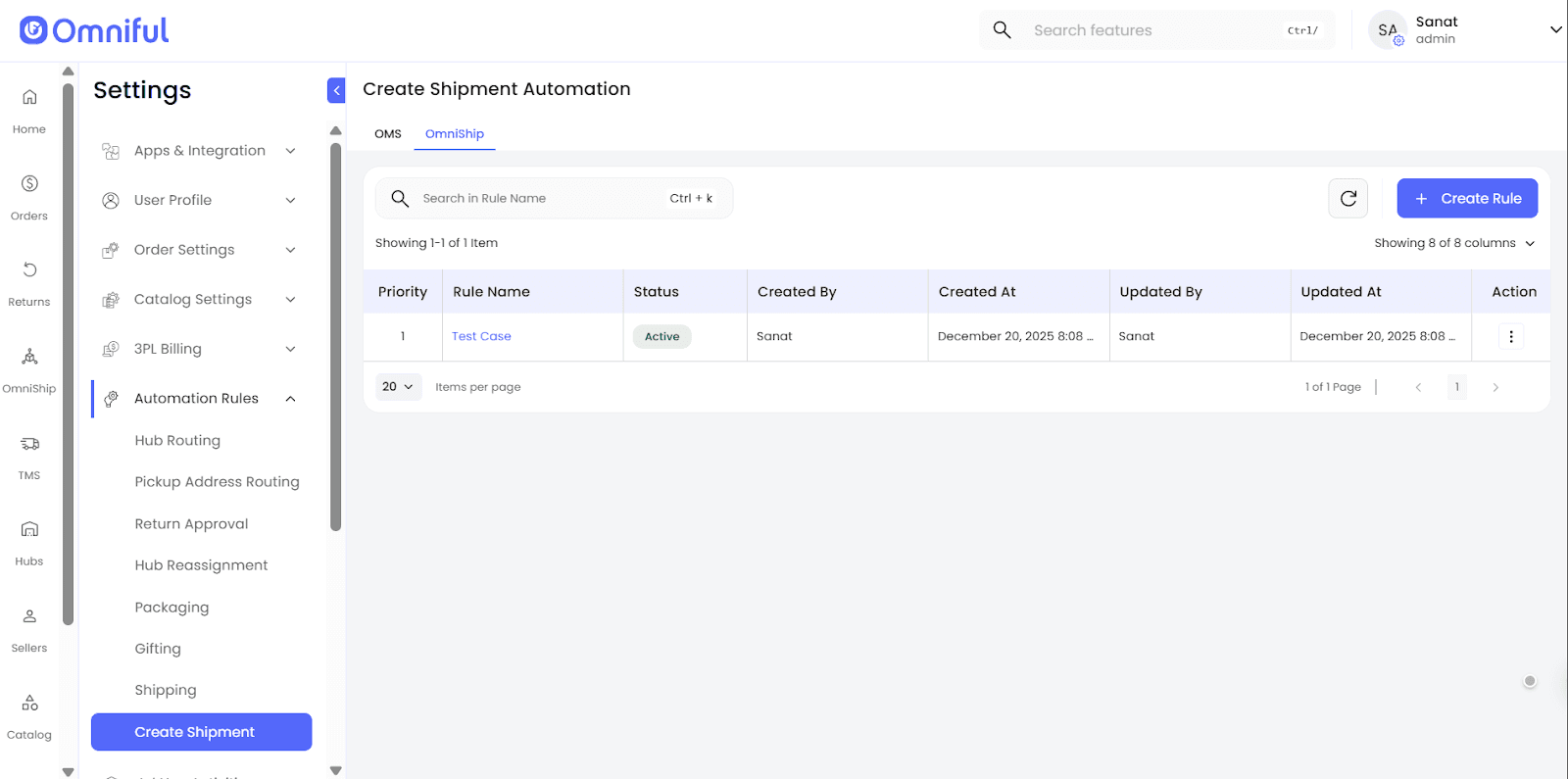
Navigate to Settings > Automation Rules > Create Shipment.
Here you will see the list of existing automation rules.
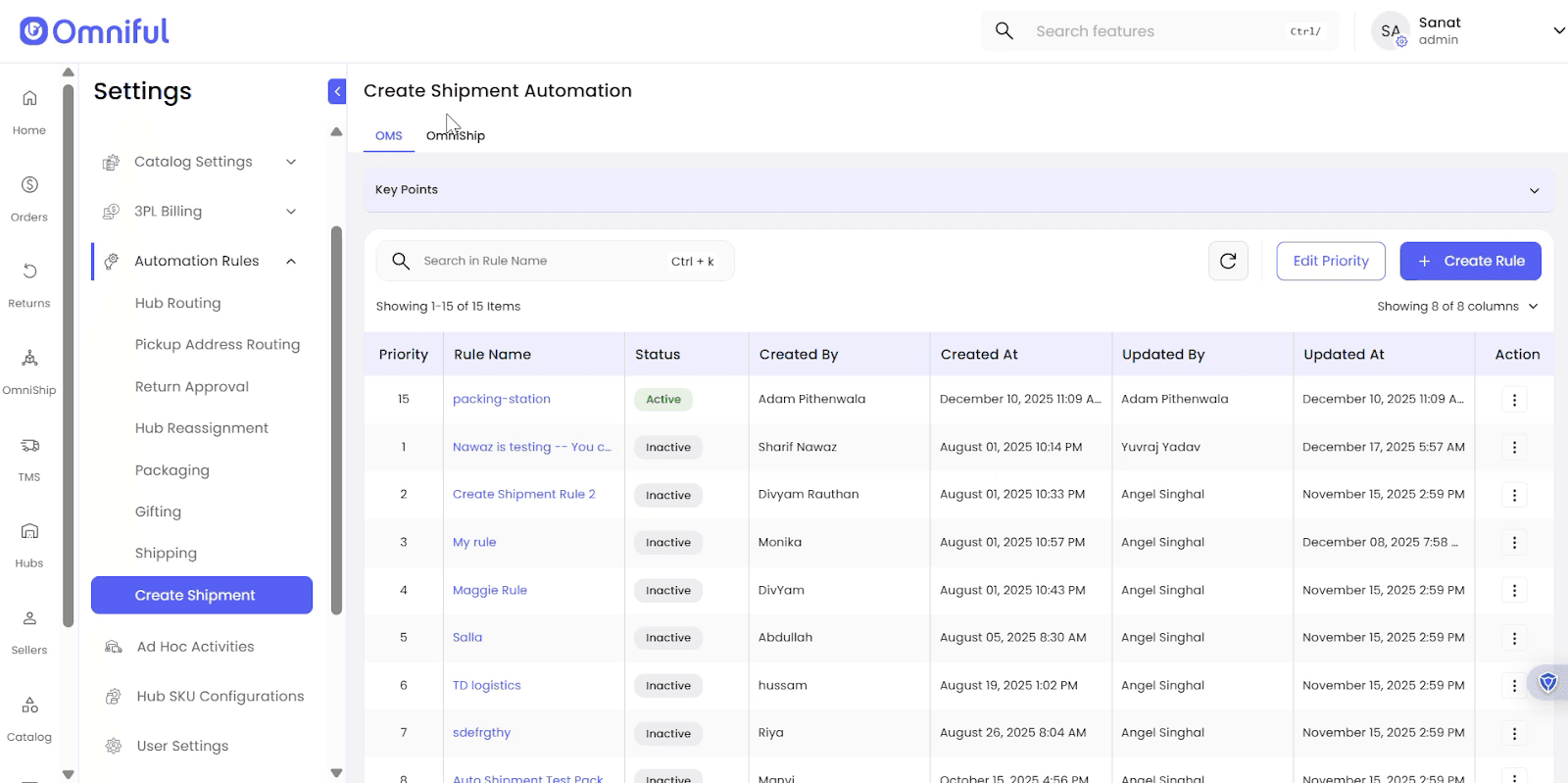
2. Switch Between OMS and OmniShip Rules
Use the tabs at the top of the page to view and manage rules for OMS or OmniShip, depending on which module you want the automation to apply.
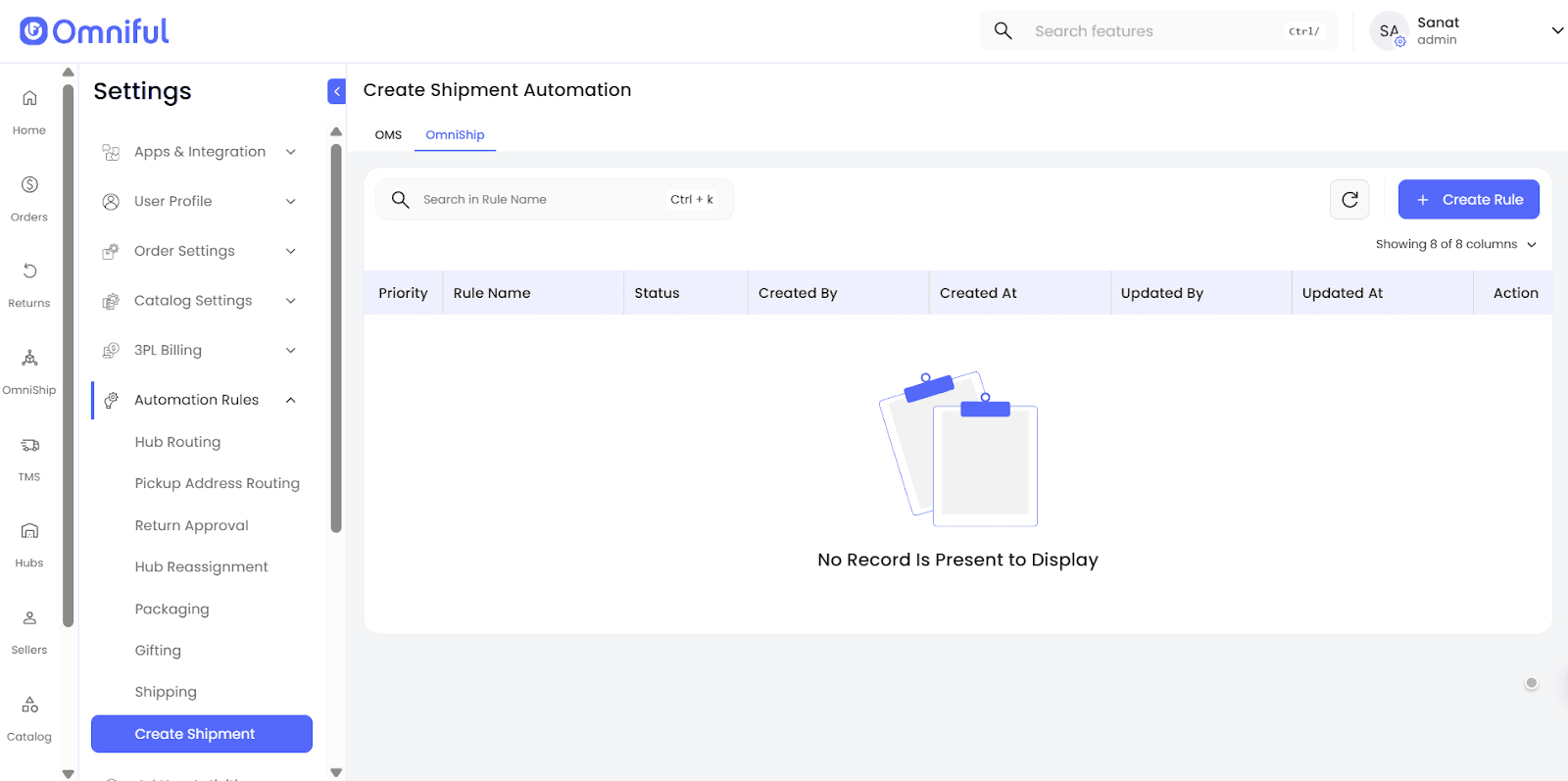
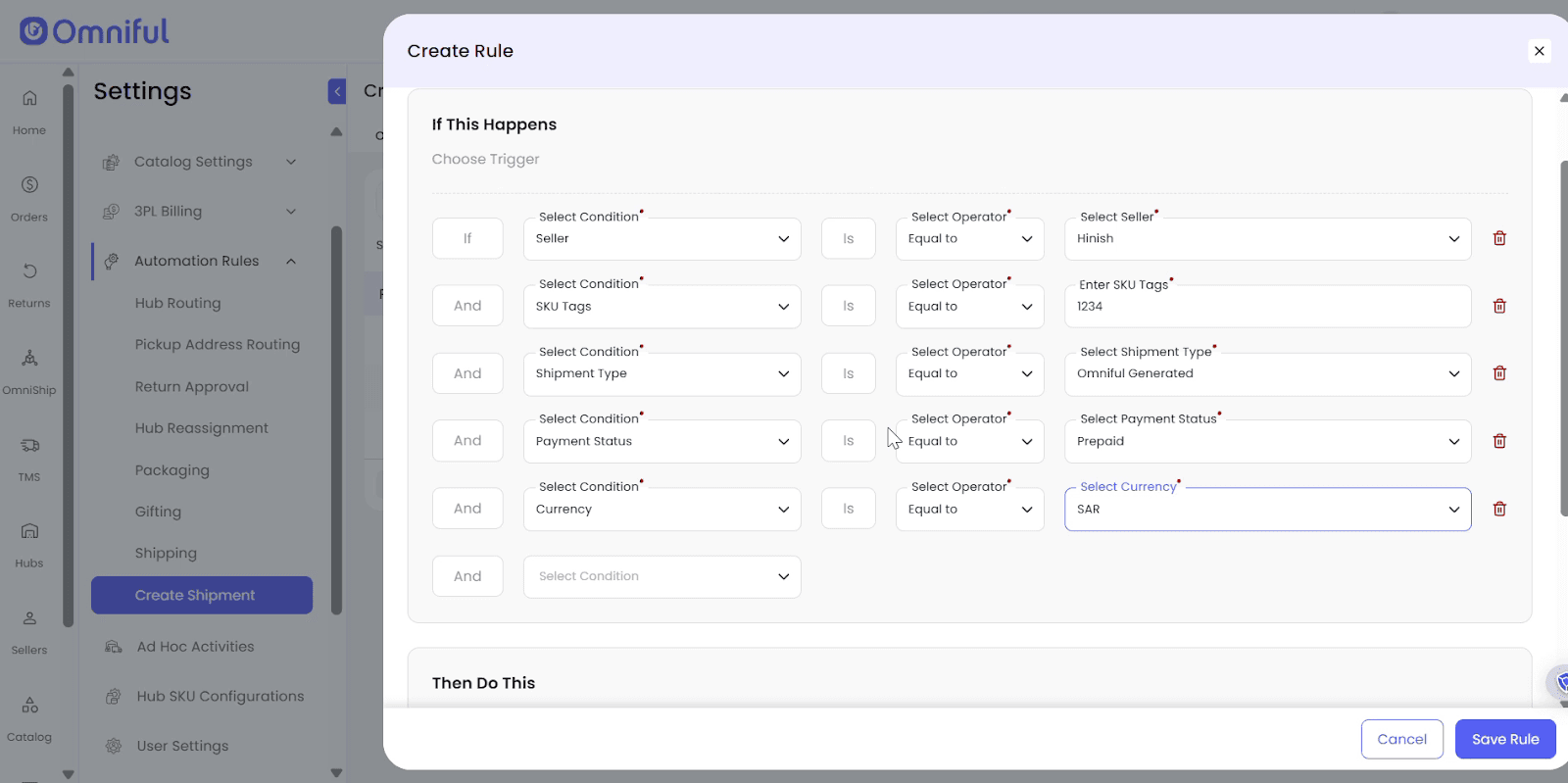
3. Create a Rule and Define Conditions
Click Create Rule and add the conditions that should trigger the automation.
Conditions are configurable from dropdown fields such as Seller, SKU Tags, Shipment Type, Payment Status, and Currency.
4. Select the Action to Be Taken
In the Then Do This section, select:
- The number of packages the shipment will have
- The weight for automatic shipment creation
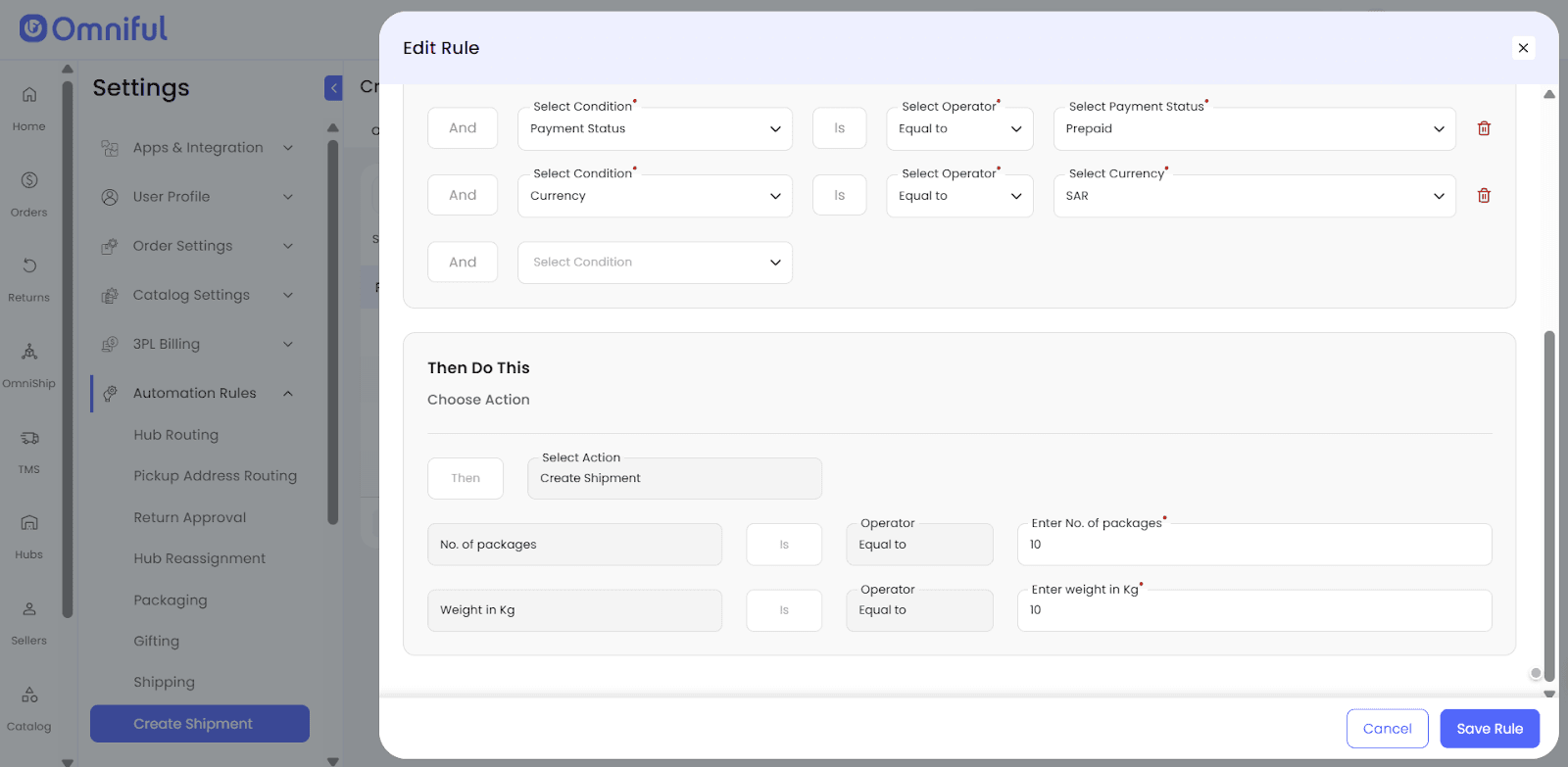
Then save the rule.
5. Save the Rule
After saving, the rule appears in the list of automation rules.
Technical Details
- Rules are managed under Settings > Automation Rules > Create Shipment.
- Rules can be viewed under separate modules: OMS and OmniShip (via tabs).
- After shipment creation, a corresponding Shipping Rule must be created for the shipment to proceed.
- If no automation rule is configured or applicable, shipment creation must be done manually.
Supported Actions:
- Number of packages the shipment will have
- Weight