

Table of Contents
Share On


Packing Stations in Hub Ops App
Introduces Packing Stations in the Hub Ops App, enabling structured order packing operations with improved traceability, control, and efficiency.
Version: 1.0
Owner: Omniful Product Team
Summary
Packing Stations are now available in the Hub Ops app. With this enhancement, users can perform and monitor structured packing operations directly from the app. This improves traceability, accountability, and overall operational control during the packing process.
Packing Stations provide granular control and visibility into order packing operations. They allow hubs to allocate specific workstations for packing, track station-level performance, and ensure operational efficiency by tying orders and users to a unique station.
How It Works
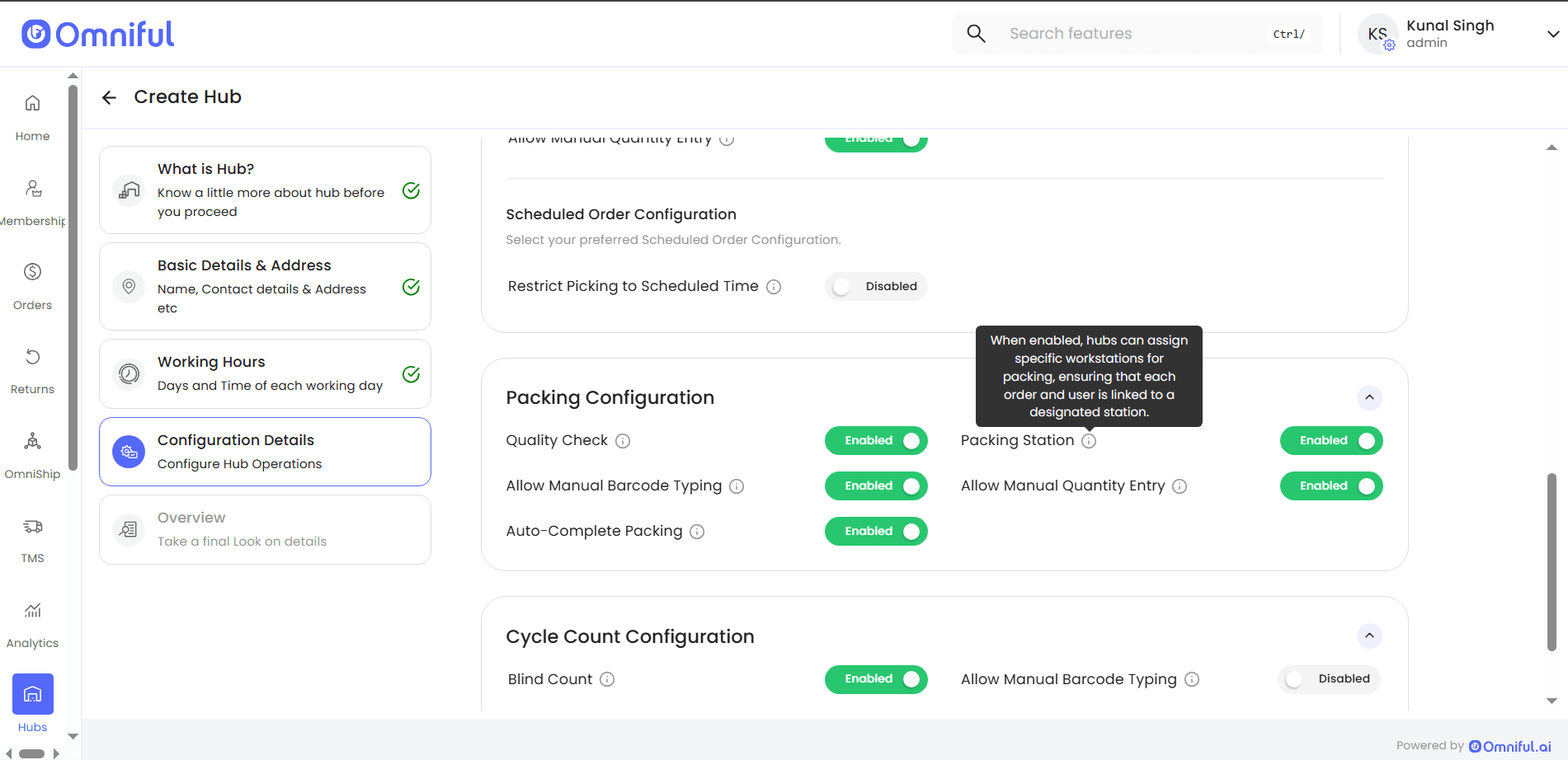
Enable Packing Stations in the Hub
To use packing stations, the Packing Station configuration must be enabled on the dashboard.
- Go to Hub Configurations → Packing Configurations on the dashboard.
- Enable the Packing Station configuration.
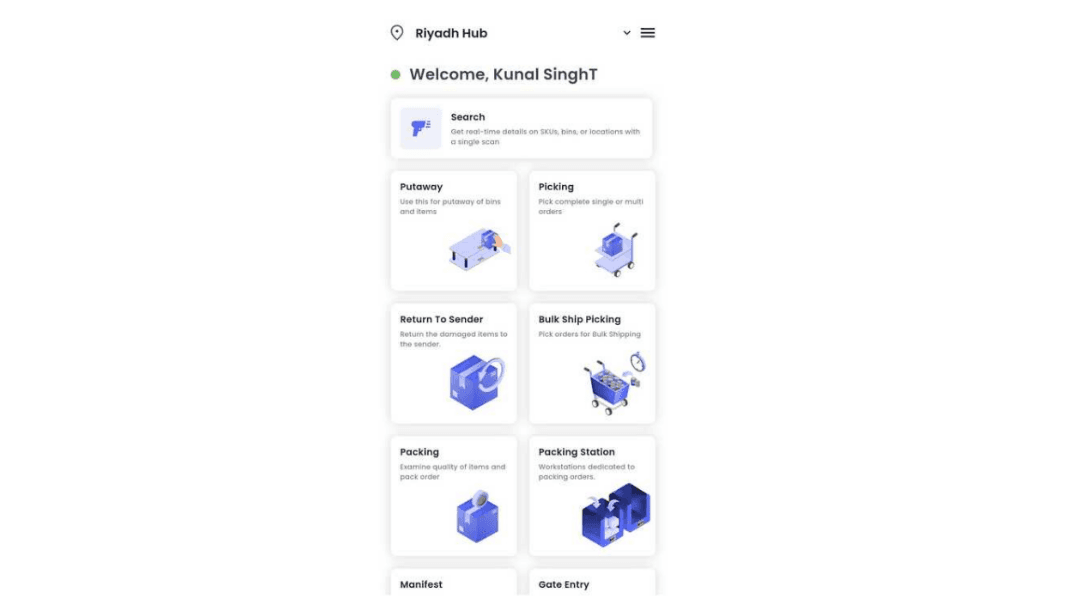
View Packing Stations (Hub Ops App)
In the Hub Ops app, packers and admins can view all existing packing stations via the Packing Station module.
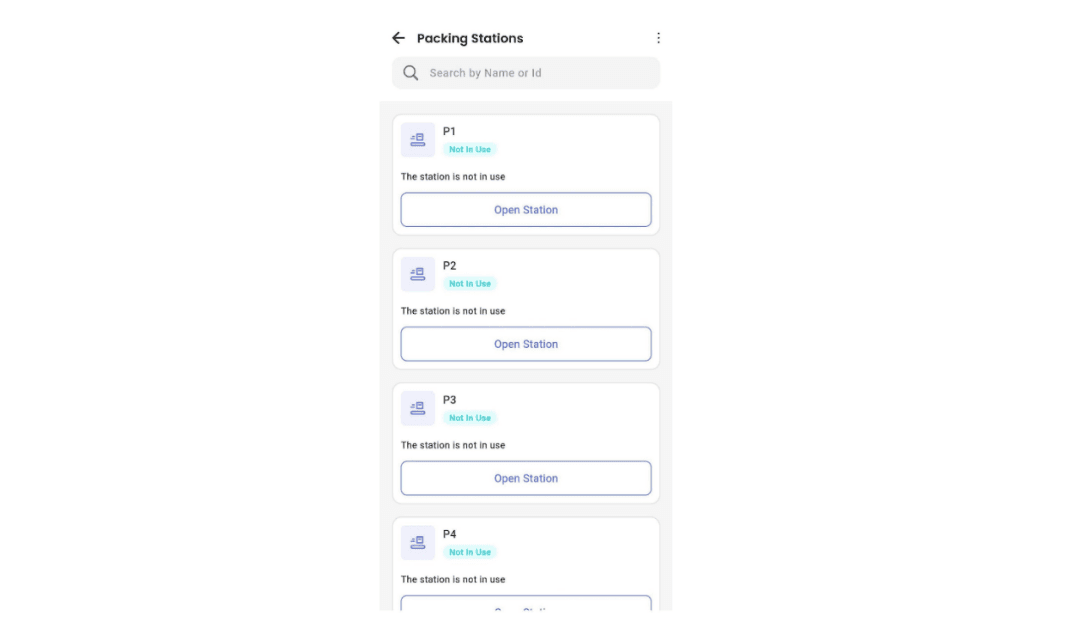
Packing Flow with Packing Stations (Hub Ops App)
When packing stations are enabled for a hub, packers follow this flow:
-
Open the Packing module in the Hub Ops app.
-
If no packing station is open, the app prompts the packer to select a free station and tap Open Station.
-
After selecting a station, the app shows orders in the Ready to Pack state.
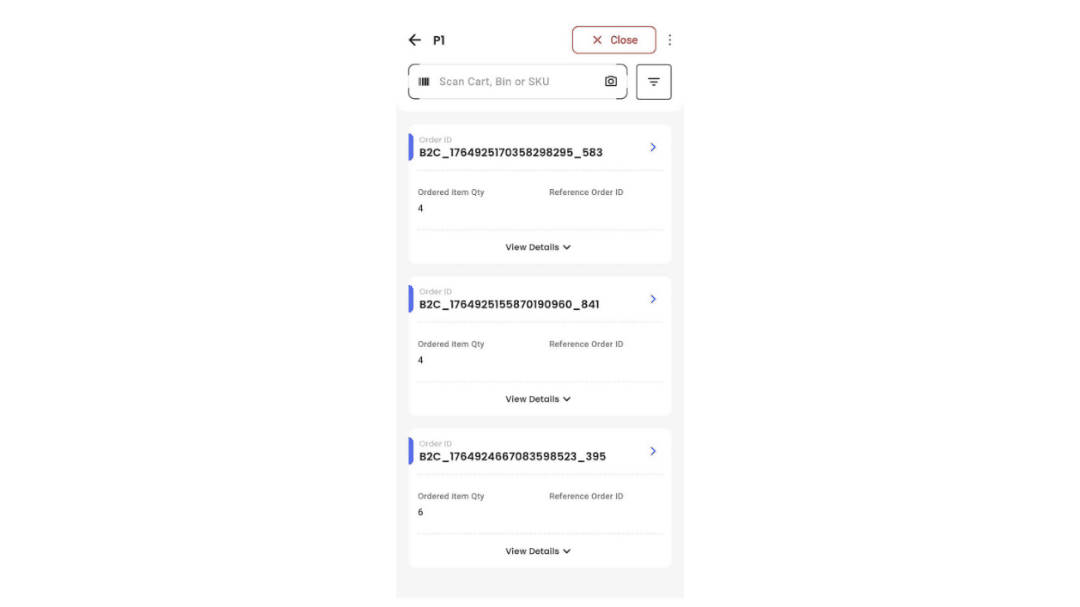
-
The packer proceeds with packing using the selected station.
-
Each packed order is automatically tagged with the packing station ID and name for traceability.
-
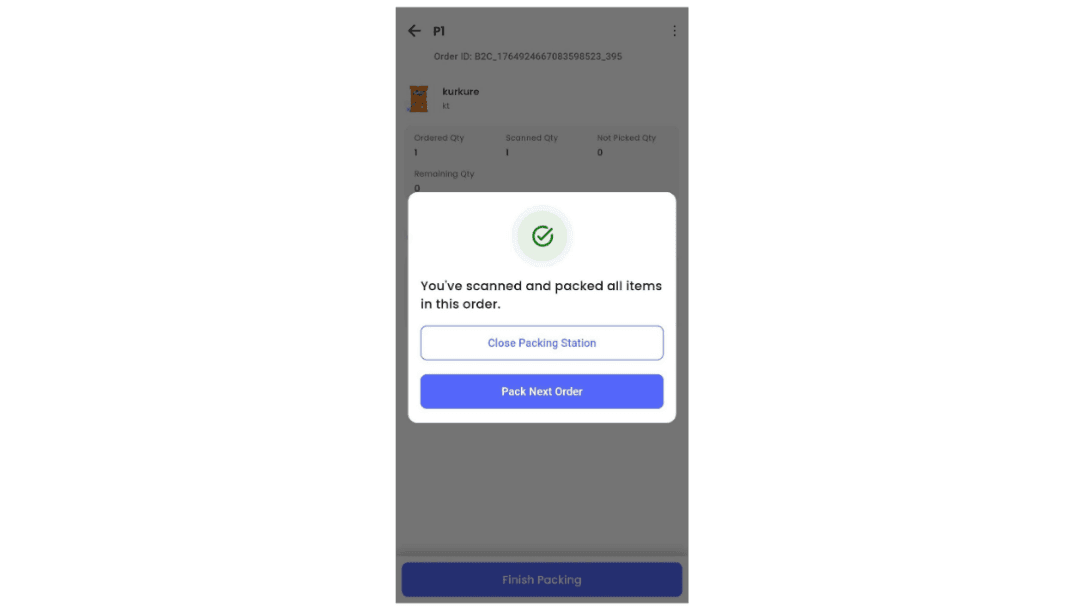
After packing an order, the app asks whether the packer wants to pack the next order or close the station.
Close a Packing Station
Closing a packing station is mandatory after the last order or at the end of a shift so that the station becomes available for another packer.
- Close the station when prompted after packing.
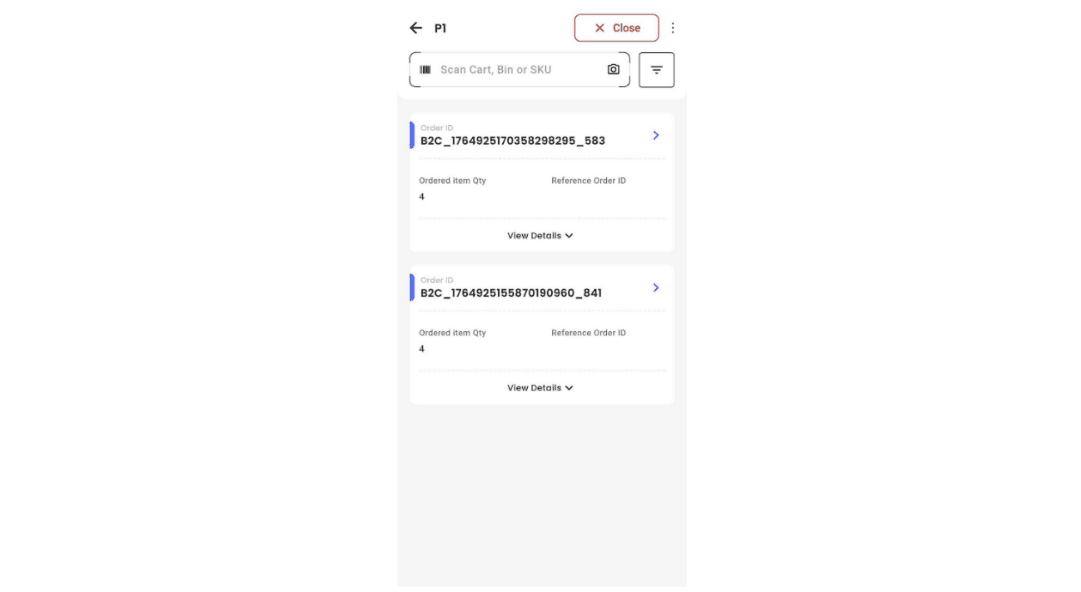
- Alternatively, use the top call-to-action button to close the open station from the orders screen after a Packing Station has been opened.
Packing from the Packing Station Module
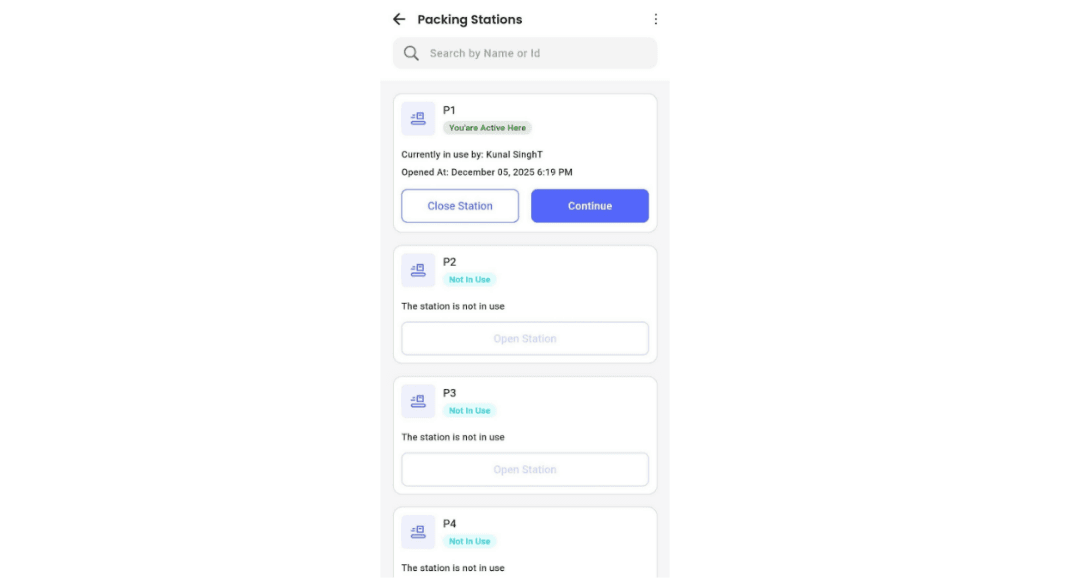
The Packing Station module provides visibility into the status of each station, allowing users to see which stations are free and which are currently in use. Packers can open a station and pack orders here by clicking Continue.
Admin Controls
-
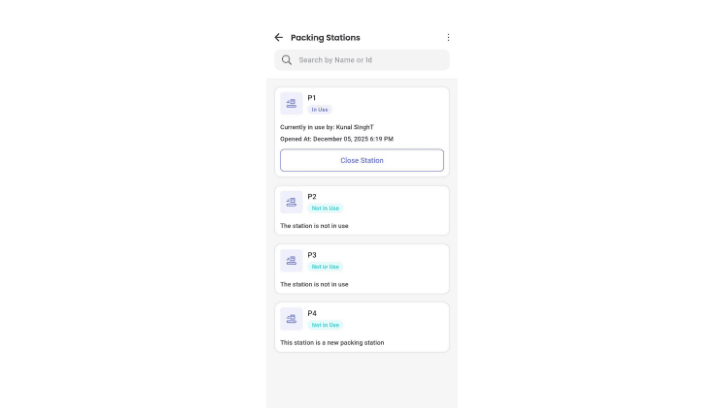
Users with the admin role have full access to all packing stations.
-
Admins can close any open packing station whenever required.
Technical Details
- Packing station usage depends on the Packing Station configuration enabled on the dashboard.
- A packing station can be used only if it is active and not already occupied.
- Orders packed during a station session are tagged with the station ID and name to preserve traceability.