

Table of Contents
Share On


Receiving Inventory via HubOps App (Location-Off Hubs)
Hub teams can now receive Purchase Orders, Stock Transfer Orders, and Return Orders directly from the HubOps app in location-off hubs. Previously, these receiving flows were supported only on the dashboard.
With this release, on-ground users can perform the same receiving operations seamlessly from the app.
Summary
This feature enables hub teams to receive inventory directly from the HubOps app for Purchase Orders, Stock Transfer Orders, and Return Orders in location-off hubs. Previously, these receiving flows were supported only on the dashboard.
With this release, on-ground users can perform the same receiving operations seamlessly from the app.
How It Works
Purchase Orders
Users can now receive inventory for Purchase Orders directly from the HubOps app.
-
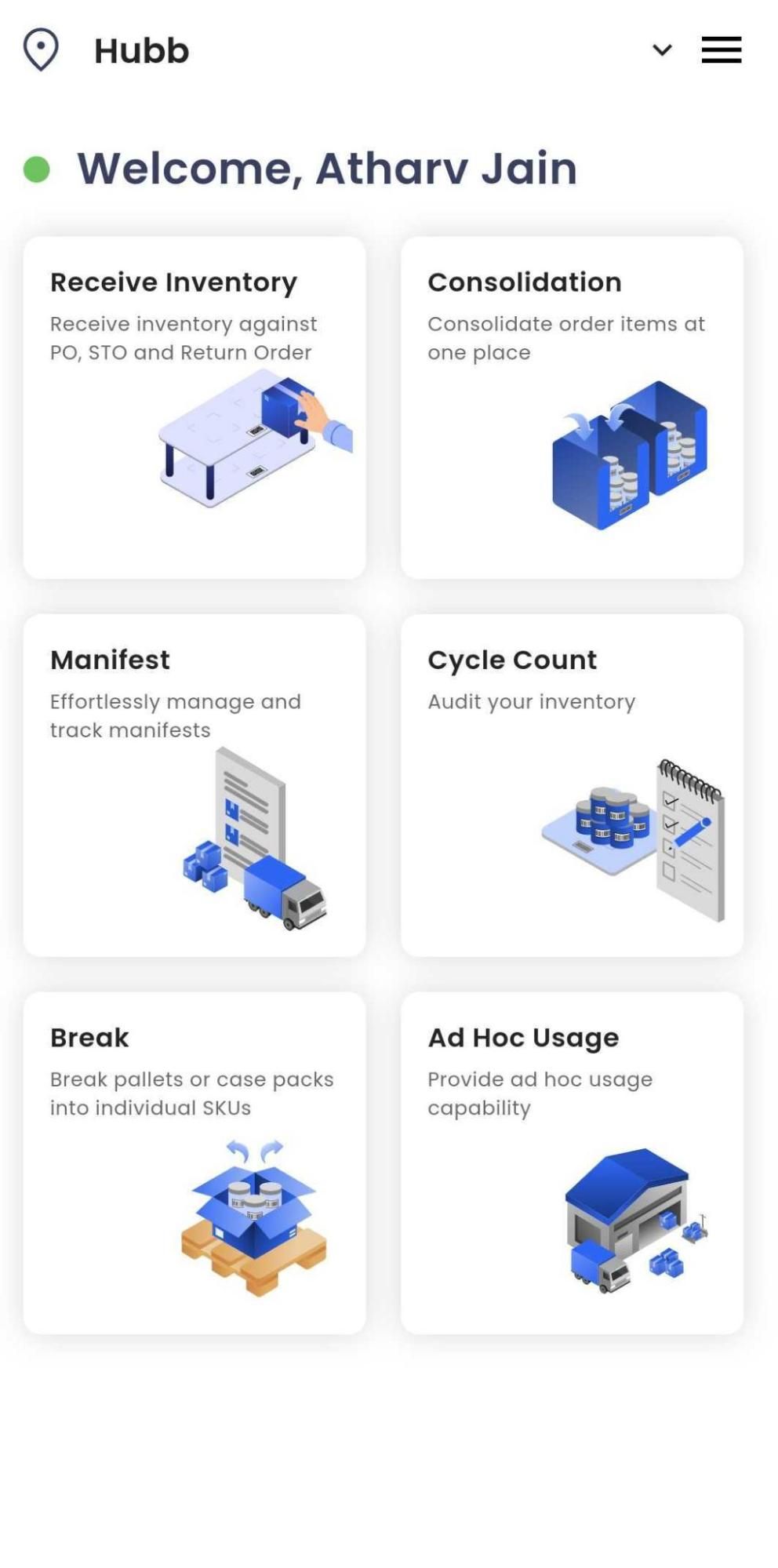
Open Receive Inventory in the HubOps app.
-
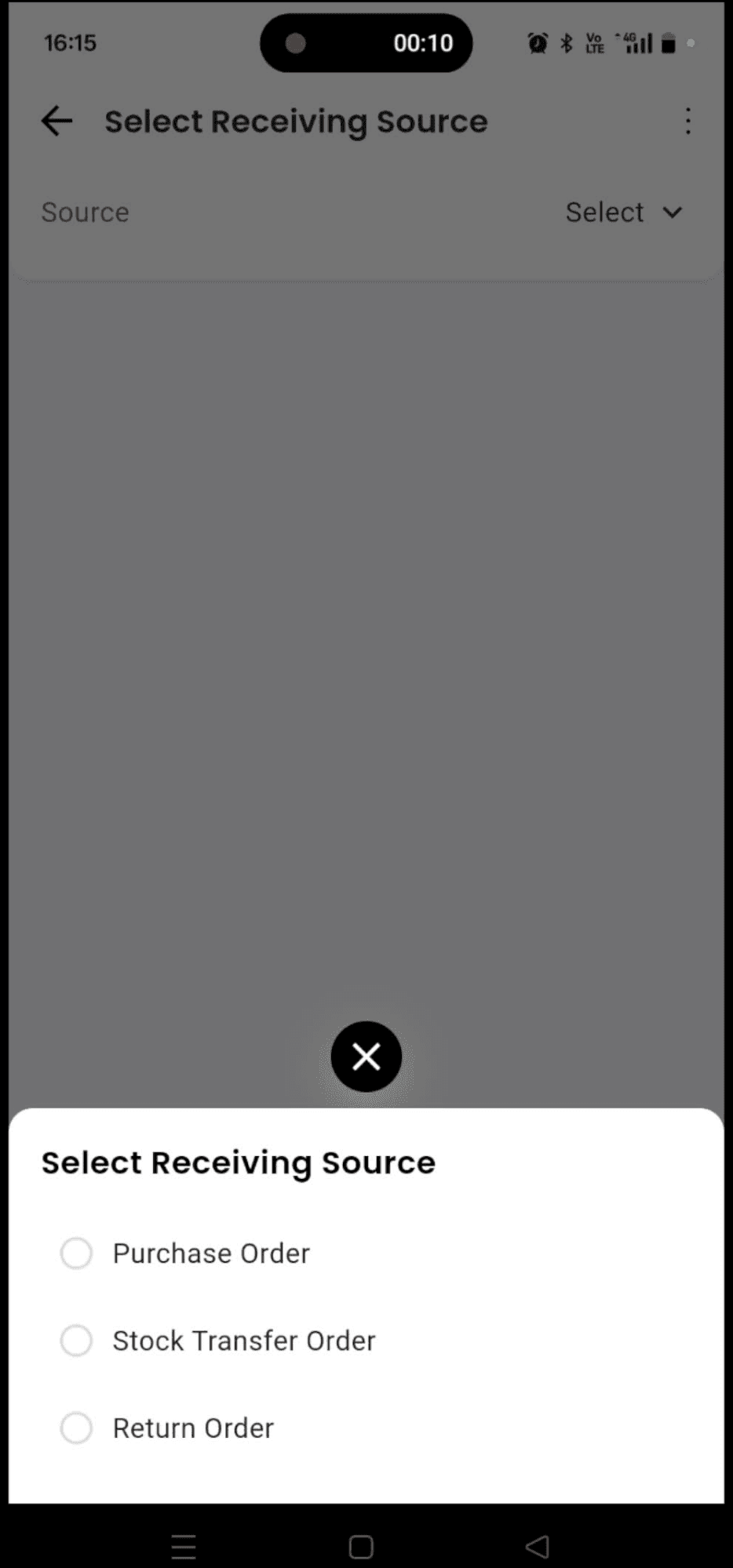
Select Purchase Order as the receiving source.
-
Select a Purchase Order ID from the list.
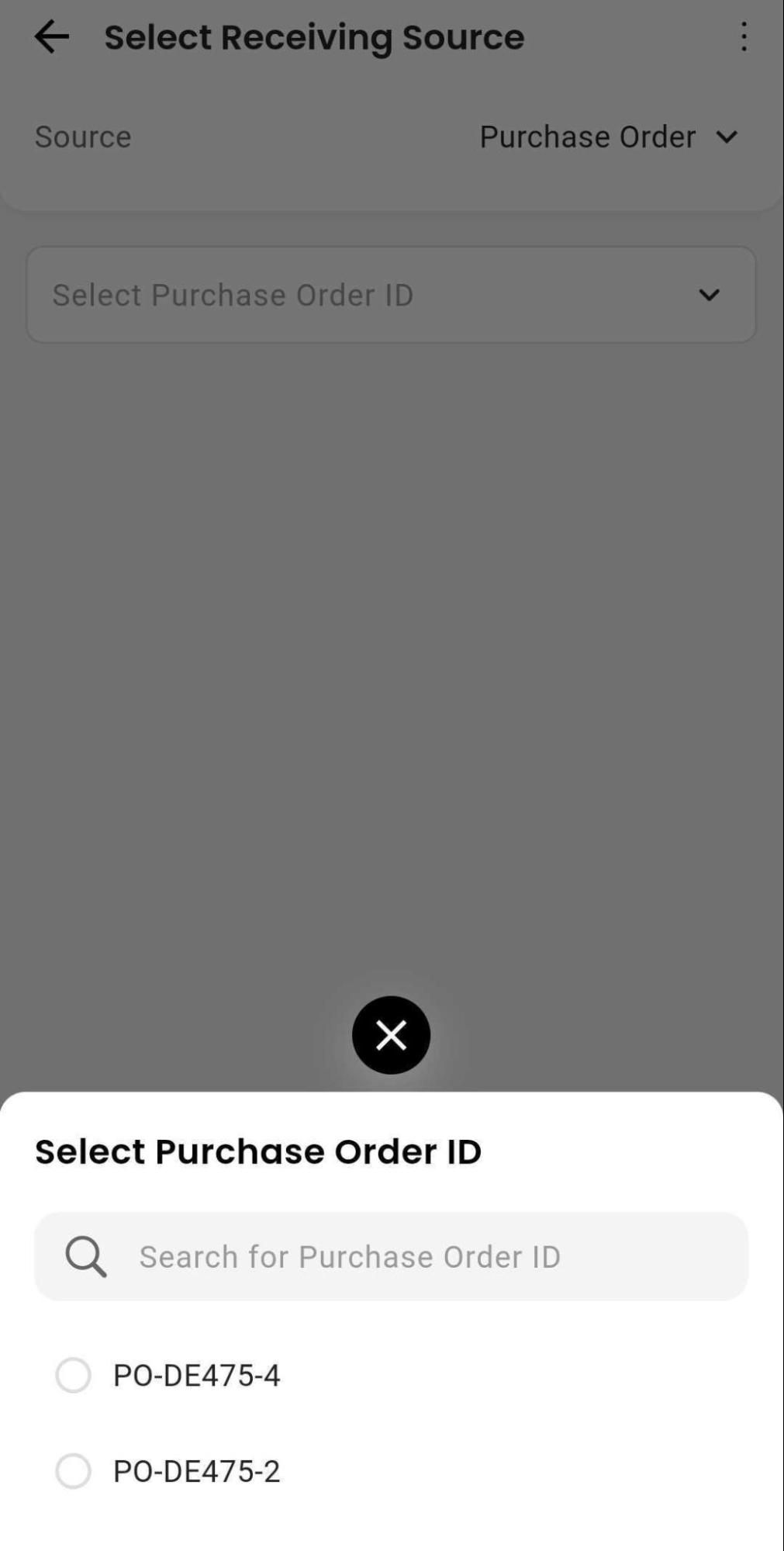
- POs that are already closed, or completely received with over-receiving disabled, will not be shown.
-
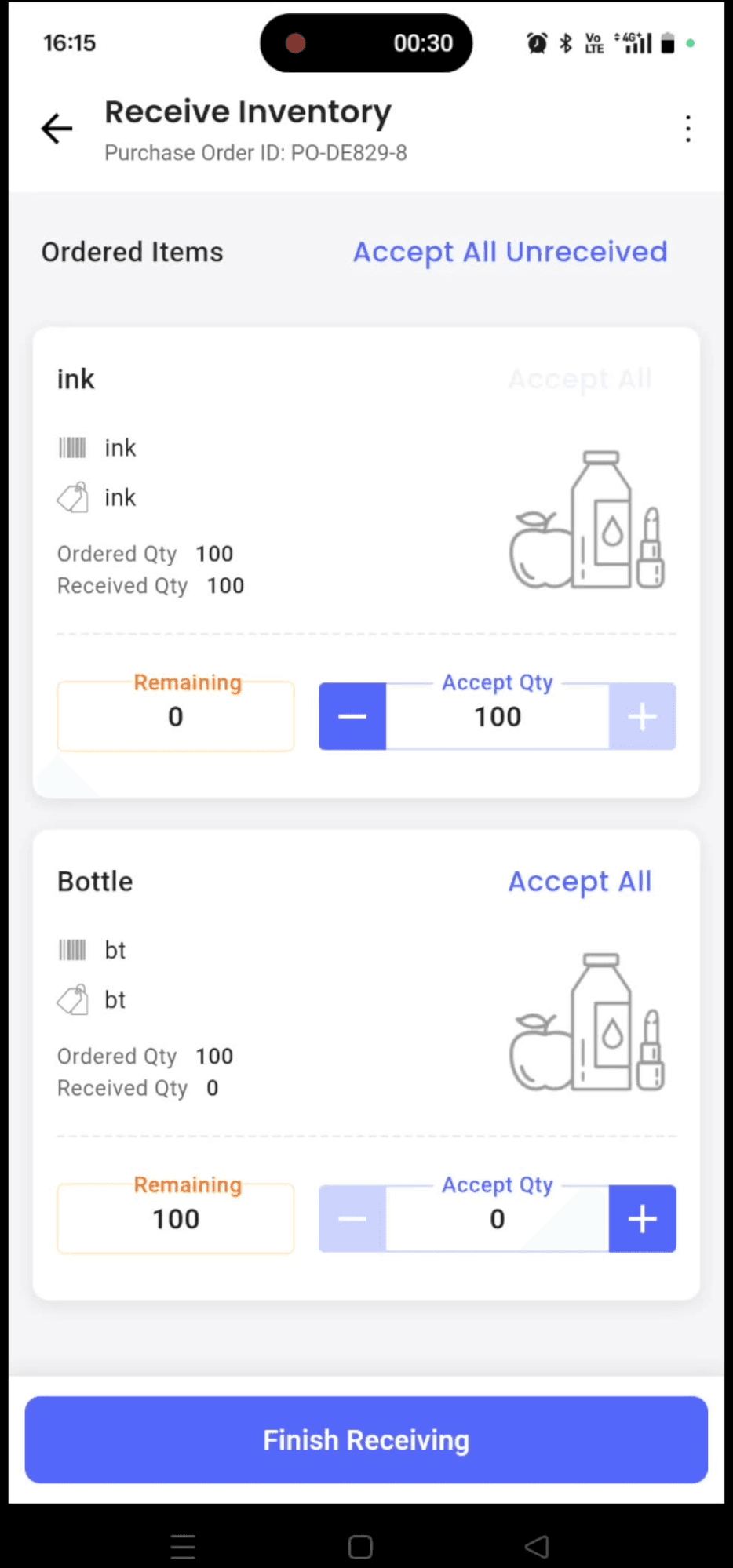
Enter the received quantity for each SKU in the purchase order.
- Use Accept All to receive all units for a SKU.
- Use Accept All Unreceived at the top to receive all remaining items across SKUs.
-
Tap Finish Receiving to complete the purchase order.
Additional behavior:
-
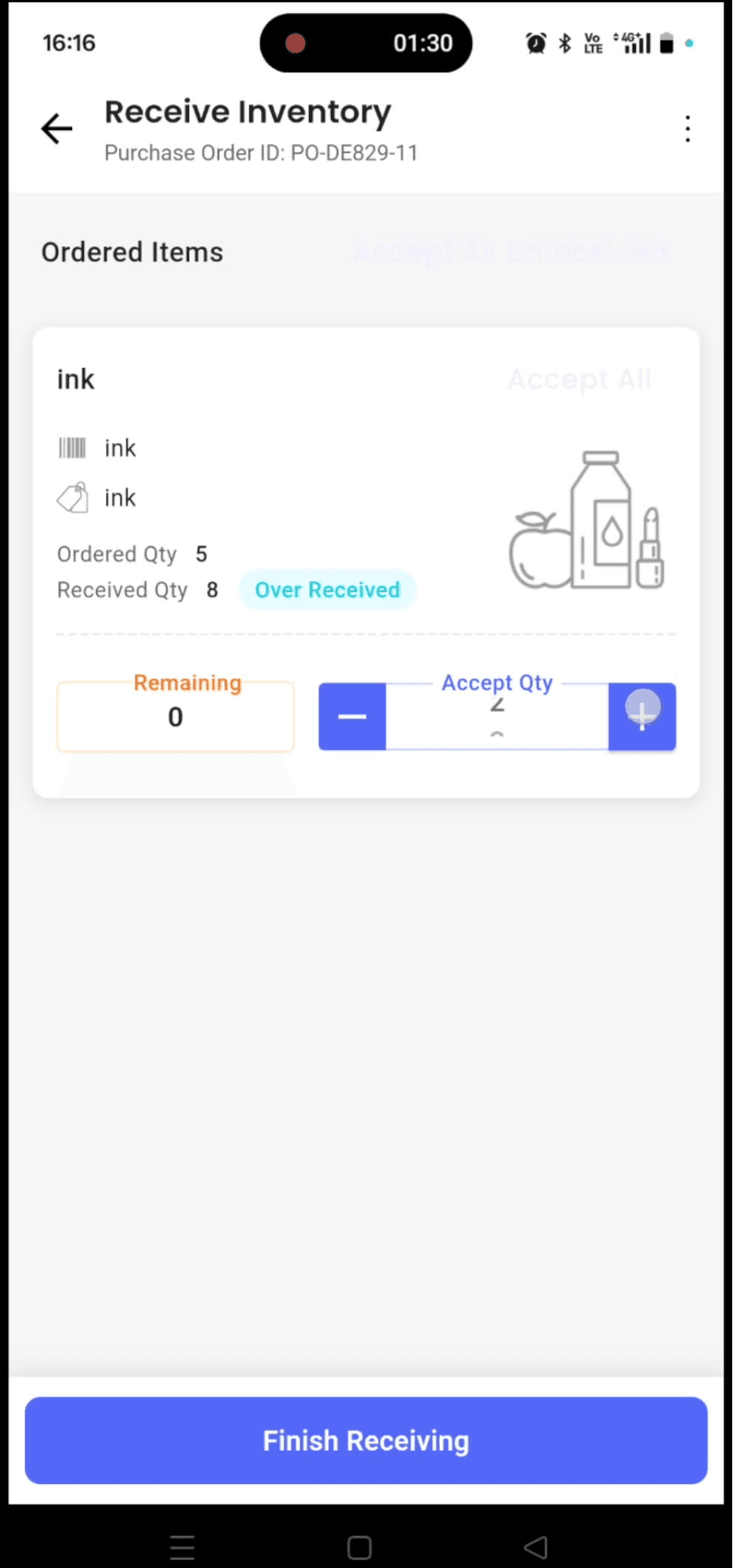
When over-receiving is enabled, a Purchase Order can still be received even after the ordered quantity has been fully received, with an Over-Received tag visible on the SKU card.
-
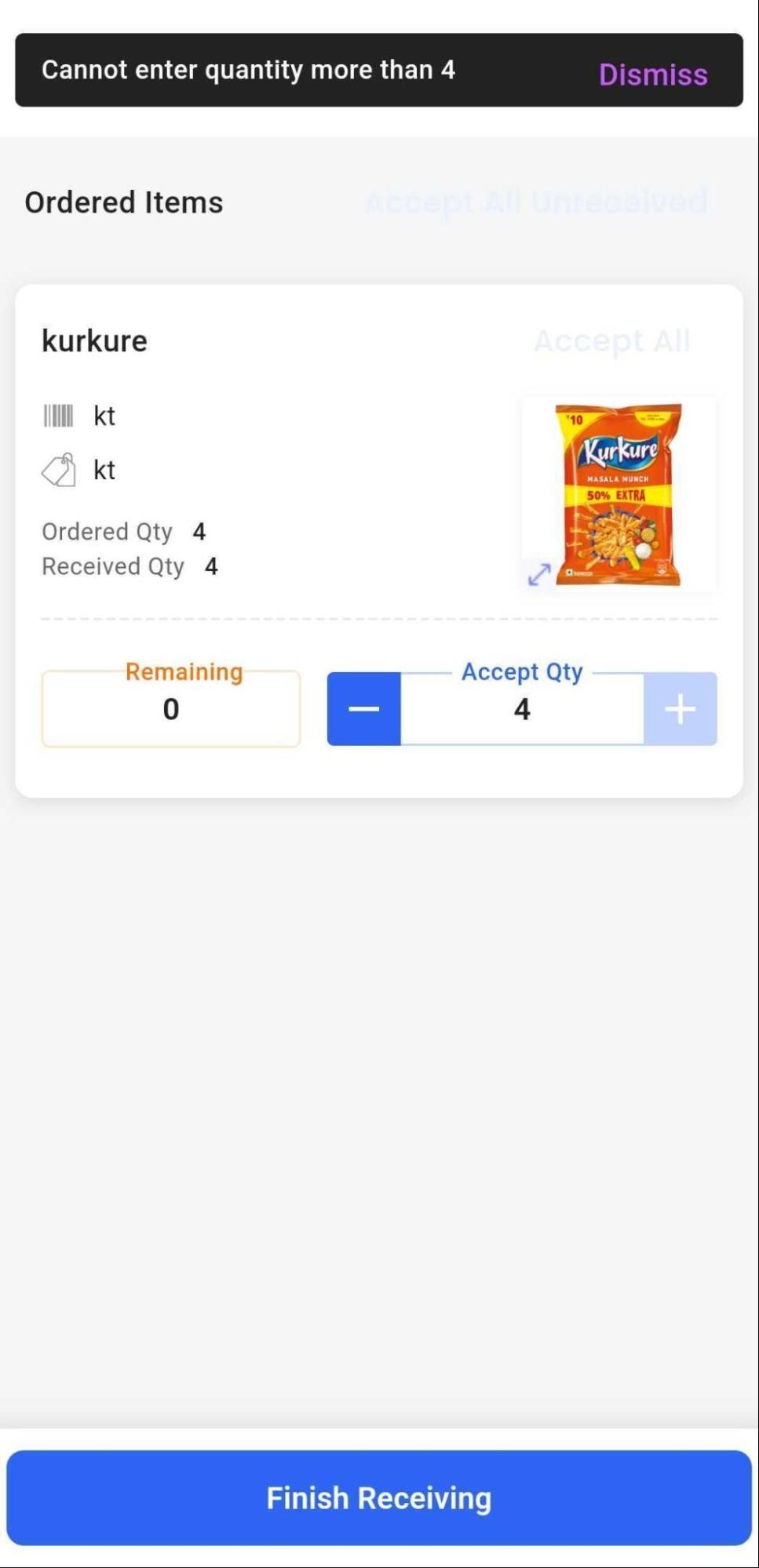
When over-receiving is disabled for a PO, the system shows an error toast if the user attempts to receive more than the ordered quantity.
-
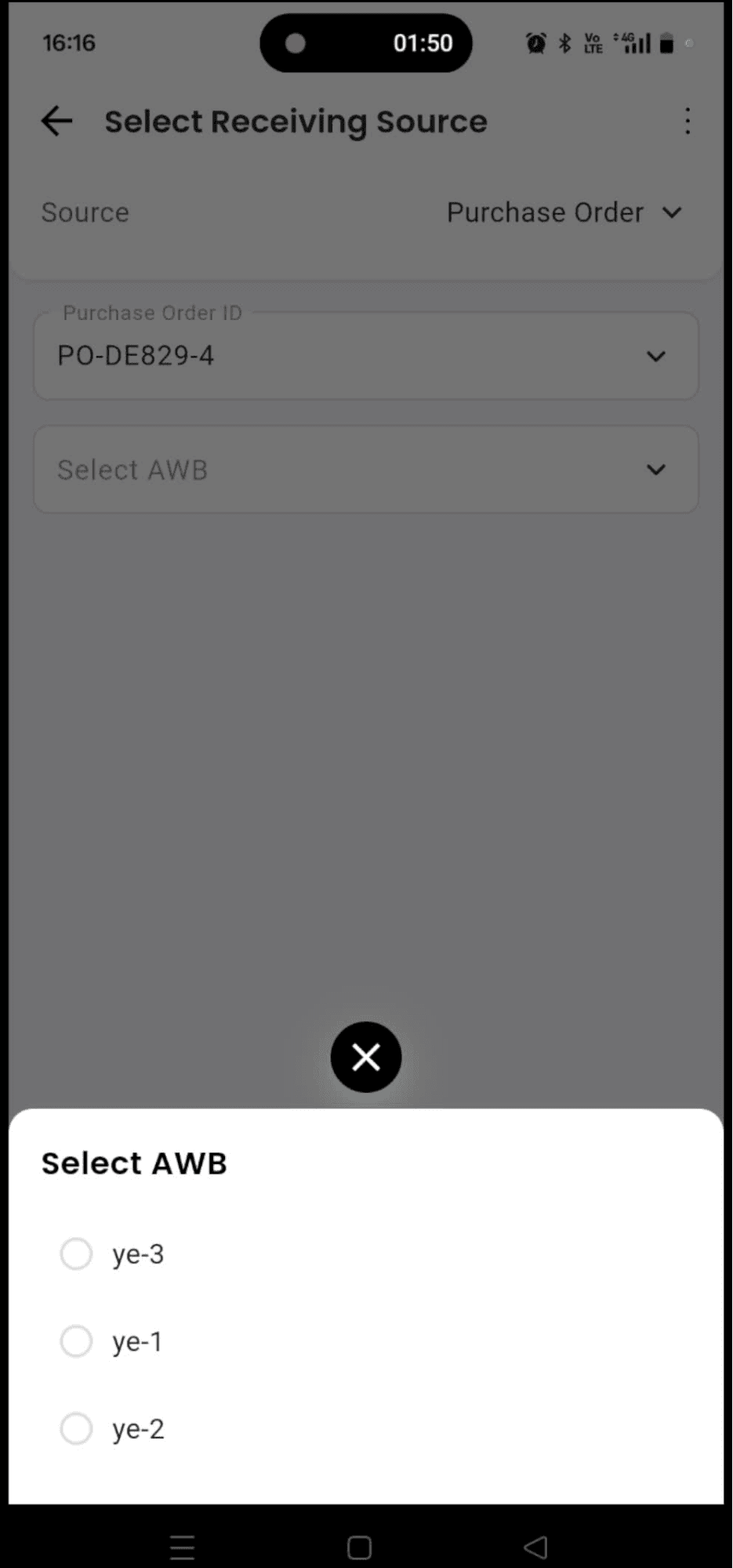
For shipment Purchase Orders, users must first select the relevant AWB of the shipment they are receiving before proceeding.
Stock Transfer Orders
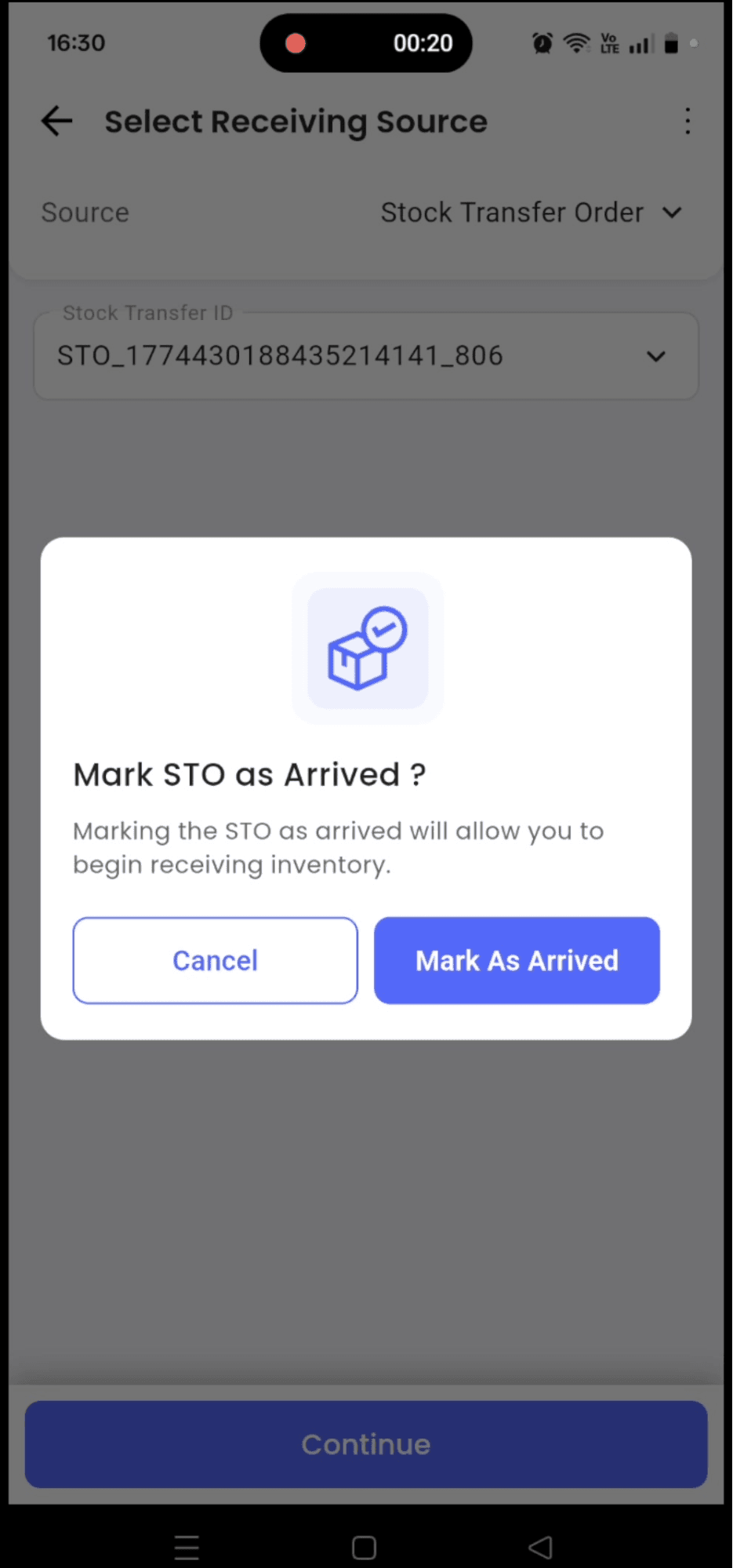
Users can now receive and mark STOs as Arrived directly from the HubOps app.
-
Open Receive Inventory and select Stock Transfer Order as the source.
-
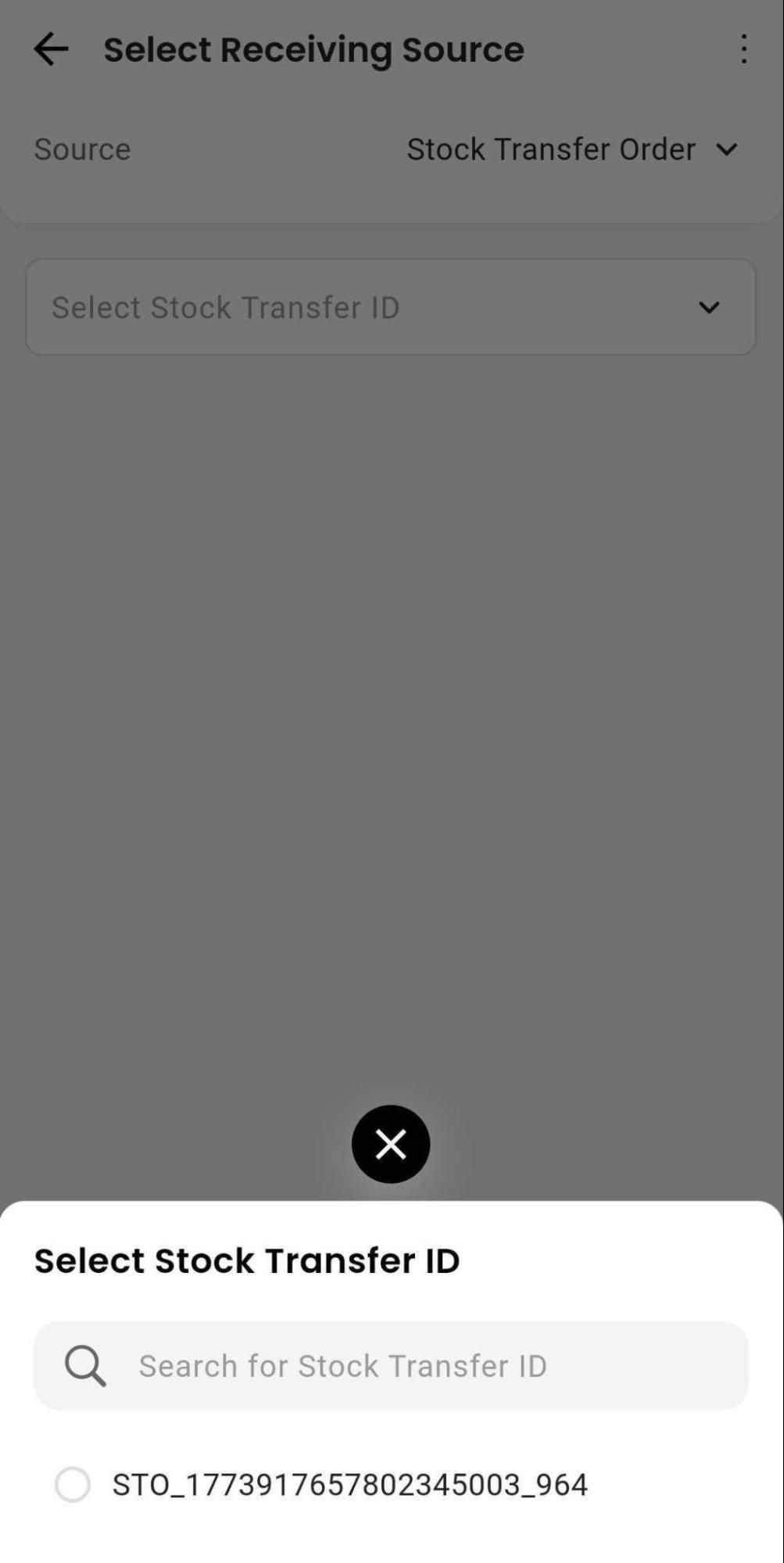
Choose the STO ID from the available list.
- STOs with status Arriving, Arrived, and Partially Received are available in the list.
- STOs with status Arriving, Arrived, and Partially Received are available in the list.
-
If the STO is still in Arriving, mark it as Arrived from the app.
-
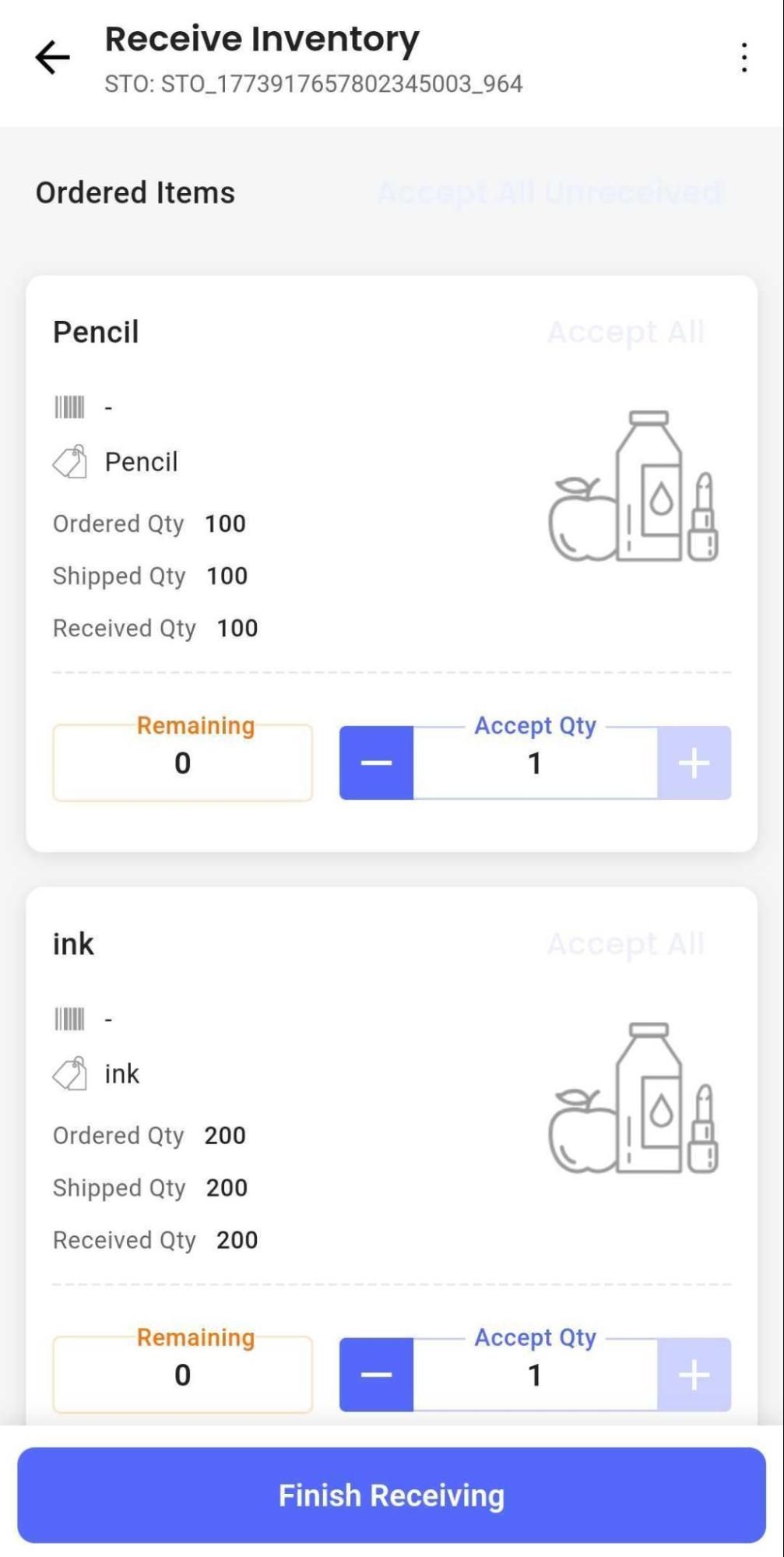
Receive the stock transfer order.
-
Tap Finish Receiving when done.
Return Orders
Users can now process and mark return orders as Return To Origin directly from the HubOps app.
-
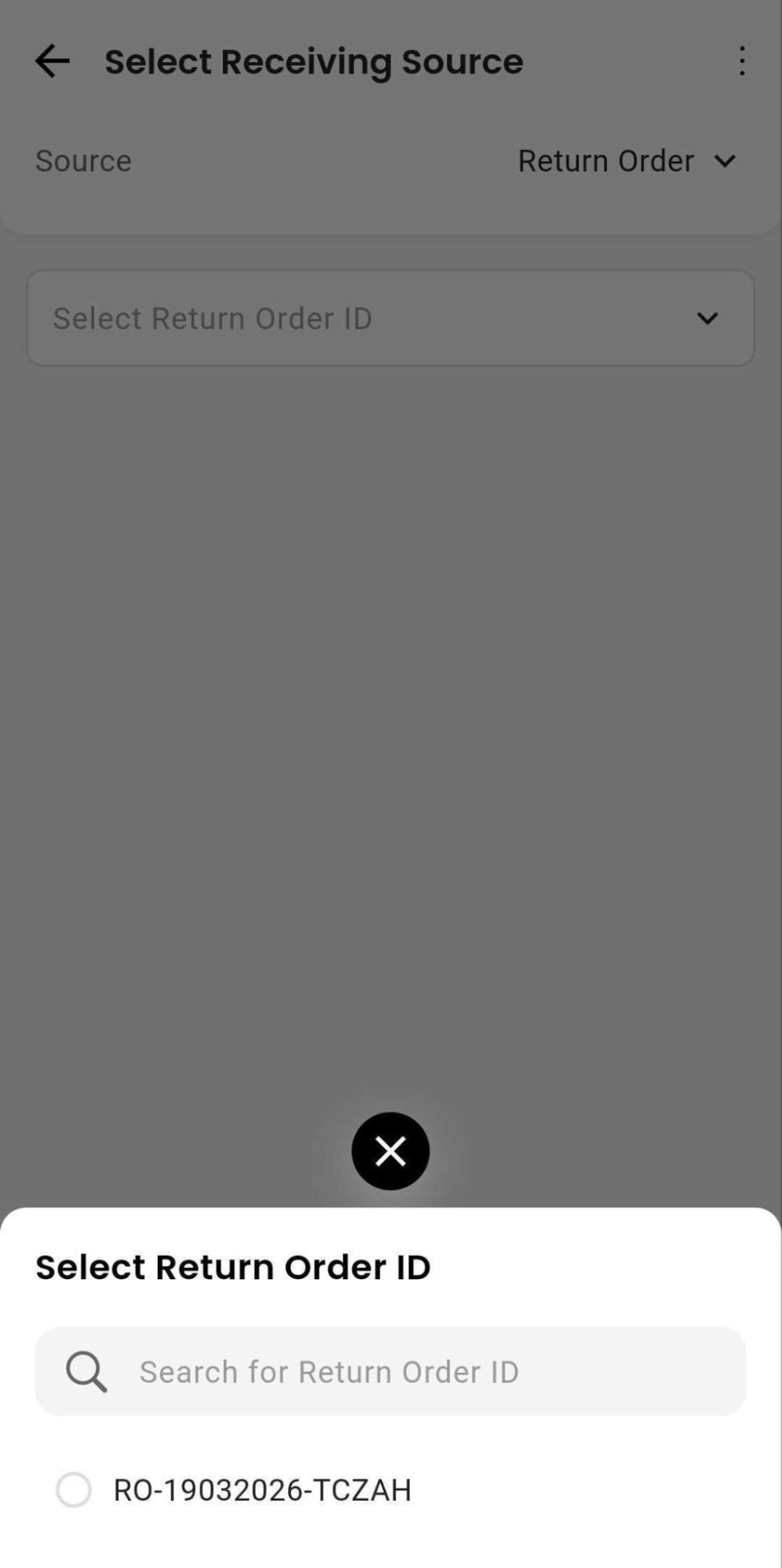
Open Receive Inventory and select Return Order as the source.
-
Choose the return order ID from the list.
- Return orders with status Return Shipment Created and Return To Origin are available in the list.
- Return orders with status Return Shipment Created and Return To Origin are available in the list.
-
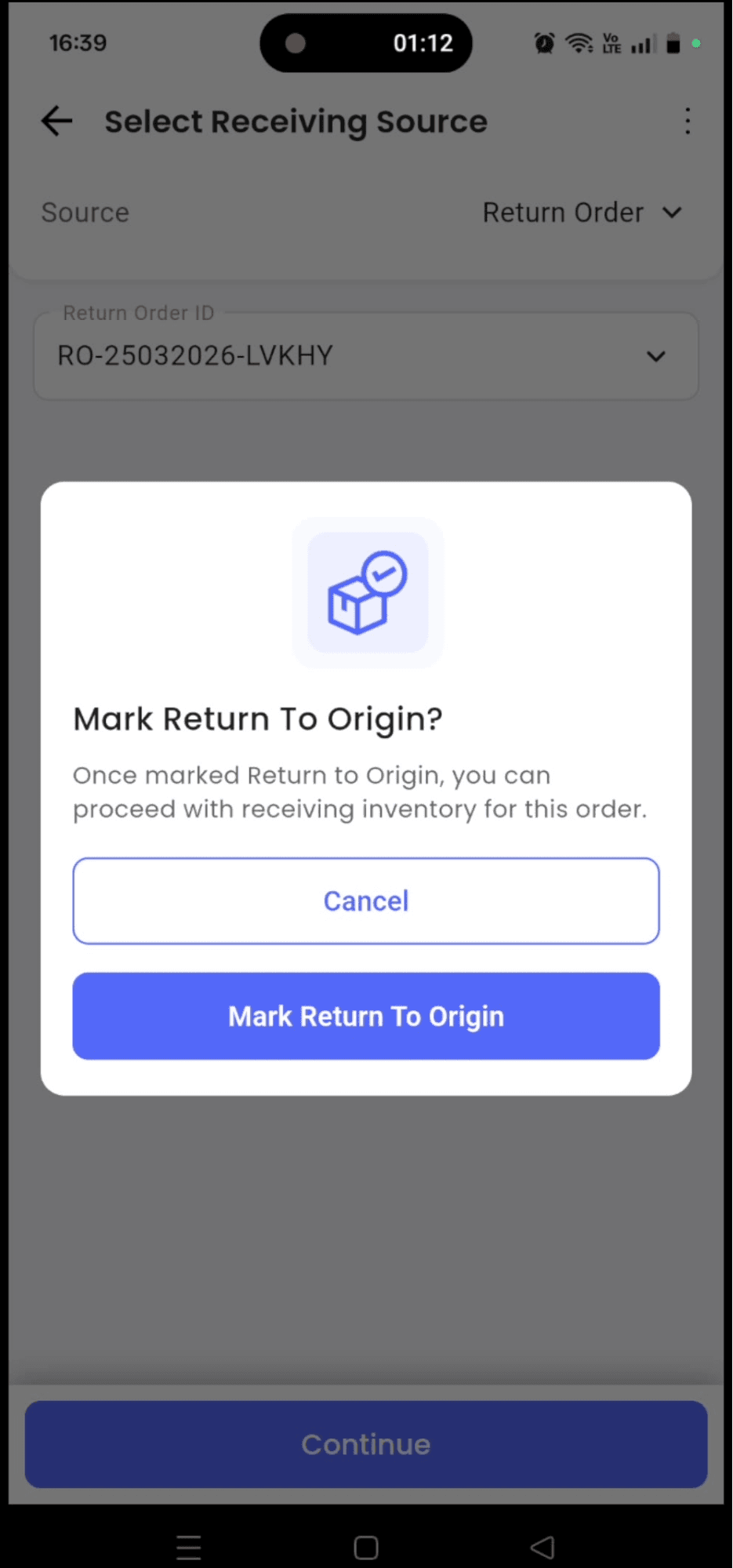
If the return order status is Return Shipment Created, mark it as Return To Origin to begin processing.
-
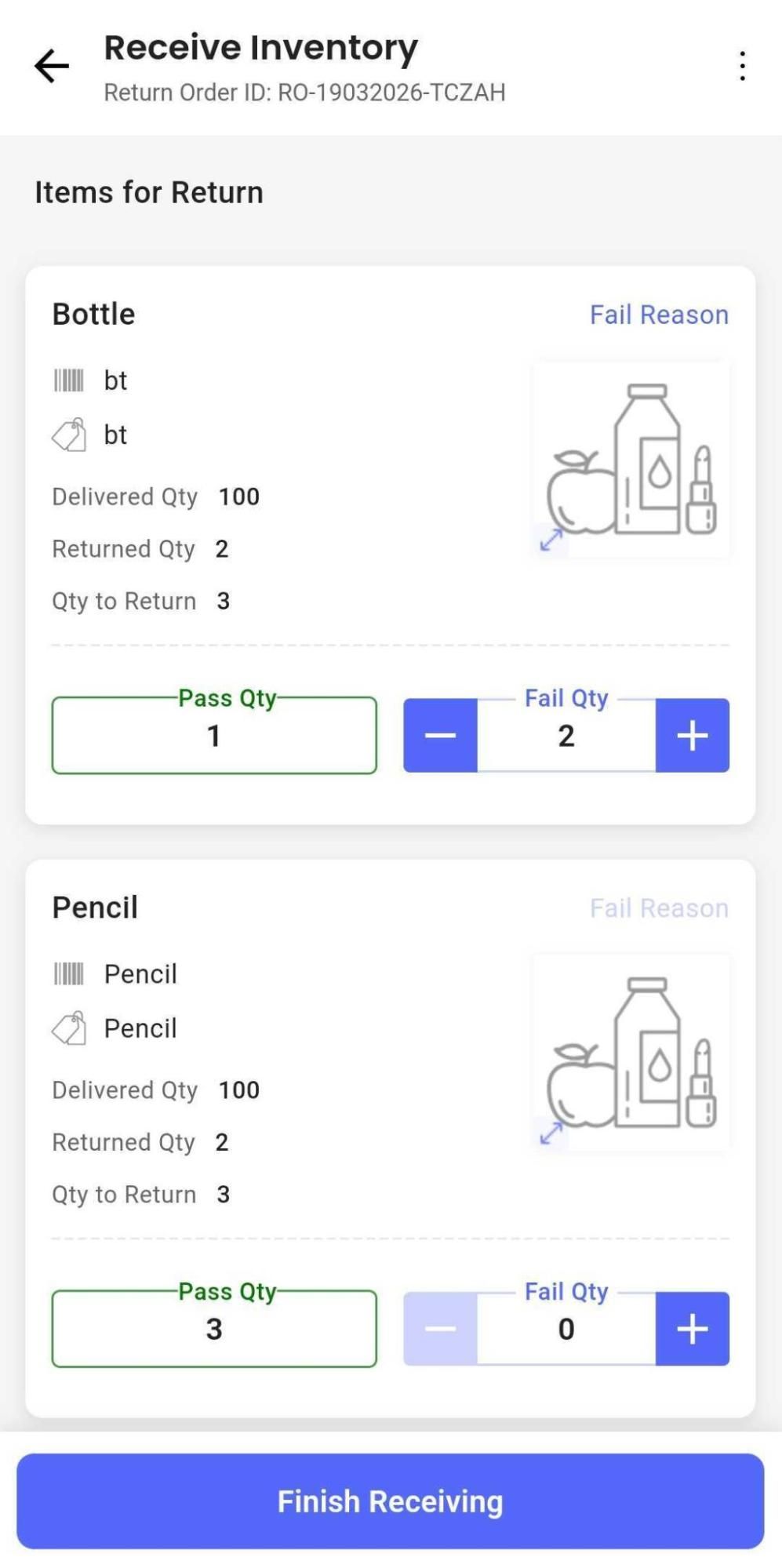
Update pass and fail quantities as part of the QC process.
-
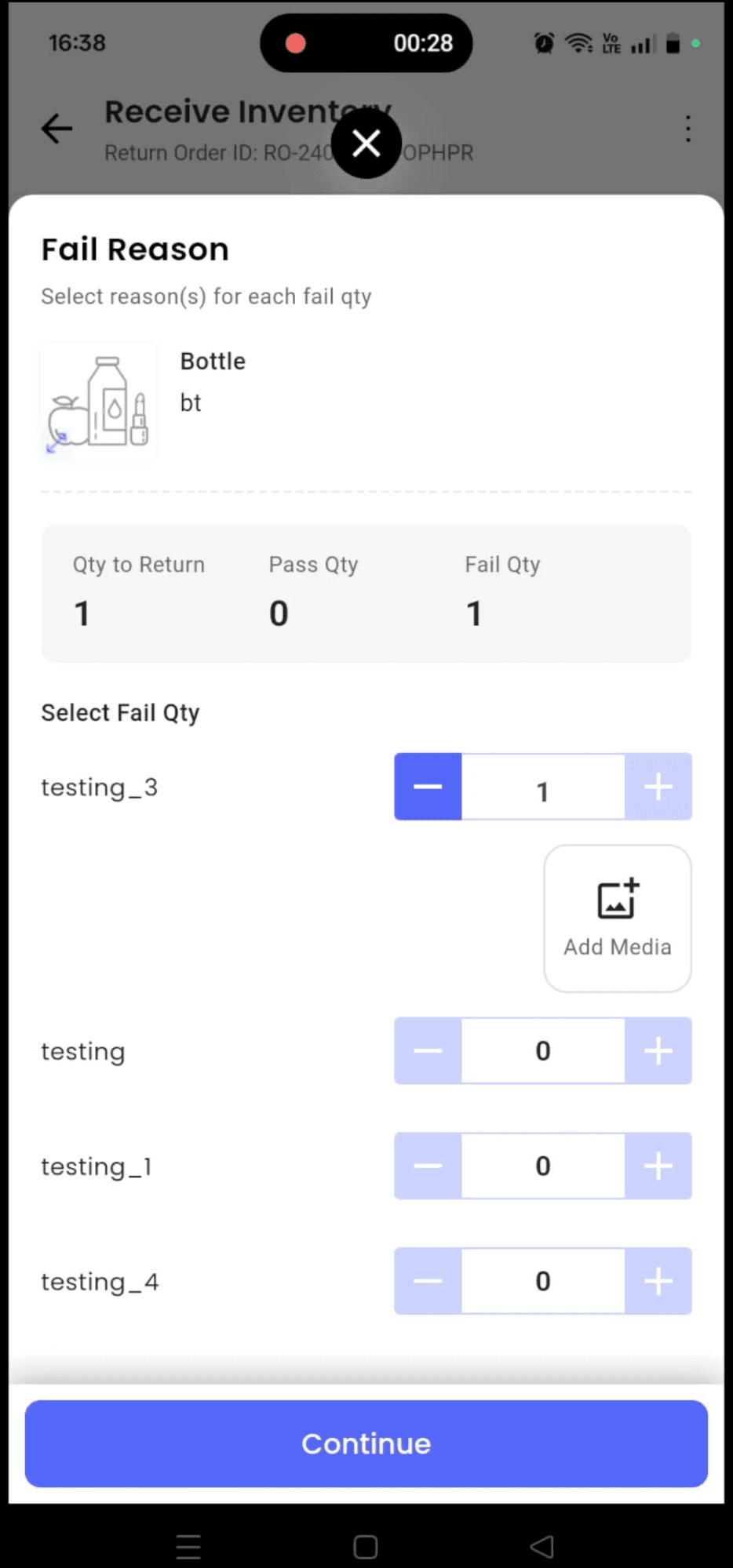
If a quantity fails QC, select Fail Reason on the SKU card and choose the fail reason.
- Users can also attach media when needed.
- Users can also attach media when needed.
-
Tap Finish Receiving once QC is complete.
Technical Details
The table below summarizes the supported in-app behavior.
| Order Type | Shown in App When | In-App Behavior | Not Available / Notes |
|---|---|---|---|
| Purchase Order | PO is not closed, PO has over-receiving enabled and is not fully received. | Users can receive quantities, use Accept All or Accept All Unreceived, and finish receiving directly from the app. Shipment POs require AWB selection. | If over receiving is disabled, quantity cannot go beyond the ordered quantity and fully received POs no longer appear. If over receiving is allowed, already received POs can still be received further. |
| Stock Transfer Order | STO status is Arriving, Arrived, or Partially Received. | Arriving STOs can be marked as Arrived in the app and then received. Partially received STOs remain available for further receiving. | Fully received STOs are not shown in the list. |
| Return Order | Return order status is Return To Origin or Return Shipment Created. | Users can perform return QC from the app by updating fail quantity, selecting fail reasons, and attaching media. Orders with Return Shipment Created status can be marked as Return To Origin in the app before receiving. | Return orders with Order Processed status cannot be received. |
Operational Impact
- Receiving is no longer limited to the dashboard for inventory receiving.
- Hub teams can complete receiving steps closer to the point of operation.