

Table of Contents
Share On


Serialized SKU Receiving - GRN Enhancement
Bin and pallet assignment now persists across serialized units, reducing repetitive scanning during inbound receiving.
Summary
Omniful has enhanced the GRN flow for serialized SKUs to reduce repetitive bin and pallet scanning during receiving.
Previously, for each serialized unit, the worker had to perform two separate scans:
- Scan the item's barcode to identify the specific serialized unit.
- Scan the bin or pallet barcode to record where the unit is being stored.
This created repetitive steps when multiple serialized units needed to be placed in the same bin or pallet.
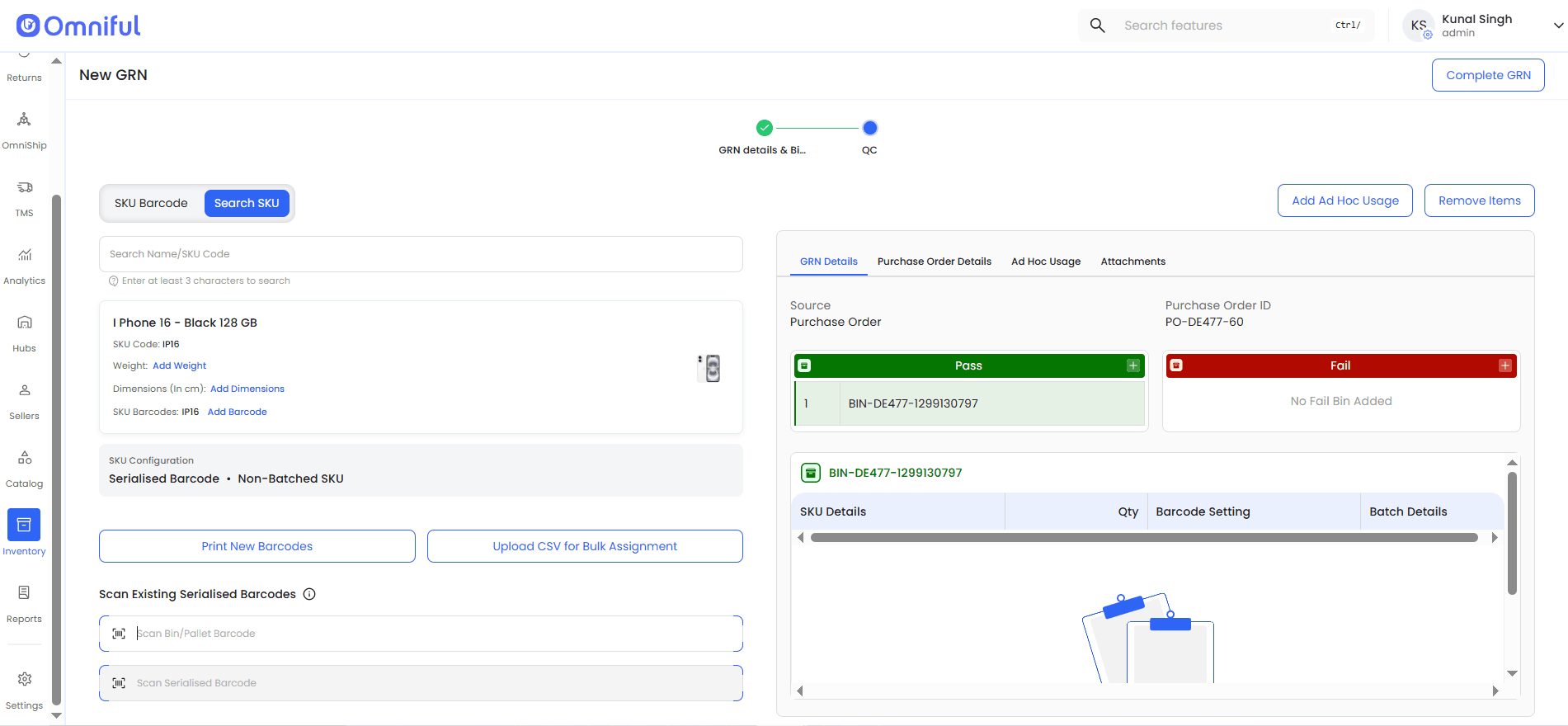
With the updated flow, once the SKU is searched, the user scans the bin or pallet barcode once and can then continue scanning all serialized item barcodes that need to be added to that bin or pallet. Each scanned serialized unit is automatically mapped to the scanned bin or pallet.
This improvement reduces repeated scanning. For example, receiving 50 serialized units into the same bin now requires 51 scans instead of 100.
This enhancement:
- Speeds up hub receiving operations.
- Improves the operator experience.
- Aligns the web GRN flow with the serialized inventory GRN experience in the Hub Ops app.
Key Benefits
- Faster GRN processing with reduced repetitive scanning when multiple serialized items are stored in the same bin or pallet.
- Consistent operational behavior with the Hub Ops app serialized inventory inwarding flow.
Scope
- Applies to the GRN flow for serialized SKUs.
- Covers the bin and pallet assignment step during serialized item receiving.
How It Works
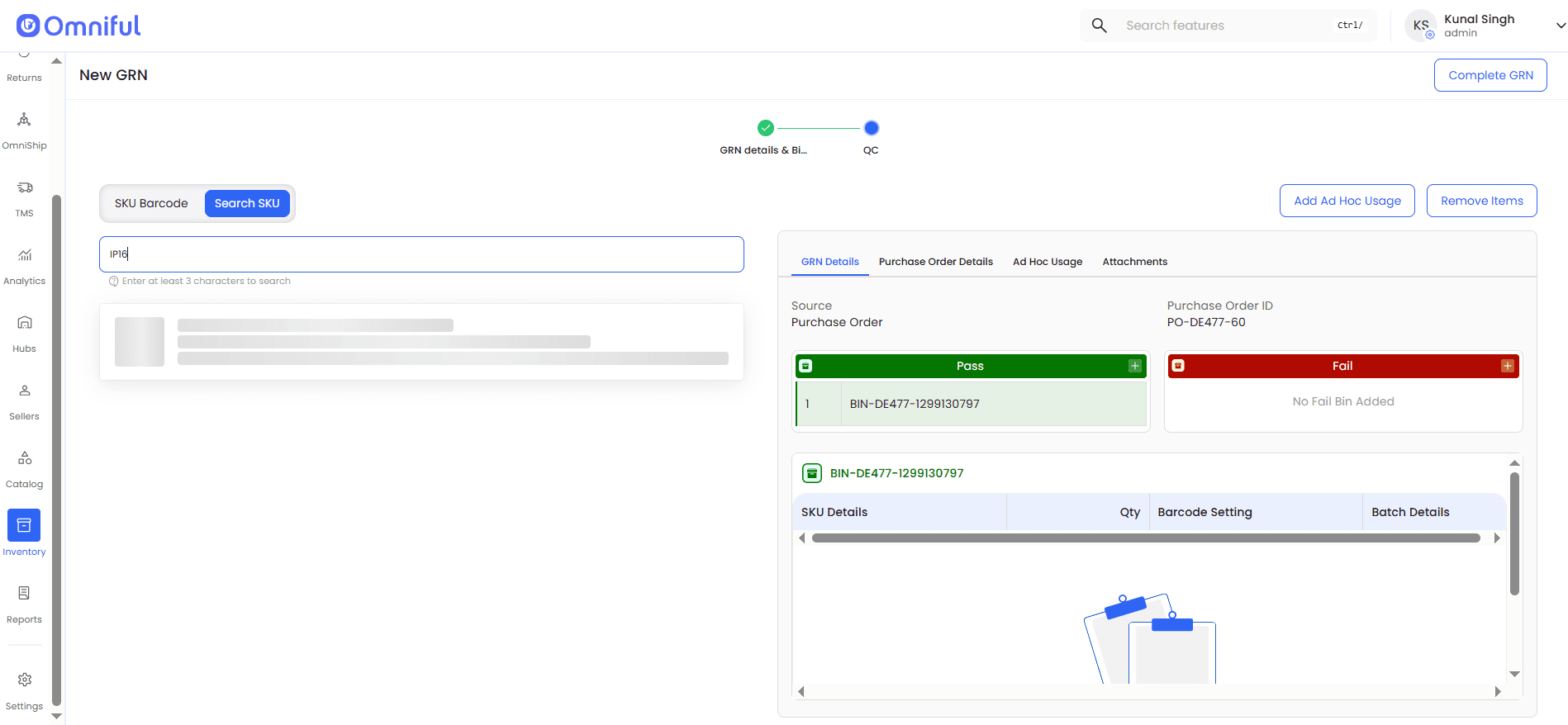
1. Start the GRN Process and Search the Serialized SKU
The user begins the GRN flow, selects the source order for which inventory is being received, and adds the required pass and fail bins or pallets.
The user then scans the SKU code or searches for the serialized SKU that needs to be received.
2. Scan the Bin or Pallet Barcode
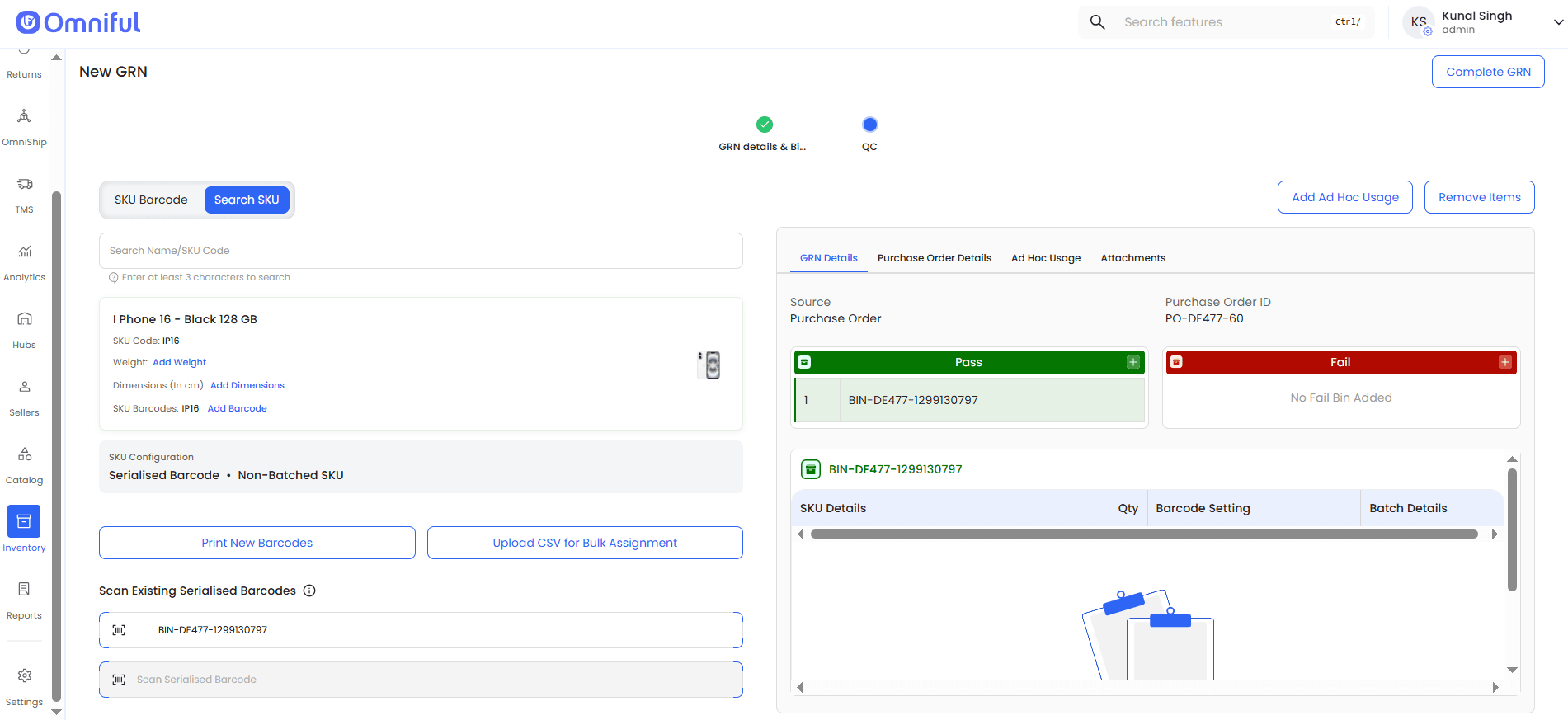
After the SKU is scanned, the user is prompted to scan the bin or pallet barcode before scanning serialized item barcodes.
3. Scan Serialized Item Barcodes
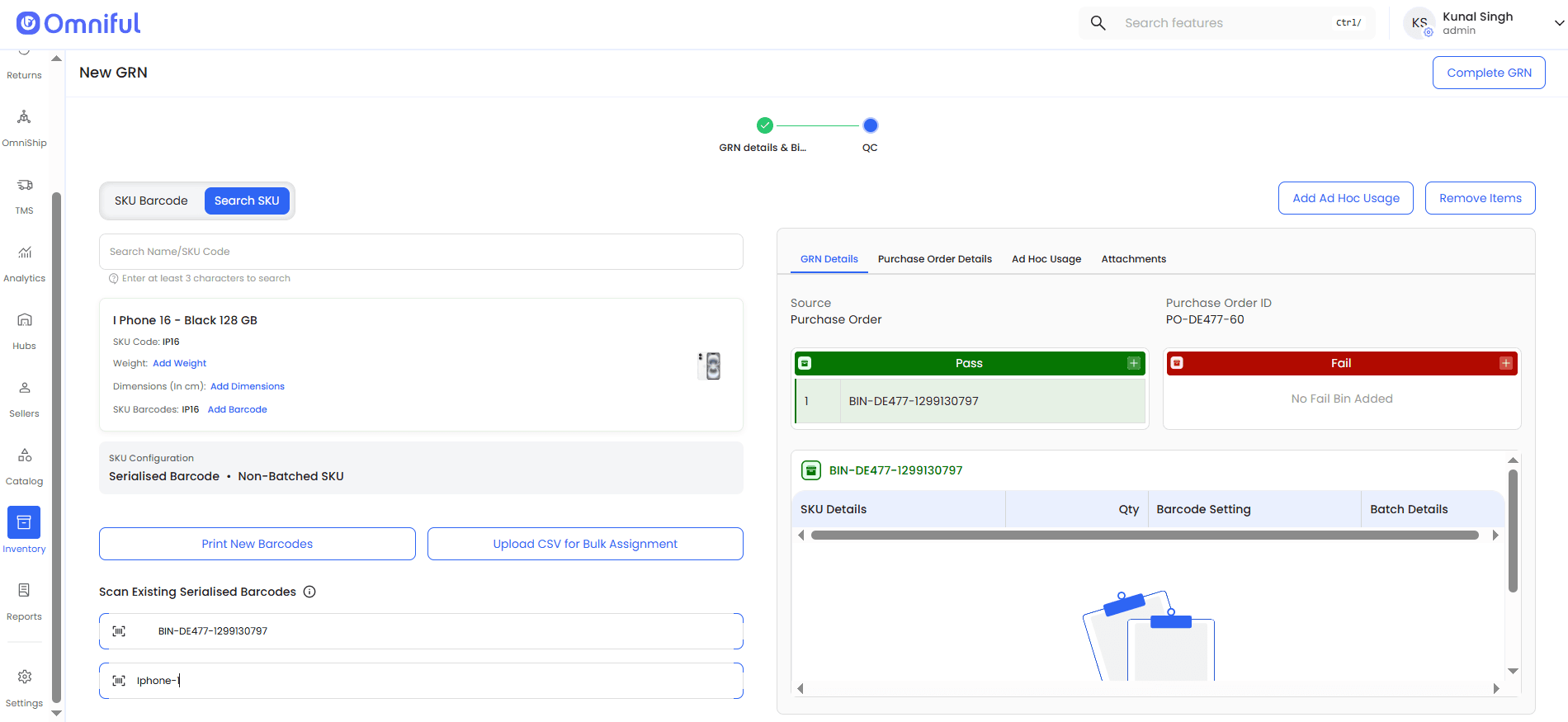
Once the bin or pallet barcode is scanned, the user can continue scanning all serialized item barcodes that need to be assigned to that bin or pallet.
Other serialized SKUs in the order can be scanned and processed in the same way.
Fail Flow for Serialized Items
If serialized items need to be marked as failed:
- Scan the fail bin or pallet barcode.
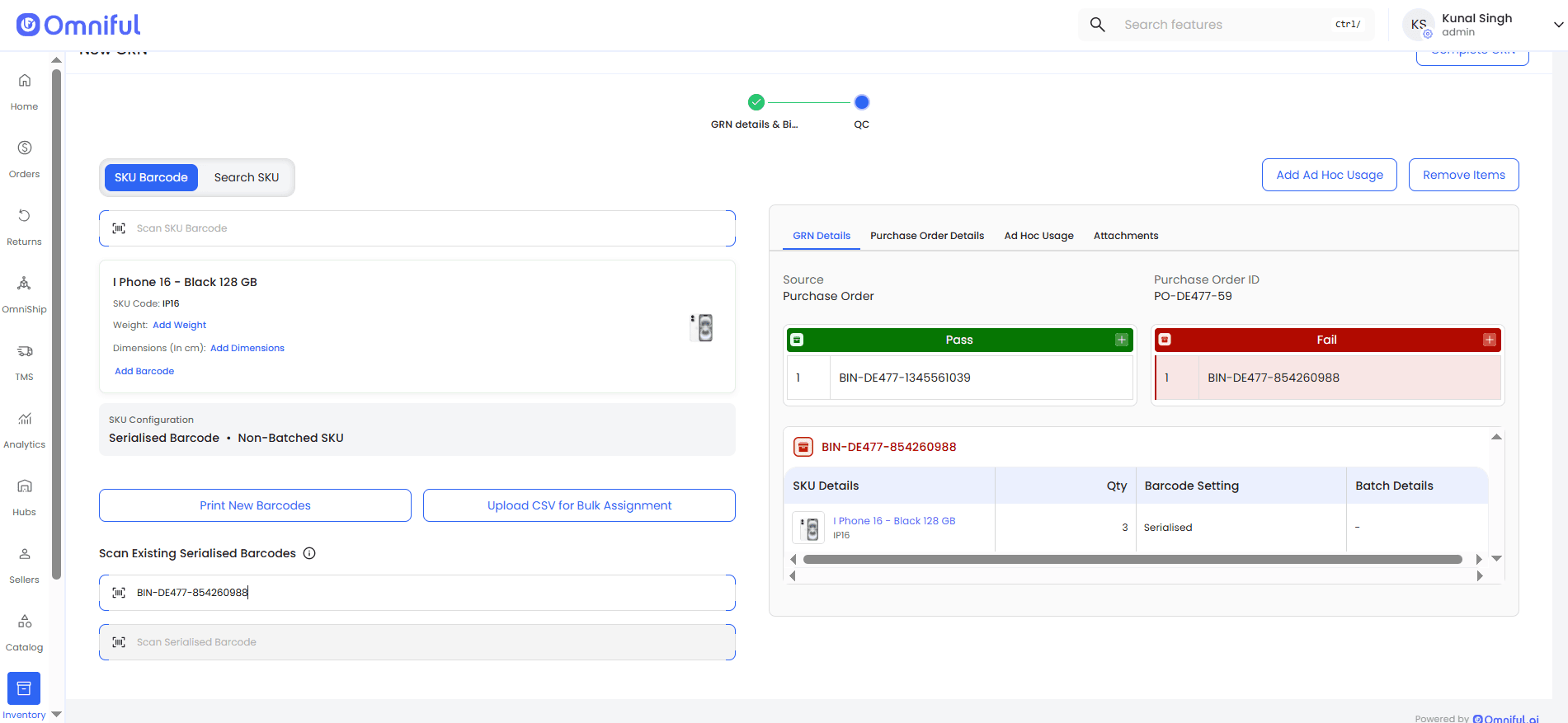
- Select the failure reason.
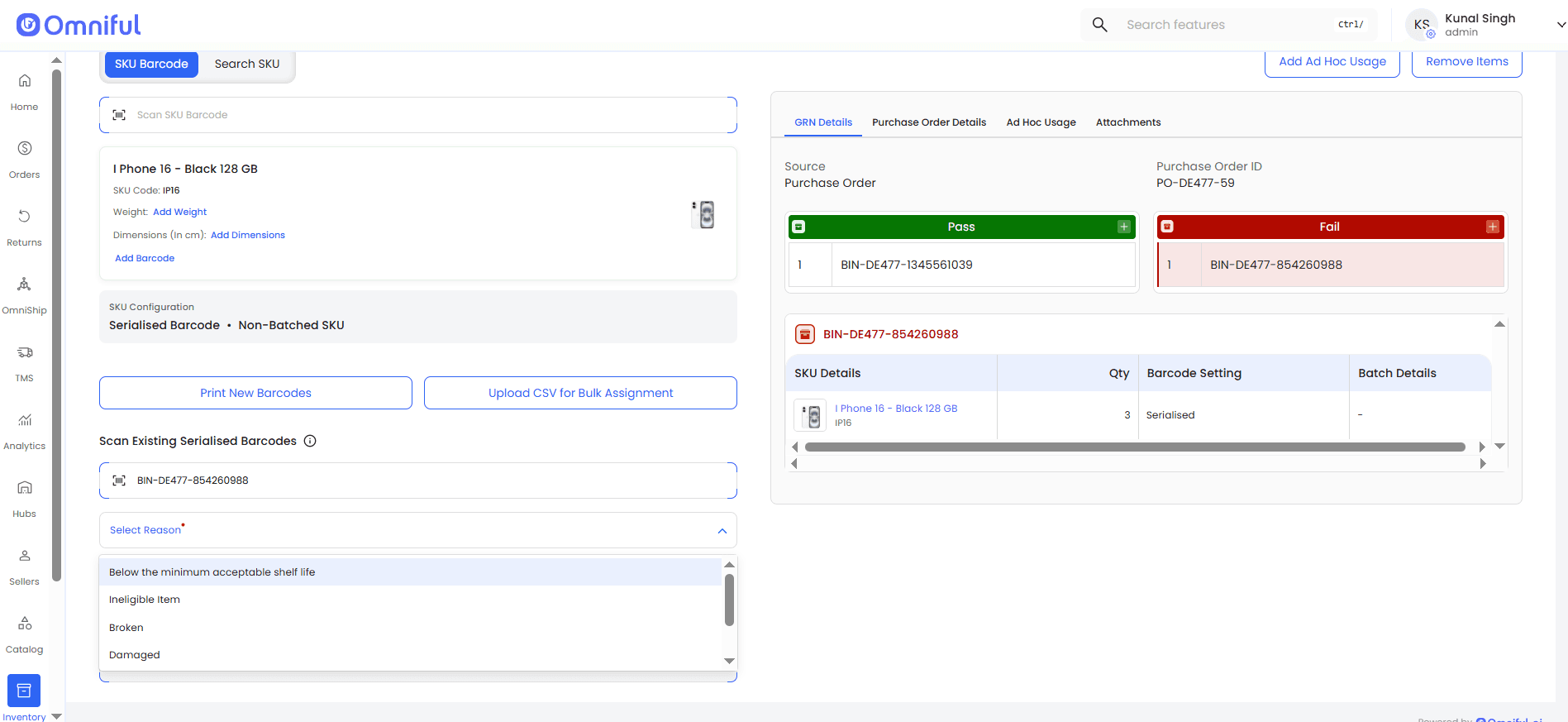
- Scan serialized item barcodes.
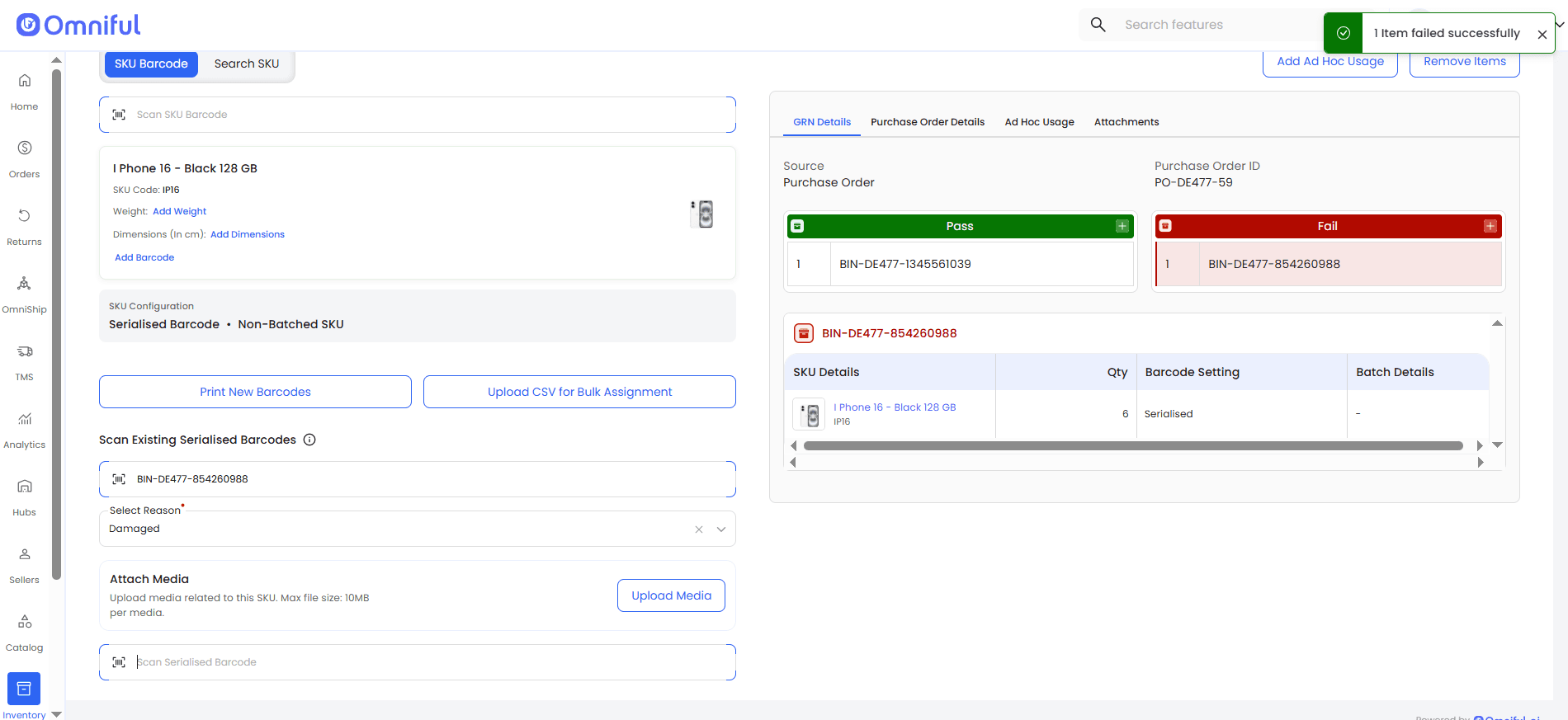
- Review failed items displayed under the fail bin.
This ensures multiple serialized units can be marked as failed in a single flow without repeating the bin and reason selection for each unit.
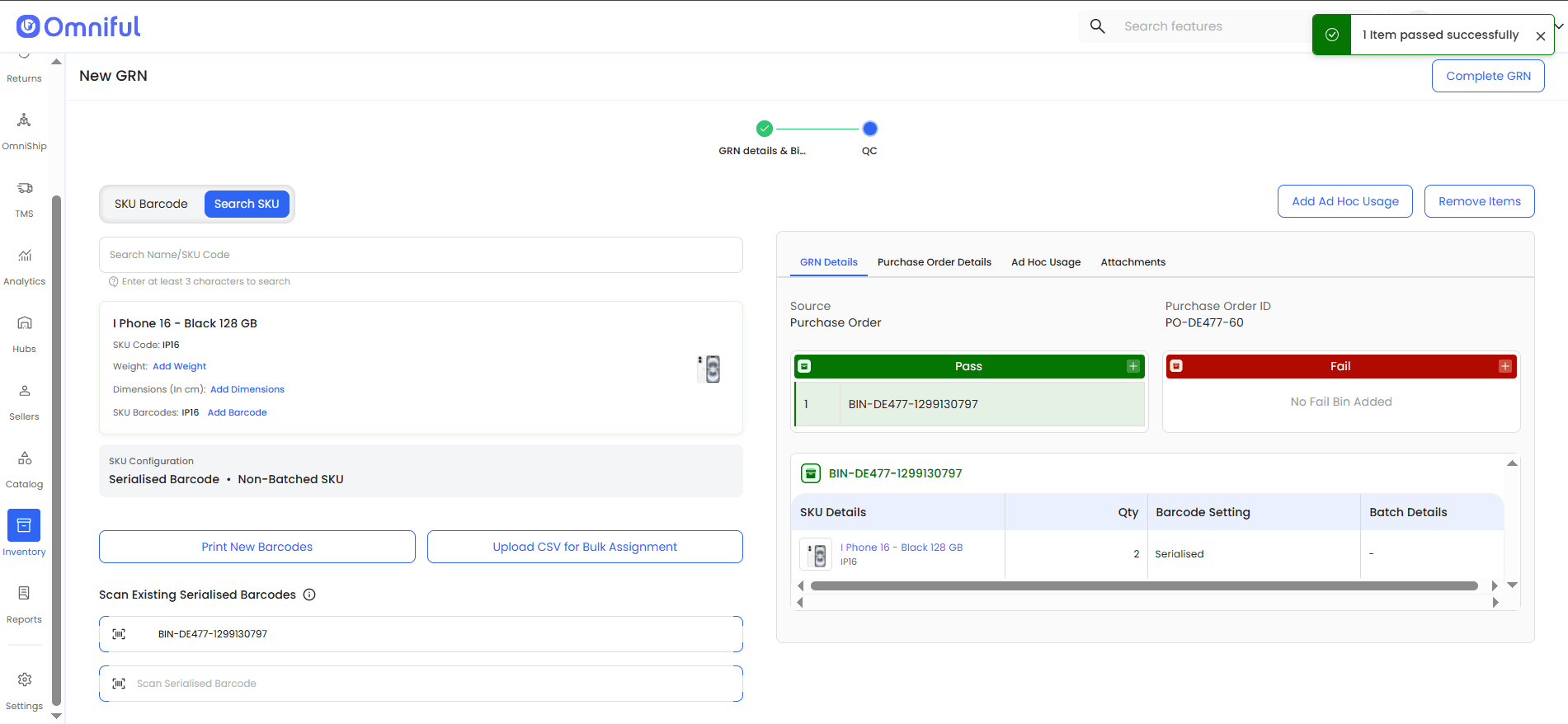
4. Scanned Items Are Assigned to the Bin or Pallet
All scanned serialized items appear under the selected bin or pallet automatically.
5. Complete the GRN
Scan the remaining SKUs to be received as part of the order.
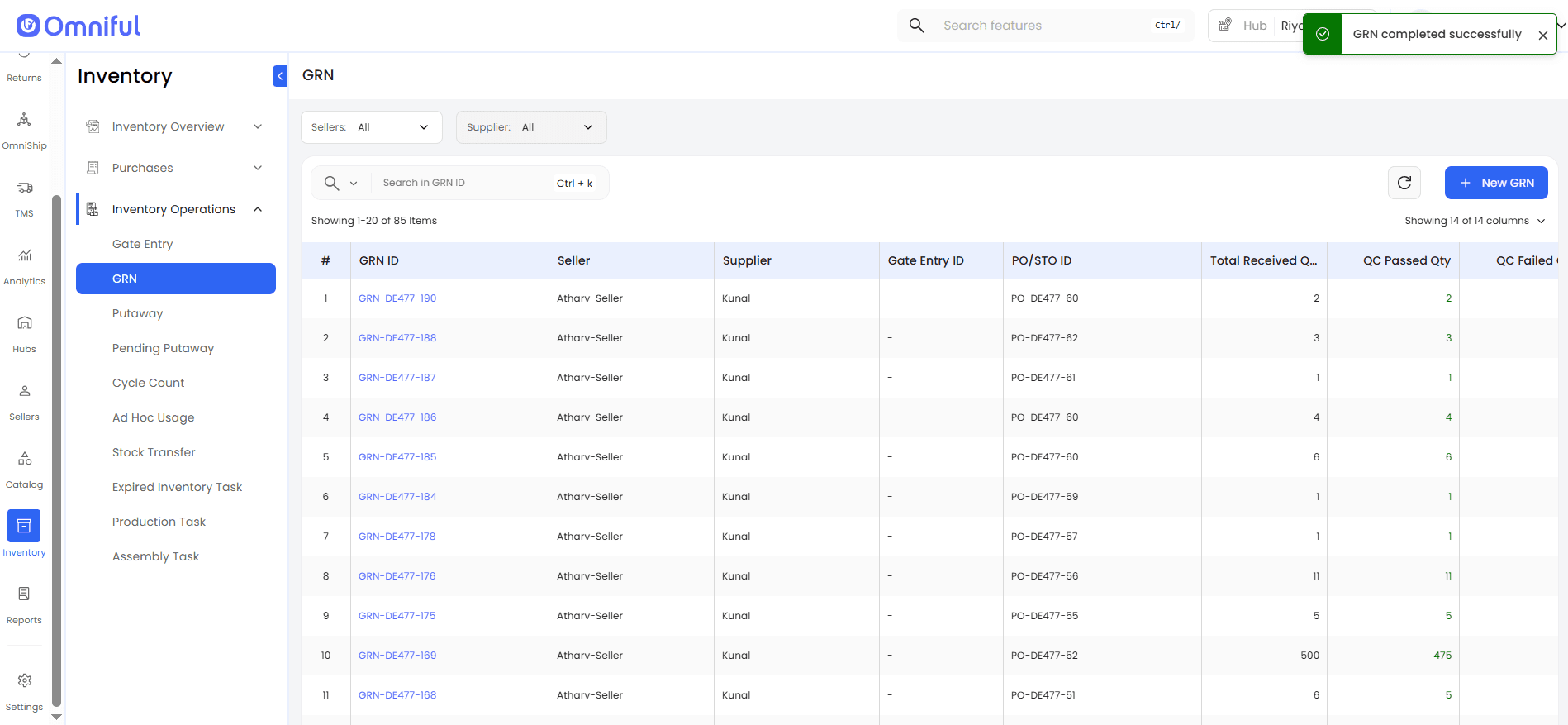
After all required SKUs, including serialized item barcodes, are scanned and assigned, click Complete GRN to finish the receiving process.
Technical Details
- Applicable only to the serialized SKU GRN flow.
- No impact on non-serialized inventory receiving.
- Introduces a bin or pallet-first scan sequence for serialized inwarding.
- Ensures a consistent GRN experience across the dashboard and the Hub Ops app.