

Table of Contents
Table of Contents
Share On


Date: 13 March 2026
TMS - Reconciliation
Cash, package, bank transfer, and transaction logs in Omniful TMS.
Version: 1.0
Owner: Omniful Product Team
Summary
The Reconciliation workflow in Omniful TMS helps operations teams reconcile driver-handled cash, receive packages at the hub, log cash transferred from the hub to the company account, and review package-level reconciliation history from a single workflow.
Key Highlights
- Reconciliation can be filtered by hub, reconciliation status, and date range.
- Each driver can be reconciled from a side sheet with dedicated Cash, Packages, and Non-cash tabs.
- Cash can be collected for all listed postpaid packages or only selected postpaid packages, with optional remarks.
- Packages can be received at the hub by scanning or entering the package AWB directly from the reconciliation screen.
- Hub-held cash transfers can be logged through the Bank Transfer page, either in full or for a selected set of packages via CSV upload.
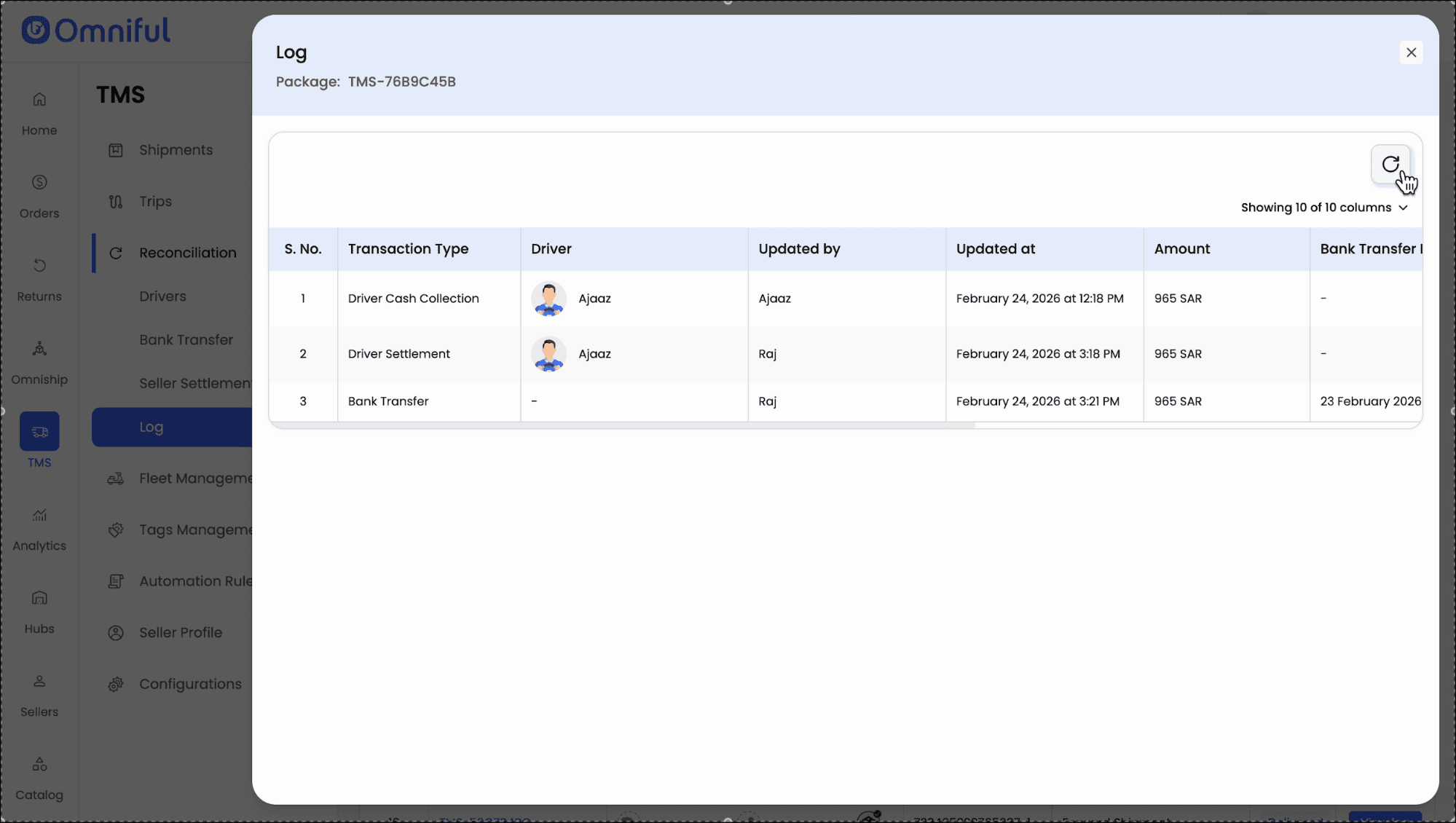
- The Log page provides reconciliation history and package-level transaction details, including receipt references and uploaded deposit slips.
How It Works
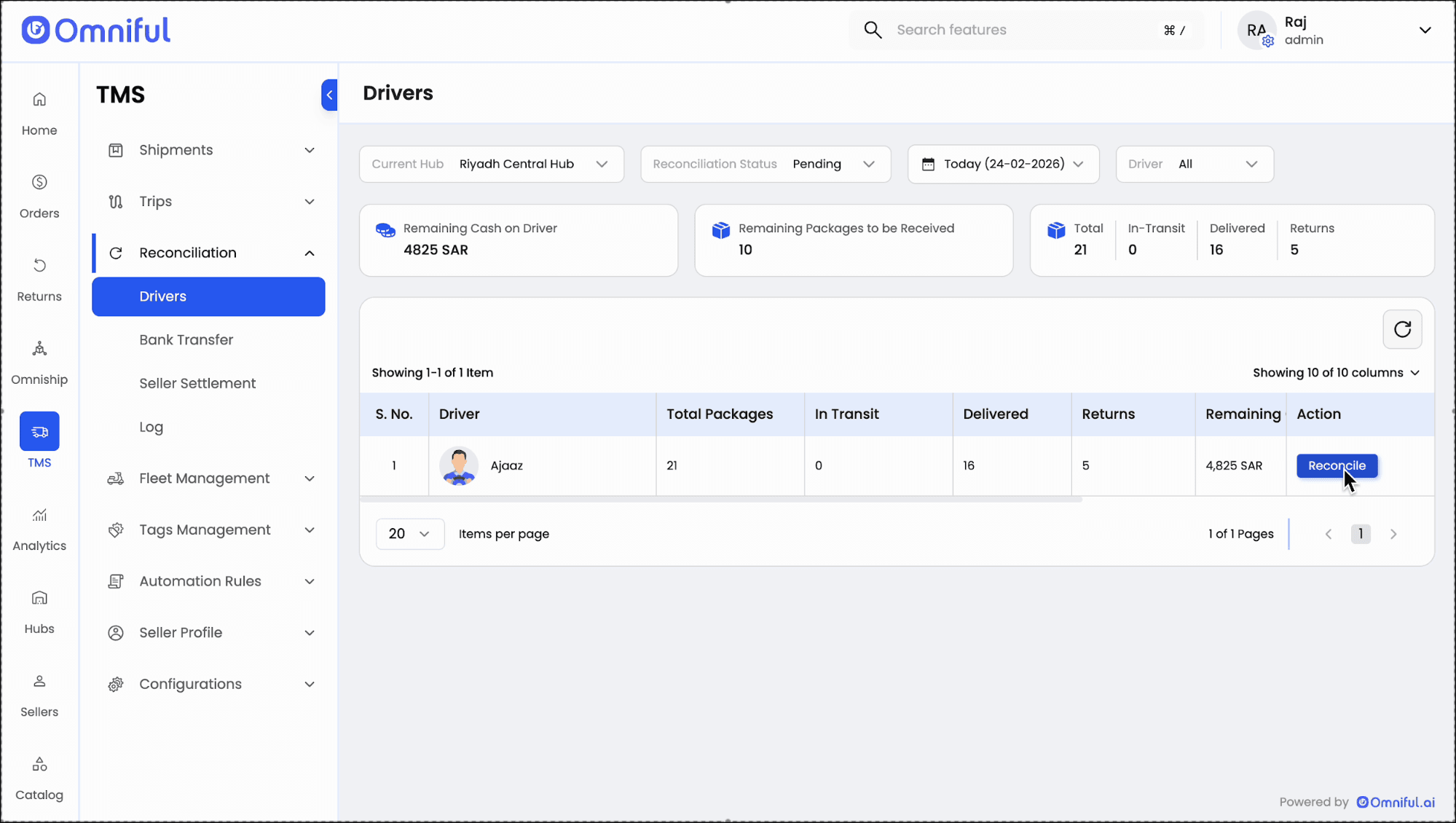
- Access Reconciliation — In TMS, open the Reconciliation module, select the hub, choose the reconciliation status, apply the date range, optionally search by driver, and click Reconcile for the required driver.
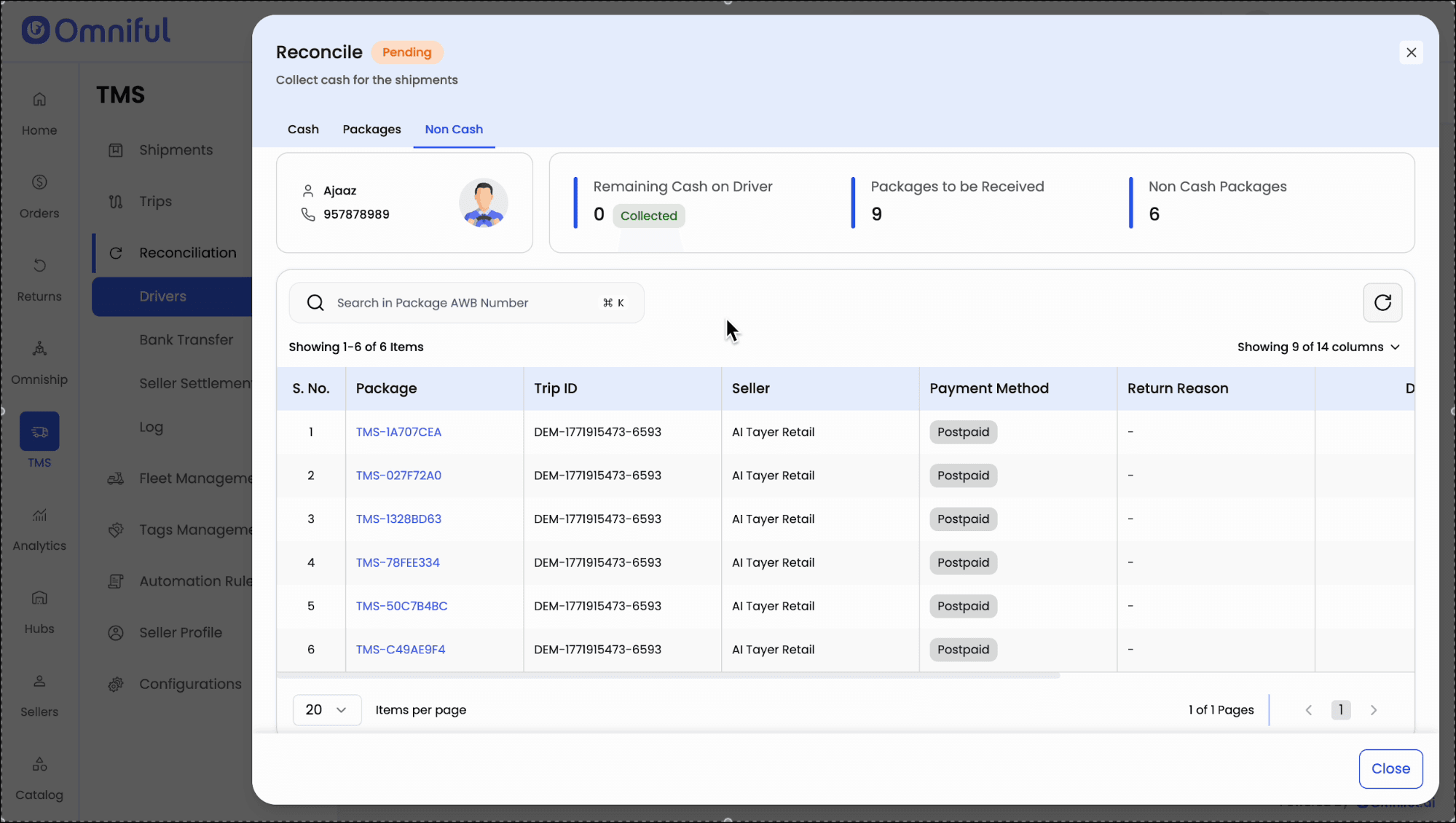
- Review the side sheet — The reconciliation side sheet opens with three tabs: Cash, Packages, and Non-cash. These tabs group the actions and records needed for driver settlement.
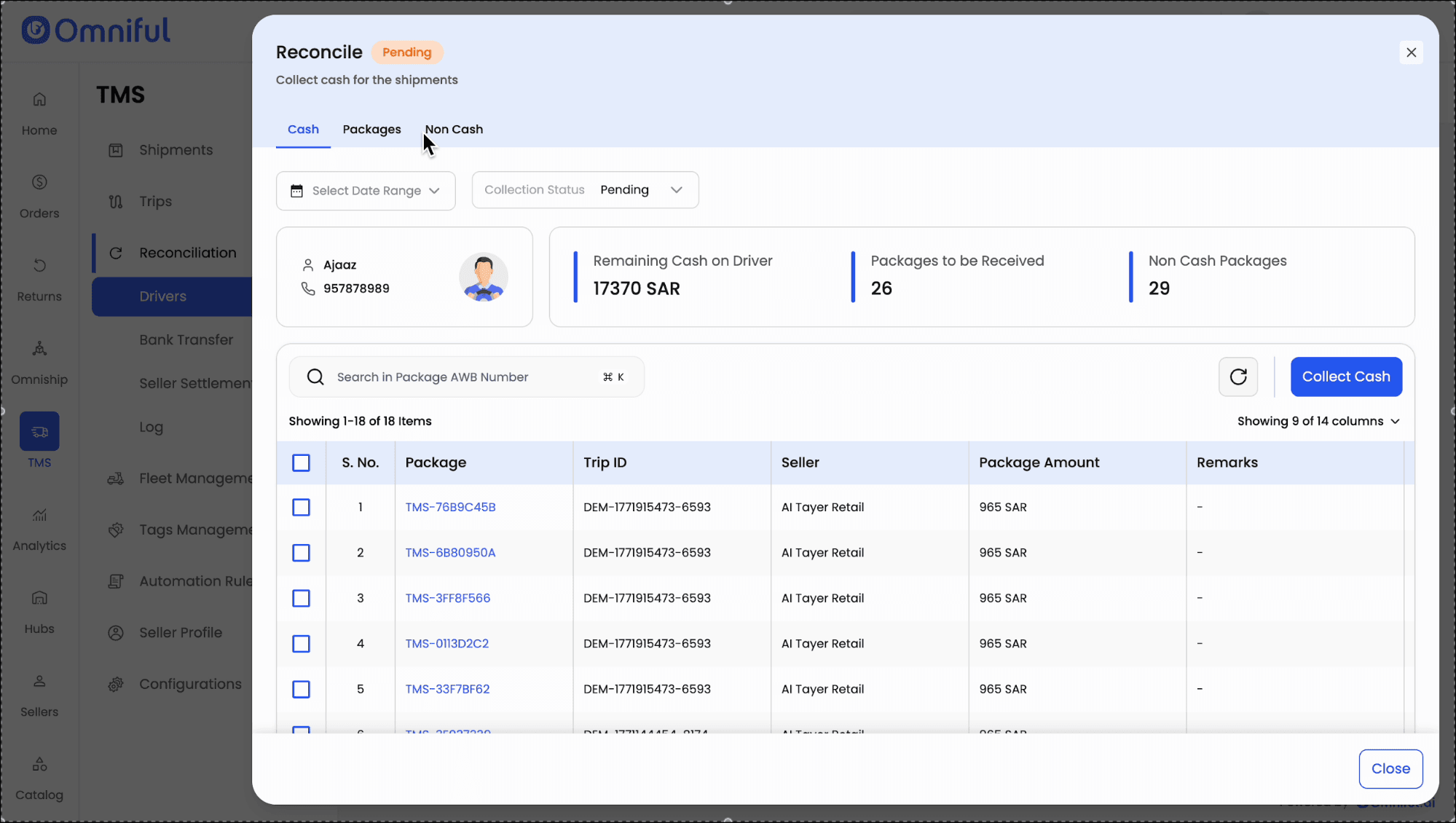
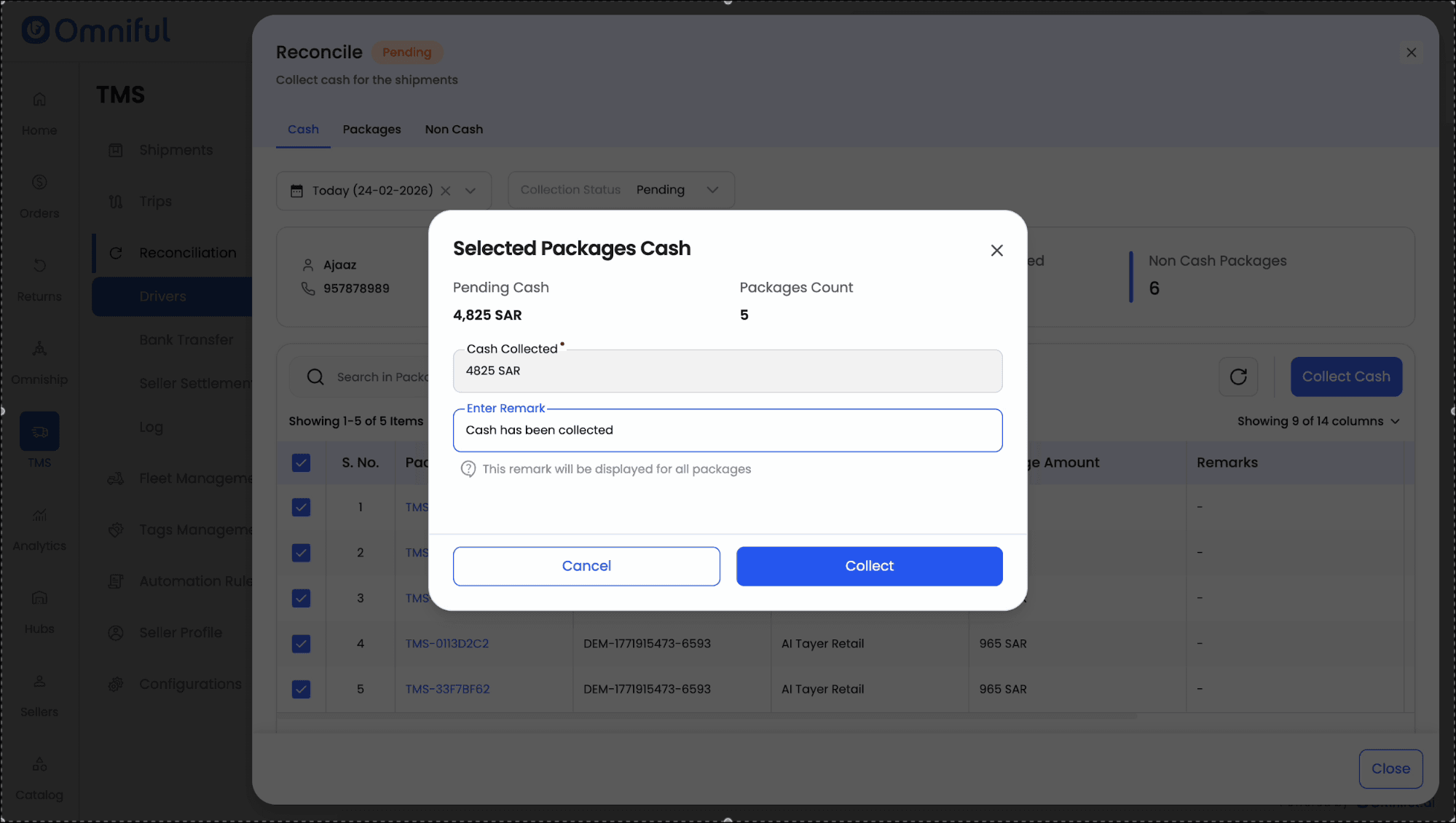
- Collect cash from the driver — From the Cash tab, collect cash for all eligible packages or only for selected packages. Add remarks when required and confirm the transaction.
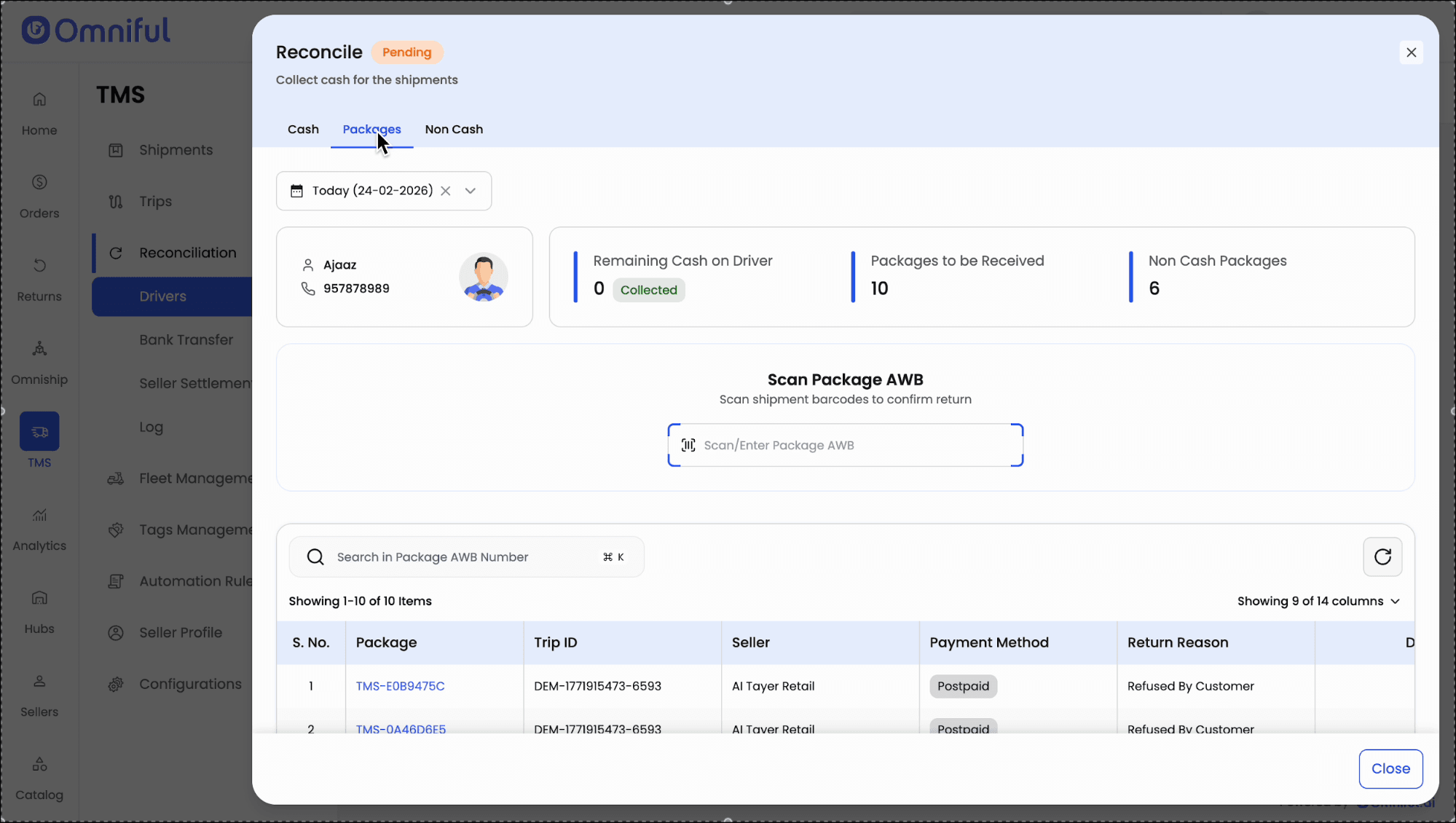
- Receive packages at the hub — Move to the Packages tab and scan or enter the package AWB. After scanning, the package status updates from Arrived at Hub to Received at Hub from the same screen.
- Review non-cash packages — The Non-cash tab lists non-cash payment packages for review. No cash collection action is required on this tab.
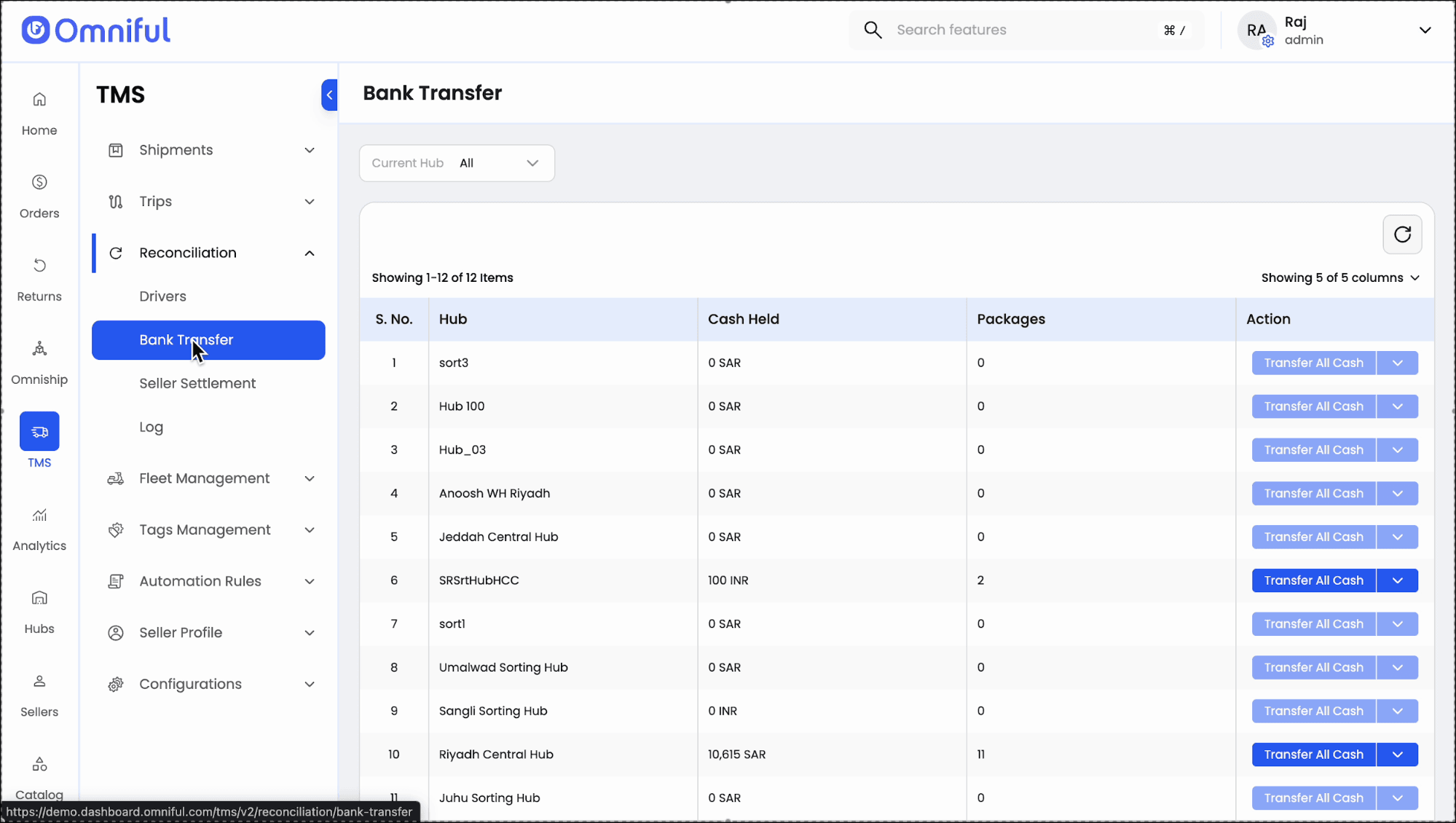
- Transfer hub cash — After driver-level cash collection is complete, open Bank Transfer to review hub-level cash awaiting transfer.
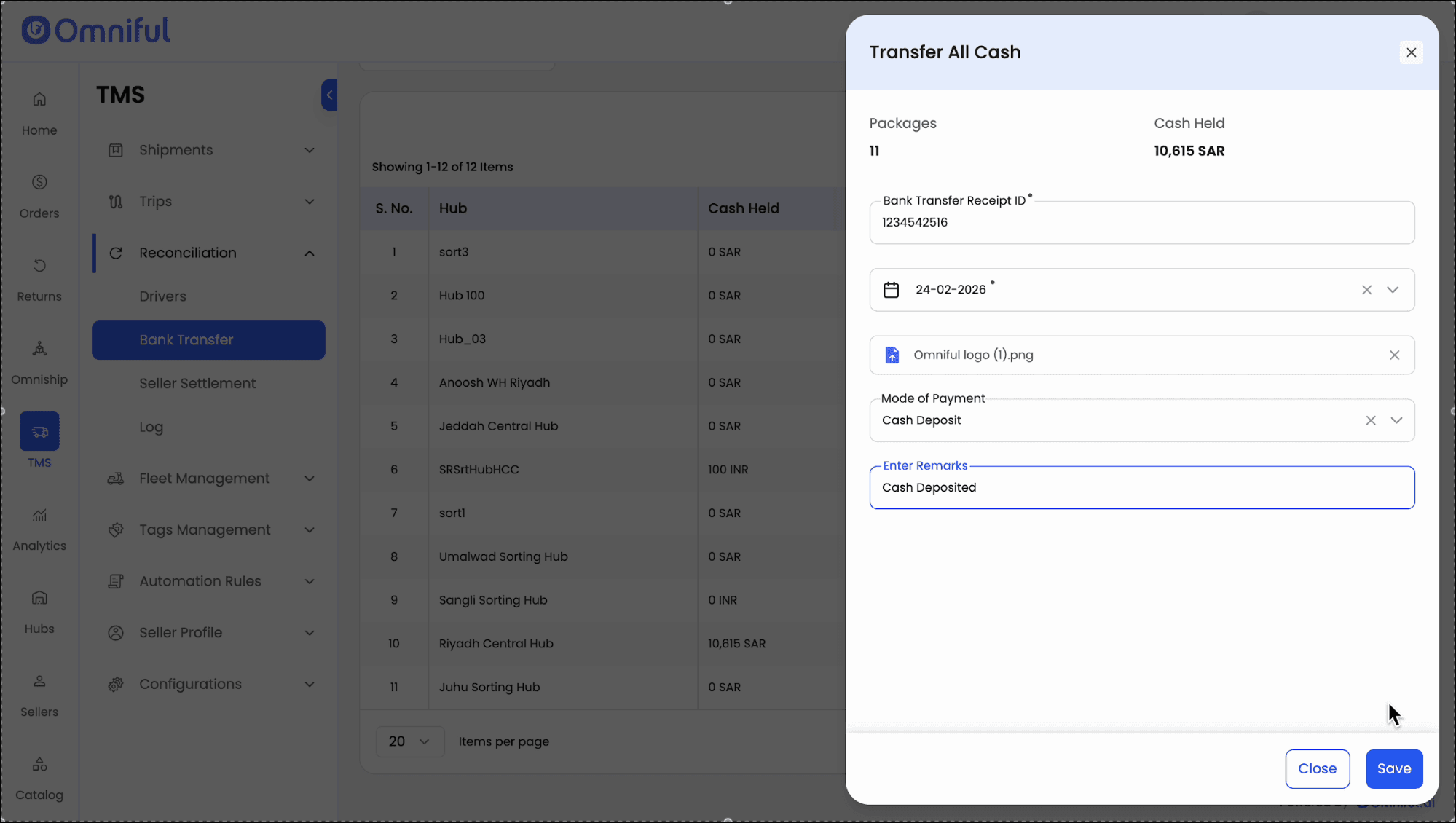
- Record the bank transfer — Use Transfer All Cash to enter the transfer amount, receipt ID, bank transaction date, supporting file, payment mode, and remarks, then save the transfer.
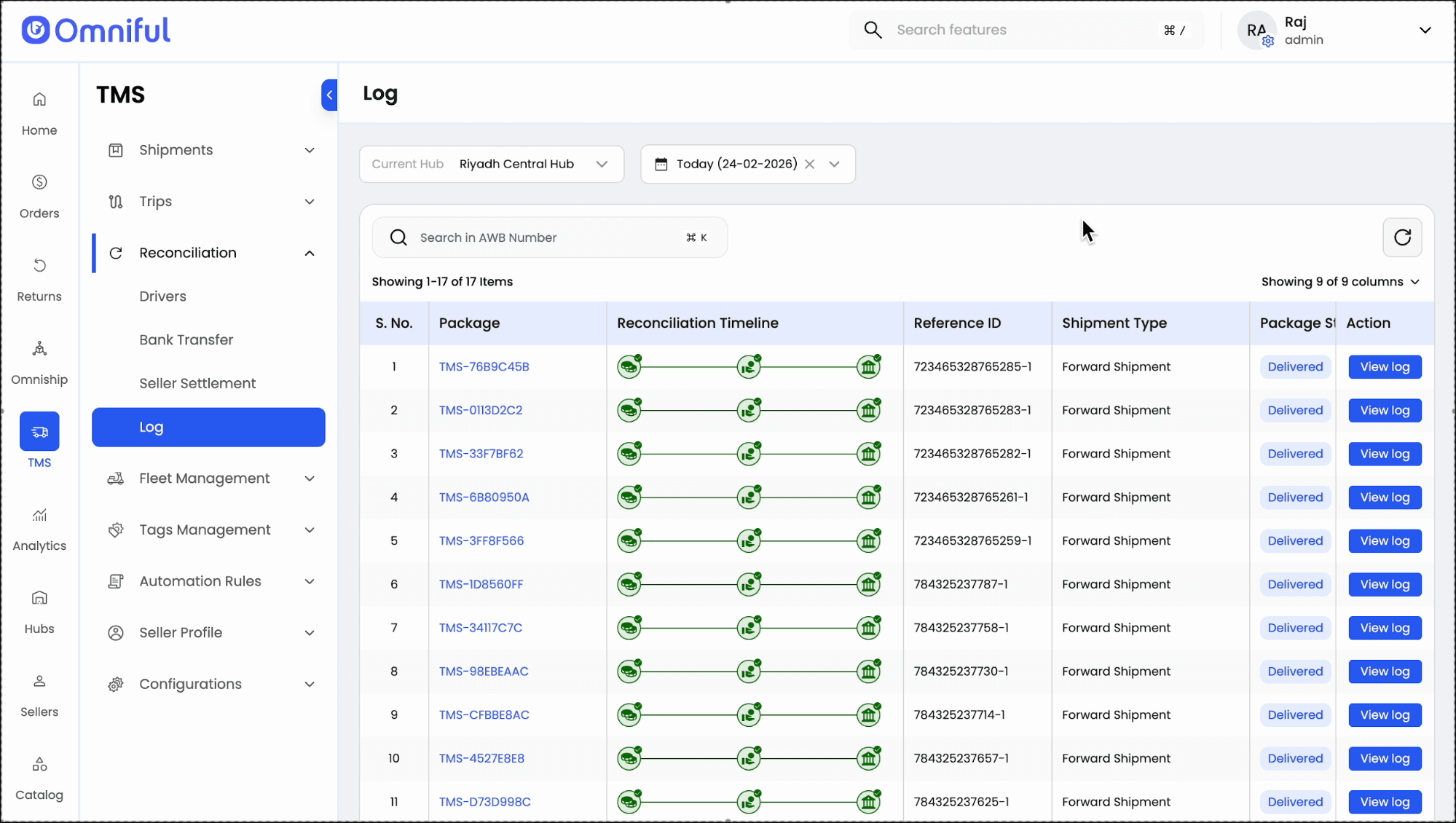
- View reconciliation history — Open the Log page, select the hub and date range, and review the reconciliation history available for each package.
- Open detailed transaction logs — Use View Log on a package to inspect the complete transaction history, including transaction type, driver details, updated by, amount, transfer date, receipt number, uploaded deposit slip, and remarks.
Technical Details
| Area | Behavior / Details |
|---|---|
| Primary filters | Hub, reconciliation status, date range, and optional driver filter on the Reconciliation list. |
| Driver reconciliation view | A side sheet with Cash, Packages, and Non-cash tabs. |
| Cash action | Collect cash for all packages or for selected packages, with optional remarks. |
| Inbound Packages | Scan or enter package AWB to mark packages as Received at Hub from the reconciliation screen. |
| Non-cash handling | Review-only visibility for packages completed through non-cash payment methods. |
| Bank transfer options | Use Transfer All Cash to log a full hub cash transfer, or Bulk Upload Packages to log a partial, package-based transfer via CSV upload. |
| Log filters | Hub and date range filters on the Log page. |
| Detailed log fields | Transaction type, driver details, updated by, amount, bank transfer date, bank transfer receipt number, uploaded deposit slip, and remarks. |