

Table of Contents
Share On


Upload Videos for QC Failed Items
Version: 1.0
Owner: Omniful Product Team
Summary
Warehouse operators can now attach videos, in addition to images, when marking items as failed during GRN QC and order packing. Failed quantities continue to be captured reason-wise, and all failure details — including attached media — can be reviewed later from the GRN Details and Order Details screens.
This enhancement improves auditability for QC failures and packing exceptions by enabling teams to capture clear evidence at the time of failure and review it easily during audits or investigations.
How It Works
Users can attach media (photos or videos) while marking SKUs as failed during GRN and packing. Media can also be added when marking an SKU as not picked during packing in hubs operating on hub-based inventory tracking with picking disabled.
- GRN: Up to five media files per SKU
- Packing: Up to three media files per SKU
- File Size Limit: 10 MB per media file
All failed SKU details along with attached media can be viewed from:
- GRN Details → Overview (for GRN)
- Order Details → Hub Operation Details (for packed orders)
GRN QC: Bins and Pallets Enabled Hubs
During the GRN process, assign a SKU to a fail bin. Select the failure reason and click Upload Media to attach supporting media (if needed).
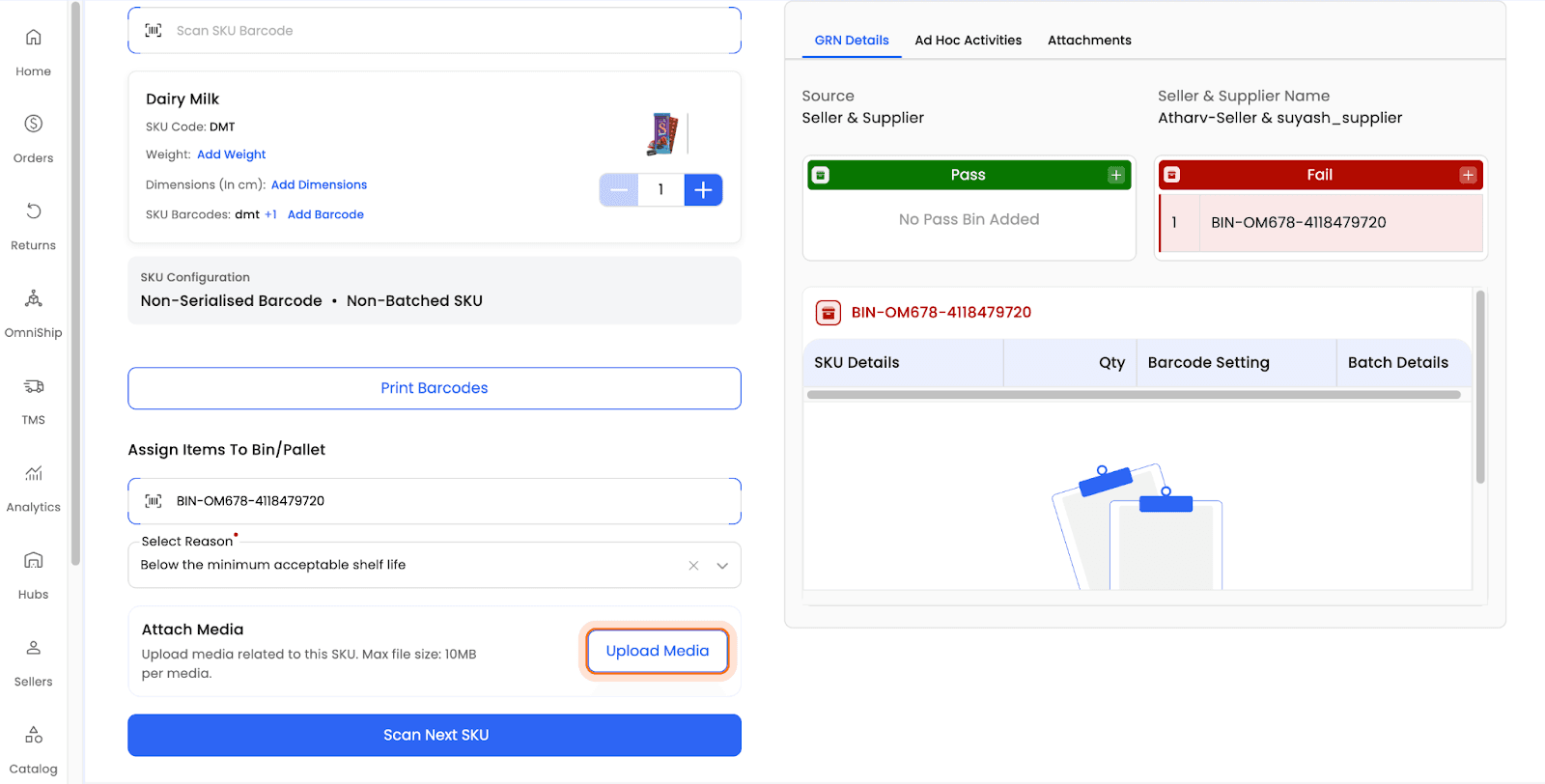
Action: Attach Media option for the failed SKU
GRN QC: Bins and Pallets Disabled Hubs
Click Mark As Fail on a SKU card during the GRN process. A side sheet will open, allowing users to select reasons for failed quantities and upload media by clicking the cloud upload icon.
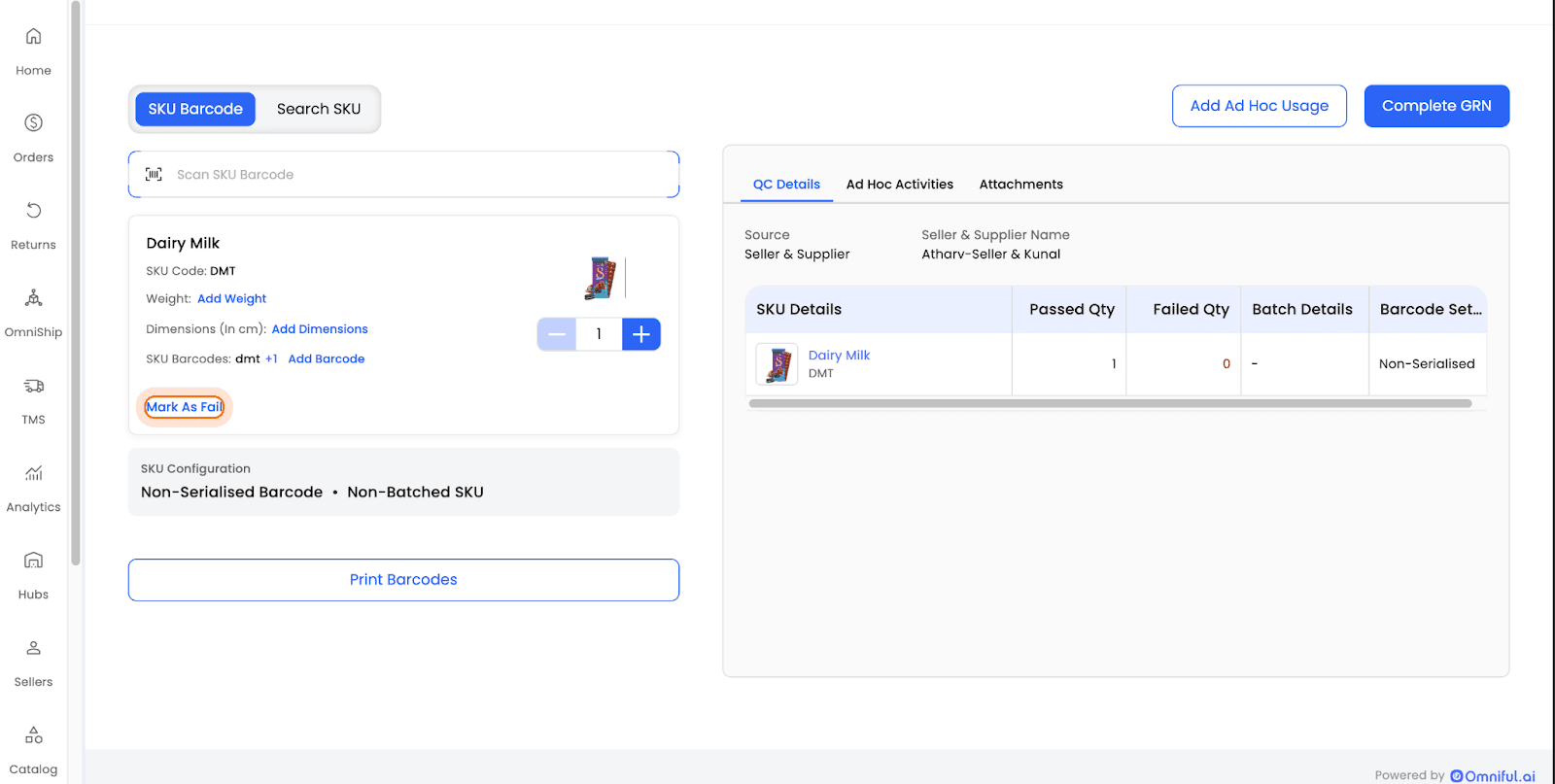
Action: GRN QC screen - Mark As Fail action available on the scanned SKU
GRN Details: Review Attached Media
Open GRN Details by selecting the relevant GRN ID. Under Failed SKU Details, click View in the Media column to review reason-wise failed quantities and attached media.
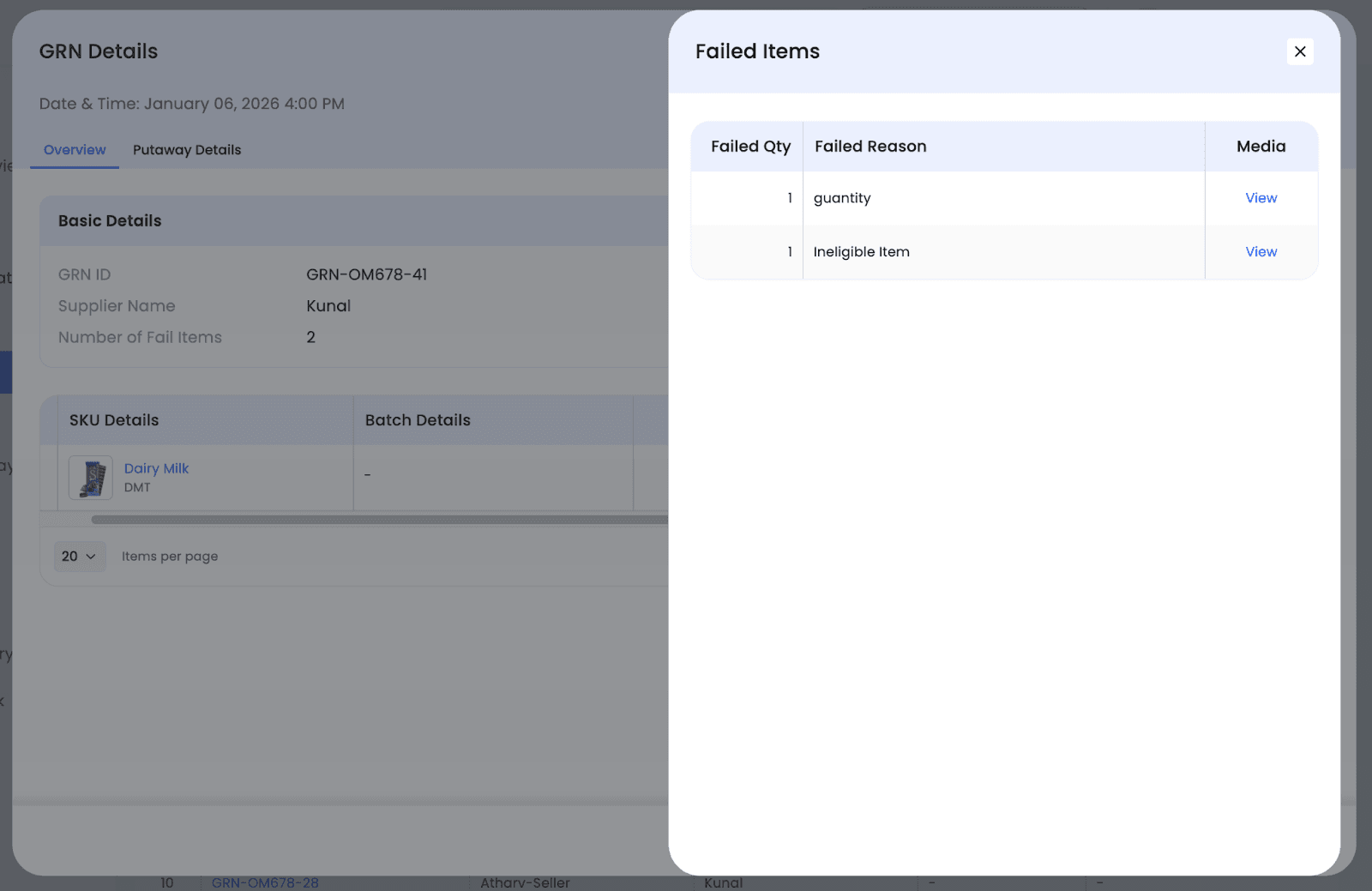 Action: Failed SKU Details - GRN
Order Packing: Fail or Not Pick with Video Support
During order packing, scan the SKU barcode.
- To fail an item: click Mark As Fail on the SKU card, select failure reasons, set quantities, and upload media.
- To mark an item as Not Picked (for hubs with hub-based inventory tracking and picking disabled): click Mark As Not Picked, then select reasons, quantities, and upload media as needed.
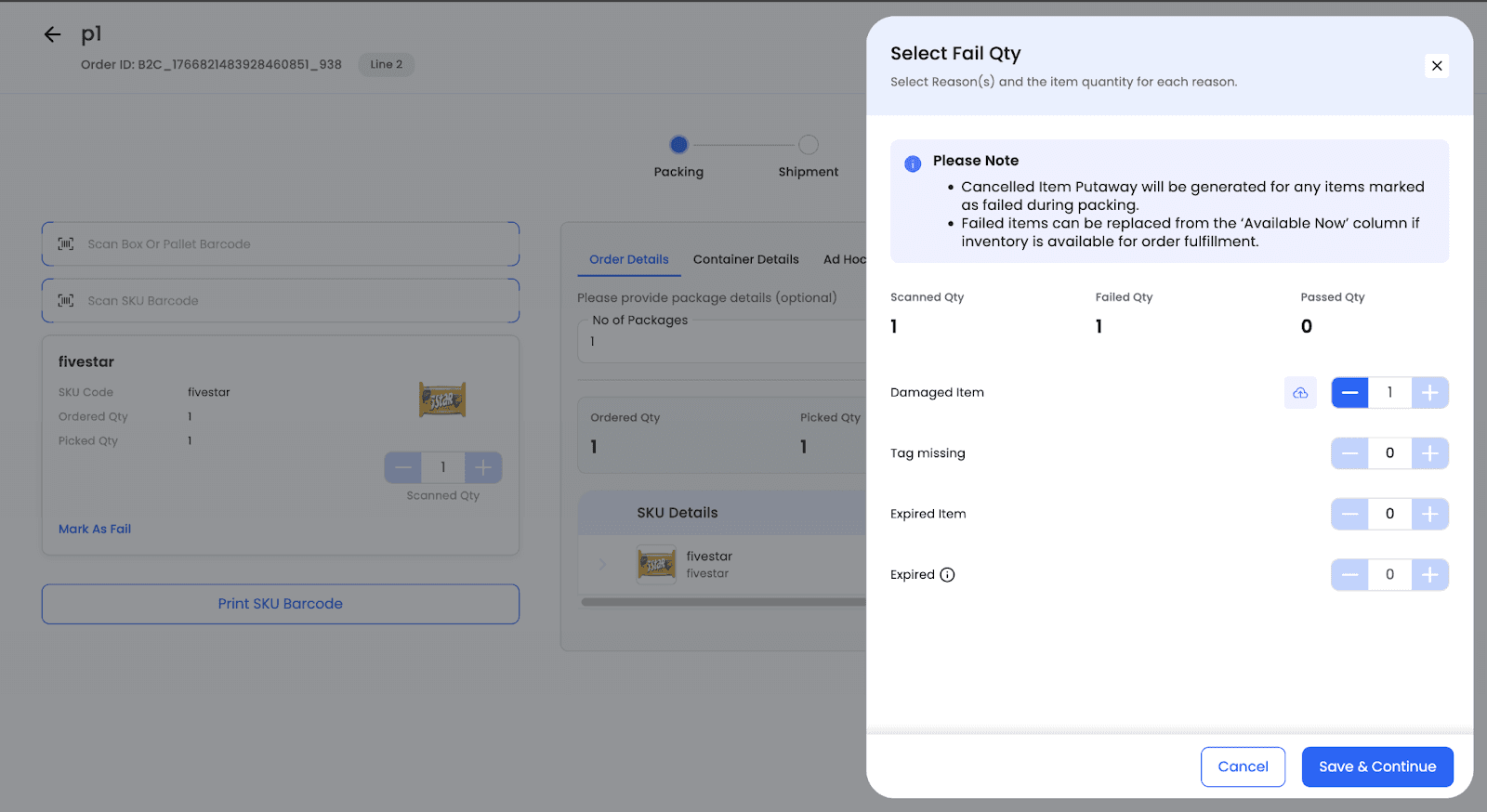
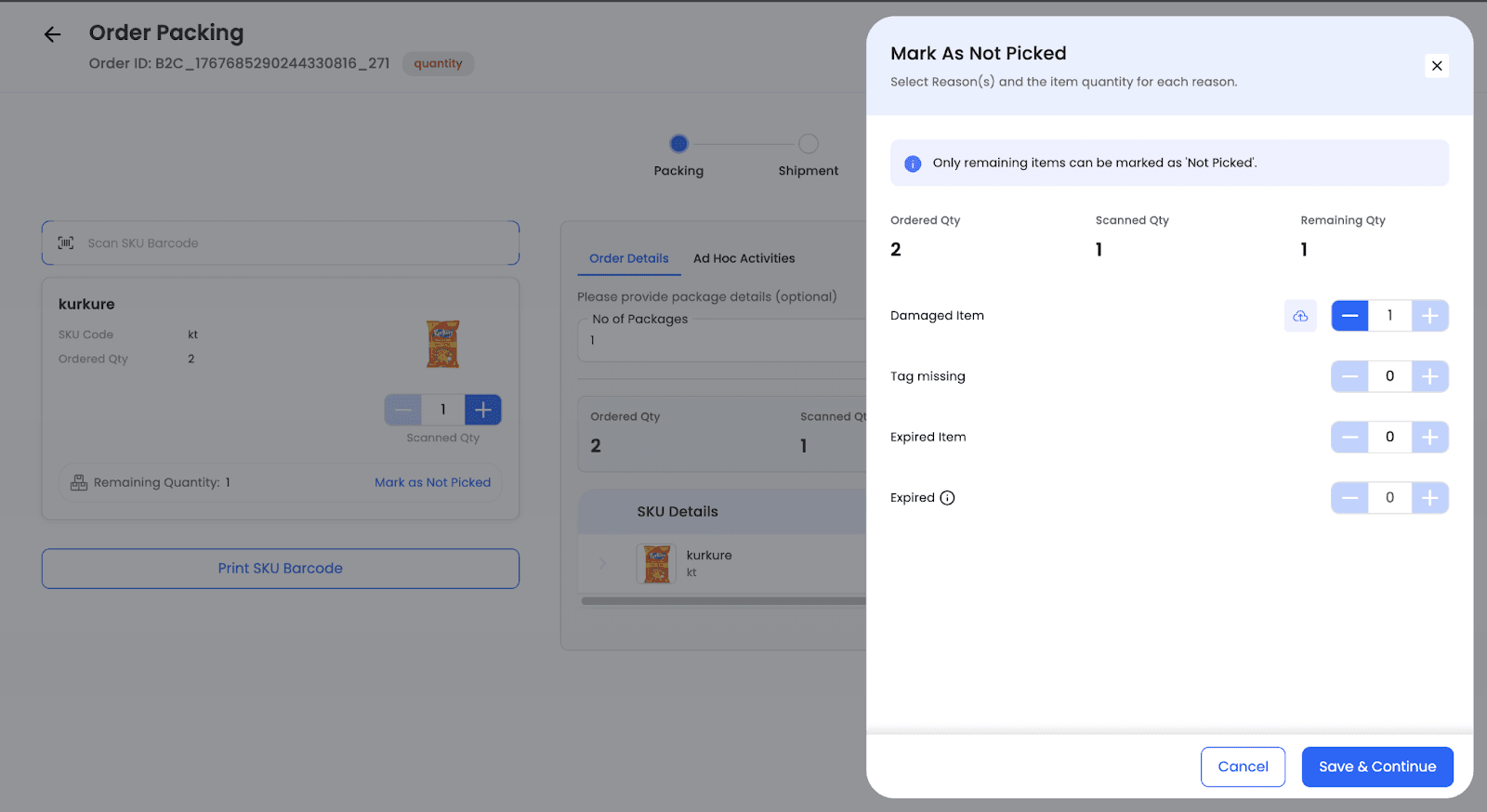
Action: Fail SKUs with reason-wise quantities and media upload
Order Details: View Attached Media
To review attached media during packing, go to Order Details → Hub Operation Details, then click View Details under Failed SKU Details, and View under Failed Item Media to review failure reasons, quantities, and media.
 Action: Failed SKU Details - packed order
Video Download and Sharing Support
Omniful provides a shareable link for every uploaded video, allowing users to share or download the video when required. The video link appears directly below the video preview, making it easy to copy or download for audits, reviews, or external communication.
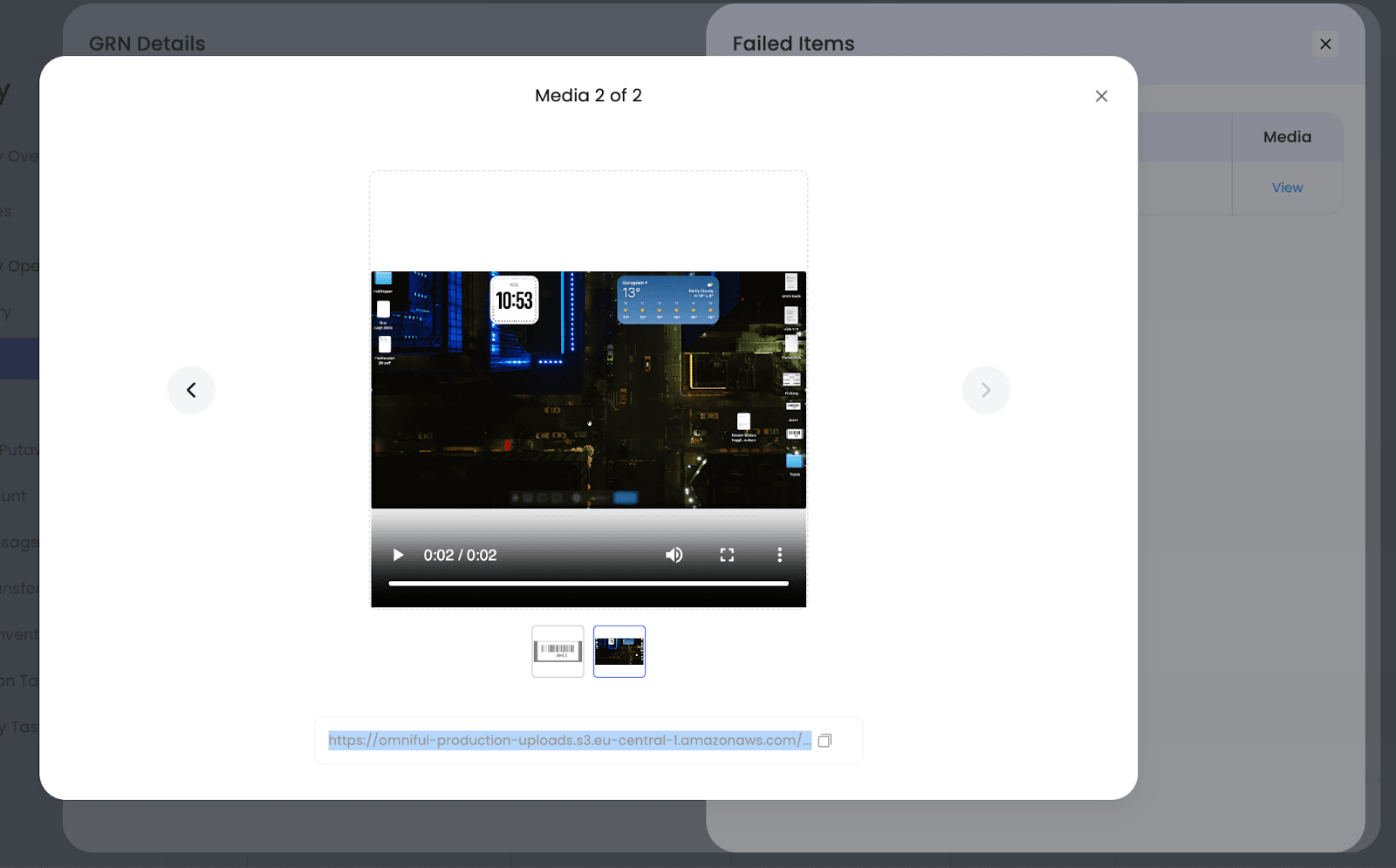 Action: Share/download video from the link below the video preview
Technical Details
- Failed quantities are captured against selected failure reasons for each SKU.
- Media can be attached during failure marking; maximum upload size is 10 MB per file.
- Failure details and media remain accessible in GRN Details and Order Details for downstream review.