

Table of Contents
Share On


User Creation Enhancement & 2FA
Flexible User Creation Flow with Strengthened Authentication Controls
Release Note Details
- Version: 1.0
- Owner: Omniful Product Team
Summary
Omniful has enhanced the user creation flow to support onboarding using either an Email ID or a Username + Password on the Omniful Dashboard , Hub Ops App and TMS Delivery App. Previously, relying solely on email for credential sharing and password resets was operationally inefficient—especially for field users without reliable email access. This update removes email dependency while maintaining secure authentication and enabling faster onboarding.
Along with this, configurable Two-Factor Authentication (2FA) is introduced to strengthen login security for both the Web Dashboard and Omniful Mobile Apps.
Impact
- Users can now be created using either Email or Username + Password, enabling onboarding for users without email access on the Omniful Dashboard , Hub Ops App and TMS Delivery App.
- The existing Bulk Create Driver functionality has updated CSV validation rules:
- CSV now supports either Email or Username + Password.
- Invalid combinations are rejected with clear validation errors.
- Configurable 2FA for Web Dashboard and App login strengthens access control through optional OTP verification for both platforms.
How it Works
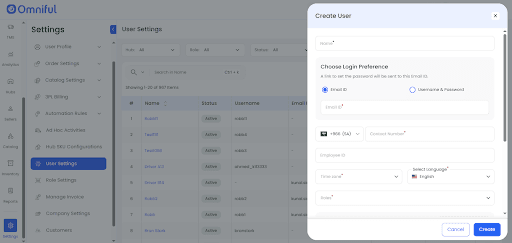
Create a user with Email ID
The flow for creating a user with an email remains unchanged:
- Enter the user’s name.
- Under Choose Login Preference, select Email ID.
- Provide the email address and complete the remaining details.
- Create the user.
A password setup link is sent to the linked email to set the password.
Create a user using Username and one-time password
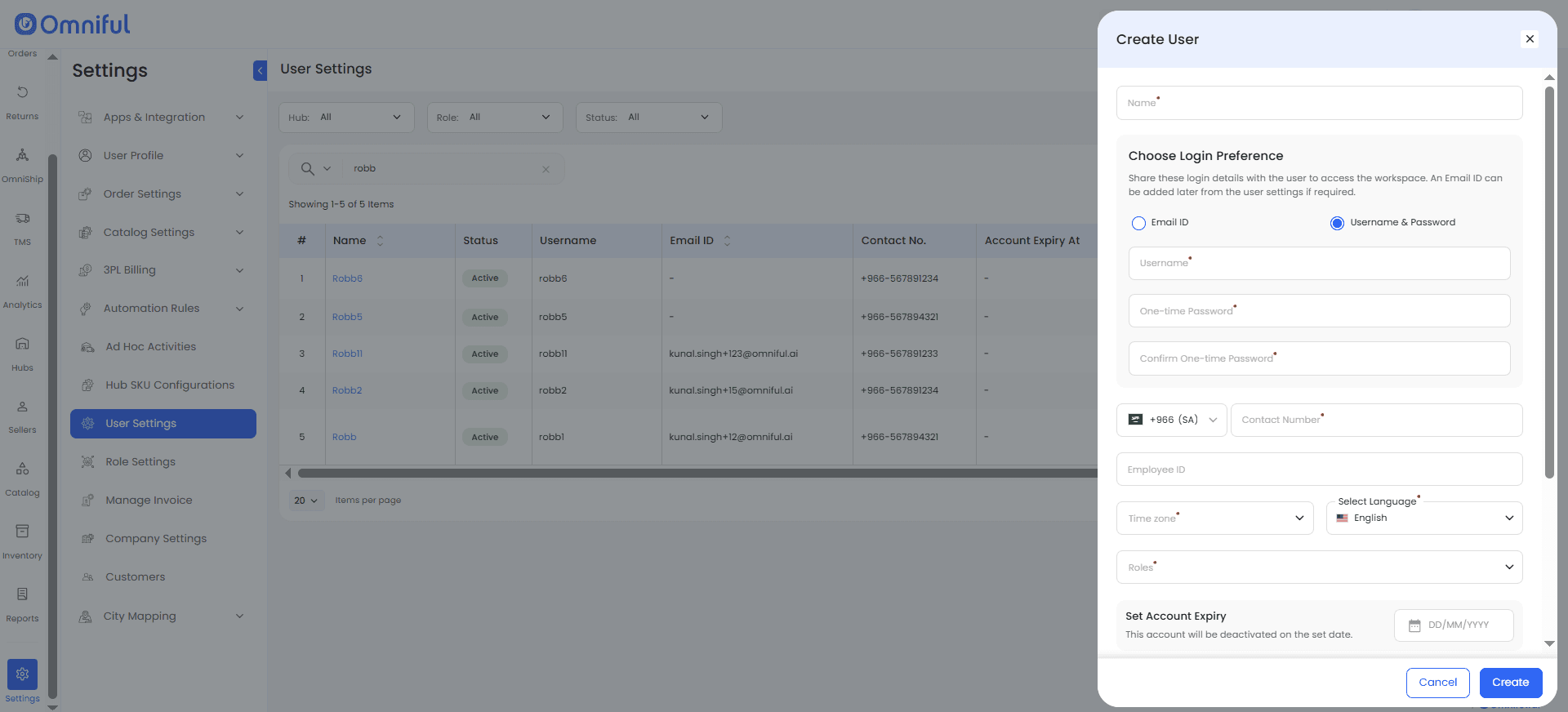
If the user does not have an email ID (or it is unavailable), the user can be created using a username and one-time password:
- Click Create User.
- Enter the user’s name.
- Under Choose Login Preference, select Username & Password.
- Enter the Username and One-Time Password.
- Fill in remaining user details and click Create.
Note:
- The one-time password is used only for the first login and is not the permanent password.
- An email ID can be added later if required.
The user can then set their permanent password through the Omniful Dashboard , Hub Ops App (for user creation) or the TMS Delivery App (for driver creation). Share the one-time password with the user to complete the first login.
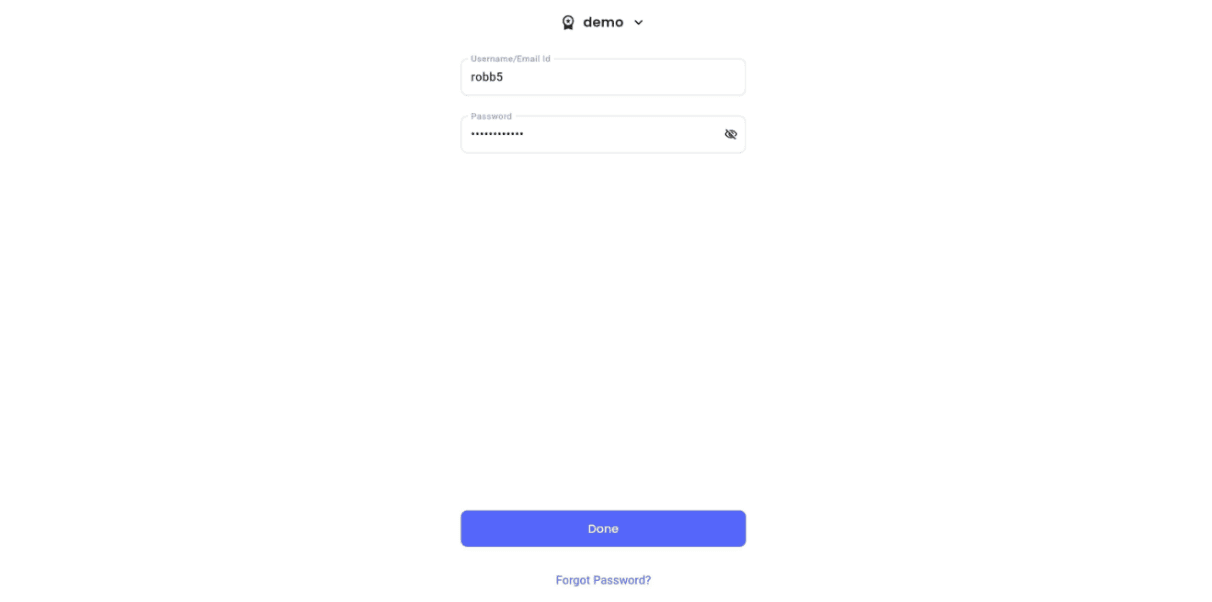
First login for a username-based user (on Hub Ops App)
- Open the Hub Ops App.
- Enter the Username and the one-time password set during creation.
- On successful login, the user is prompted to set a new login password.
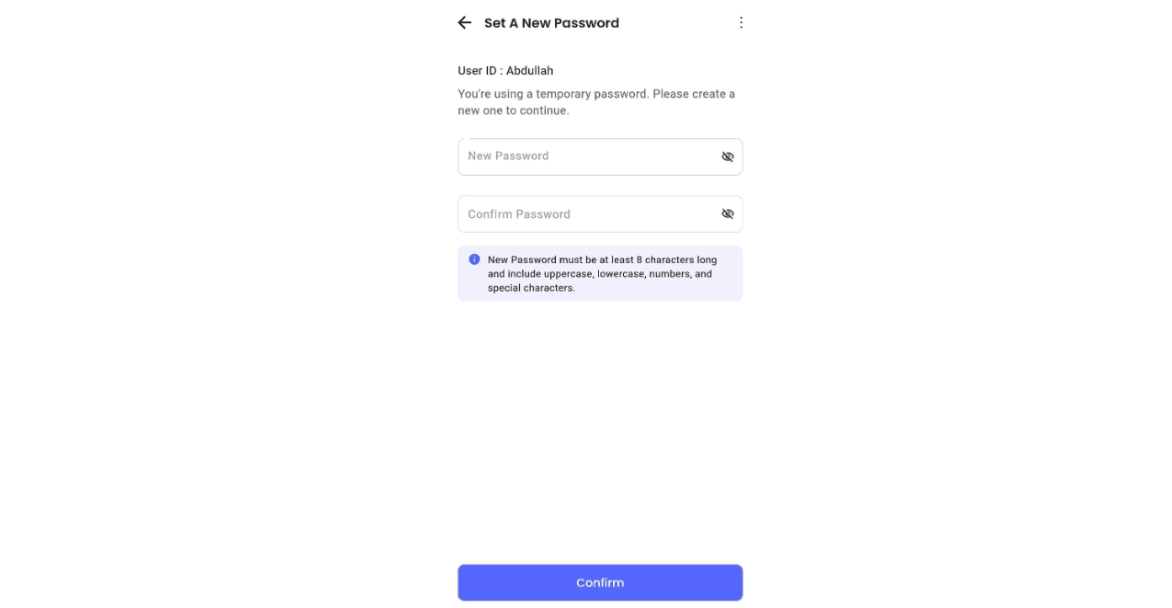
- Confirm the new password.
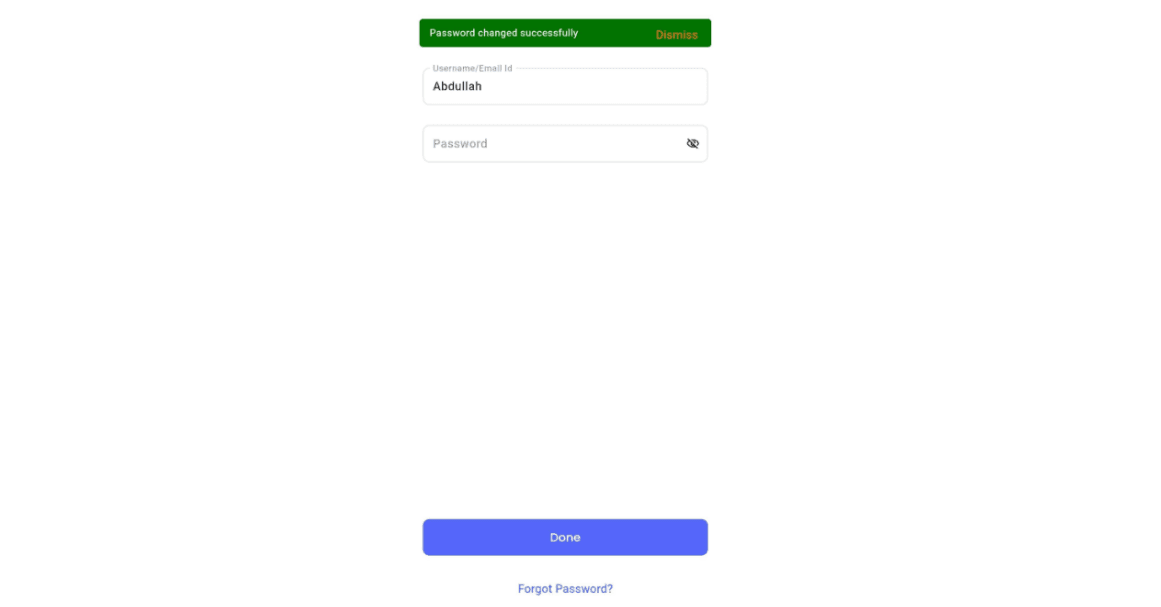
- Use the new password for subsequent logins.
Note: Similar flow is followed on both the Omniful Dashboard and the TMS Delivery App (for drivers) to set a new password for username-based users.
Password reset
Password reset depends on whether the user has a linked email:
- Email-based users: Reset via email reset link through Resend Password Link (existing behavior).
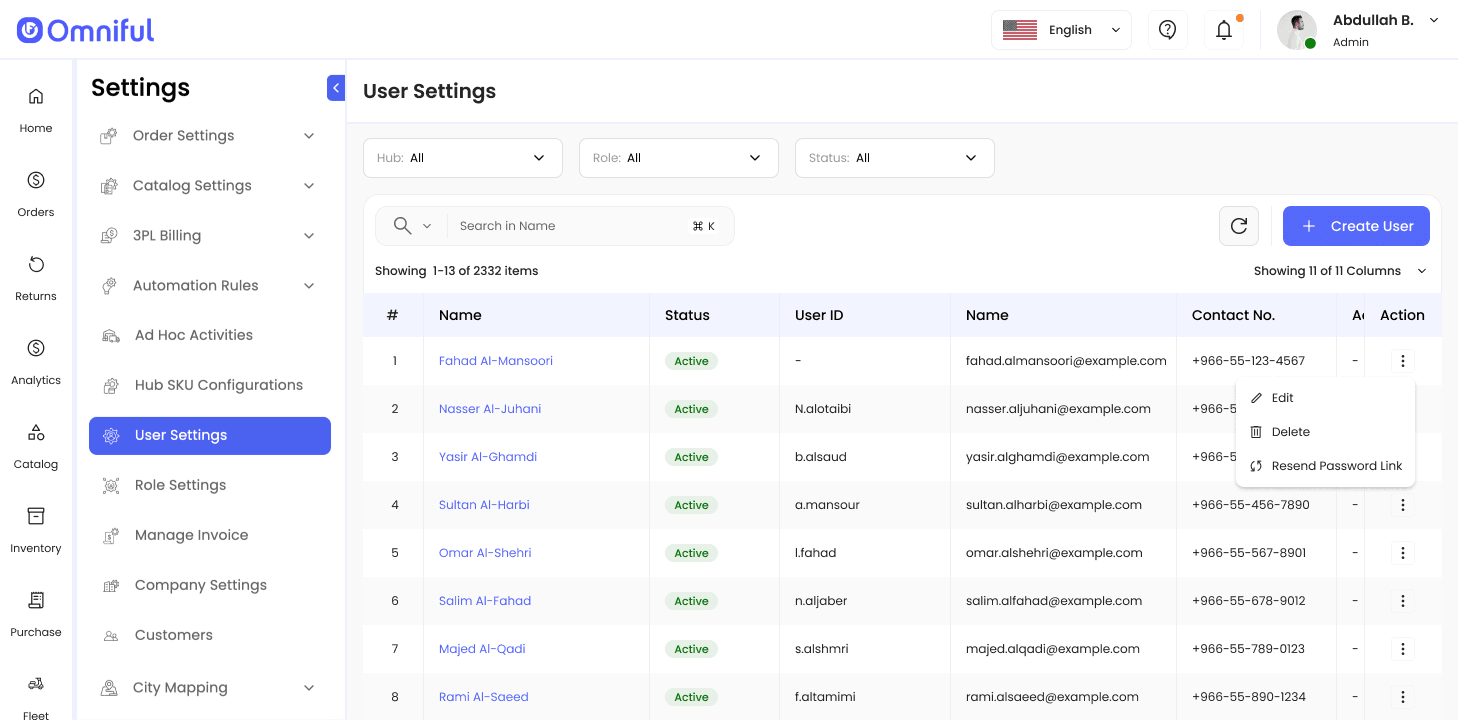
- Username-based users: Reset via Action CTA → Reset Password (sets a temporary one-time password).
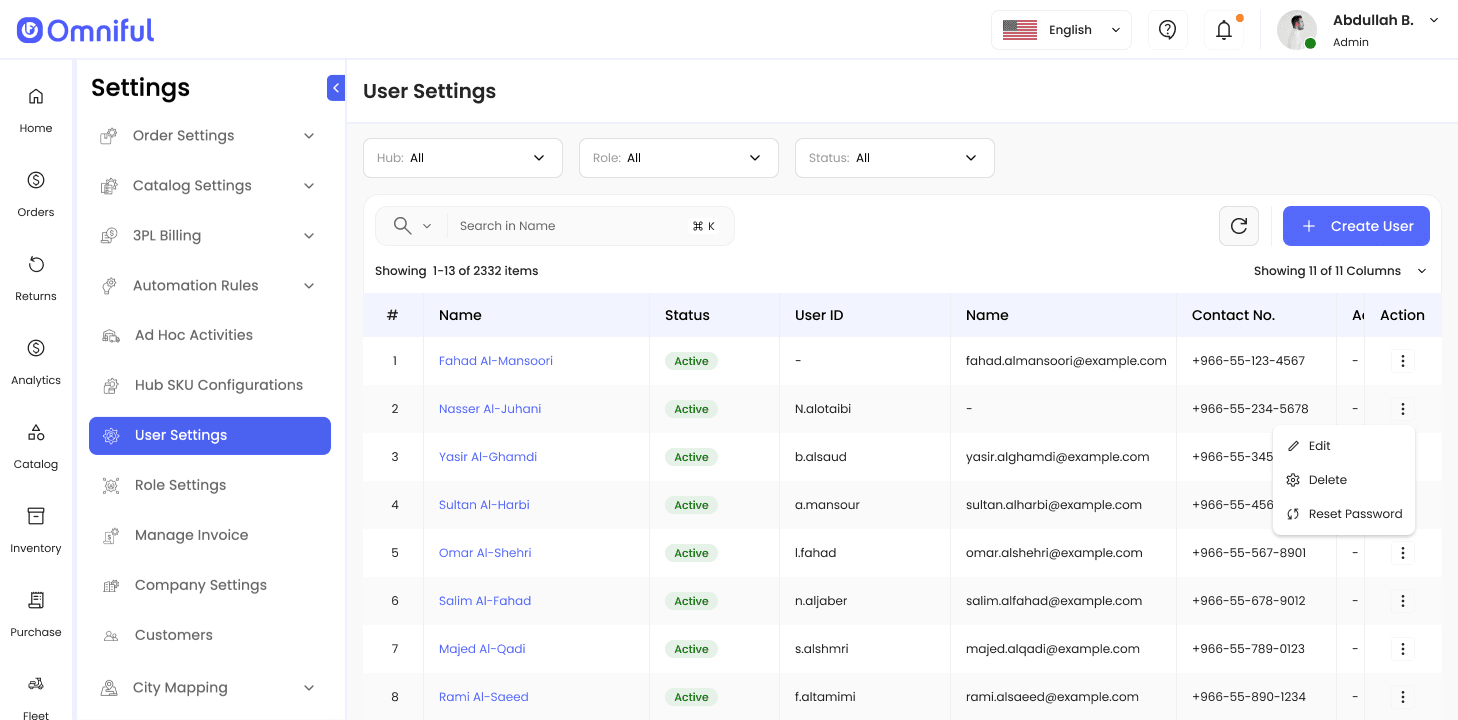
After the user logs in using the temporary one-time password in the mobile app, the system forces a new login password setup.
When the password is changed, the user is automatically logged out from all active devices.
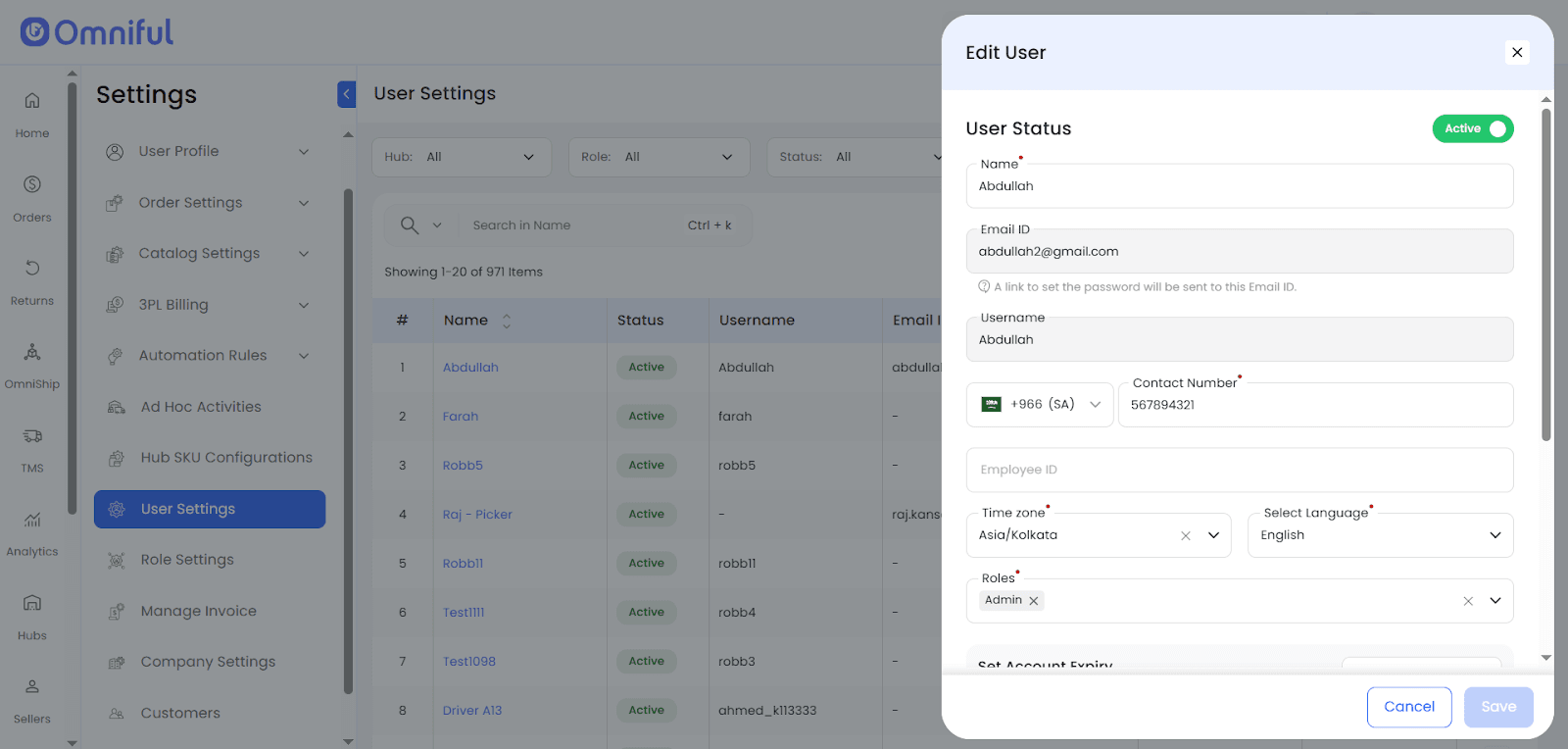
Add email to a username-based user
An email can be added later via Edit User.
- Adding an email is a one-time action and cannot be removed once saved.
- After an email is linked, all future password resets are handled only through email.
Special case:
If a username-based user has not completed the first login and an email is added before new login password setup, the system sends a password setup link to the added email (instead of requiring OTP login for password setup).
Driver creation in TMS
Drivers can be created using either:
- Email, or
- Username + Password
(same behavior as user creation).
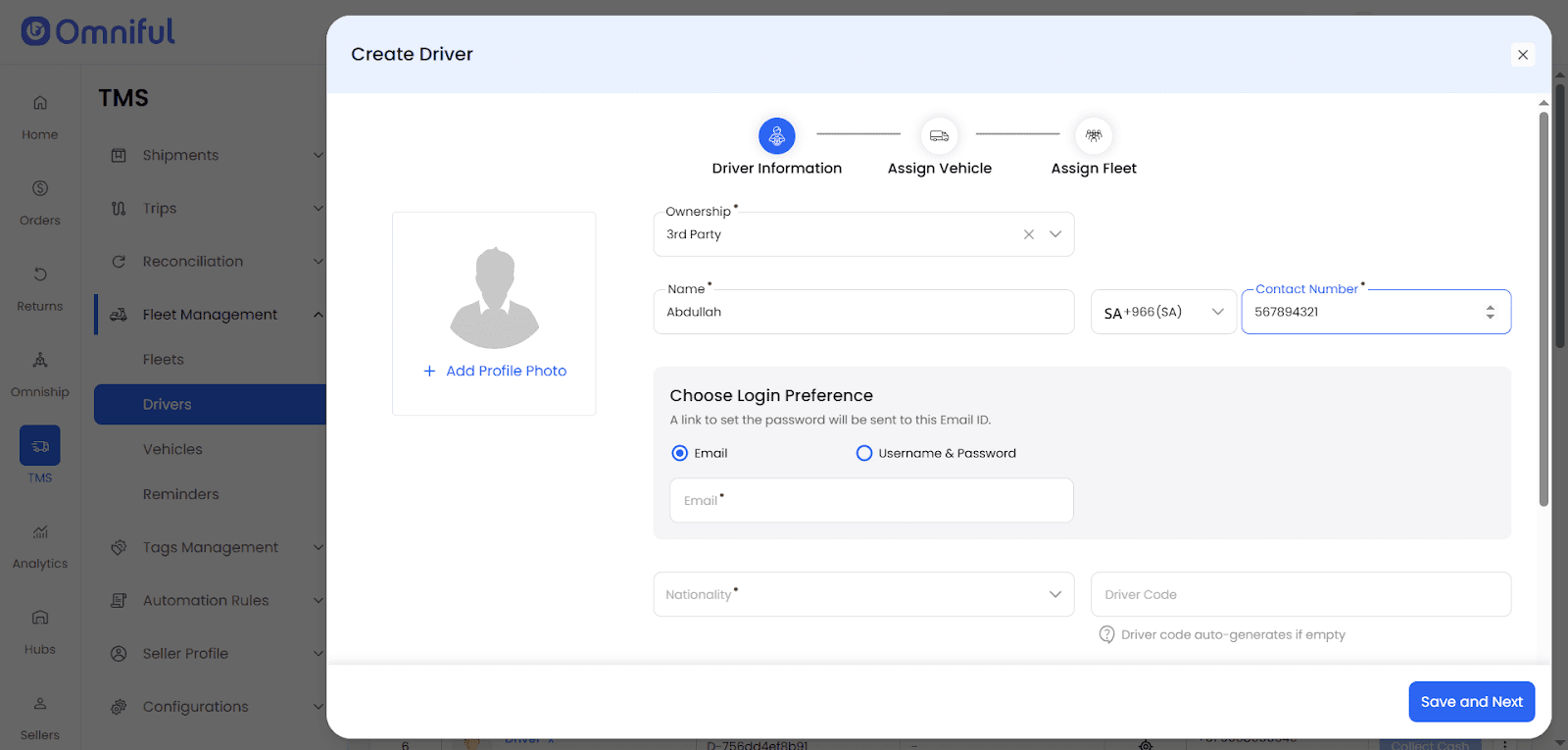
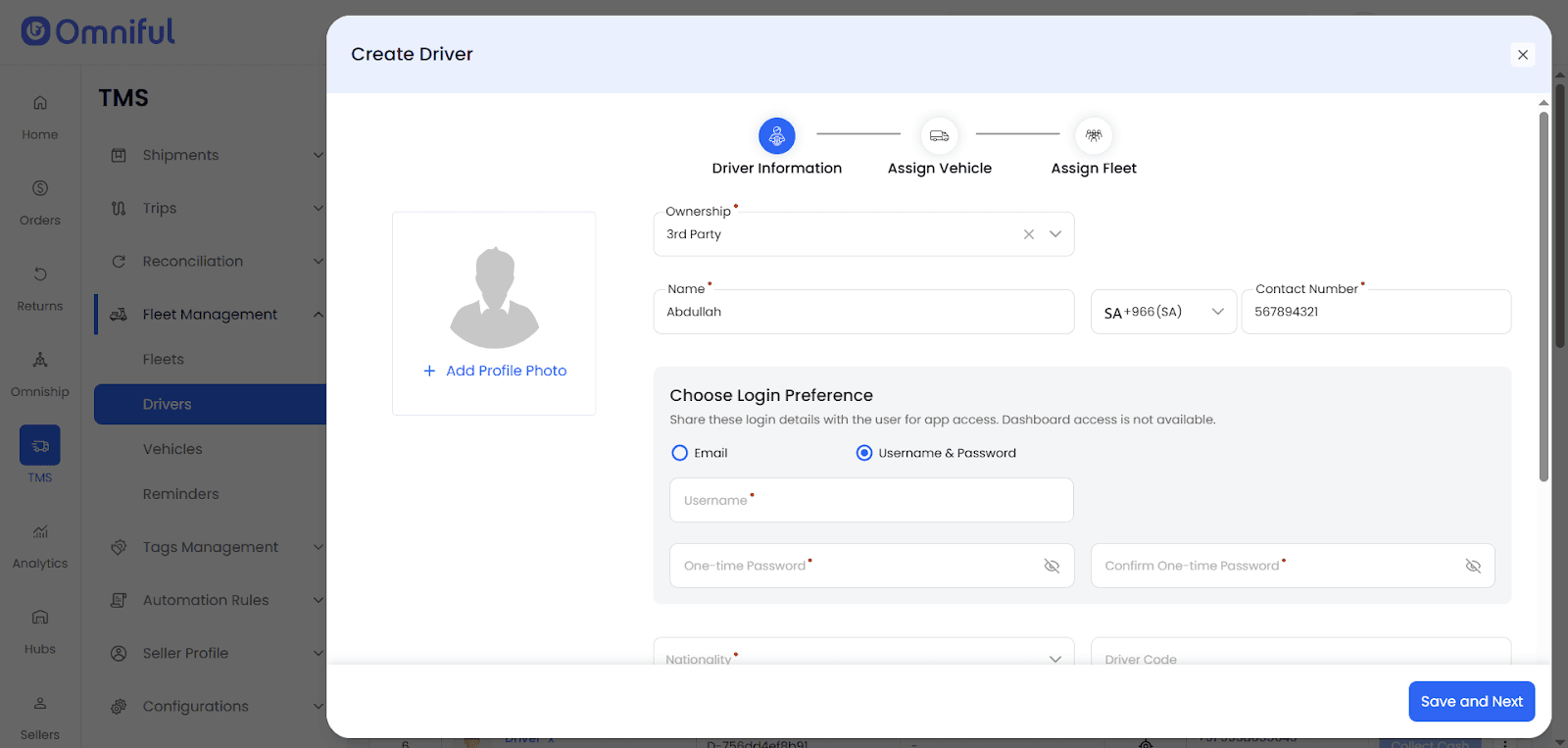
Note: TMS Dashboard is not accessible to Drivers.
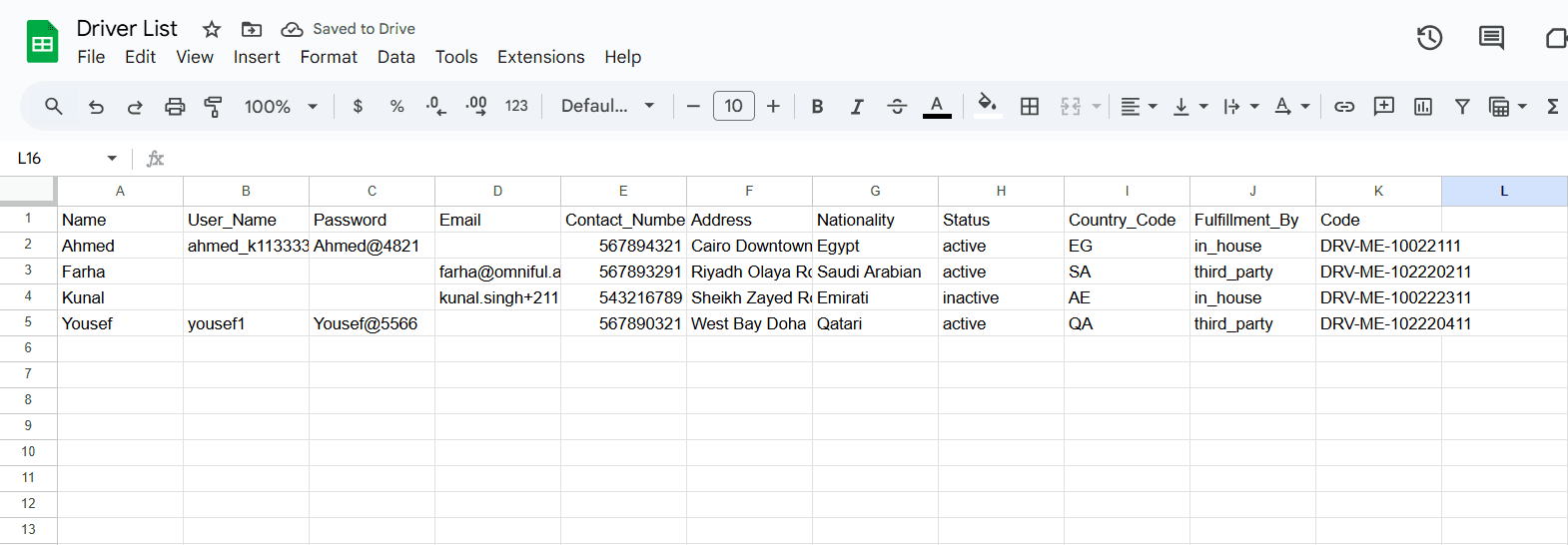
Bulk driver creation via CSV
For bulk driver creation, the uploaded CSV must contain one of the following:
- Email, or
- Username and Password
Any other combination is rejected, and the system returns a validation error describing the reason.
Two-Factor Authentication (2FA)
2FA can be configured from Settings → Company Settings and can be enabled separately for:
- Web Dashboard login
- App login
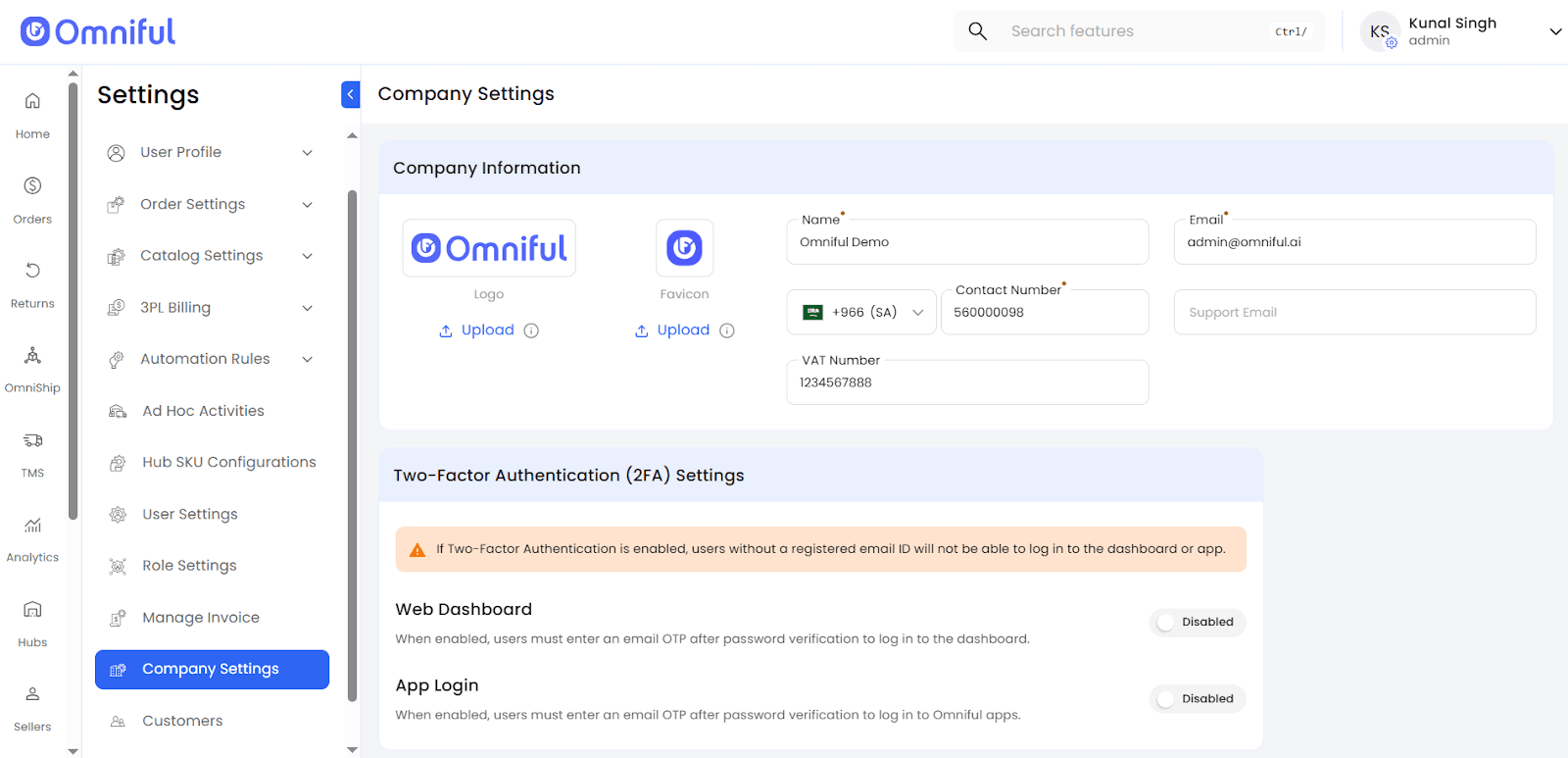
If 2FA is disabled, login proceeds directly using the entered credentials. If enabled, the system prompts for an OTP after successful credential verification.
Important note:
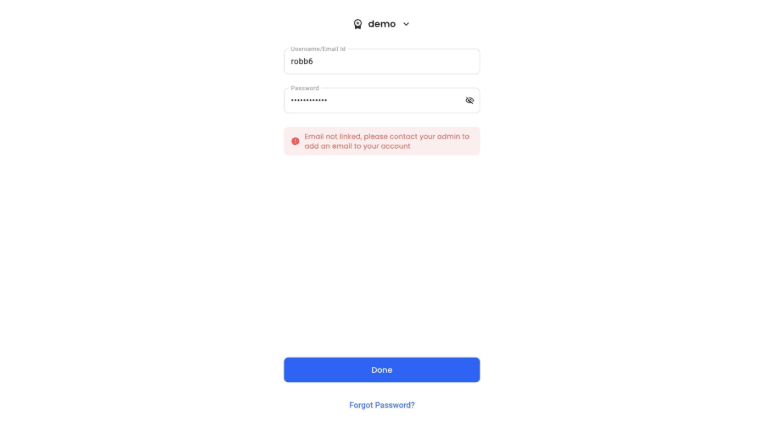
If a user is created using Username and one-time password and no email is linked, and 2FA is enabled for App login or the Web Dashboard, the system will block the login and display an error indicating that no email is linked. The user must link an email to continue.
Technical details
- Username-based onboarding uses an admin-defined password only for initial activation (or as a temporary one-time password during reset). Users must set a new login password after successful one-time password login.
- Adding an email to an account created with a username is irreversible. Once linked, the email becomes the primary channel for password setup and resets.
- After a password change, the system terminates active sessions and logs the user out from all devices.
- Bulk driver CSV validation enforces clean identifiers: either Email or Username & Password.