

Table of Contents
Table of Contents
Share On


Date: 18 May 2026
Video Support During QC Processing in Hub Based Inventory
Users can now upload and preview images and videos during return QC processing in hub-based inventory. This enhancement helps teams capture visual proof of failed items and maintain centralized documentation across both the web dashboard and the HubOps app.
What's New
- Upload images and videos during QC processing for Customer Returns and Courier Partner Returns.
- Upload up to 3 media files per QC reason (any combination of images and videos).
- Preview uploaded videos directly within the interface.
- Access uploaded media from the Return Order Details page after QC completion.
- Use the same functionality in the HubOps app during inventory receiving and QC.
How It Works (Web Dashboard)
- Navigate to Returns → Return Orders.
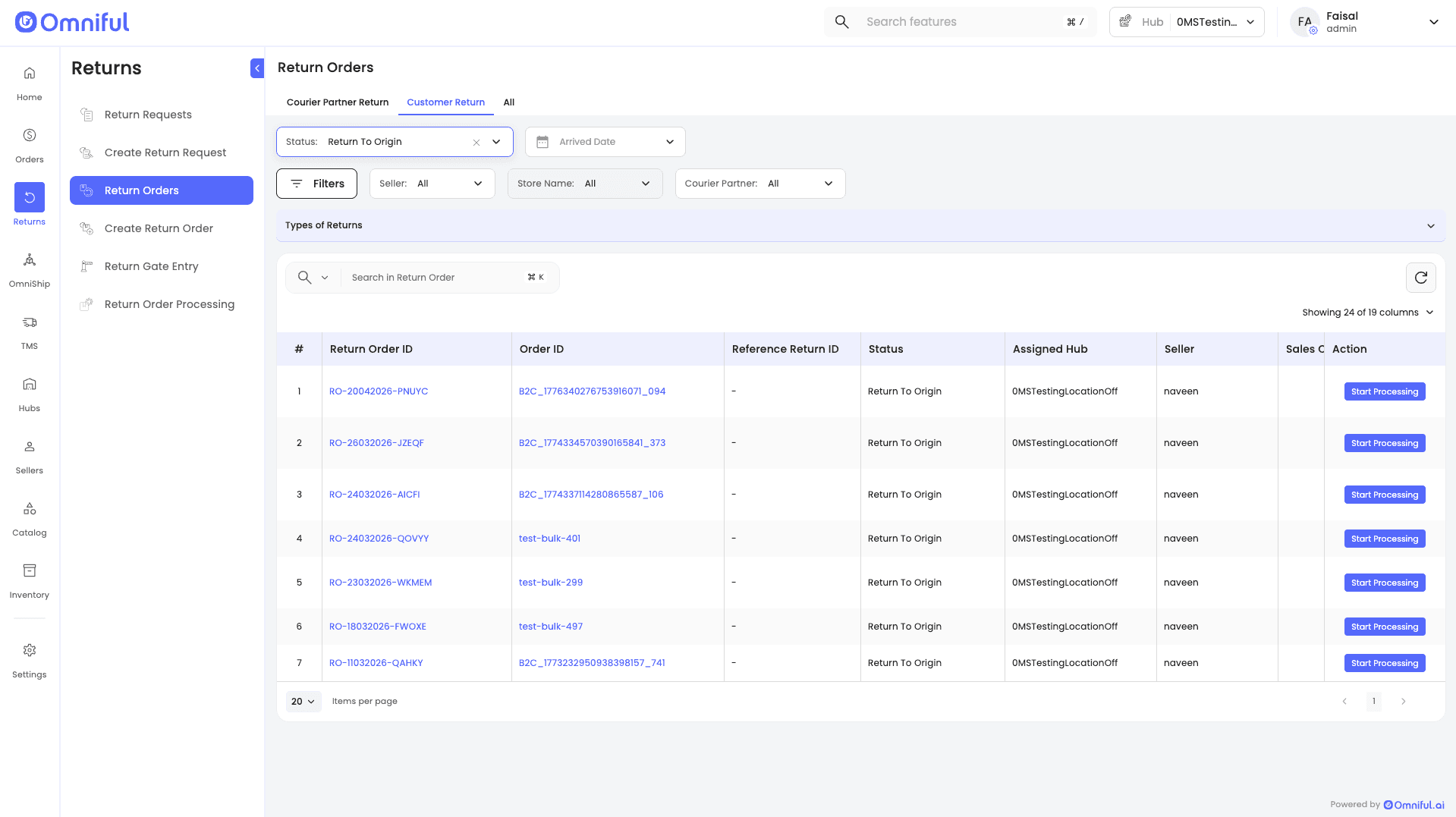
- Open the required Customer Return or Courier Partner Return order.
- Click Start Processing.
- Increase the Fail QTY for the item.
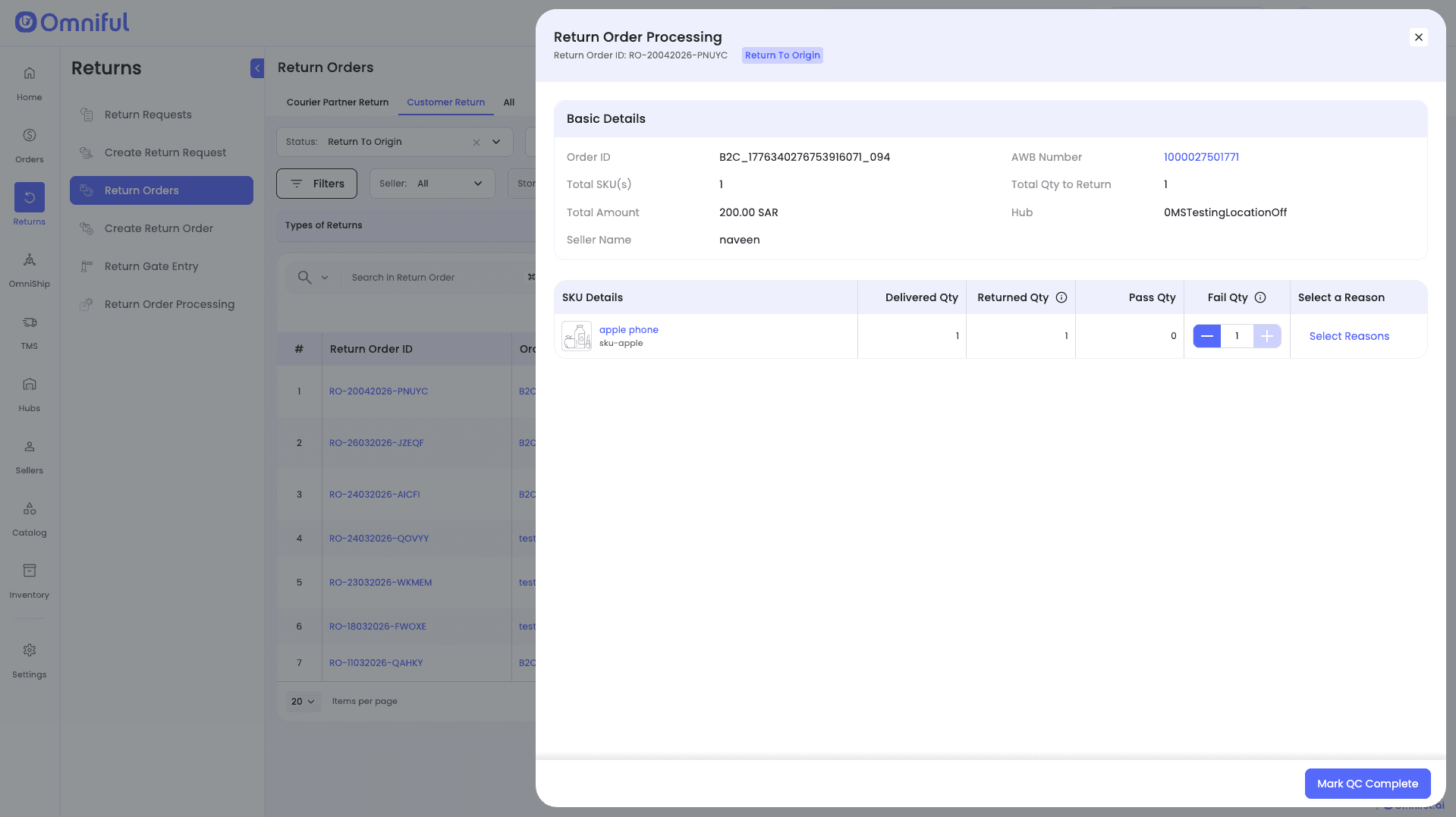
- Select the appropriate QC Failure Reason.
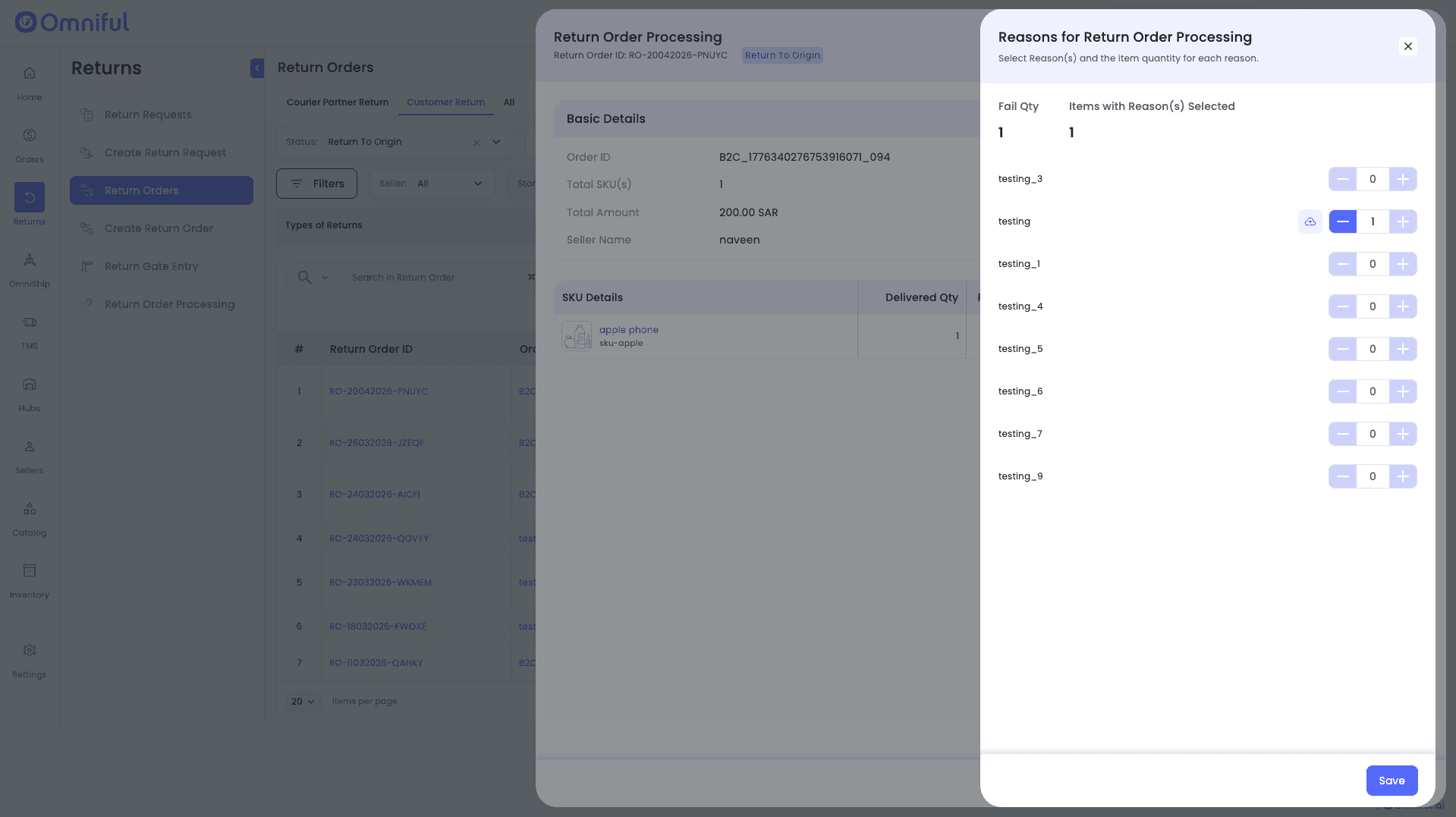
- Click the Upload icon to attach images or videos.
- Preview uploaded media directly on the same screen.
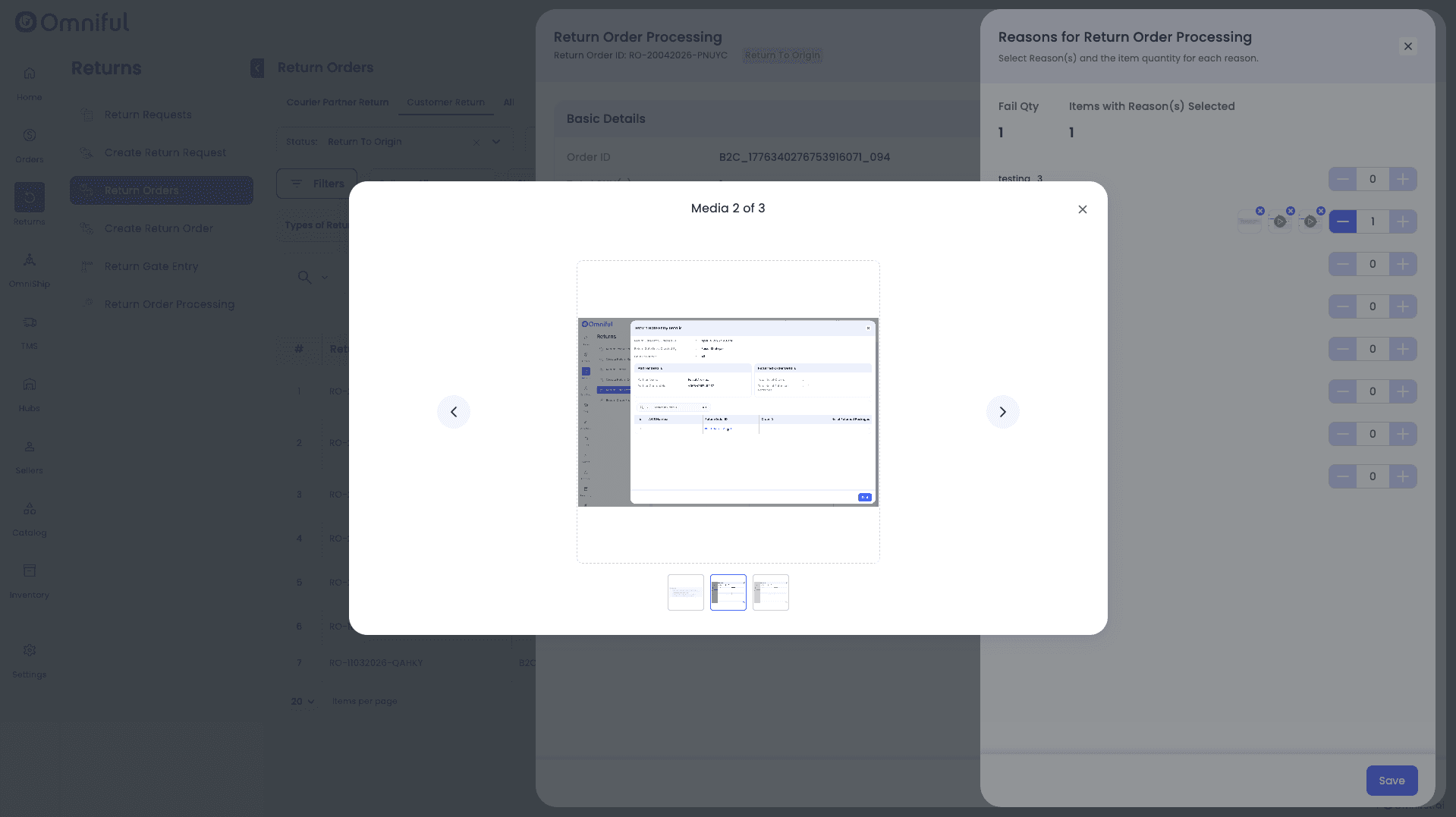
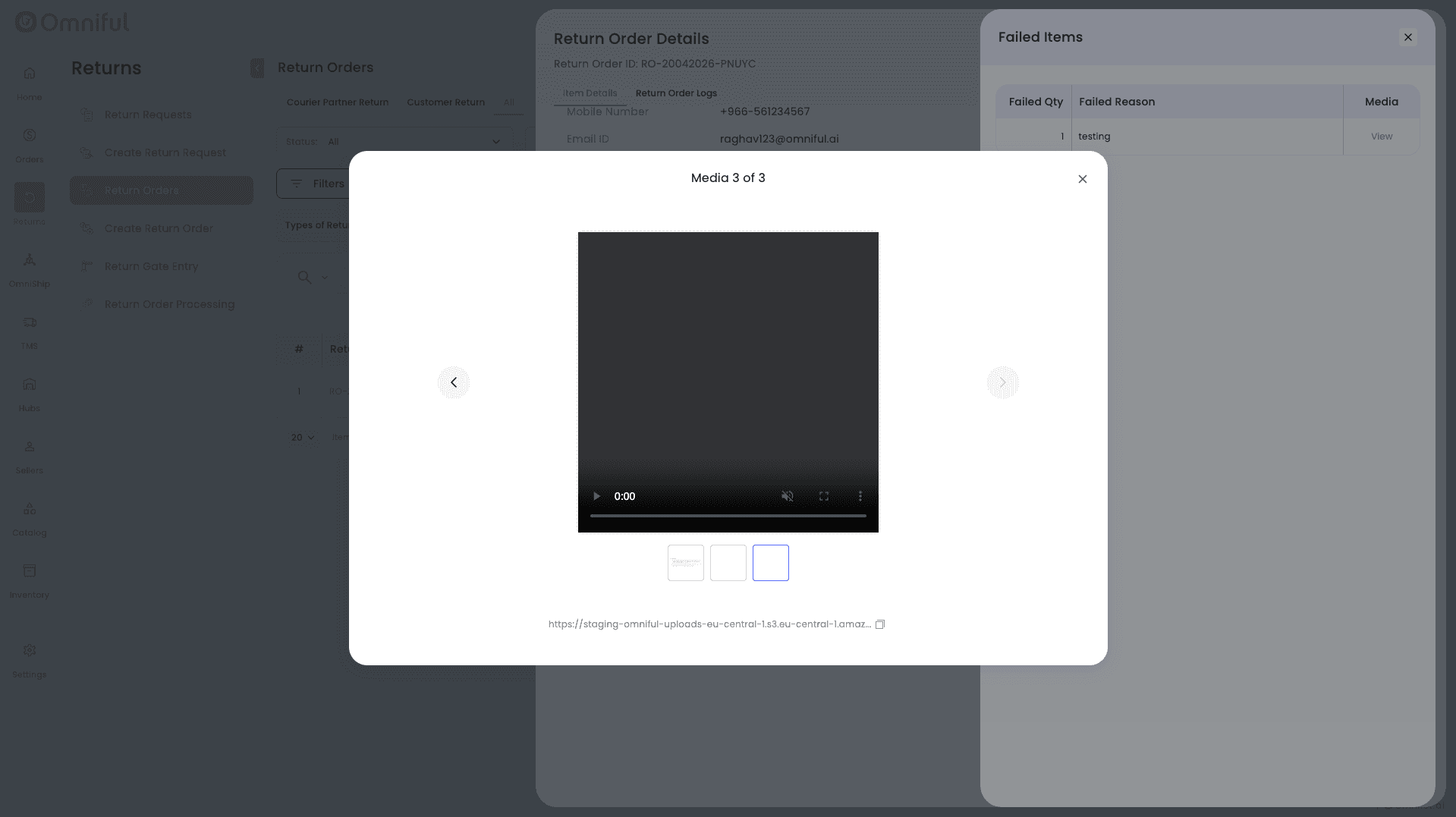
- Complete QC processing.
- View uploaded media in Return Order Details.
How It Works (HubOps App)
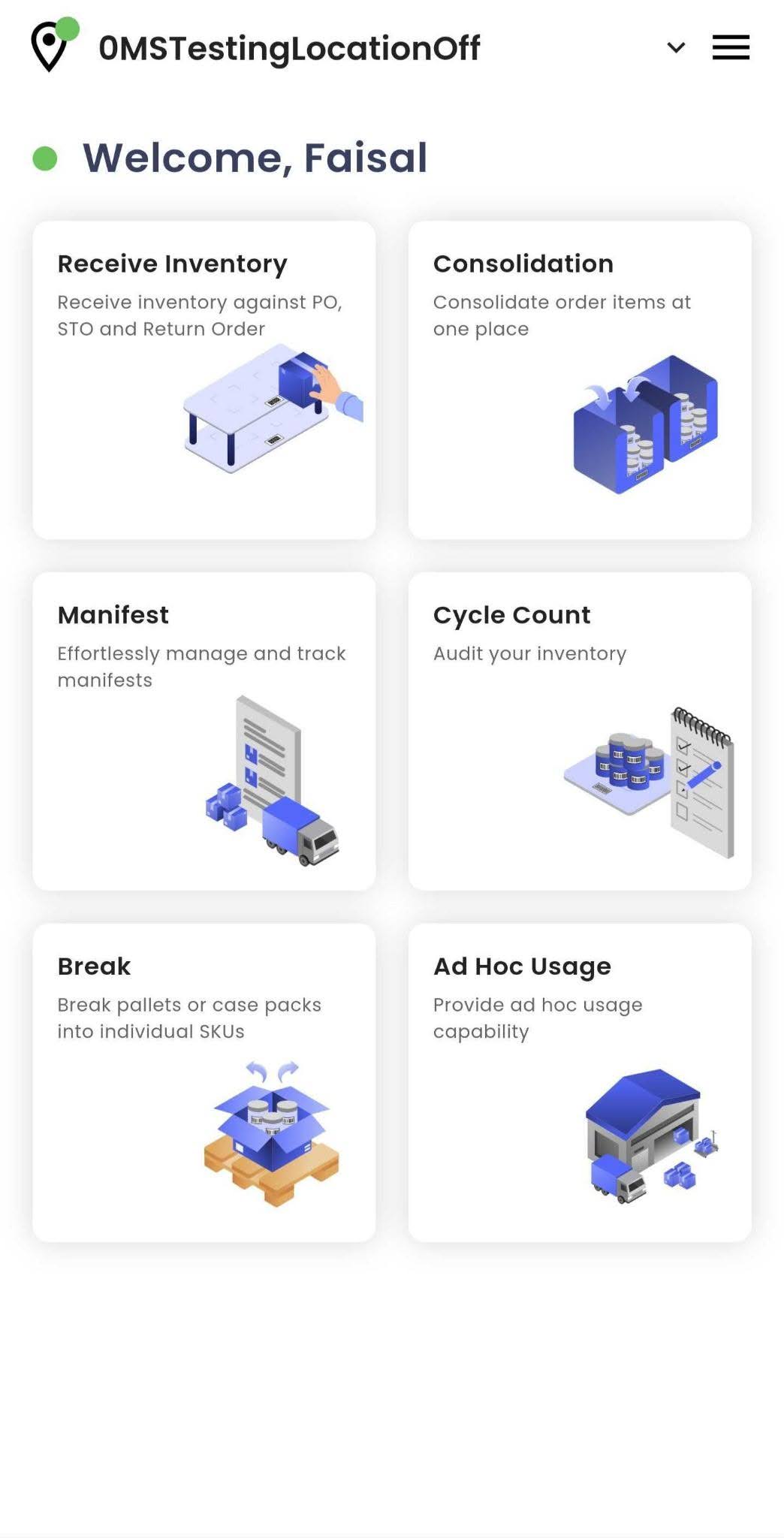
- Open the HubOps app and select Receive Inventory.
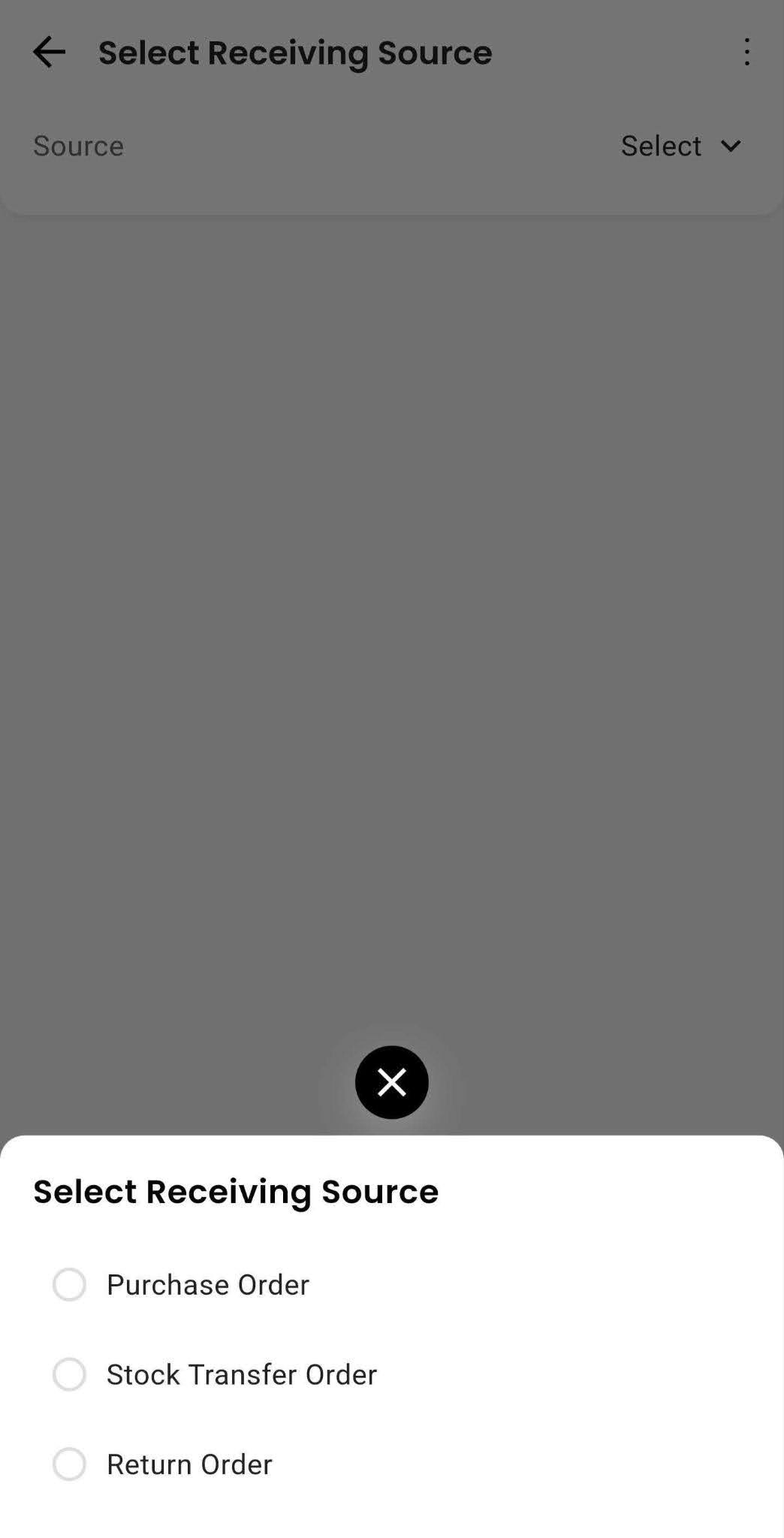
- Choose Return Order as the receiving source.
- Select the Fail Reason.
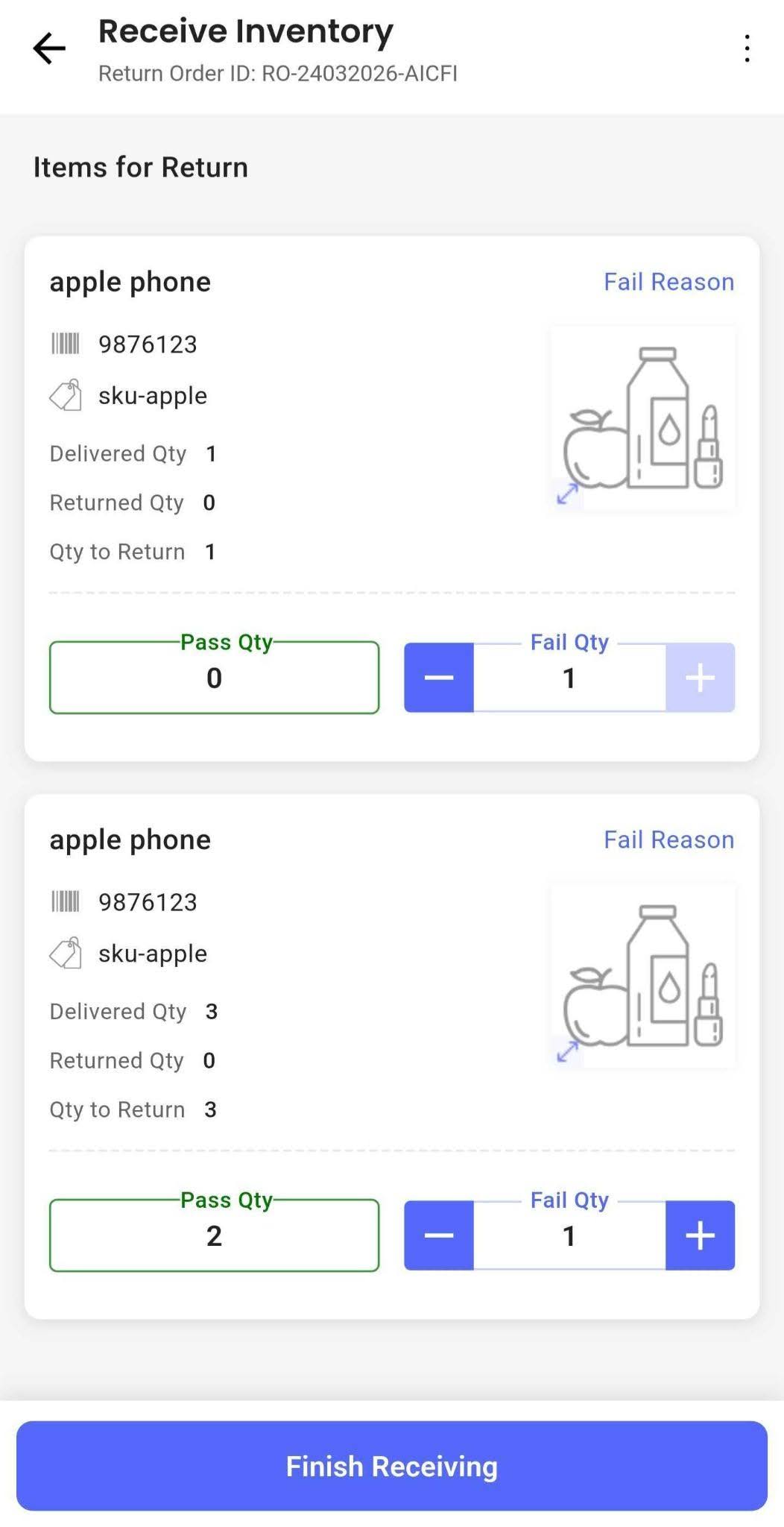
- Tap the Upload icon to add images or videos.
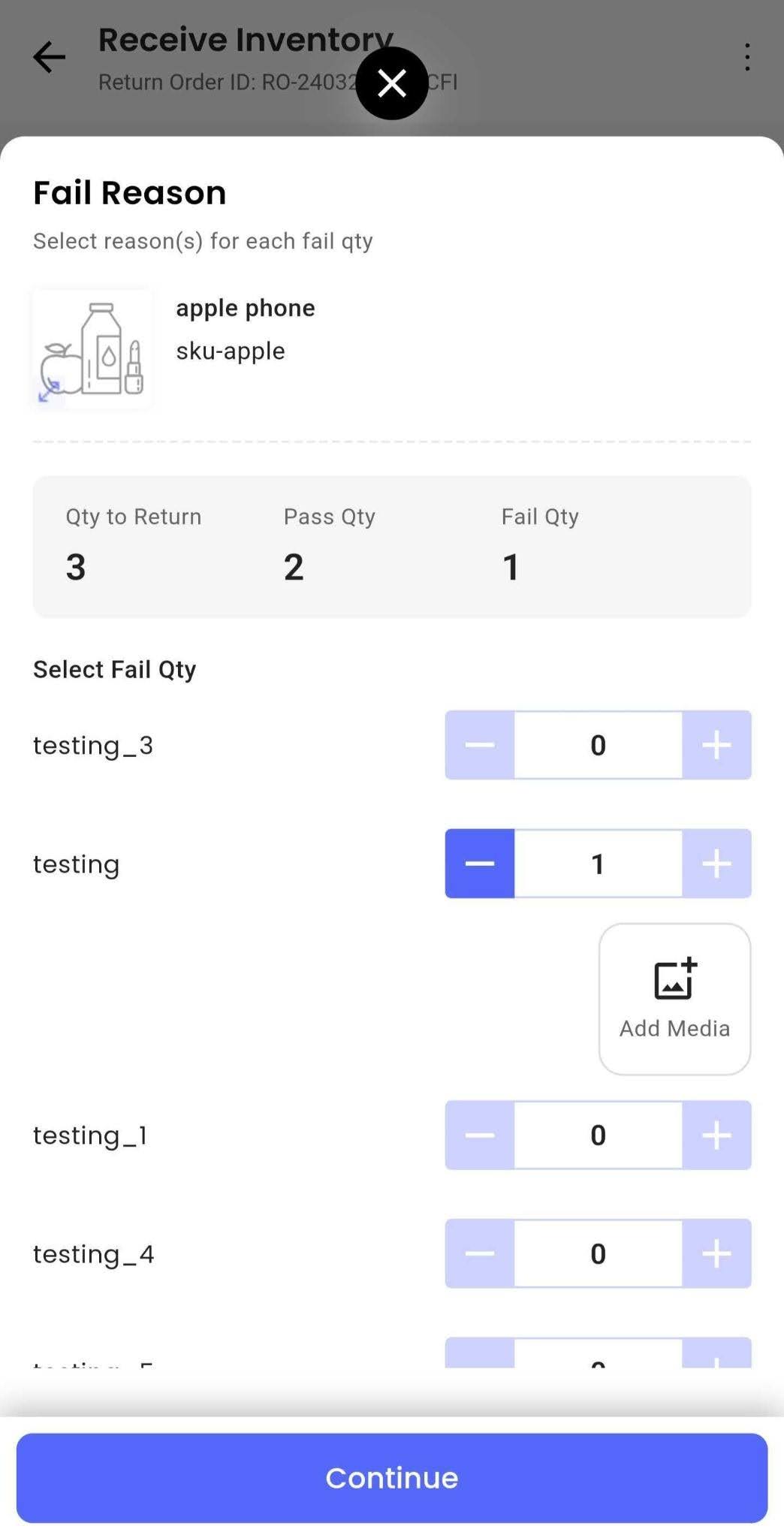
- Click Finish Receiving to complete the process.
Technical Details
- Maximum video size supported: 10 MB
- Maximum media uploads per QC reason: 3 files
- Supported upload types: Images and videos
- Additional configuration required: None